
01Who this is for
- Rental property managers who need instant updates for reservations and changes, reducing phone call workload.
- Owners of equipment rental services who must inform both customers and internal staff about booking status.
- Agency teams coordinating multiple locations, requiring consistent mobile communication across all listings.
02WhatsApp notifications for rentals, explained
The feature adds WhatsApp as an additional delivery option for Rental notifications within the platform's global settings. When enabled, each supported event, such as a new request, confirmation, cancellation, reschedule, reminder, or post rental follow up, can fire a WhatsApp message.
Notifications are managed per event under Rentals > Global settings > Notifications. Within each event’s panel you can turn on the WhatsApp channel, decide which recipient types (the renter or a business contact) receive a message, and assign a template for each recipient. Templates are either the platform’s defaults or any approved WhatsApp template you have created.
The process is centralized, so any listing that follows the global notification rules automatically inherits the WhatsApp settings. This keeps communication consistent across your entire rentals operation.
03How businesses use WhatsApp notifications for rentals
- Vacation rental agency. The agency opens the WhatsApp toggle for the Confirmation event, selects a friendly template for the guest, and a detailed template for the property owner. When a booking is confirmed, the guest receives a WhatsApp message with check in instructions, while the owner gets the reservation details.
- Construction equipment lender. The lender enables WhatsApp for Reminder events and chooses a concise reminder template for the renter only. Each day before the equipment pick up time, the system sends a WhatsApp reminder containing the date, time, and location.
- Event venue manager. The manager activates WhatsApp for Follow up events for both Contact and Business recipients. After an event ends, the system dispatches a WhatsApp asking the client for feedback and simultaneously sends the operations team a summary of the booking.
04The numbers and rules that matter
- Supported rental event types: Unconfirmed, Booked (Confirmed), Canceled, Rescheduled, Reminder, Follow up.
- WhatsApp messages are billed per message and follow the same categories (Marketing, Utility, Authentication, Service) used across HighLevel.
05Before you start
- A WhatsApp Business Account must be connected and active for the subaccount.
- Only Meta approved WhatsApp templates can be used in notifications.
- All phone numbers for contacts and business recipients need to include a country code and be WhatsApp enabled.
06How to set up and use WhatsApp notifications for rentals in HighLevel
Configure WhatsApp notifications for Rentals
- Verify that a WhatsApp Business Account and its phone number are linked and active in the Integrations area.
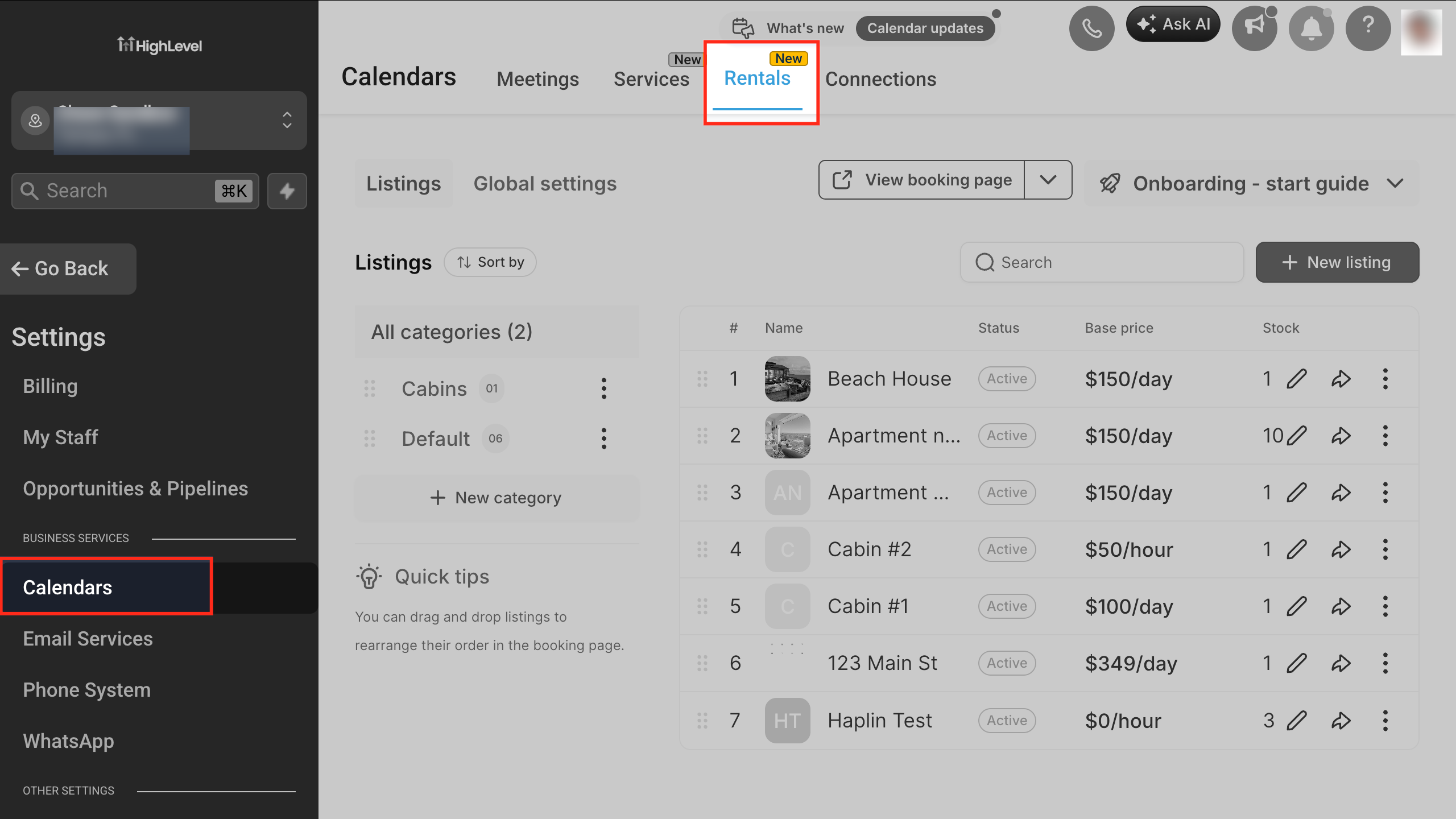
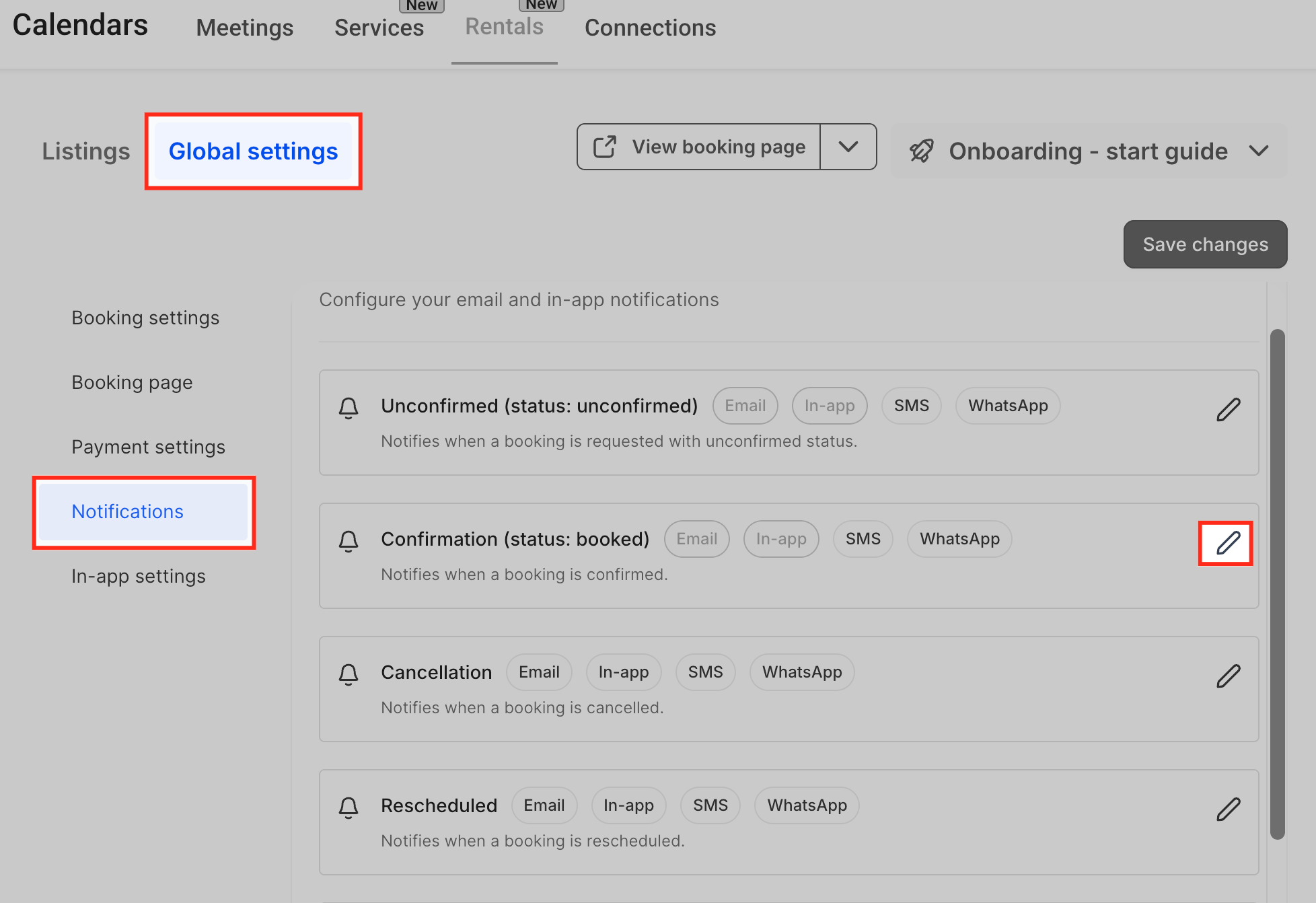
- Navigate to Calendars > Calendar Settings, choose Rentals, then open Global settings and select the Notifications tab.
- In the Notifications list, locate the event you wish to modify and click the pencil icon to edit its settings.
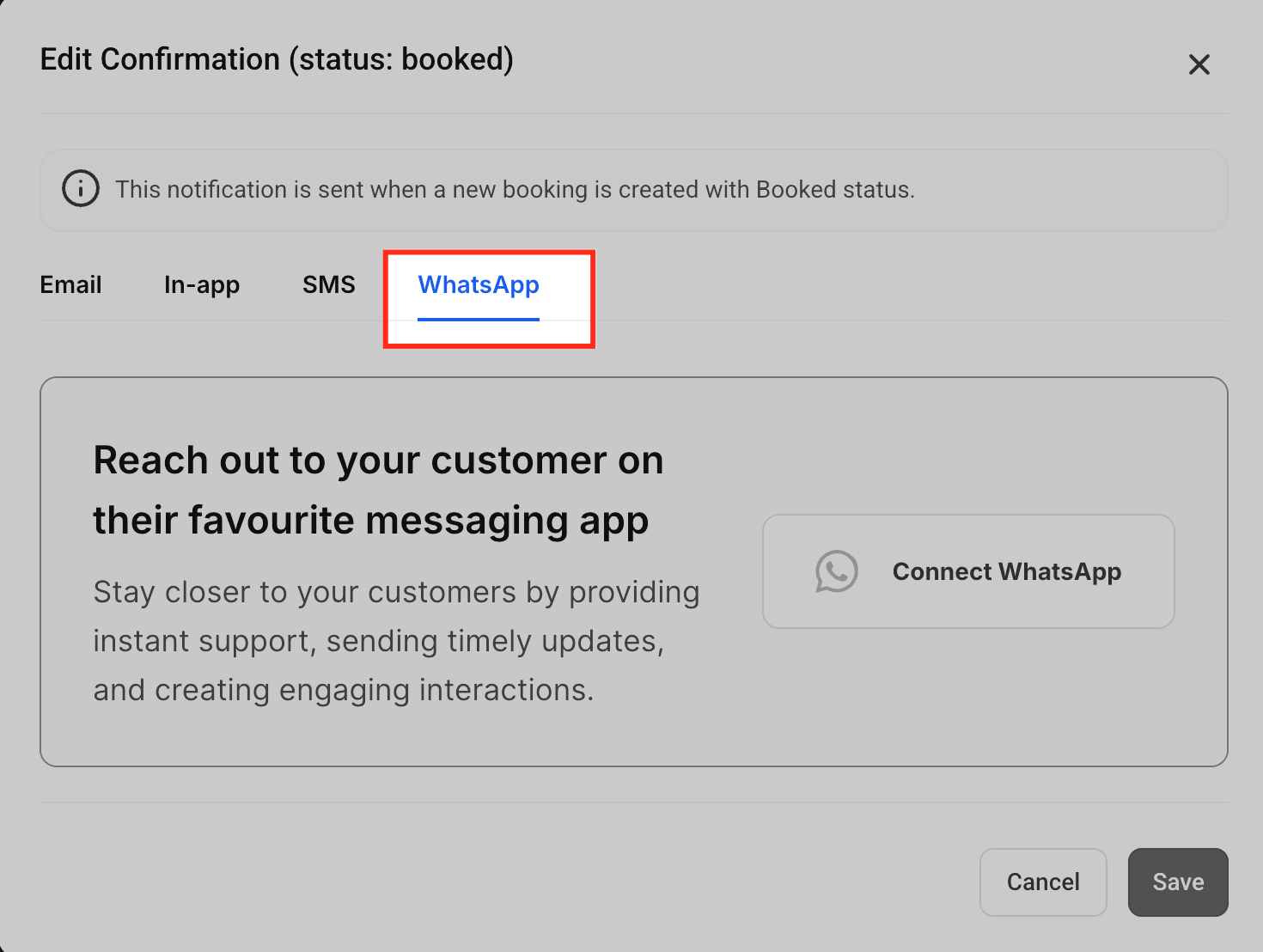
- Switch to the WhatsApp tab and turn the WhatsApp toggle on for the selected event.
- Pick the recipient type(s): Contact, Business, or both, based on who should receive the message.
- For each recipient, choose a default template, select another approved template from the dropdown, or create a new one using the builder.
- Optionally click Fetch WhatsApp templates to update the dropdown with any newly approved templates.
- Press Send test WhatsApp notification, enter a test number, and verify the message content and template selection.
- Click Save to store the configuration for that event.
- Create a test rental booking that triggers the configured event and confirm that WhatsApp messages are delivered to the intended recipients.
07What it looks like in HighLevel
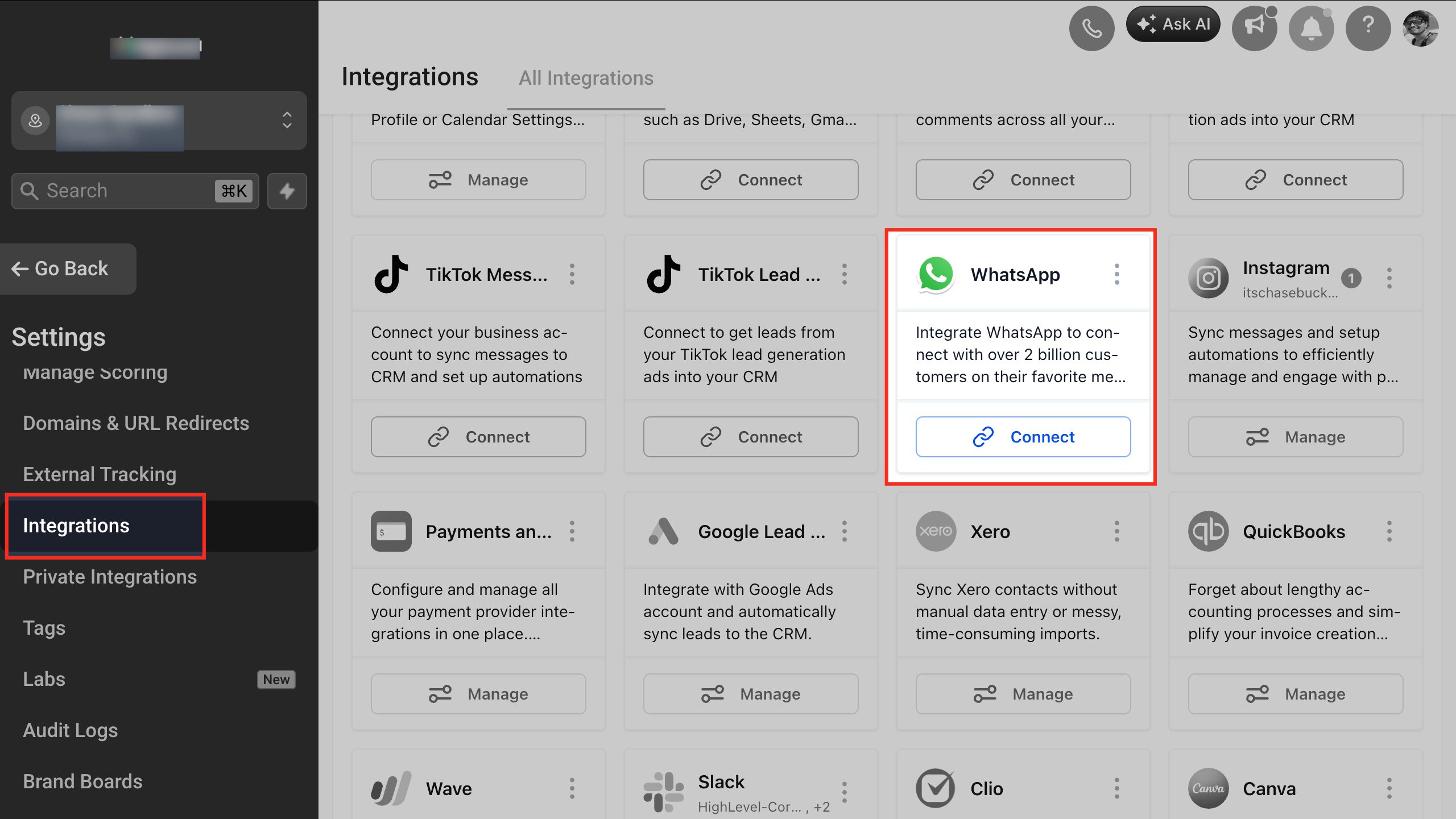
08Settings that matter
- WhatsApp toggle. Controls whether WhatsApp is used as a delivery channel for the chosen rental event.
- Recipient Type. Determines which audience, Contact (the renter) or Business (internal or partner number), receives the WhatsApp message.
- Template dropdown. Allows selection of an approved WhatsApp template for each recipient type.
- Fetch WhatsApp templates. Refreshes the template list with the latest approved templates from the connected WhatsApp Business account.
- Send test WhatsApp notification. Sends a preview message to a specified number so you can verify content and formatting before going live.
09Things to know before you rely on it
- WhatsApp messages are billed per message according to categories such as Marketing, Utility, Authentication, or Service.
- All rental WhatsApp messages share the same messaging limit pool, so high volume usage may hit the overall limit.
- Only Meta approved templates can be used; unapproved templates will not be delivered.
- Numbers without WhatsApp registration or missing country codes may cause delivery failures.
10If something goes wrong
- Message fails to deliver. Confirm the recipient number includes a correct country code and is registered on WhatsApp.
- Template not sending. Replace the template with one that has been approved by Meta.
- Unsupported message format error. Use only supported content types such as text, basic media, or approved template structures.
11How it connects to the rest of HighLevel
- Learn how to create and edit rental listings before enabling notifications. Rentals Create & Edit Listings
- Review the pricing and plan options that affect WhatsApp usage costs. HighLevel pricing and plans
- Start a trial of HighLevel to test WhatsApp notifications in a sandbox environment. Start a 30 day HighLevel trial
Michael's take

In my experience, adding WhatsApp can complement existing email or SMS reminders, especially for time sensitive communications.
If your rentals are low volume or you already have a reliable phone call process, the extra cost of per message pricing and the need to keep templates approved can outweigh the benefit. In those cases you might stick with email or SMS and only enable WhatsApp for high value or time sensitive events.