
01Who this is for
- Rental business owners who want to reduce manual cancellation requests and keep financial decisions in house.
- Customer support teams that need a way for clients to cancel without opening a ticket.
- Operators of multi listing rentals who require a single action to release all items in a booking.
02Self service cancellations, explained
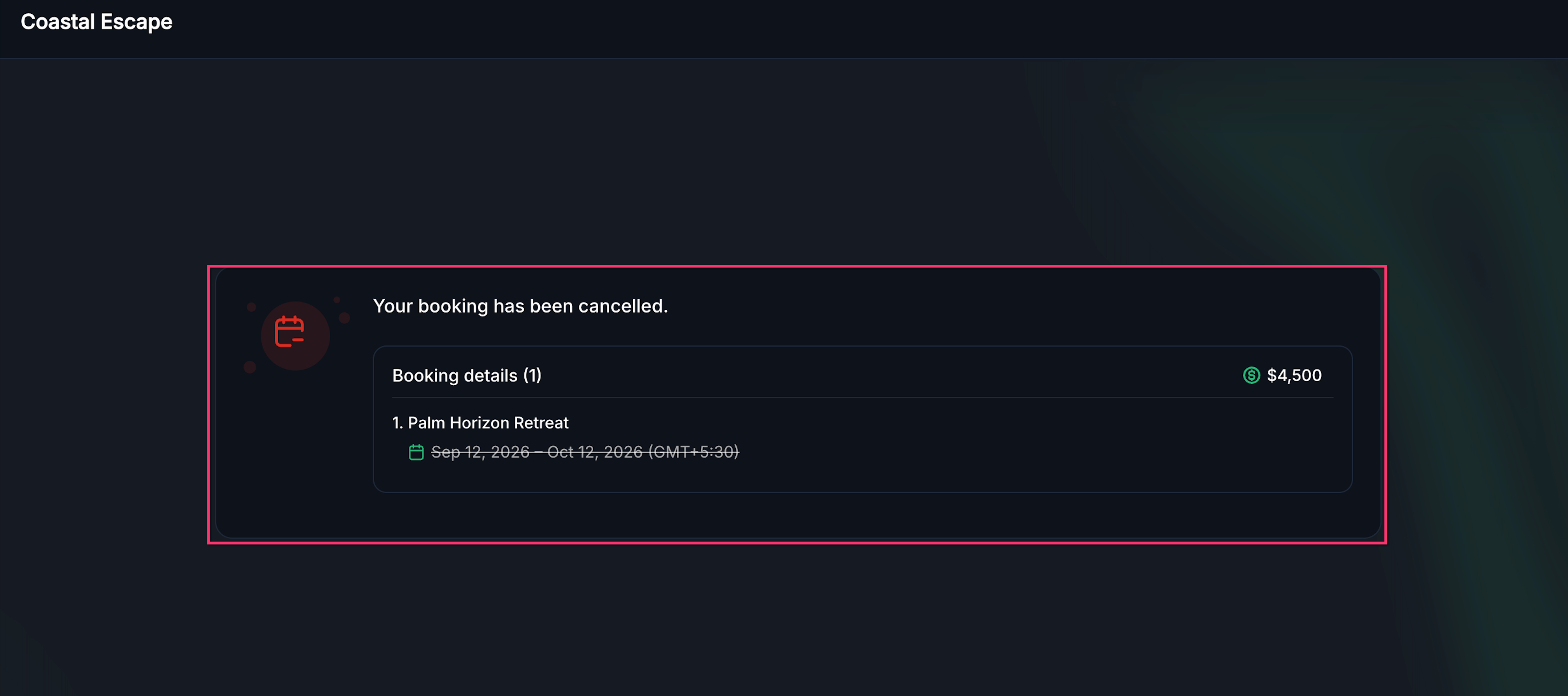
The feature adds a cancellation link to each rental booking. When a client clicks the link, they see the reservation details, can optionally provide a reason, and confirm the cancellation. The booking is then marked cancelled and the inventory is freed.
The link works only for eligible upcoming bookings. Operators may enable a cutoff period that makes the link unusable a set amount of minutes, hours, or days before the start time. If the cutoff is not enabled, the link remains active until the booking begins.
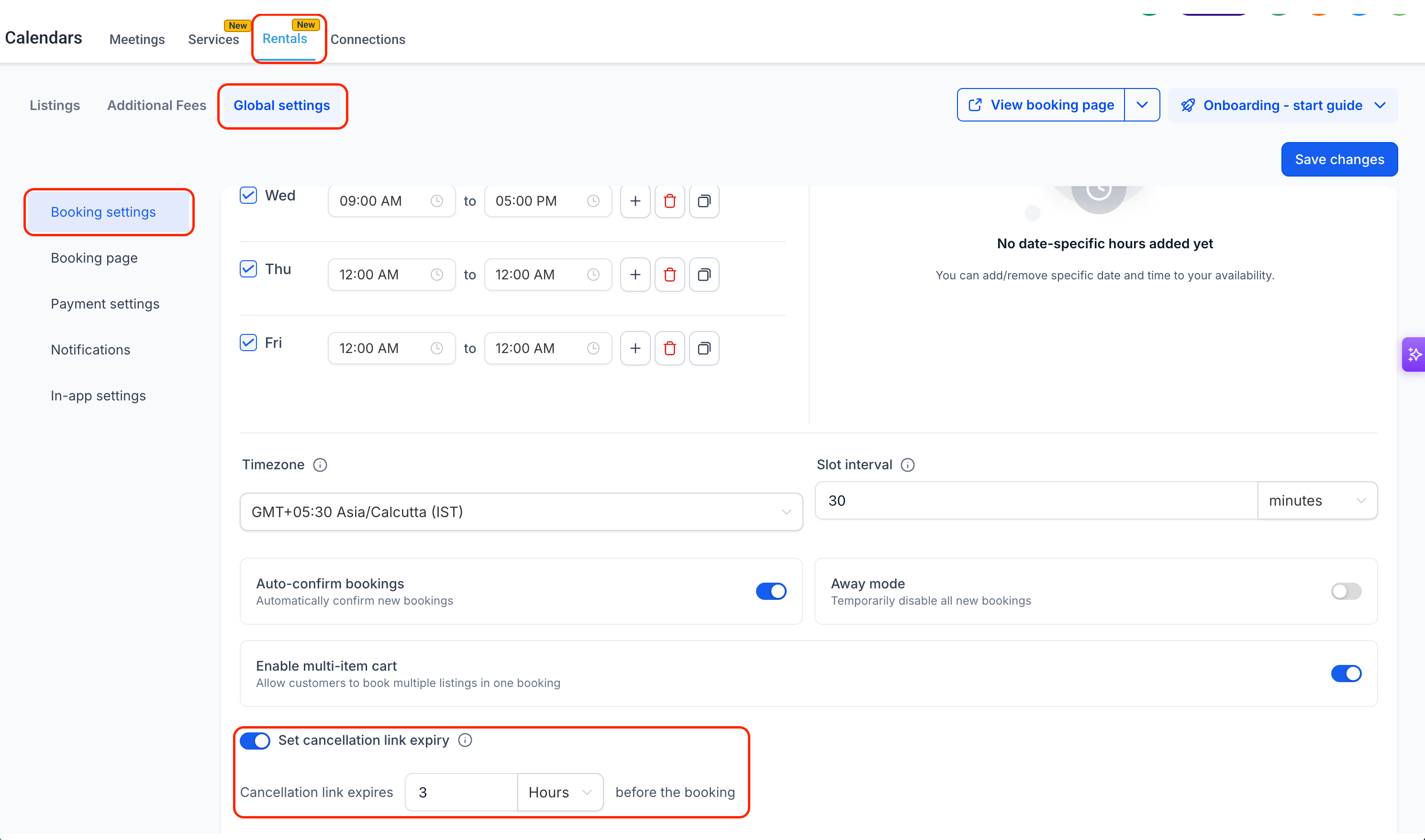
All of these controls are found in the Rentals Global settings under Calendars > Rentals > Global settings > Booking settings.
03How businesses use self service cancellations
- Event venue rental. The venue manager enables a cutoff of 24 hours so clients cannot cancel within a day of the event. The manager then embeds {{rentalBooking.cancellation_link}} in the confirmation email so guests can cancel early on their own.
- Equipment hire company. The company adds the cancellation custom value to reminder SMS messages, labeling the link "Cancel your rental". Clients receive the link a day before the pickup and can cancel if plans change, while the company still decides on any deposit refunds.
- Sports facility booking service. The operator turns on the optional expiry and sets it to three hours. This prevents last minute cancellations but allows users to cancel earlier via the link placed in their booking confirmation.
04How to set up and use self service cancellations in HighLevel
Set the window during which the cancellation link is valid
- Open Calendars > Rentals > Global settings and select the Booking settings tab.
- Activate the Set cancellation link expiry option.
- Enter the amount of time (minutes, hours, or days) before the start of the booking when the link should stop working.
- Leave the setting off if you want the link to stay active until the booking begins.
- Click Save changes to apply the new cutoff.
Insert the cancellation link into a customer message
- Add the custom placeholder {{rentalBooking.cancellation_link}} to the body of the notification or reminder you are building.
- Place the placeholder wherever you want the client to see the link in the final message.
- Use clear wording such as "Cancel your booking" so the recipient knows what the link does.
Guide the client through the self service cancellation process
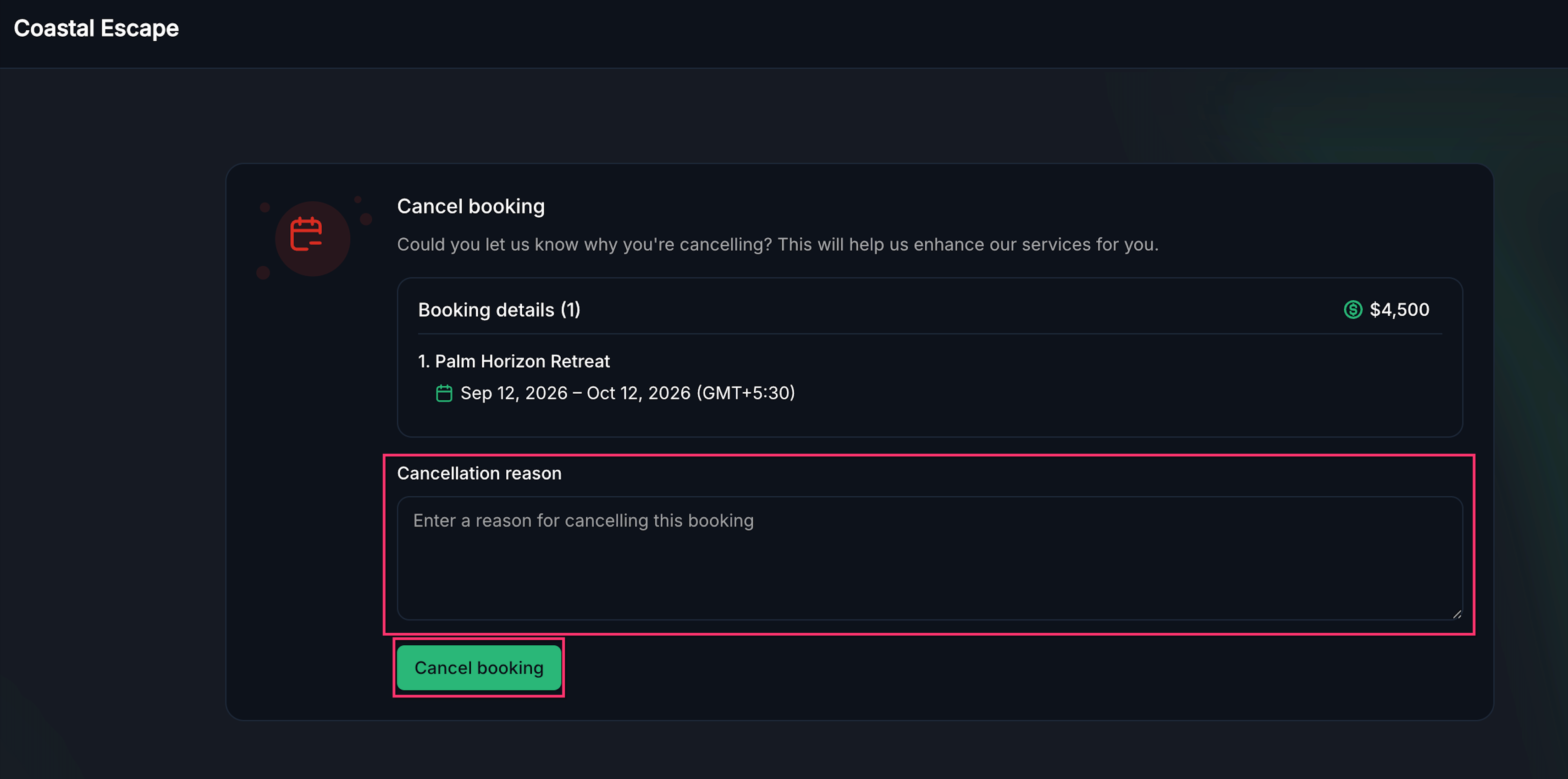
- The client opens the cancellation link they received.
- They review the booking details displayed on the page.
- If desired, they type a reason in the optional cancellation reason field.
- They click the Cancel booking button to finish the cancellation.
- If the link is no longer valid, a friendly message is shown instead of an error.
05What it looks like in HighLevel
06Settings that matter
- Set cancellation link expiry. Controls whether the cancellation link stops working a chosen amount of time before the booking starts.
07Things to know before you rely on it
- The expiry setting is optional; without it, the link works up to the exact start time of the booking.
- Self service cancellation is only available for upcoming bookings; once a booking has started or finished, the link is invalid.
- Cancelling through the link does not trigger any automatic refund, payment adjustment, or security deposit action.
- For multi listing bookings, the cancellation applies to the entire reservation, not to individual listings.
08How it connects to the rest of HighLevel
- Overview of how to set up rentals in HighLevel Rentals overview
- Create and edit rental listings to generate bookings Create listings
- Configure pricing and discounts for rental items Pricing and discounts
- View and manage rental bookings in the calendar view Calendar view
Michael's take

Providing a direct cancellation link reduces the back and forth of phone calls and emails, freeing your team to focus on higher value tasks.
I recommend turning on the cancellation link expiry and setting a clear cutoff. Such as a few hours before the start time. So you retain control over last minute changes while still allowing customers to manage most cancellations themselves.