
01Who this is for
- Coaches who need weekly client check ins, because the feature creates a full series without manual entry.
- Training managers arranging multi day workshops, as they can set custom intervals like every second Tuesday.
- Consultants running annual reviews, benefiting from a single link that works for every repeat.
02Recurring appointments, explained
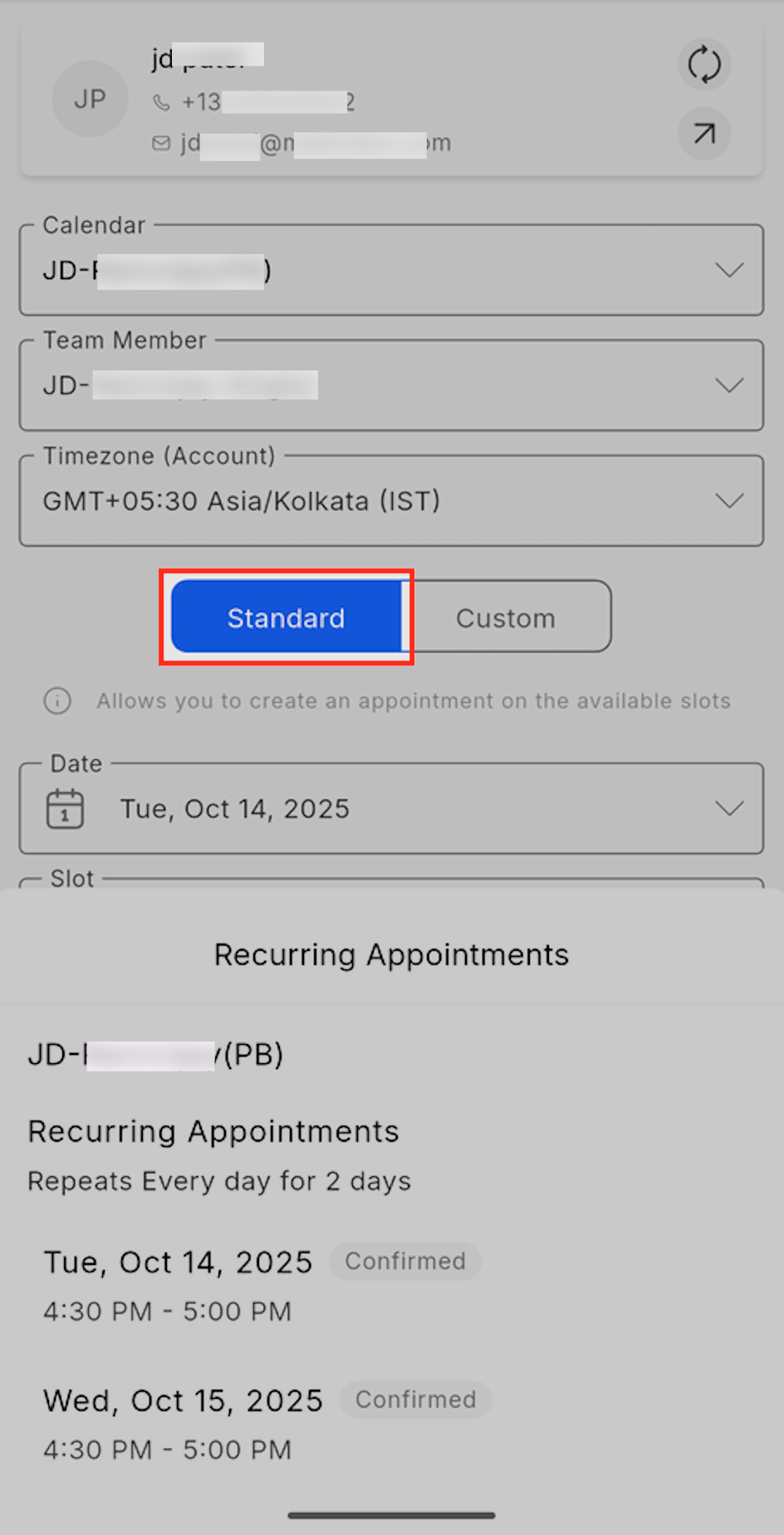
Recurring appointments are a mobile only way to generate a repeating series of events. The series can follow the calendar’s preset recurrence rule (Standard Recurrence) or use a user defined schedule (Custom Recurrence).
Standard Recurrence checks each occurrence against the selected calendar’s availability, skipping dates that are booked. Custom Recurrence ignores availability, allowing overlaps if another meeting already occupies the slot.
All settings are accessed from the Schedule Appointment screen in the HighLevel mobile app (iOS or Android). After saving, a single Zoom, Google Meet, or Microsoft Teams link is attached to every appointment in the series.
03How businesses use recurring appointments
- Coaching business. The coach taps the plus icon, selects the client’s calendar, chooses Standard Recurrence, and lets the app verify availability. The series creates weekly sessions with one shared video link, saving time on scheduling each call.
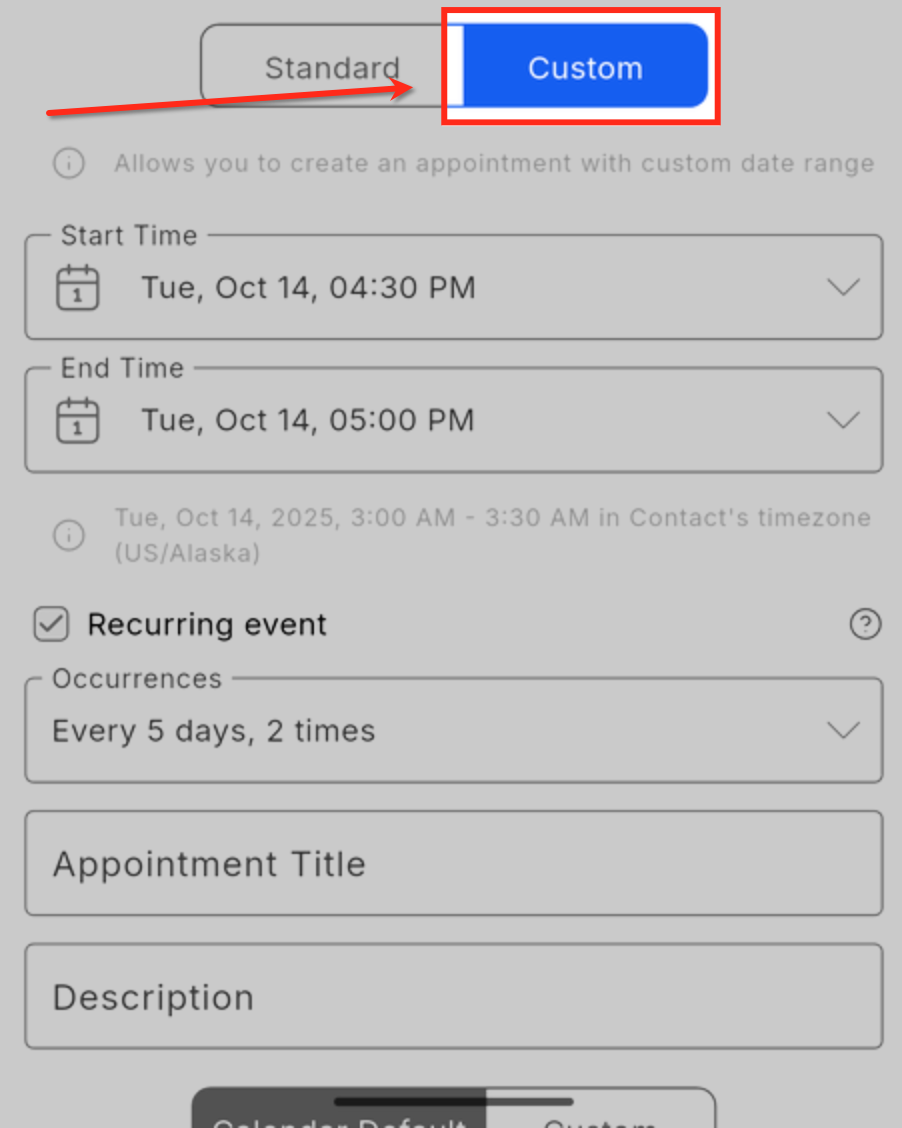
- Corporate training department. A trainer opens the mobile app, picks Custom Recurrence, enables the Recurring Appointment toggle, and defines a pattern such as every second Tuesday for a quarter long program. The app books the slots even if they fall outside regular hours.
- Financial advisory firm. An advisor selects a calendar, sets a Standard Recurrence for monthly review meetings, and lets the system skip dates that are already occupied. All meetings use the same conference link, simplifying client access.
04The numbers and rules that matter
- Recurring appointments are available in HighLevel or LeadConnector mobile app version v3.108.x or later, including white labeled builds.
- Standard calendars support up to 24 repeats based on calendar settings.
- Custom recurrence can exceed 24 repeats if “No end date” is selected.
05Before you start
- A calendar with availability rules must already exist in HighLevel.
- Use the HighLevel mobile app version v3.108.x or later.
06How to set up and use recurring appointments in HighLevel
Set up a recurring appointment from the mobile app
- Tap the ➕ (plus) icon at the bottom of the Appointments screen.
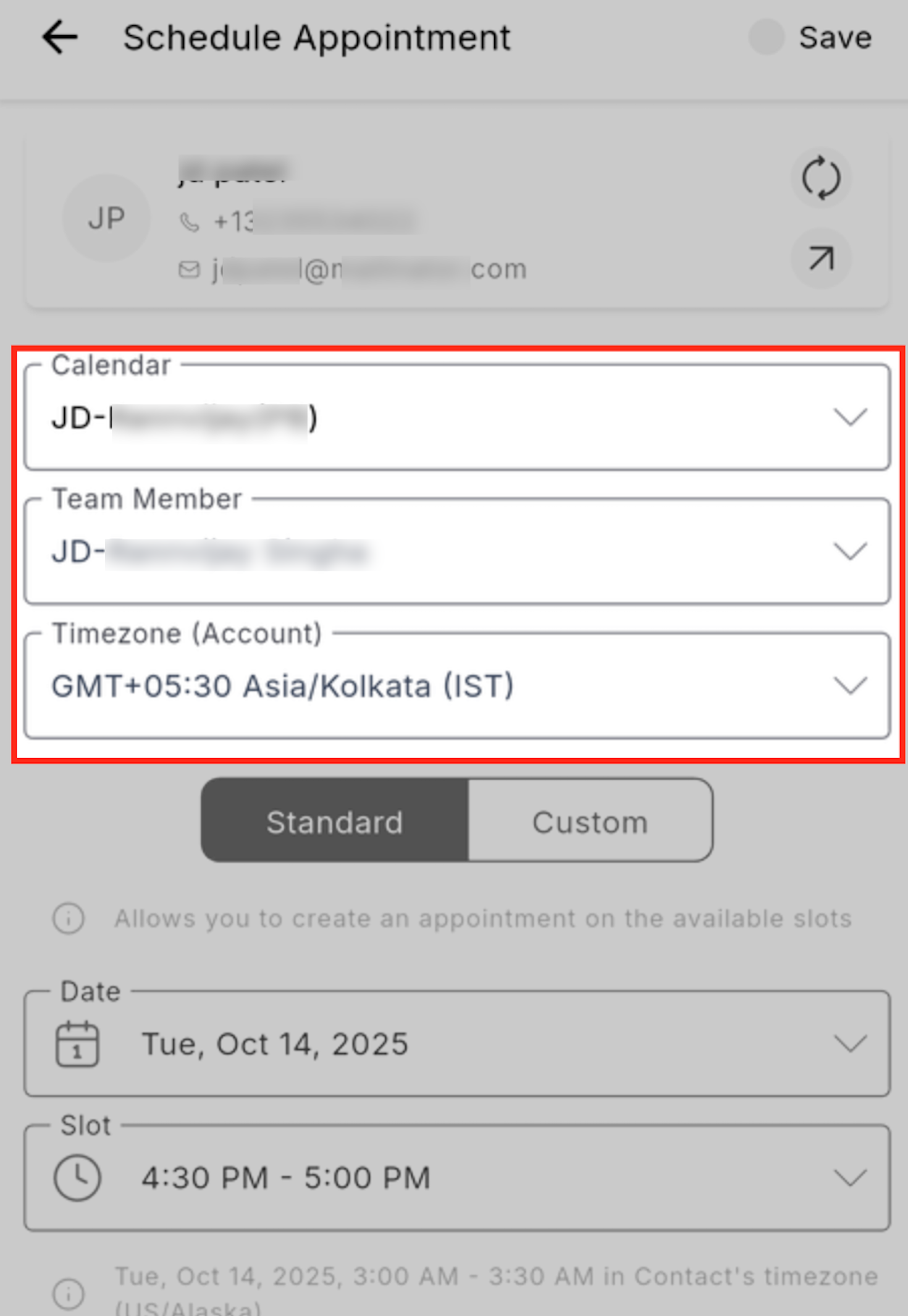
- Select Schedule Appointment to start a new booking.
- Tap the Calendar dropdown and choose the calendar where the appointment will be booked.
- Tap the Team Member field and select the staff member who will host the meeting.
- Confirm the Timezone field, adjusting it if the appointment crosses regions.
- Under the date and time fields, choose either Standard Recurrence or switch to Custom.
- If using Custom, turn on the Recurring Appointment toggle found under Custom Date & Time.
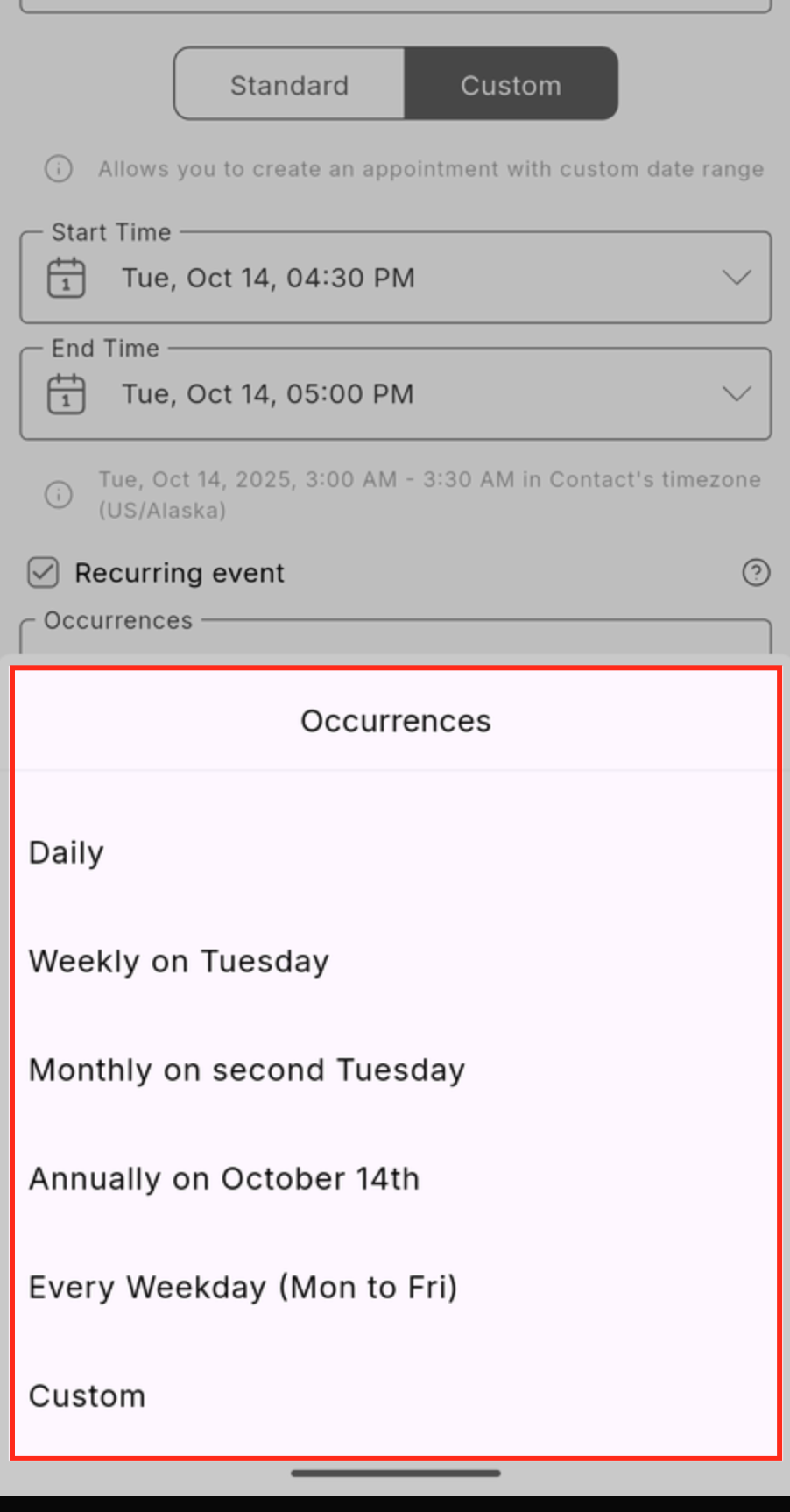
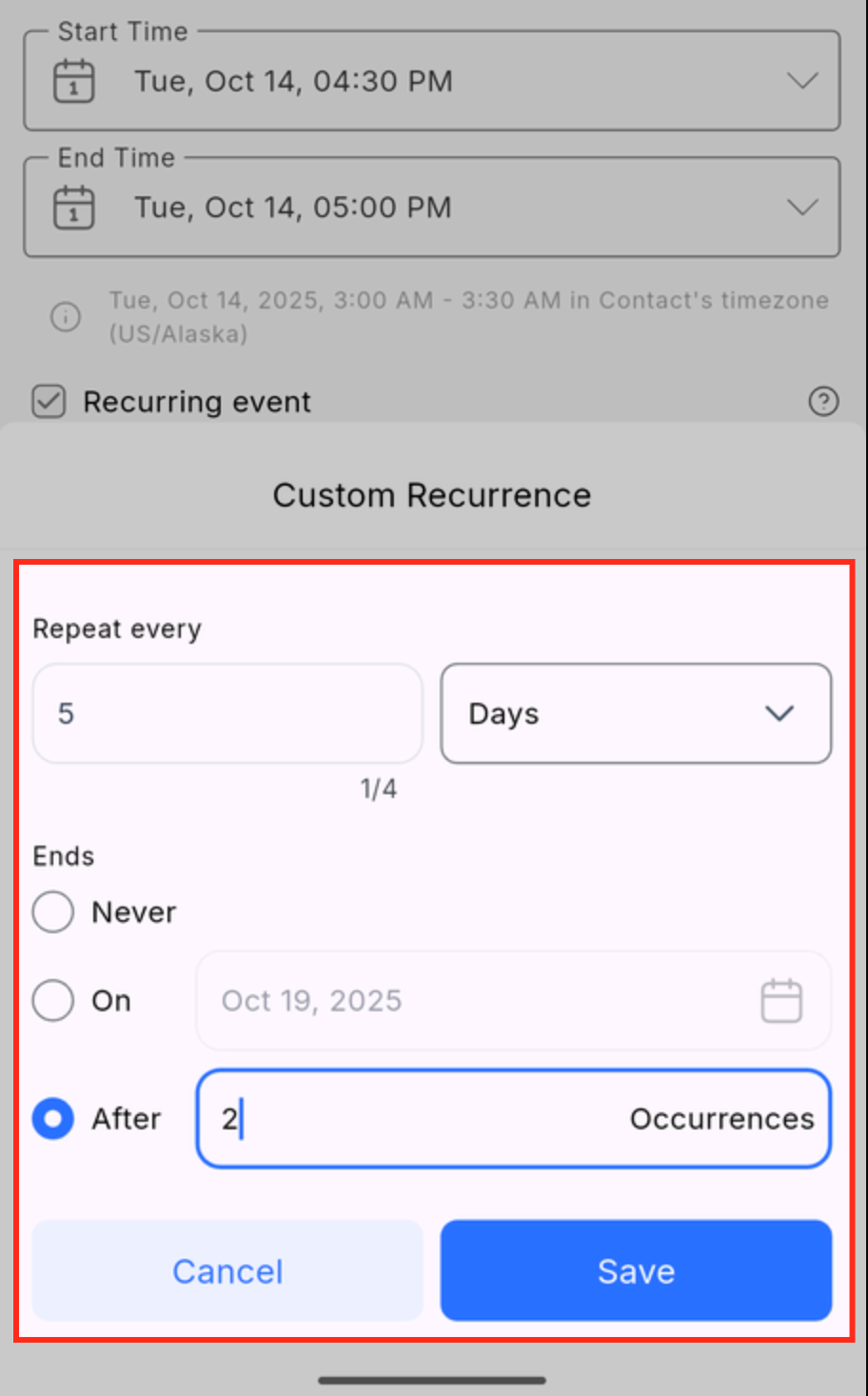
- Define the recurrence pattern (daily, weekly, monthly, or custom interval) and set the end condition.
- Tap Save to create the series.
- Review the generated meeting link and open the calendar view to verify each event appears as expected.
07What it looks like in HighLevel
08Settings that matter
- Standard Recurrence. Applies the calendar’s existing recurrence rule and checks each occurrence against availability, skipping conflicts.
- Custom Recurrence. Allows you to specify your own repeat schedule, ignoring calendar availability and potentially creating overlapping bookings.
- Recurring Appointment. A toggle under Custom Date & Time that enables custom repeat patterns for the appointment.
- Recurrence Pattern. Defines how often the appointment repeats, such as daily, weekly, monthly, or specific intervals like every second Tuesday.
- End Condition. Determines when the series stops: after a set number of occurrences, on a chosen date, or never.
09Things to know before you rely on it
- Standard calendars support up to 24 repeats based on their settings.
- Custom recurrence can exceed 24 repeats when “No end date” is selected.
- Custom Recurrence does not check availability, so overlapping bookings are possible.
- Payment collection is not available when scheduling on the mobile app.
10How it connects to the rest of HighLevel
- Learn how your calendar’s weekly and date specific hours affect scheduling. Calendar availability
- Navigate quickly through your appointments in the mobile view. In app calendar view
- Customize the calendar widget that appears on your website or booking page. Calendar widget customization
Michael's take

The mobile recurring feature lets you create an entire series from your phone, which can be handy when you need to schedule regular client sessions. The single meeting link and the ability to edit or delete the whole series in one step make management straightforward.