
01Who this is for
- Clinic owners can monitor treatment chairs to avoid overlapping appointments.
- Event planners can control projectors and sound systems across multiple venues.
- Gym managers can schedule workout machines to improve member access.
02Equipment, explained
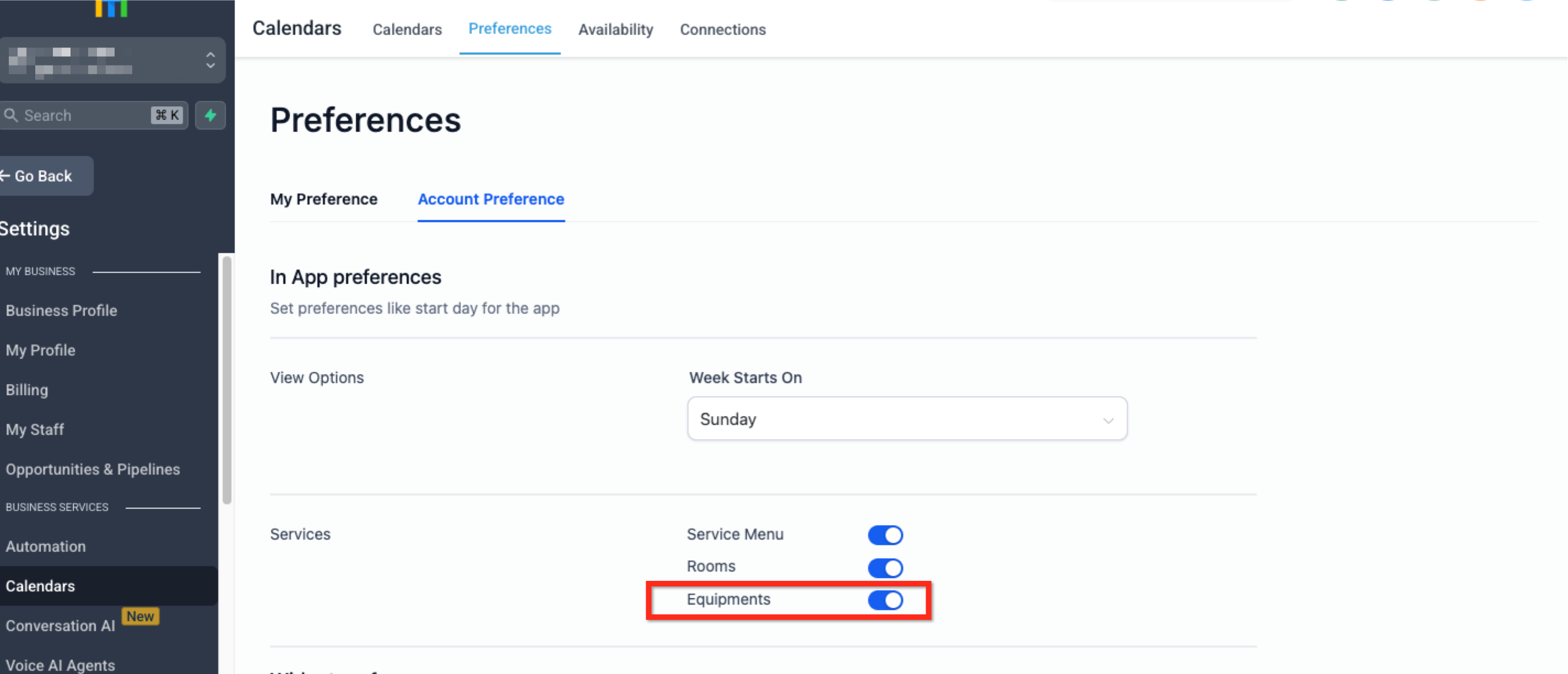
Equipment is a shared resource that can be attached to service calendars. When an item is defined, the platform checks its availability before confirming an appointment, so the same piece cannot be booked for two clients at the same time. The feature lives under Settings then Calendar Settings, where you enable it and add individual equipment records. When equipment is linked to a calendar, its total quantity and out of service count determine how many units are usable at any moment. Multiple calendars can reference the same equipment, but a single unit can only be used in one appointment at a time. All configuration steps are found in the Calendar Settings area of the platform. The toggle for equipment appears in the Services section of the Account Preference tab, and the creation form is accessed via the Equipment tab under Calendar Settings.
03How businesses use equipment
- Dental practice. Enable the equipment feature, then add a record named "Dental Chair" with the number of chairs available. Associate the chairs with the practice's appointment calendars. When a patient books a procedure, the system reserves a chair only if one is free.
- Yoga studio. Create an equipment entry for "Yoga Mat" and set the quantity to match the studio's inventory. Link the mats to class calendars so each class can only be scheduled if enough mats remain unassigned.
- Corporate training company. Add a "Projector" equipment record, specify the total units, and attach it to all training room calendars. The platform prevents two training sessions from using the same projector at the same time.
04How to set up and use equipment in HighLevel
Enable equipment
- Open Settings and select Calendar Settings.
- Click the Preferences tab in the secondary navigation ribbon.
- Choose the Account Preference tab that appears under Preferences.
- Turn on the blue switch labeled Equipments in the Services area.
Create equipment
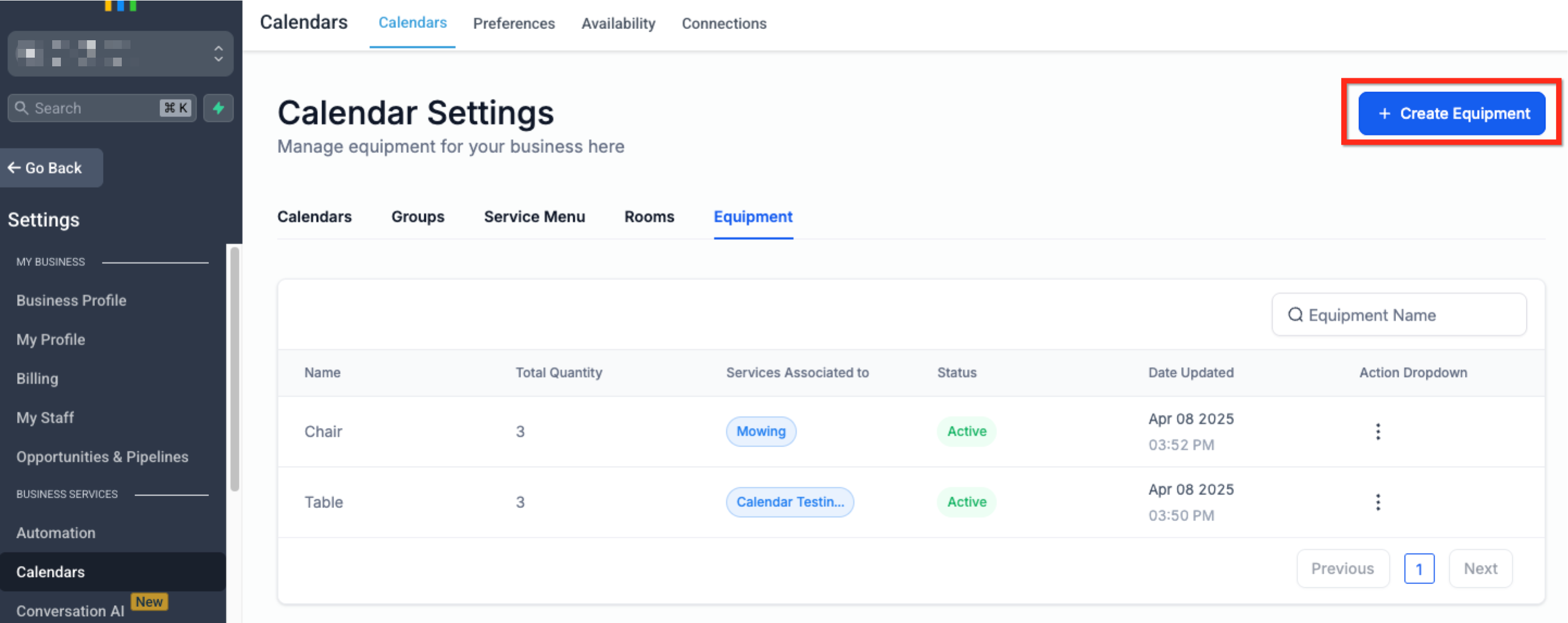
- Return to the Calendars tab inside Calendar Settings via the secondary navigation.
- Select the Equipment tab that sits under Calendar Settings.
- Press the blue Create Equipment button located at the upper right corner.
Provide equipment detail
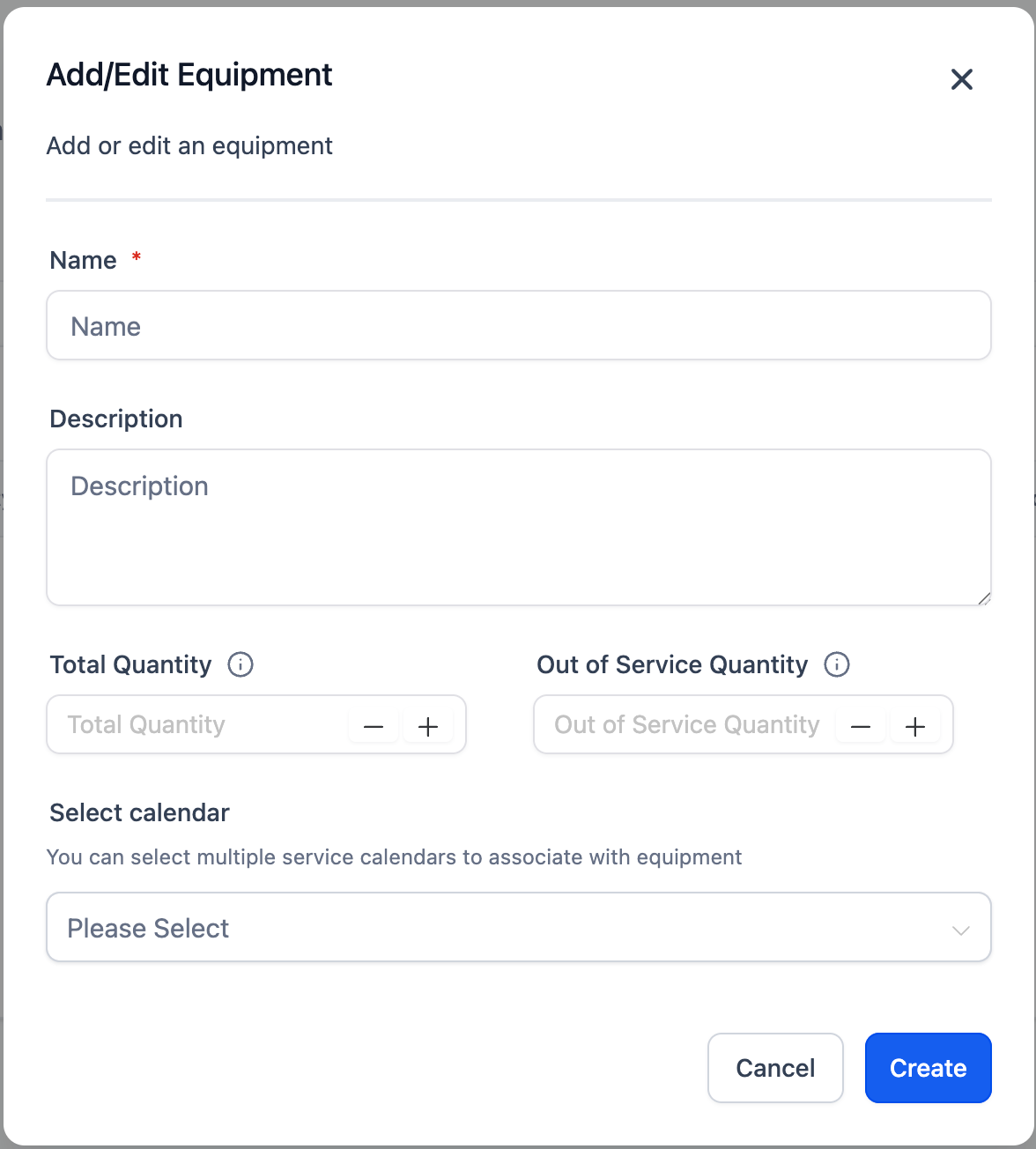
- Enter a distinct name for the equipment.
- Write a short description that explains its purpose.
- Set the total quantity of units that exist.
- Enter the count of units currently out of service.
- Pick the calendars that should have access to this equipment.
- Click the blue Create button in the lower right to save the entry.
Edit or delete equipment
- Navigate to Settings then Calendar Settings.
- Open the Equipment tab in the ribbon beneath Calendar Settings.
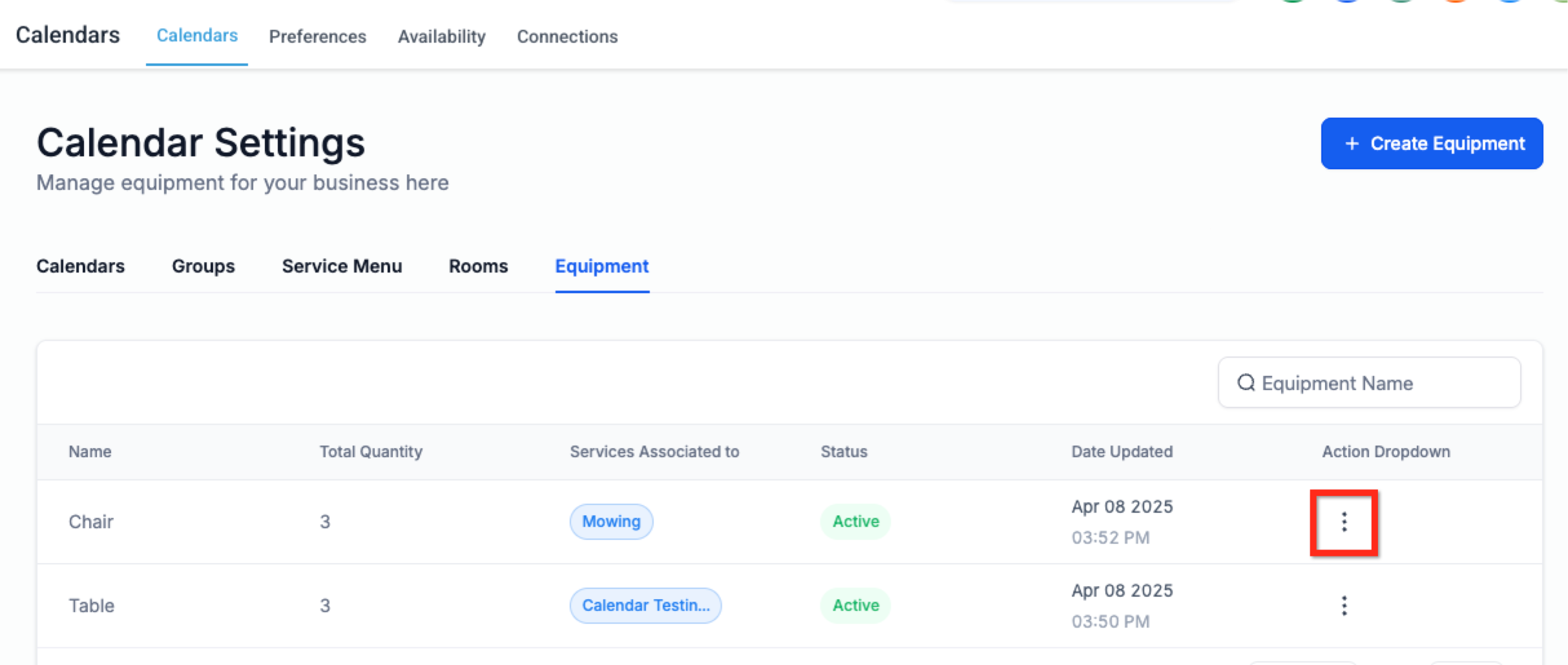
- Select the three dot icon next to the equipment you wish to modify.
- Choose Edit to change details or Delete to remove the item.
- Make any adjustments and click Save to confirm.
05What it looks like in HighLevel
06Settings that matter
- Equipments. Activates the equipment module so resources can be added and linked to calendars for booking control.
07Things to know before you rely on it
- An equipment item can be linked to several calendars, but only one appointment may use the item at a specific time.
- The platform does not provide built in reports for equipment usage.
- Removing equipment that is already attached to appointments will eliminate its availability rules, which may affect scheduling.
- The total quantity defines how many identical units exist; the out of service quantity reduces the count of usable units.
08If something goes wrong
- Deleting equipment that is currently assigned to appointments. Check all calendars that reference the equipment before removing it to avoid unintended scheduling changes.
09How it connects to the rest of HighLevel
- Configure rooms and equipment in HighLevel rooms and equipment guide
- Create rooms to avoid double bookings create rooms guide
- Set up a group calendar in HighLevel group calendar guide
Michael's take

Skipping equipment setup can quickly turn your calendar into a juggling act, with staff scrambling to share projectors or chairs and appointments colliding. That chaos hurts client experience and wastes time.
When you enable and define equipment, the system considers equipment availability during scheduling, which helps avoid double bookings and keeps operations smoother.