
01Who this is for
- Founders of consulting firms can apply negotiated fees to individual client sessions without altering their regular rates.
- Salon owners can set a $0 charge for complimentary treatments while preserving normal pricing for future bookings (per HighLevel's help center, checked November 2026).
- Clinic managers can override a staff member’s usual fee for a single therapy appointment to match a special agreement.
02Appointment specific service pricing, explained
The feature adds a field inside the Services appointment modal where a user may type a new amount for the selected service. Once entered, HighLevel replaces the normal price with this value for that appointment only. The system shows a Custom tag next to the amount so staff can see the override at a glance.
Pricing hierarchy works as follows: if a custom amount exists, HighLevel uses it; if not, it checks whether the chosen staff member has a personal price for the service; otherwise the platform falls back to the service’s standard price. The custom entry does not affect any other appointments or pricing tables.
This capability is available both in the web interface and in the HighLevel mobile app, letting team members edit prices while on the go. The appointment total updates right away after the new price is confirmed.
03How businesses use appointment specific service pricing
- Consulting agency. A consultant creates a new Services appointment, opens the service line, and types the agreed upon fee for that client. The custom amount appears with a Custom tag and is saved with the appointment, leaving the regular consulting rate unchanged.
- Hair salon. When a stylist offers a complimentary haircut, the staff member edits the service price within the existing booking to $0. The appointment shows the Custom tag, confirming the free service, while other bookings retain the salon’s standard price (per HighLevel's help center, checked November 2026).
- Physical therapy clinic. A therapist adjusts a single session’s charge to reflect an insurance discount by editing the service price on the appointment. The revised total displays immediately, and the Custom tag signals the special rate without altering the therapist’s regular pricing.
04The numbers and rules that matter
- A service price can be set to $0 for complimentary appointments (per HighLevel's help center, checked November 2026).
05How to set up and use appointment specific service pricing in HighLevel
Set up a custom service price for an appointment
- Open a Services appointment while creating, editing, or duplicating it.
- Find the service listed in the appointment details.
- Select the Edit icon beside that service.
- Type the desired new price for the service.
- Confirm the entry; the appointment total refreshes with the new amount.
- Check that a Custom tag appears next to the edited price.
- Finish any remaining fields and click Save or the appropriate booking button.
06What it looks like in HighLevel
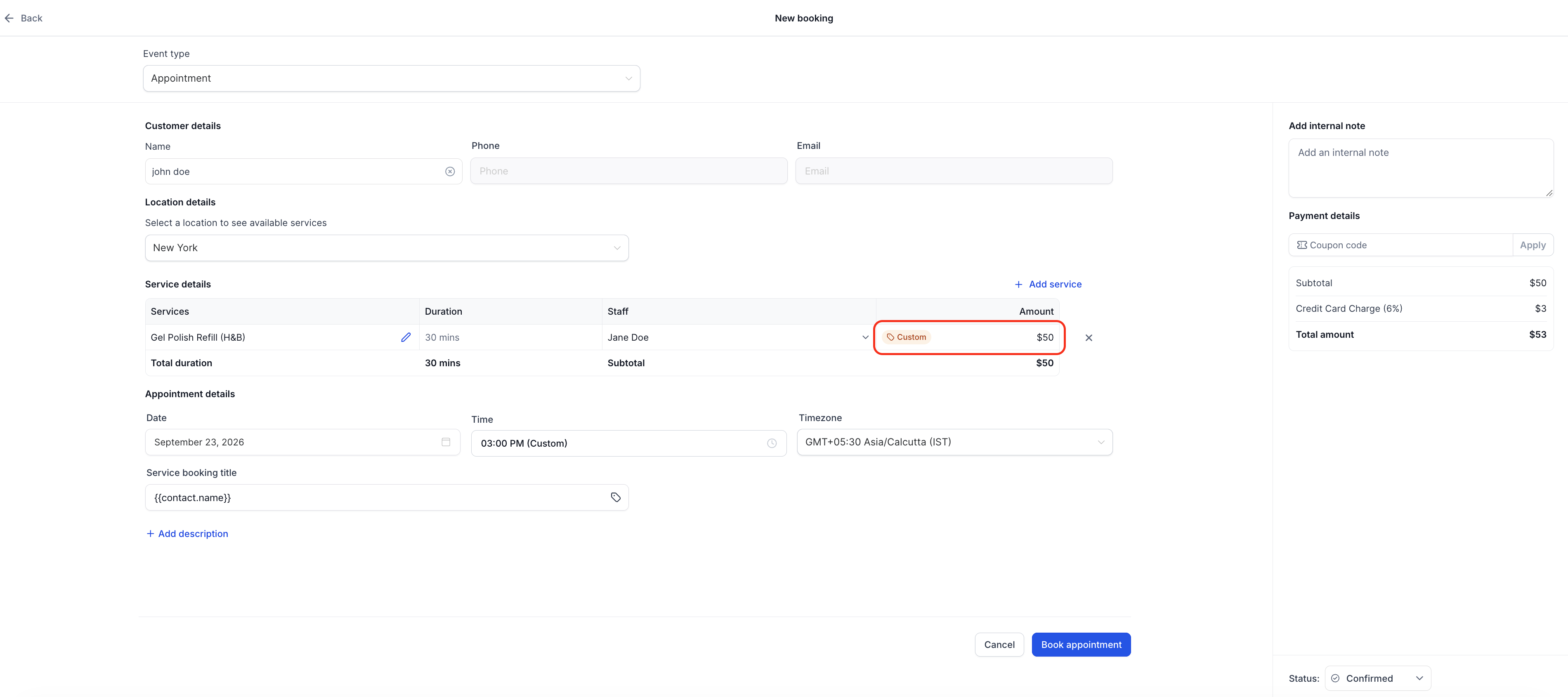
07Things to know before you rely on it
- A custom price can be set to $0 for complimentary services, but negative amounts are not permitted (per HighLevel's help center, checked November 2026).
- If a negative value is entered, HighLevel shows a validation error and blocks the save action.
- The custom price applies only to the appointment being edited; standard and staff specific prices stay unchanged.
- When both a staff specific price and a custom amount exist, the custom amount takes precedence for that booking.
08If something goes wrong
- Negative price entered. Enter a non negative value; the platform will remove the error and allow the appointment to be saved.
09How it connects to the rest of HighLevel
- Create and manage services Creating and managing services
- Global service settings for centralized pricing Global service settings
- Configure staff members and role badges Staff configuration
Michael's take

Changing a price for just one appointment can feel risky if you forget it will stay only on that booking. Make sure you watch for the Custom tag so you don’t accidentally think the standard rate has shifted.
When you need a one off discount or a free service, this feature saves you from juggling separate price lists. It’s a quick way to honor a special deal without breaking your regular pricing structure.