
01Who this is for
- Dog grooming salon owners, need organized booking pages for each grooming service and resource tracking.
- Studio managers who schedule multiple groomers, benefit from clear staff availability and equipment assignment.
- Marketing teams for pet care businesses, use branded service pages to let customers book online without phone calls.
02Service calendars, explained
Service Calendars are a scheduling tool inside HighLevel that lets you create distinct calendars for each offering, such as full groom or nail trim. Each calendar links to specific staff members, rooms, and equipment, so the platform can reserve the right resources when a client books.
The feature lives under the Calendars section of a subaccount. After enabling the Service Menu preference, you can build groups to categorize services, then create individual service calendars inside those groups. A Service Menu aggregates multiple calendars onto a single public page, allowing clients to pick several services or a preferred groomer.
All settings, staff availability, room assignment, equipment quantities, and menu options, are managed through tabs within the calendar builder. Changes are saved directly in the calendar view, and existing calendars can be edited without rebuilding them.
03How businesses use service calendars
- Dog grooming salon. Create a group for full groom services, then build a calendar for each package. Assign each groomer, the grooming station, and the necessary tools so the system blocks the right resources when a client books.
- Pet daycare with grooming options. Set up a Service Menu that includes both grooming and daycare slots. Enable multiple service selection so a client can schedule a bath and a daycare session in one checkout flow.
- Mobile groomer business. Add staff members representing each mobile unit, define the vehicle as a room, and assign equipment like portable tubs. Clients book through a Service Calendar that reserves the appropriate mobile unit for the chosen time.
04The numbers and rules that matter
- Service Calendars (v1) appear under the Meetings tab.
05How to set up and use service calendars in HighLevel
Add staff members and set availability
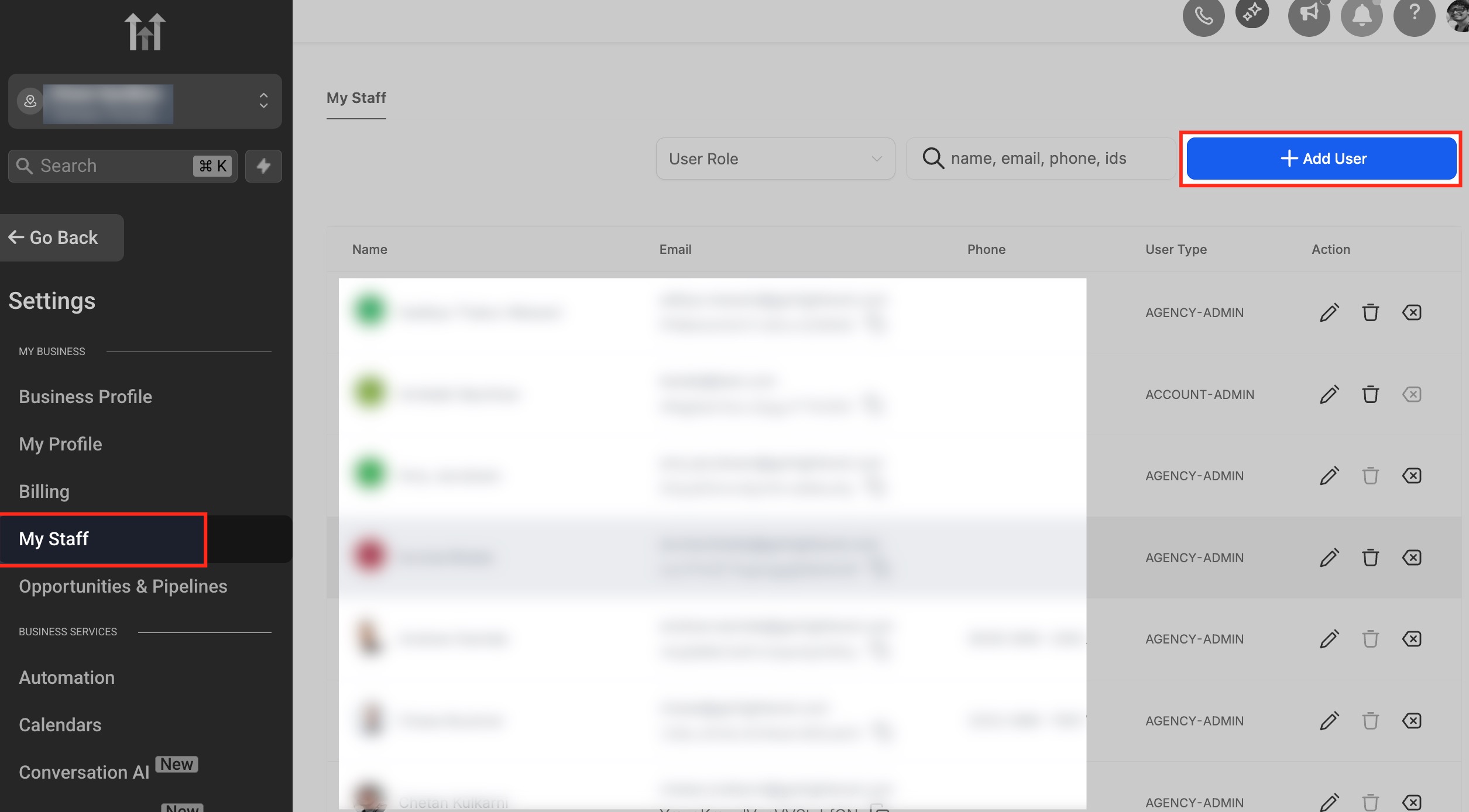
- Navigate to Settings > My Staff > Add User from the subaccount dashboard.
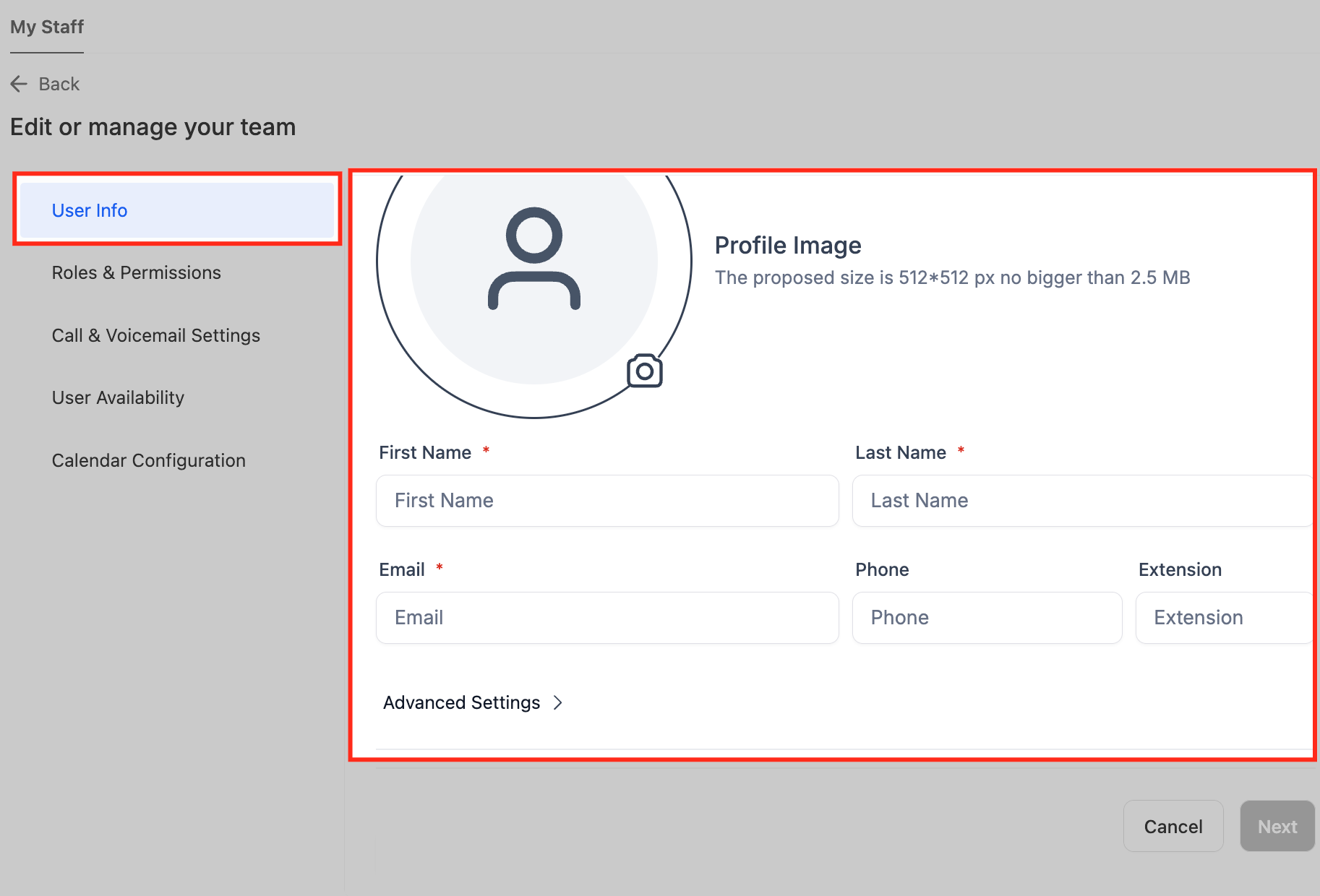
- Enter the groomer’s name, email and extension, set permissions, and define the working days and hours.
- Click Save to store the new staff record.
Create groups for dog grooming services
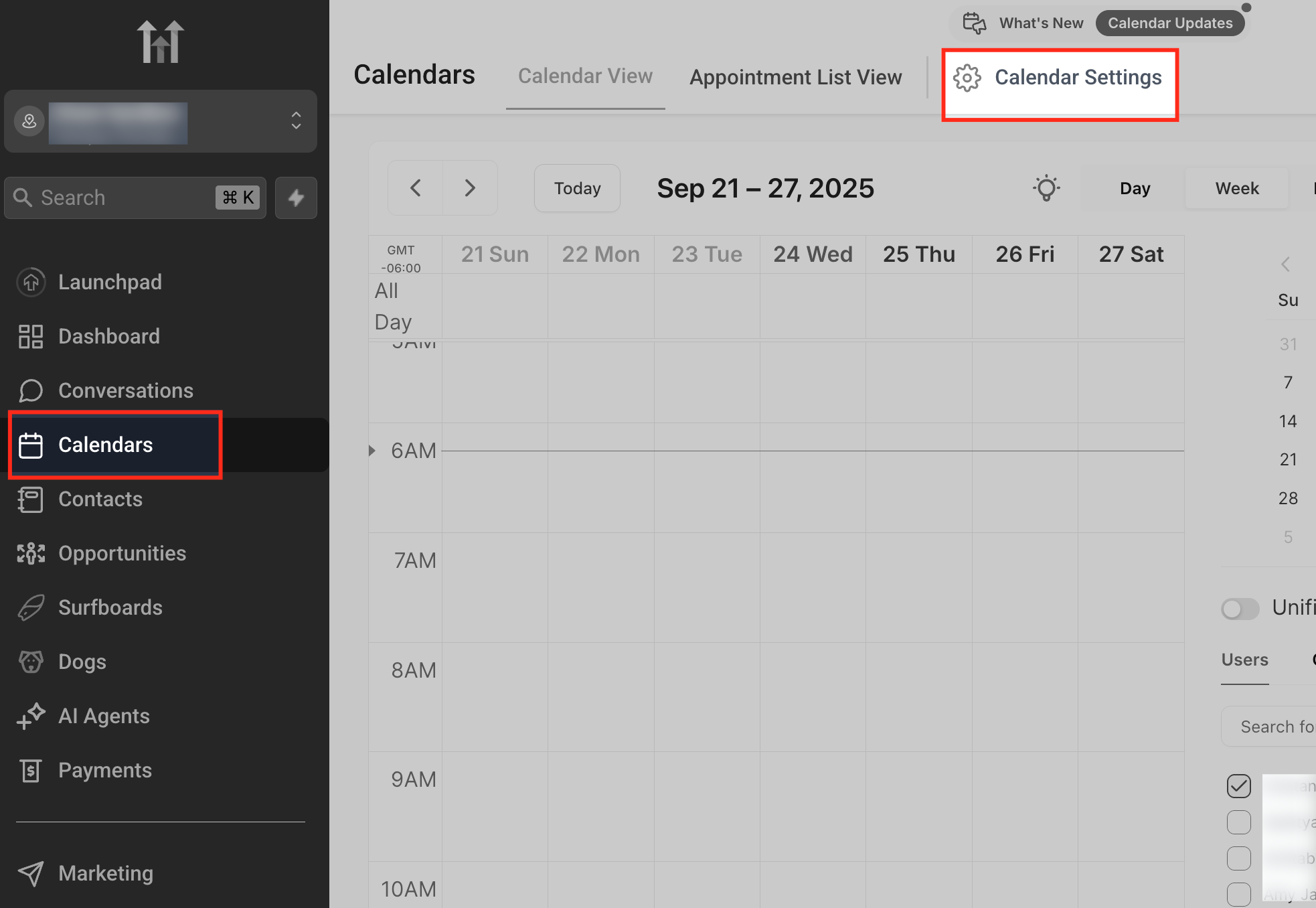
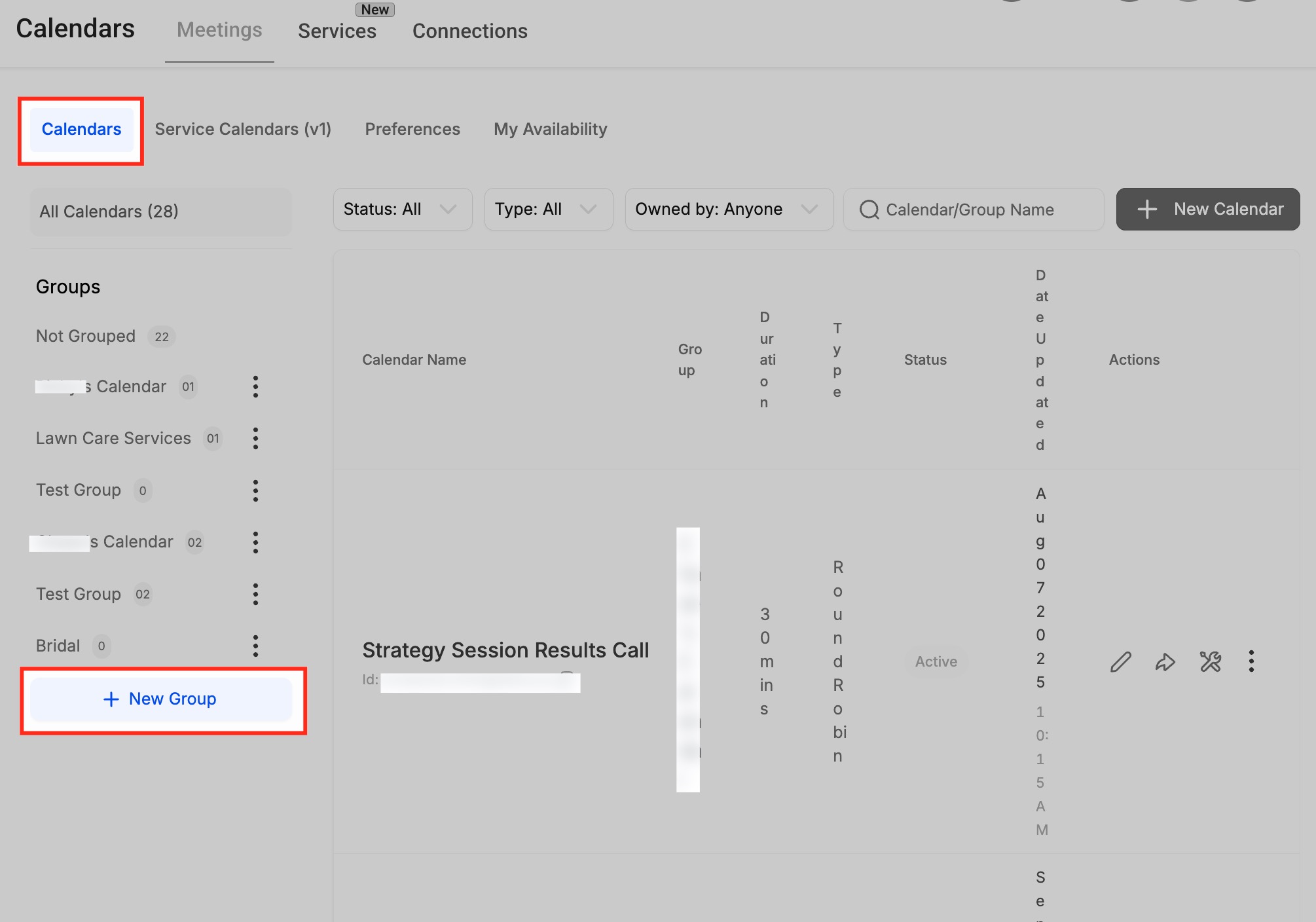
- Open Calendar Settings by selecting the Calendars menu and clicking Calendar Settings at the top right.
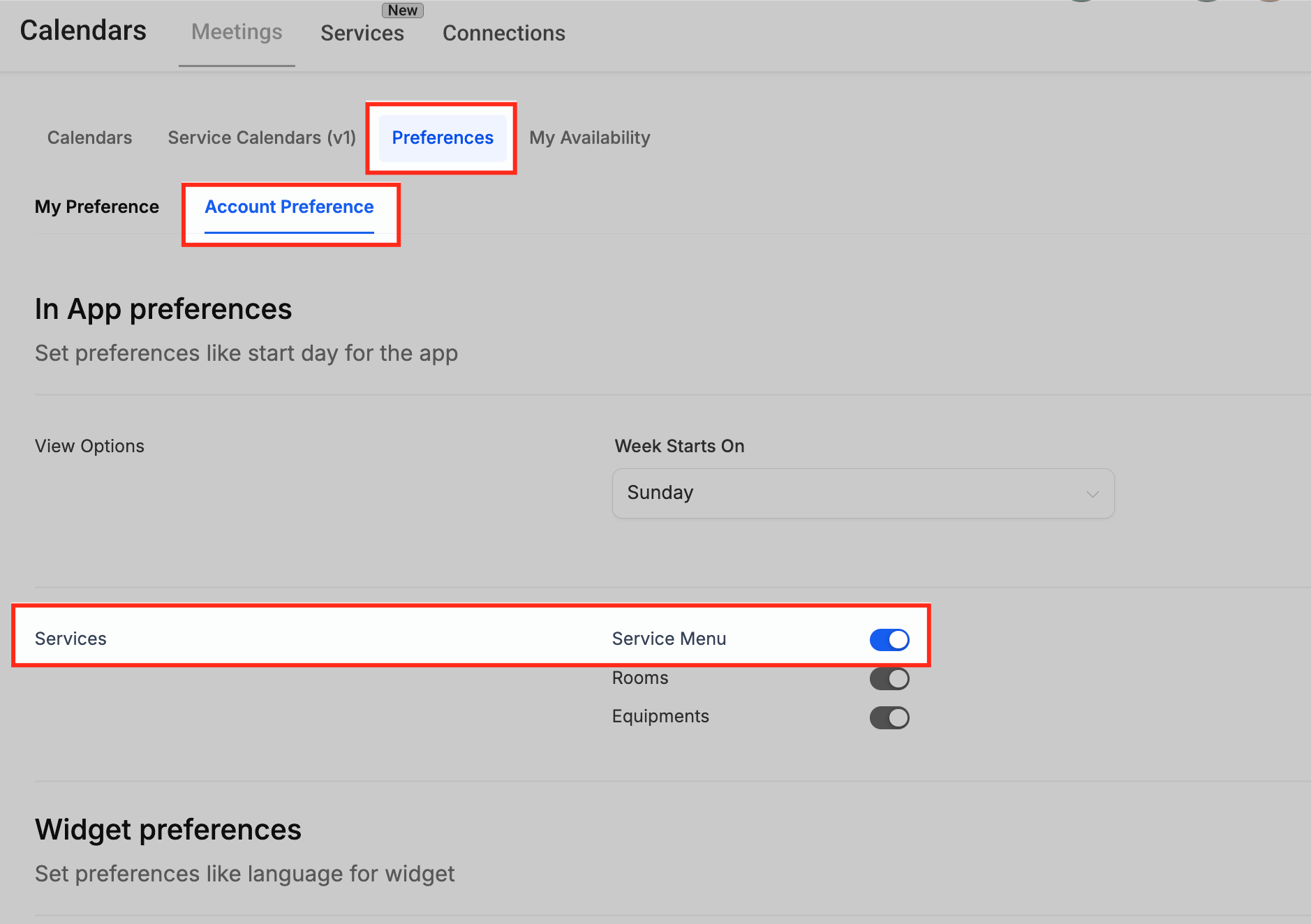
- Go to Preferences > Account Preference and toggle the Service Menu option on.
- In the Calendars tab, click the + New Group button on the left sidebar.
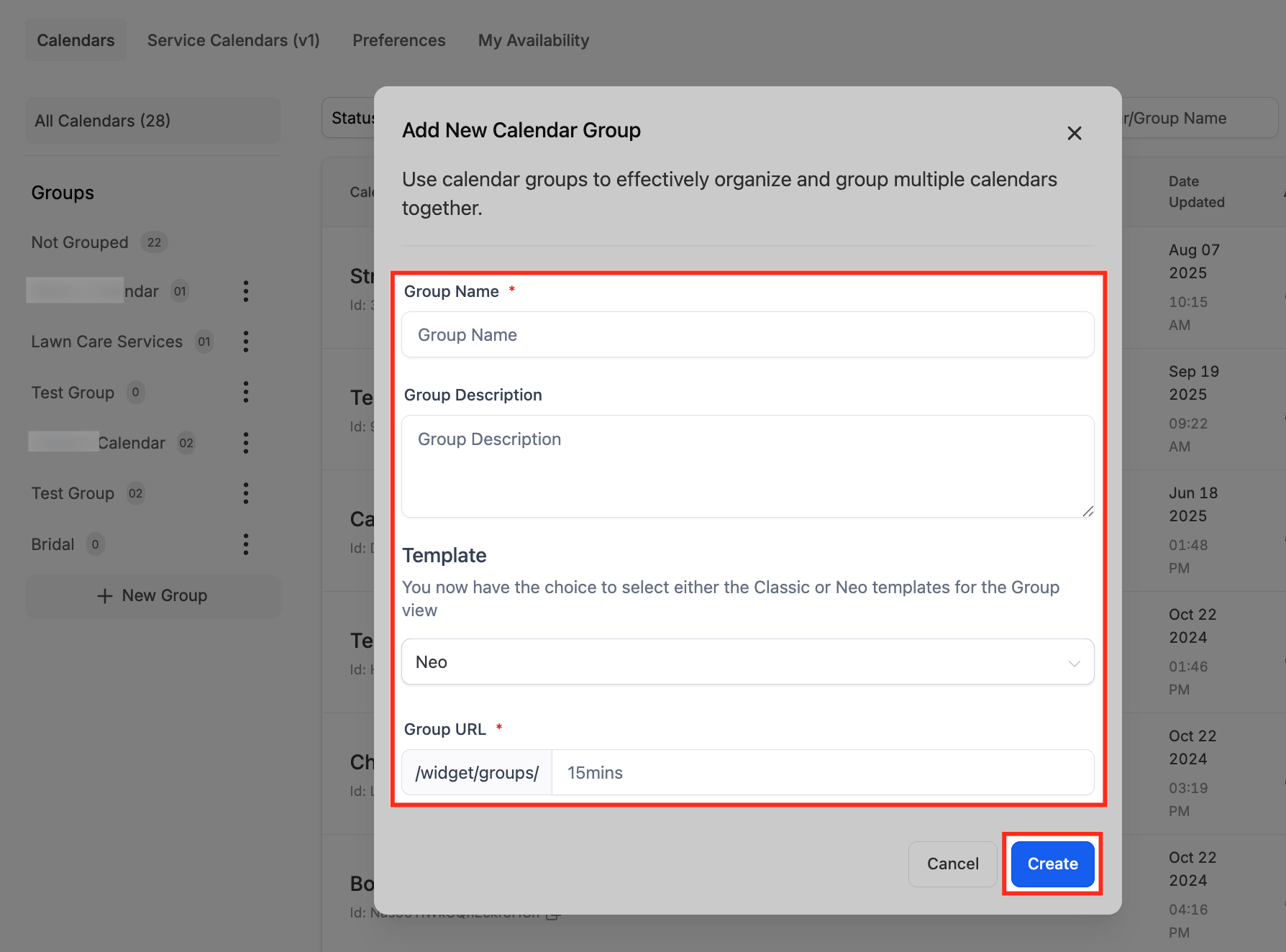
- Fill in the Group Name, Description, URL slug, choose a template type, and click Create.
Create a service calendar
- Select the desired group from the left sidebar and click Create Calendar.
- Choose Service Booking via Calendars > Service Menu > Create Service Menu and click Service Booking.
- Enter the Service Name, assign staff, set a custom URL, define service duration and availability, then open Advanced Settings.
- Upload a Service Logo in the Service Details tab.
- Enter the Service Name, write a description, assign the calendar to the correct group, and set the custom URL.
- Set the Appointment Invite Title, assign the groomers, choose a meeting location, and pick a meeting color.
- In the Rooms tab, assign the appropriate grooming station or bathing area to the service.
- In the Equipment tab, link the required tools such as clippers or dryers and set the available quantity.
Edit an existing service calendar
- Open Meetings and select Service Calendars (v1).
- Locate the calendar you want to modify in the list.
- Click the pencil icon under the Actions column to open the edit view.
- Adjust details such as service name, staff assignments, availability, notifications, or resources as needed.
Create a service menu
- Navigate through Meetings ➜ Service Calendars (v1) ➜ Service Menu.
- Click the + Create Service Menu button at the top right.
- Enter the Service Menu name, description, and URL slug.
- Choose a form and toggle the Consent checkbox if required.
- Under Additional Options, enable Add Guests, Multiple Service Selection, and Staff Selection.
- Click Select Services and choose the groups or calendars you wish to display.
- Open Arrange your services and drag the handles to set the display order.
06What it looks like in HighLevel
07Settings that matter
- Service Menu. Activates the service based booking system so you can build service calendars and group them into menus.
- Service Logo. Adds a branding image to the service’s booking page.
- Appointment Invite Title. Defines the subject line shown on calendar invites for customers and staff.
- Meeting Location. Specifies where the appointment takes place, such as a grooming station or a virtual link.
- Meeting Color. Assigns a color label to the appointment type for quick visual identification on internal calendars.
- Enable Add Guests. Allows clients to book appointments for additional guests.
- Enable Multiple Service Selection. Lets customers choose more than one service in a single booking.
- Enable Staff Selection. Provides an option for clients to pick their preferred groomer.
08Things to know before you rely on it
- A service calendar cannot be saved until at least one staff member is assigned.
- Time slots will not appear if staff availability, assigned rooms, or equipment are missing.
- Rooms and equipment must be linked to each service to prevent double booking.
09If something goes wrong
- Cannot save a service calendar. Assign at least one staff member before attempting to save.
- No time slots displayed for a service. Verify that staff availability, room assignments, and equipment quantities are correctly set.
10How it connects to the rest of HighLevel
- Explore all calendar and appointment features Calendars & Appointments
- View HighLevel pricing and plan details Pricing
- Start a free 30 day trial of HighLevel 30 day trial
Michael's take

Skipping the basics of staff and resource setup can leave the calendar useless; without staff or rooms the system won’t let you save any service. The upside is clear. Once you have groomers, stations and tools linked, bookings flow without phone calls and you avoid the chaos of double bookings.
The real value shows when you bundle several services into a single menu. Clients love picking a bath, a trim and a groomer all at once, and you keep every piece of equipment accounted for. If I were to roll this out, I’d start by confirming each station and tool is in the system so the calendar can protect them automatically.