
01Who this is for
- Marketing managers can ensure brand consistency across client facing booking pages.
- Small business owners can match calendar colors to their logo for a unified appearance.
- Design teams can quickly adjust primary and background shades without external tools.
02Calendar colors, explained
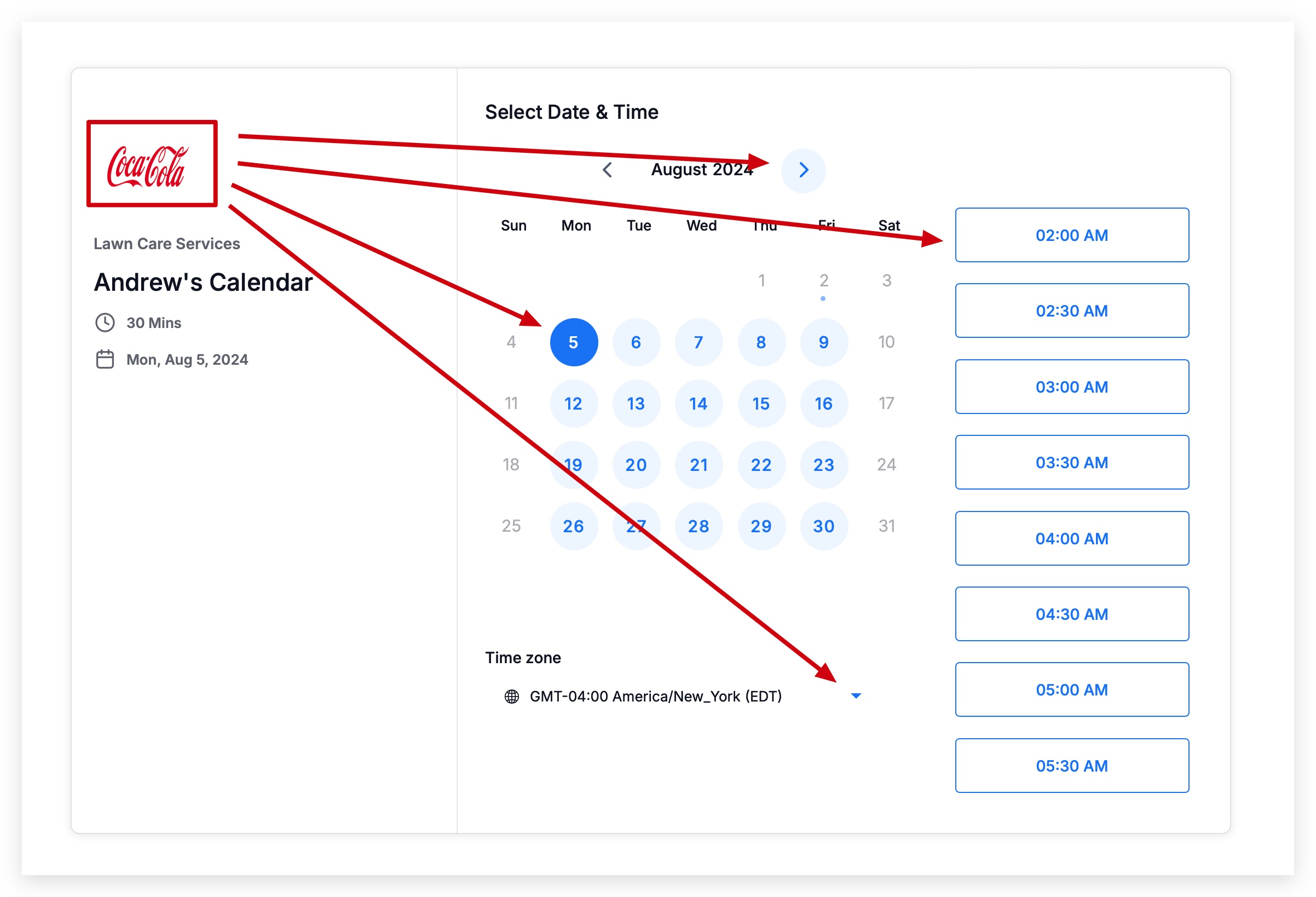
The feature lets you change the visual colors of a calendar when it uses the NEO style. You can set a primary accent color and a background shade to reflect your brand.
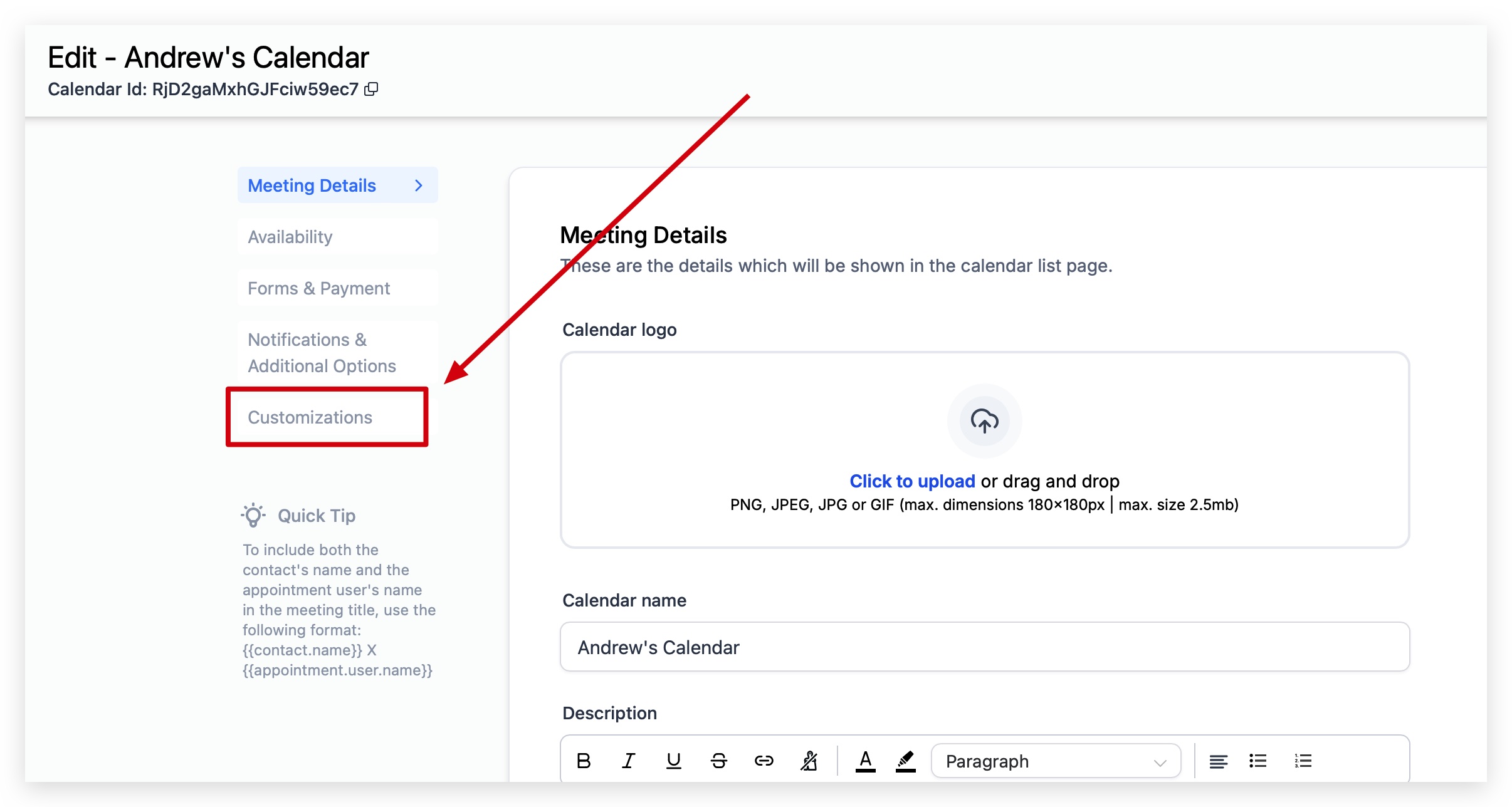
To adjust colors, go to the Calendars tab, open Calendar Settings, edit the desired calendar, and select the Customizations tab. The color pickers let you input HEX codes or move a slider.
03How businesses use calendar colors
- Dental practice. A dental office can open its booking calendar, edit the Primary Color to match the clinic’s red logo and set a light background. The calendar then displays the practice’s brand on patient appointment pages.
- Fitness studio. A fitness studio edits the calendar’s Background Color to a neutral tone and chooses a vibrant Primary Color for class sign up buttons, keeping the look aligned with studio branding.
- Consulting firm. A consulting firm sets a corporate blue as the Primary Color and a soft gray as the Background Color in its calendar, ensuring the appointment page mirrors the firm’s visual identity.
04Before you start
- The calendar must be using the NEO calendar style.
- A calendar must already exist or be created before colors can be edited.
05How to set up and use calendar colors in HighLevel
Customize calendar colors
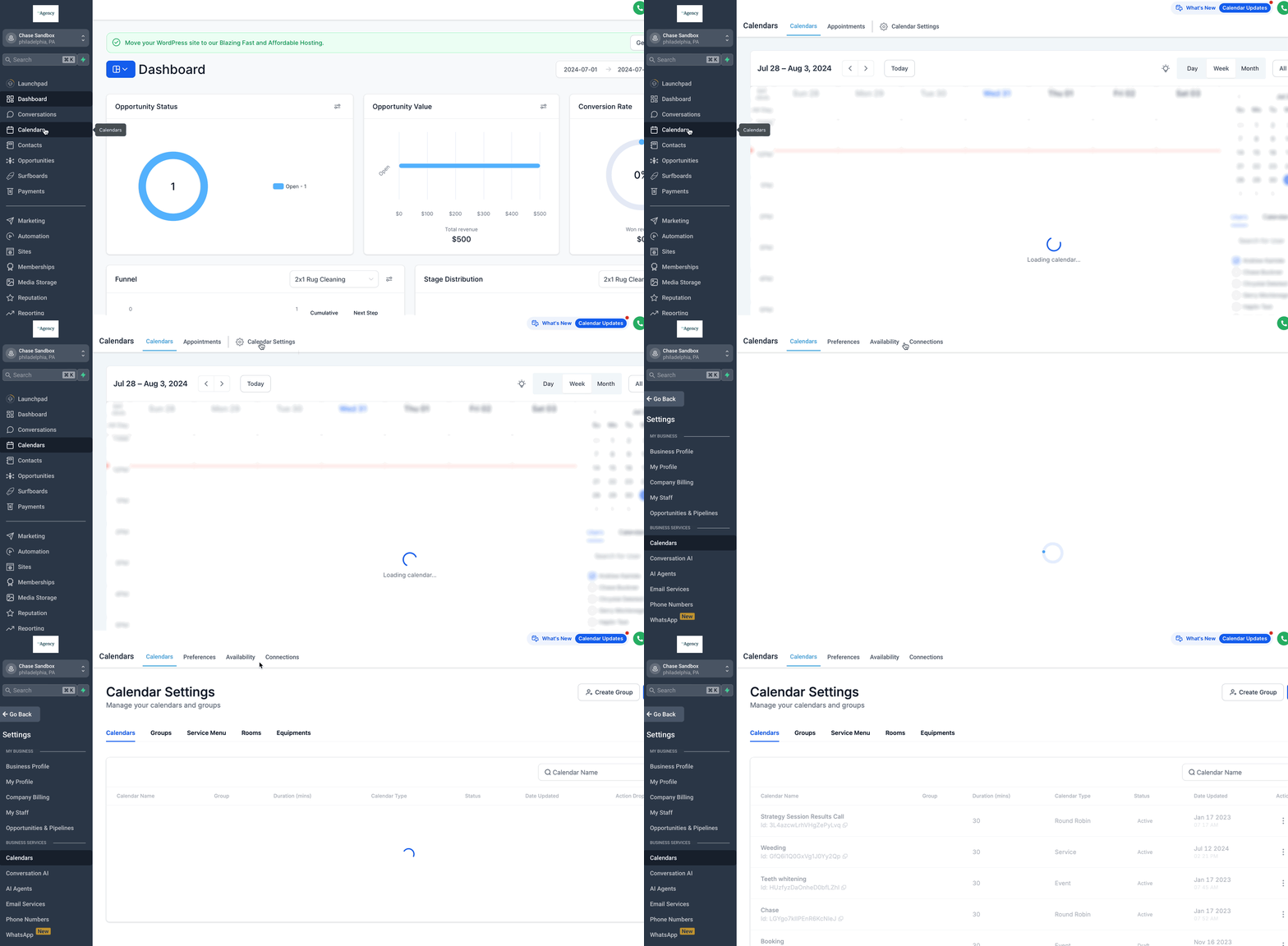
- Open the Calendars tab and click Calendar Settings at the top of the screen.
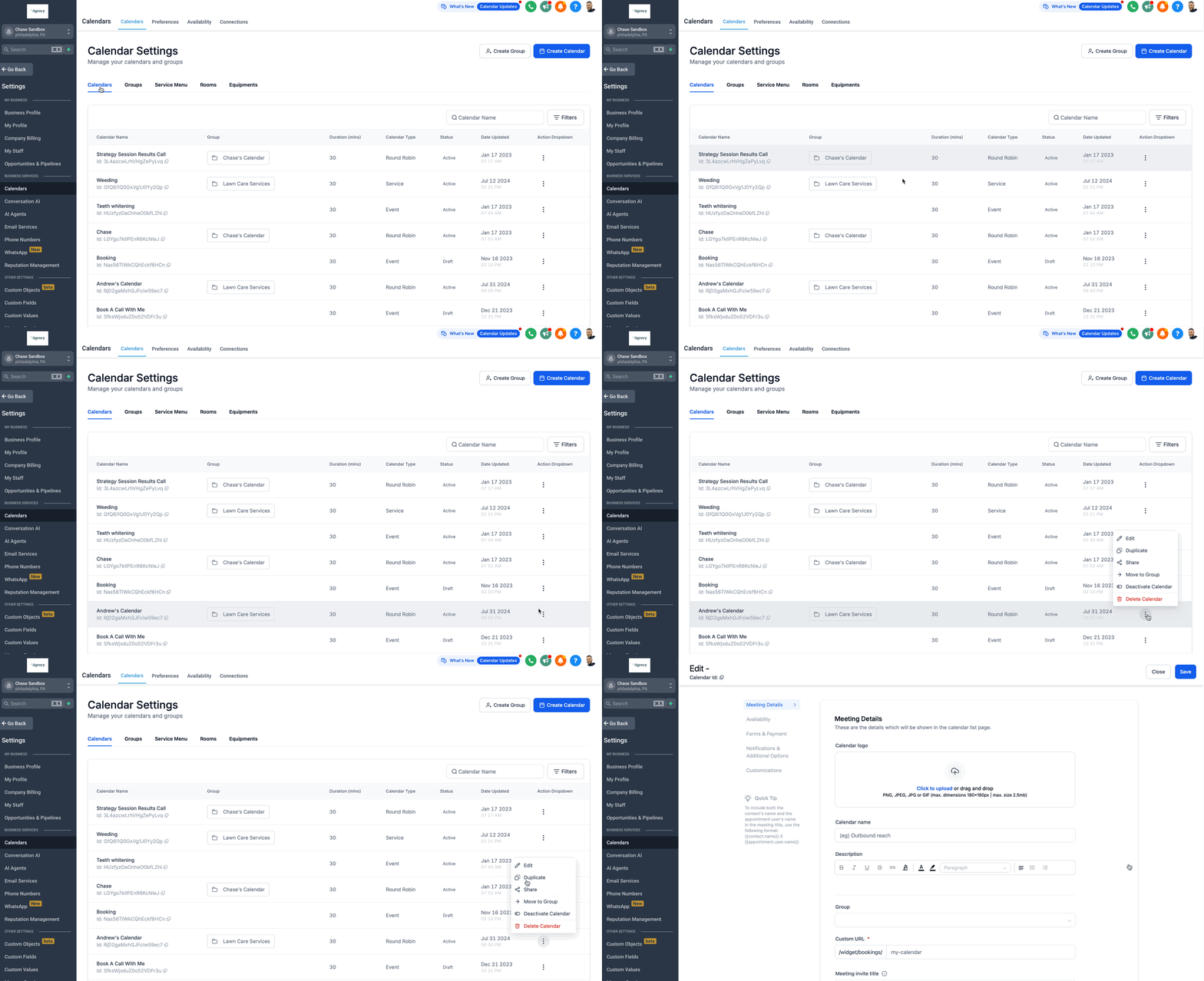
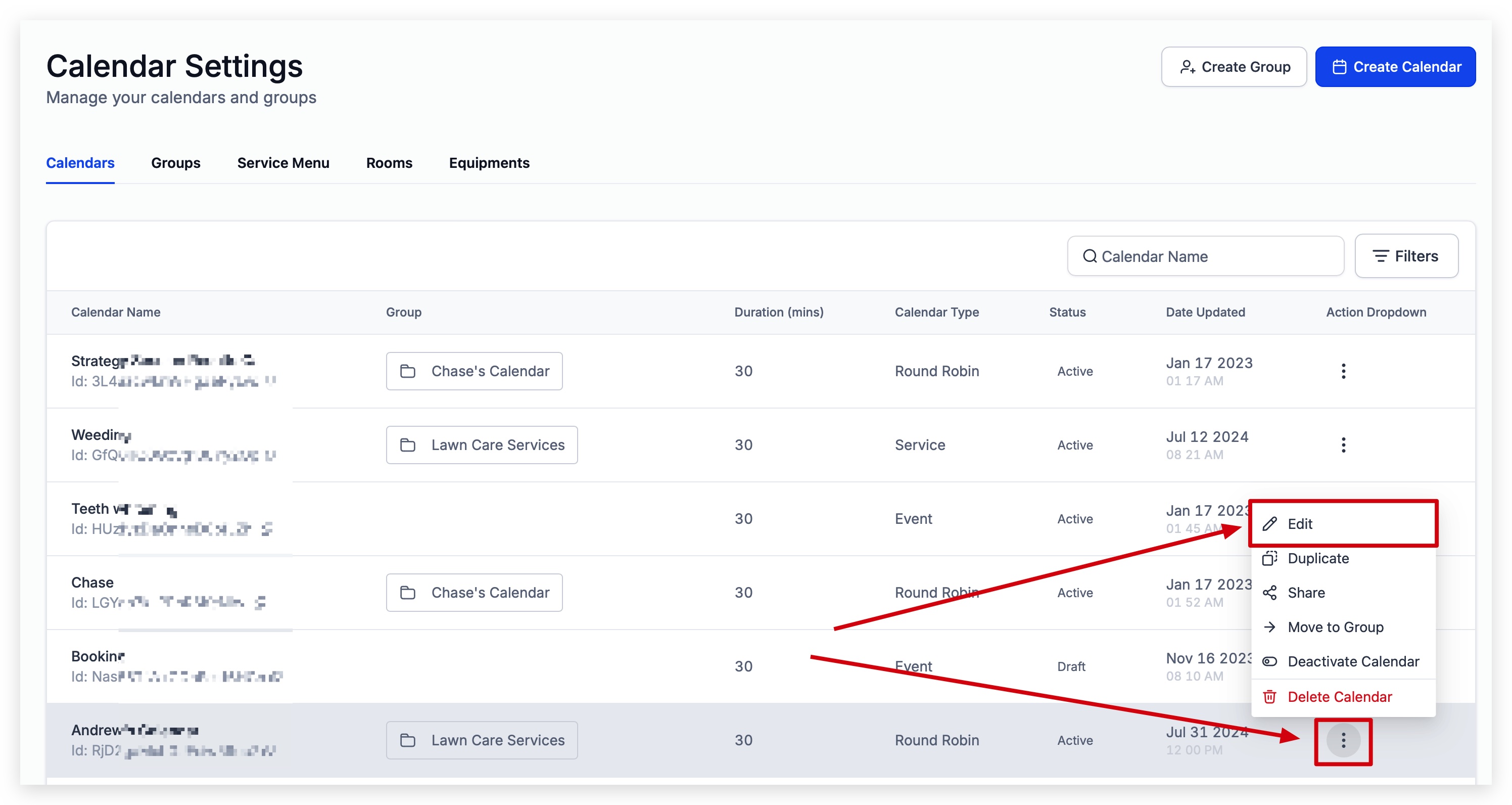
- Locate the desired calendar, click the three dot icon in the Action Dropdown column, and choose Edit.
- In the edit view, select the Customizations tab from the left navigation.
- Scroll down to the color pickers and adjust the Primary Color and Background Color using HEX codes or the color slider.
06What it looks like in HighLevel

07Settings that matter
- Primary Color. Controls the main accent color used throughout the calendar, such as button highlights and text accents.
- Background Color. Sets the overall background hue for the calendar interface.
08Things to know before you rely on it
- Color customization is only available for calendars that use the NEO style.
- Only the Primary Color and Background Color can be changed; other visual elements are not adjustable.
09How it connects to the rest of HighLevel
- If you use group calendars, ensure they are also set to NEO style for color changes. Group calendar overview
- Check your plan to confirm access to the NEO calendar style. HighLevel pricing
- New users can test calendar customization during a 30 day trial. Start trial
Michael's take

When a business already has a strong visual brand, aligning the calendar colors with that brand can make the booking experience feel cohesive and professional. That consistency often justifies the few minutes spent in the settings, especially for agencies that want every client touchpoint to reflect the brand.
If your calendar is used only internally or brand colors aren’t a priority, the time spent tweaking hues may not add real value. In those cases, sticking with the default colors keeps things simple and avoids an extra step in your workflow.