
01Who this is for
- Marketing managers can run timed promotions by creating coupons that automatically reduce booking fees.
- Service providers such as yoga instructors can limit coupon usage per client to prevent over redeeming.
- Founders can test price points with $0 coupons, allowing free bookings without collecting payment details (per HighLevel's help center, checked November 2026).
02Coupon codes in calendars, explained
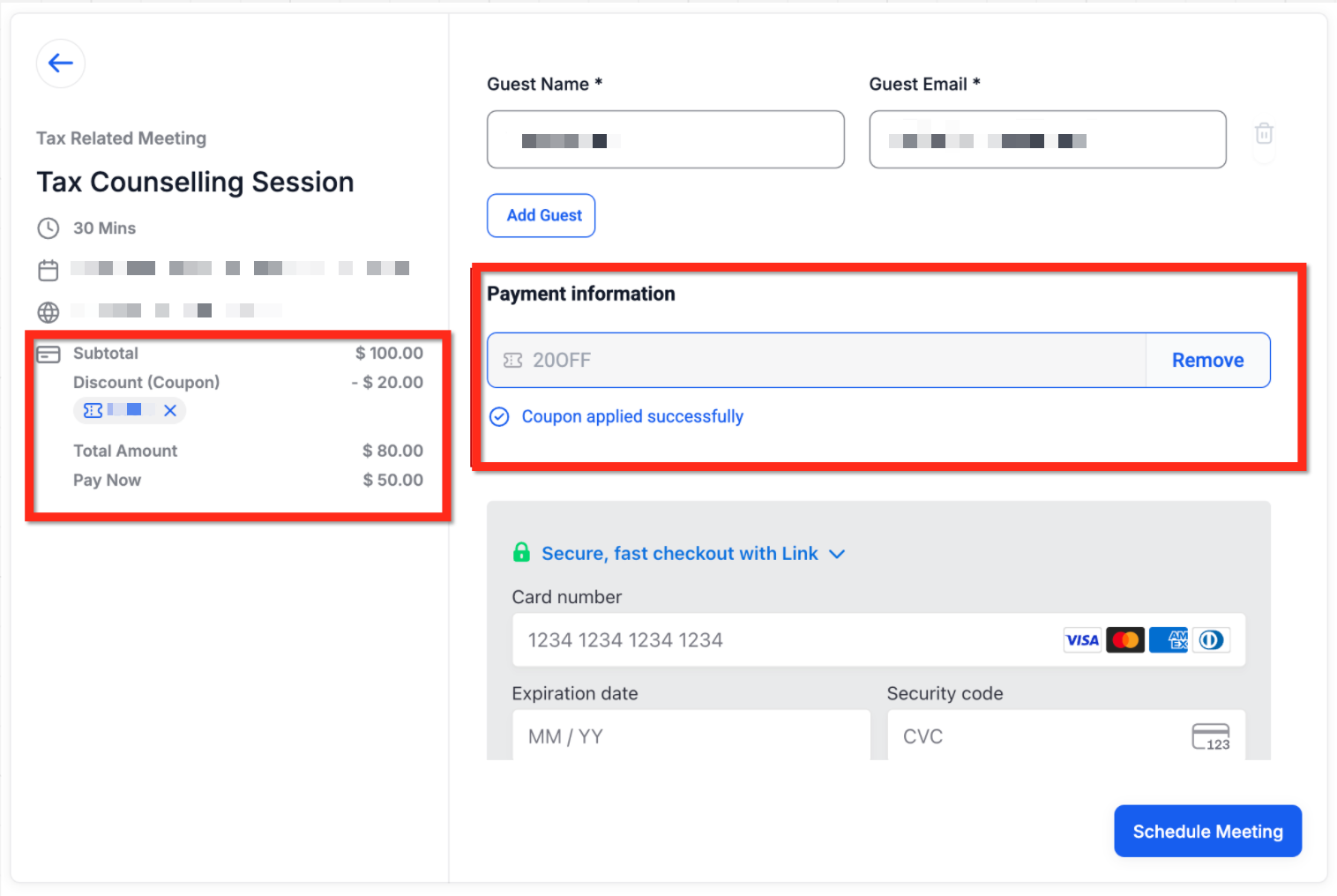
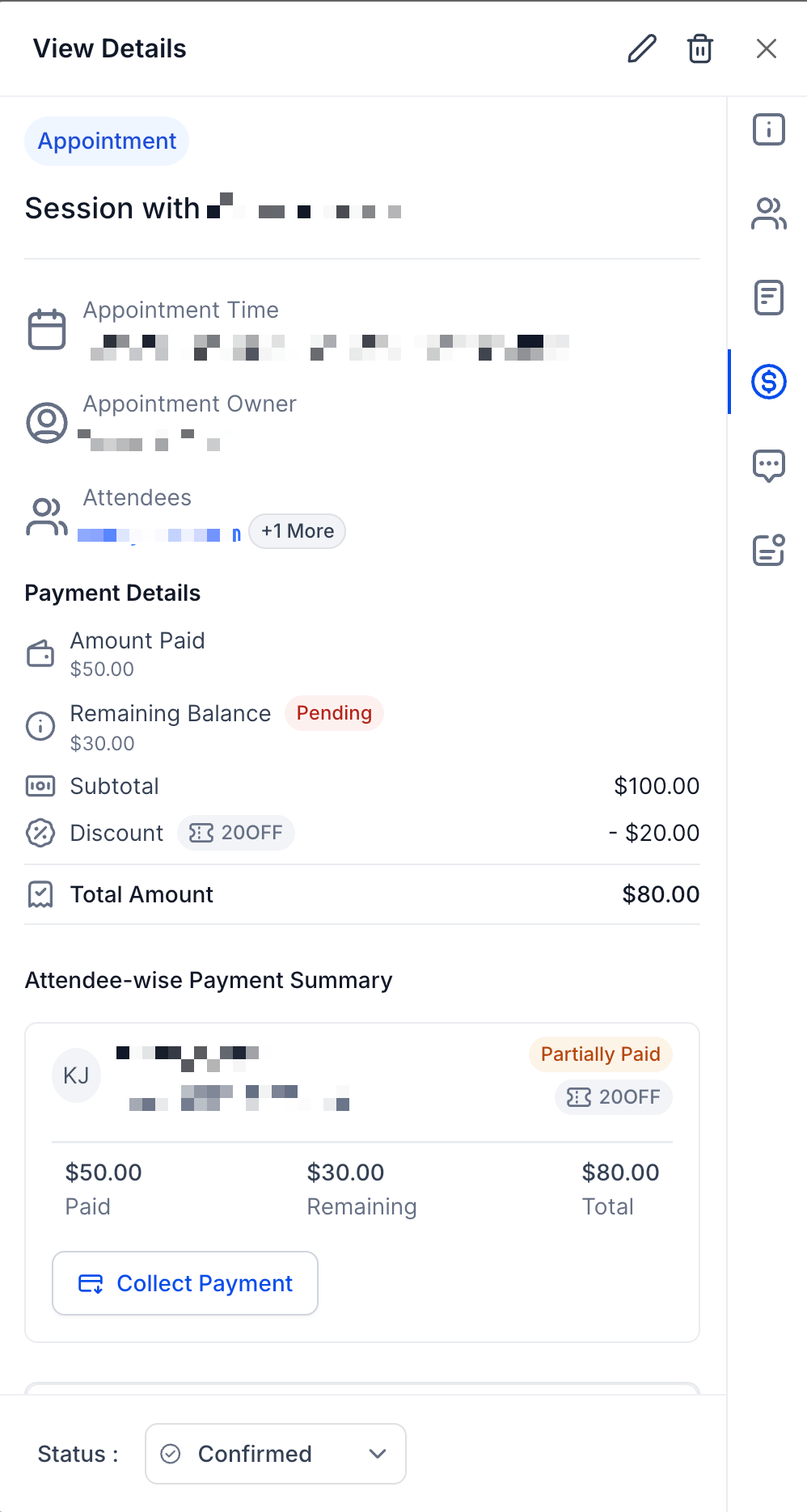
Coupon codes are a feature that lets a client type a discount identifier while booking an appointment through the calendar widget. The system validates the code, recalculates the price right away, and records the discount in the Payments tab of the appointment. The feature lives inside each calendar’s settings and the Payments module. After payments are enabled, a coupon input appears on the widget, and any created coupon becomes selectable for that calendar or product. Only one coupon can be applied per checkout, the field is unavailable for appointments created manually, and codes are not case sensitive. Limits can be set by date, usage count, or per customer restrictions.
03How businesses use coupon codes in calendars
- Yoga studio. The studio enables payments on its class calendar, activates the coupon field, and creates a 20% off code limited to one use per client. When a student books a class, they enter the code and see the reduced price before paying.
- Dental practice. The practice adds a fixed amount $50 off coupon that applies only to its new patient cleaning product. The coupon is tied to that product, so only bookings for that service receive the discount (per HighLevel's help center, checked November 2026).
- Online coaching business. The coach creates a zero dollar coupon that makes a first session free. Because the final amount drops to $0, the booking proceeds without requiring payment details from the client (per HighLevel's help center, checked November 2026).
04The numbers and rules that matter
- Supported across all calendars for Neo and Classic booking widgets and Services (v2).
- Not supported with the older Service Menu (v1).
- Limit Redemptions is optional.
- Limit to Products/Offers lets you restrict a coupon to specific calendars.
- Limit to One Use Per Customer prevents multiple uses by the same contact.
- Only one active coupon can be applied per checkout.
- When Charge upfront is enabled, a $0 final amount skips card collection (per HighLevel's help center, checked November 2026).
- If a coupon reduces the price but leaves an amount > $0, the remaining amount is charged (per HighLevel's help center, checked November 2026).
05Before you start
- Payments must be enabled on the calendar before coupons can be added.
06How to set up and use coupon codes in calendars in HighLevel
Enable payments and coupon codes for a calendar
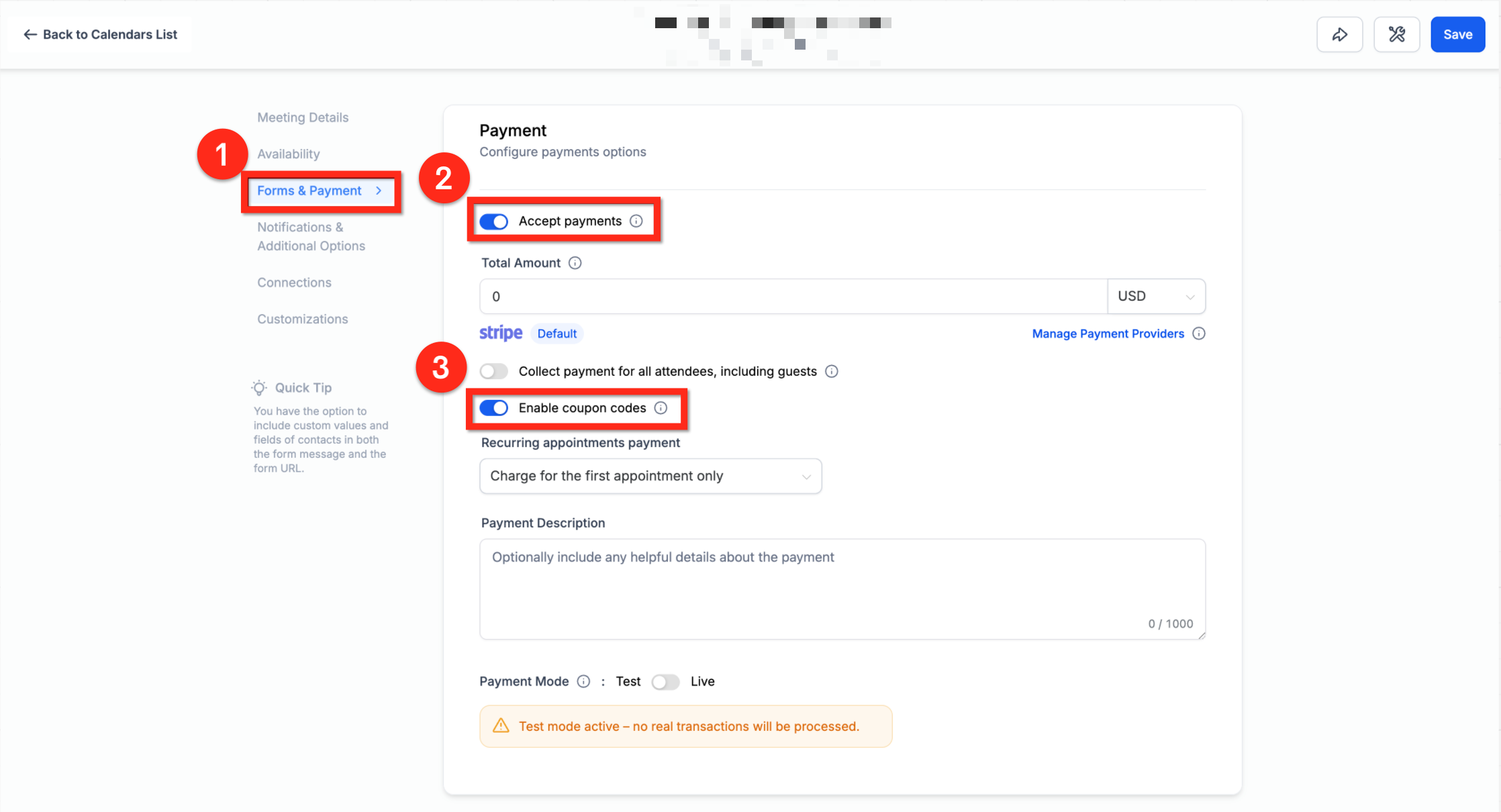
- Open Calendar Settings and choose Forms & Payments.
- Turn on the Accept Payments toggle.
- A product linked to the calendar is created automatically; it cannot be deleted.
- Scroll down in the same section and enable the Enable Coupon Code option.
- The booking widget now includes a field for entering coupon codes.
- Repeat this activation for every calendar where you want coupons available.
Create a new coupon
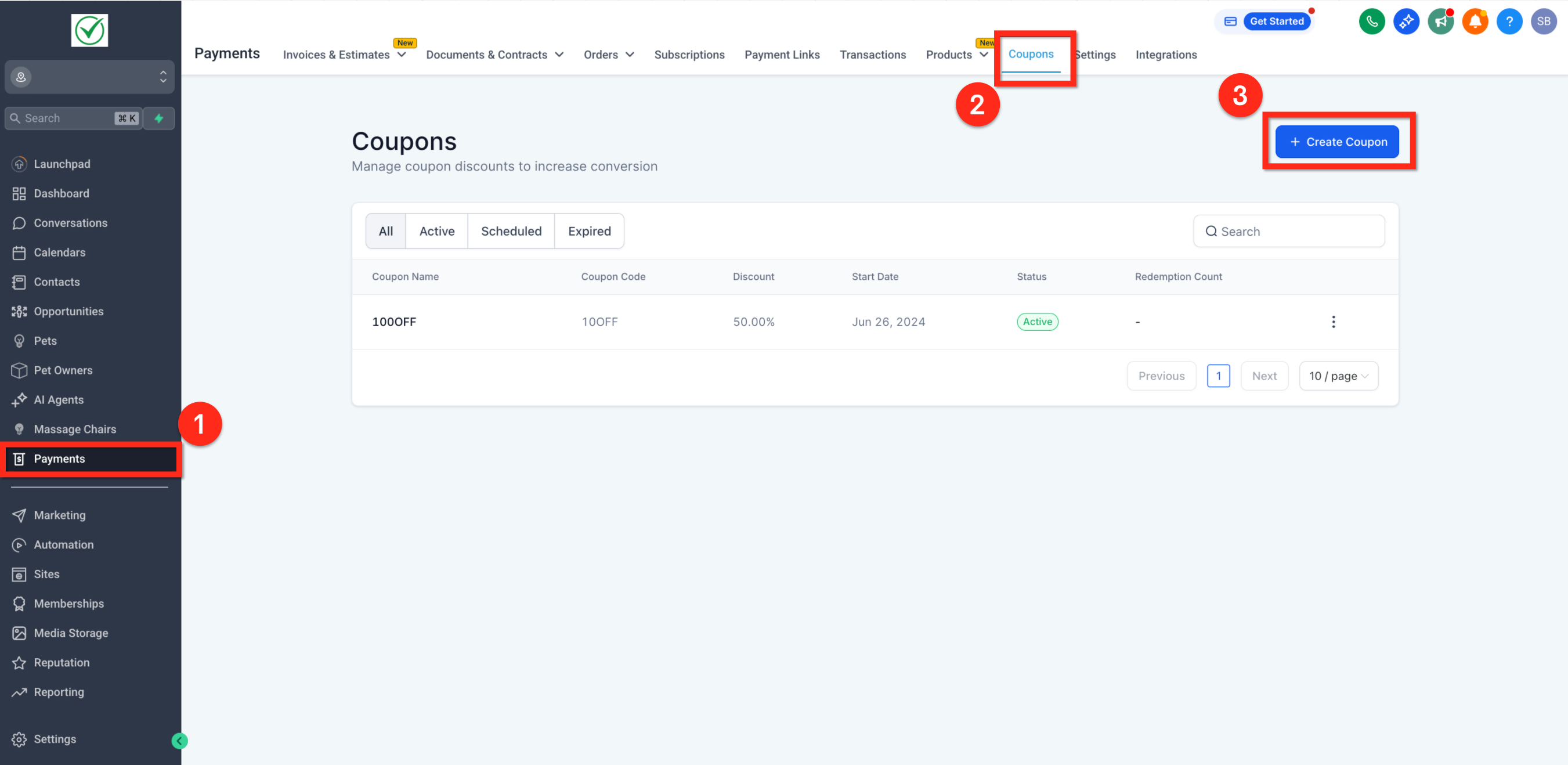
- Go to the Payments module, open Coupons, and click New Coupon.
- Enter a custom code or click Generate to have one created automatically.
- Select the coupon type: either Percentage or Fixed Amount.
- Specify the discount value that matches the chosen type.
- Set the start and end date/time to define the validity window.
- Optionally, add a limit on total redemptions for the coupon.
- Choose specific calendars or products the coupon should apply to.
- Enable the one use per customer restriction if needed.
- Save the coupon; it is now ready to be shared with customers.
07What it looks like in HighLevel
08Settings that matter
- Accept Payments. Activates payment collection for the calendar and generates a linked product automatically.
- Enable Coupon Code. Shows a coupon input box on the booking widget for the selected calendar.
- Coupon Code. The actual string customers type to receive a discount; can be custom or auto generated.
- Coupon Type. Determines whether the discount is a percentage of the price or a fixed monetary amount.
- Discount Offered. The numeric value of the percentage or fixed discount applied when the code is valid.
- Start & End Date/Time. Defines the period during which the coupon can be used.
- Limit Redemptions. Sets a maximum number of total uses for the coupon across all customers.
- Limit to Products/Offers. Restricts the coupon to specific calendars or products so it only applies to those bookings.
- Limit to One Use Per Customer. Prevents a single client from applying the same coupon more than once.
09Things to know before you rely on it
- Coupon codes work with Neo and Classic booking widgets and with Services v2.
- The older Service Menu (v1) does not support coupon codes.
- Coupons are only usable through the booking widget; they cannot be applied to manually created appointments.
- Only one coupon can be used per checkout, and codes are not case sensitive.
- Coupon visibility for Services is set globally via Calendars > Services > Global Settings > Payment Settings.
10How it connects to the rest of HighLevel
- View discount details and payment breakdown in the appointment’s Payments tab. Payments tab
- Add coupon handling to automated booking flows using the Book Appointment workflow action. Book Appointment workflow
- Check which plans include payment and coupon features on the pricing page. Pricing
Michael's take

People often assume a coupon will work for appointments they create manually inside the app. It doesn’t. Coupons only apply when the booking goes through the widget. I would first make sure the widget is the only way customers schedule the service I’m discounting, then enable coupons on that specific calendar.
Once that’s set, I’d create a simple fixed amount coupon for a $0 booking to see the flow in action. I’d run a test booking in Test mode, confirm the order appears without an invoice, and make sure the “Order Created” trigger fires for any follow up automations.