
01Who this is for
- Customer success teams benefit because they can add context to appointments that is visible on contact and opportunity records, reducing the need to repeat information.
- Sales managers gain accountability, as each note records the author and timestamp, making handoffs clearer across the sales pipeline.
02Appointment notes, explained
Appointment notes are internal text entries linked to a specific calendar event. When a note is added, the same entry shows up on the Contact, Opportunity, and Conversation records linked to that appointment. The notes travel with the contact, so any edit or deletion updates all places right away.
The notes live inside the appointment details. Users can open an appointment from Calendar View or Appointment List View, then use the Notes tab or the Internal Note(s) section to add, edit, delete, filter, sort, or search notes. The editor allows rich formatting and up to 65,000 characters.
03How businesses use appointment notes
- Coaching service. A coach opens the booked session in Calendar View, adds an internal note with session goals, and saves it. The note automatically appears on the client’s Contact record, letting the next coach see the context without reentering information.
- Home repair business. Technicians access the Appointment List View, edit the note to update part numbers needed for a job, and save. The updated note shows on the related Opportunity, keeping the sales estimate aligned with the field work.
- Legal consultancy. An attorney adds an internal note describing a confidential discussion during a client meeting. The note syncs to the client’s Conversation thread, ensuring the legal team can reference the same details in future calls.
04The numbers and rules that matter
- Editor supports up to 65,000 characters.
- Deleted notes can be restored within 30 days.
05How to set up and use appointment notes in HighLevel
Add an internal note from calendar view
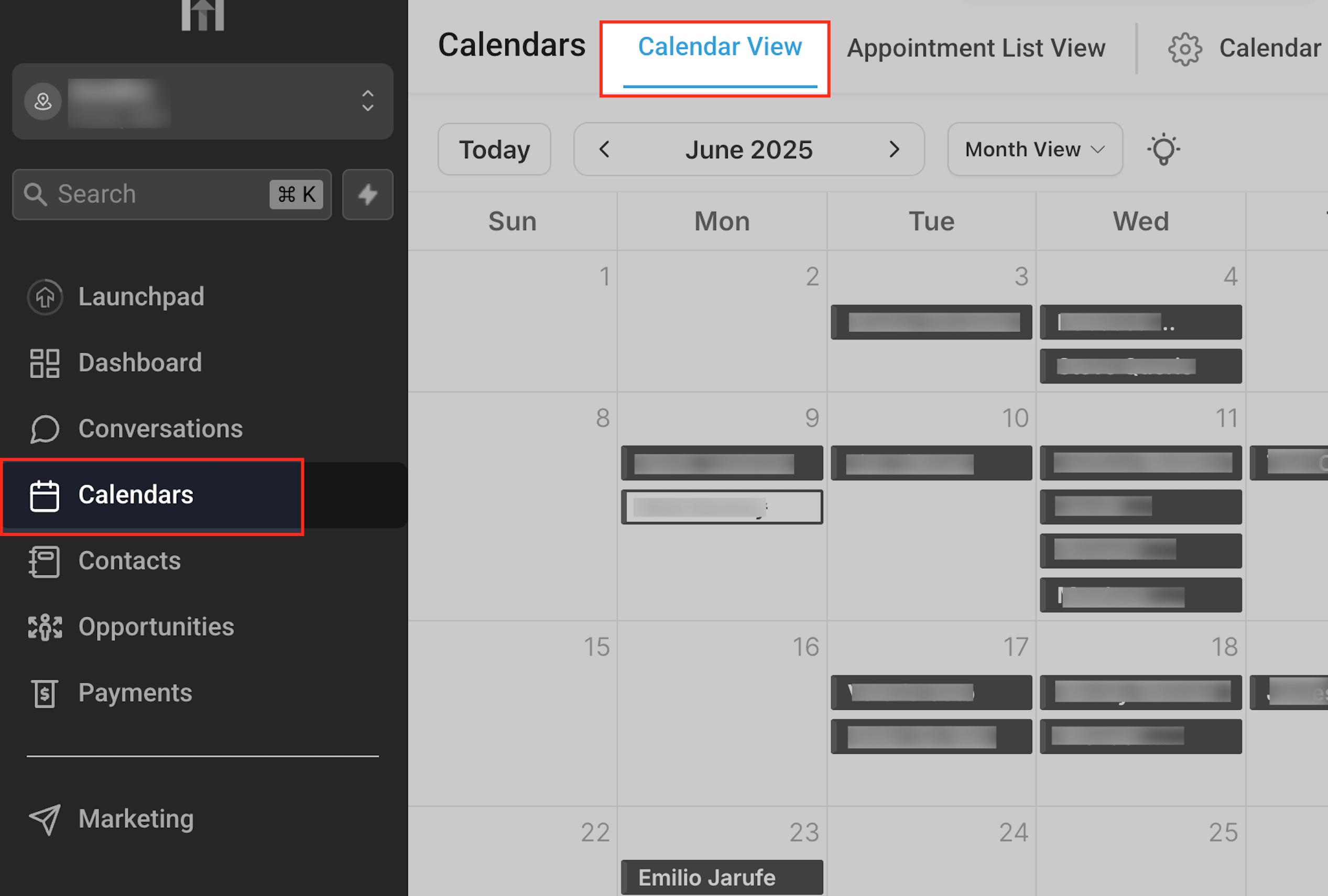
- Open the Calendars section in HighLevel.
- Select Calendar View.
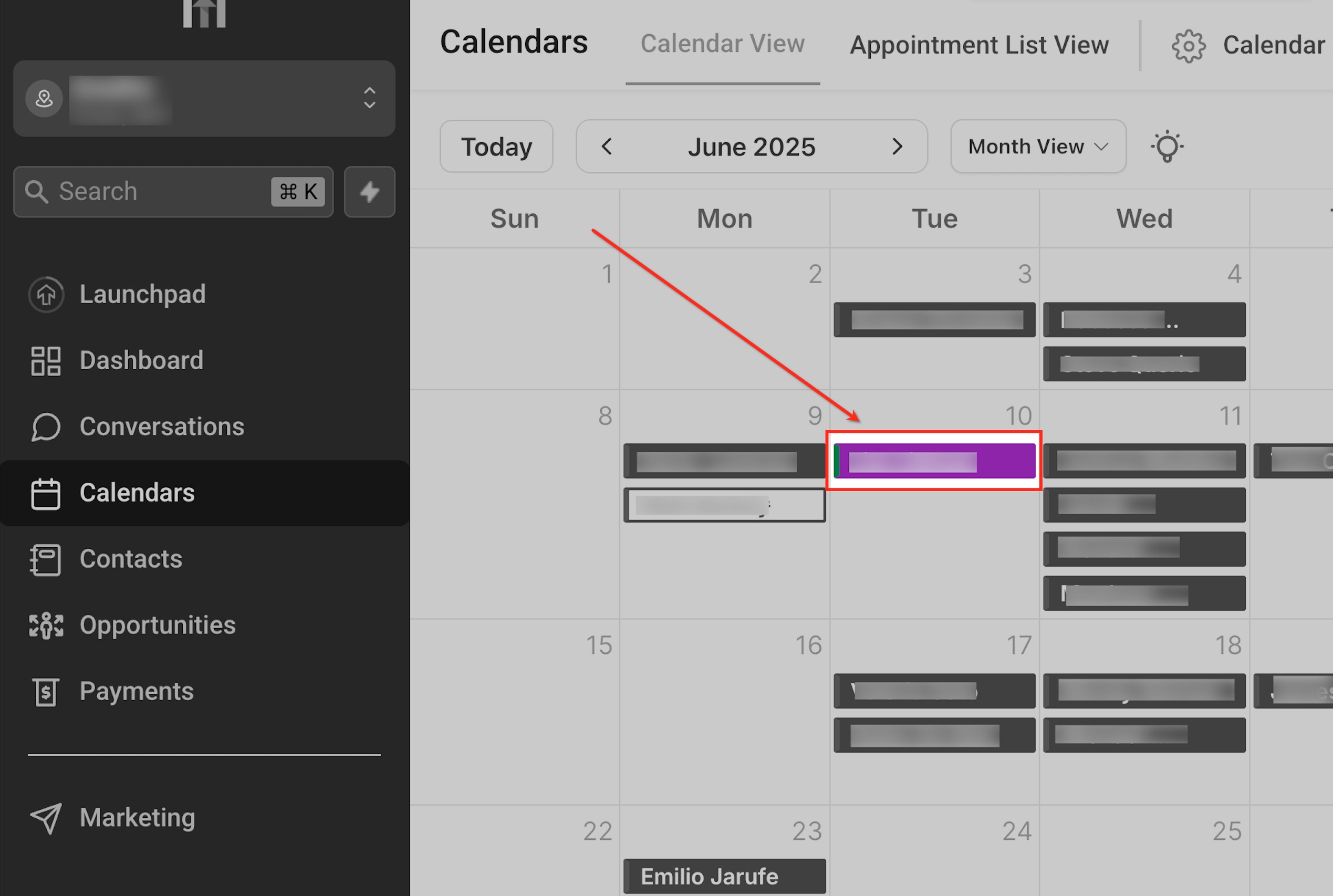
- Click the appointment you want to annotate.
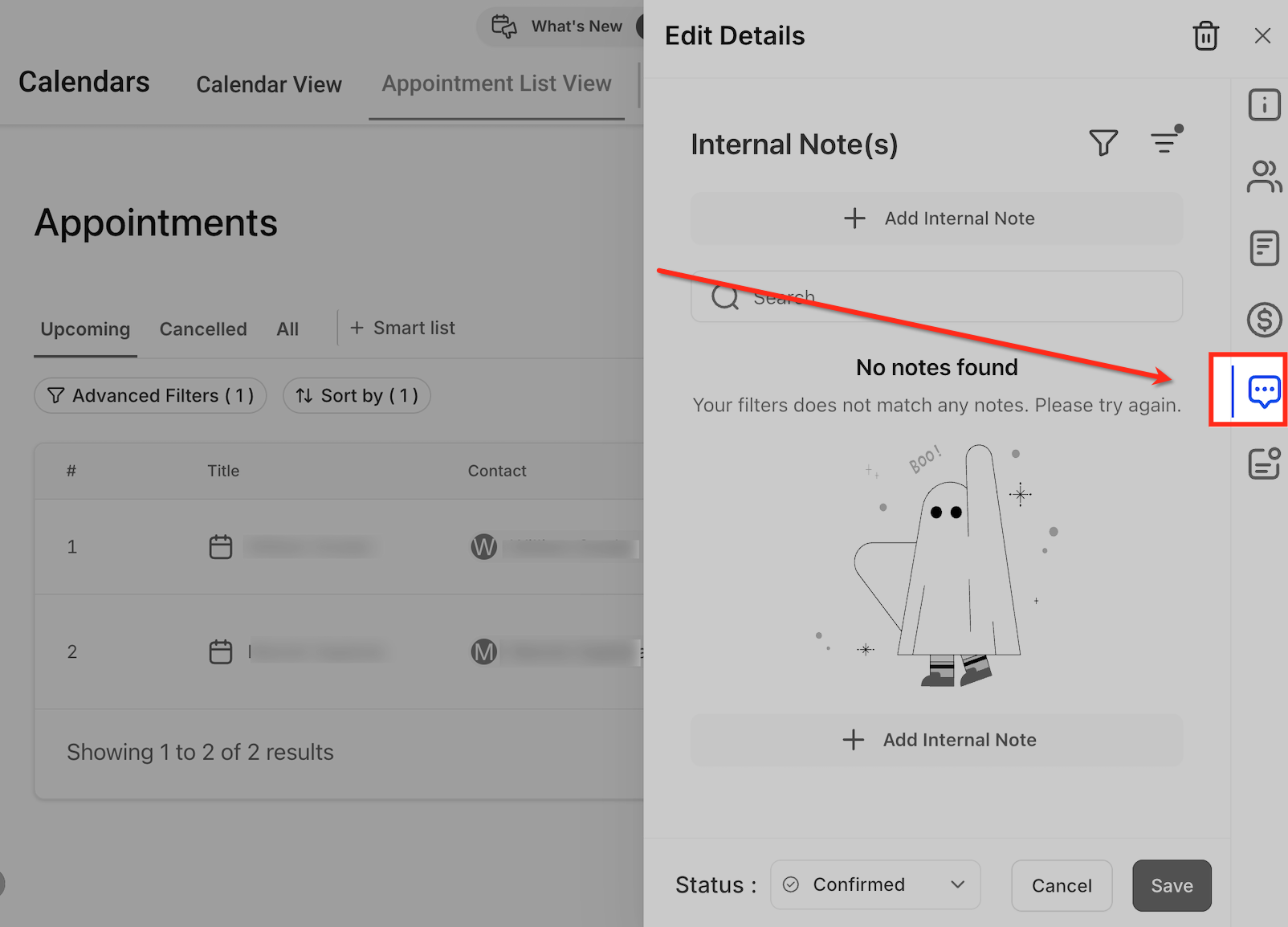
- Choose the Notes tab.
- Click Add Internal Note, type the content, and click Save.
Add an internal note from appointment list view
- Open the Calendars section.
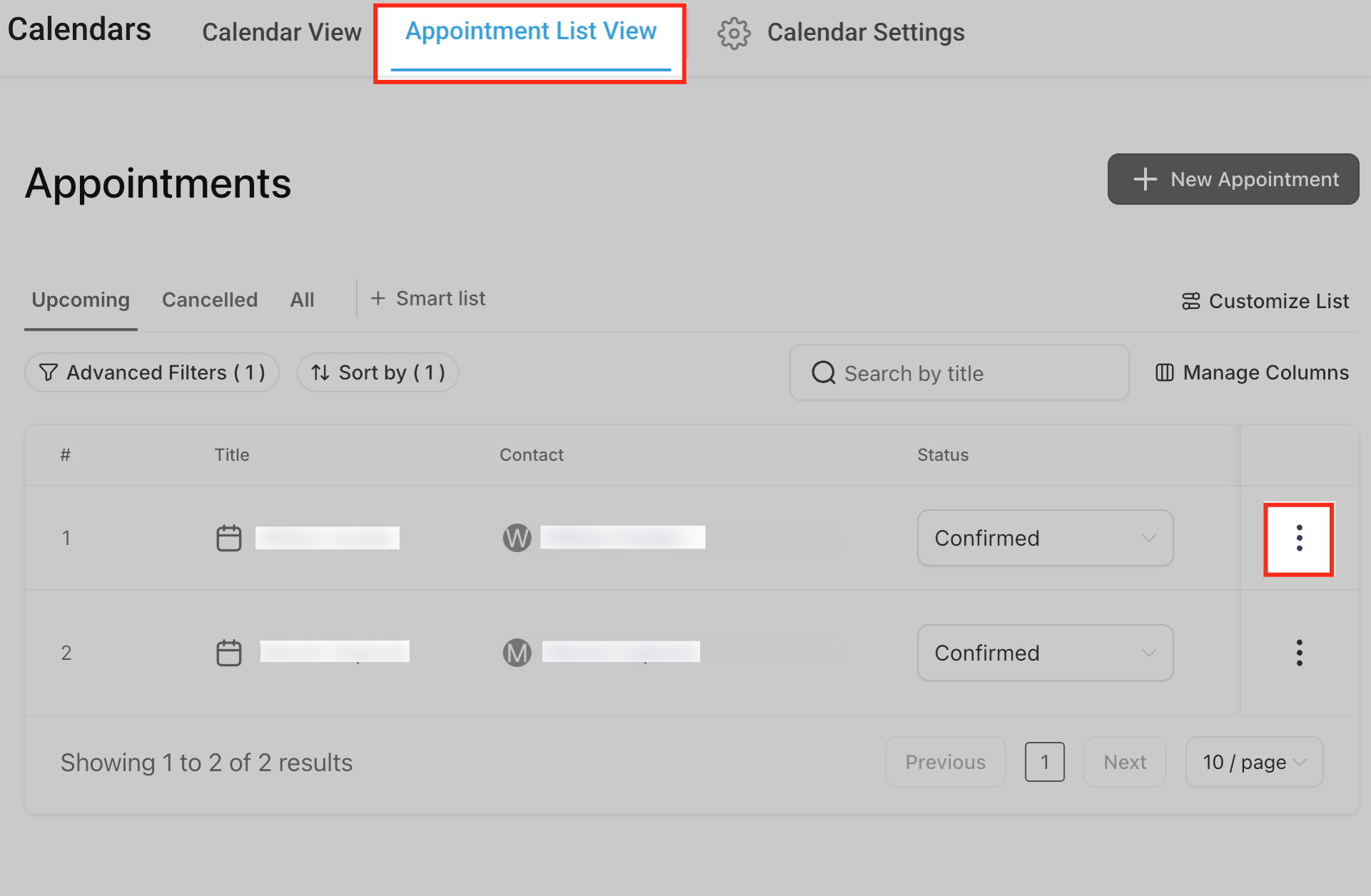
- Switch to Appointment List View.
- Locate the appointment you need.
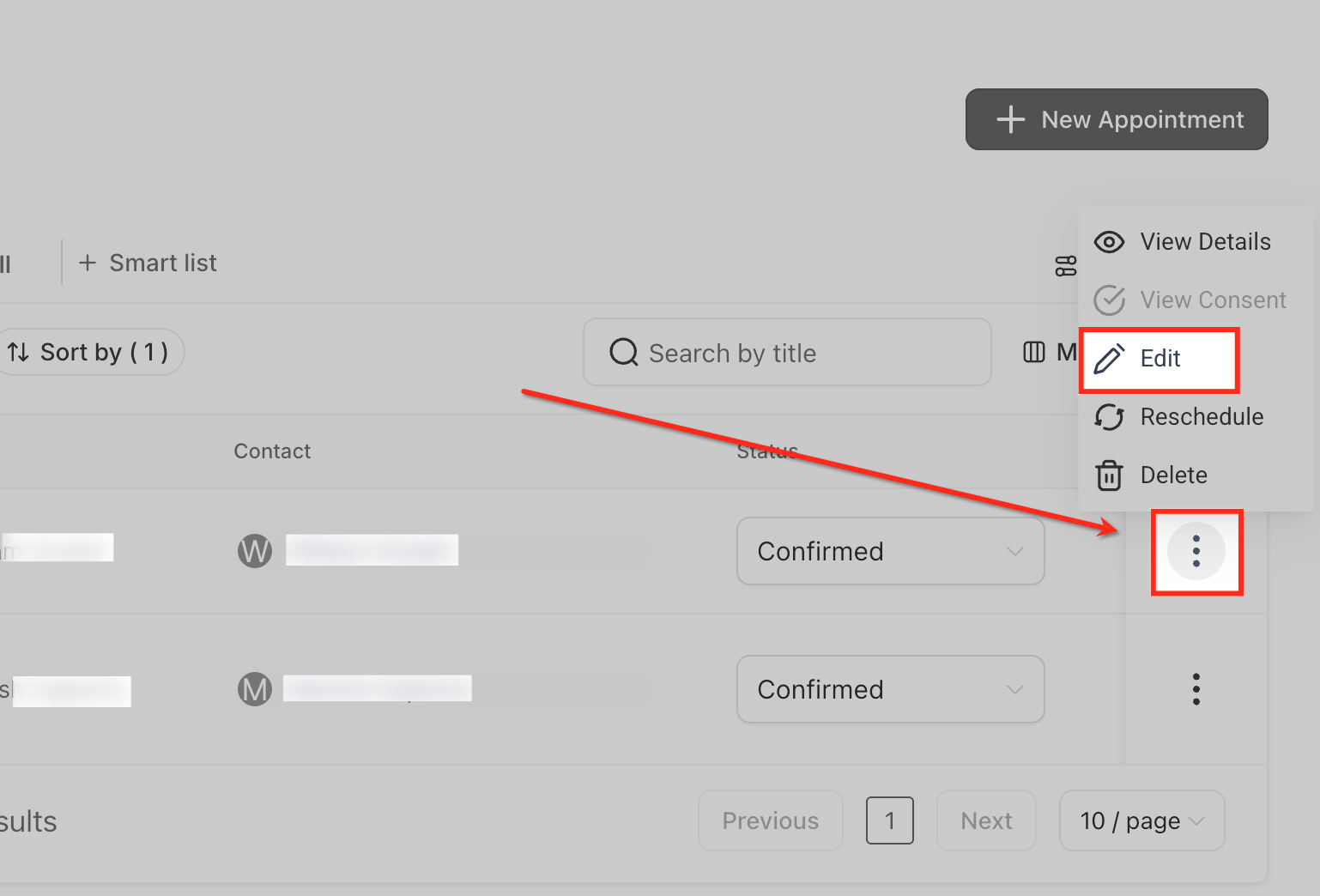
- Open the three dot menu for that appointment and choose Edit.
- In the Edit Details panel, under Internal Note(s), click Add Internal Note, type, and click Save.
Edit or delete a note
- Open the appointment that contains the note.
- In the Internal Note(s) area, click the three dot menu on the note.
- Select Edit to modify the text or Delete to remove the note.
Filter notes by source
- Open the appointment and go to the Internal Note(s) section.
- Click the filter icon.
- Choose one or more source types such as User, API, or Workflow.
- Apply the filter to display notes that match the selected sources.
Sort notes
- Open the appointment and locate the Internal Note(s) list.
- Click the sort icon.
- Select either ascending or descending order for Date created.
Search notes
- Open the appointment and go to Internal Note(s).
- Click inside the Search field.
- Enter the keyword(s) you want to find and confirm the search.
06What it looks like in HighLevel
07Settings that matter
- Internal Note(s). Controls the collection of internal notes attached to an appointment, which propagate to Contact, Opportunity, and Conversation records.
08Things to know before you rely on it
- The note editor allows a maximum of 65,000 characters per note.
- Deleted notes can be restored within 30 days; after that they are permanently removed.
- Internal appointment notes never sync out to external calendars such as Google or Outlook.
- Notes are attached to a single appointment instance and are not copied automatically to recurring or duplicated events.
09How it connects to the rest of HighLevel
- Manage appointments with Appointment List View Appointment List View
- Create Appointment Note workflow action Appointment Note workflow
- Workflow Action: Book Appointment Book Appointment workflow
Michael's take

In my experience, appointment notes help when handing off clients between team members.
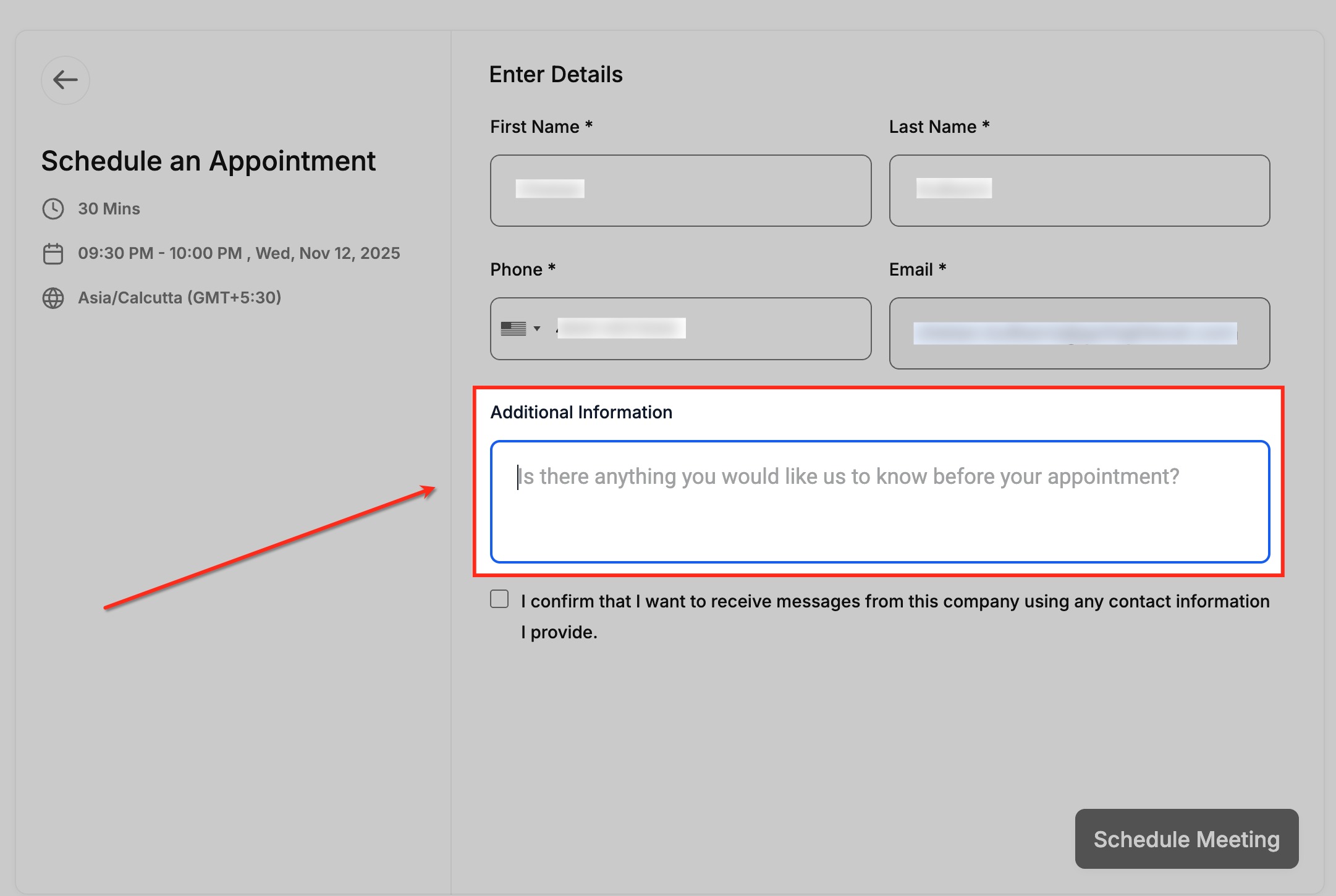
Don’t treat the booker’s Additional Information as a replacement for an internal note.