
01Who this is for
- Agency owners who manage many client calendars can log details without extra clicks.
- Service providers with recurring bookings can capture post visit comments directly in the system.
- Sales teams that schedule demos can attach follow up notes as part of the automation.
02Create appointment notes, explained
The action belongs to the Appointments group in the workflow builder. When a workflow reaches this step, HighLevel creates an internal note linked to the selected appointment. The note appears on the related contact, opportunity and conversation records, and any edit or deletion is reflected everywhere the note shows.
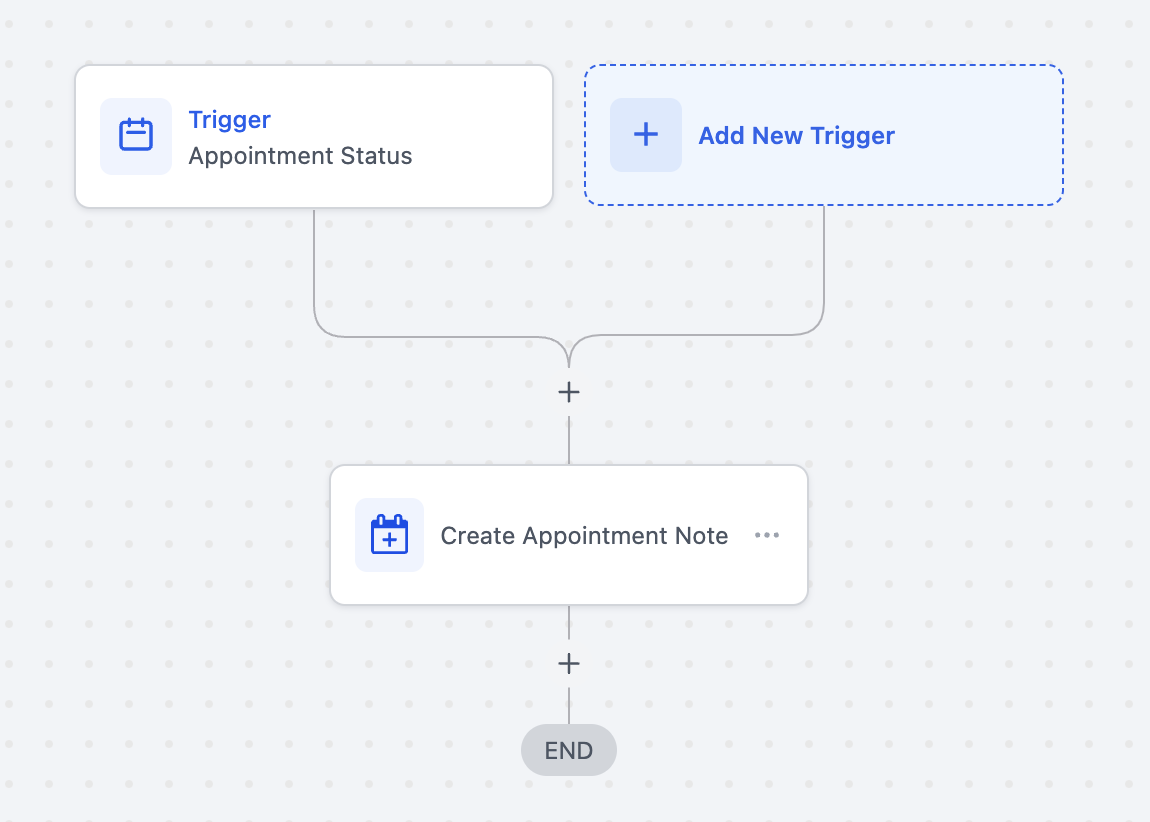
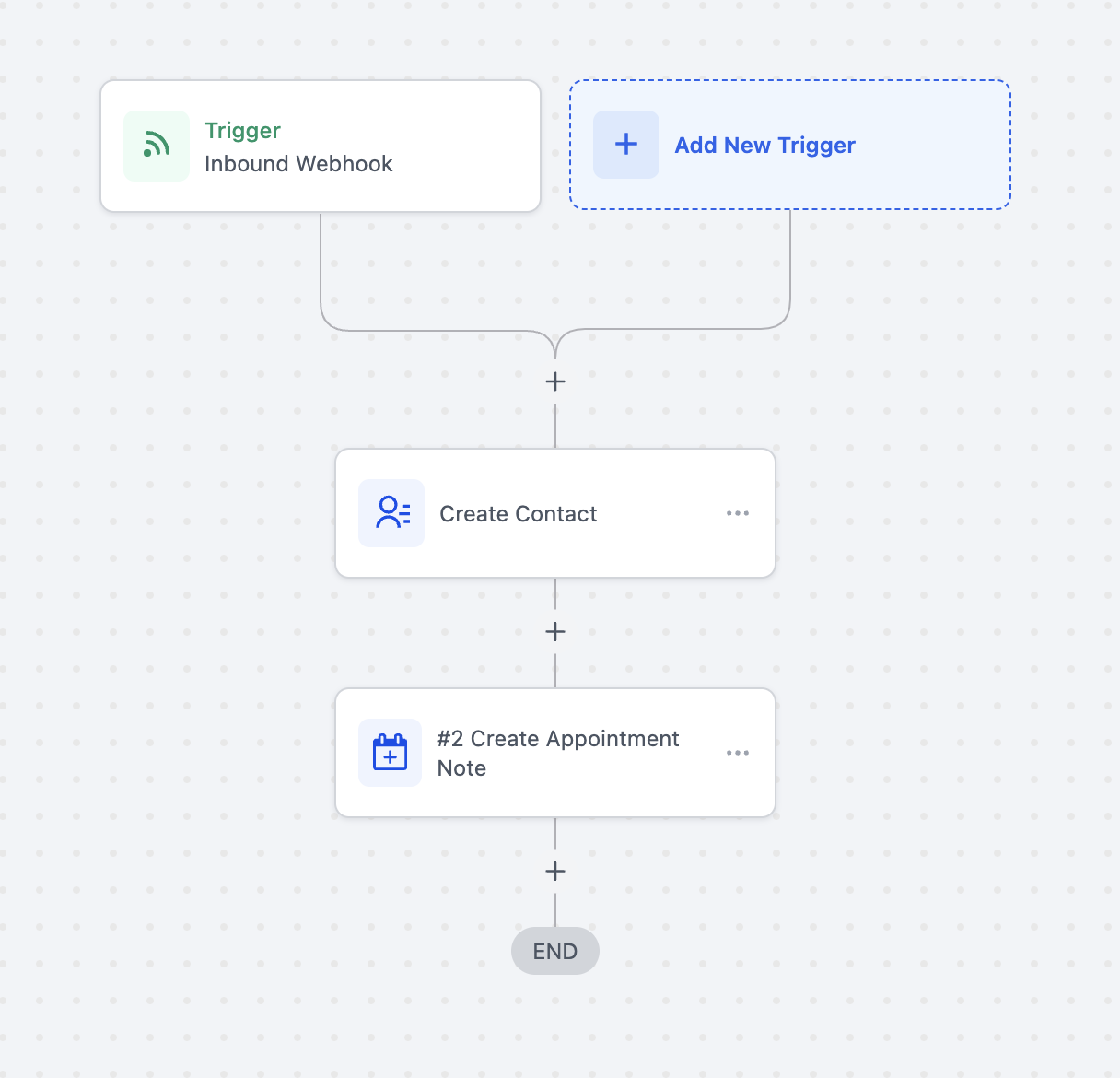
If the workflow starts from an appointment based trigger, such as Appointment Status or Customer Booked Appointment, the platform automatically uses the current appointment, so no ID is needed. When the workflow starts from an Inbound Webhook trigger, the payload must contain an appointmentId field so the platform knows which appointment to tag.
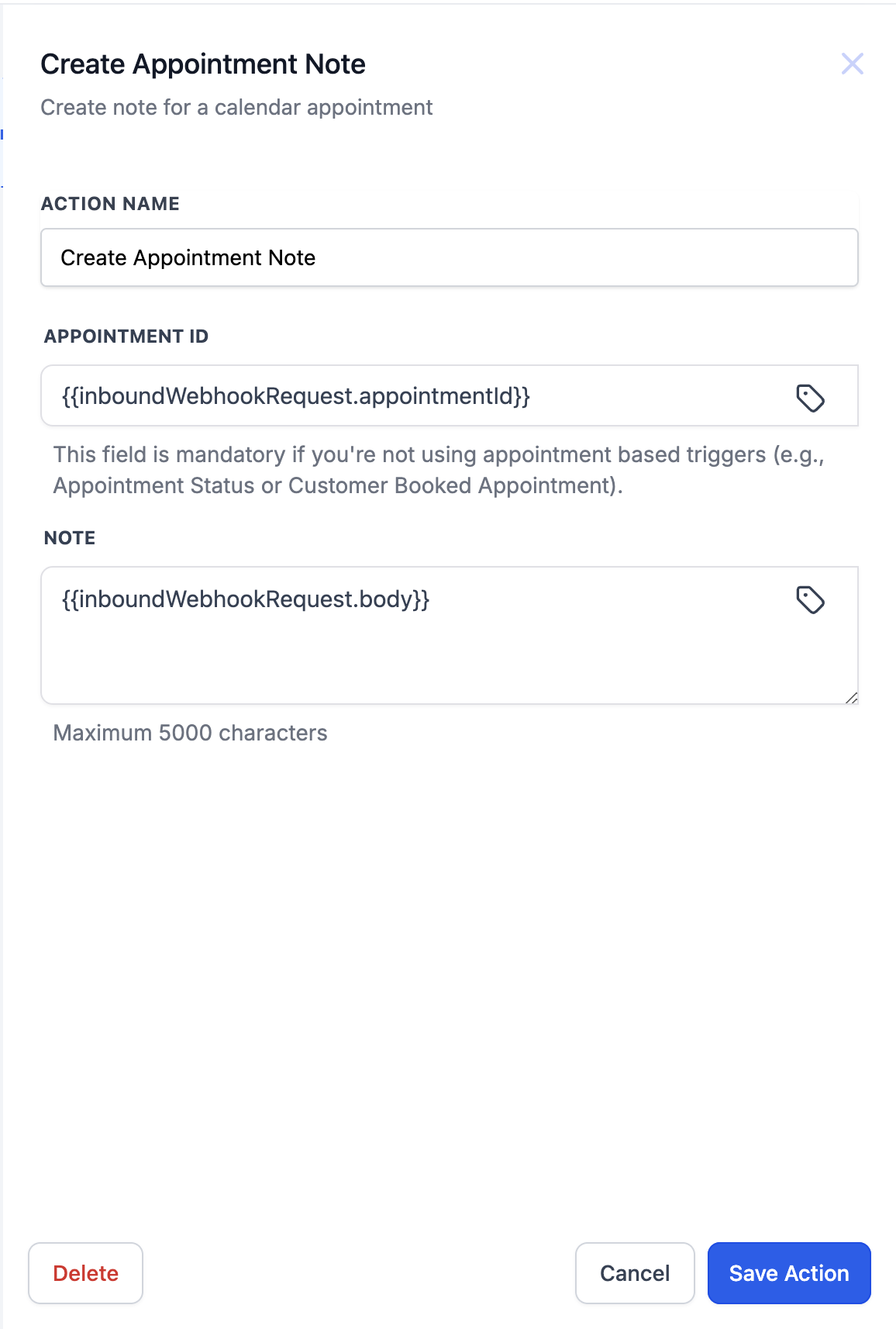
The action has two inputs: appointmentId (required only for webhook triggers) and body, the note text. The body field accepts up to five thousand characters.
03How businesses use create appointment notes
- Digital marketing agency. The agency builds a workflow that fires when a client books a strategy call. It adds a note with the campaign brief supplied in the webhook, so the account manager sees the context without opening another form.
- Medical clinic. The clinic creates a workflow that runs after a patient checks in online. It appends a note containing the symptom checklist from the inbound payload, allowing the practitioner to review it on the patient record.
- Real estate office. The office sets a workflow that triggers on a property showing appointment status change. It writes a note with the agent’s remarks entered manually, making the comment visible to the lead and the sales team.
04The numbers and rules that matter
- Body (string, max length: 5000 characters), The content of the appointment note.
05Before you start
- If using an Inbound Webhook trigger, the webhook payload must include both appointmentId and body fields.
06How to set up and use create appointment notes in HighLevel
Add create appointment note action
- Open Automations > Create New Workflow > Start From Scratch.
- Add a Trigger and select Inbound Webhook, Appointment Status, or Customer Booked Appointment.
- Add an Action by choosing Add Action > Create Appointment Note.
- Enter a name for the action.
- If using an inbound webhook, verify that the payload includes appointmentId and body.
07What it looks like in HighLevel
08Settings that matter
- appointmentId. Specifies which appointment receives the note when the workflow starts from an inbound webhook.
- body. Contains the text that will be saved as the appointment note, up to five thousand characters.
09Things to know before you rely on it
- The note body cannot exceed five thousand characters.
- When the workflow uses an inbound webhook, the appointmentId field is mandatory.
- Notes created by this action are internal and appear on contact, opportunity and conversation records.
10How it connects to the rest of HighLevel
- Learn how appointment notes sync across records Sync notes guide
- Configure the Book Appointment workflow action Book appointment action
Michael's take

Create appointment notes are handy for keeping internal context without extra clicks.