
01Who this is for
- Marketing teams can auto schedule demo calls right after a form submission, keeping prospects engaged.
- Sales representatives benefit by having follow up meetings booked without manual entry, based on webhook data.
- Customer support groups can create service appointments right away after a ticket update, ensuring timely assistance.
02Book appointment workflow actions, explained
The Book Appointment action is a workflow step that creates a new appointment on a chosen calendar. You select the calendar, decide if the booking follows the calendar’s default assignment rules or goes to a specific team member, and set the appointment’s date and time.
When the workflow fires, the platform checks the calendar’s availability unless you turn on Override availability. If no slot is open and Override is off, the appointment is not created. The step can use a static date or pull a date from trigger data, provided the format matches supported patterns or is converted with a Date Time Formatter action.
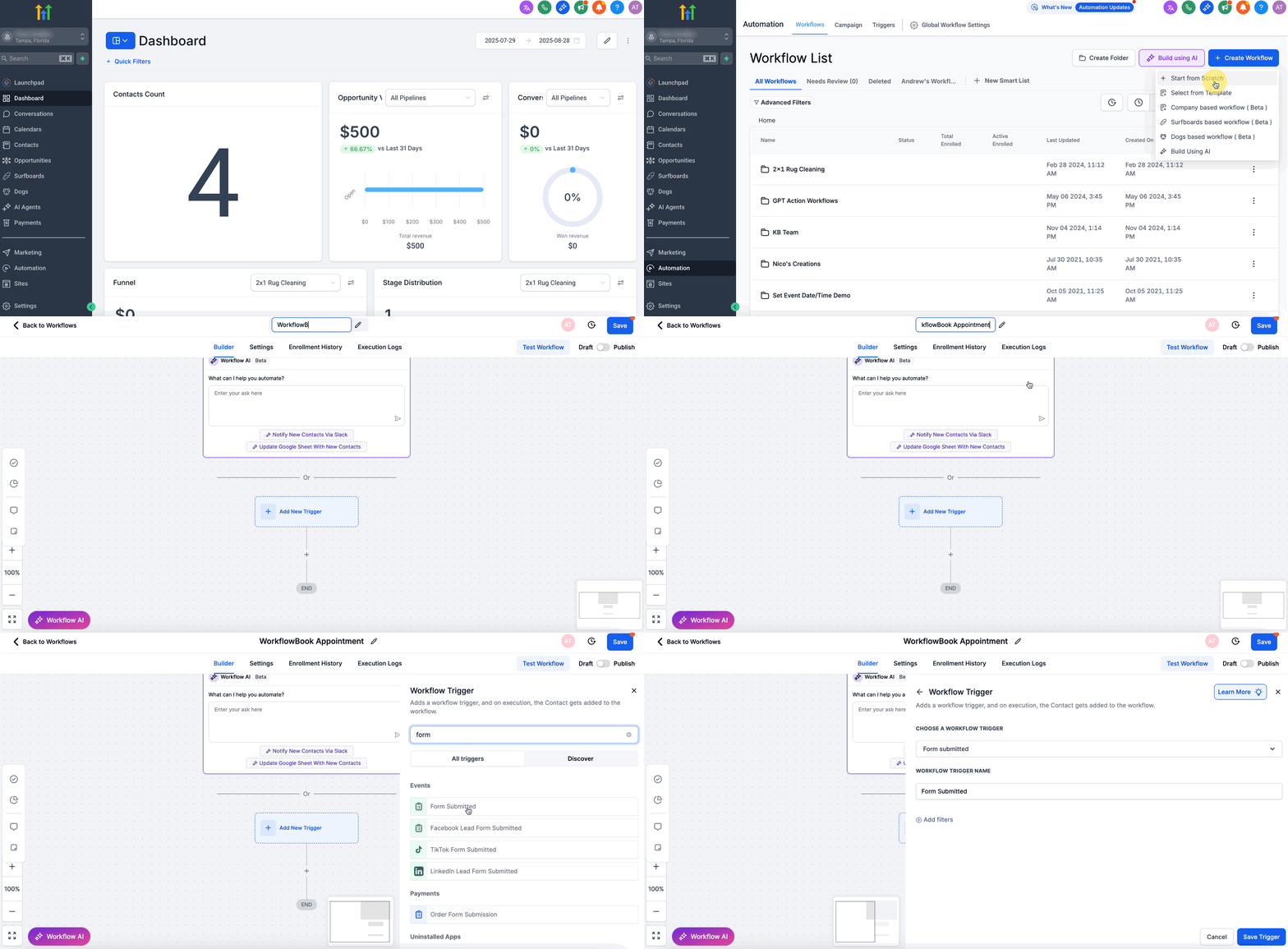
You find this action inside Automations when building a workflow from scratch. After adding the step, you can add a description, branch the workflow based on whether the booking succeeded, and continue with any follow up actions.
03How businesses use book appointment workflow actions
- Digital marketing agency. When a prospect fills out a lead gen form, the workflow adds a Book Appointment step that creates a discovery call on the agency’s calendar. The date field is mapped from the form’s preferred time slot, and the appointment is assigned using the calendar’s round robin rule.
- Consulting firm. An inbound webhook from a scheduling partner triggers a workflow that books a strategy session on a specific consultant’s calendar. The workflow maps the webhook’s date field to the appointment time and keeps the booking within the consultant’s available slots.
- Home services business. After a service request form is submitted, the workflow uses the Book Appointment action to place a service call on the appropriate technician’s calendar. The time is taken from the customer’s chosen window, formatted with a Date Time Formatter if needed.
04The numbers and rules that matter
- Supported dynamic date formats include MM DD YYYY HH:MM (e.g., 12-21-2021 08:30 AM) and DD MMM YYYY HH:MM (e.g., 21 OCT 2021 08:30 AM).
05Before you start
- A calendar without Recurring enabled must exist in the account before the action can be configured.
06How to set up and use book appointment workflow actions in HighLevel
Set up book appointment workflow action
- Open Automations, click Create New Workflow, select Start From Scratch, and add a trigger such as Form Submitted or Inbound Webhook.
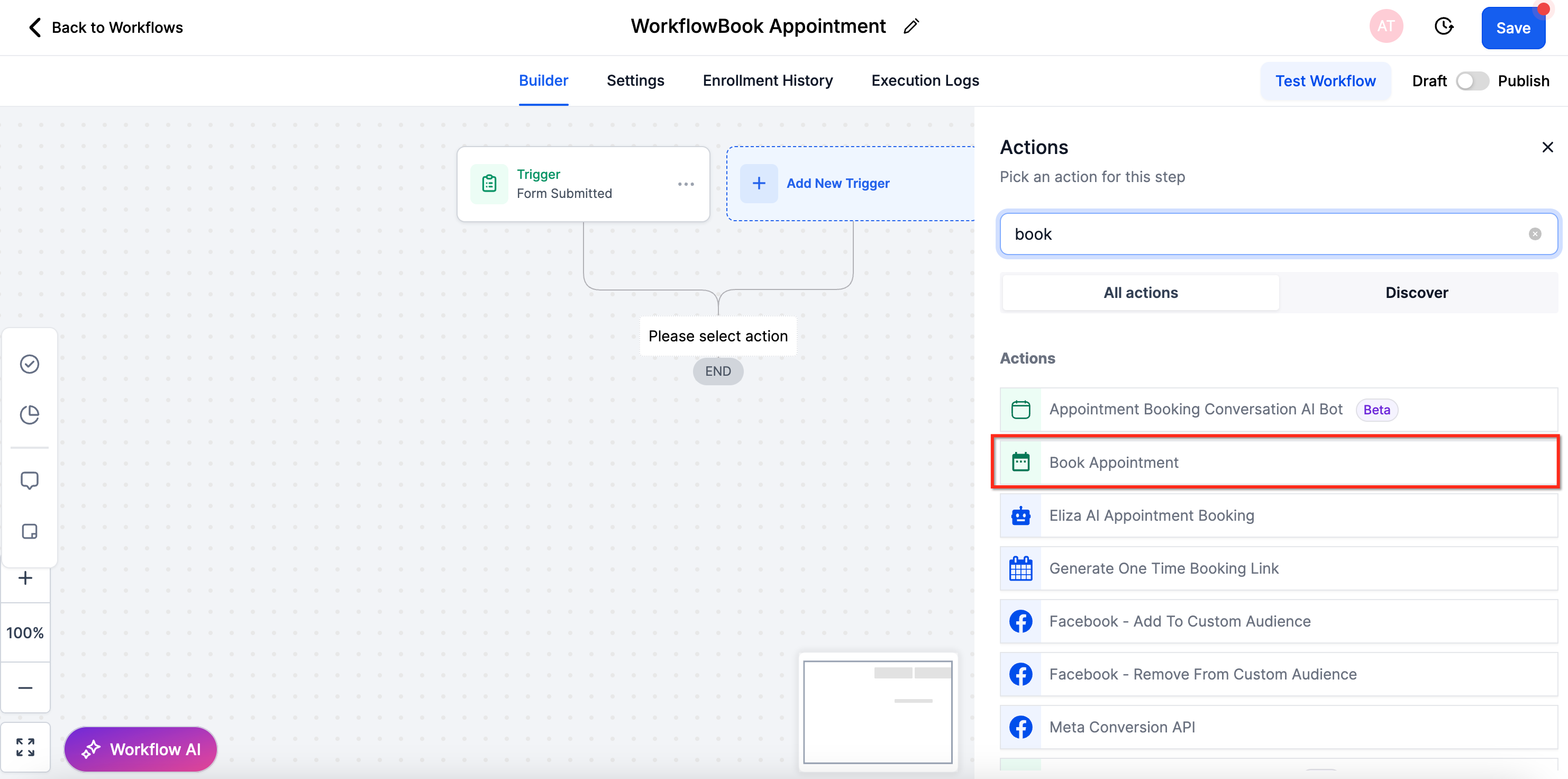
- Choose Add Action, pick Book Appointment, and give the action a descriptive name.
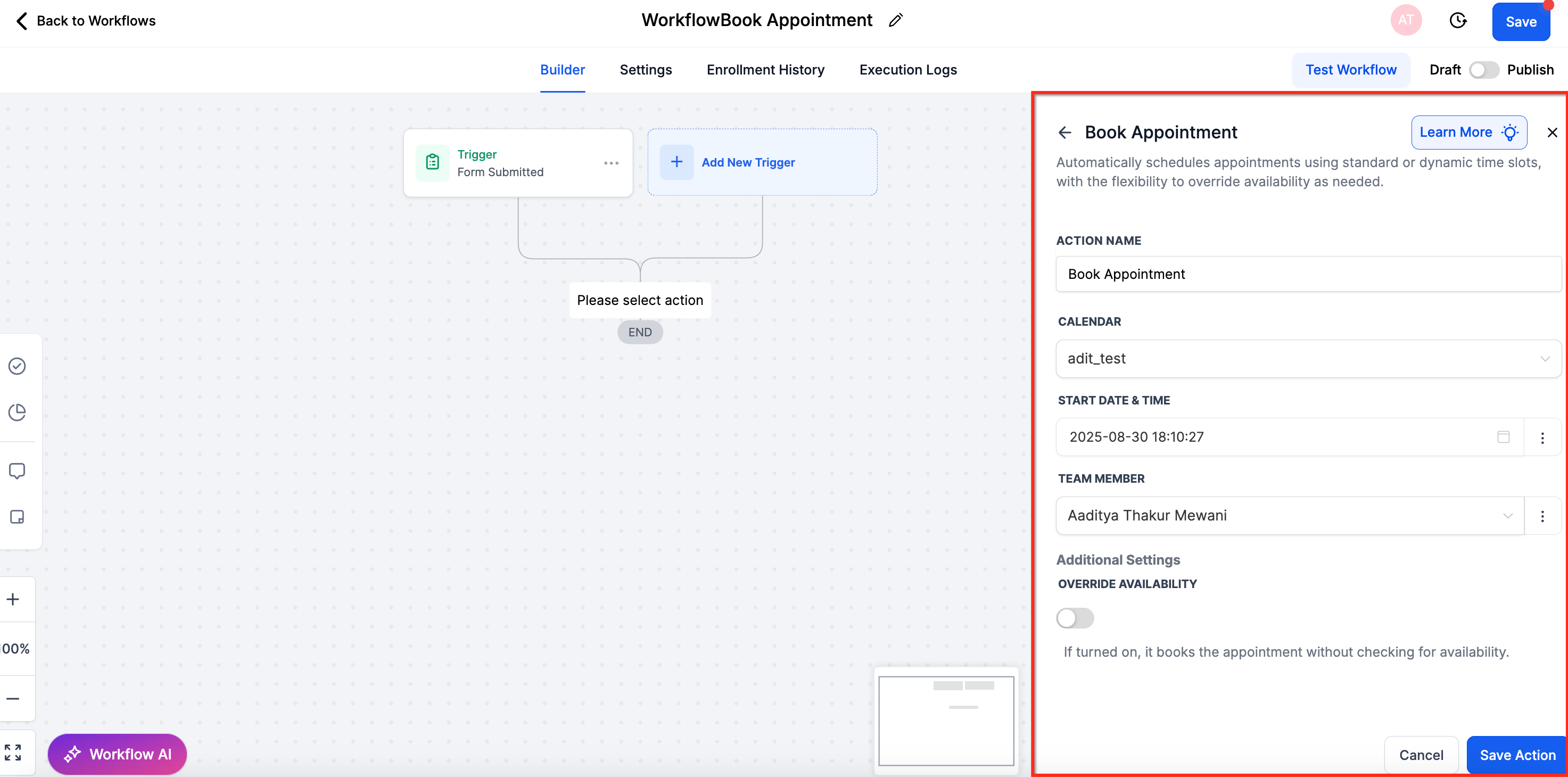
- Select the target calendar, choose Calendar Default or a specific team member, and set the appointment date and time option.
- If using dynamic dates, verify the incoming format matches a supported pattern or add a Date Time Formatter step before this action.
- Choose Standard for a fixed date/time or Dynamic to map the date/time from the trigger data.
- Set Override availability to Off (default) to check availability, or switch it On to book regardless of availability.
- Note: If no team member is available and Override availability is Off, the appointment will not be created.
- Optionally add an Action Description or internal notes to the step.
- Save the workflow to activate the automatic booking.
07What it looks like in HighLevel
08Settings that matter
- Calendar. Specifies which calendar will receive the automatically created appointment.
- Team member. Determines whether the appointment follows the calendar’s default assignment rule (e.g., round robin) or is assigned to a specific staff member.
- Appointment Date & Time. Defines the start date and time, either as a fixed value (Standard) or pulled from trigger data (Dynamic).
- Override availability. Controls whether the system checks calendar availability before booking; Off respects availability, On forces the booking.
- Action Description. Optional internal note that can be added to the Book Appointment action for reference.
09Things to know before you rely on it
- Calendars that have Recurring enabled cannot be selected for the Book Appointment action.
- If no team member is available and Override availability is Off, the appointment will not be created.
10How it connects to the rest of HighLevel
- Create Appointment Note workflow action details Create Appointment Note
- Manually book calendar appointments in HighLevel Manual booking guide
- Manage appointments using the list view Appointment list view
Michael's take

People often think the Override availability toggle is a safety net for any scheduling hiccup, but that skips the whole point of respecting real time availability. I prefer to keep the default off so the system only books when a slot truly exists, and I handle the rare “no slot” case with a follow up email or a fallback task.
If I were setting this up, I’d start with a simple form submission trigger, map the date field directly, and let the calendar’s round robin rule assign the rep. Then I’d add a quick If/Else branch to catch a false result and alert the sales lead. That gives me automated bookings while still catching the edge cases.