
01Who this is for
- Coaches who book weekly training sessions can ensure clients pay upfront or only for the first session, matching their billing preference.
- Salon owners offering recurring treatments can set the widget to collect the total cost at booking, avoiding manual follow up.
- Therapists with multi session packages can choose first appointment payment, then invoice later for remaining visits.
02Recurring appointment payments, explained
The payment options let a business decide whether to take money at the moment a client books a series of recurring appointments or only for the first appointment in that series. The choice is made when the calendar is configured.
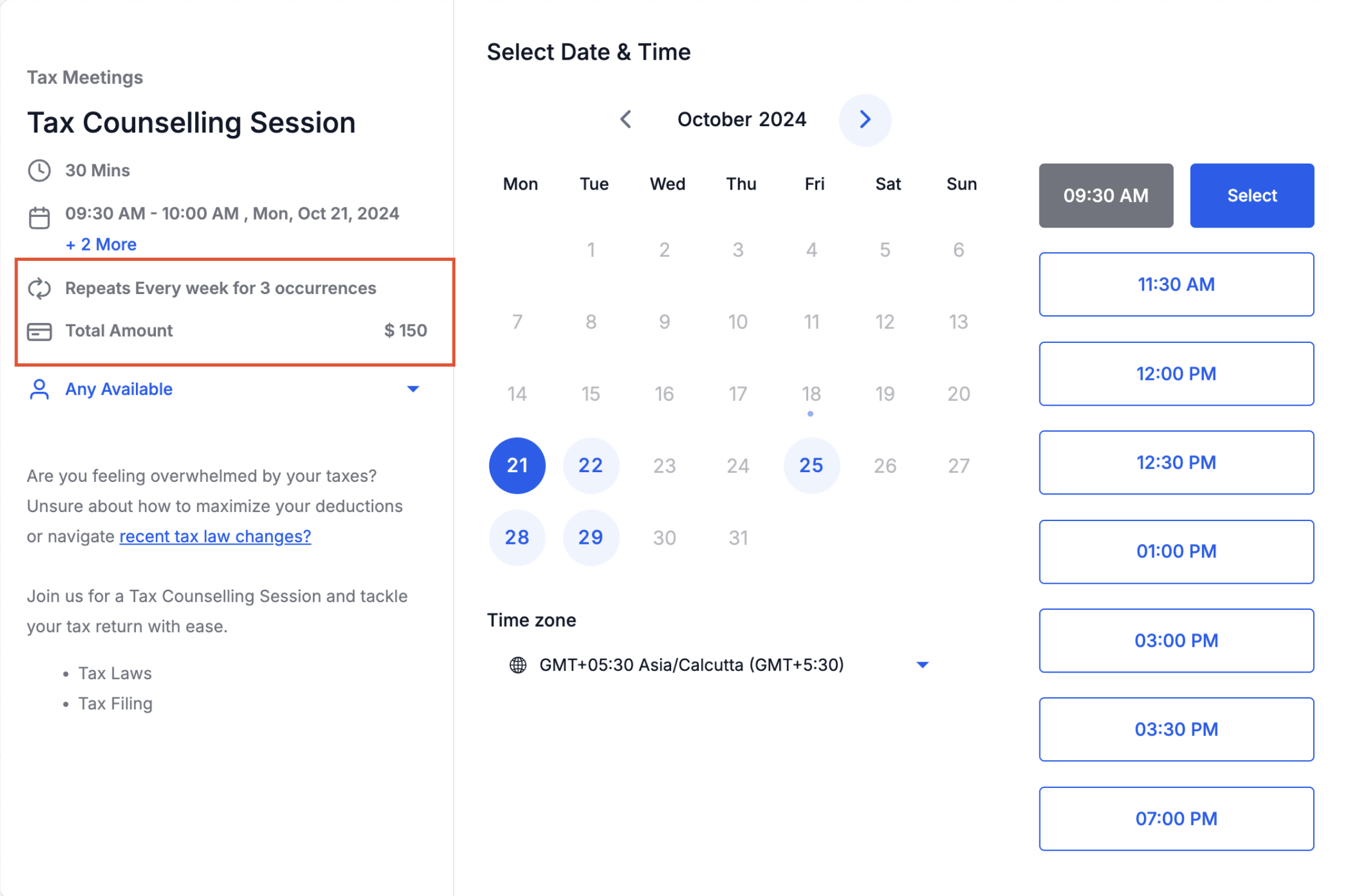
If the option to collect payment for all appointments is selected, the system charges the combined total at booking time. The final amount may shift if the client books fewer sessions than initially planned because of availability rules. When the first appointment only option is chosen, only the initial fee is taken and later payments must be collected manually.
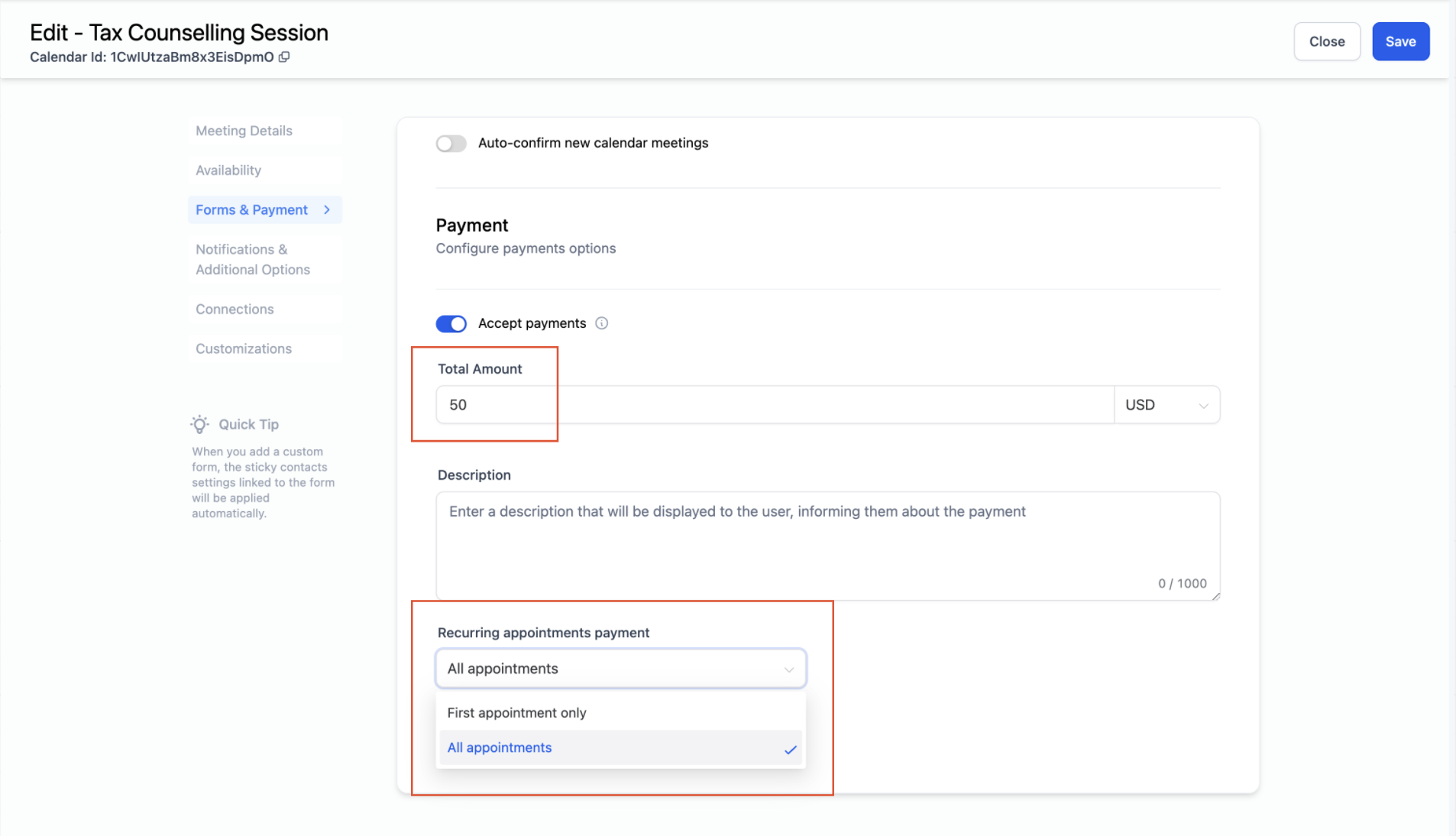
These settings live inside each calendar. Open the calendar, go to the Forms and Payments tab, and you will see the two payment collection choices under Accept Payments. Saving the selection applies the behavior to any recurring appointments created from that calendar.
03How businesses use recurring appointment payments
- Dental practice. Select Collect Payment for All Appointments in the calendar’s Forms and Payments tab. The widget then charges the full amount for the scheduled series of cleanings at the time of booking.
- Personal trainer. Choose Collect Payment for First Appointment Only. The client pays for the first training session when booking, and the trainer can invoice for later sessions manually.
- Music school. Configure the calendar to collect payment for all appointments. Parents book a recurring lesson series and the widget captures the total tuition up front.
04Before you start
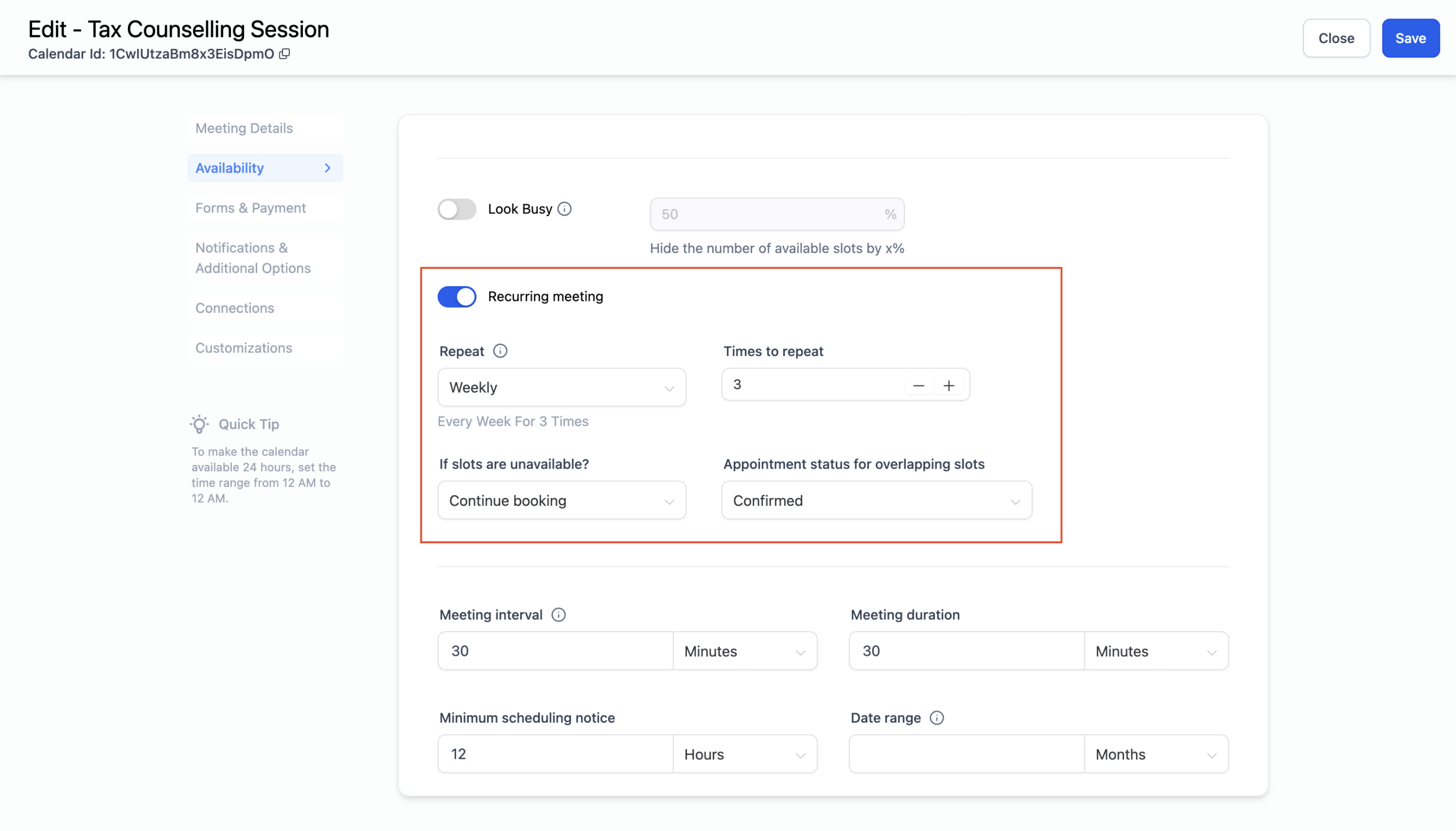
- Recurring Meetings must be enabled in the calendar’s Availability tab.
- A payment provider must be integrated via Payments Module > Integration.
05How to set up and use recurring appointment payments in HighLevel
Configure payment collection for recurring appointments
- Navigate to Calendar Settings and select the calendar you want to edit.
- Verify that Recurring Meetings are turned on in Calendar > Availability tab and that a payment provider is connected in Payments Module > Integration.
- Open the Forms and Payments tab for the chosen calendar.
- Under Accept Payments, pick either Collect Payment for First Appointment Only or Collect Payment for All Appointments.
- Click Save to apply the setting.
06What it looks like in HighLevel
07Settings that matter
- Collect Payment for First Appointment Only. Charges the client only for the initial appointment when the series is booked.
- Collect Payment for All Appointments. Charges the total amount for every appointment in the series at the time of booking.
08Things to know before you rely on it
- Recurring calendars do not support partial payments.
- The total charged may change if the client books fewer appointments than expected because of availability settings.
09How it connects to the rest of HighLevel
- Set weekly or date specific hours that affect how many appointments can be booked. Availability settings
- Adjust the look and fields of the booking widget to match your brand. Widget customization
- Review the plans that include calendar and payment features. Pricing