
01Who this is for
- Marketing teams that need to capture lead information before confirming a meeting, because the form can be placed first to create contacts right away.
- Service providers using paid bookings, as the order influences when payment is required and how long a slot is held.
- Sales professionals who prefer the date picker first to streamline the booking flow, ensuring the appointment is created only after the form is submitted.
02Calendar widget reorder, explained
The feature controls the sequence of the two main steps in a calendar booking widget: the Date & Time selector and the Form. You can decide which step appears first, which in turn determines when a contact is added to the system and when an appointment is recorded.
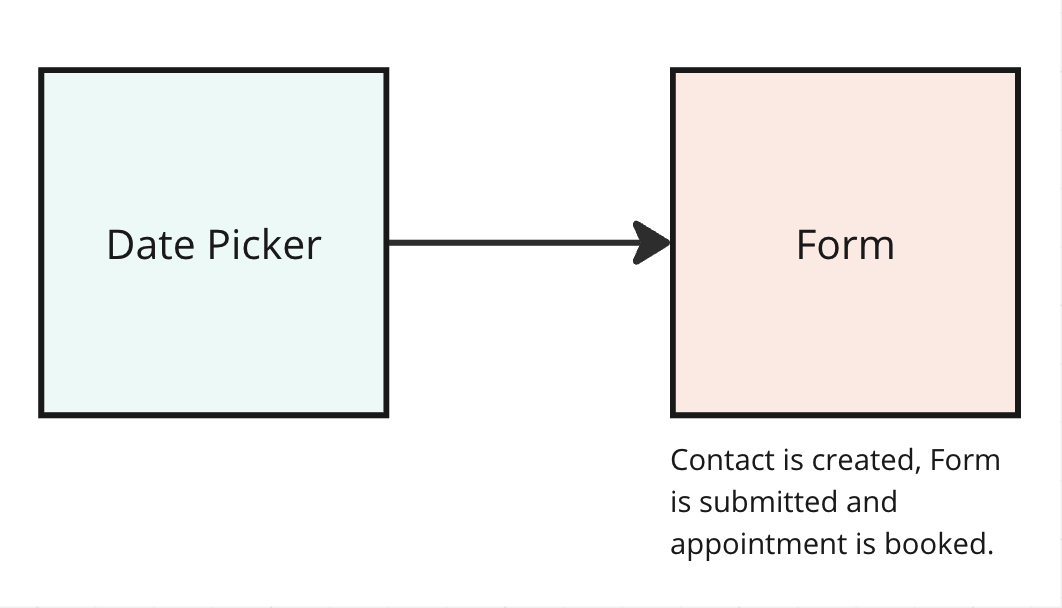
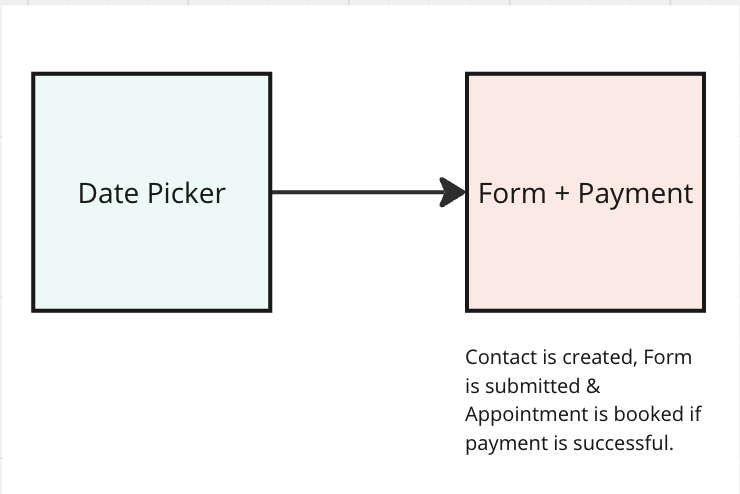
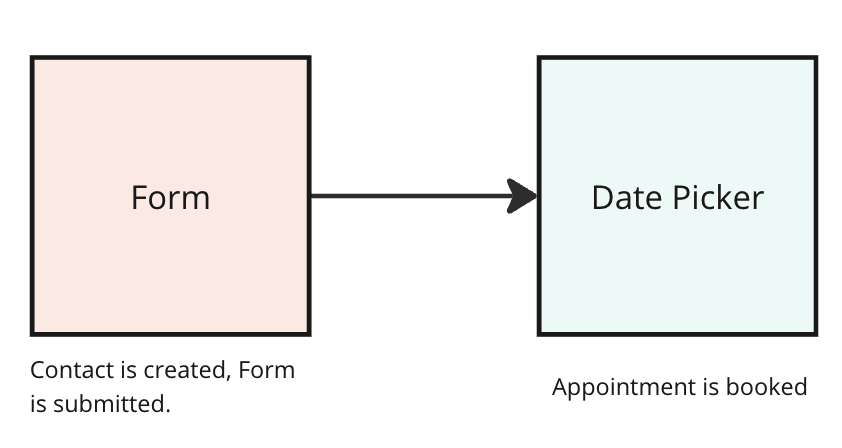
If the date picker is first, the user selects a slot, then completes the form; the appointment is booked after the form submission. If the form is first, the contact is created as soon as the form is submitted, and the appointment is added only if the user later picks a date.
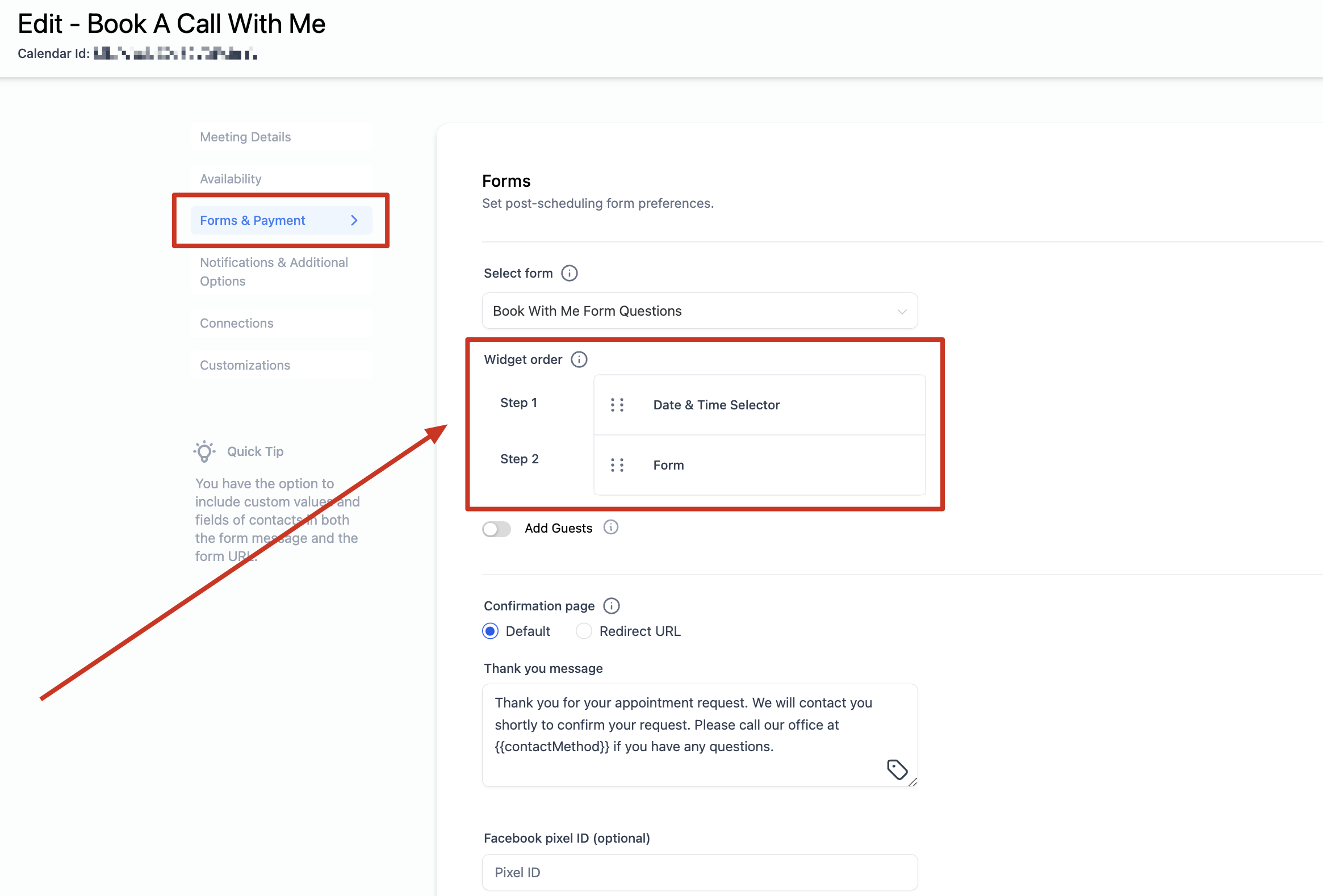
The setting is found in Calendar Settings under Forms & Payments and works only with the NEO Widget.
03How businesses use calendar widget reorder
- Dental practice. Place the Form first so patient details are captured immediately. After the form, the patient selects an appointment slot. This creates a contact before the appointment is confirmed.
- Online consulting firm. Set the Date & Time selector first so prospects choose a meeting time, then fill out the intake form. The appointment is booked once the form is submitted.
- Event venue. Enable payments and keep the Form first. When a client submits the form, a contact is created. The client then selects a date and must complete payment within ten minutes or the slot is released.
04The numbers and rules that matter
- Payment duration is 10 minutes.
05Before you start
- The NEO Widget must be active for the calendar.
06How to set up and use calendar widget reorder in HighLevel
Reorder steps in the calendar widget
- Open Calendar Settings and select the calendar you want to modify.
- Navigate to the Forms & Payments section.
- Drag the Date & Time selector and the Form into the desired order.
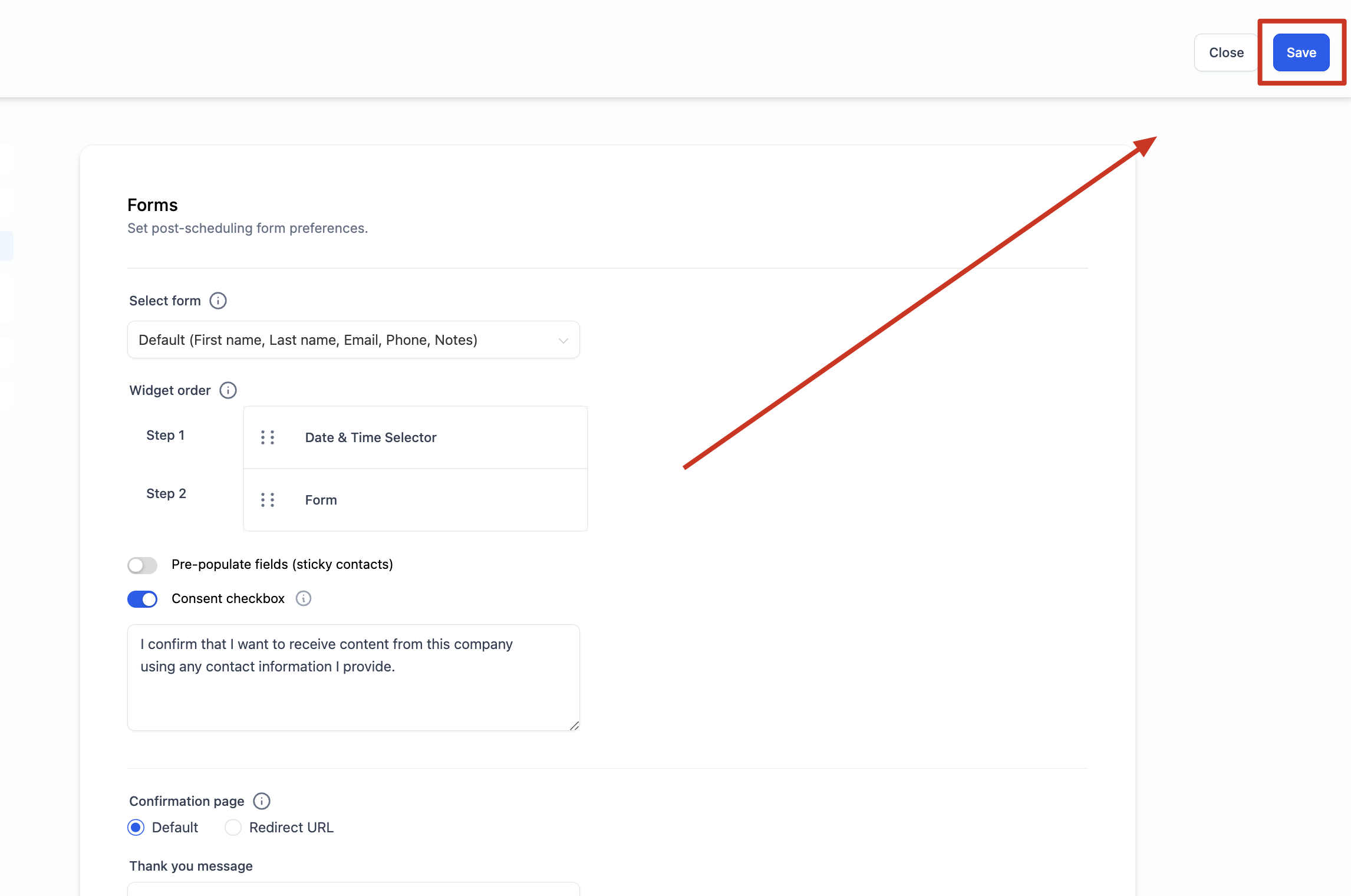
- Click Save to apply the new arrangement.
07What it looks like in HighLevel
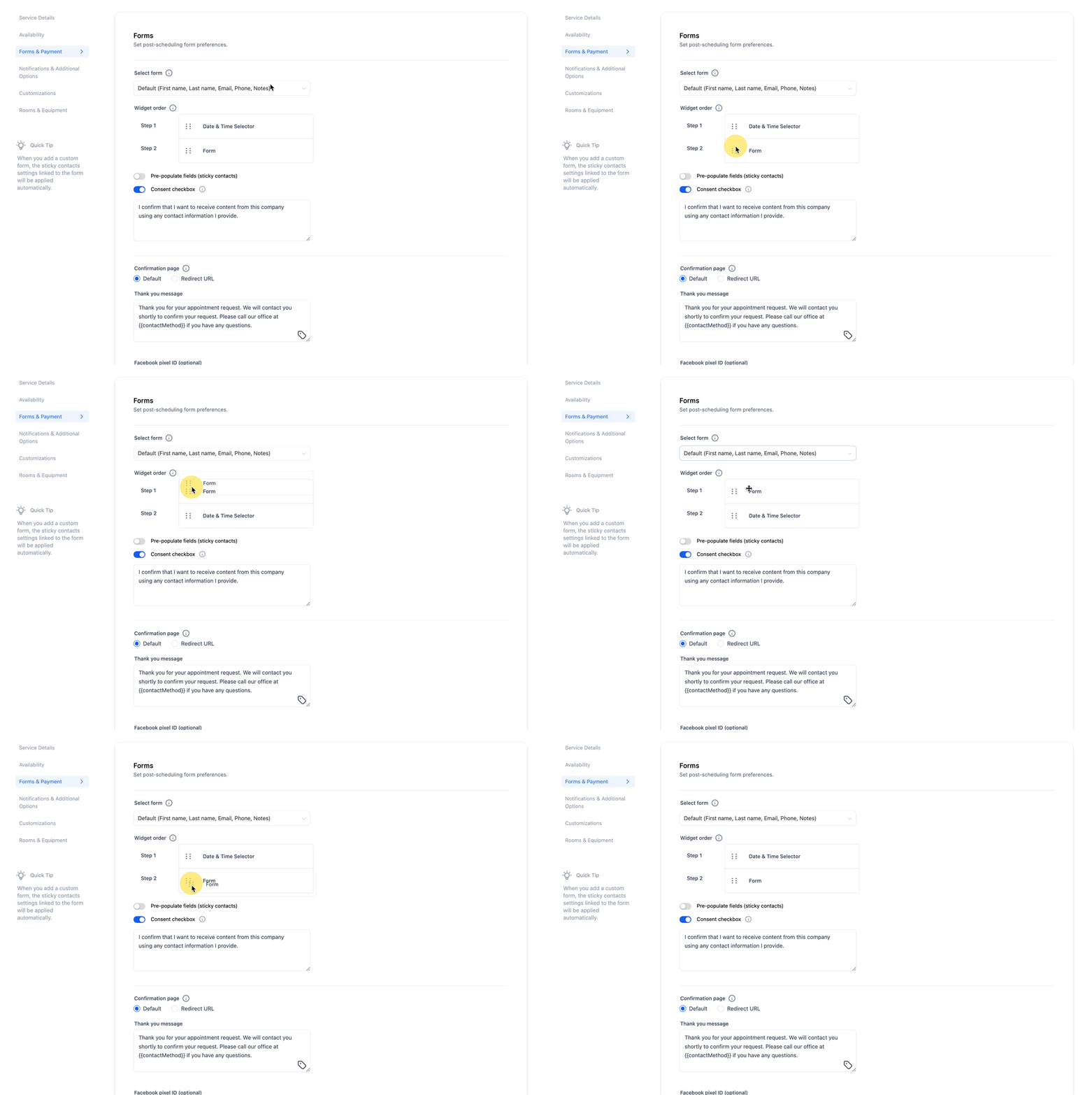
08Settings that matter
- Forms & Payments. Controls the order of the Date & Time selector and the Form within the booking widget.
09Things to know before you rely on it
- The feature works only with the NEO Widget.
- When payments are enabled, a selected slot is held for ten minutes while the payer completes the transaction.
- If payment is not finished in ten minutes, the slot is released and becomes available again.
10How it connects to the rest of HighLevel
- Learn more about customizing calendar widgets Widget customization guide
- Set weekly and date specific availability for your calendars Calendar availability
- Understand cancellation and reschedule policies for bookings Cancellation policies
Michael's take

The Calendar Widget Reorder feature lets a small business decide whether to gather a lead’s information before or after they pick a time.
It’s especially useful when you need a contact record even if the prospect never finalizes an appointment.
Don’t forget that the 10 minute payment window means a slot can disappear if the buyer stalls.