
01Who this is for
- Mobile beauty providers, they can capture a client’s address at the time of booking, avoiding follow up calls.
- Home repair contractors, each job may be at a different address, so the feature records the site automatically.
- Field service consultants, they can let clients specify the meeting location, keeping schedules accurate.
02Ask the Booker locations, explained
Ask the Booker location adds a new location type to Services v2. Instead of a fixed business address, the system asks the booker to type the address where the service will be performed. The address is stored with the appointment record and appears in booking confirmations.
The feature lives in the Locations tab of Calendar Settings. When enabled, it behaves like any other location for availability, pricing, and duration, but the address field is supplied by the customer at booking time. Staff must still be assigned to the location for it to be selectable.
All other service configurations, such as price, length, and booking rules, remain unchanged. The collected address can be referenced in any communication that includes appointment details.
03How businesses use ask the Booker location
- Mobile beauty salon. Create an Ask the Booker location, enable the customer address option, and assign stylists to that location. When a client books a home visit, they enter their address, which saves directly to the appointment.
- Home repair service. Add a location named "Customer Location," turn on the address entry setting, and link it to available technicians. Each repair request includes the client’s address, eliminating the need for a separate scheduling call.
- Field inspection firm. Set up an Ask the Booker location, activate the address field, and assign inspectors. Clients schedule inspections and type the property address, which the firm can view in the appointment details.
04How to set up and use ask the Booker location in HighLevel
Set up Ask the Booker location
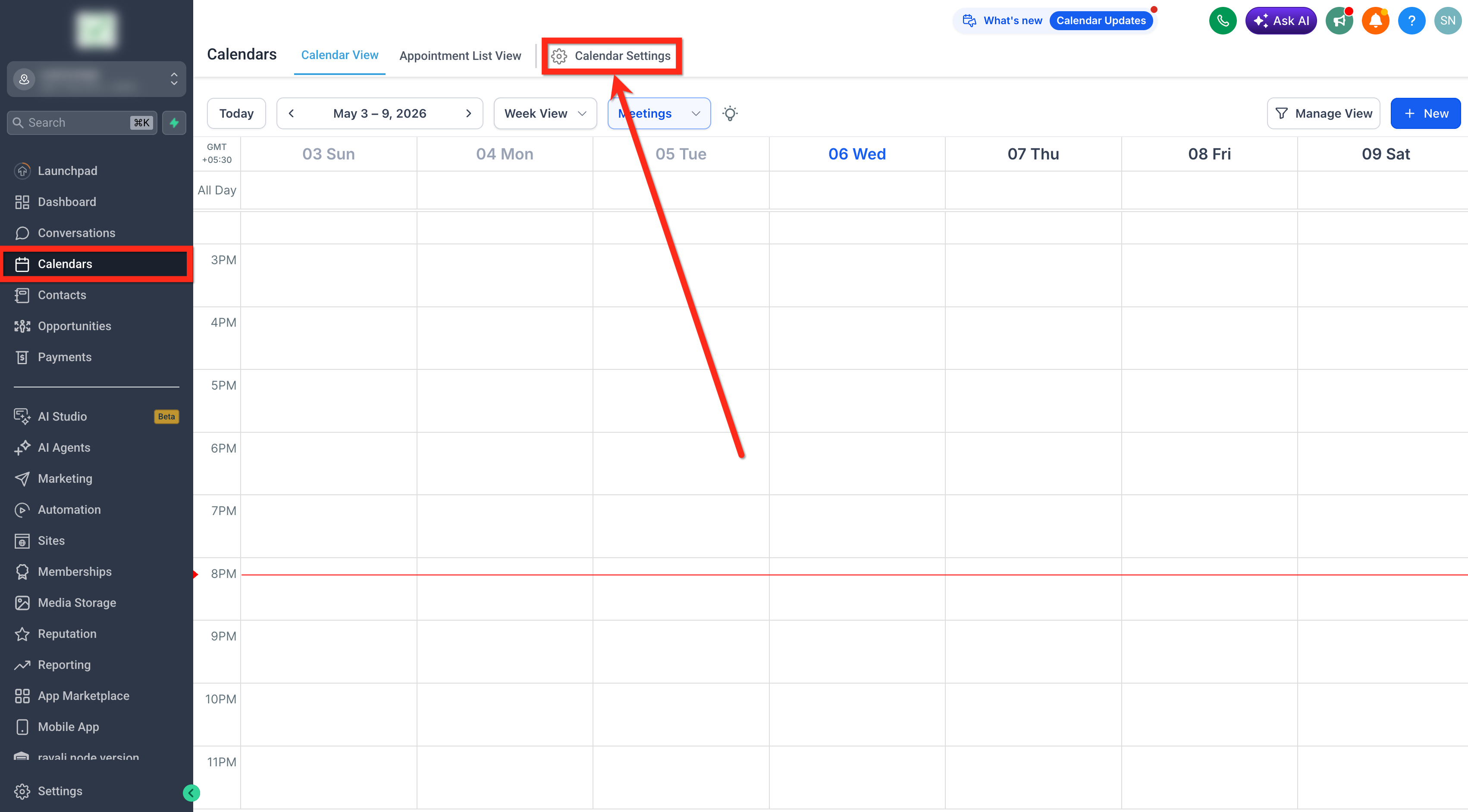
- Open the Calendar > Calendar Settings page.
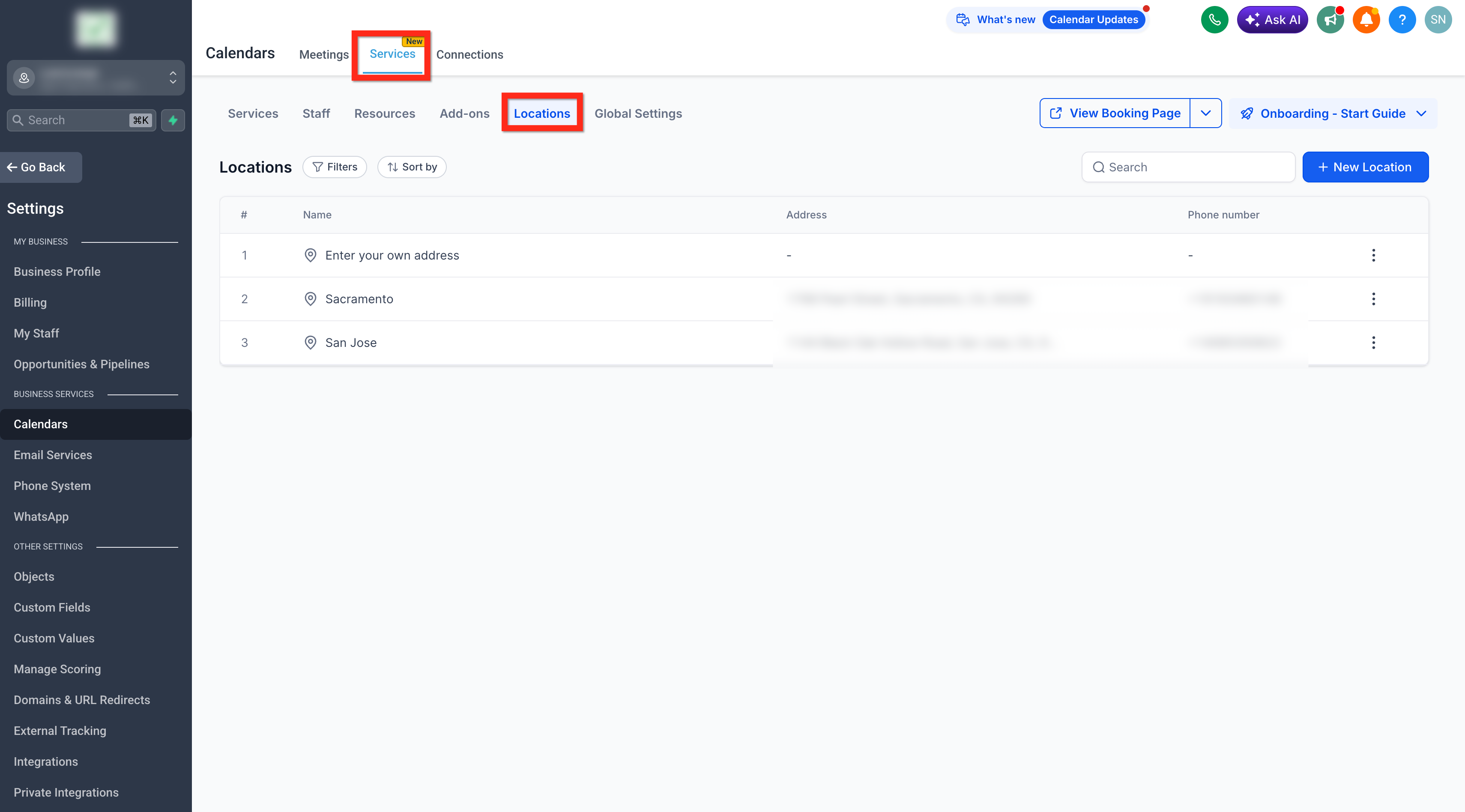
- Select Services > Locations tab.
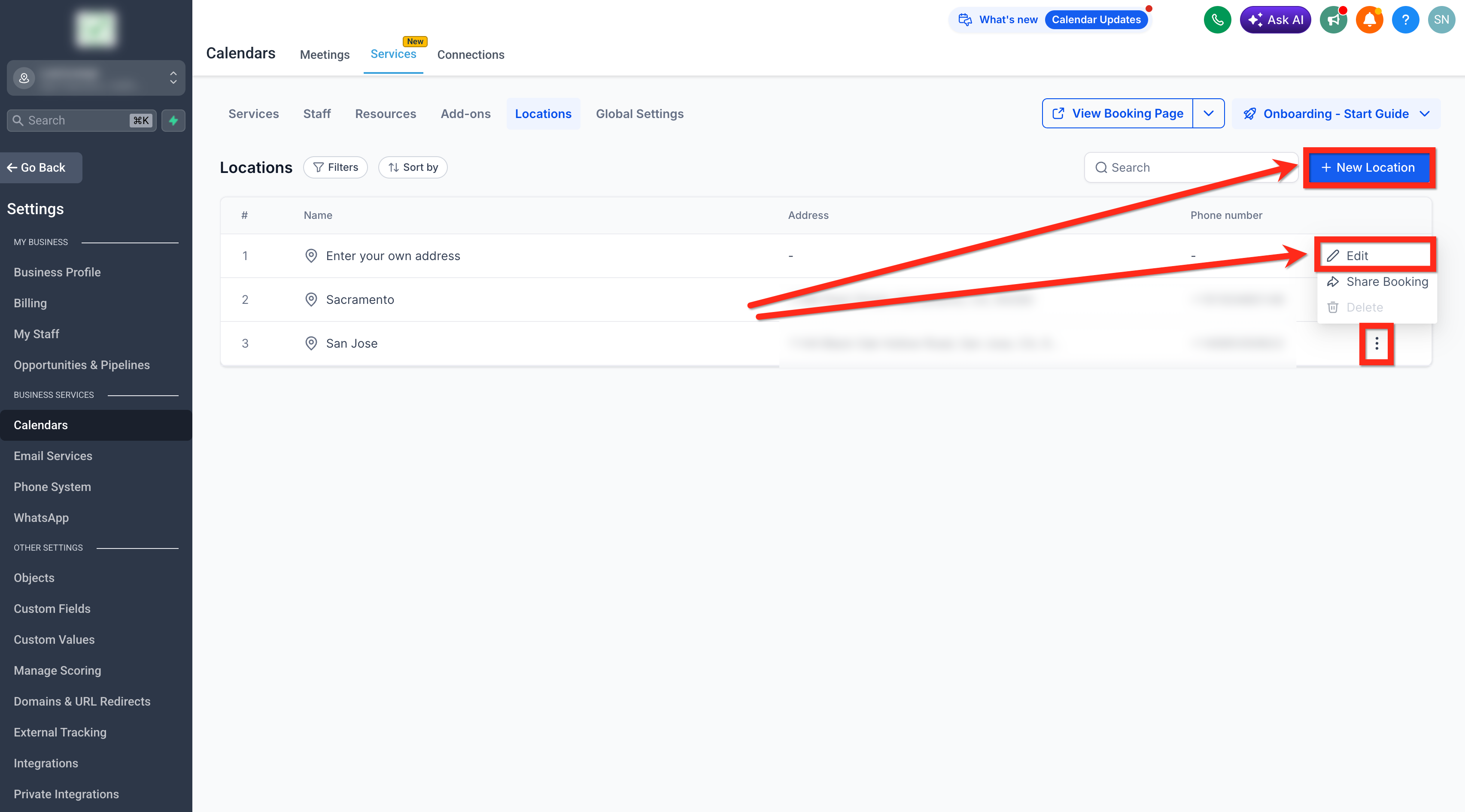
- Click + New Location to create or edit a location.
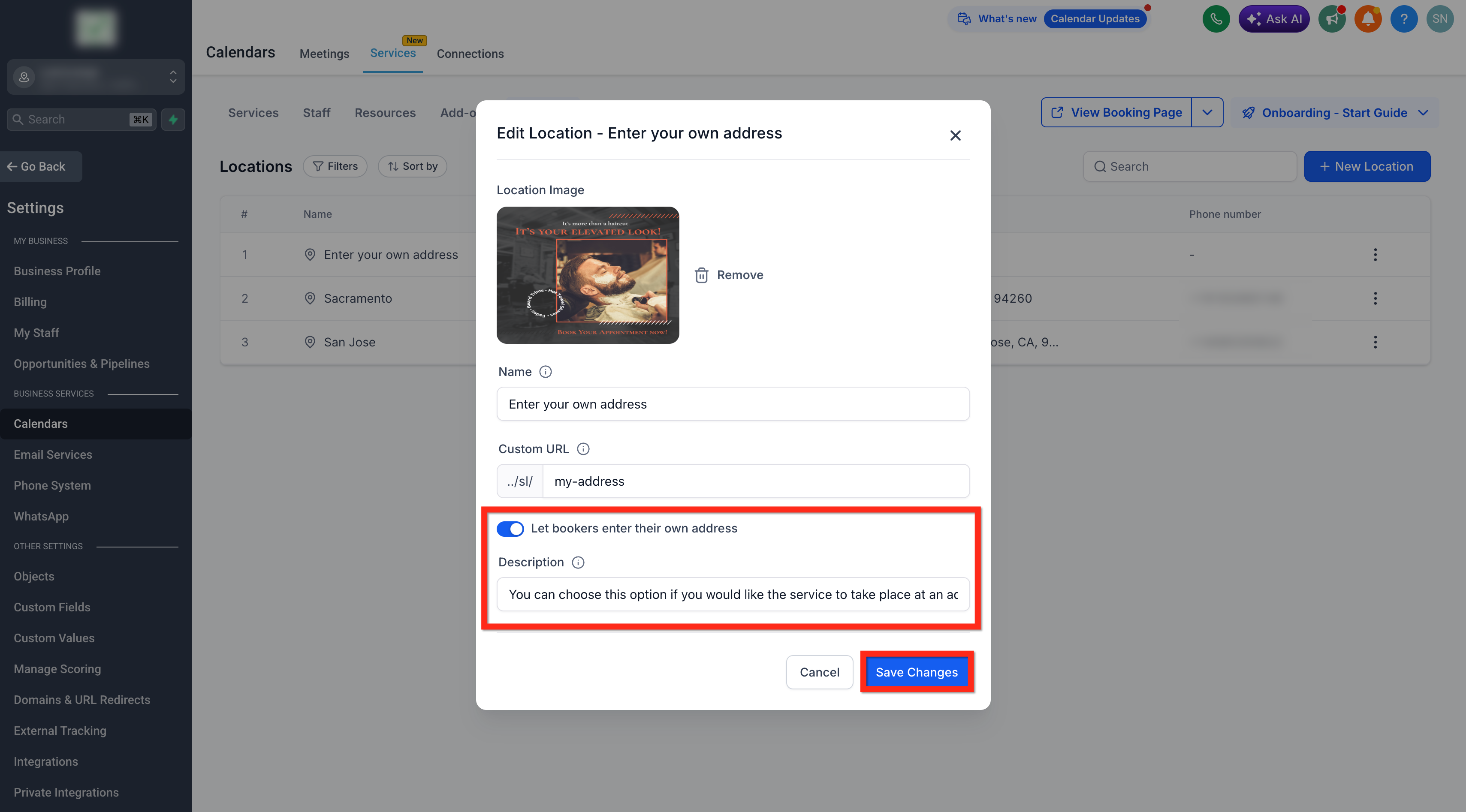
- Enable the Let bookers enter their own service address option.
- Enter a description that tells customers when to choose this location.
- Click on Save Changes.
- Assign the new location to staff availability as required.
05What it looks like in HighLevel
06Settings that matter
- Let bookers enter their own service address. Enables a field on the booking page where the client can type the address for the service.
07How it connects to the rest of HighLevel
- Learn how to create and manage services before adding a location. Create services
- Configure staff members and assign them to the Ask the Booker location. Staff configuration
- Review global service settings that affect all locations, including booking controls. Global service settings
Michael's take

Ask the Booker locations are a small convenience that can be a useful addition for any business that goes to the customer’s door.
Think of a mobile pet grooming service that books dozens of houses a week. With this feature, each client types their home address at checkout, and the groomer sees the exact location on the schedule. If I were setting it up, I’d give the location a clear name like “Enter Your Own Address” and test a few bookings to make sure the address appears correctly in the appointment details.