
01Who this is for
- Founders who run multiple subaccounts benefit by keeping client specific context separate, avoiding cross account contamination.
- Marketing teams can store brand tone and campaign details once, reducing the need to repeat preferences in each Ask AI session.
- Support managers can save common troubleshooting steps, enabling quicker, consistent AI generated replies.
02Ask AI Memory, explained
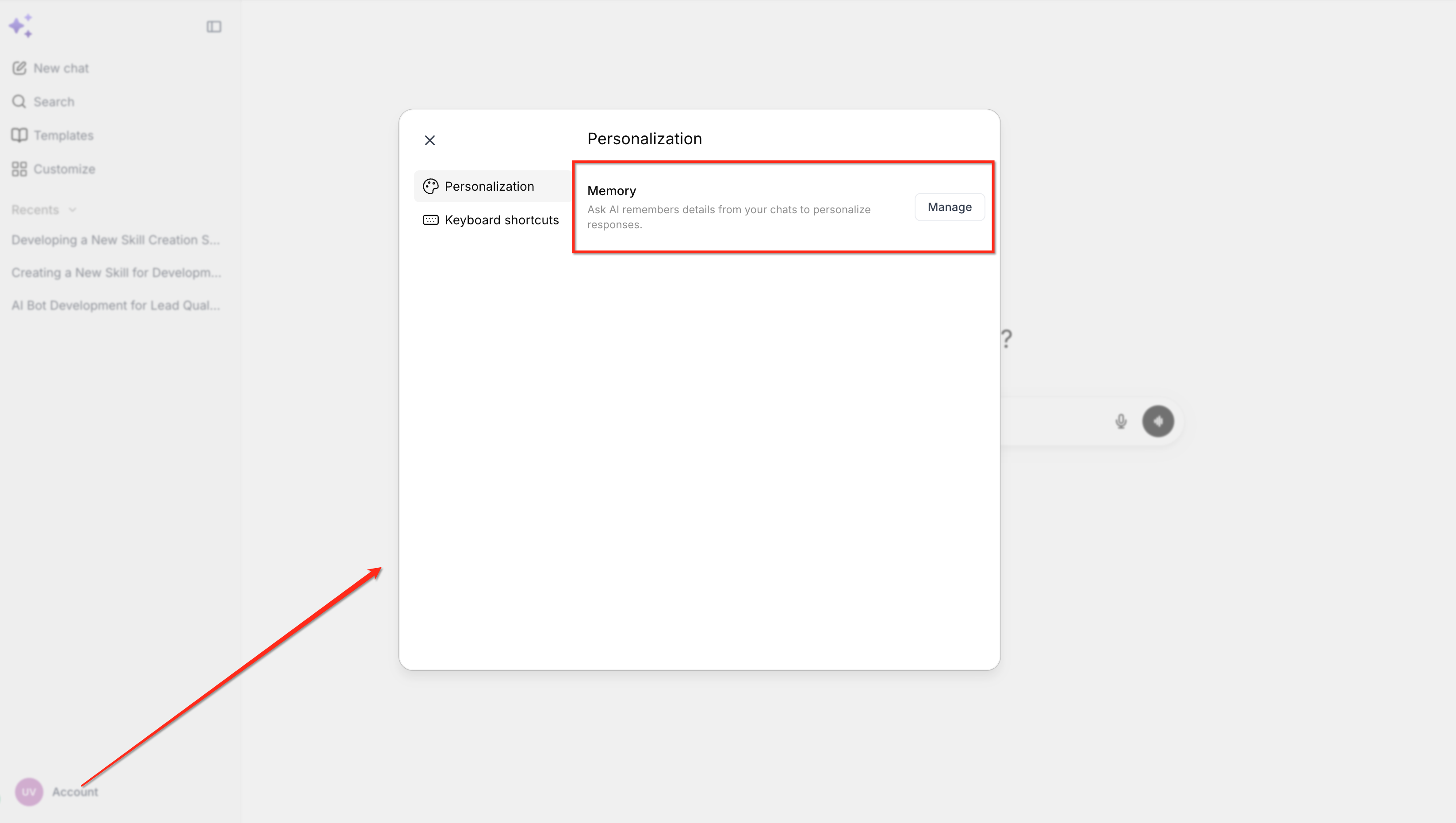
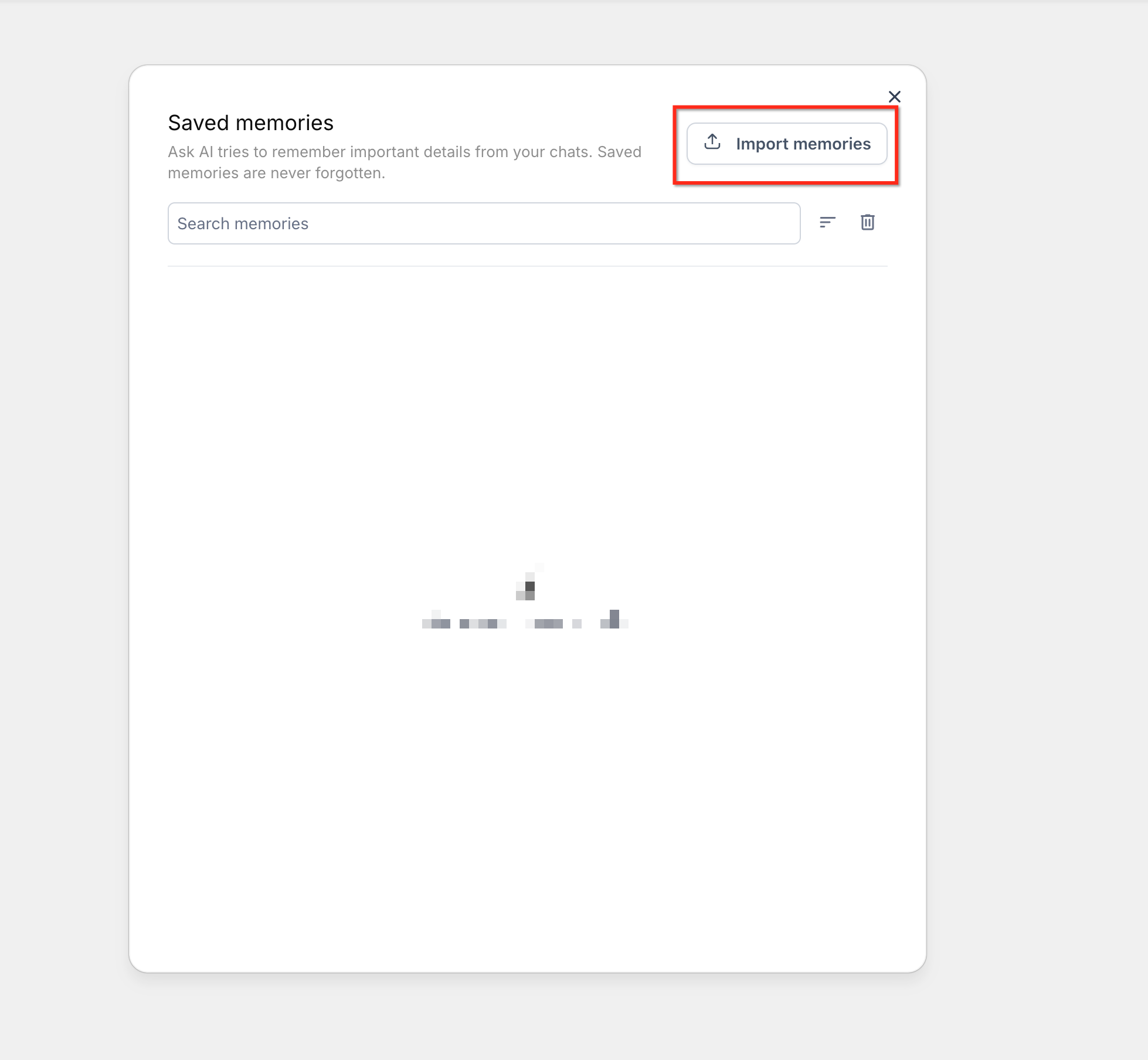
Ask AI Memory is a repository inside HighLevel where reusable facts about your business, role and preferences are kept. The Memory Settings area shows a Saved Memories screen that lists every stored entry, lets you search, sort and manage the data.
The feature works on the mobile app and supports importing up to 100 memories at once. When Ask AI runs, the current implementation includes the 20 most recent memories in the request, so keeping the list current is important. Memories are scoped to the active subaccount, so switching accounts loads a different set.
03How businesses use Ask AI Memory
- Real estate agency. The agency stores property listings, client preferences and regional regulations as memories. When a new lead chat starts, the agent taps the memory icon, searches for a listing memory, and Ask AI includes that detail in its reply without the broker re entering the information.
- SaaS startup. The startup saves its pricing tiers, onboarding steps and brand voice. In the mobile app a team member opens Saved Memories, deletes an outdated pricing entry, and adds a new one, keeping AI responses aligned with the latest pricing model.
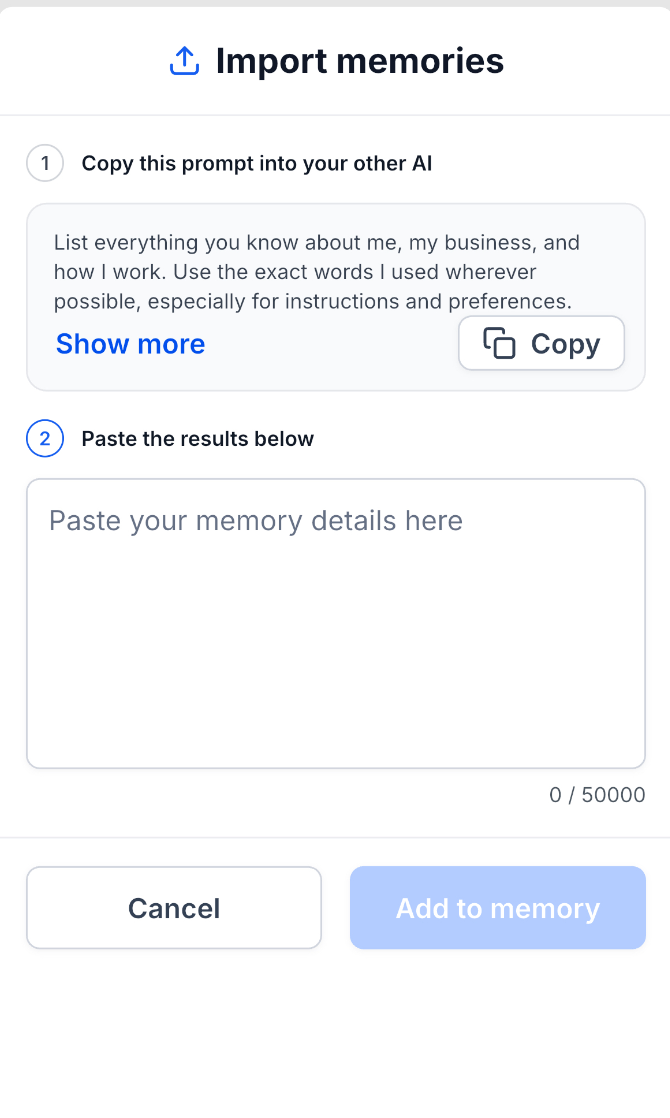
- Health clinic. The clinic imports existing patient intake instructions from another AI assistant. It runs the provided export prompt in the external assistant, copies the response, pastes it into the Import memories workflow, and adds the 60 new instructions to Ask AI for future use.
04The numbers and rules that matter
- Ask AI Memory supports importing up to 100 memories at once.
- Memory V1 implementation uses the 20 most recent memories in AI requests.
05How to set up and use Ask AI Memory in HighLevel
View and search saved memories
- Open the Saved Memories screen in the HighLevel mobile app.
- Tap the Search field at the top of the screen.
- Enter a word or phrase that matches the memory you are looking for.
- Watch the list filter automatically as you type.
- Clear the search field to restore the full list of memories.
- Use the sort control to change the order in which memories appear.
Delete an individual memory
- Locate the memory entry you want to remove.
- Tap the trash can icon on that memory’s row.
- A confirmation message appears and the memory disappears from the list.
Clear all memories
- Open the Saved Memories screen.
- Tap the trash can icon located in the header of the screen.
- Read the confirmation dialog that appears.
- Confirm that you want to clear the saved memories.
- HighLevel removes the memories and shows how many entries were deleted.
Import memories from another AI assistant
- Open the Saved Memories screen.
- Tap the Import memories button.
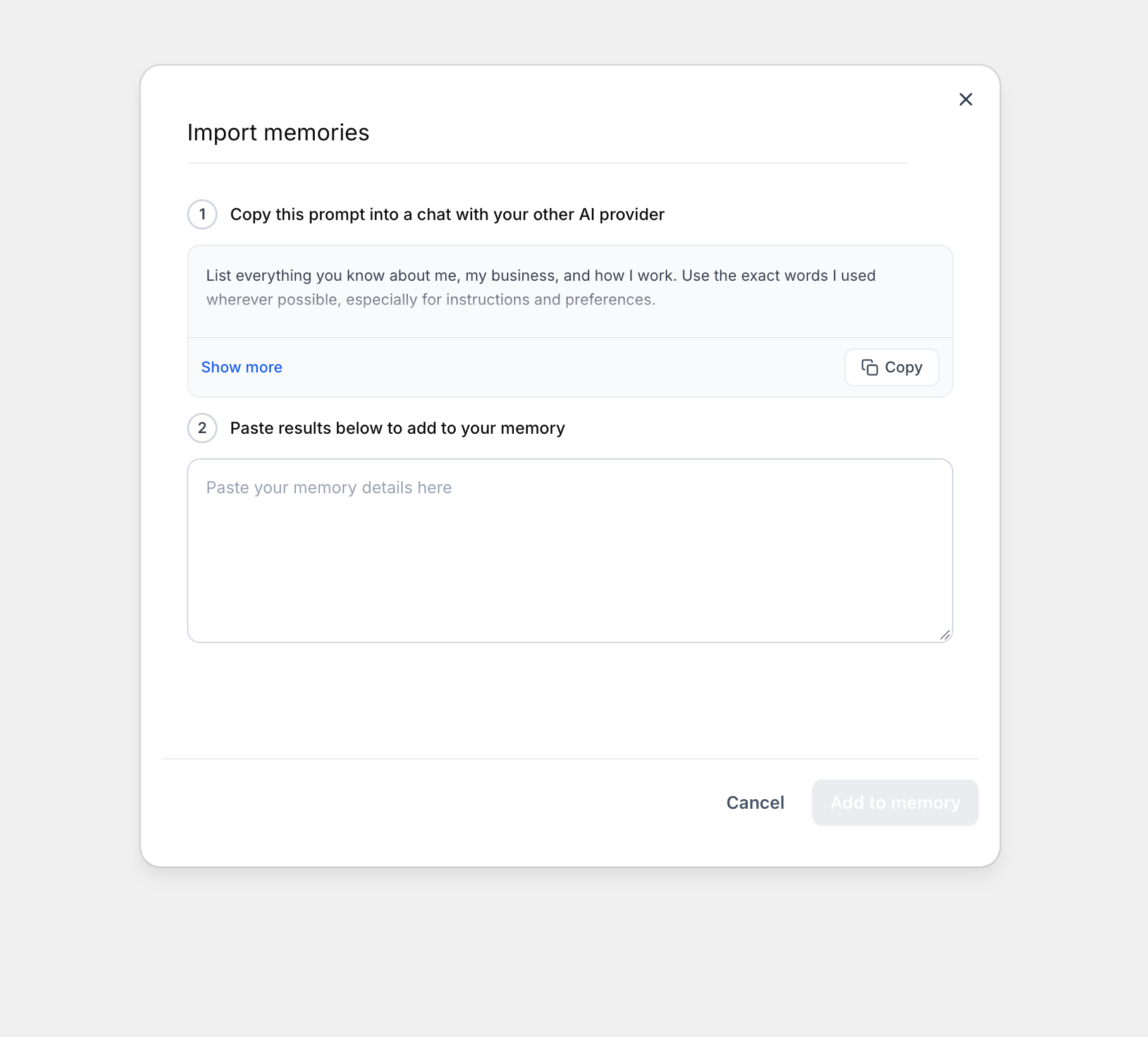
- Review the export prompt that HighLevel provides.
- Tap Copy to copy the prompt to the clipboard.
- Open the other AI assistant, paste the prompt and run it.
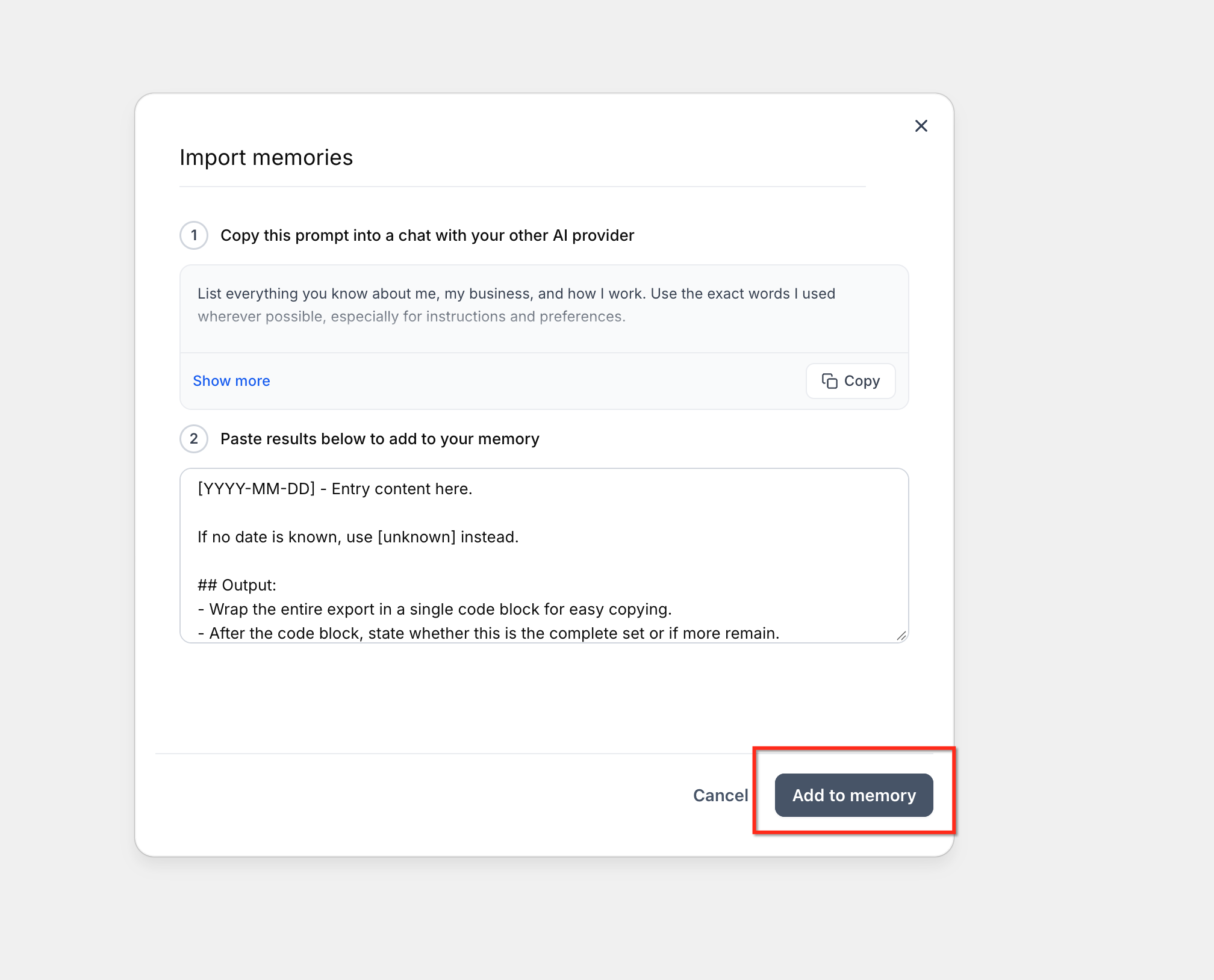
- Copy the complete response returned by the other assistant.
- Return to the Import memories workflow in the HighLevel mobile app.
- Paste the copied response into the provided field and tap Add to memory.
Set up and manage Ask AI Memory on mobile
- Open the HighLevel mobile app.
- Tap Ask AI from the main navigation.
- Open Chat History within Ask AI.
- Tap the memory icon in the header, located before New chat.
- From the Saved Memories view, use Search or sort to find entries, tap a trash icon to delete an individual memory, or tap the header trash icon and confirm to clear all memories.
06What it looks like in HighLevel

07Settings that matter
- Memory Settings. Controls visibility and management of saved Ask AI memories, including search, delete, clear and import functions.
08Things to know before you rely on it
- You can import up to 100 memories at once.
- The current Memory V1 implementation uses only the 20 most recent memories in AI requests.
- Saved memories are scoped to the active subaccount, preventing cross account context mixing.
09How it connects to the rest of HighLevel
- Learn how to generate a contact summary using Ask AI. Contact summary guide
- View HighLevel pricing and plan options. Pricing
- Start a 30 day trial of HighLevel. Free trial
Michael's take

I find that having the details stored can reduce the need to repeat the same information in each chat, which can be convenient.
If you prefer to keep every instruction fresh, the extra step of managing memories might feel unnecessary.