
01Who this is for
- Customer support teams that handle multilingual calls, because they can read translated records without language barriers.
- International sales managers reviewing call outcomes, as they receive summaries in their preferred language.
- Global product managers needing consistent documentation across languages, enabling them to audit call content centrally.
02Voice AI translation service, explained
The translation feature takes the AI generated transcript and summary that appear after a call and renders them into a target language you select. It pairs speech recognition with machine translation, so the written insights become available in the language that best serves your team or clients.
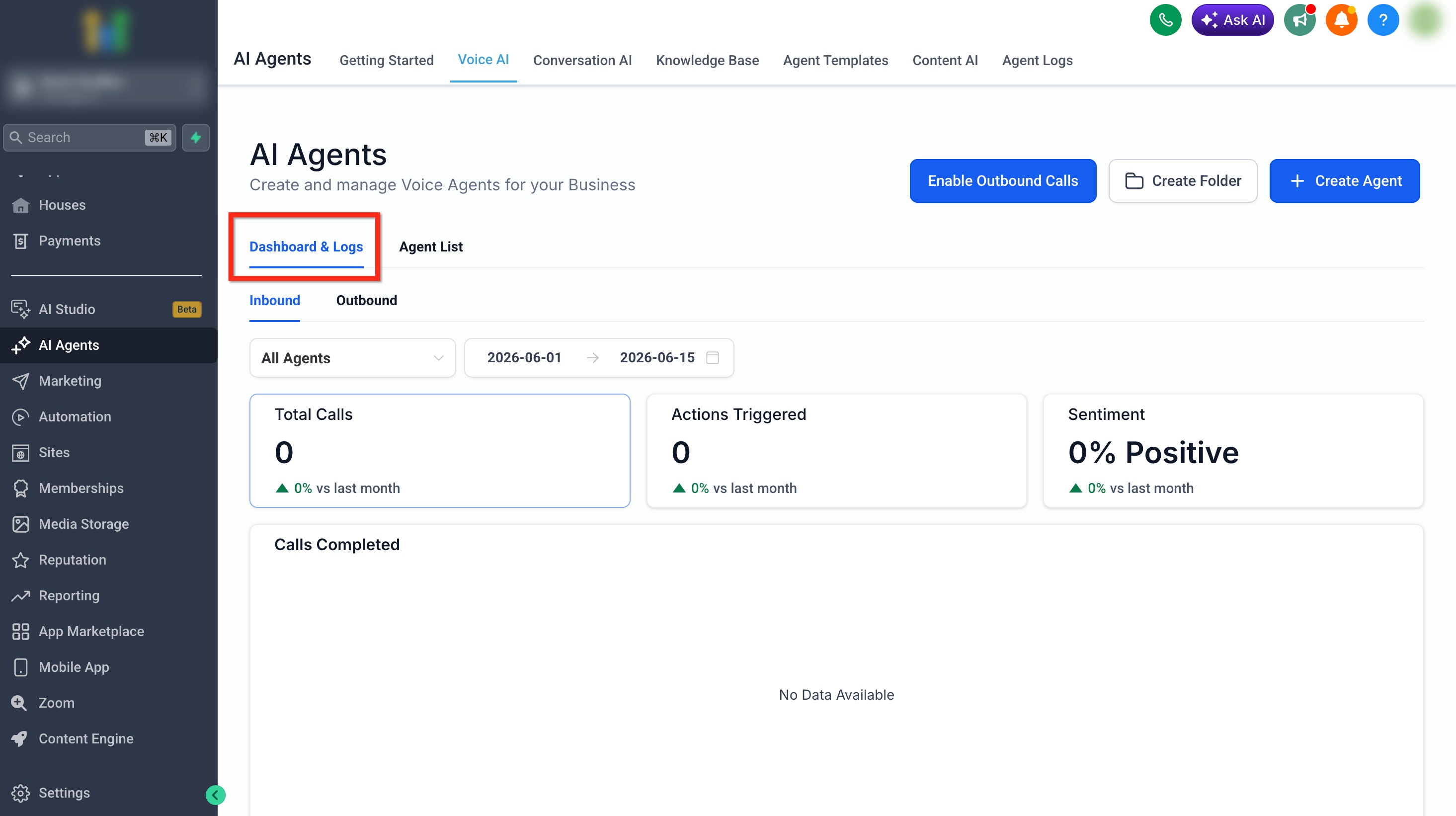
You configure the service inside each Voice AI agent. After a test or live call finishes, the translated transcript and summary are displayed in the Voice AI Dashboard & Logs, where you can filter, open the summary, or view the full transcript.
The live conversation language is unchanged; only the post call written output is translated, and the original English (or source) version remains accessible.
03How businesses use the Voice AI translation service
- Dental practice. Set the agent language to Spanish for incoming patient calls and enable translation to English. After each appointment call, staff can open the translated summary and transcript in the logs, allowing English speaking personnel to review the interaction.
- Ecommerce retailer. Create a Voice AI agent that speaks French and turn on translation to English. When a French language support call ends, the English transcript and summary appear in the dashboard for analysts to process the order issue.
- SaaS provider. Configure an agent that operates in German and select English as the target language. After technical support calls, engineers read the English translation of the call record directly from the logs without needing external translation tools.
04Before you start
- Agent language must be set to a non English language or Multilingual before enabling translation.
05How to set up and use the Voice AI translation service in HighLevel
Enable translation for a Voice AI agent
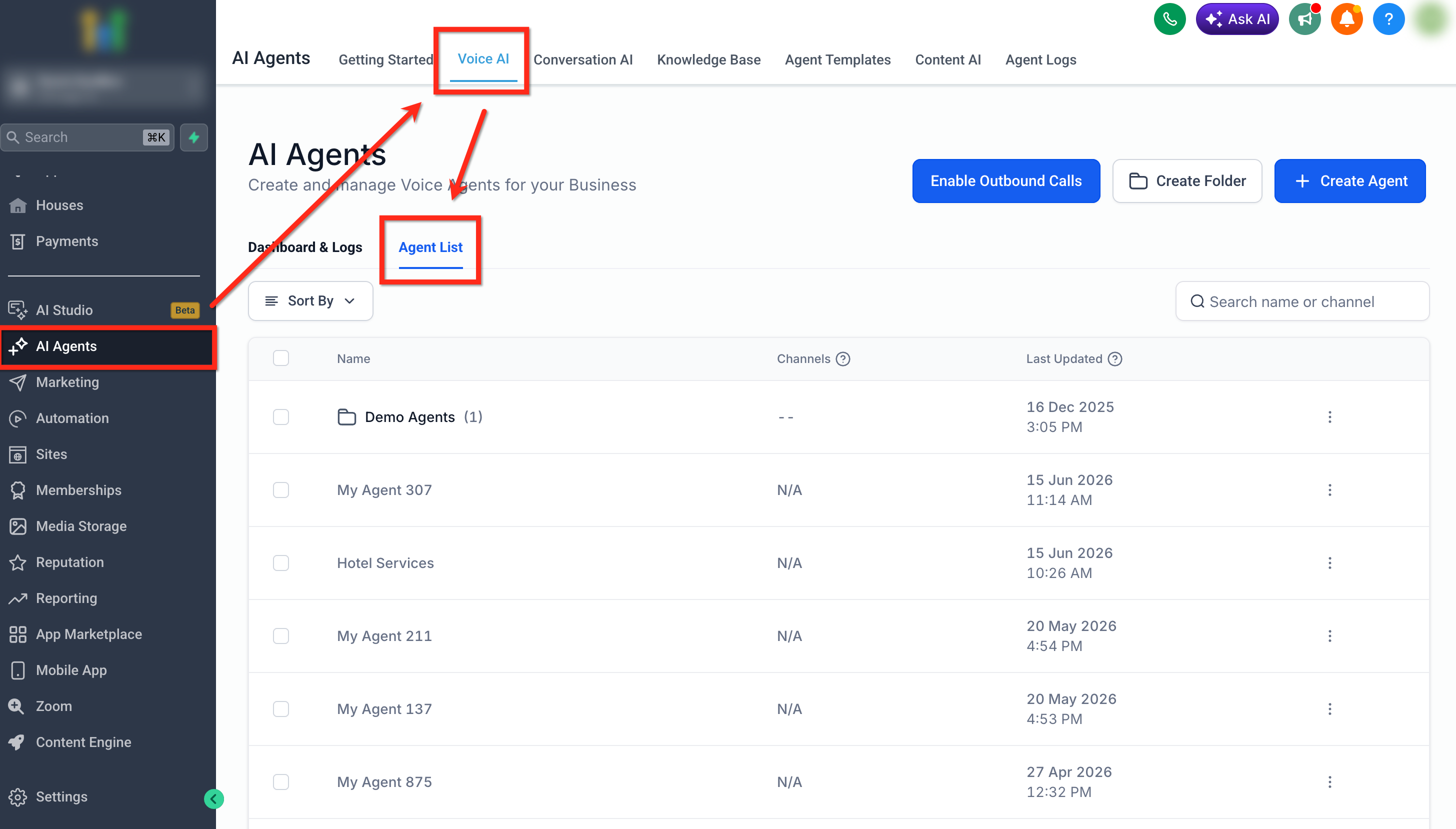
- Navigate to AI Agents > Voice AI > Agent List.
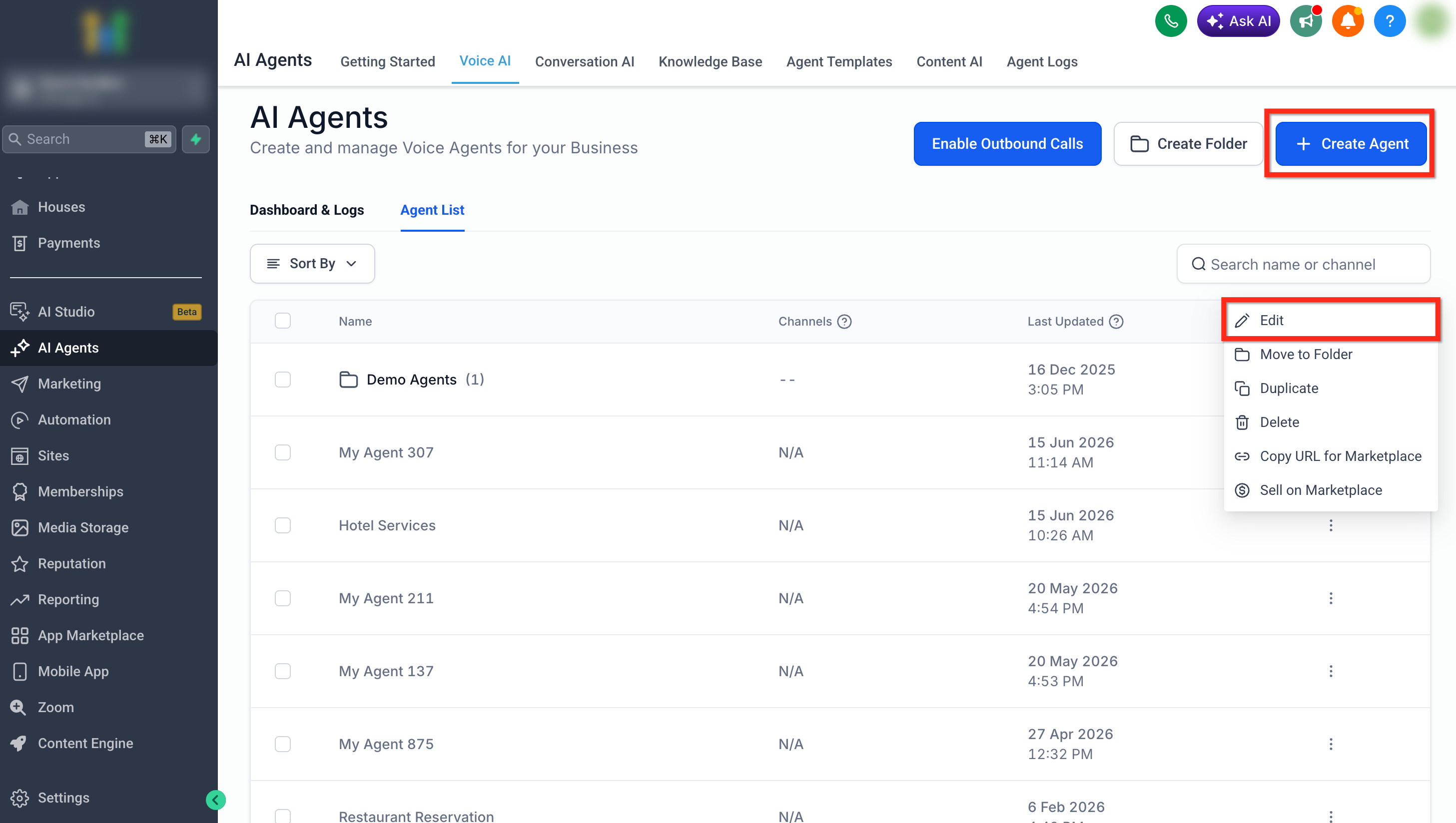
- Create a new agent or edit an existing one using the three dot menu.
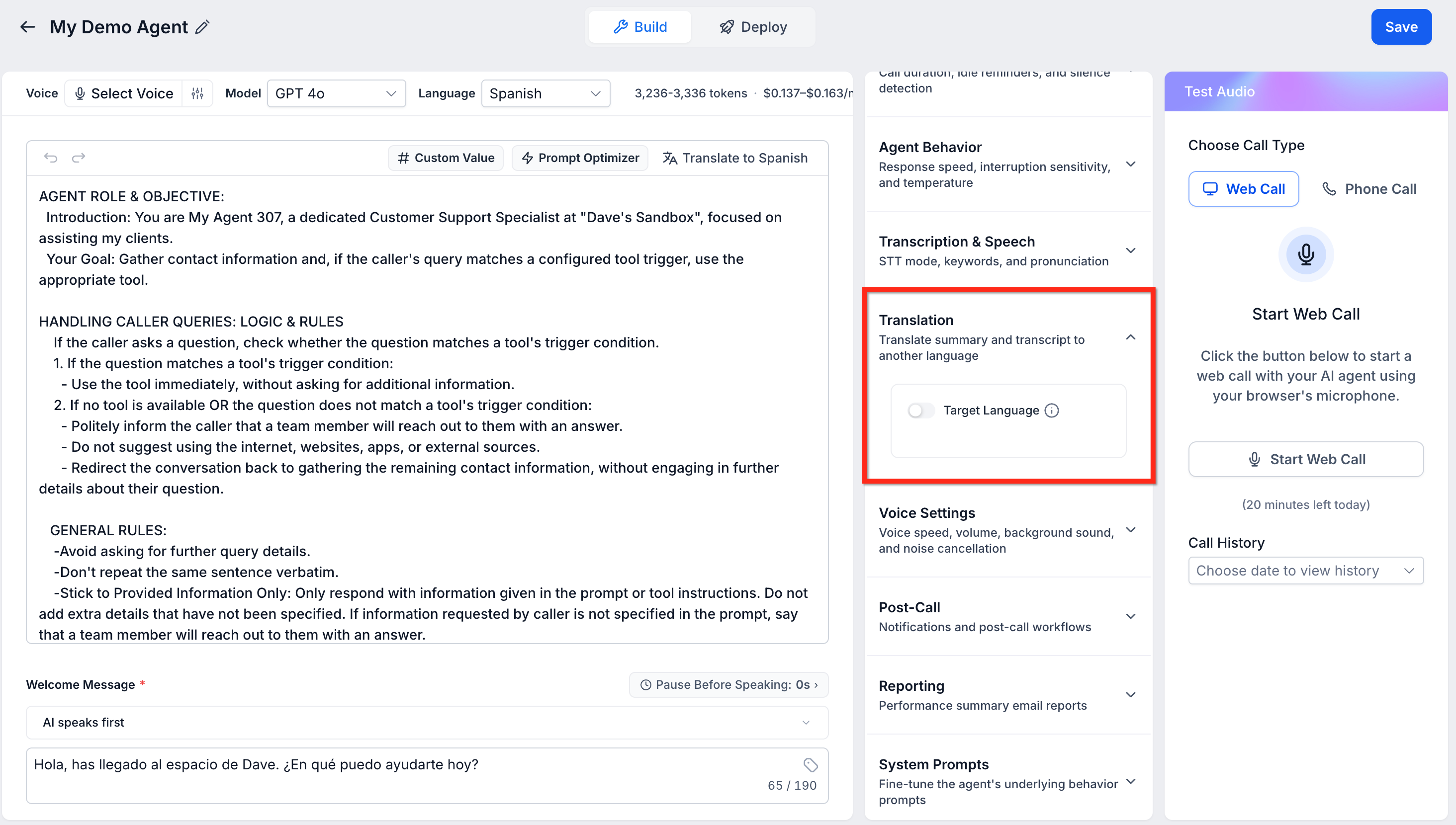
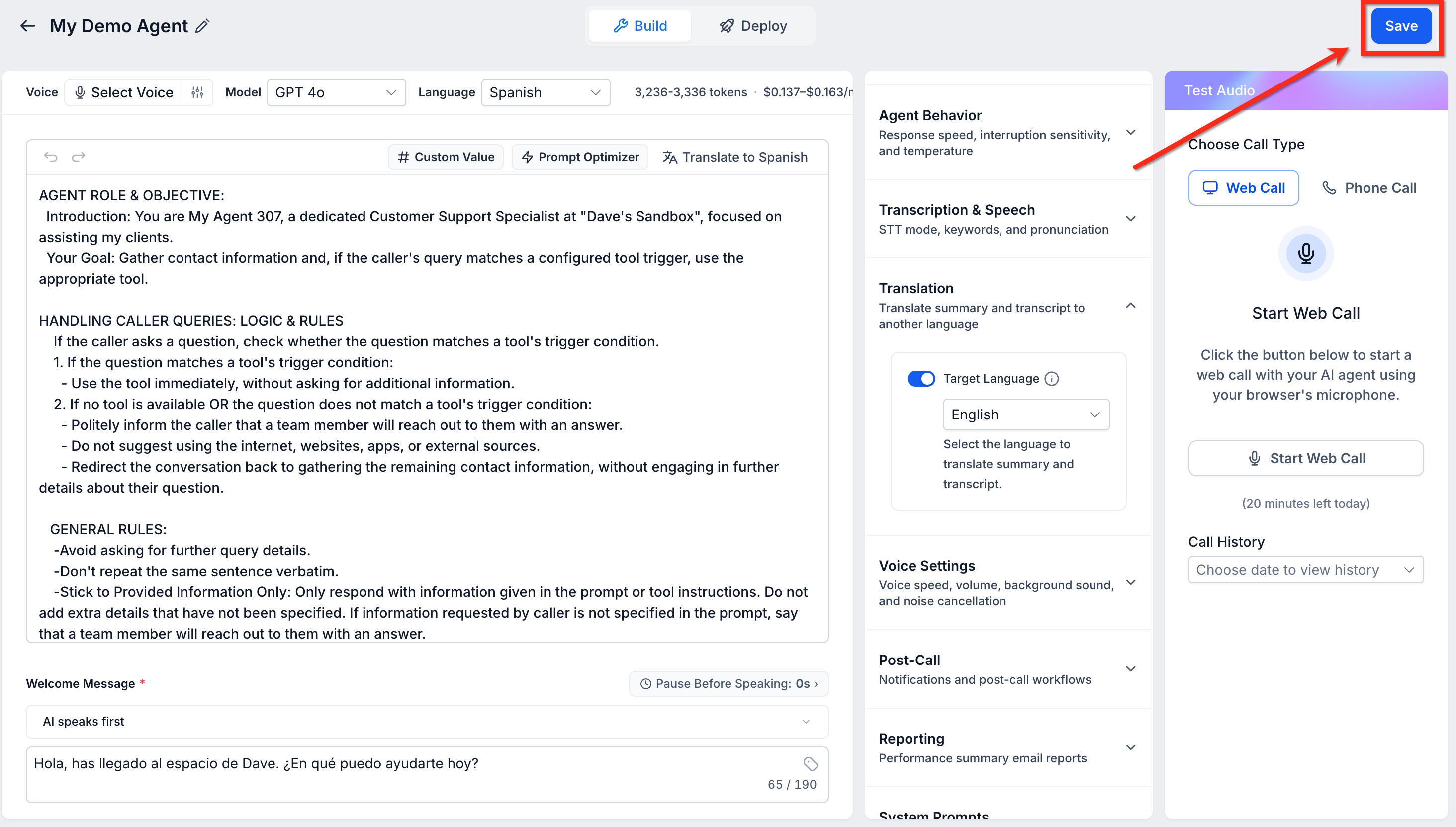
- In the Translation section, turn on the Target Language toggle.
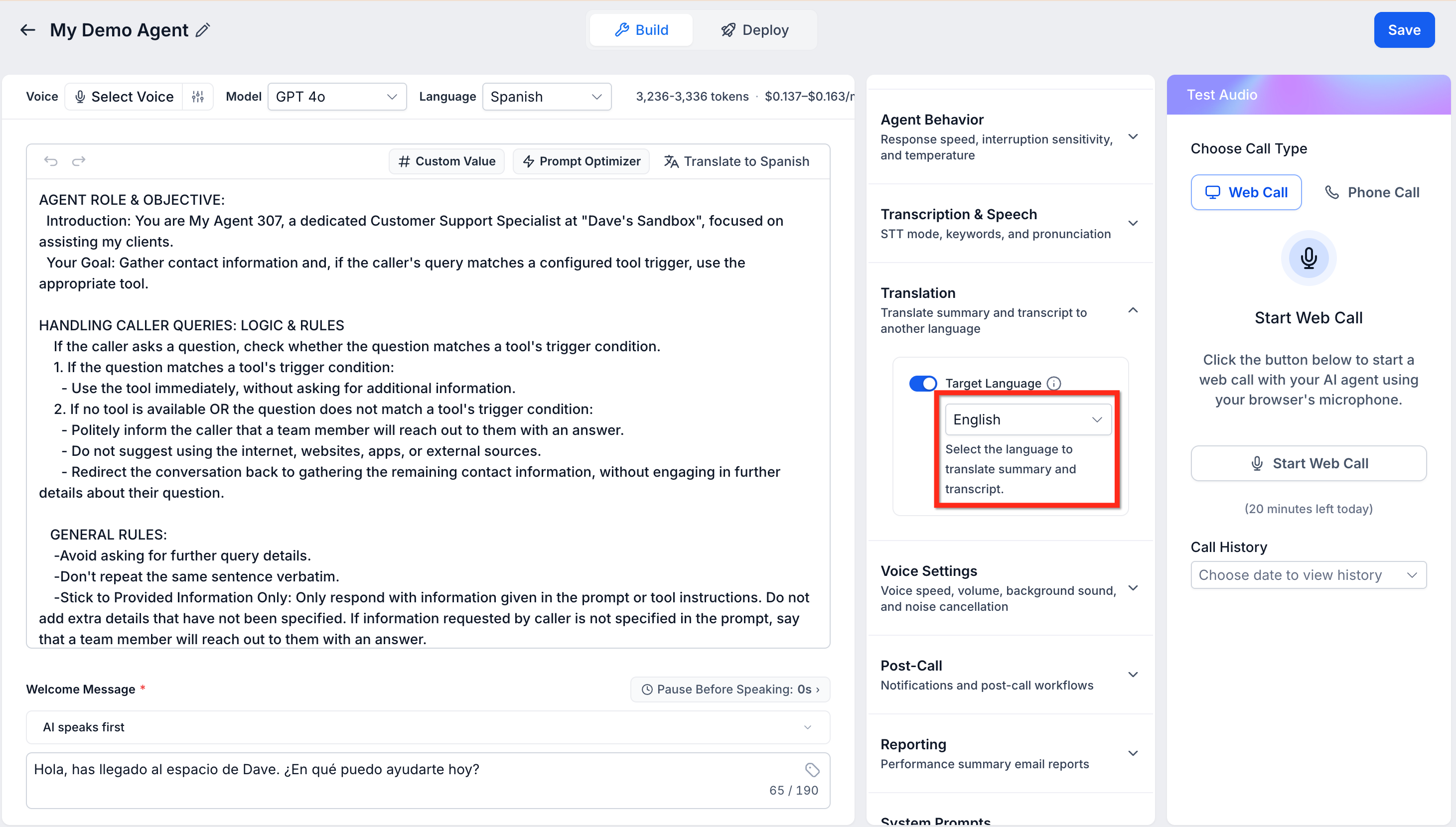
- Choose the desired output language from the target language dropdown.
- Save the changes before testing or leaving the page.
06What it looks like in HighLevel
07Settings that matter
- Target Language toggle. Activates the translation function for the selected agent.
- Target language dropdown. Specifies which language the transcript and summary will be translated into.
08Things to know before you rely on it
- The translation option appears only when the agent language is set to a language other than English or to Multilingual.
- Translation must be enabled individually for each Voice AI agent.
- Both the original and the translated transcript and summary are stored; translation does not replace the original record.
09How it connects to the rest of HighLevel
- Overview of HighLevel voice AI agents and their business uses Voice AI overview
- Configure inbound call flow for Voice AI in HighLevel Inbound call flow
- HighLevel Voice AI agents: configure multilanguage support Multilingual support
Michael's take

Many assume the translation option changes the spoken language of the call, but it only affects the written output after the call ends. The agent language controls what the caller hears, while the translation target language determines how the transcript and summary appear in the dashboard.
If I were setting this up, I would first pick the live call language that matches my customers, then enable translation to the language my internal team uses for review. That way the conversation stays natural for the caller and the postcall notes become useful for everyone on the other side of the language barrier.