
01Who this is for
- Founders who need quick answers while configuring settings, because page context eliminates the need to type out every field name.
- Support agents handling client accounts, as they can point Ask AI at specific rows or cards to get precise guidance.
- Marketing managers reviewing dashboards, because they can ask what a metric means without describing the whole report.
02Page context, explained
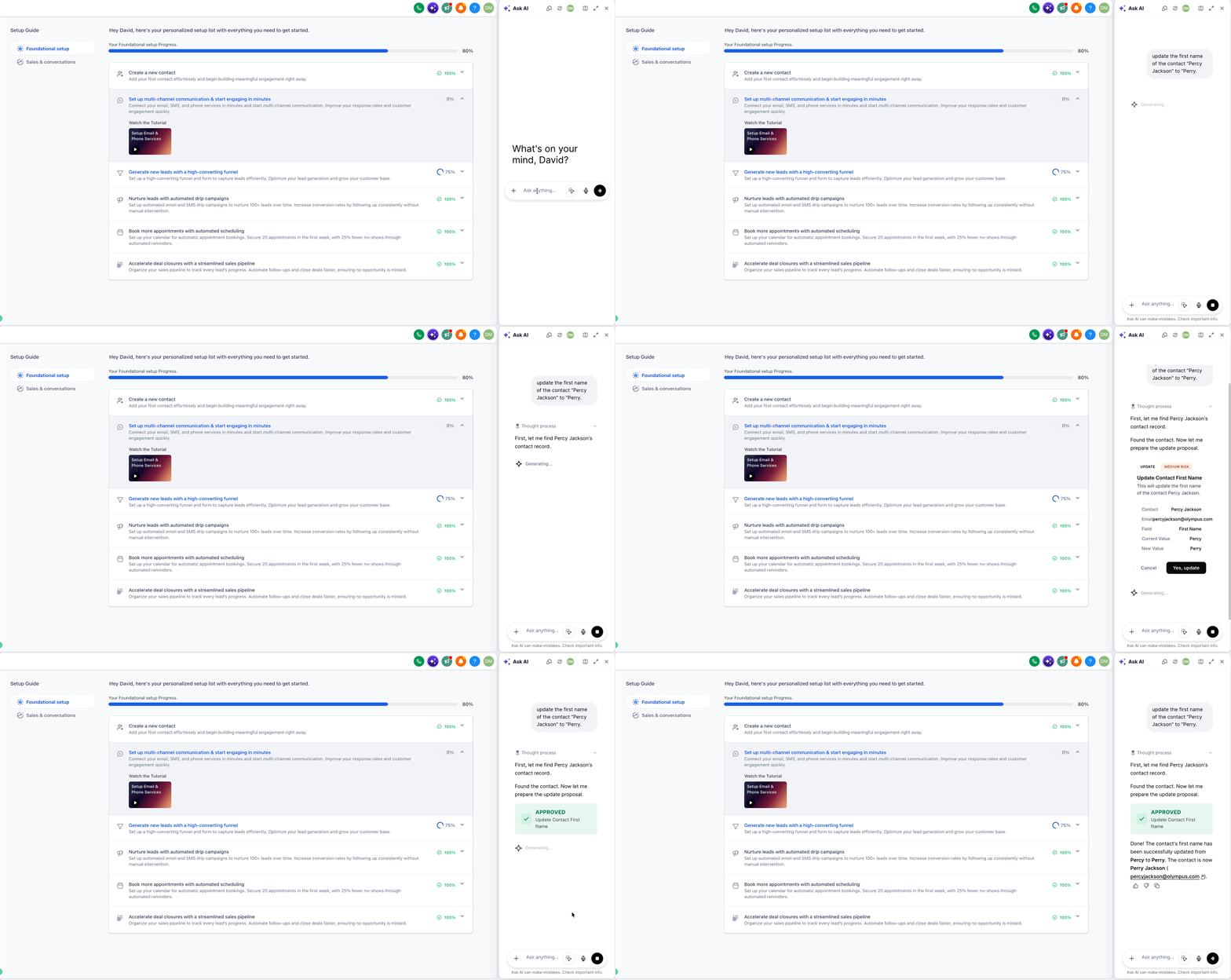
Page context is a built in capability that reads data from the HighLevel host page you have open alongside Ask AI. When the Ask AI panel is floating or in Split View, the assistant pulls relevant information from the visible page without any toggle.
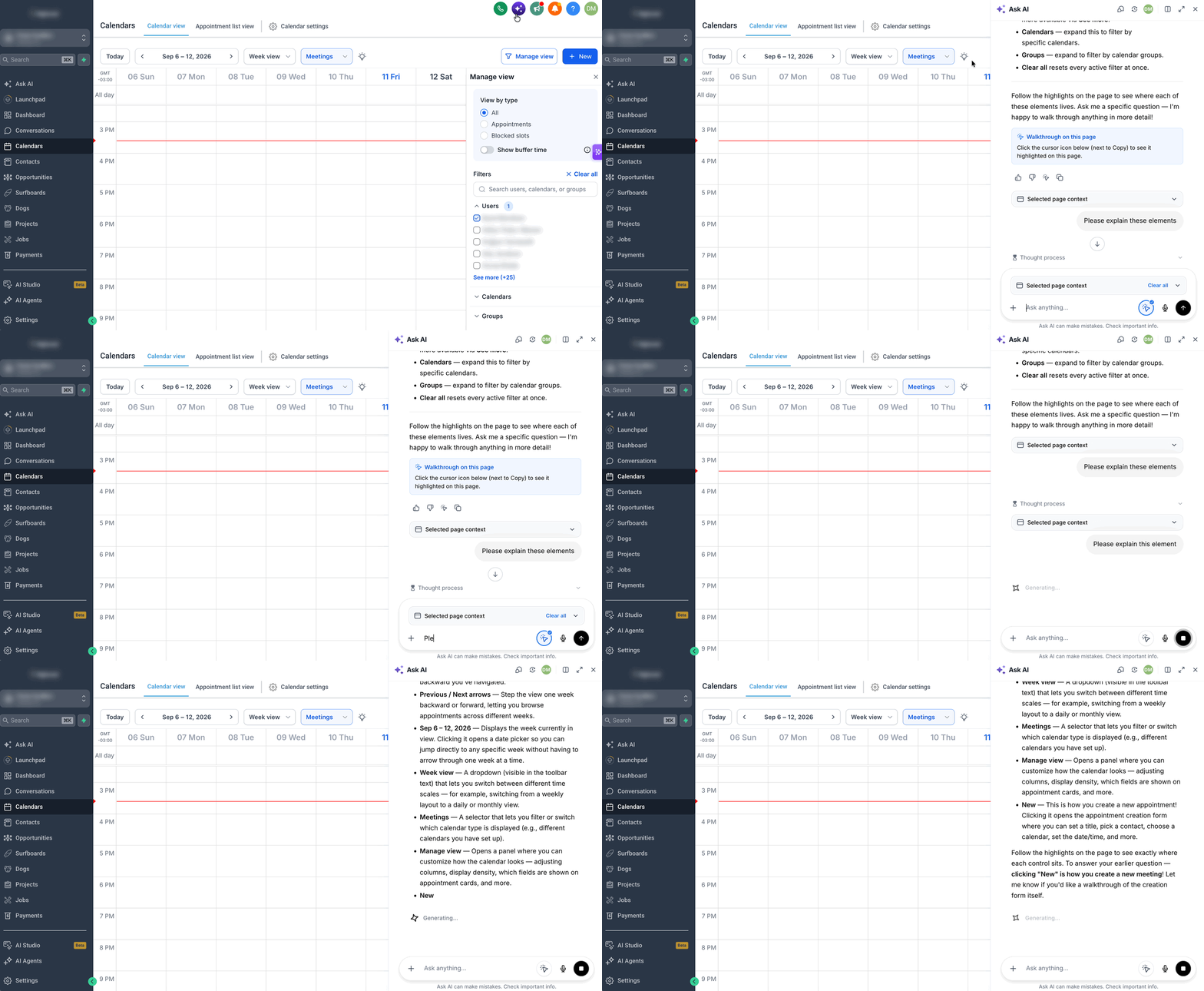
If you need the assistant to focus on a particular part of the page, you can select individual elements. Each selection creates a page context card that appears above the composer. You can attach up to 20 such cards to a single message. The cards can be clicked to re highlight their location or cleared individually or all at once.
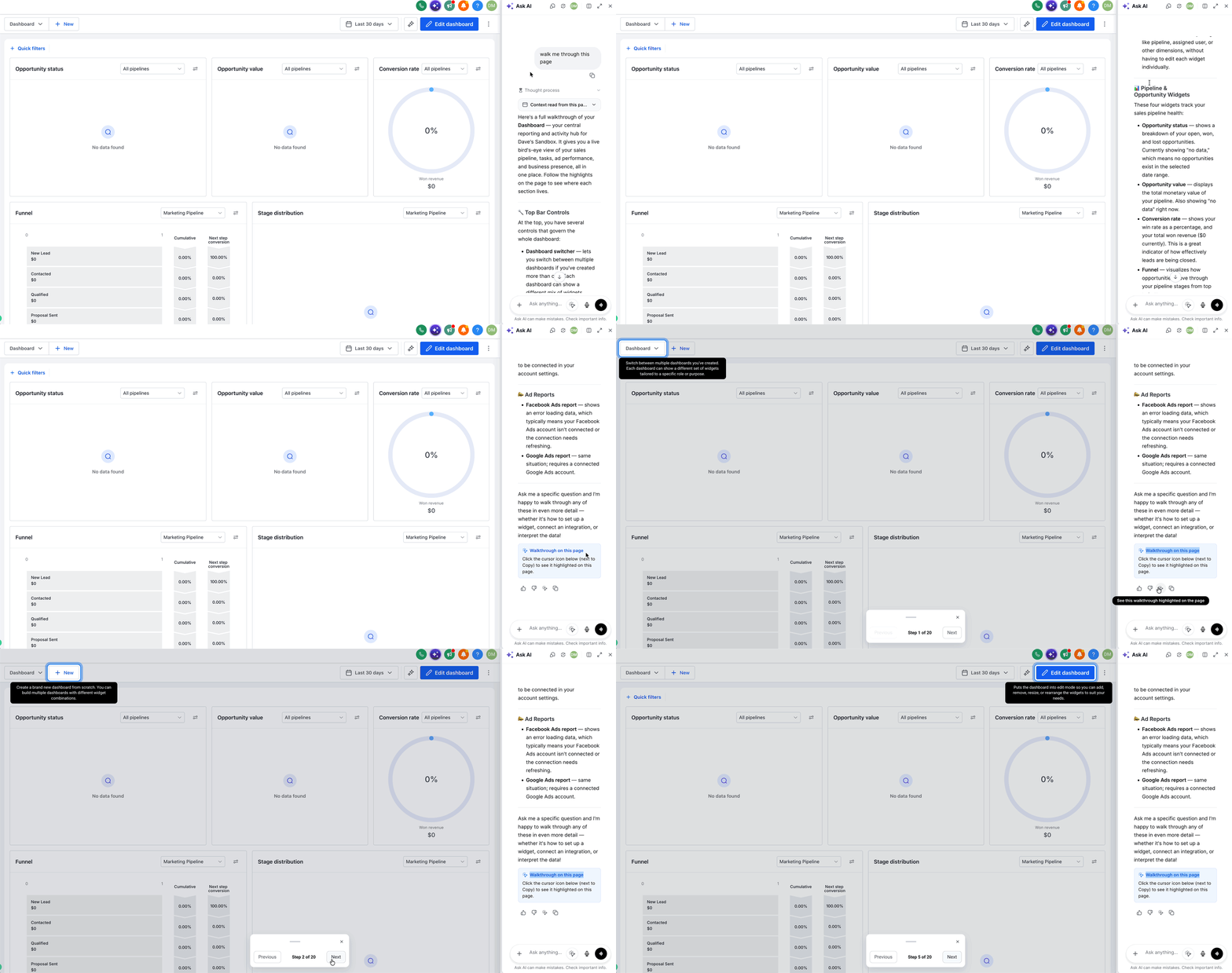
When supported, Ask AI can also highlight areas on the page during a guided walkthrough, showing step counters, navigation controls, and a draggable hint bar. Visual guidance disappears if the page changes and the highlighted spot is no longer identifiable.
03How businesses use page context
- SaaS startup. A product manager reviews the billing settings page, selects the pricing tier field, and asks Ask AI "What does this tier control?" The assistant answers using the selected field’s context, avoiding a long description of the entire settings page.
- Real estate agency. An office administrator looks at the calendar view, selects a specific appointment slot, and uses Voice Mode to say "Reschedule this appointment to next Monday." The selected slot stays attached while the voice request is transcribed, letting Ask AI process the correct entry.
- Digital marketing firm. A campaign analyst opens the dashboard, clicks the conversion metric card, and asks "Explain why this number dropped today." The assistant uses the metric’s context to provide a focused explanation without scanning the whole report.
04The numbers and rules that matter
- You can attach up to 20 page sections per message.
05Before you start
- Ask AI must be open in a floating panel or Split View alongside a HighLevel host page.
- The host page must be visible; page context does not work from the full page Ask AI experience.
06How to set up and use page context in HighLevel
Select page elements
- Click the Select page element button in the Ask AI composer or press Ctrl + Shift + E on Windows (Command + Shift + E on Mac).
- Hold the Shift key while the selection mode is active to interact temporarily with the page, such as opening dropdowns or scrolling.
- Move the cursor over the page; highlighted areas indicate selectable elements and click the desired part.
- Repeat the cursor move and click steps for each additional element you want to reference.
- Review the page context cards that appear above the composer; each card represents an attached selection.
- If needed, use the Clear all button to remove all attached selections, or click an individual card to delete that selection.
- Enter your question or request in the composer and send it to Ask AI; attached selections remain pending until the transcript lands.
07What it looks like in HighLevel
08Things to know before you rely on it
- You can attach up to 20 page sections to a single Ask AI message.
- Page context is unavailable when using the full page Ask AI screen or when the sidebar is expanded to full screen.
- If a page contains more content than the supported context limit, the extracted information is truncated and you will be notified.
- Credentials and other sensitive fields are masked before any page data is sent to Ask AI.
09How it connects to the rest of HighLevel
- View all AI Employee features All AI Employee features
- Learn how Ask AI sessions are priced Ask AI pricing
- Start a 30 day HighLevel trial 30 day trial
Michael's take

Page context feels like a small convenience that can turn a vague question into a precise answer without typing every label. It’s especially handy when you’re juggling a busy dashboard or a calendar with many appointments.