
01Who this is for
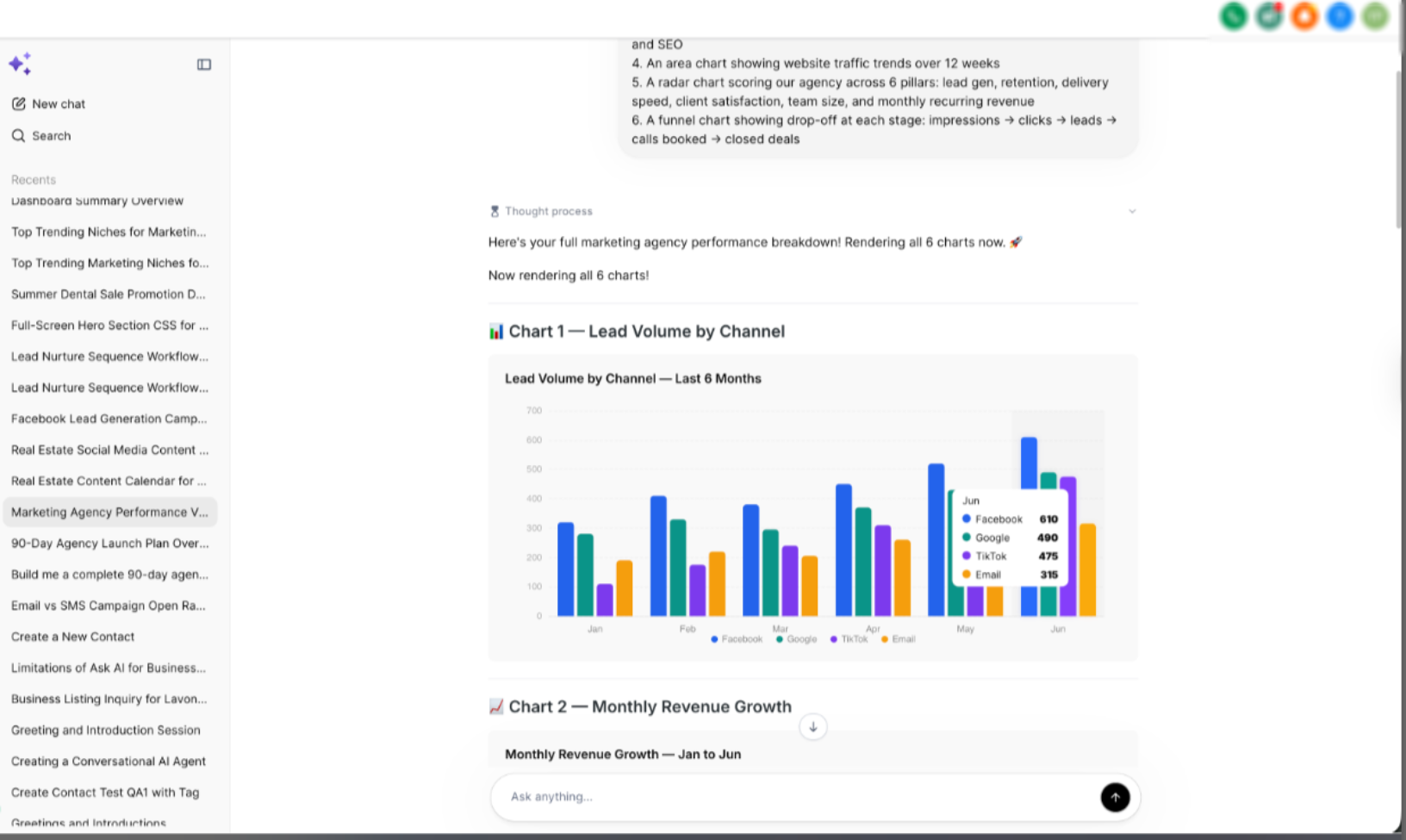
- Marketing managers benefit from visual charts and tables to present campaign performance clearly.
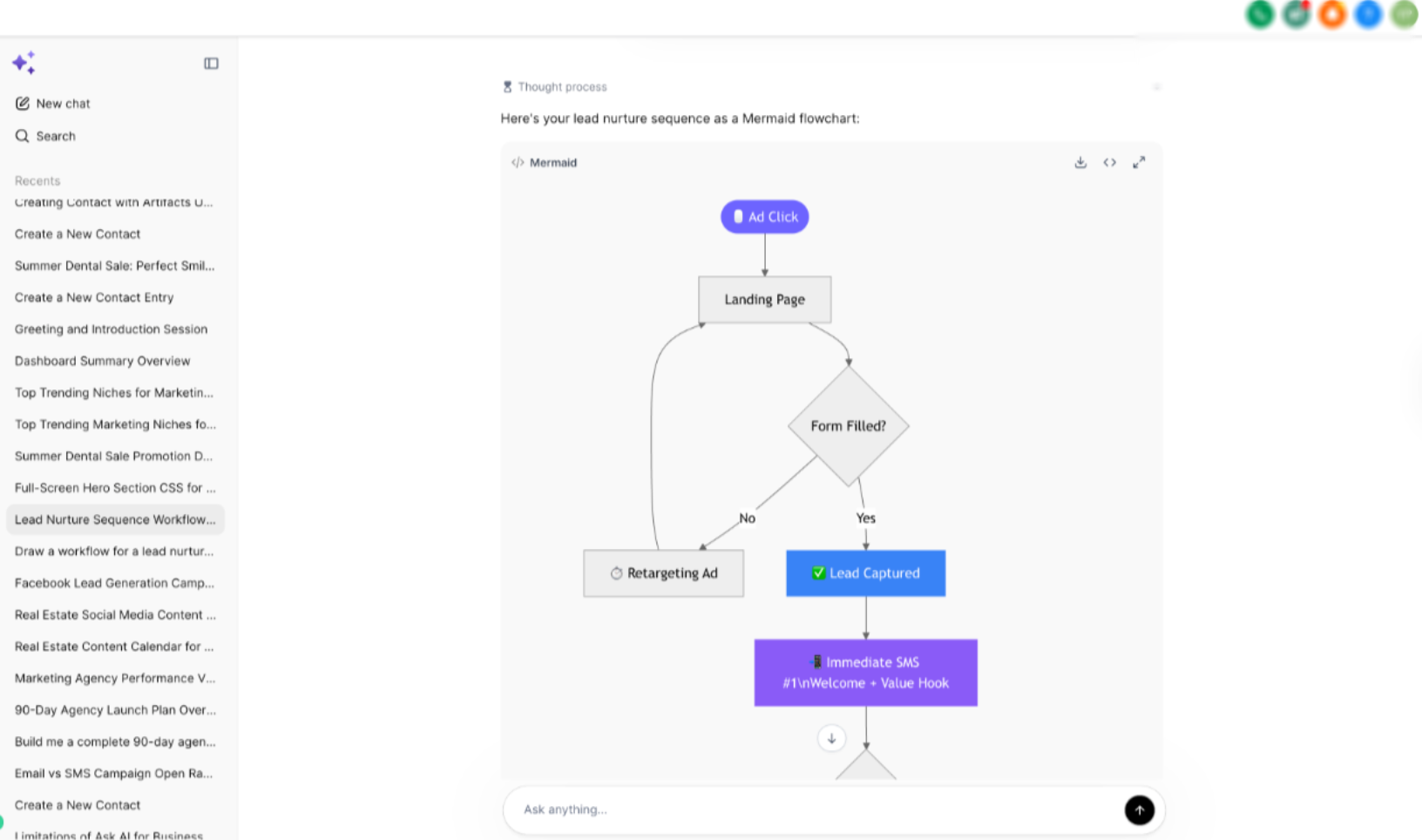
- Operations leads use Mermaid diagrams to map automation workflows and decision trees for quick reference.
- Content creators rely on todo lists and guided questions to capture requirements and organize production tasks.
02Ask AI artifacts, explained
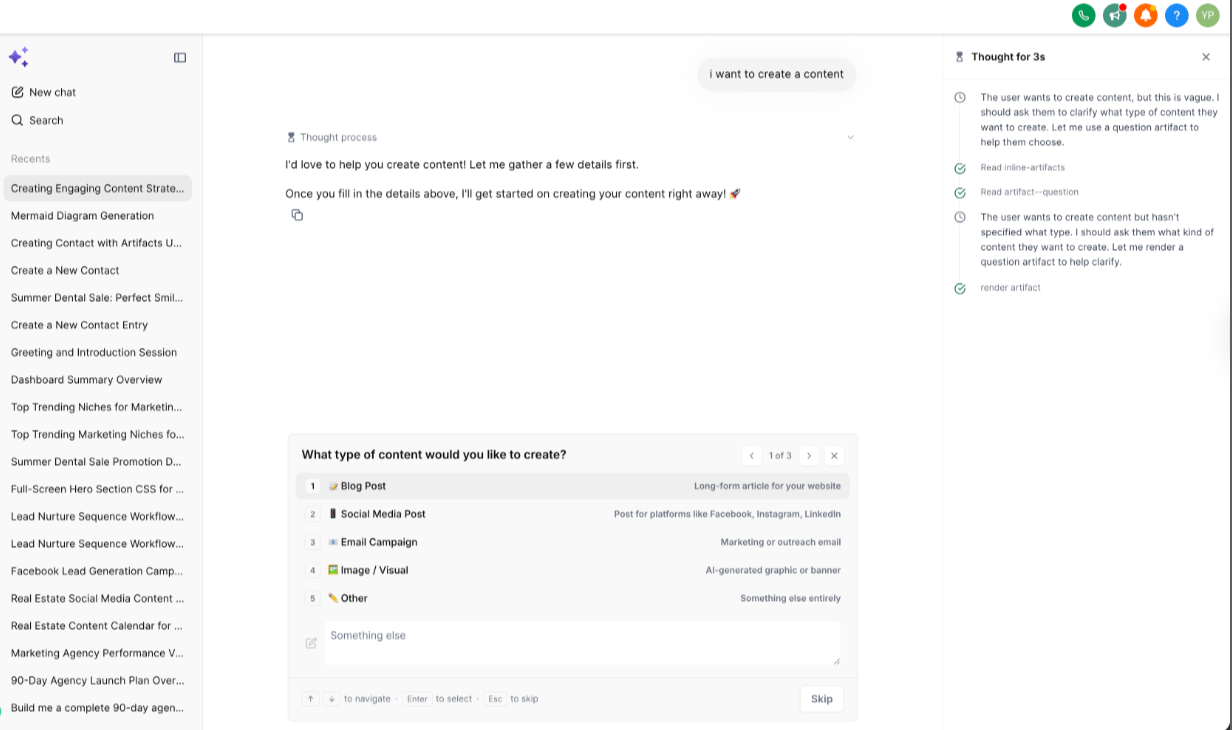
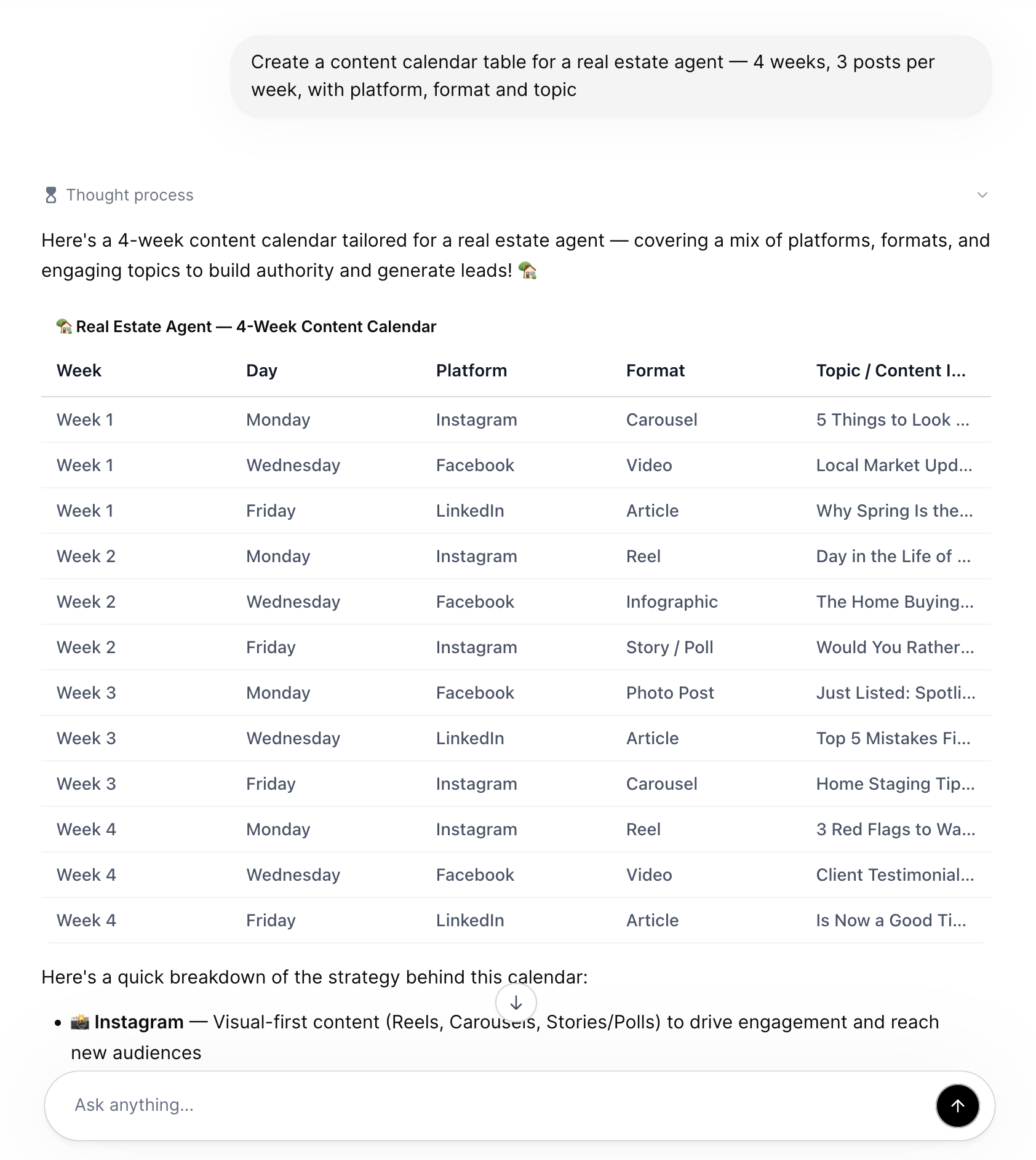
Ask AI artifacts are formatted outputs that the platform creates automatically when you ask a question. Depending on the request, the response can appear as a table, chart, todo list, code block, media preview, web search card, approval request, error block, or a Mermaid diagram. The artifact type is chosen by Ask AI or can be forced by specifying the format in the prompt.
Artifacts live inside the Ask AI conversation view, which you open from the left navigation menu. After you start a conversation and describe the task, Ask AI returns the structured output directly in the chat window. You can then review, refine, or request a different format without leaving the interface.
While artifacts organize information for you, some actions still need your confirmation or depend on supported Ask AI capabilities. If an artifact cannot be generated, an error block appears explaining the issue.
03How businesses use Ask AI artifacts
- Digital marketing agency. The agency prompts Ask AI for a performance overview and receives charts showing lead volume and conversion rates. The visual data helps the team discuss trends during meetings without exporting files.
- SaaS product company. Product managers ask for a Mermaid diagram of the onboarding flow. The diagram appears with pan and zoom controls, allowing the team to review and adjust steps right away within the conversation.
- Freelance web developer. The developer requests a code block in JavaScript to validate email addresses. Ask AI returns a syntax highlighted snippet that can be copied directly into the project.
04The numbers and rules that matter
- Supported chart types: Bar Charts, Line Charts, Pie Charts, Funnel Charts, Radar Charts.
- Supported code languages: HTML, CSS, JavaScript, SQL, JSON, Python.
05How to set up and use Ask AI artifacts in HighLevel
Use Ask AI artifacts
- Open Ask AI from the left navigation menu.
- Start a new conversation.
- Describe the task you want to accomplish.
- Optionally specify your preferred output format, such as a table, chart, todo list, Mermaid diagram, or code block.
- Include relevant business context, campaign goals, workflows, or supporting data.
- Review the generated artifact.
- Continue the conversation to refine, expand, or modify the response as needed.
06What it looks like in HighLevel
07Things to know before you rely on it
- Some workflows may still need confirmation or supported Ask AI capabilities before actions are completed.
- If Ask AI cannot produce the requested artifact, an error block is shown explaining what is missing.
- Large Mermaid diagrams support full screen viewing, pan, zoom, and toolbar controls.
08How it connects to the rest of HighLevel
- Generate a contact summary using Ask AI Contact summary guide
- Create and edit images with Ask AI Image generation guide
- Understand Ask AI session pricing Pricing information
Michael's take

Ask AI artifacts let a small business turn raw AI ideas into tables, charts or diagrams without switching apps.