
01Who this is for
- Agency admins, need to manage billing and limit settings for multiple client subaccounts.
- Subaccount admins, can set their own spending limit and upgrade their AI plan when permitted.
- Founders of agencies, require visibility into each client’s AI consumption and the ability to approve usage requests.
02SubAccount AI usage pages, explained
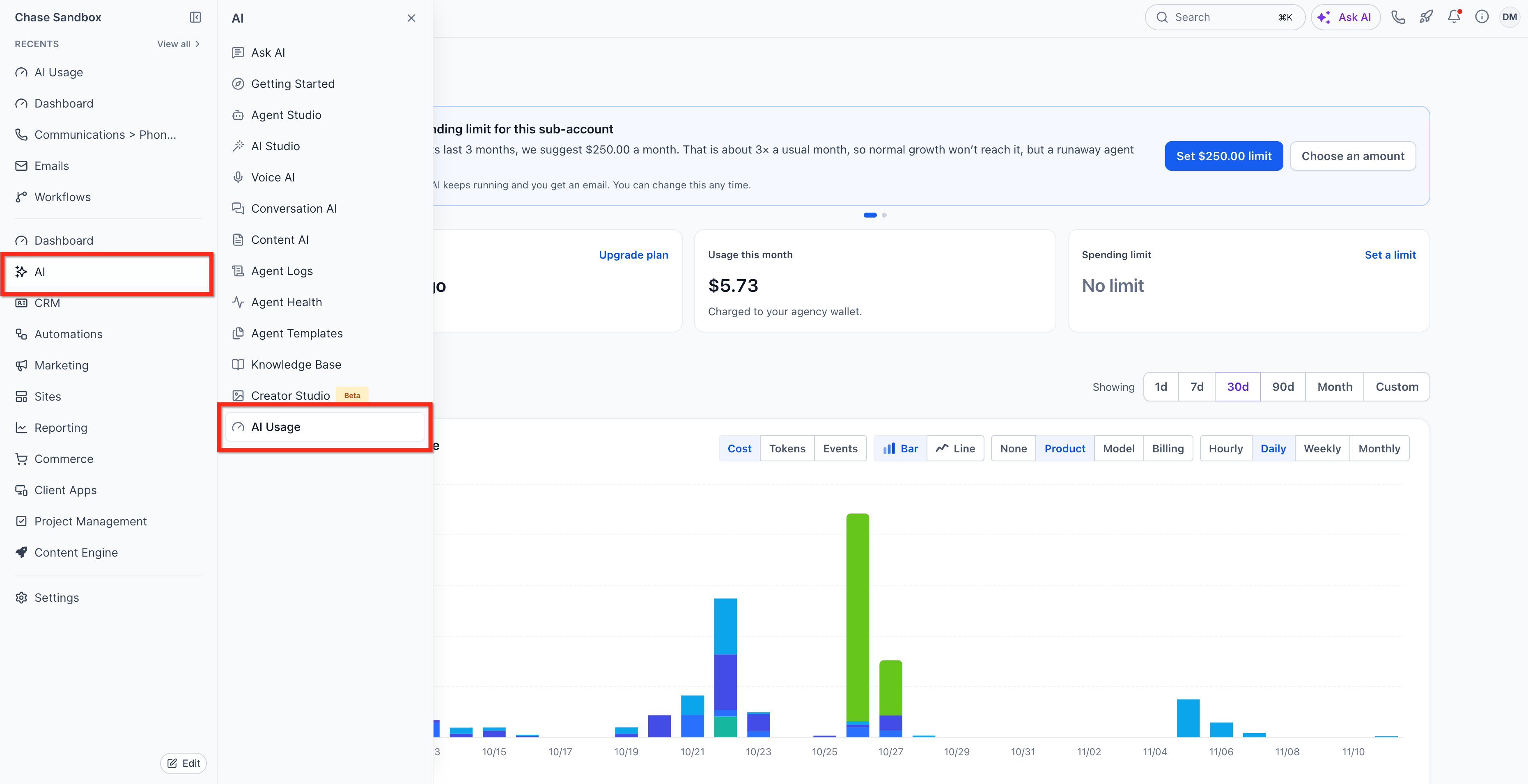
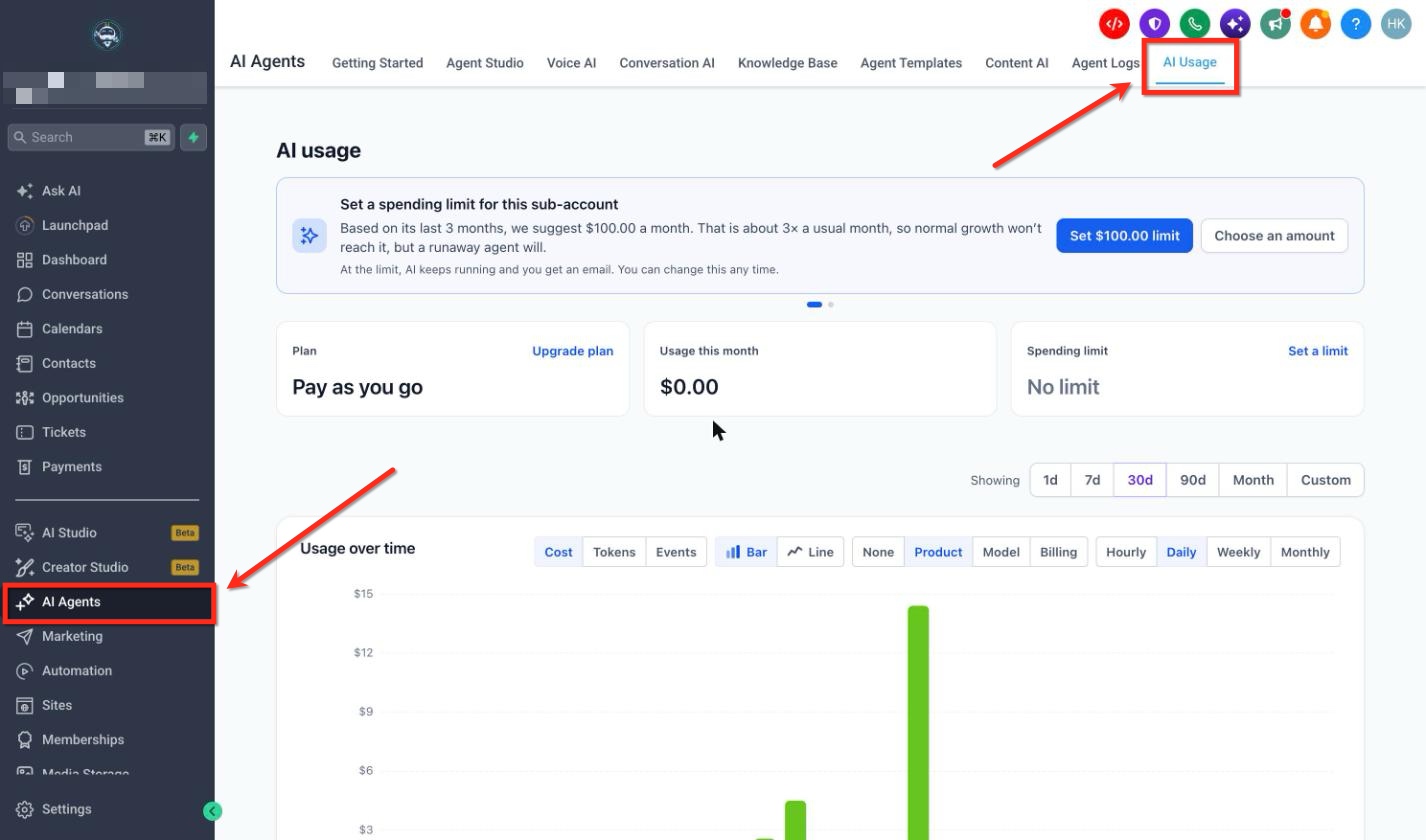
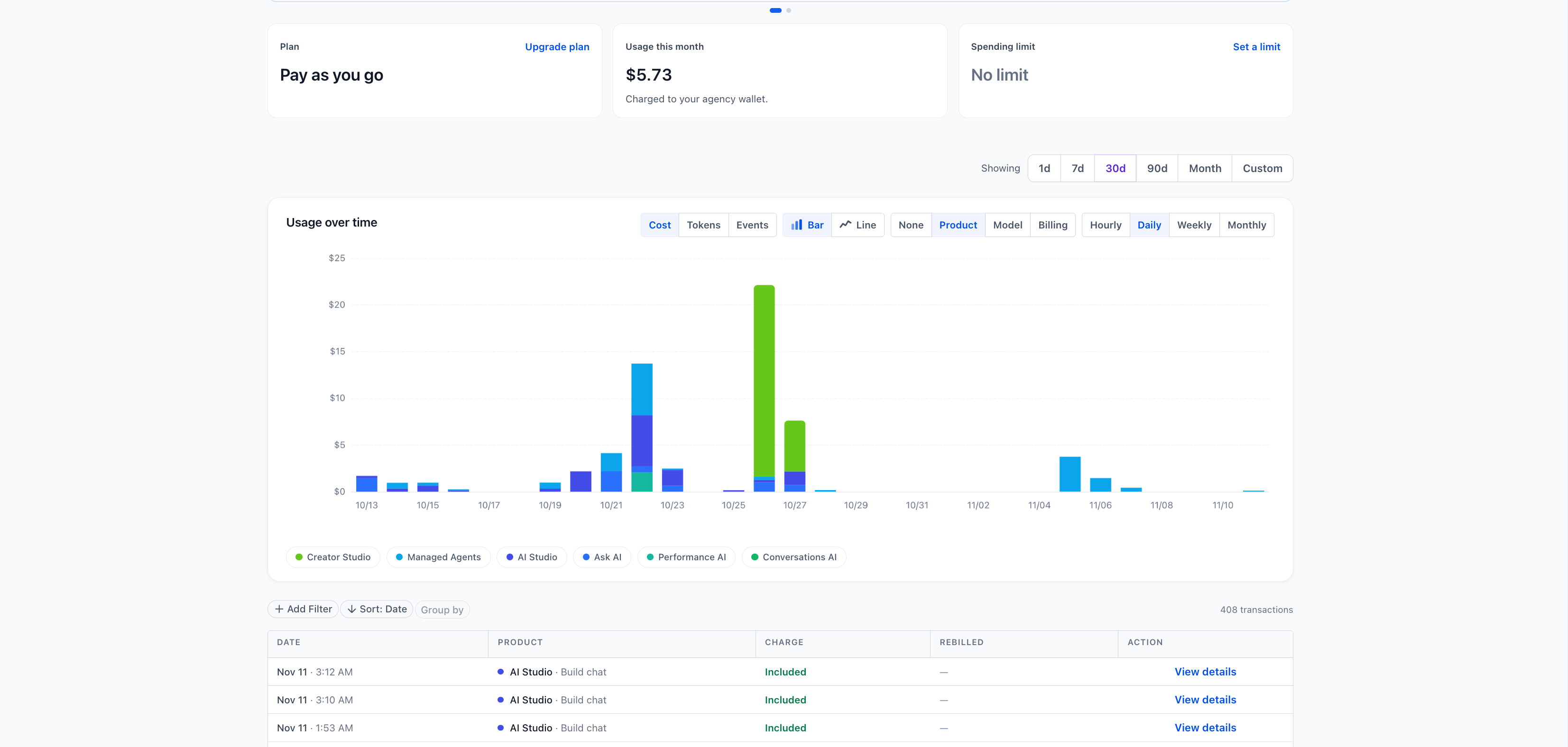
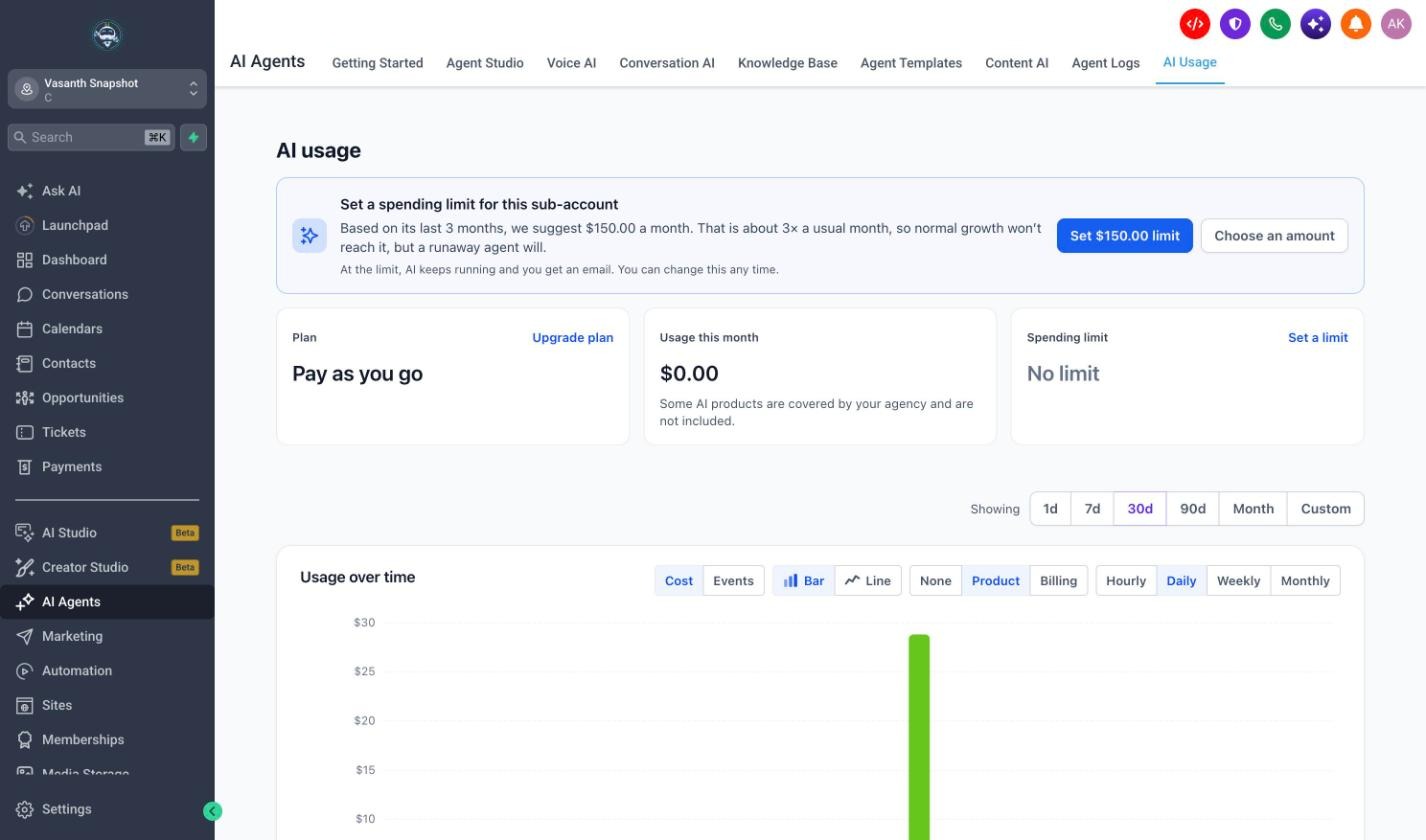
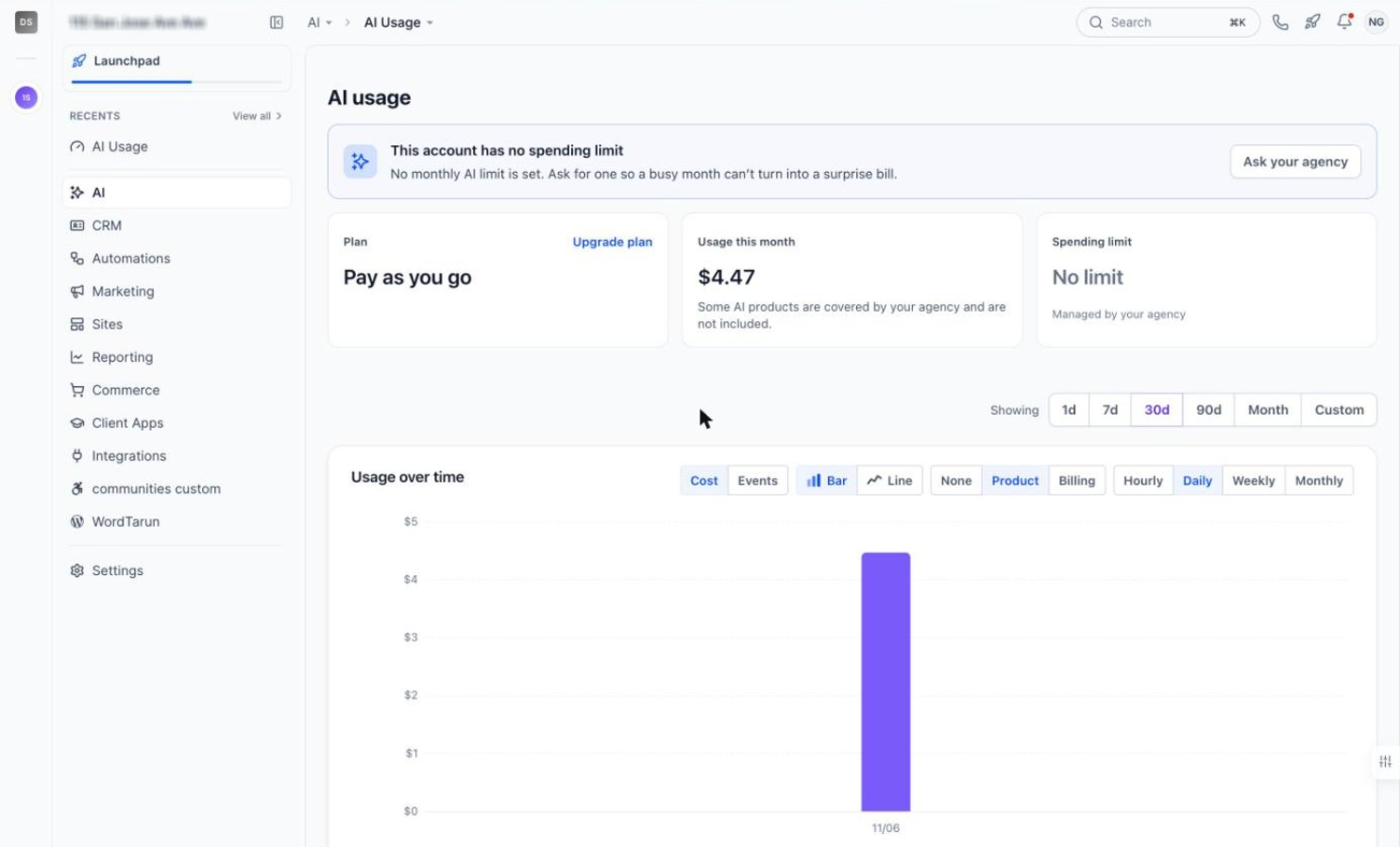
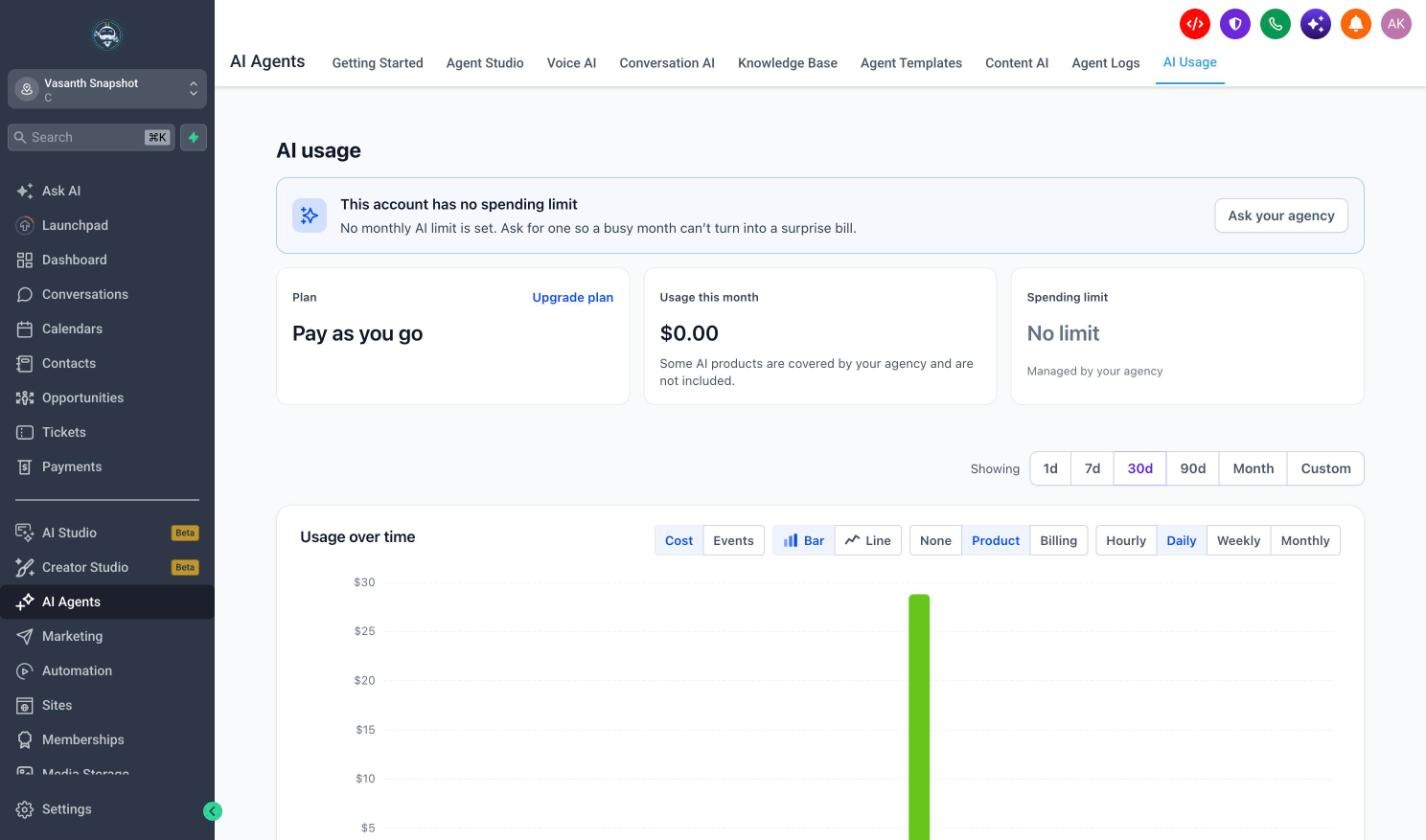
The Subaccount AI Usage page lives in the AI section of the platform. It shows the subaccount’s current AI plan, how much billable AI has been used this month, any included plan allowances and the monthly spending limit. Depending on the agency’s rebilling setup, the page can show a single spending limit card or a two card Monthly limits view that includes both the agency’s limit and the subaccount’s own limit.
If the agency enables the setting that allows rebilled subaccounts to set their own limit, the subaccount sees a separate limit card and can adjust the amount directly. When the limit is reached, the platform either stops AI work or continues with an alert, based on the selected advanced setting. Subaccounts can also request more usage or upgrade to a higher AI Employee plan from the same page.
03How businesses use the SubAccount AI usage page
- Digital marketing agency. The agency turns on the option for rebilled clients to set their own AI caps. Each client admin then opens the AI Usage page, defines a monthly dollar limit and chooses to stop AI at the limit. The agency retains its own cap to protect its overall spend.
- SaaS startup providing AI enhanced services. When a customer’s usage approaches the cap, the startup’s admin receives an email request from the client. The admin reviews the request in the Plans & Limits view, raises the limit, and the client’s AI resumes without interruption.
- Consulting firm with multiple project teams. Team leads access the AI Usage page in their subaccount, click Set a limit, enter a monthly budget, and select Stop AI as the advanced option. This ensures projects stay within budget while the firm’s central admin monitors overall spend.
04The numbers and rules that matter
- Limits and allowances reset on the 1st of each month at 00:00 UTC.
- Per user limits have been retired; each subaccount has one monthly limit for everyone.
- Near limit is defined as 75% or more of the monthly limit.
05Before you start
- AI Agents must be turned on for the subaccount via AI Suite > Plans & Limits.
- The agency must have rebilling configured for at least one AI product to the subaccount.
06How to set up and use the SubAccount AI usage page in HighLevel
Enable subaccounts to set their own AI limit
- In Agency View go to AI Suite > Plans & Limits.
- Select Edit defaults.
- Turn on Let rebilled subaccounts set their own AI limit under Subaccount own limits.
Set a subaccount’s own spending limit
- Open AI > AI Usage in the subaccount.
- Click Set a limit on the own limit card.
- Toggle on Limit monthly spending.
- Enter a dollar amount or pick a suggested value.
- Choose Stop AI or Keep running and alert me under Advanced settings, then Save.
Approve a request for more usage
- In AI Suite > Plans & Limits locate the request above the table or in the Updates panel.
- Click Raise limit.
- Enter the new limit amount to grant.
- Save the change; the request status updates to approved and an email is sent.
Upgrade a subaccount’s AI Employee plan
- From the subaccount go to AI > AI Usage.
- Click Upgrade plan on the Plan card.
- In the Choose your AI plan screen select the desired plan.
- Click Continue, choose a payment method, and click Pay [amount] & Subscribe.
07What it looks like in HighLevel
08Settings that matter
- Let rebilled sub, accounts set their own AI limit. Allows rebilled subaccounts to define an independent monthly spending cap alongside the agency’s limit.
- Limit monthly spending. Enables the subaccount to activate a monetary cap for its AI usage and choose the behavior when the cap is reached.
09Things to know before you rely on it
- The feature is currently available only in Labs; UI may change as rollout continues.
- Monthly limits reset on the 1st of each month at 00:00 UTC.
- When both agency and subaccount limits exist, AI stops at whichever limit is reached first.
- Per user limits have been retired; each subaccount has a single monthly limit for all its users.
10How it connects to the rest of HighLevel
- View how to enable extra usage and manage AI limits AI usage limits guide
- Explore the AI usage dashboard for detailed charge history AI usage dashboard
- Learn how to configure rebilling for subaccounts Rebilling setup
- Check HighLevel pricing and plans for AI Employee options Pricing page
Michael's take

The Subaccount AI usage page is a practical way for agencies to keep a clear eye on each client’s AI spend, let them control their own budgets, and avoid surprise charges. It gives both you and your subaccounts the data you need to make timely upgrades or limit changes without endless back and forth.
Don’t forget to turn on AI Agents first, otherwise the page never appears.