
01Who this is for
- Agency administrators, need a way to control client AI costs and receive alerts when usage approaches the set threshold.
- Subaccount owners, can override agency defaults and set a custom budget for their own teams.
- Individual users, may have personal AI budgets to prevent excess consumption within a shared subaccount.
02AI usage limits, explained
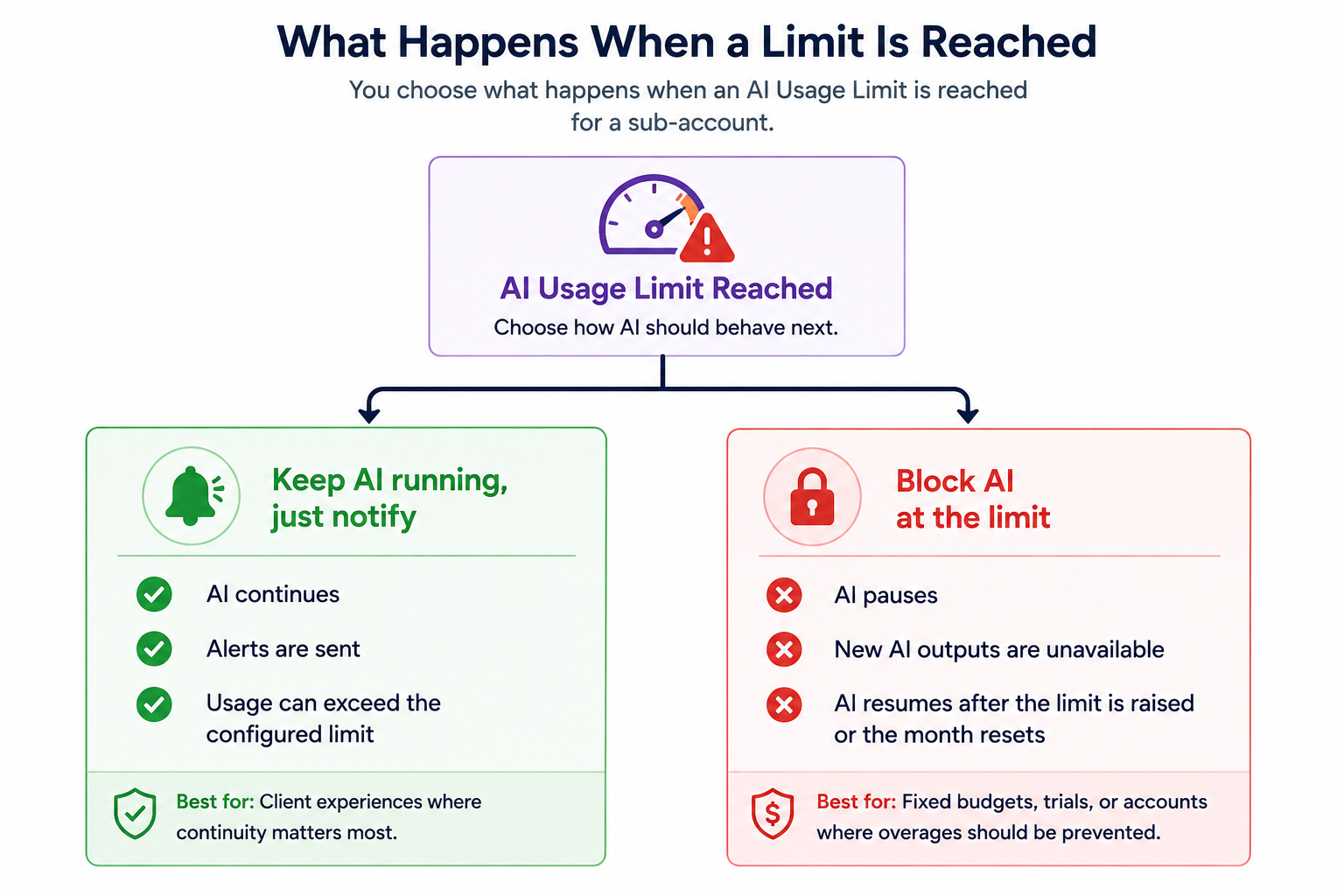
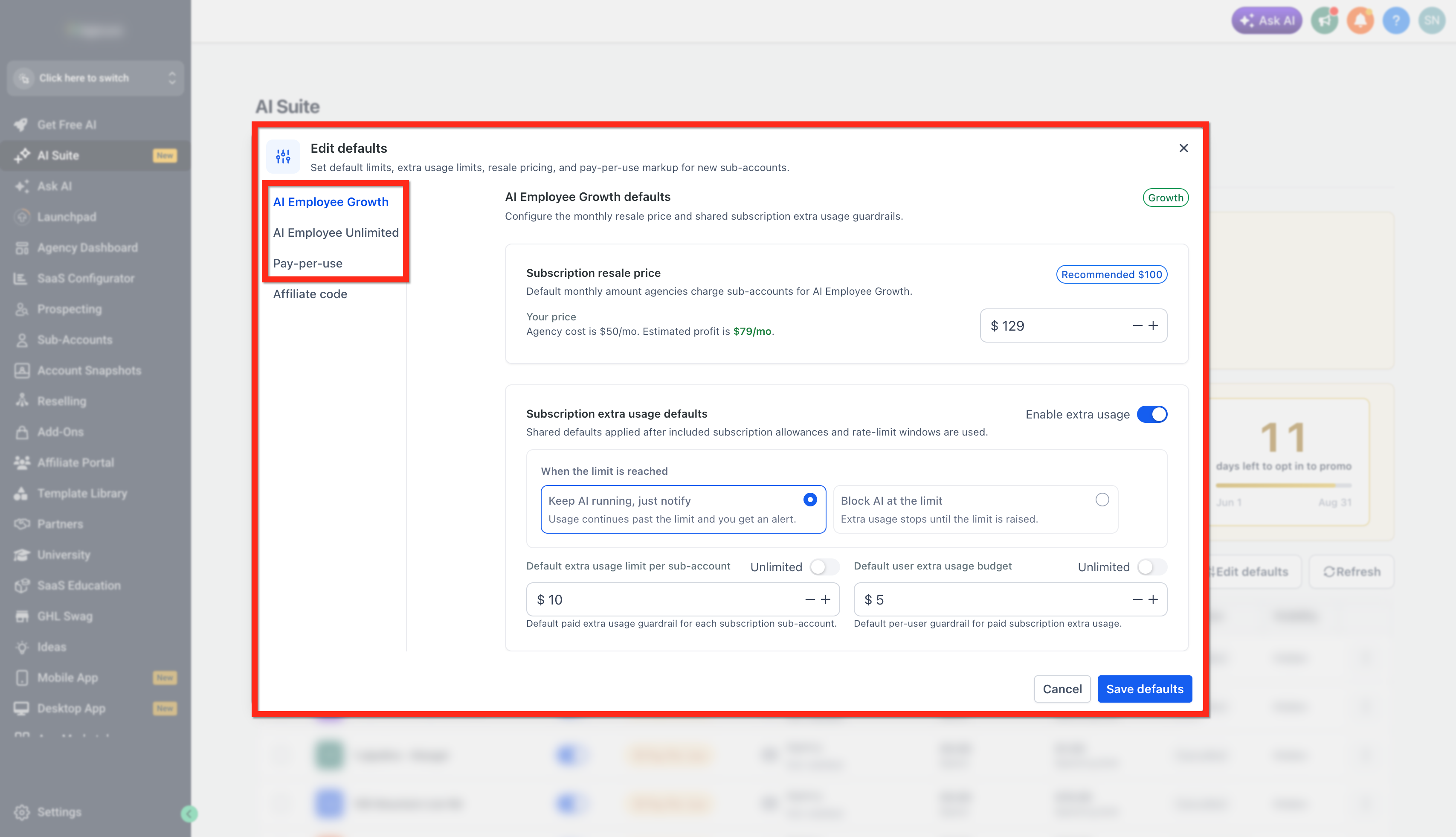
The feature provides a hierarchy of spend caps that can be applied at three layers: agency defaults, subaccount overrides, and user level budgets. Each layer can define a monetary limit for the month and select whether AI should continue with a notification or halt when the limit is met.
Limits refresh at the start of each calendar month and are displayed with progress bars. When a limit is active, the platform sends threshold alerts at 70%, 80%, 90% and 100% of the allowance. If the "Block AI at the limit" option is chosen, AI actions pause until the limit is raised or the month resets.
03How businesses use AI usage limits
- Marketing agency. Set a default monthly cap for all client subaccounts, then raise the limit for high spending campaigns only when needed. The agency views alerts and can approve limit increase requests from clients directly in the AI Suite.
- SaaS startup. Create a user level budget for each developer to keep experimental AI features within a controllable spend. When a developer reaches their personal cap, AI calls stop until the admin adjusts the amount.
- Real estate brokerage. Apply a subaccount cap on the team that generates property descriptions, opting for the "keep AI running" mode so agents receive warnings but can still finish urgent listings.
04The numbers and rules that matter
- No Spending Limit is configured by default.
- Maximum configurable subaccount limit is $1,000 per month (per HighLevel's help center, checked November 2026).
- Maximum configurable user limit is $500 per month (per HighLevel's help center, checked November 2026).
- Limits reset at the start of each calendar month.
- Threshold alerts trigger at 70%, 80%, 90% and 100% of the limit.
- When the limit is reached the default action is Keep AI running, just notify.
05How to set up and use AI usage limits in HighLevel
Manage an AI usage increase request
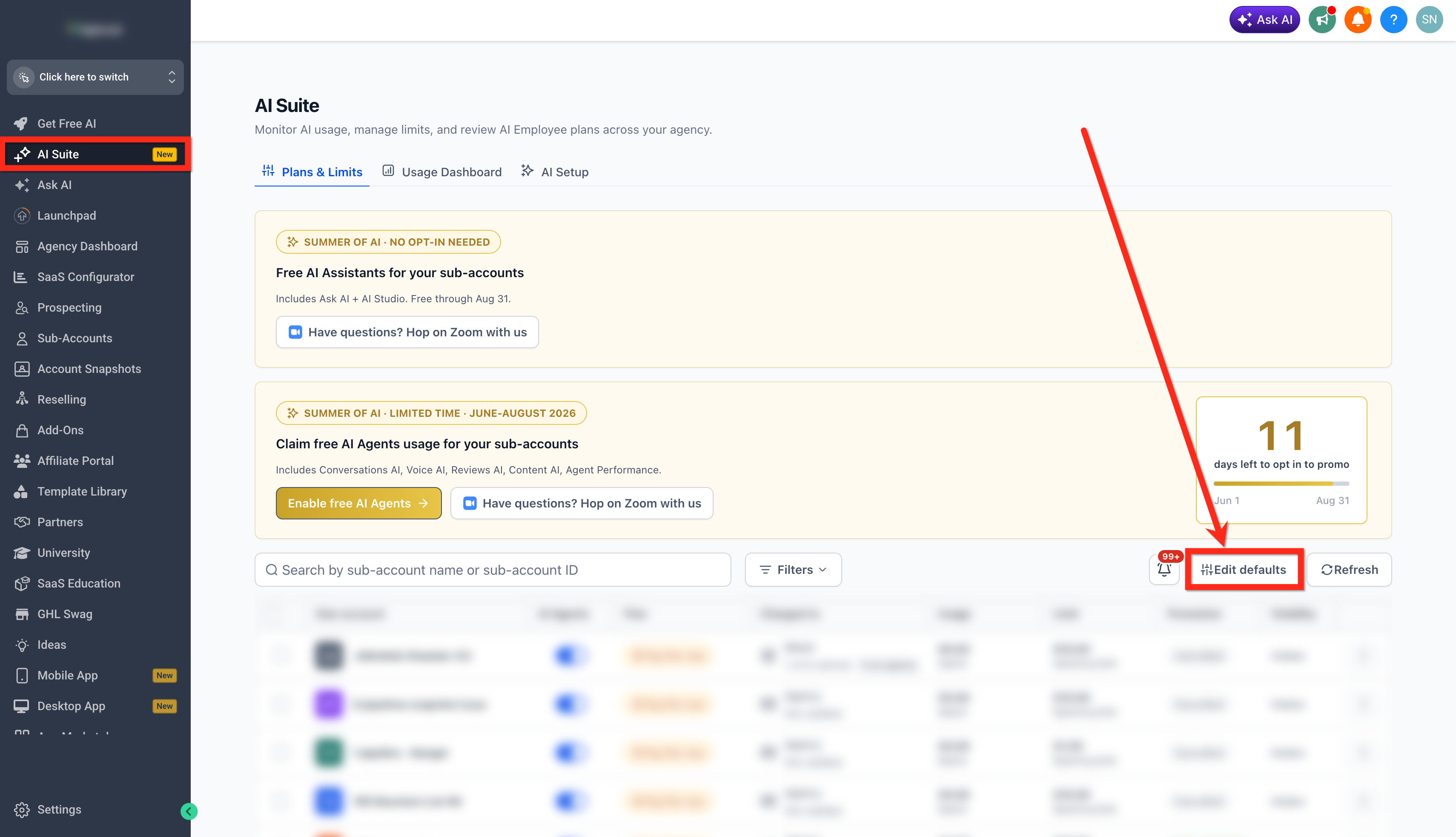
- Open AI Suite and navigate to Plans and Limits.
- Select the Notifications icon.
- Switch to the Limit Requests tab and open the pending request.
- Pick an action such as Adjust Limit, Upgrade Plan, or Deny.
- If Adjust Limit is chosen, review the requested amount and modify it if needed.
- Confirm the change to apply the new limit.
View used allowances
- Open AI Suite (Agency view) and go to Plans & Limits.
- Click the desired subaccount or the three dot menu and choose Configure Limits.
- Select Increase to see the included allowances and rate limit windows.
06What it looks like in HighLevel
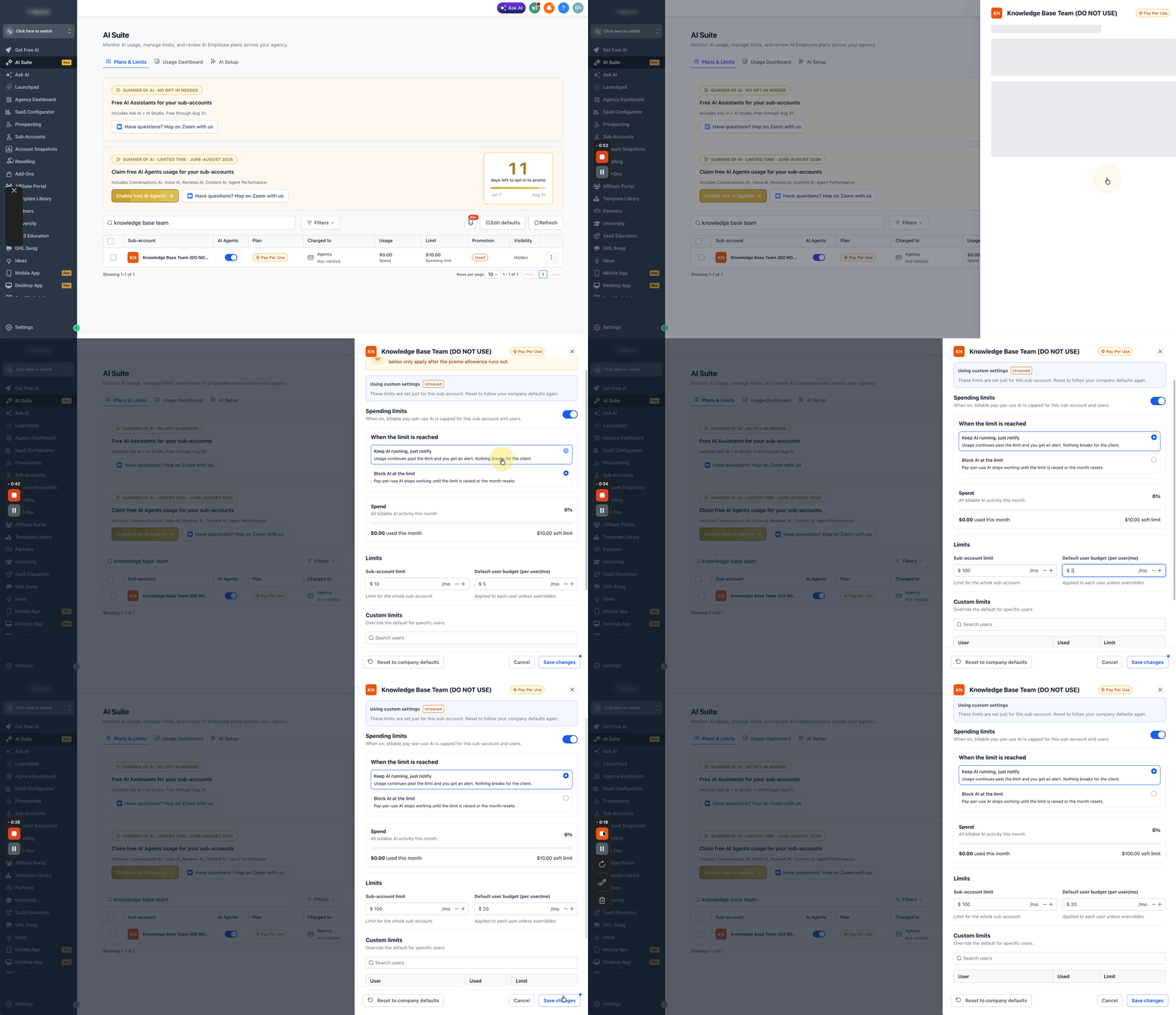
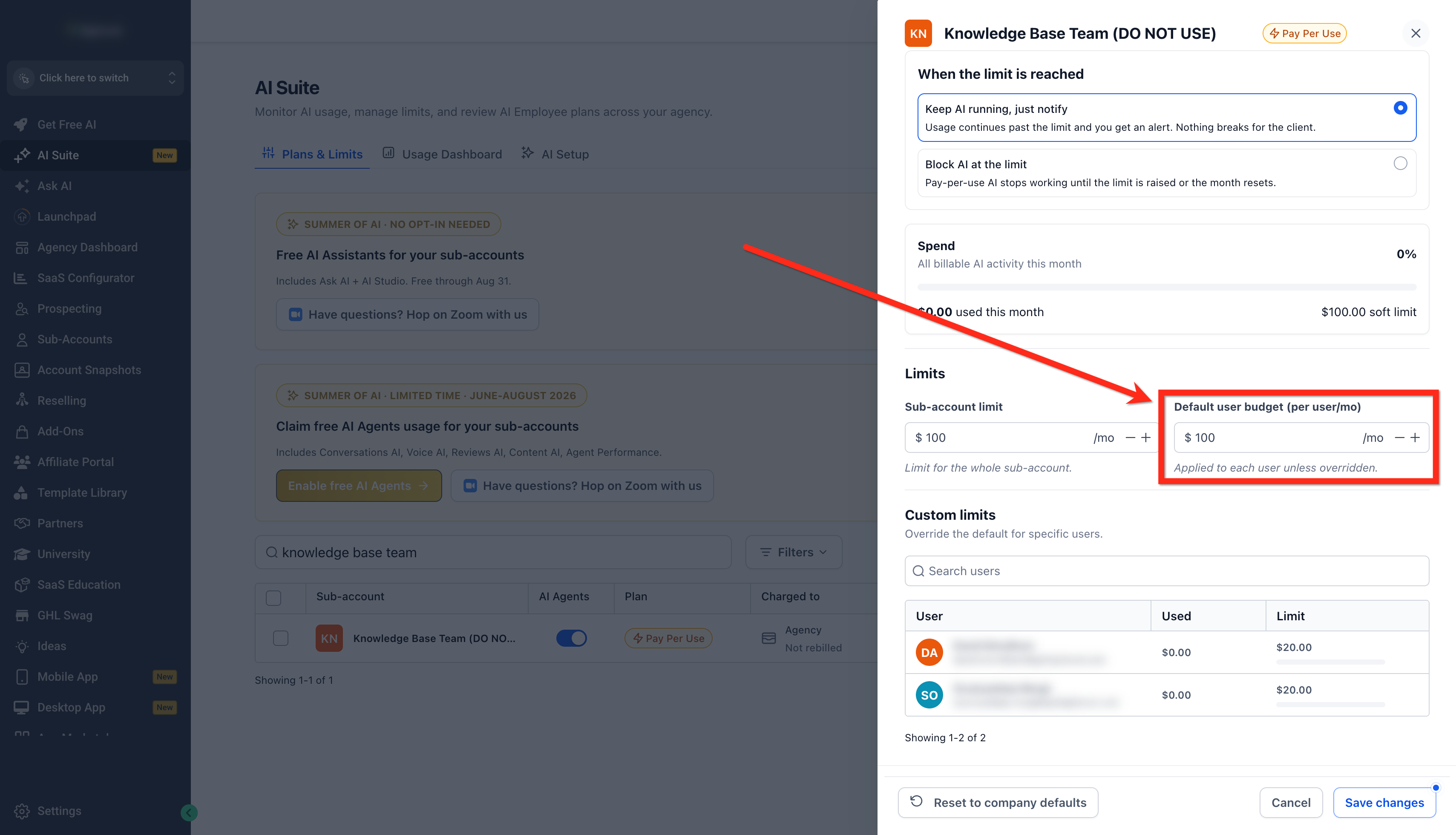
07Settings that matter
- When the limit is reached. Determines whether AI keeps operating with a notification or stops altogether once the monthly cap is met.
- Spending Limits. Activates a monetary ceiling for billable AI usage; without it, usage continues and overages are billed.
- Limit Requests tab. Shows pending limit increase submissions from subaccounts that cannot self manage billing.
08Things to know before you rely on it
- Maximum subaccount cap is $1,000 per month (per HighLevel's help center, checked November 2026).
- Maximum user level cap is $500 per month (per HighLevel's help center, checked November 2026).
- Limits reset on the first day of each calendar month.
- Threshold alerts only appear when a limit is active and greater than zero.
- The "keep AI running" and "block AI" options are unavailable until a limit is set.
09How it connects to the rest of HighLevel
- Monitor real time consumption on the AI usage dashboard AI usage dashboard
- Review pricing details for pay per use and subscription plans AI product pricing
Michael's take

Wondering if AI usage limits are worth the effort for your agency? They give you a clear ceiling on billable AI spend, so you can avoid surprise invoices while still letting clients work uninterrupted if you prefer.
I’d start by setting a modest agency wide default and then customize any high usage subaccounts. Test the alerts for a week to see how often they fire, then decide if you need the block option for tighter control.