
01Who this is for
- Product managers who maintain pricing tables can keep rates current without re uploading files.
- Support team leads can update office hours or service availability in a shared sheet and have the Knowledge Base reflect the changes right away.
- Operations directors overseeing internal reference data can reduce manual maintenance by linking the live spreadsheet to the Knowledge Base.
02Google Sheets integration for Knowledge Base, explained
The integration attaches a Google Sheet to a Knowledge Base, turning the spreadsheet into a live data source. When the sheet changes, new rows, removed columns, or edited cells, the Knowledge Base can read those updates. This keeps AI agents supplied with the most recent structured information.
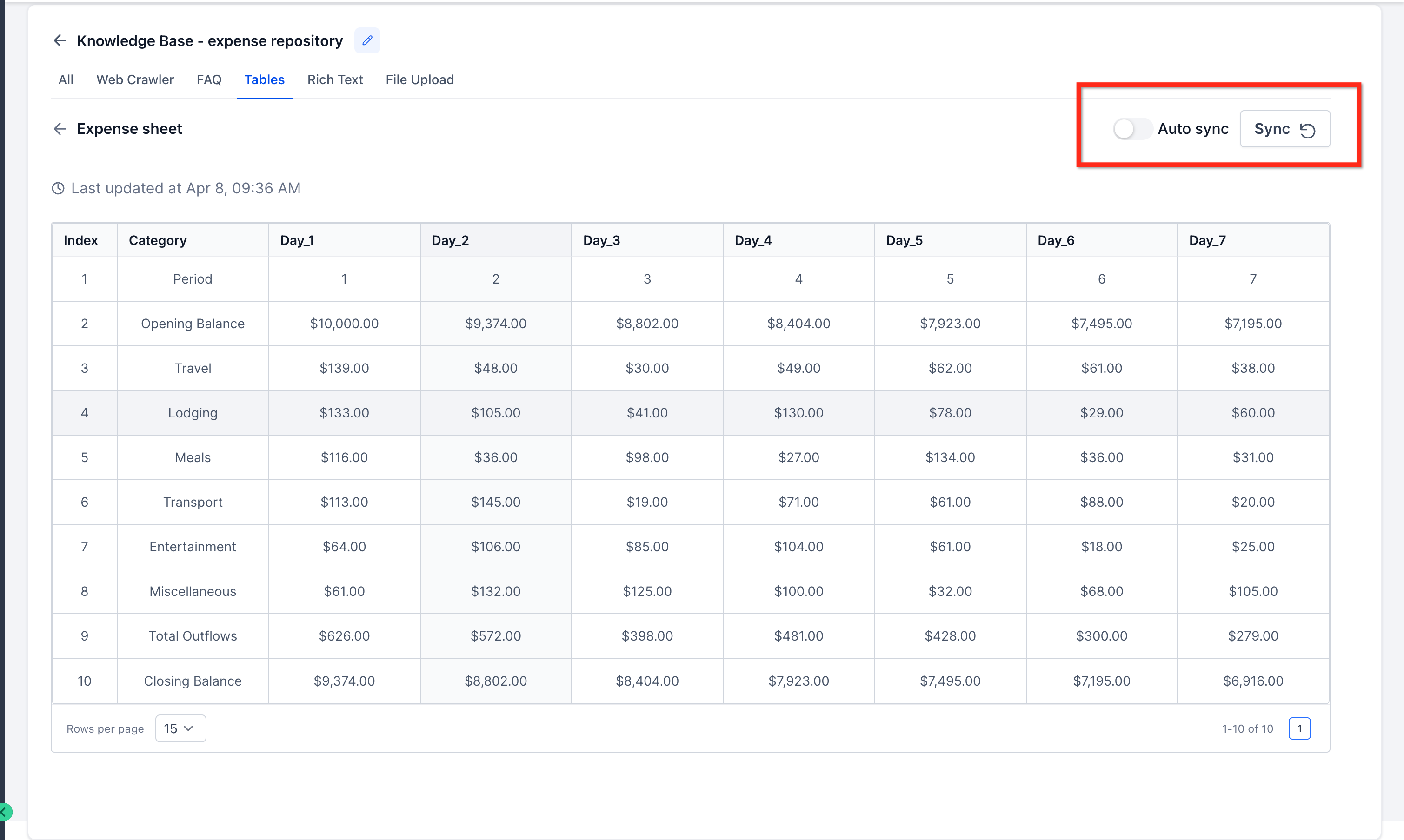
Two sync methods are available. Auto Sync runs about every 15 minutes, suitable for frequently changing data. Manual Refresh lets a user force an update whenever needed, giving tighter control over when changes appear in the Knowledge Base. The feature is accessed under the AI agents section of a subaccount.
During setup, you select the sheet, map data types similarly to a CSV import, and start the import. After processing, the Knowledge Base will either auto sync or wait for a manual refresh based on the chosen option.
03How businesses use Google Sheets integration for Knowledge Base
- Ecommerce store. The retailer links a pricing spreadsheet to the Knowledge Base. When discount values change, they either wait for the 15 minute auto sync or click manual refresh to have AI agents answer price queries with the latest numbers.
- Medical clinic. The clinic connects a sheet containing office hours and practitioner availability. Staff update the sheet as schedules shift, and the Knowledge Base pulls those changes so the AI chat bot provides accurate appointment information.
- Software SaaS provider. The company imports a feature matrix spreadsheet into the Knowledge Base. When new features are added or removed, they trigger a manual refresh to ensure the AI assistant references the current feature set for customer inquiries.
04The numbers and rules that matter
- Near real time sync updates about every 15 minutes.
- Updates usually sync within about 15 to 20 minutes.
05Before you start
- A Subaccount with access to AI agents > Knowledge Base.
- A Google account that can be linked to HighLevel.
06How to set up and use Google Sheets integration for Knowledge Base in HighLevel
Set up Google Sheets integration for Knowledge Base
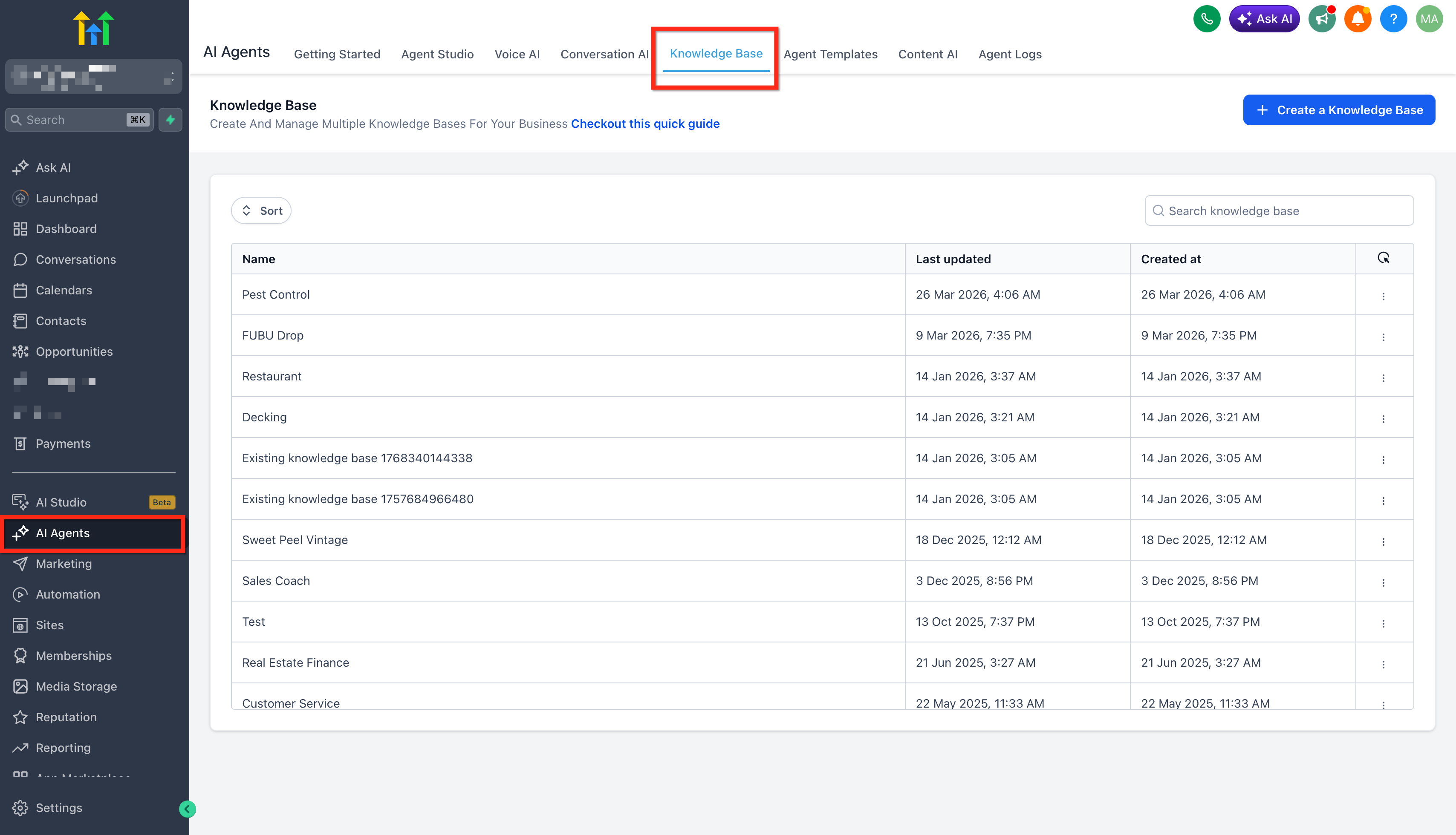
- Open the AI agents section in your Subaccount and go to the Knowledge Base tab, then open or create a Knowledge Base.
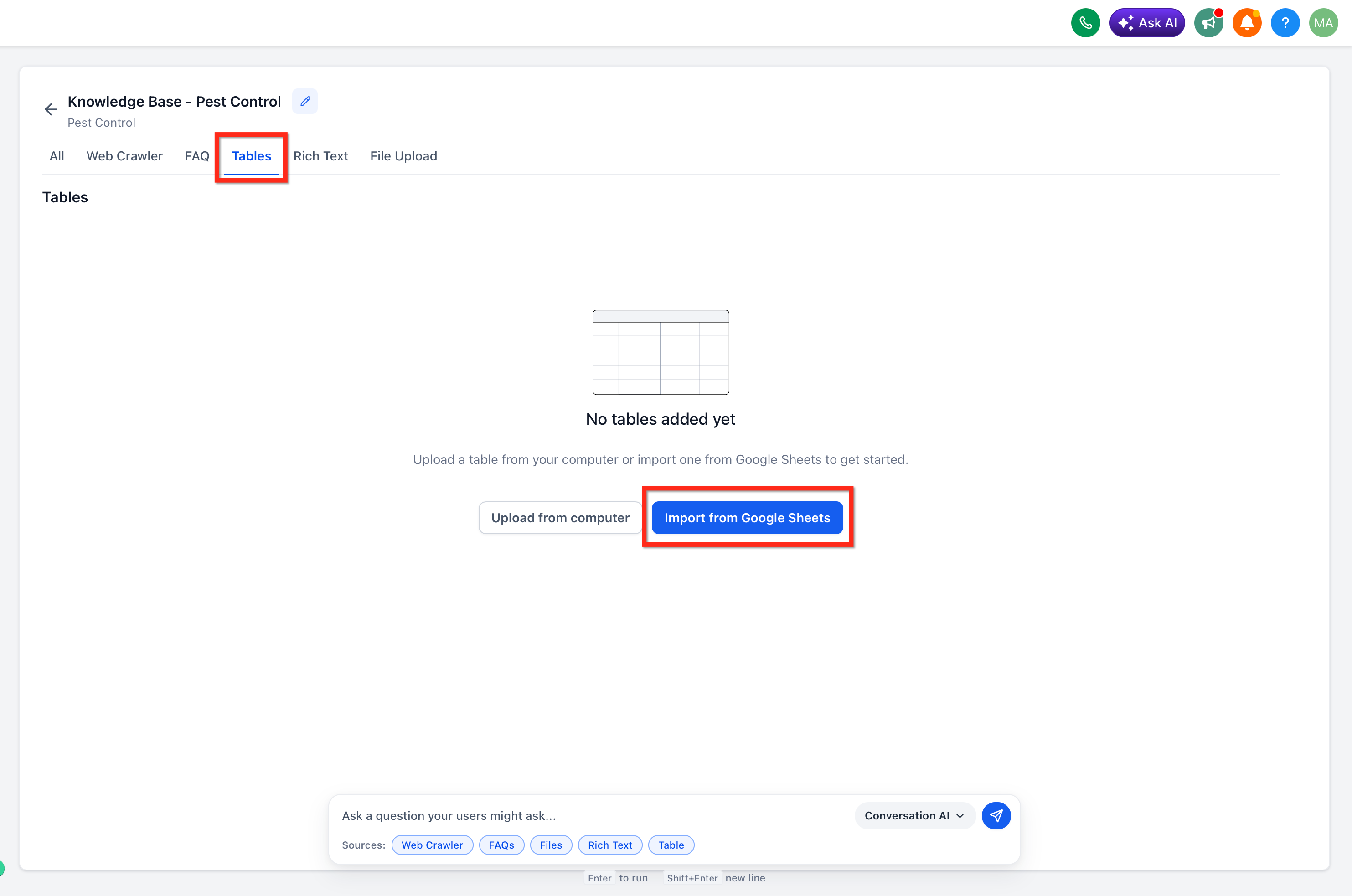
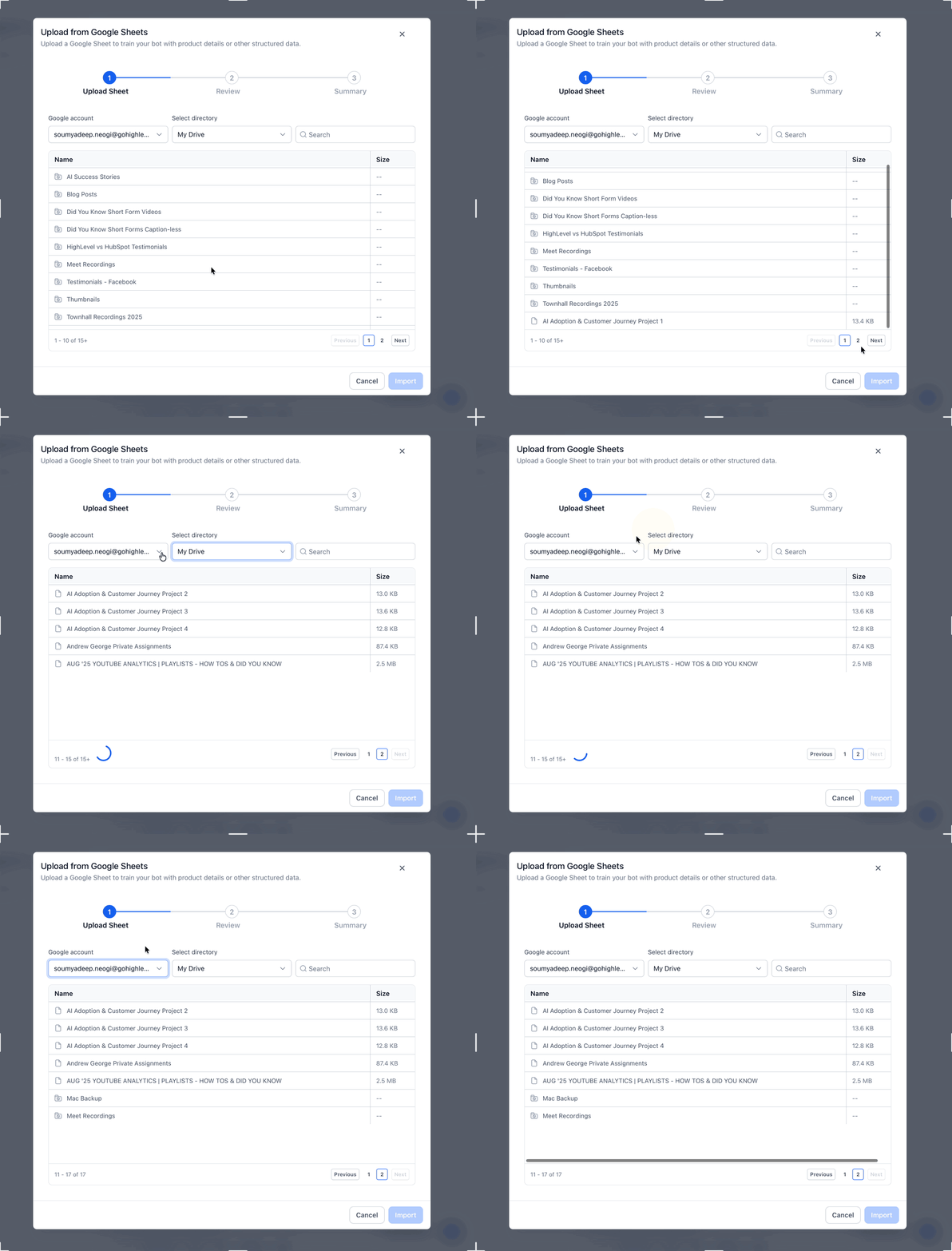
- Select Tables and choose Import from Google Sheets.
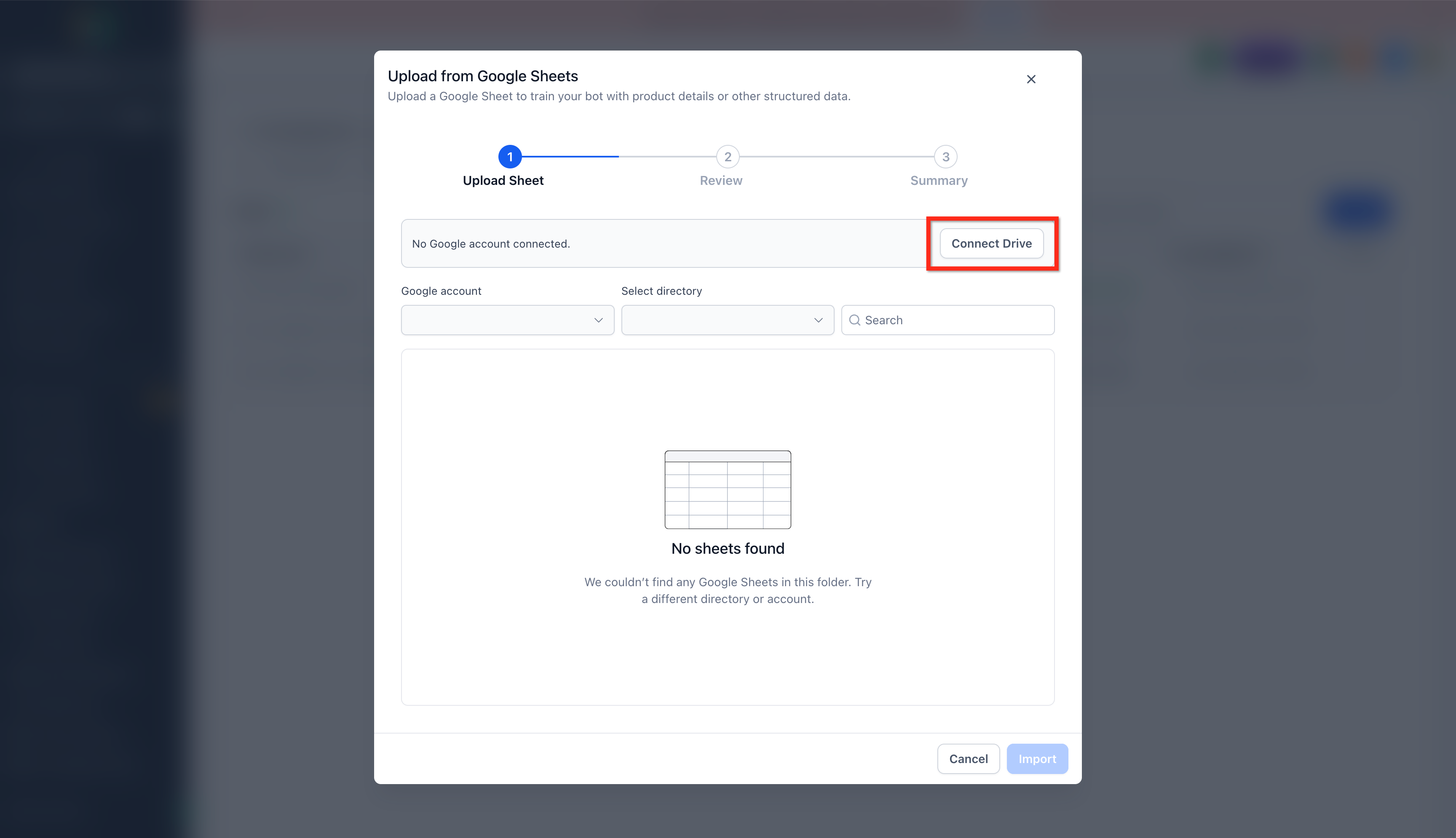
- If no Google account is linked, create a connection using the standard Google Drive permissions.
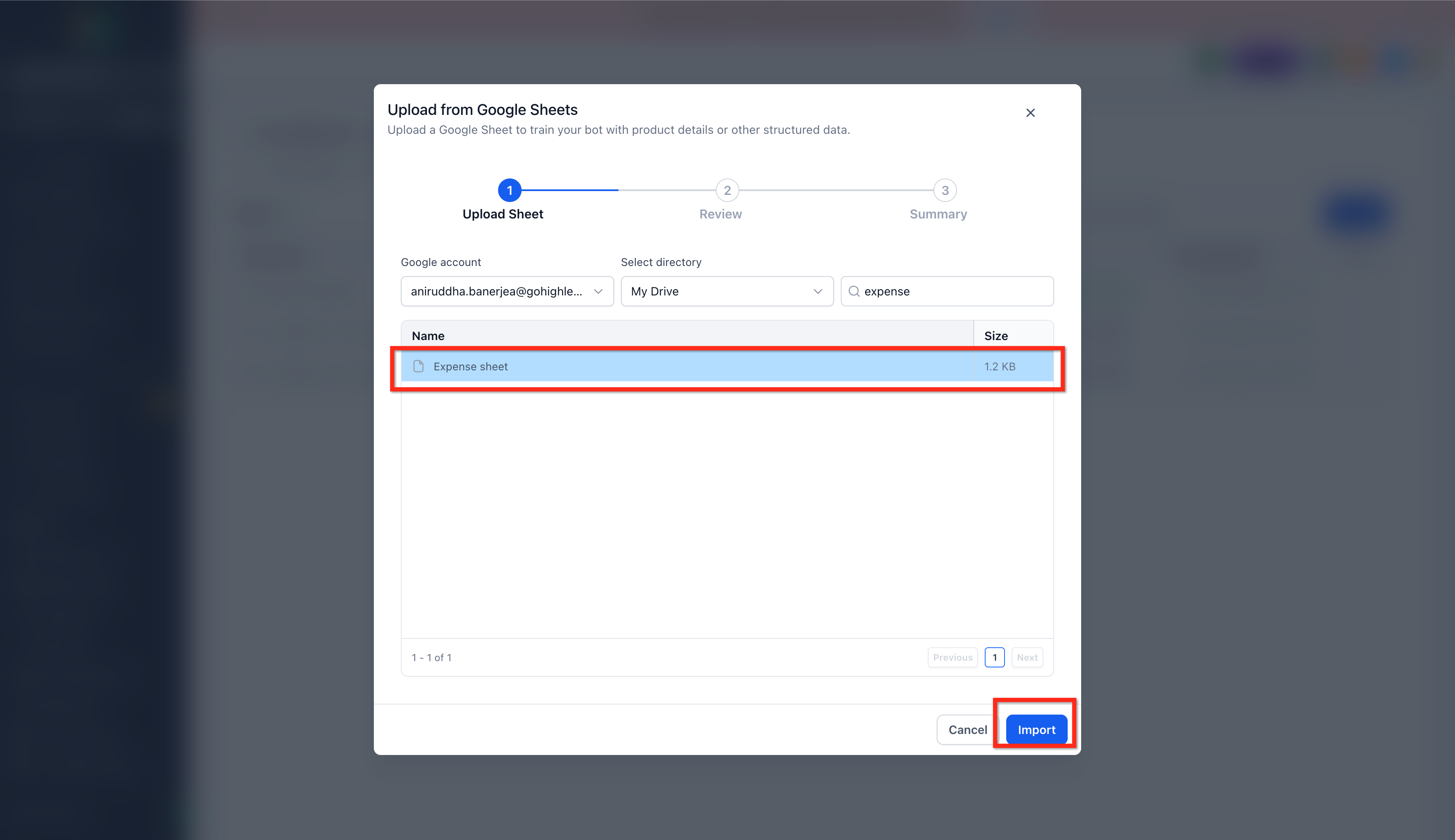
- Pick the connected Google account and browse to locate the desired spreadsheet.
- Choose the Google Sheet you want to import.
- Review the sheet contents and map the appropriate data types as you would for a CSV upload.
- Start the import and wait for the processing to finish.
- Enable auto sync to keep the Knowledge Base updated, or use manual refresh when you need an immediate update.
07What it looks like in HighLevel
08Settings that matter
- Auto Sync (~15 min). Controls how often the Knowledge Base automatically pulls changes from the connected Google Sheet, roughly every fifteen minutes.
- Manual Refresh. Allows users to trigger an immediate data pull from the Google Sheet, overriding the automatic schedule.
09Things to know before you rely on it
- Near real time sync updates approximately every fifteen minutes, not right away.
- Supported changes include edited cells, added or removed rows, and added or removed columns.
- Updates typically appear within fifteen to twenty minutes after a change.
10How it connects to the rest of HighLevel
- Explore other AI Employee features in HighLevel. All AI Employee features
- Review the AI tools guide for setup steps and rollouts. AI tools guide
- Check plan eligibility and pricing for AI Employee features. HighLevel pricing
Michael's take

Many people assume they need a separate copy of every spreadsheet just for the Knowledge Base and then have to reupload it constantly. That adds extra steps and can create version drift. Linking the live Google Sheet directly, picking the sync mode that matches how often the data changes, lets the AI reference fresher values when sync occurs.
If I were setting this up, I’d start with the sheet that holds my pricing table, enable auto sync for near real time updates, and run a manual refresh after my first change to confirm the data appears in the Knowledge Base.