
01Who this is for
- Founders who manage automated lead nurturing need quick insight into workflow health without digging through logs.
- Marketing managers can pinpoint email or SMS engagement issues by asking the assistant for delivery and open rates.
- Operations leads can trace a contact’s path across multiple workflows to diagnose enrollment problems.
02Workflow AI Assistant Performance Analytics, explained
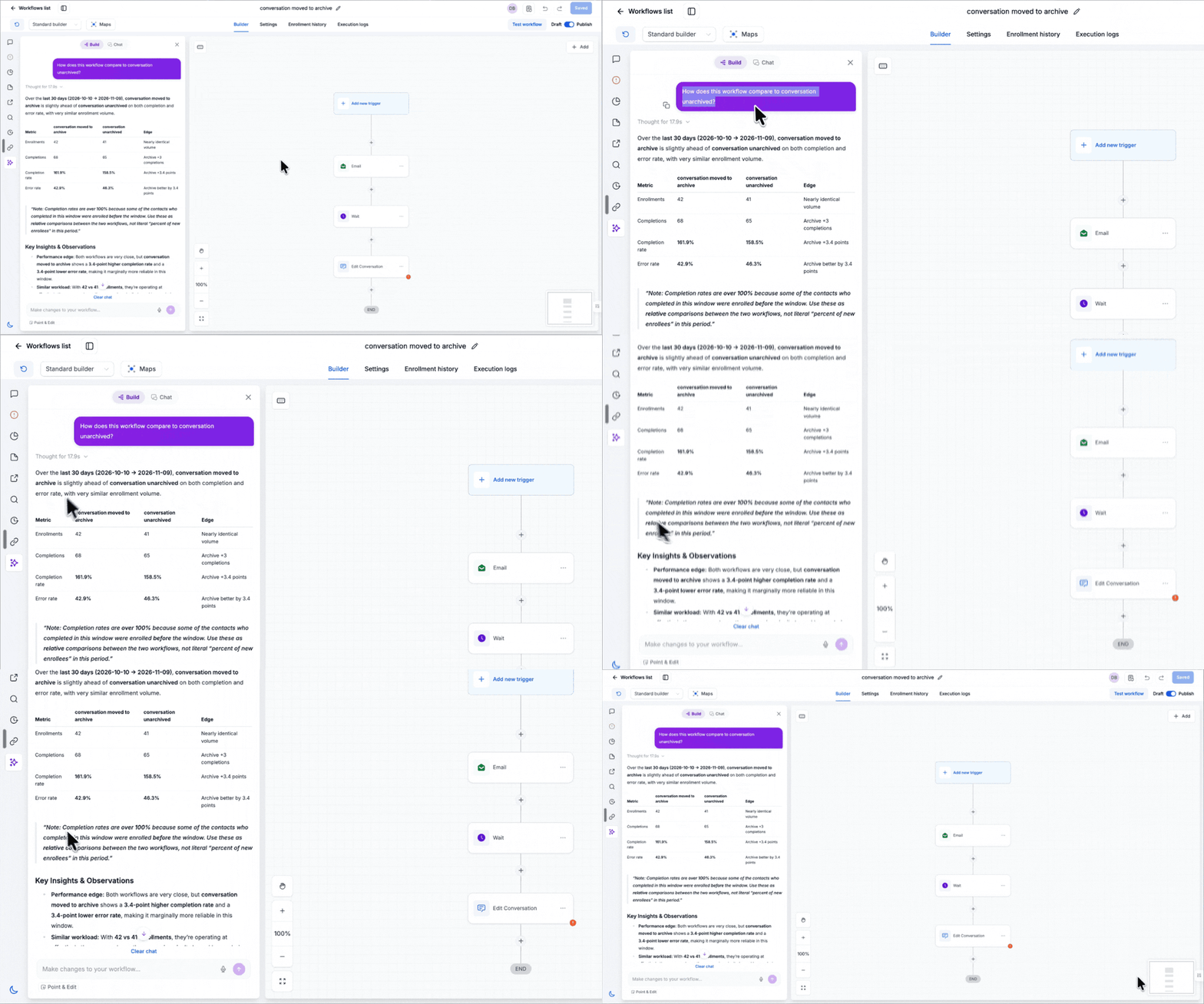
Workflow AI Assistant Performance Analytics lets you query any workflow in your HighLevel account using natural language. The assistant pulls real time execution data and replies with structured metrics such as entries, completion rates, branch percentages, and trigger diagnostics. It never changes the workflow; it only reads data.
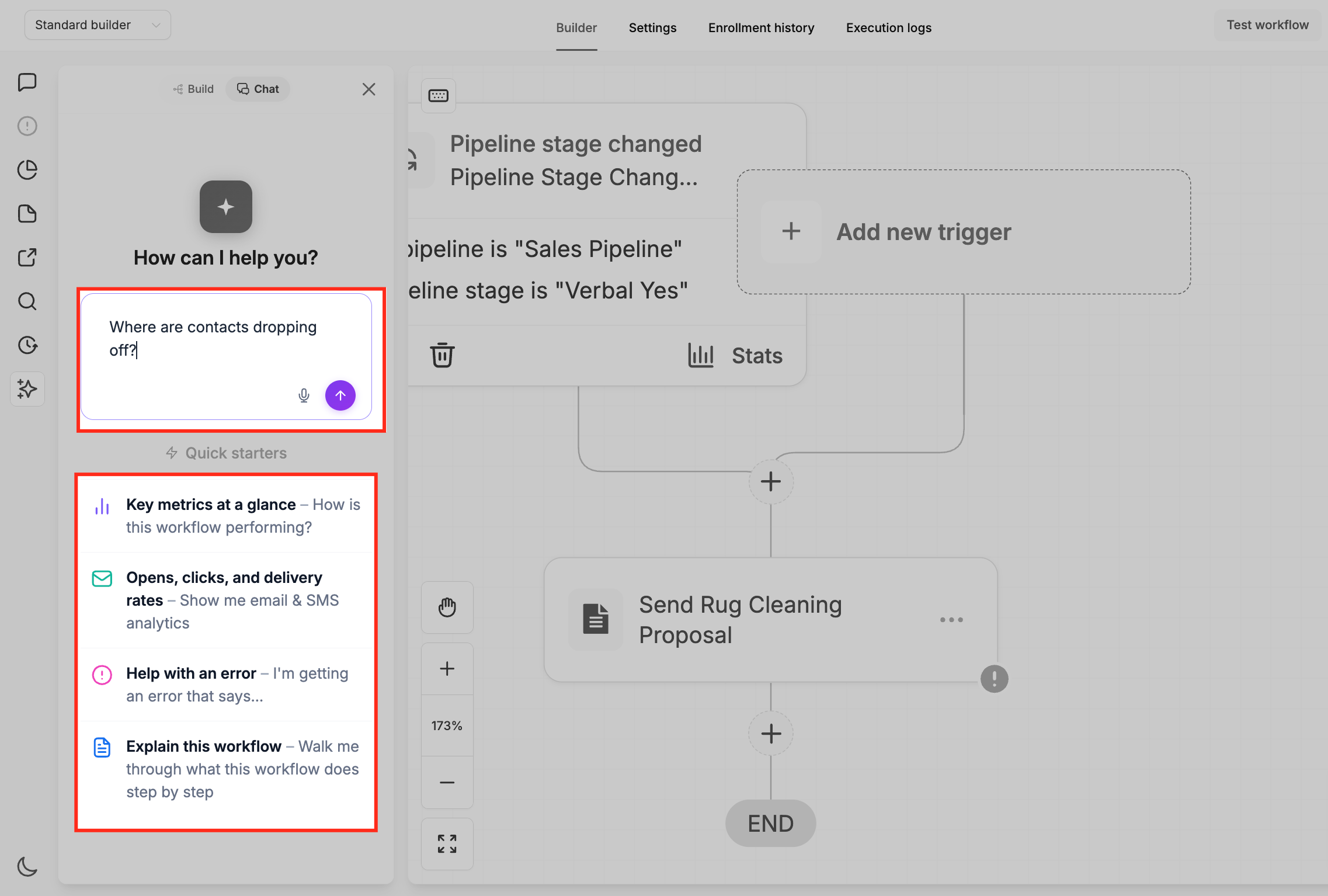
The feature lives inside each workflow builder. In the left sidebar you open the Workflow AI icon, switch to the Chat tab, and type a question or select a Quick Starter. The assistant can also compare two workflows, rank them by performance, and produce a PDF summary that only users with access to that subaccount can download.
03How businesses use Workflow AI Assistant Performance Analytics
- SaaS startup. The team asks the assistant for the completion rate of their onboarding workflow over the past month, identifies a sudden drop, and downloads a PDF report to share with the product manager for further analysis.
- Real estate agency. Agents query the assistant for email open rates on a new listing drip campaign, view which branch of a split step gets the most clicks, and export the findings as a PDF to present at the weekly sales meeting.
- Fitness studio. The studio manager asks the assistant to list contacts who failed at the payment step of the membership signup workflow, checks the trigger diagnostics for silent rejections, and downloads a PDF to document the issue for the technical lead.
04The numbers and rules that matter
- There is no stated limit to how many questions you can ask.
05Before you start
- Create or select a workflow that already has execution history.
- Ensure your user account has access to the subaccount where the workflow resides.
06How to set up and use Workflow AI Assistant Performance Analytics in HighLevel
Access the AI Assistant
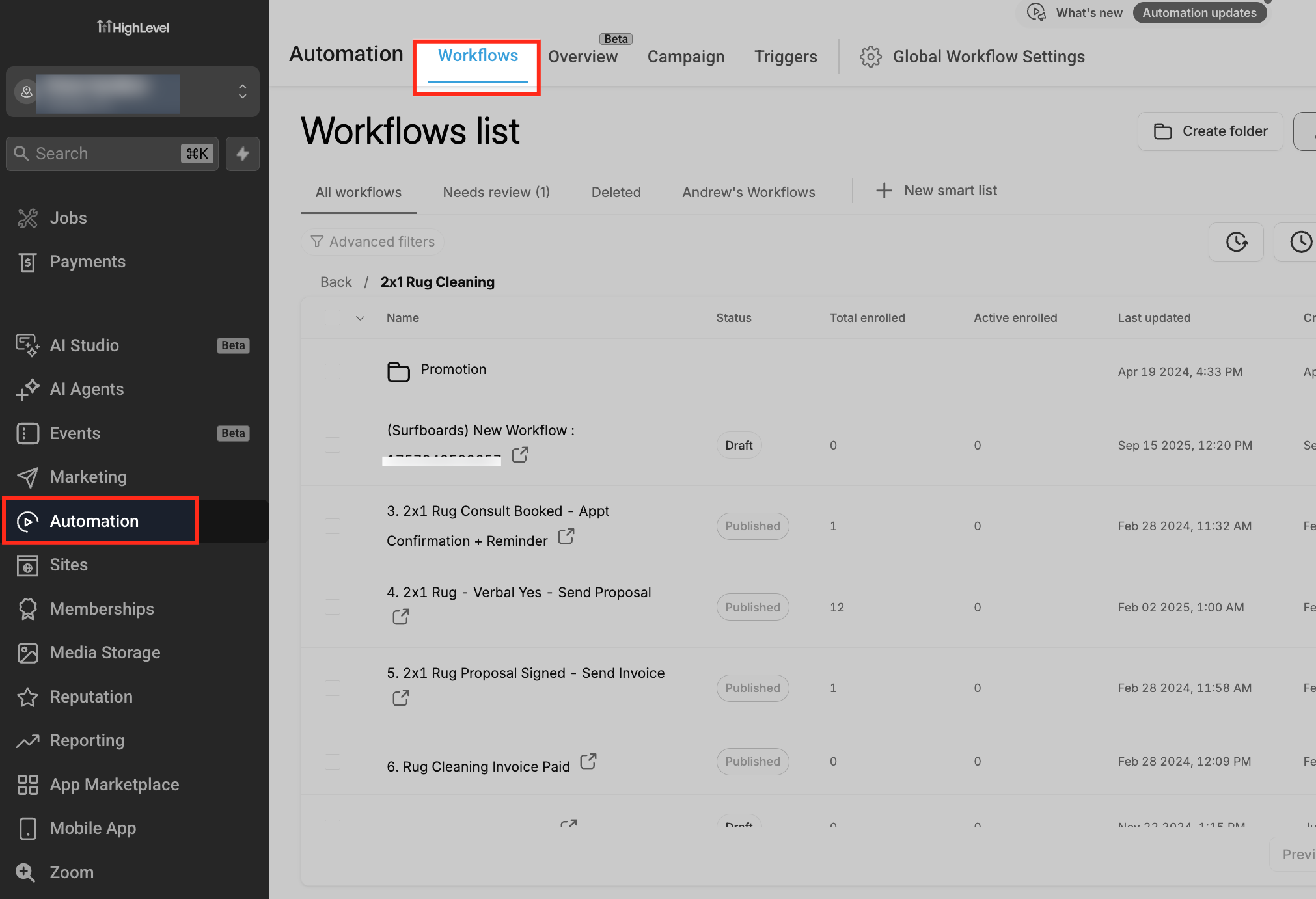
- Go to Automations from the Subaccount View and select Workflows.
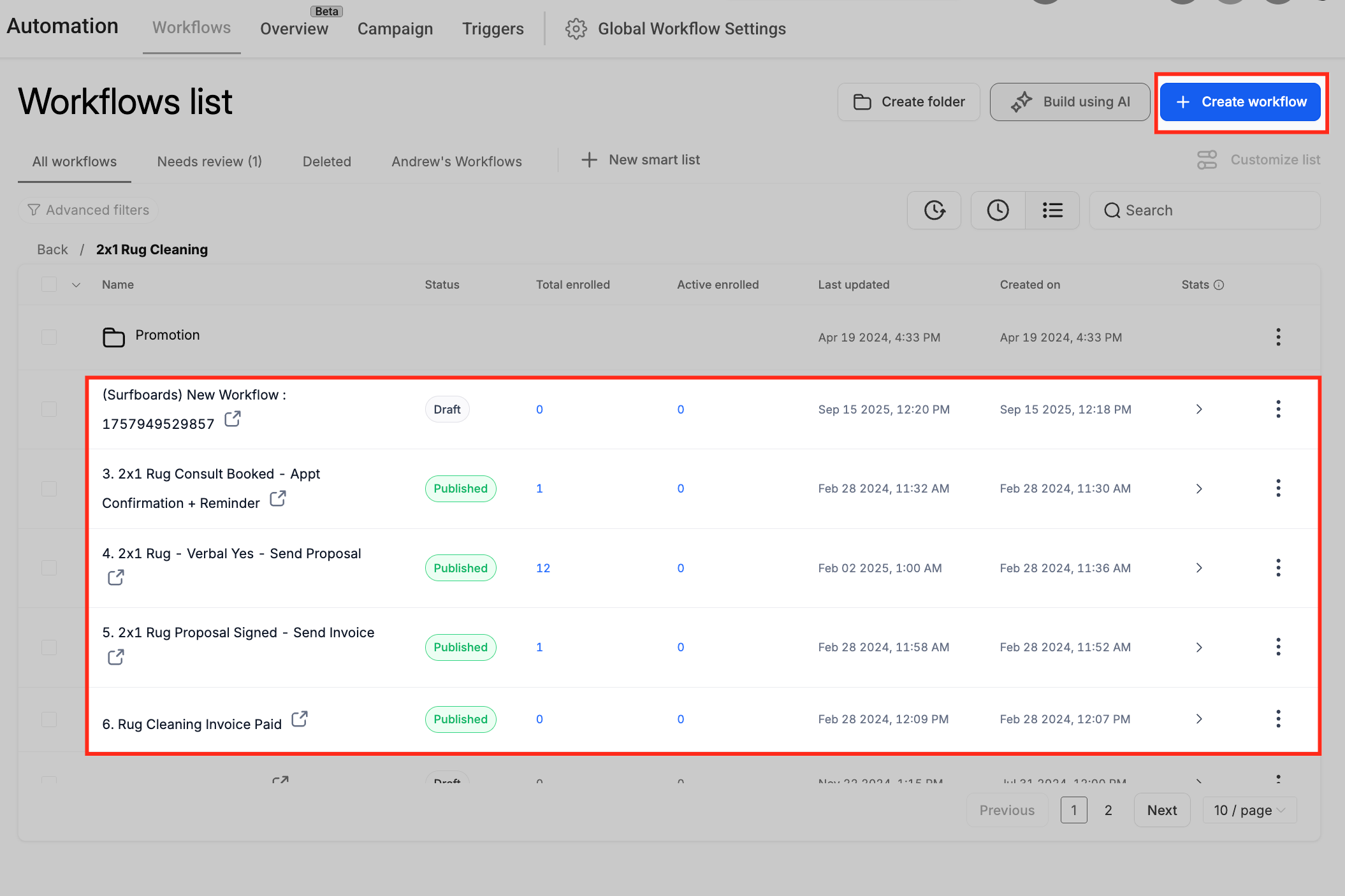
- Pick a workflow that includes past executions.
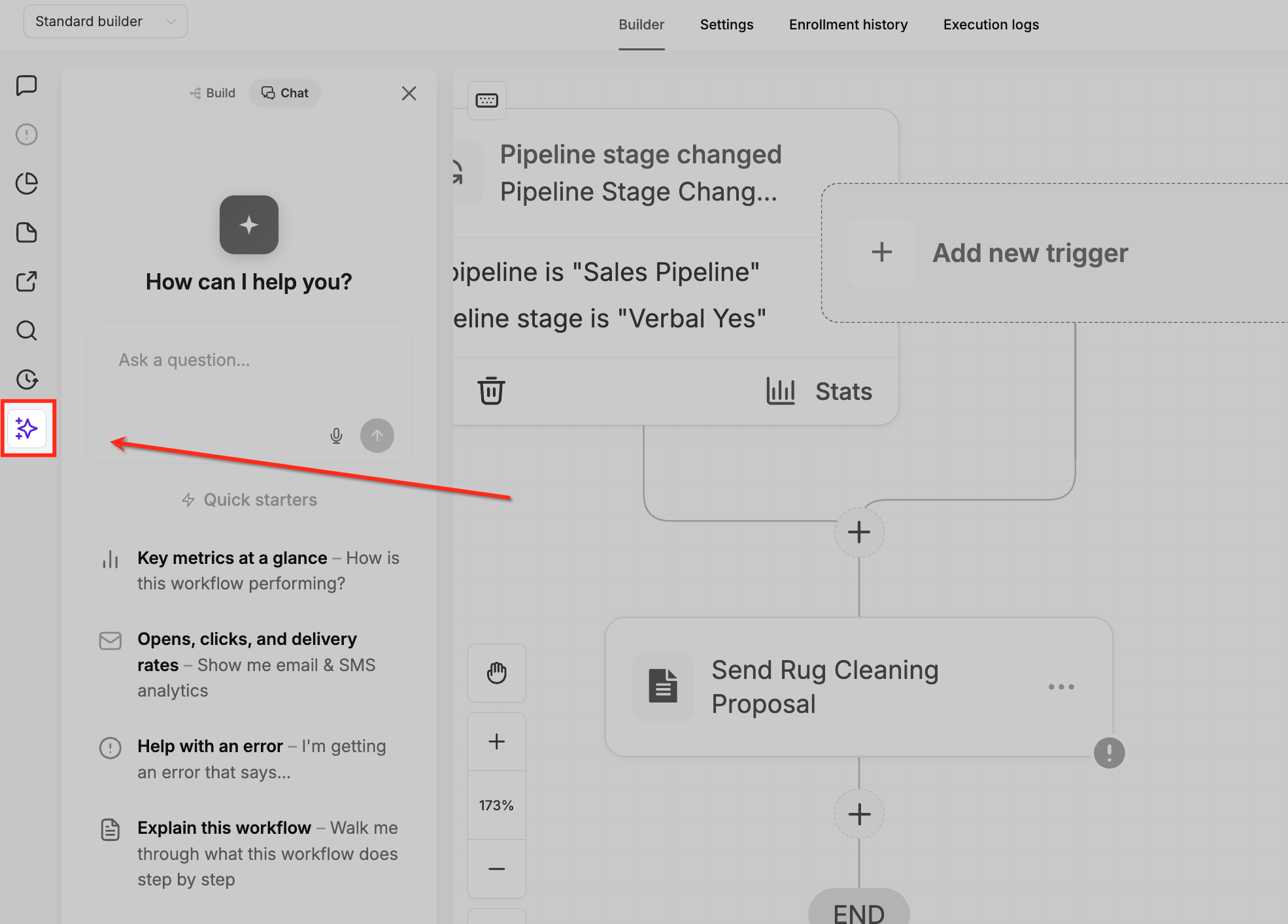
- In the workflow builder, click the Workflow AI icon on the left side.
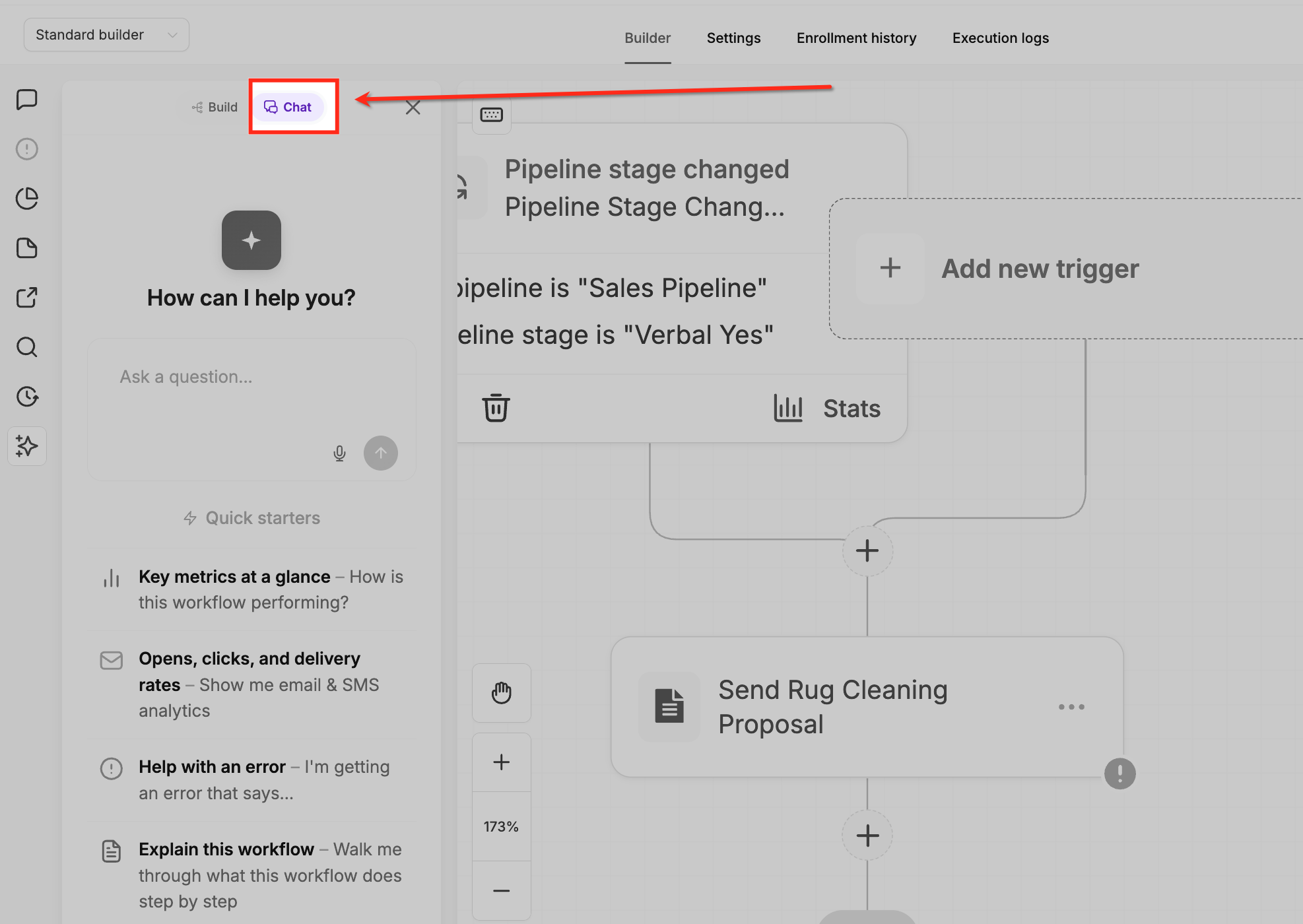
- Open the Chat tab inside the Workflow AI panel.
- Enter a question or choose a Quick Starter to retrieve performance data.
Download PDF Reports
- From the Subaccount View, navigate to Automation and then Workflows.
- Open the workflow you want to analyse.
- Click the Workflow AI icon in the left sidebar.
- Switch to the Chat tab.
- Ask a question that includes the words PDF, download, or export.
- Review the assistant’s analysis shown in the chat window.
- Click the Download PDF button that appears on the response card.
07What it looks like in HighLevel
08Things to know before you rely on it
- There is no documented limit on the number of questions you can ask the assistant.
- PDF reports are private and can only be downloaded by users who have access to the specific subaccount and workflow.
- Secret values are hidden when the assistant compares workflow versions.
09How it connects to the rest of HighLevel
- View overall AI usage in the platform AI usage dashboard
- Set limits for AI usage to manage costs AI usage limits
- Learn about pricing and plans for AI features HighLevel pricing
Michael's take

Workflow AI Assistant Performance Analytics is a small convenience that can become a real shift for agencies that run many automated sequences. It lets you get the numbers you need without opening logs, so you spend more time fixing than hunting.
A marketing agency that builds lead nurture flows for multiple clients will find it fits perfectly. I would ask the Assistant for a quick performance snapshot across all active workflows, then dive into any that the AI flags as underperforming. A quick sanity check of the PDF export permissions is all I’d do before relying on it for client reports.