
01Who this is for
- Agency owners who need recurring performance snapshots for each client location, saving time on manual reporting.
- Founders of SaaS businesses that want daily or weekly user growth summaries without opening the dashboard each day.
02Ask AI, Task Scheduler, explained
The Task Scheduler lives inside the Ask AI workspace. It adds a Scheduled Tasks tab where every automated prompt appears as a row showing its name, schedule, next execution and status. From this view you can start a run immediately, pause, edit or delete a task, and see a badge when new results are waiting.
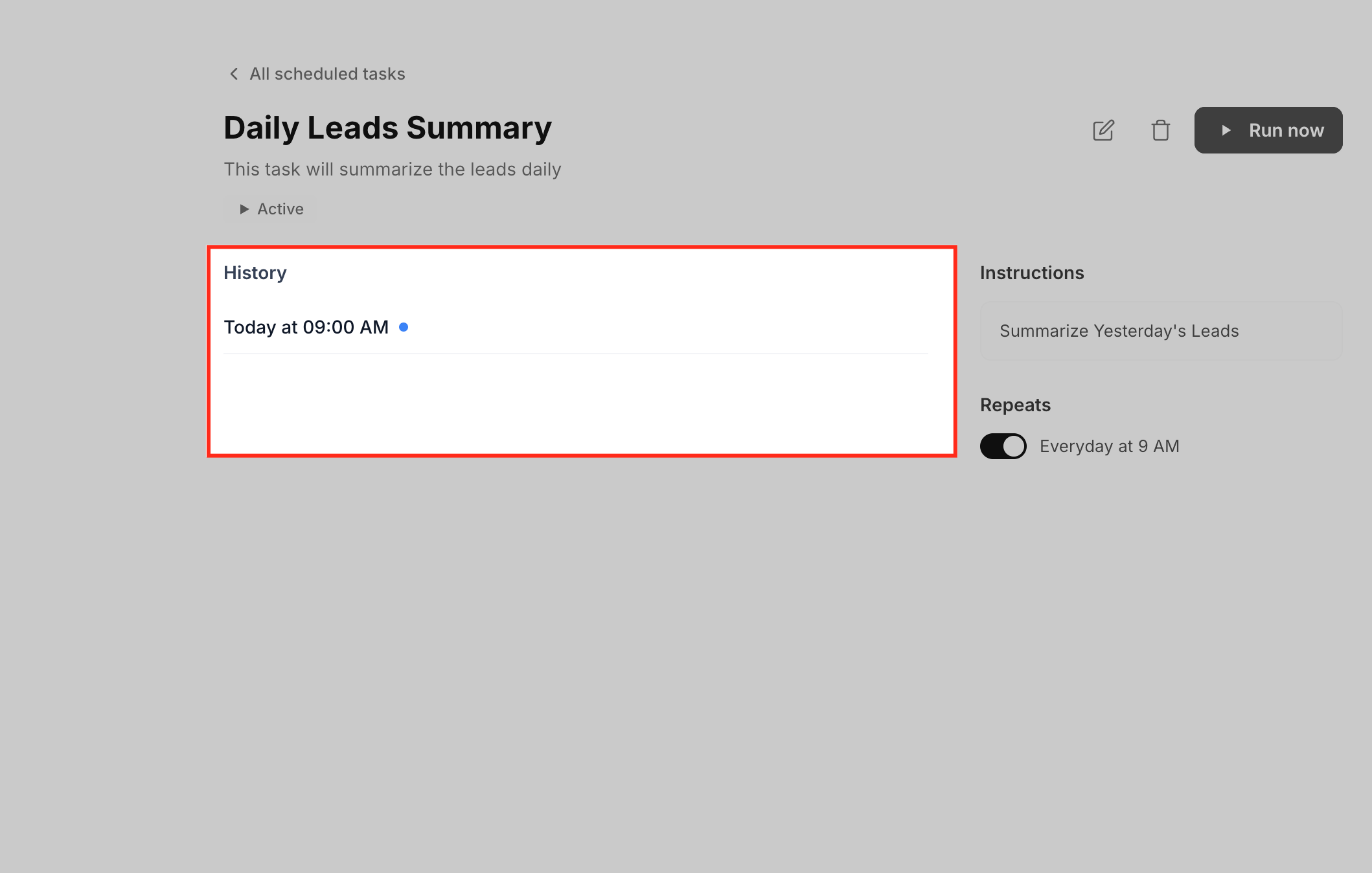
When a task fires, Ask AI runs the defined prompt in the background, creates a fresh chat session, and stores the output in a chronological run history. Each entry records whether the run succeeded, failed or was skipped, and you can open any entry to view the full answer.
The feature works for any account that has access to Ask AI, which requires the Unlimited AI Employee plan. All scheduled executions count toward your AI usage the same way a manual Ask AI request does.
03How businesses use Ask AI, Task Scheduler
- Real estate brokerage. Create a daily task that asks for new property leads added the previous day. The broker can open the run history each morning to see the list without manually searching the database.
- SaaS startup. Set up a weekly task that generates a churn rate report every Monday. The product team reviews the saved session before the sprint planning meeting.
- Marketing agency. Use voice commands while traveling to schedule a weekday summary of campaign performance. The agency staff later fine tunes the prompt in Scheduled Tasks if needed.
04The numbers and rules that matter
- Ask AI, Task Scheduler is available to Agency Admins/Users and Subaccount Admins/Users on the Unlimited AI Employee plan.
05Before you start
- The account must be on the Unlimited AI Employee plan.
- User must have permission to open the Ask AI workspace.
06How to set up and use Ask AI, Task Scheduler in HighLevel
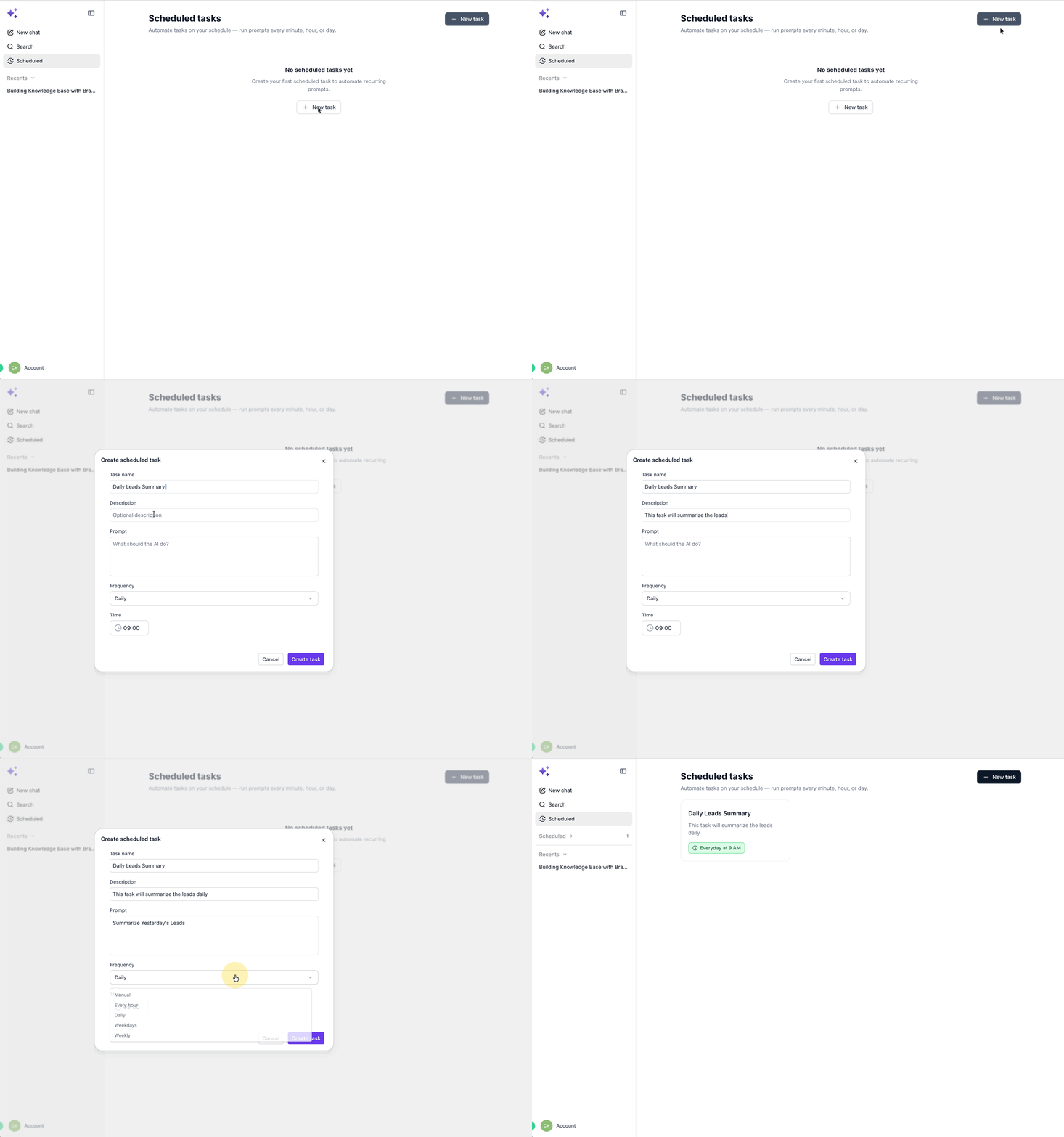
Create a task from the Scheduled Tasks tab
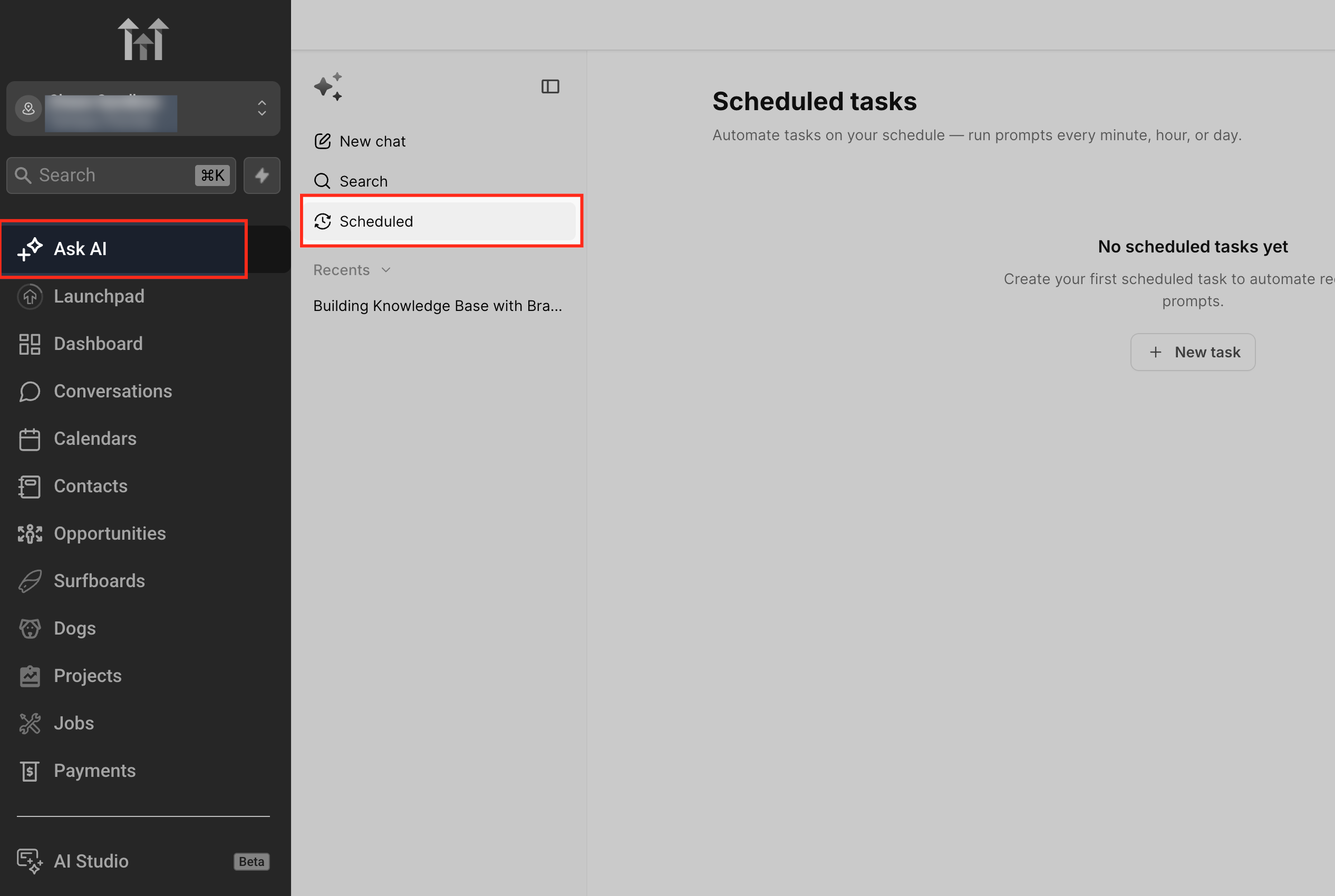
- Open Ask AI via the top navigation or left sidebar.
- Select the Scheduled Tasks area.
- Click the + New task button.
- Enter a descriptive label in the Name field.
- Write the exact instruction for Ask AI in the Prompt field.
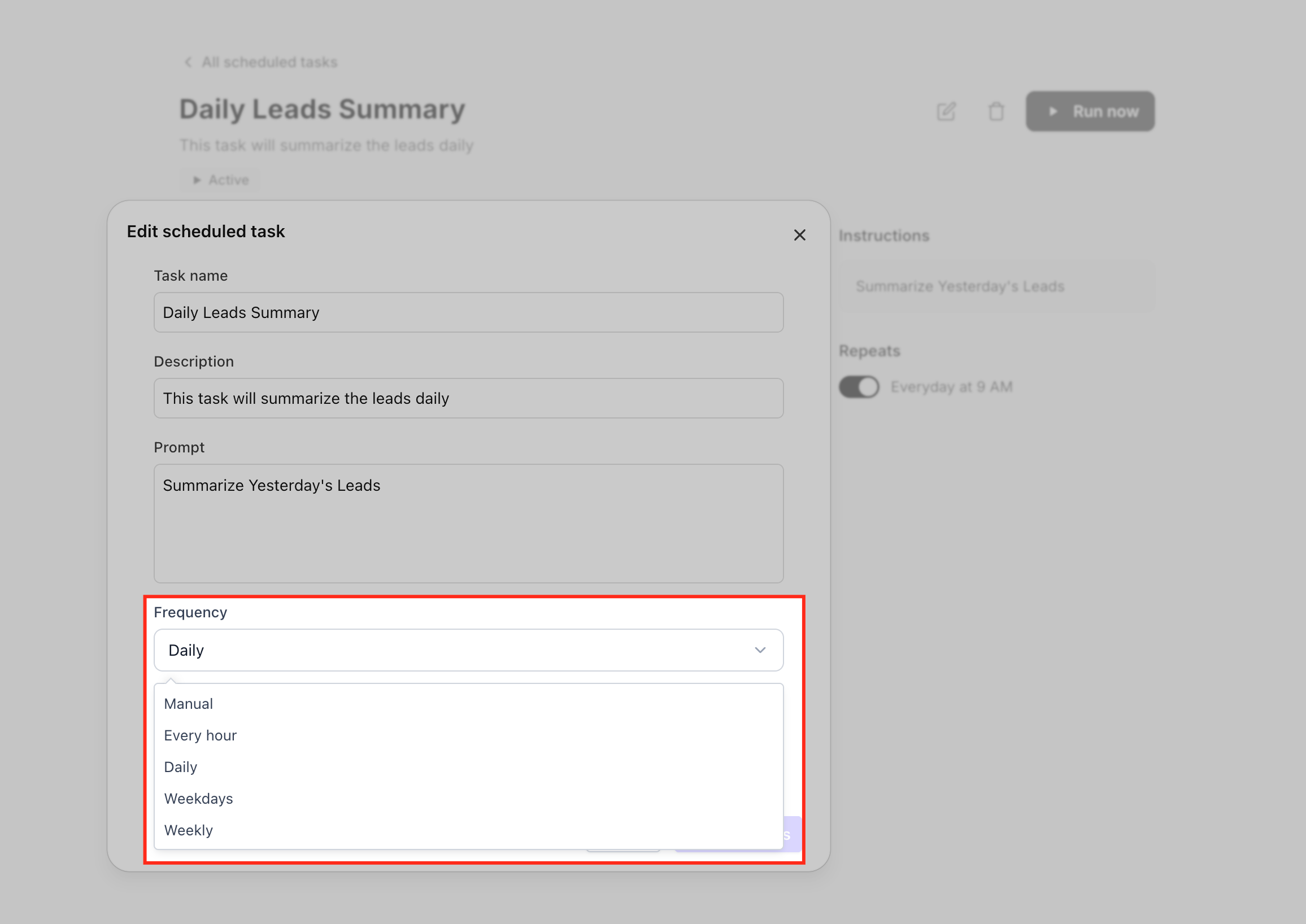
- Choose the desired Frequency option.
- Press Save to add the task to the list.
Create a task from Ask AI chat
- Open Ask AI and start a conversation.
- Type a request that includes both the action and how often it should run.
- Ask AI replies with a confirmation and adds the job to Scheduled Tasks.
- Open Scheduled Tasks to verify the entry and adjust the name or prompt if required.
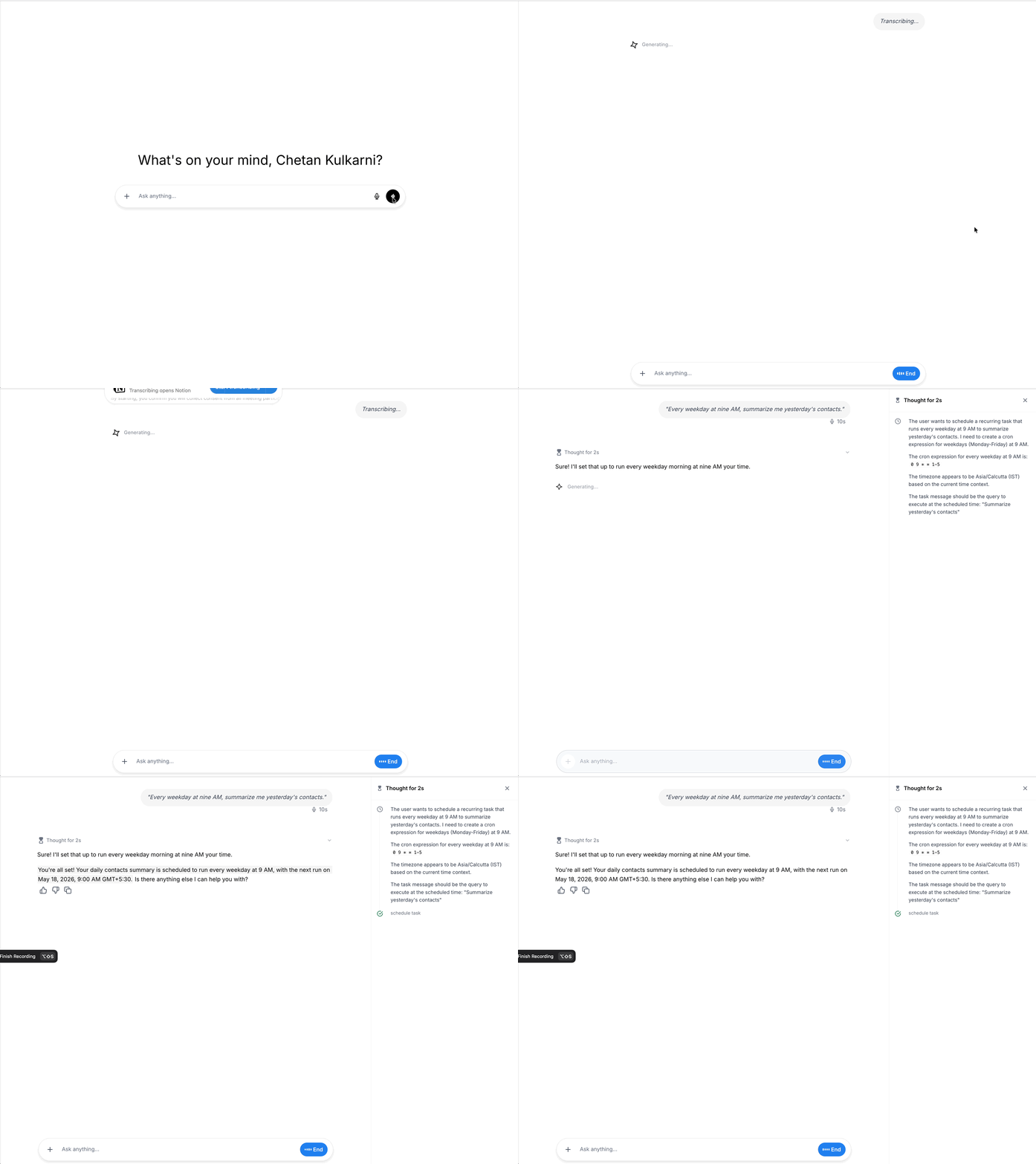
Create a task using voice
- Launch a voice conversation with Ask AI.
- Speak the schedule and prompt in natural language.
- Ask AI repeats the schedule and next run time for you to confirm.
- Visit Scheduled Tasks later to edit the prompt or timing if needed.
Manage existing tasks
- Pause a task when you do not need its output, then resume it when required.
- Edit the Name, Prompt or Frequency fields to change a task’s behavior.
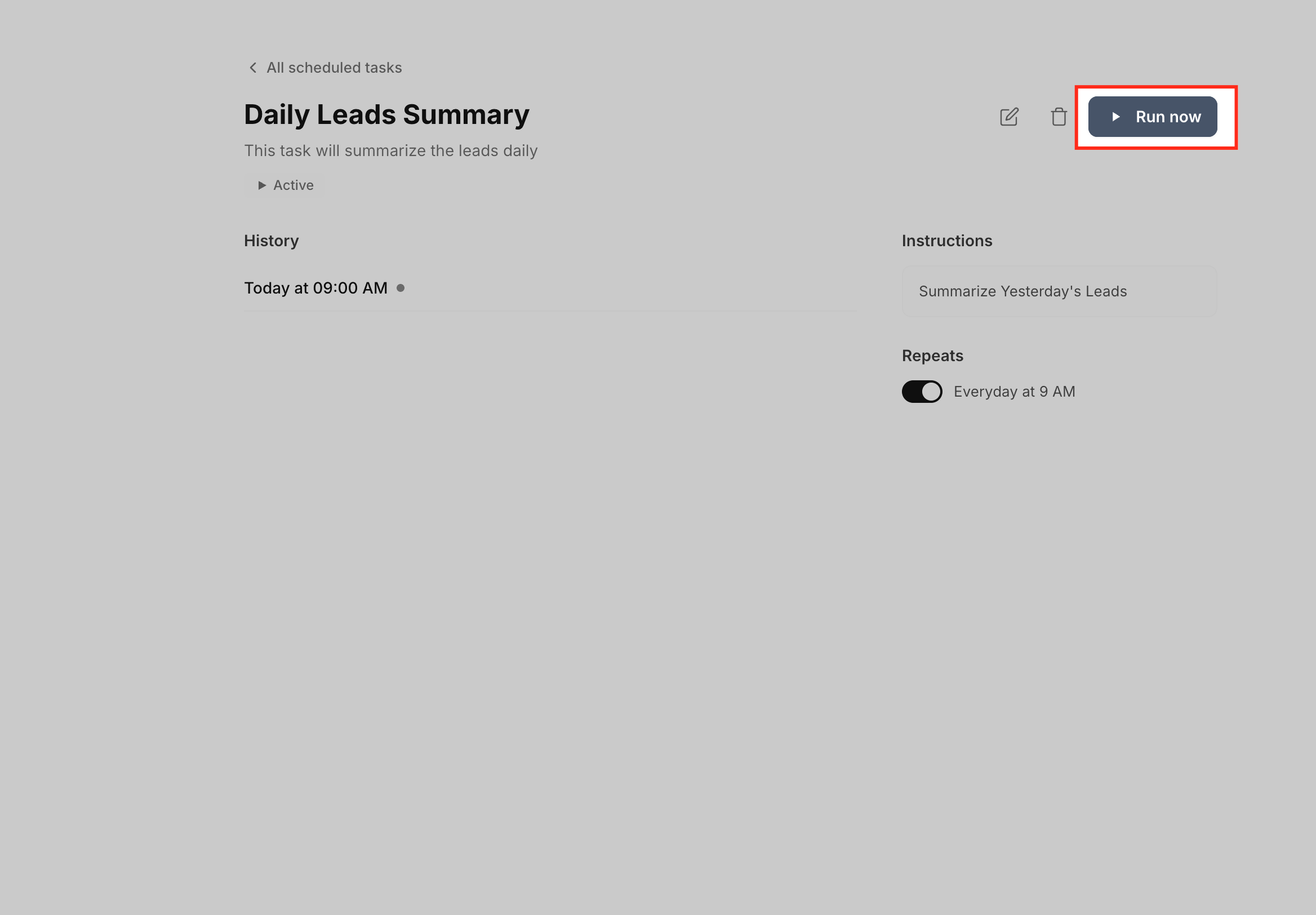
- Select Run now to trigger an immediate execution without altering the schedule.
- Open entries from the run history to examine past outputs.
- Delete tasks that are no longer useful.
- Confirm that future executions stop after a task is deleted.
07What it looks like in HighLevel
08Settings that matter
- Name. Defines the label shown in the task list for easy identification.
- Prompt. Contains the exact instruction that Ask AI will execute each time the task runs.
- Frequency. Sets how often the task fires, with options such as Hourly, Daily, Weekdays, Weekly or a custom cron expression.
09Things to know before you rely on it
- Cron scheduling is optional and intended for advanced timing patterns.
- Every scheduled execution is treated as an Ask AI session and adds to your AI usage.
10If something goes wrong
- Run failed. Open the failed entry in run history to view details, resolve the underlying issue, then use Run now to test the corrected prompt.
- Run skipped. Check if the task was paused at the scheduled time; resume the task to restore regular execution.
11How it connects to the rest of HighLevel
- Understanding how Ask AI sessions are billed Ask AI session pricing
- Explore all AI Employee capabilities AI Employee features
- Review plan options for Unlimited AI Employee access HighLevel pricing
Michael's take

Running the same report every morning or pulling a weekly pipeline snapshot takes up valuable time that could be spent on strategy. The first thing I get right is the schedule, I make sure the prompt runs at the exact moment the team needs the information, usually early in the day so the data is fresh for stand ups.
If I were setting this up for a new agency, I’d start with a simple daily “new contacts” summary to prove the concept works, then layer in a weekly health check.