
01Who this is for
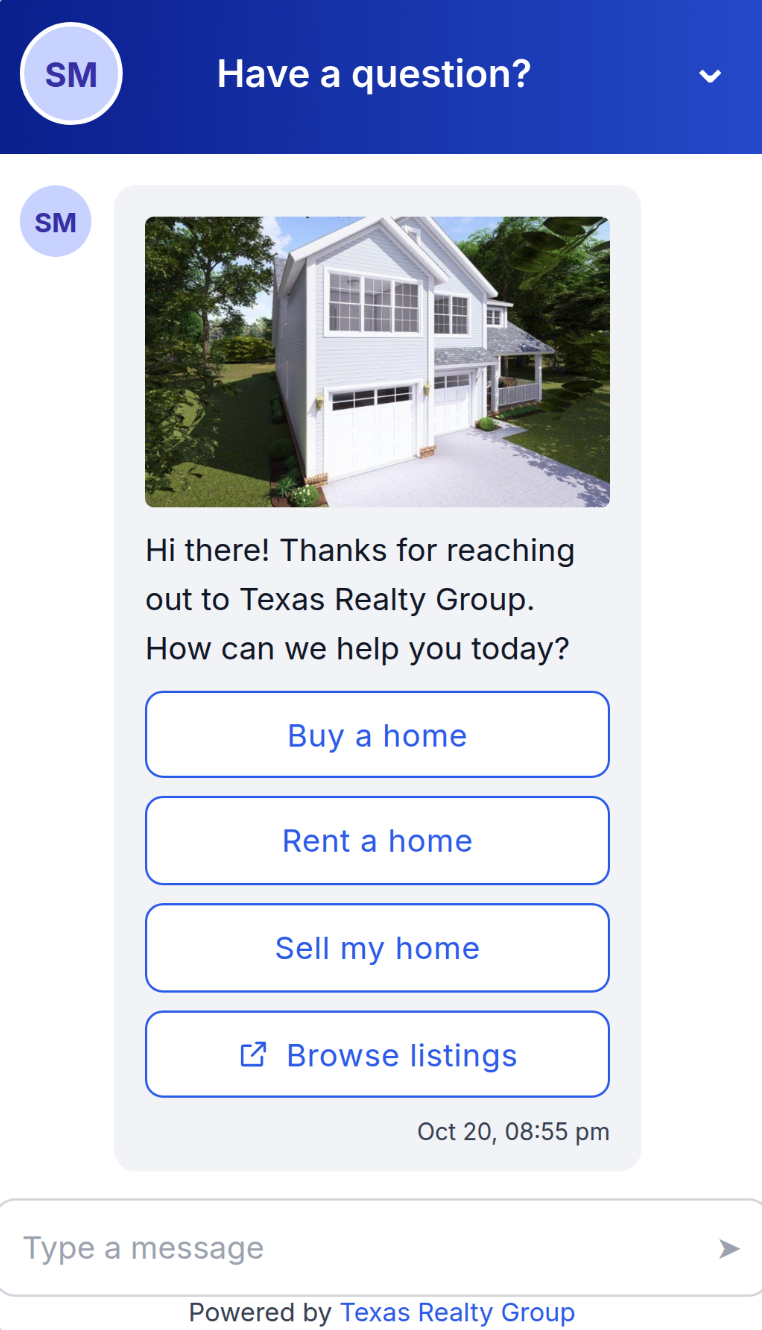
- Real estate agencies, they can share property images, lists of neighborhoods, and booking links to streamline client interactions.
- Ecommerce retailers, quick replies and link buttons let shoppers navigate product catalogs and checkout pages without leaving chat.
- Service based businesses, formatted text and file sharing enable them to provide hours, brochures, and appointment links efficiently.
02Rich elements, explained
Rich Elements are interactive message components that a Conversation AI agent can attach to its replies. When enabled, the agent can automatically pick the most appropriate element, such as a list, quick reply, or image, based on the conversation flow. If a channel cannot render a particular element, the content falls back to plain text within the same message.
These elements are managed inside the agent’s Response Behavior settings. You first turn on Rich Elements support, then decide which of the six types (formatted text, quick replies, link button, list, image, file) the bot may use. Optional Response Rules let you force a specific element for particular situations, while media URLs let the bot share exact images or documents you provide.
03How businesses use rich elements
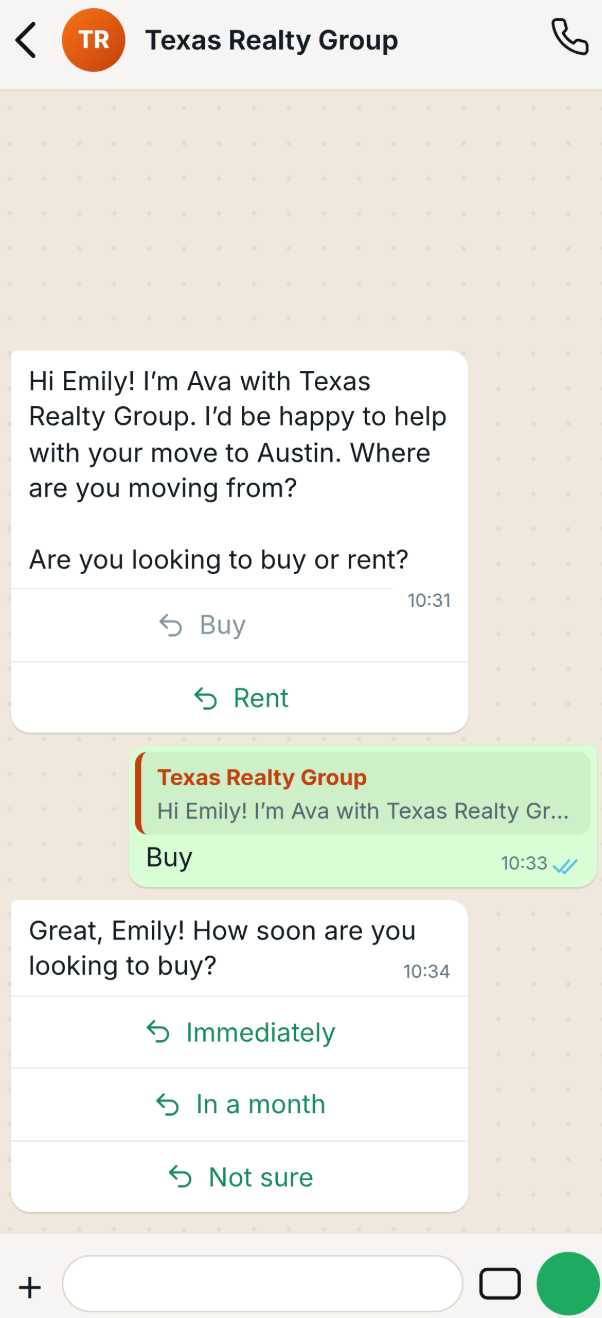
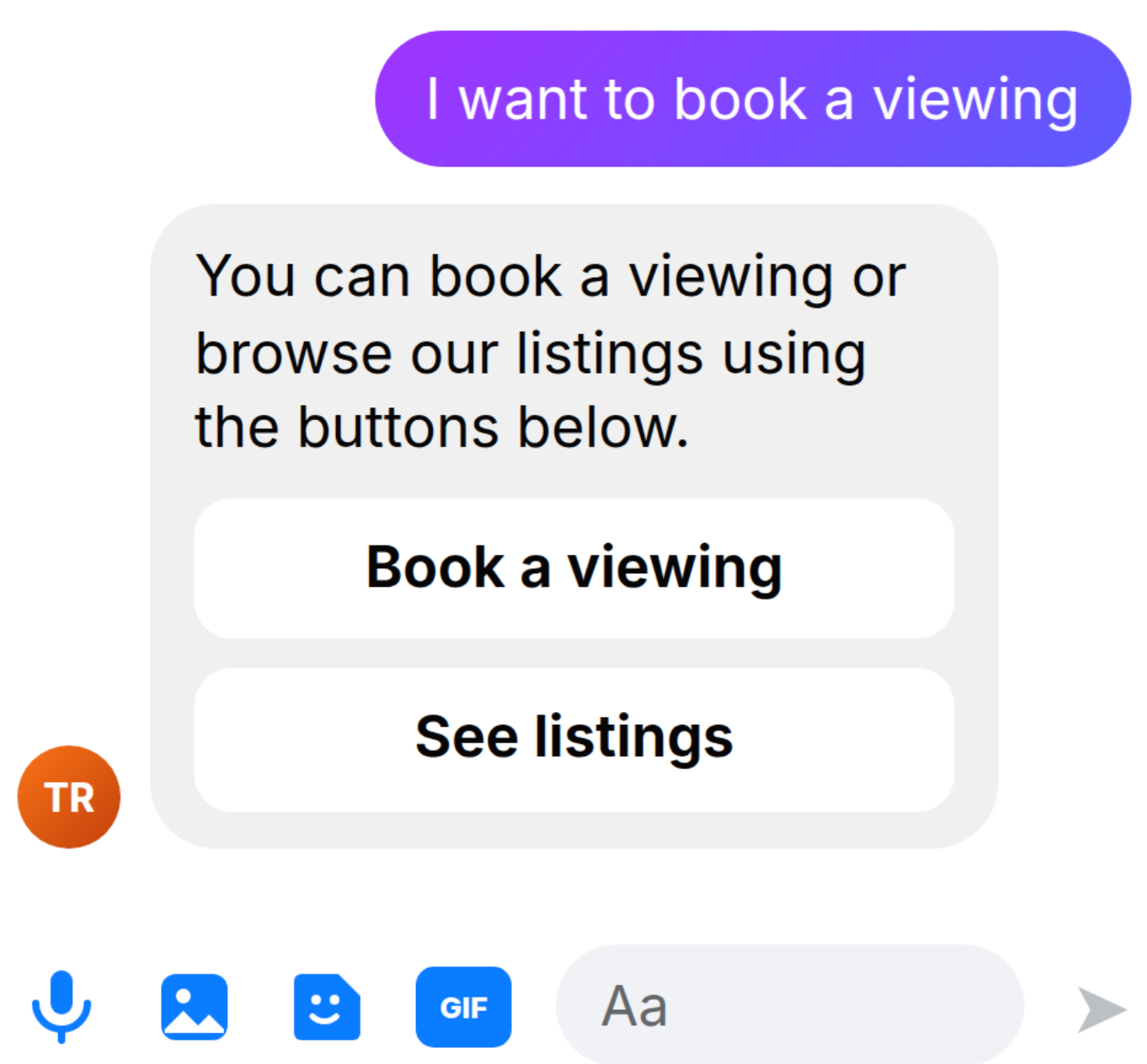
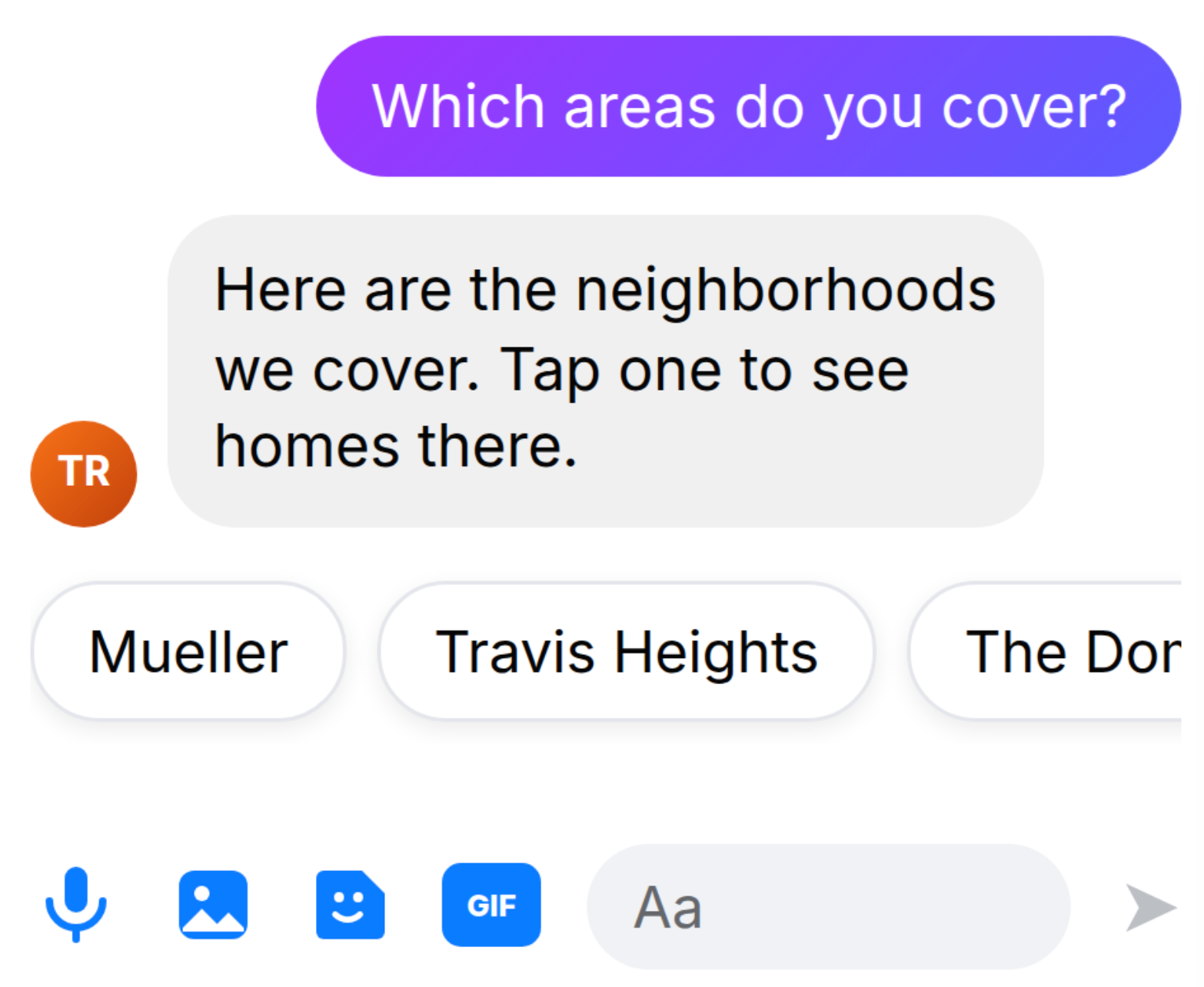
- Real estate brokerage. The broker enables list elements to show neighborhood options, adds image URLs for property photos, and creates a rule that sends a link button to the booking page when a lead asks to schedule a viewing. All actions are configured in the agent’s Response Behavior section.
- Online clothing store. The retailer turns on quick replies for size selections, enables link buttons for product pages, and uploads PDF lookbooks via file URLs. Response Rules can be added to present a list of shirt colors when a shopper asks about available shades.
- Dental clinic. The clinic activates formatted text to highlight office hours, enables link buttons that open the online appointment form, and adds a file URL for a patient intake PDF. A rule can be set so the bot always offers the booking button when a patient mentions a check up.
04The numbers and rules that matter
- Supported channels: WhatsApp, Facebook Messenger, Instagram (mobile app), Live Chat.
05Before you start
- Access to the Labs area in HighLevel to activate Rich Elements.
- A prompt based Conversation AI agent must already exist.
06How to set up and use rich elements in HighLevel
Enable Rich Elements feature
- Log into HighLevel and open the Labs section.
- Locate the Conversations AI Rich Elements option.
- Switch the feature to ON.
Open the target Conversation AI agent
- Go to AI Agents > Conversation AI > Agents List.
- Select the prompt based agent you want to edit.
- Find the Response Behavior panel within the Build interface.
Enable and select Rich Element types
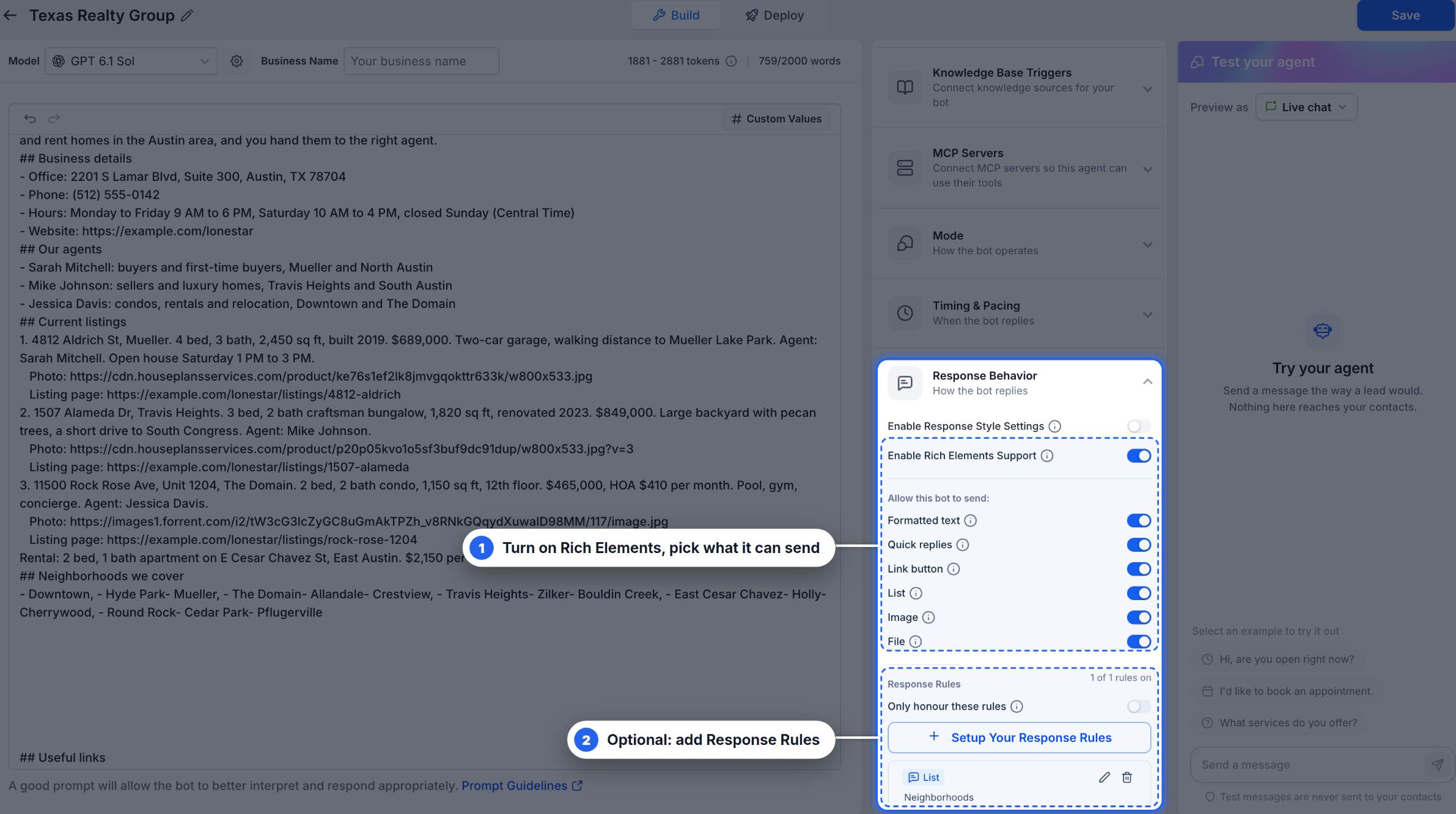
- Expand the Response Behavior area.
- Turn the Enable Rich Elements Support toggle ON.
- Under "Allow this bot to send", enable or disable each element type as needed.
Add media URLs (optional)
- Open the agent’s prompt editor.
- Insert publicly accessible URLs for images or documents you wish to share.
- Add a brief description explaining each resource’s purpose.
- Save the updated prompt.
Create response rules (optional)
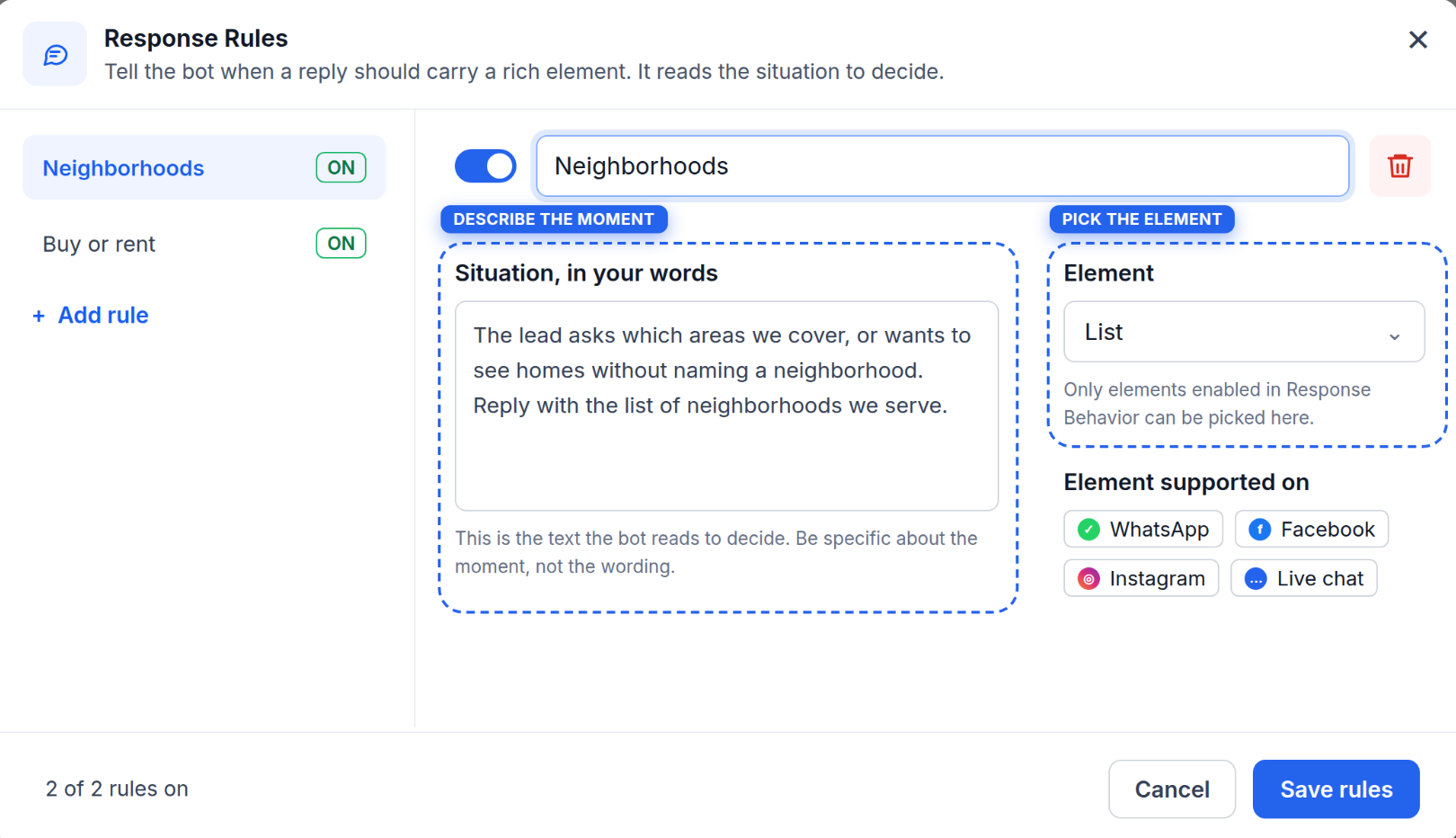
- In Response Behavior, click Setup Your Response Rules.
- Press Add rule.
- Enter a Rule Name and write the Situation description.
- Select the desired Element from the dropdown list.
- Enable the rule if required and click Save rules.
Save and test the agent
- Click Save in the agent editor after reviewing all settings.
- Open Test your agent and choose a preview option.
- Send sample queries such as "Which neighborhoods do you cover?" or "I want to book a viewing."
- Verify that the bot replies with the appropriate Rich Elements.
- Repeat testing on each messaging channel you plan to use.
Warnings and notes
- Confirm whether Labs activation is still required at publication time.
- The setup described applies to prompt based agents; other agent types may need additional verification.
- Media URLs are optional, but you must ensure they meet supported formats, size limits, and hosting requirements.
- A successful Live Chat preview does not guarantee identical behavior on other messaging channels.
07What it looks like in HighLevel
08Settings that matter
- Enable Rich Elements Support. Activates the overall Rich Elements capability for the selected agent.
- Allow this bot to send. Controls which of the six element types the agent may use in its replies.
- Rule Name. Provides a label to identify each response rule.
- Rule Toggle. Turns an individual response rule on or off.
- Situation, in your words. Describes the conversational trigger that should cause the rule to apply.
- Element. Specifies which Rich Element type the rule will enforce.
- Only honor these rules. When enabled, limits the agent to using elements defined in active response rules.
09Things to know before you rely on it
- Rich Elements are only available on WhatsApp, Facebook Messenger, Instagram (mobile app), and Live Chat; other channels receive plain text fallback.
- If a channel cannot display an element or a message exceeds channel limits, the content is moved into the text body.
- Media URLs must point to publicly reachable files that meet supported format, size, and hosting restrictions.
10If something goes wrong
- An element does not appear in the Response Rules dropdown.. Verify that the element is turned on under the "Allow this bot to send" toggles in Response Behavior.
11How it connects to the rest of HighLevel
- Set up appointment booking links that can be used with link button elements. Appointment booking in Conversation AI
- Customize the Live Chat widget where Rich Elements are displayed. Chat widget customization
- Review plan options that include access to Conversation AI features. HighLevel pricing and plans
Michael's take

Most people assume Rich Elements are a one click fix for every conversation, but the AI still needs clear guidance on when to use each type. Turning on every element can lead to unexpected fallbacks if a channel can’t render them.
Like a list of neighborhoods for a real estate bot. A quick test across WhatsApp and Live Chat confirms the agent behaves as expected before expanding the feature set.