
01Who this is for
- Founders who need to run tasks while away from the keyboard can ask questions aloud and keep their hands free.
- Customer support teams benefit from quick, spoken queries to retrieve information without switching windows.
- Coaches and consultants can use voice input while on calls to pull up client data without typing.
02Ask AI Voice Mode, explained
Ask AI Voice Mode adds a voice first interaction layer to the existing Ask AI feature in HighLevel. Instead of typing each prompt, you speak naturally and hear the assistant’s response. The spoken input is transcribed in real time and appears as a text bubble, while the answer is delivered as audio with highlighted text.
Both web and mobile experiences share the same conversation thread, so you can move between voice and typed messages without losing context. On mobile, the mode supports Bluetooth headsets, automatic reconnection after network loss, and pauses input when an approval card appears, letting you confirm critical actions before they run.
03How businesses use Ask AI Voice Mode
- Real estate brokerage. Agents can ask the assistant for property details or schedule showings while touring homes. They speak the request, hear the answer, and can interrupt to adjust details without opening a new chat.
- Dental practice. Front desk staff can retrieve patient appointment times or insurance information by speaking to Ask AI during busy periods, then approve any record changes when prompted.
- Online coaching service. Coaches can ask for client progress summaries while on a video call, listen to the spoken overview, and switch to typed notes for detailed follow up within the same conversation.
04Before you start
- Be logged into a HighLevel account with access to Ask AI.
- Grant microphone access to the web browser or mobile app before starting a voice session.
05How to set up and use Ask AI Voice Mode in HighLevel
Enable Ask AI Voice Mode on web
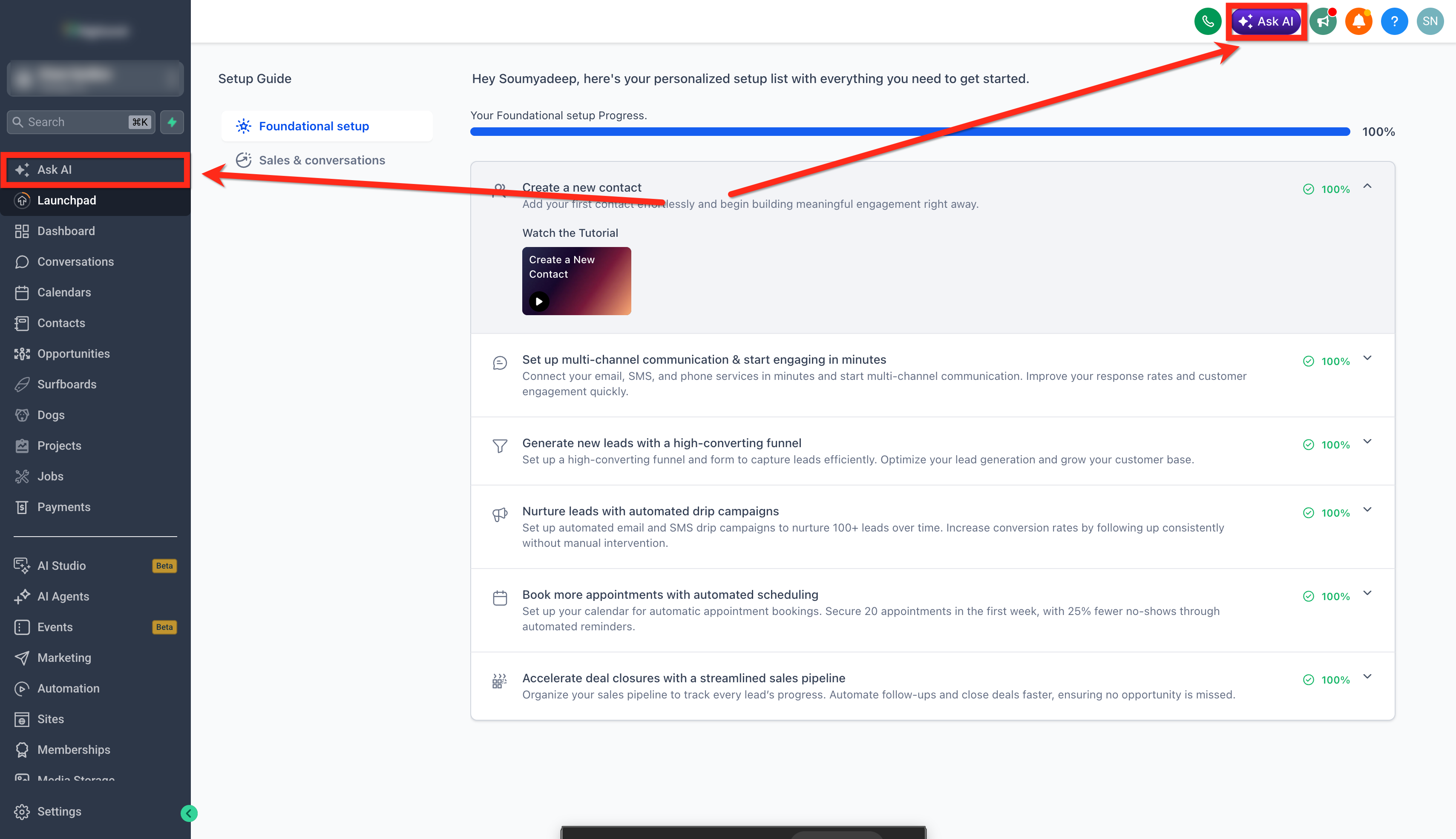
- Sign in to HighLevel and open the Ask AI workspace from the top navigation bar or left sidebar.
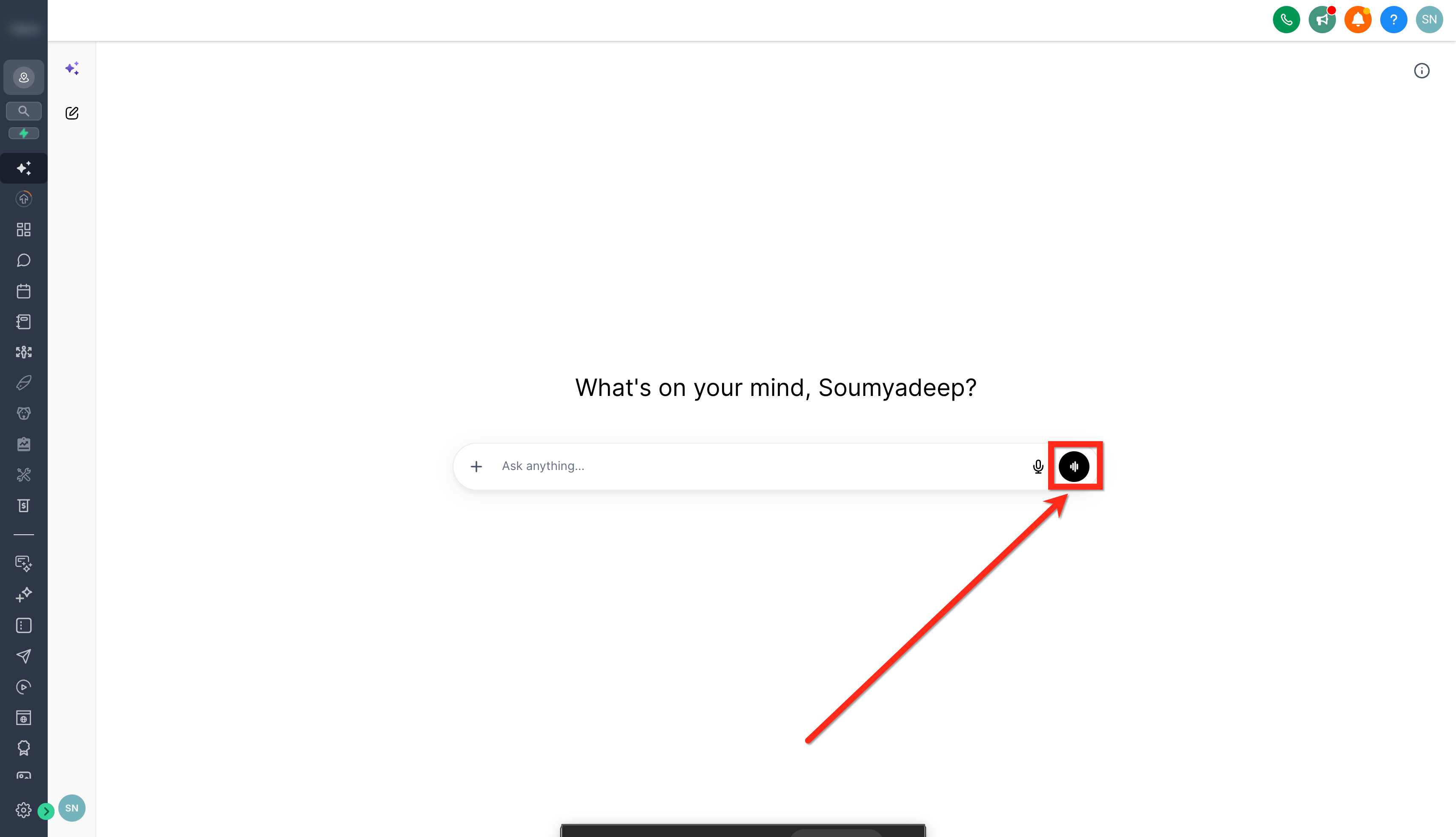
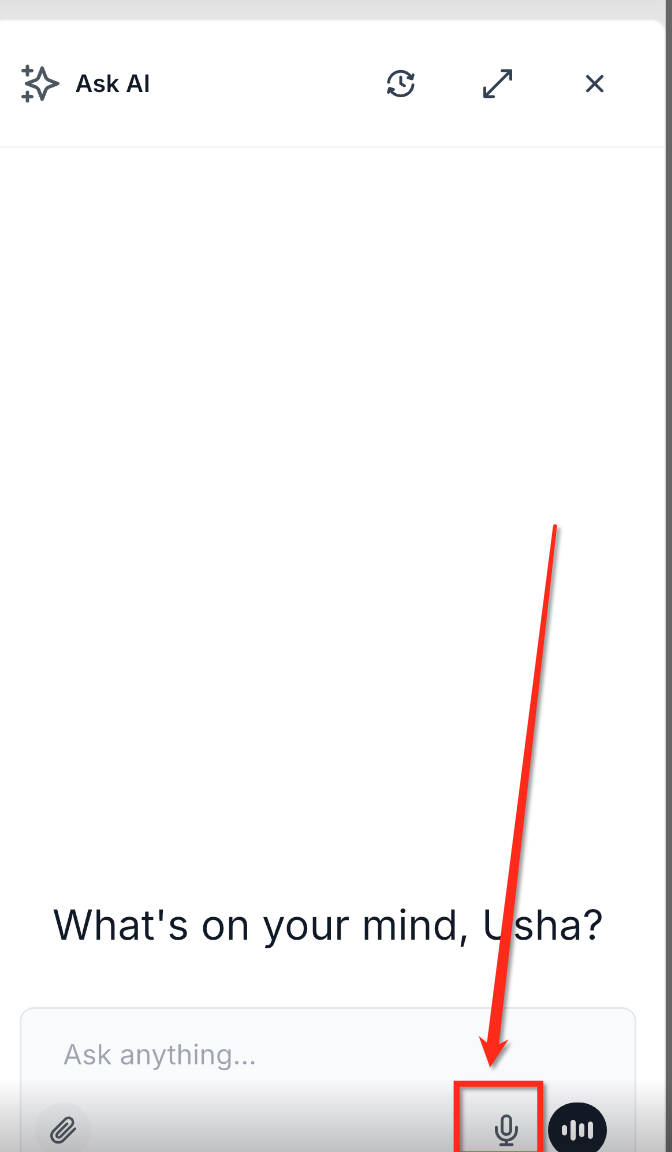
- Click the Voice Mode button that appears in the Ask AI message bar.
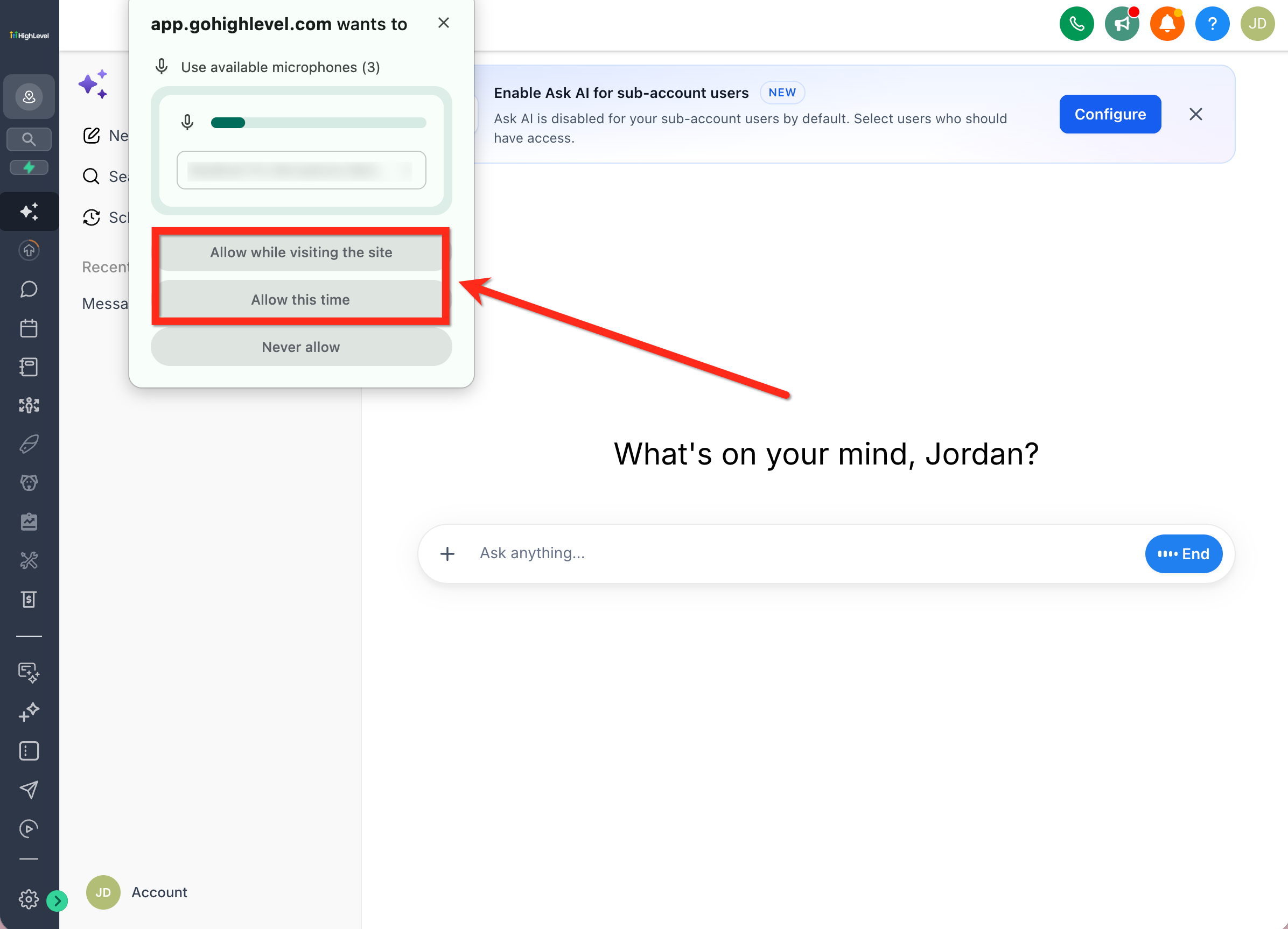
- When the browser asks for permission, allow microphone access and then speak your request.
Start a voice conversation on mobile
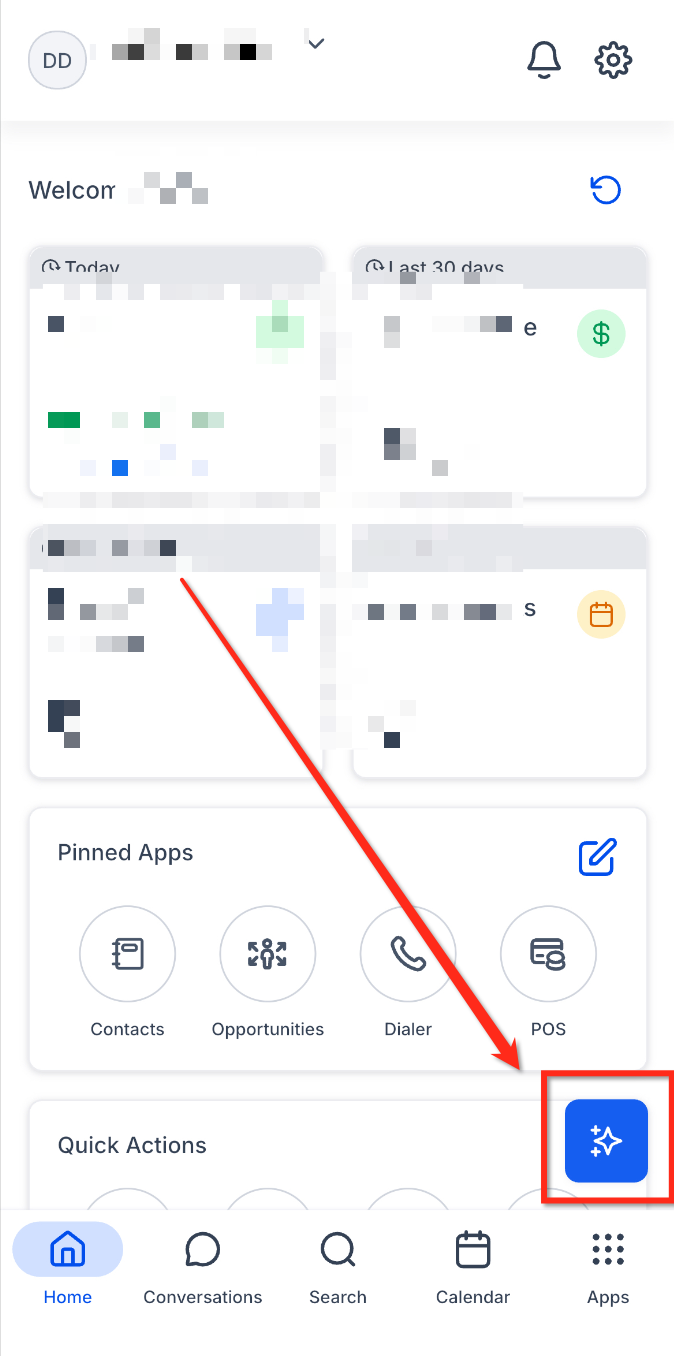
- Launch the HighLevel mobile app and navigate to the Ask AI section.
- Tap the microphone icon in the Ask AI message bar to begin a voice session.
- If a permission pop up appears, approve the app’s request to use the device microphone.
- Speak your question or instruction; your words appear as text while you talk.
- Listen to Ask AI’s spoken reply, with the matching text highlighted as it plays.
- Continue the dialogue by speaking another query, interrupting the response, or switching to typed input.
- If an approval card appears, voice input pauses automatically until you respond.
Minimize and return to an active voice session
- While a voice conversation is in progress, you may minimize the Ask AI sheet.
- A floating Ask AI button will show an indicator that the voice session is still live.
- Tap the floating button to bring the conversation back to the foreground.
06What it looks like in HighLevel
07Settings that matter
- microphone access. Controls whether Ask AI can receive and process spoken input from your device.
08Things to know before you rely on it
- Voice Mode works only on the web interface and supported HighLevel mobile apps.
- Only actions that Ask AI lists as supported can be executed through voice; critical changes require manual approval.
- Bluetooth support is limited to compatible headsets; the platform automatically selects the connected device.
09If something goes wrong
- Voice Mode cannot hear me. Verify that microphone access is granted, ensure the microphone is properly connected, and check that no other application is using the microphone. On mobile, confirm the app’s microphone permission in the device settings.
- Unexpected recording after a phone call or Siri activation. Check the voice session indicator after returning to Ask AI; if the session is still active, tap the floating button to resume or end the conversation as needed.
10How it connects to the rest of HighLevel
- Open Ask AI quickly from Global Search Open Ask AI
- Add the chat widget to your website to use Ask AI in context Chat widget setup
- Explore all AI Employee capabilities beyond voice mode AI Employee features
Michael's take

Ask AI Voice Mode feels like a small convenience that can become a real shift in how you handle quick queries while juggling other tasks.
A service based business that fields client calls can use Voice Mode to pull up appointment histories or update a contact’s status without opening a new tab. If I were testing it, I’d start with a simple “What’s my next appointment?” and make sure the microphone permission works before relying on it for any changes.