
01Who this is for
- Digital agency staff who rely on Ask AI for client deliverables, because feedback helps improve answer relevance.
- SaaS Founders using AI assistants for internal documentation, as accurate responses reduce re work.
- Content creators who generate social posts with Ask AI, benefiting from the ability to flag tone or format issues.
02Ask AI feedback, explained
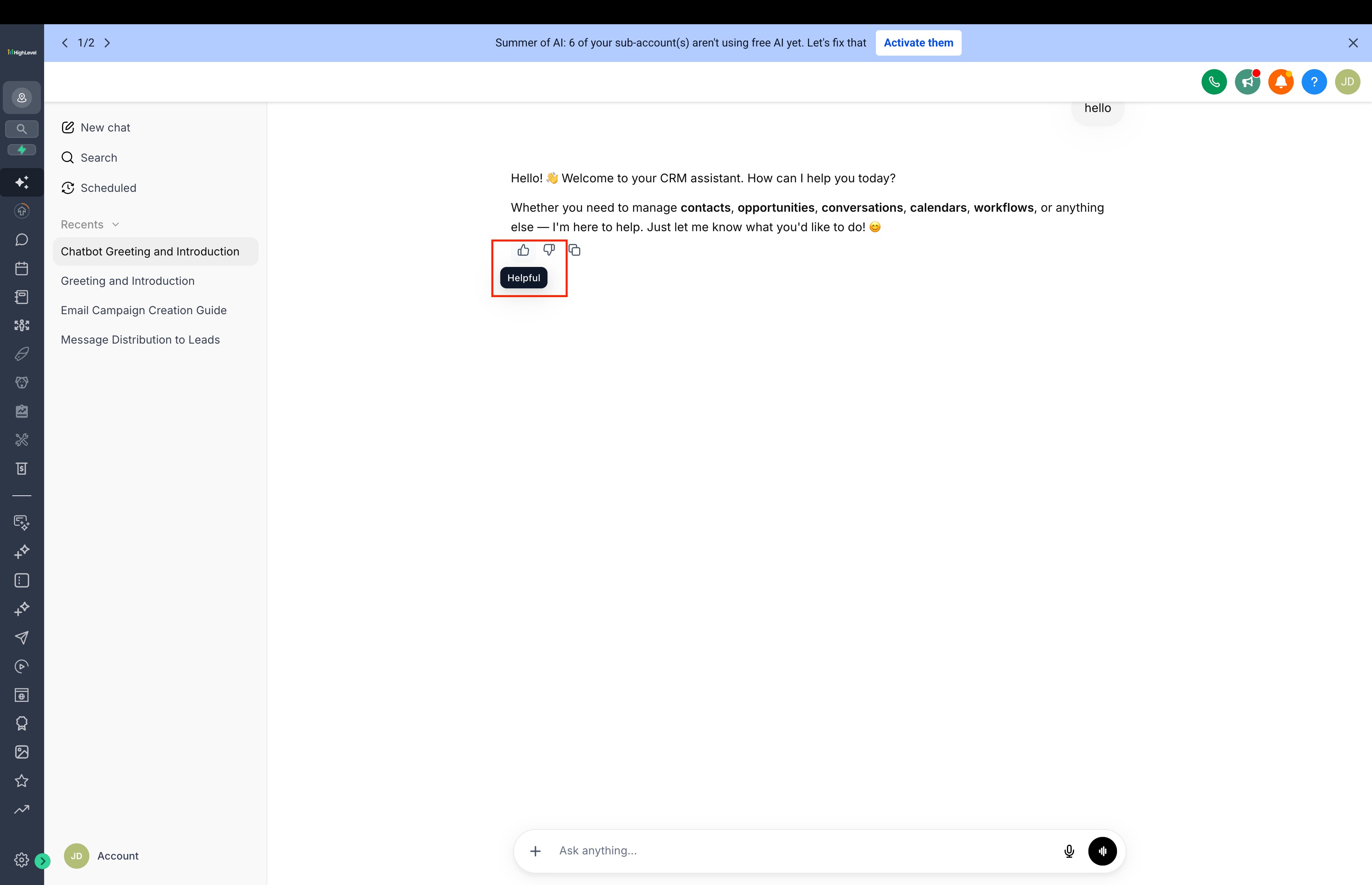
Ask AI feedback is a built in rating system that appears on every AI answer. Users click a thumbs up icon when the reply meets the request, or a thumbs down icon when it falls short. The rating covers the whole answer, so text, cards, tables or diagrams are all evaluated together.
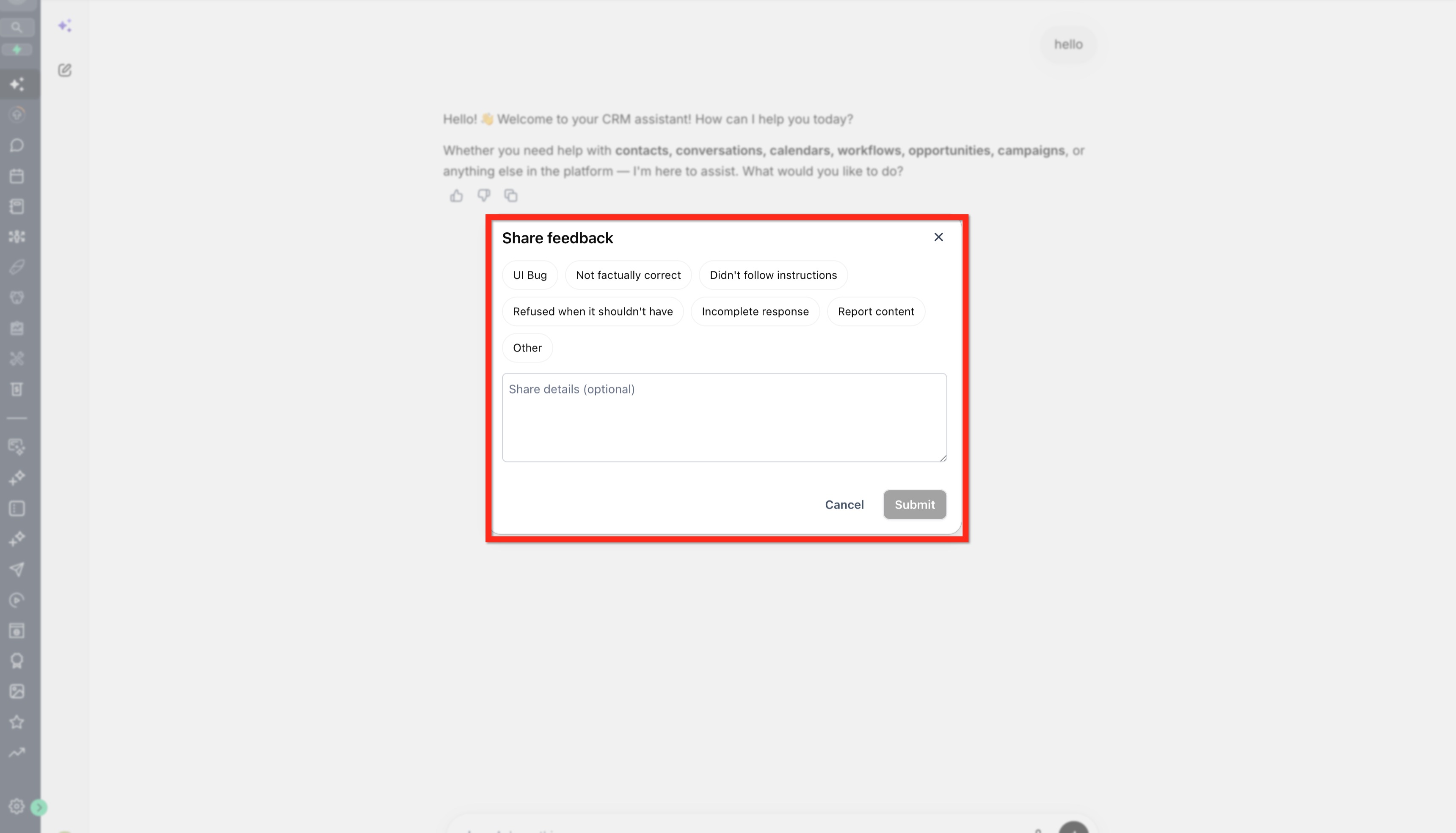
After selecting a rating, the interface may present optional fields. A thumbs up can include a brief reason for what worked well. A thumbs down requires choosing one or more reasons that describe the problem and can include an extra note for more detail. Ratings stay attached to the response, showing the chosen icon whenever the conversation is revisited.
The feedback controls are available in both Agency and Subaccount views of Ask AI. They appear only in conversations started after the feature launch; older chats may lack the icons.
03How businesses use Ask AI feedback
- Marketing agency. The team reviews each AI generated campaign brief, clicks thumbs down when the brief misses brand tone, selects “Incorrect tone” as the reason, and adds a note describing the desired voice. This lets HighLevel collect precise improvement signals.
- Real estate brokerage. When Ask AI creates a property description, an agent taps thumbs up and optionally selects “Accurate details” to reinforce the correct format, helping the system learn which style works best for listings.
- Online education platform. A course designer evaluates a generated quiz outline, uses thumbs down, picks “Missing key concepts” as the reason, and writes a short comment about the omitted topics, providing clear guidance for future AI outputs.
04How to set up and use Ask AI feedback in HighLevel
Provide feedback on Ask AI responses
- Open the Ask AI conversation and locate the answer you want to evaluate.
- Click the thumbs up icon if the answer satisfied your request, or the thumbs down icon if it did not.
- For a thumbs up, optionally choose a reason that describes what was effective.
- For a thumbs down, select one or more reasons that best explain the problem and add an optional note if further detail is helpful.
- Press the submit button to record your feedback.
05What it looks like in HighLevel
06Things to know before you rely on it
- Feedback controls only appear in new Ask AI conversations created after the feature was released; older threads may not display the icons.
- Reasons offered for thumbs down may differ based on the product experience and language settings.
- Providing feedback does not guarantee that the next answer in the same conversation will change.
07If something goes wrong
- Feedback controls are missing from an Ask AI conversation. Start a new conversation that was created after the feature release; older chats do not show the rating icons.
- Unable to change a rating after submitting. Select a different rating or choose to clear the feedback to replace the previous choice.
08How it connects to the rest of HighLevel
- Explore all AI Employee features All AI Employee features
- Learn how Ask AI session pricing works Ask AI pricing
- Review HighLevel pricing and plans HighLevel pricing
Michael's take

Ask AI feedback is a useful way to tell HighLevel which answers hit the mark and which need work.
If you never use Ask AI or don’t care about shaping its responses, you can skip this feature.