
01Who this is for
- Social media managers who need custom visuals for campaigns and want to avoid stock image licensing.
- Digital marketing agencies creating multiple brand specific images for client projects in a single platform.
- Small business owners who lack design expertise but want professional looking posts for their online presence.
02Image generation using Content AI, explained
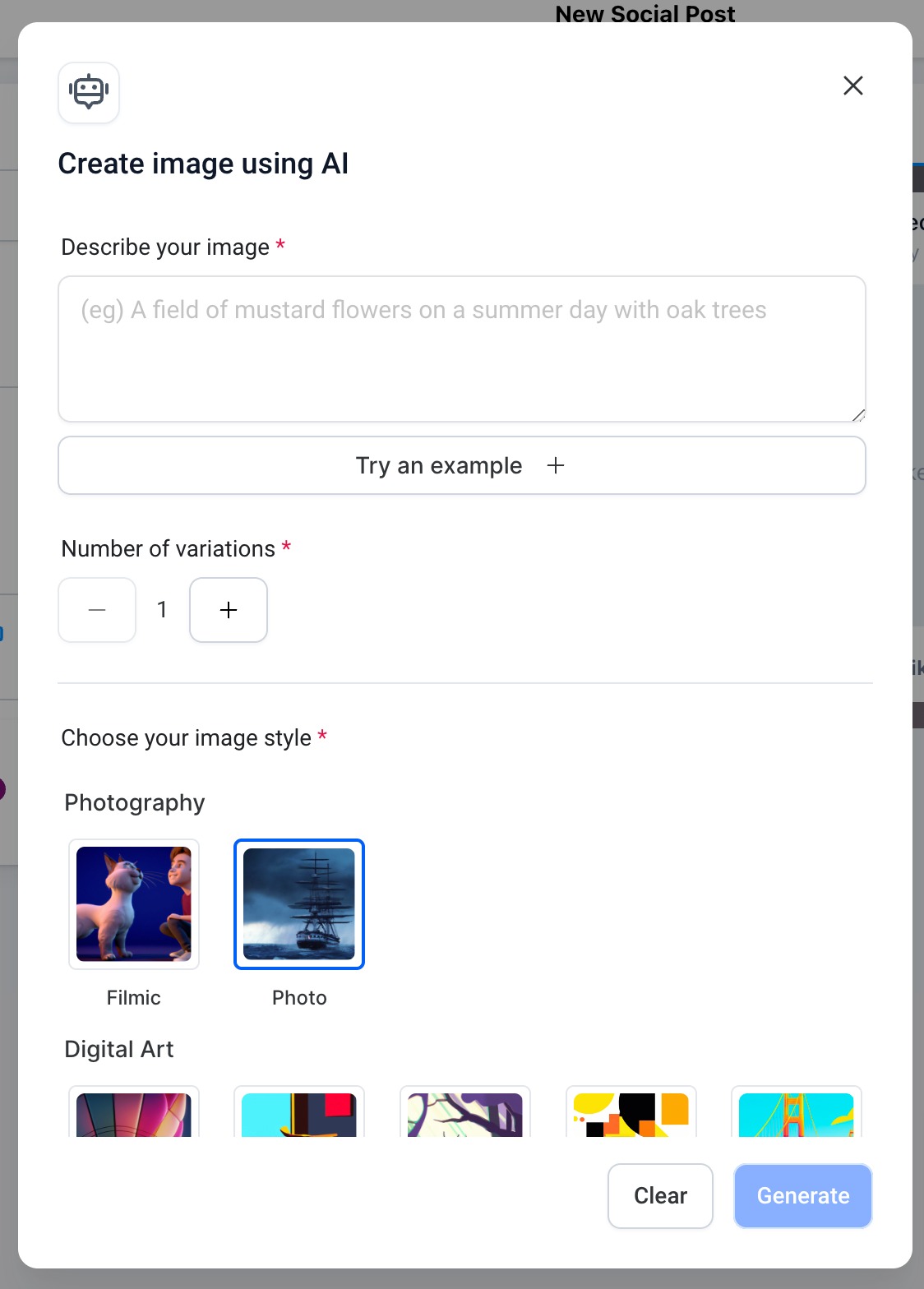
The Content AI image generator turns a text prompt into a static picture. You enter a description, select how many variations you want, and pick a style such as Photography, Digital Art or Fine Art. The engine then returns images that follow the prompt and style choice.
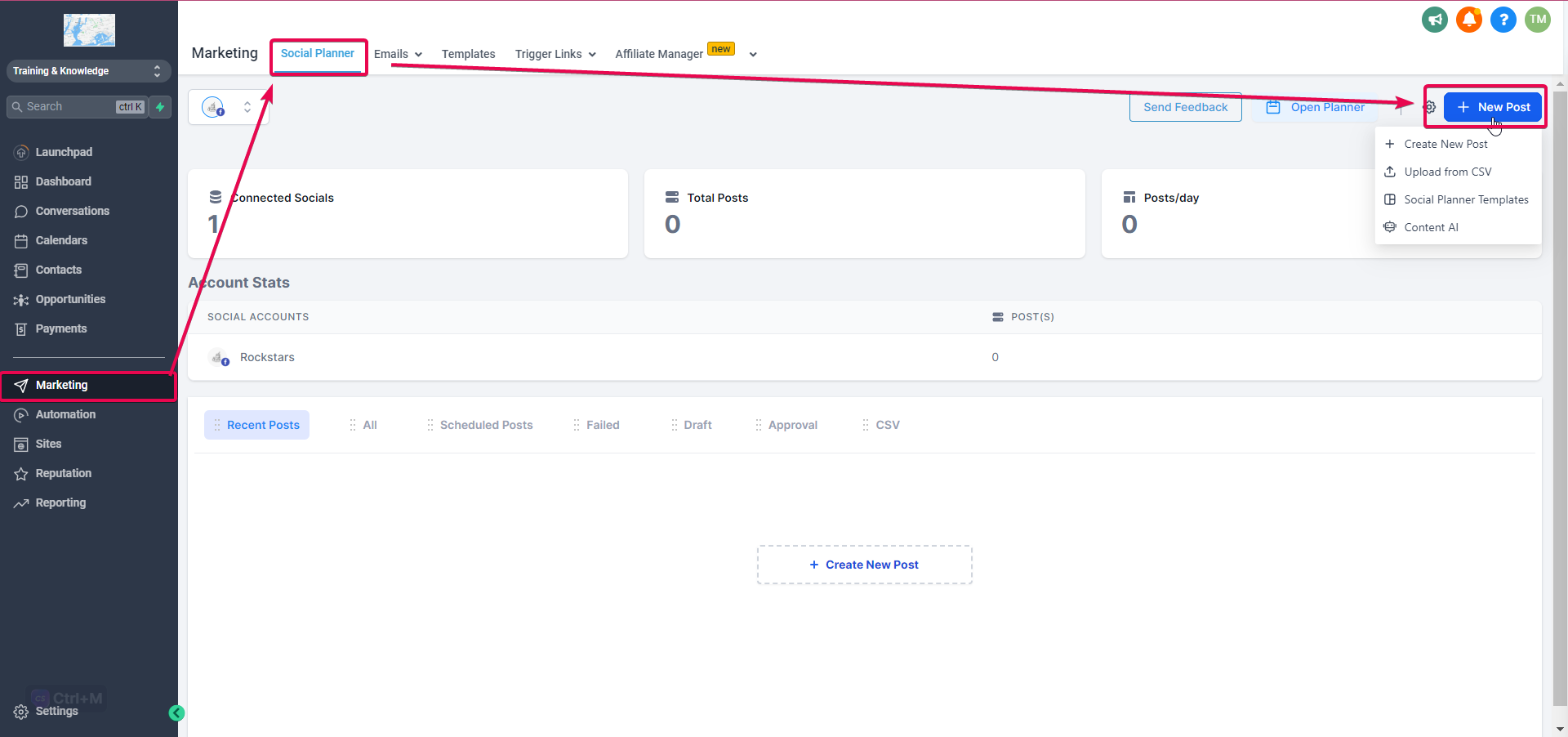
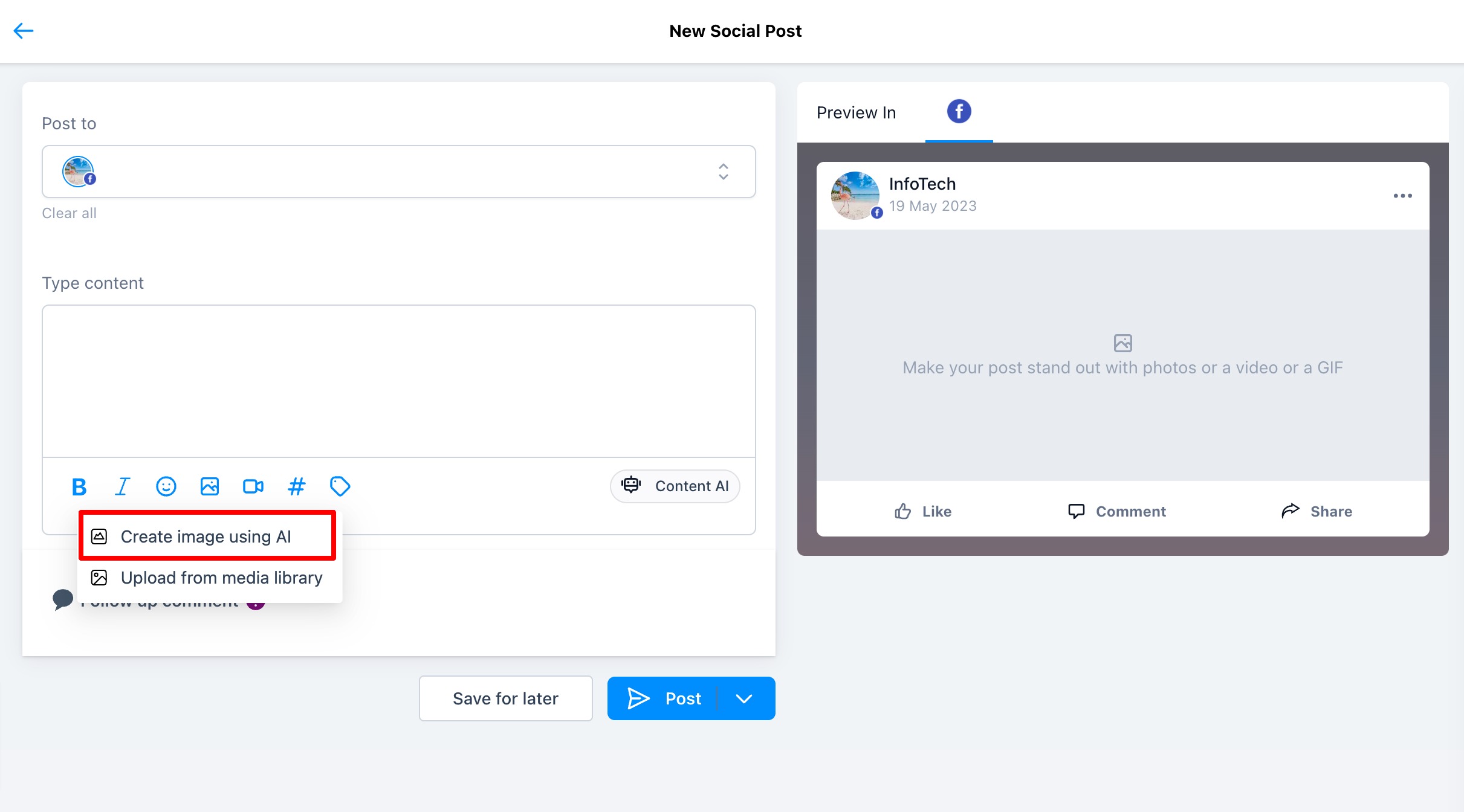
The tool is accessed from the Social Planner when you create a new post. It adds an image upload option that opens the AI generator. After reviewing the results you can accept an image and continue building your post.
All generated assets are stored under Automation > Content AI, where you can review past creations.
03How businesses use image generation using Content AI
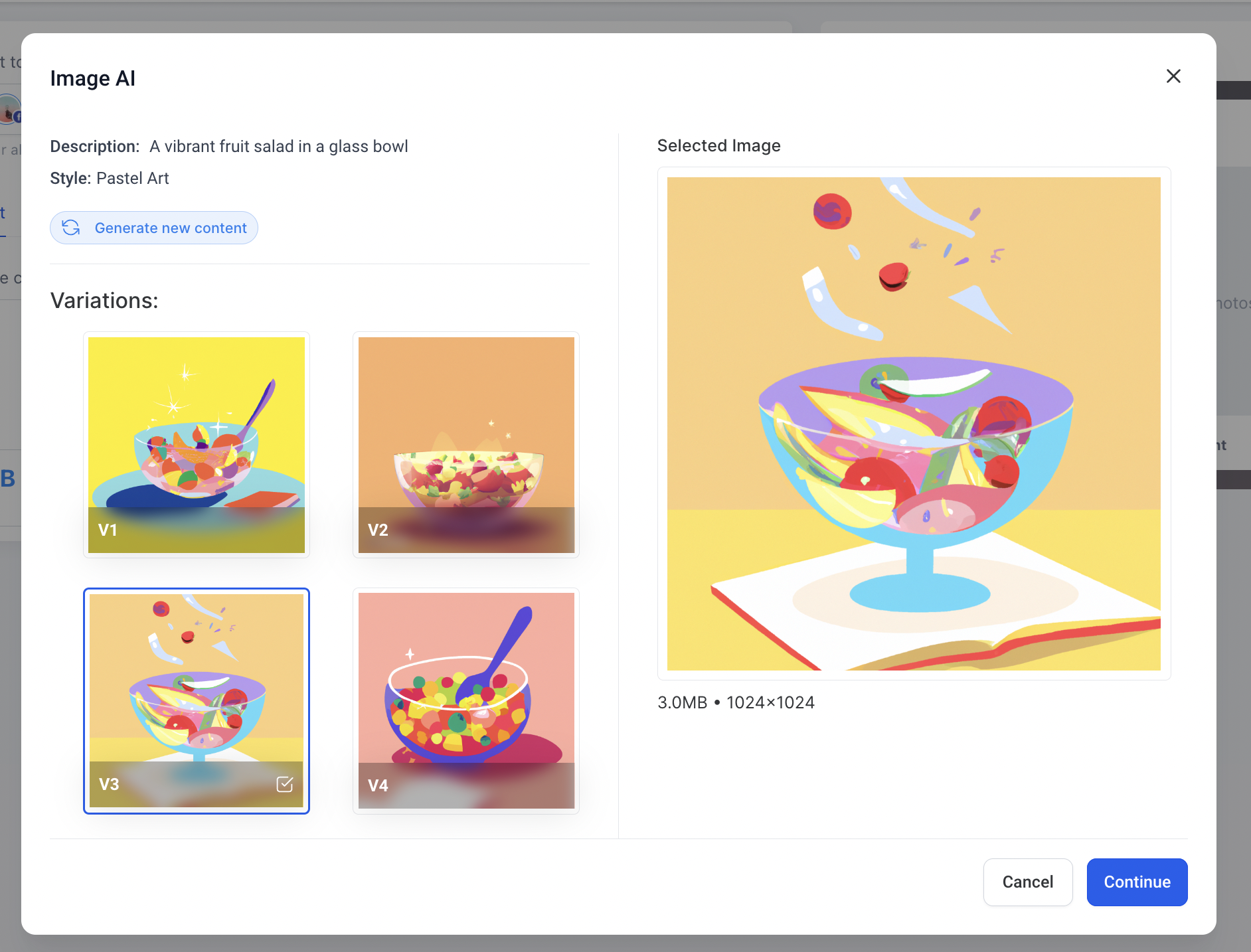
- Digital marketing agency. The agency opens a new post for a client campaign, types a descriptive prompt for each ad visual, chooses three variations and the Photography style, then selects the preferred image to attach to the scheduled post.
- Webinar host. When promoting an upcoming webinar, the host creates a post, enters a prompt describing a laptop with a coffee mug, picks two variations in the Digital Art style, and adds the chosen image before publishing the invitation.
- Retail boutique. For a new product launch, the boutique staff generates a set of images by describing the product on a backdrop, selects five variations in the Fine Art style, and inserts the best result into their launch post.
04The numbers and rules that matter
- Styles available: Photo, film, Dreamlike, Digital Art, Poster, Vector, Colorful, 3D Models, Pastel Art, Sketch, Watercool, and Color Pencils.
- Number of variations can be selected from 1 to 5.
05Before you start
- Content AI must be enabled for the account.
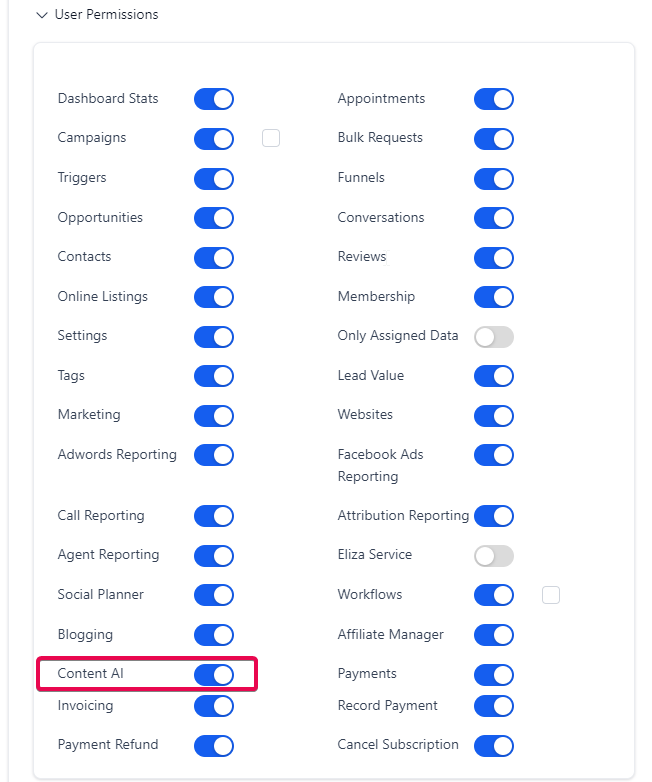
- User permissions need to allow Content AI use in subaccounts via Settings > My Staff > Edit a user > User Permissions.
06How to set up and use image generation using Content AI in HighLevel
Generate an image with AI for a Social Planner post
- Open Marketing, then choose Social Planner and click New Post.
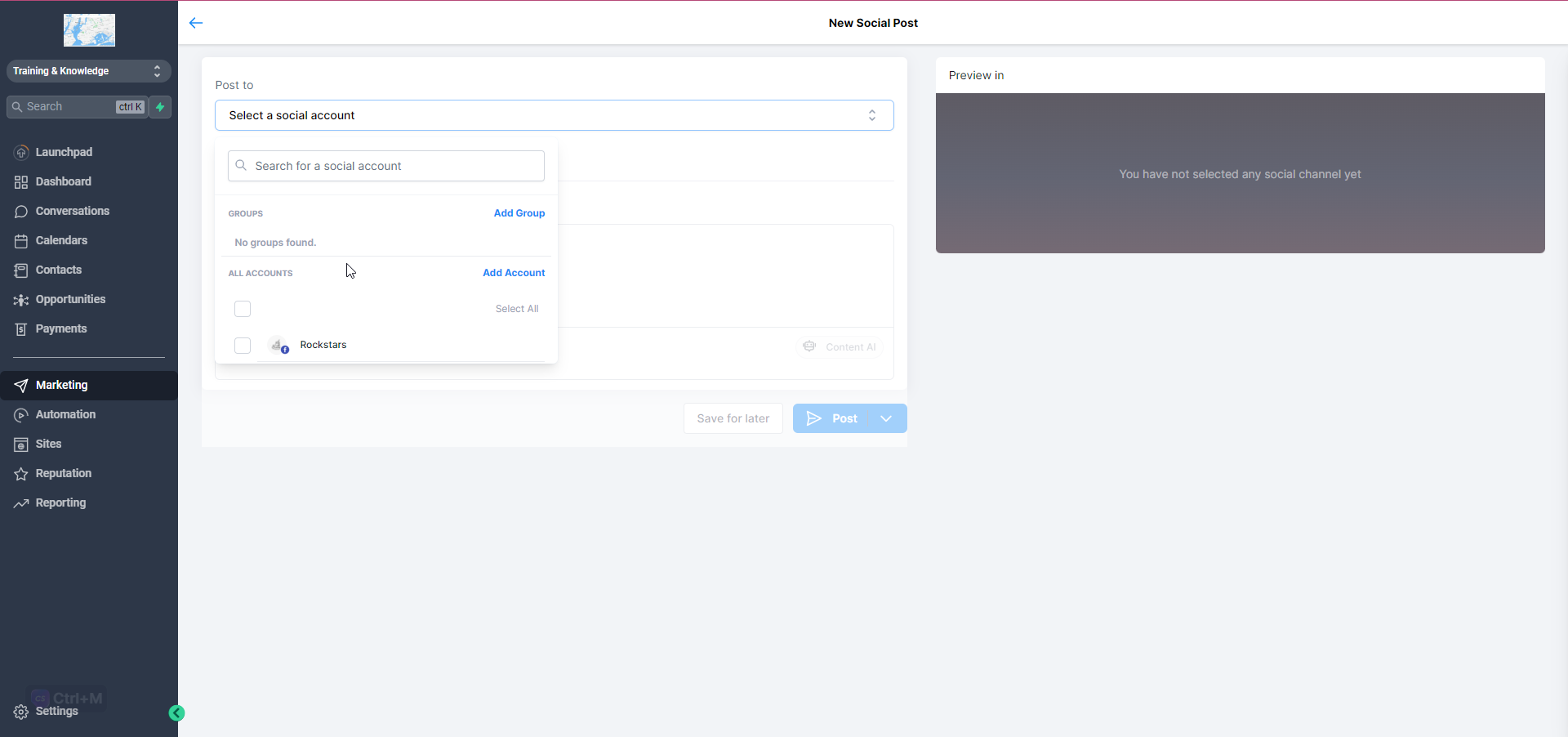
- Pick the social network where the post will appear.
- Select the image upload button and choose Generate Image with AI from the list.
- Enter a clear description of the desired picture, set the number of variations from 1 to 5, and choose a style such as Photography, Digital Art or Fine Art.
- Follow best practice guidelines: avoid promotional words like discount or sale, describe scenes realistically, keep language clear and concise, omit symbols, specify any critical details, and experiment with different prompts.
- Review the generated options and confirm the selection by clicking Continue.
- Complete any additional post details and schedule or publish the post.
- Save the post; the generated image is also recorded under Automation > Content AI.
07What it looks like in HighLevel
08Settings that matter
- Number of Variations. Controls how many different images the AI creates for the same prompt, allowed range is 1 to 5.
- Style. Defines the visual approach of the output, with options like Photography, Digital Art and Fine Art.
- User Permissions. Enables or disables a user's ability to use Content AI within subaccounts.
09Things to know before you rely on it
- You can select up to five variations for each prompt.
- The system offers multiple styles such as photo, film, Dreamlike, Digital Art, Poster, Vector, Colorful, 3D Models, Pastel Art, Sketch, Watercool and Color Pencils.
- There is no fixed limit on the total number of images you can generate, though usage policies may apply.
- The feature creates only static images; animations or GIFs are not supported.
- Metaphorical descriptions may not be interpreted accurately; literal language works best.
10How it connects to the rest of HighLevel
- Learn how Content AI integrates with Social Planner for quick post creation. Content AI in Social Planner
- Explore quick actions like grammar fixes and content expansion within Social Planner. Content AI quick actions
- See guided content questions that help shape AI generated posts. Guided content questions
Michael's take

Image generation using Content AI is a quick way to get custom visuals without leaving HighLevel. Teams that lack any design resources will find it valuable, but if you already have a dedicated designer workflow, you can skip it.