
01Who this is for
- Social media managers who need faster draft creation while keeping brand tone consistent.
- Marketing teams that publish across multiple platforms and want prompts tailored to each platform.
- Small business owners who want to generate posts without writing full copy themselves.
02Content AI, explained
Content AI provides a guided workflow inside Social Planner. When you start a new post, the system asks focused questions that change based on the chosen platform and content type. You can also attach a saved Brand Voice so the draft reflects your brand’s style.
The feature lives in the standard Social Planner area. After answering required and optional questions, you click Generate and receive an editable draft. The draft can be refined with manual edits, quick AI actions, or the Edit with Ask AI tool before you publish or schedule the post.
All media requirements still follow each platform’s guidelines, which you can review separately. The process stays within HighLevel, eliminating the need to switch tools.
03How businesses use Content AI
- Fitness studio. The studio selects Instagram as the platform, chooses a promotional content type, and answers guided questions about the upcoming class schedule. It applies its saved Brand Voice to keep the tone energetic, then generates a draft, refines the copy with a quick AI action, and schedules the post.
- Law firm. The firm picks LinkedIn, selects an informational article content type, and provides a goal of educating clients about recent legislation. It uses the Brand Voice to maintain a professional tone, generates the draft, manually edits legal terminology, and publishes the post immediately.
- Restaurant. The restaurant chooses Facebook, selects a menu highlight content type, and answers questions about the featured dish and call to action. It skips Brand Voice, generates a draft, adds a photo, uses the Edit with Ask AI tool to adjust the tone to friendly, and schedules the post for dinner service.
04Before you start
- Connect at least one supported social account to Social Planner.
05How to set up and use Content AI in HighLevel
Create a social post with Content AI
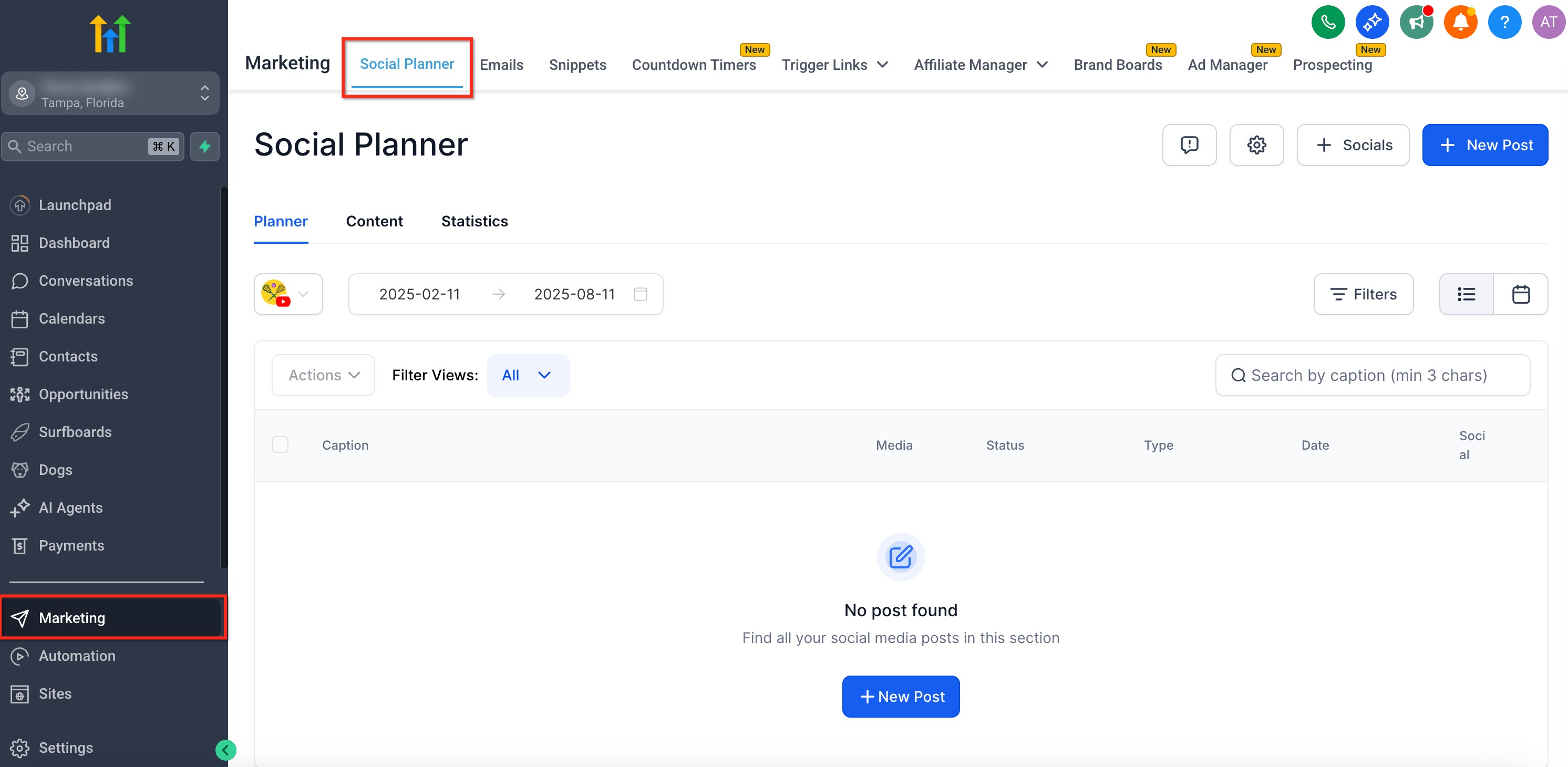
- Navigate to Marketing > Social Planner from the subaccount.
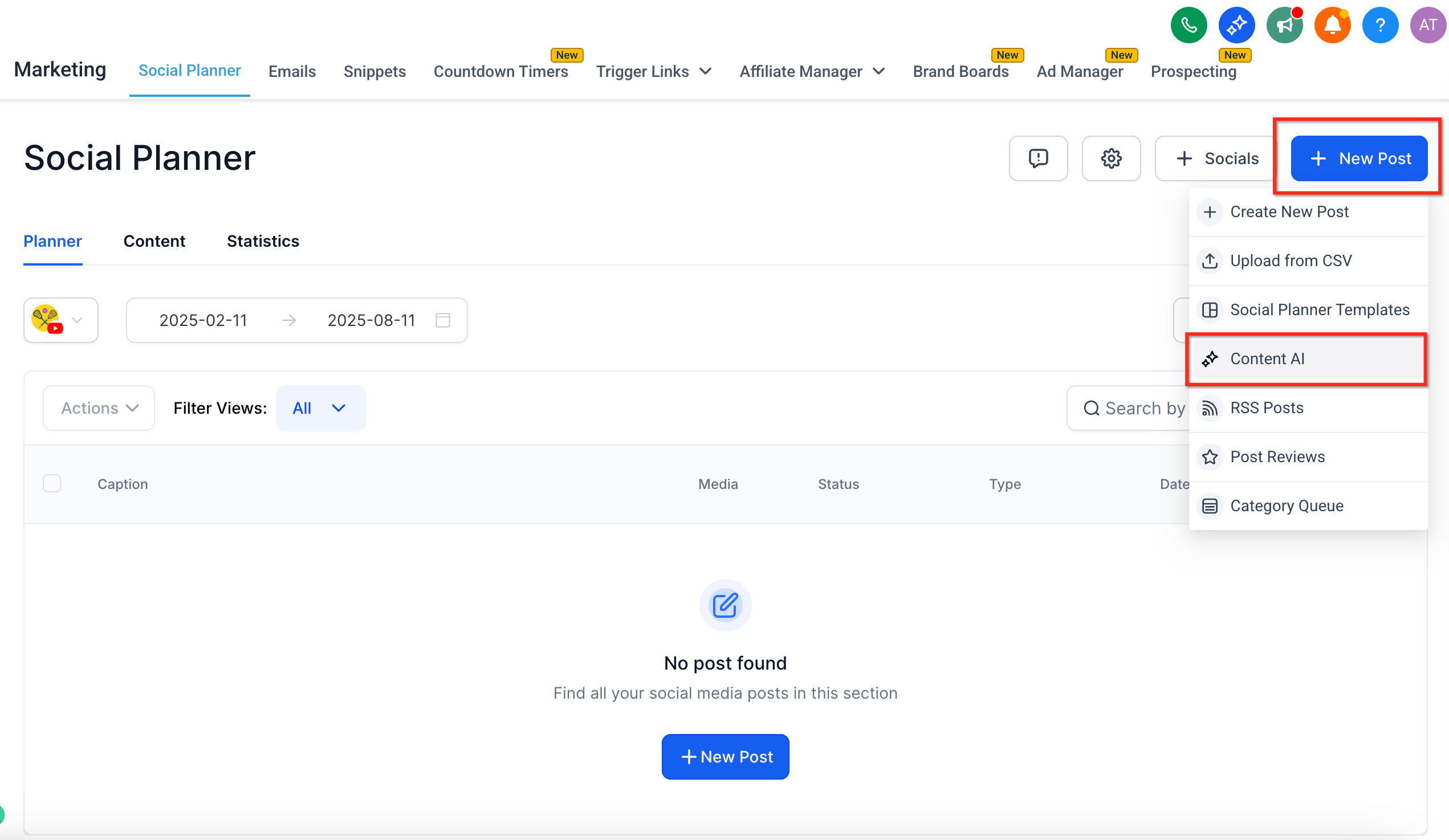
- Click + New Post and choose the option to create content using Content AI.
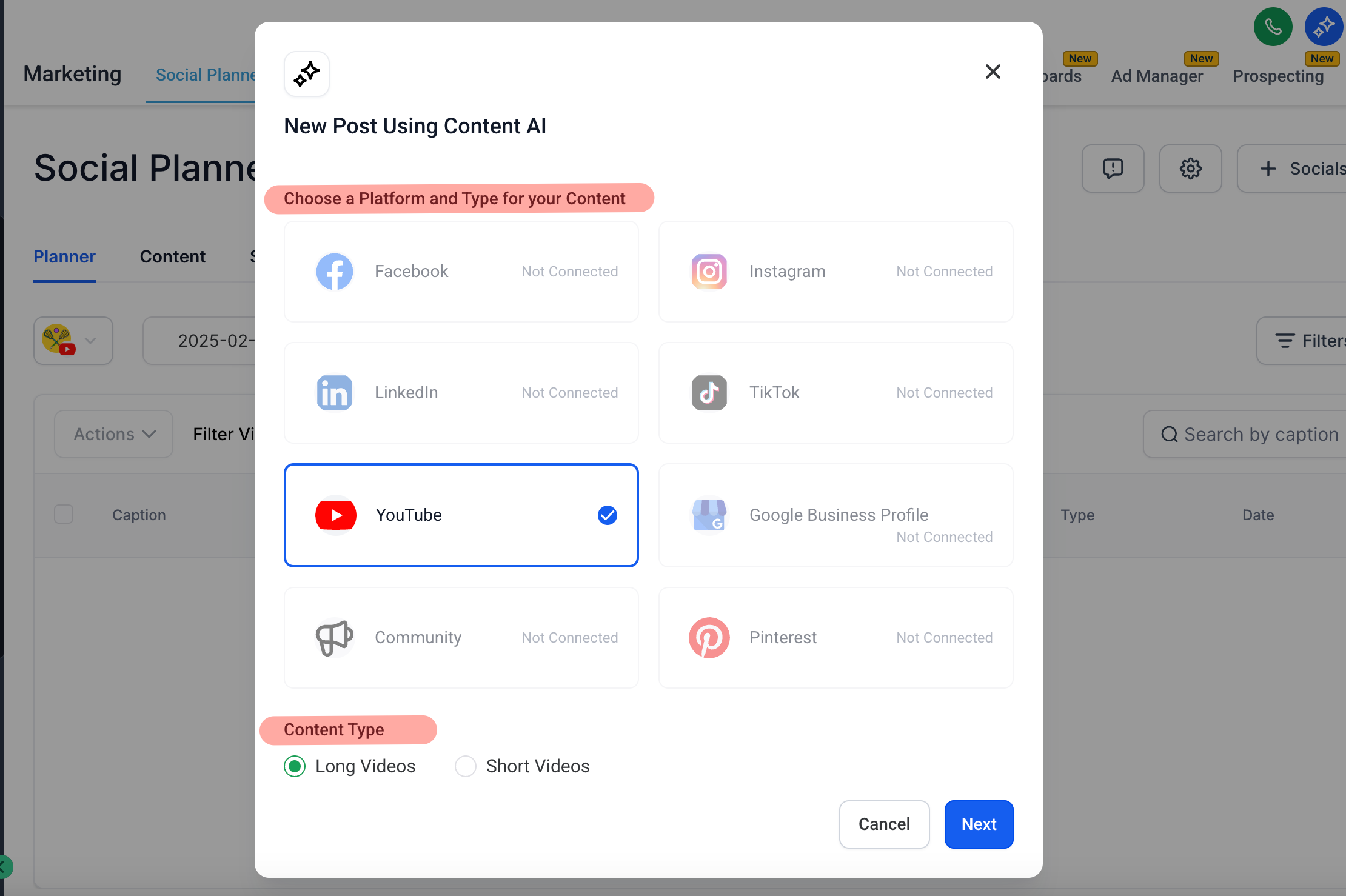
- Pick the social platform where the post will be published.
- Select the appropriate content type for the post.
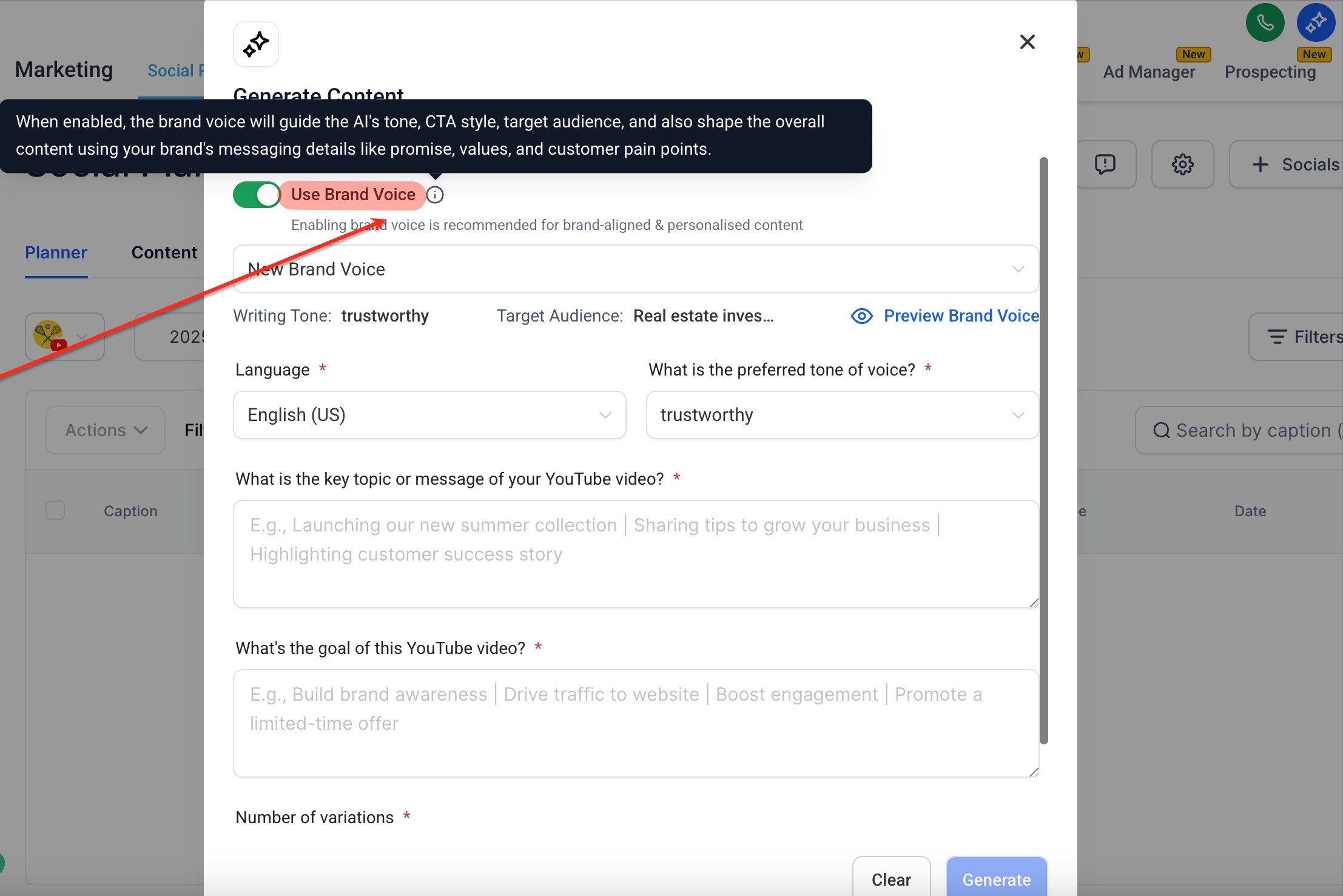
- If desired, select a saved Brand Voice and adjust any values for the post.
- Answer the required Guided Content Questions and expand optional ones for extra context.
- Click Generate to produce the social post draft.
- Review the generated copy for accuracy, tone, brand alignment and calls to action.
- Edit the draft manually or apply AI assisted editing tools as needed.
- Add or verify any required media, checking platform specific guidelines.
- Finish the publishing workflow by publishing immediately or scheduling for later.
06What it looks like in HighLevel
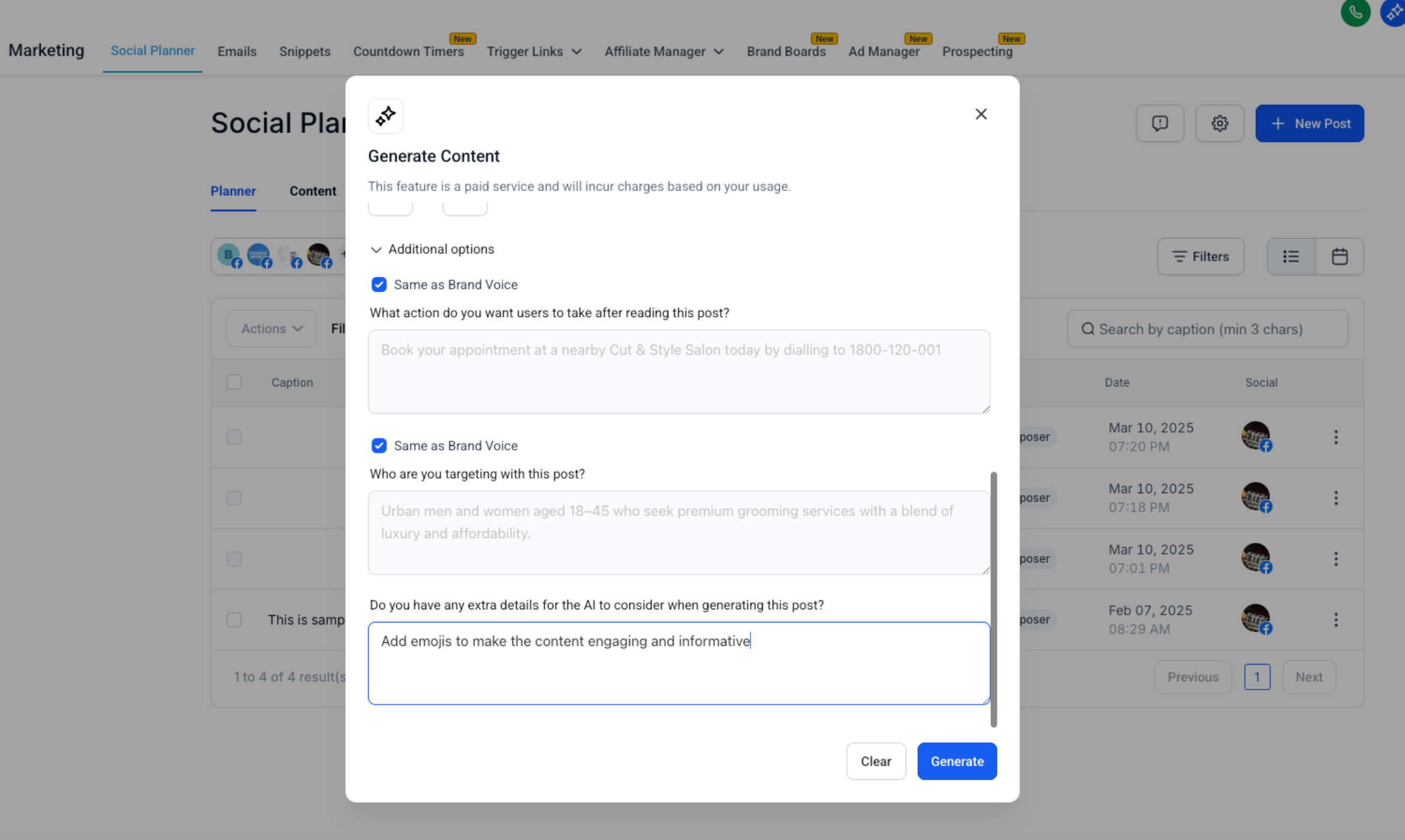
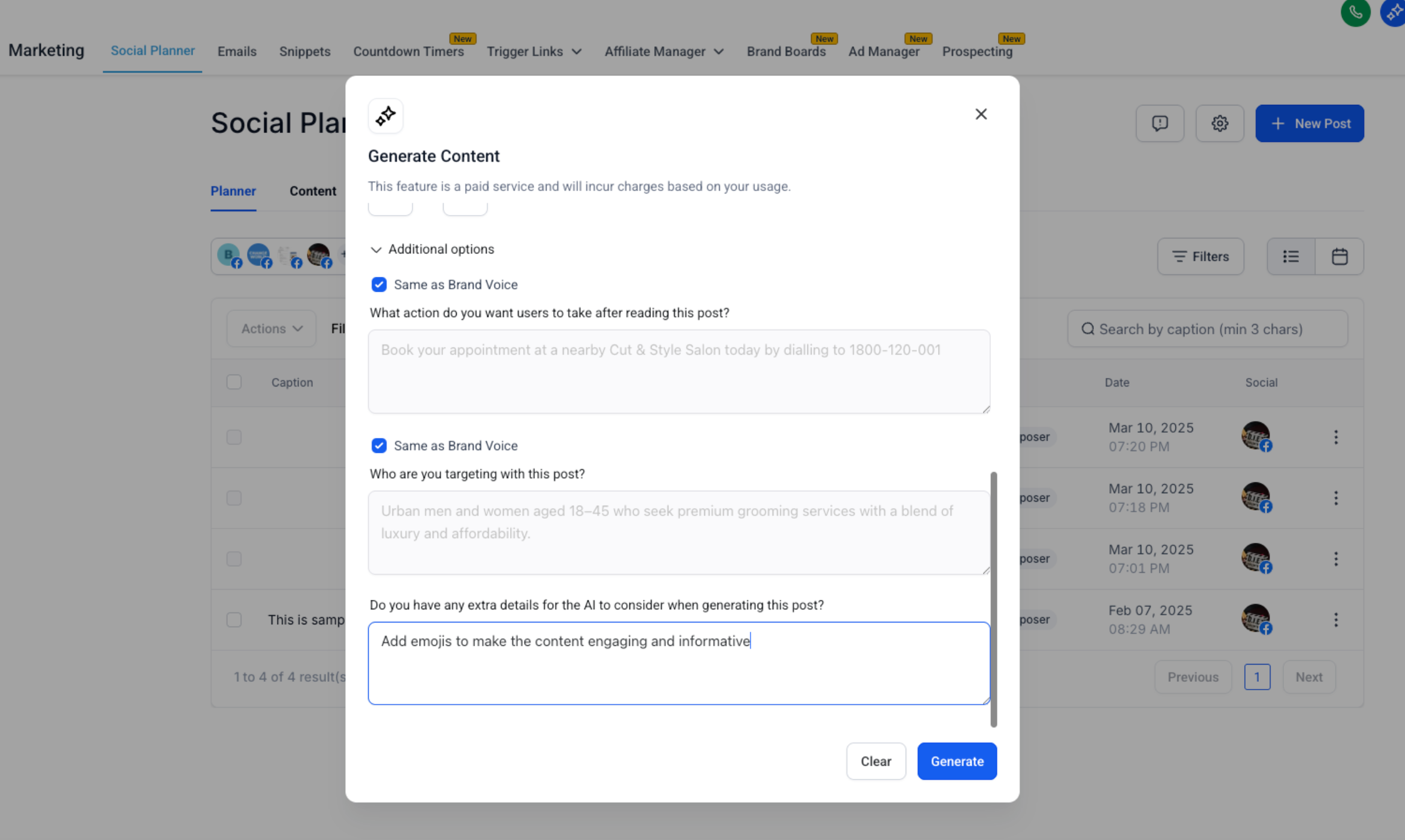
07Settings that matter
- Brand Voice. Controls whether saved brand communication details are applied to the AI generated draft, helping the copy match the organization’s established tone.
08How it connects to the rest of HighLevel
- Set up a Brand Voice to provide consistent brand context for Content AI. Brand Voice setup
Michael's take

Content AI is handy when you need quick, on brand drafts, but if you already write posts yourself it may be extra steps. Teams that struggle with consistency across platforms will find it useful.
Skip it if your workflow is already streamlined and you have a small number of posts that never need AI help.