
01Who this is for
- Founders who manage multiple social channels benefit by speeding up copy edits and ensuring consistent brand tone.
- Marketing teams can produce longer or shorter variations of a post to suit platform character limits.
- Small business owners can quickly polish messages, reducing the need for external editors.
02Content AI quick actions, explained
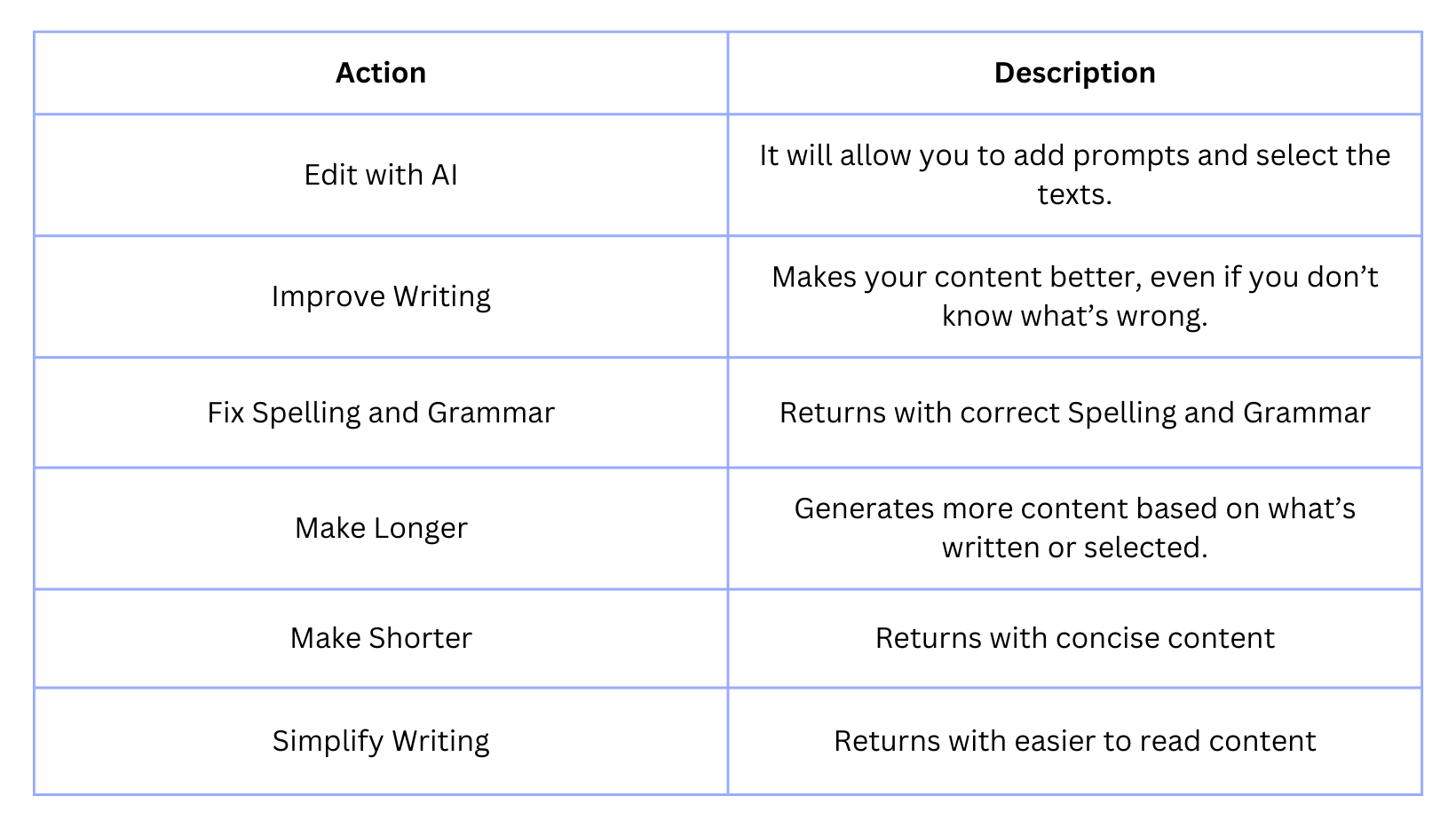
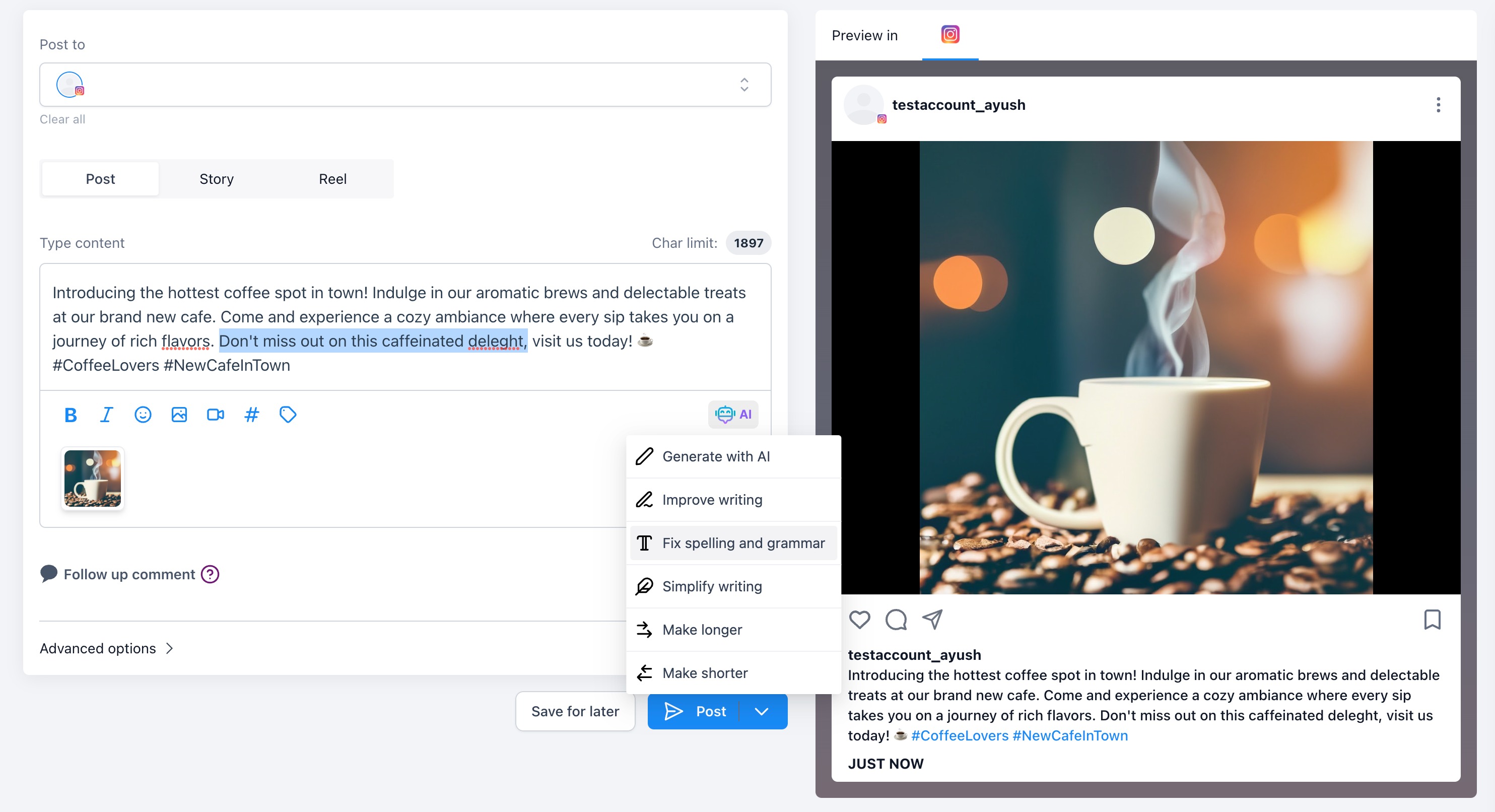
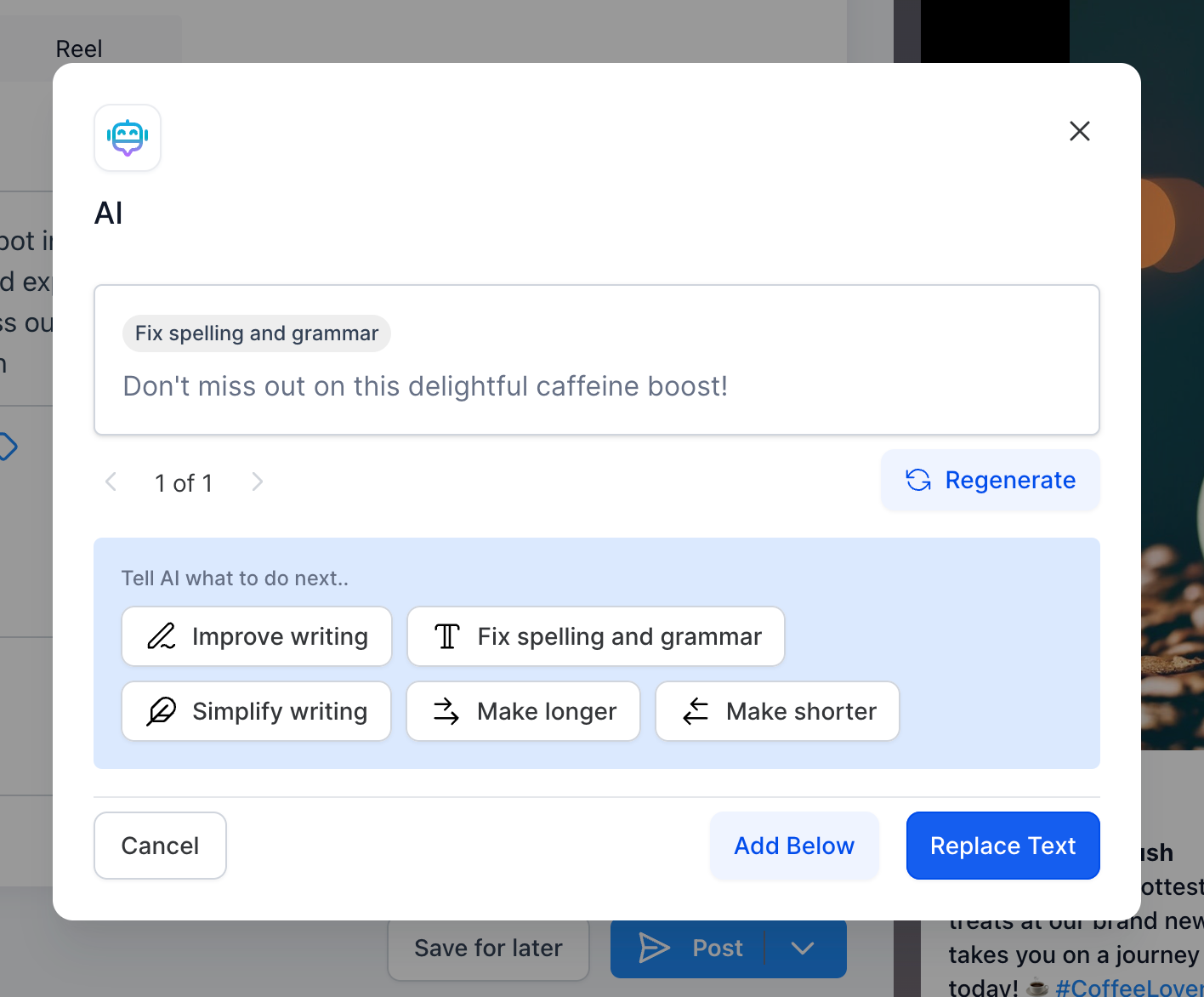
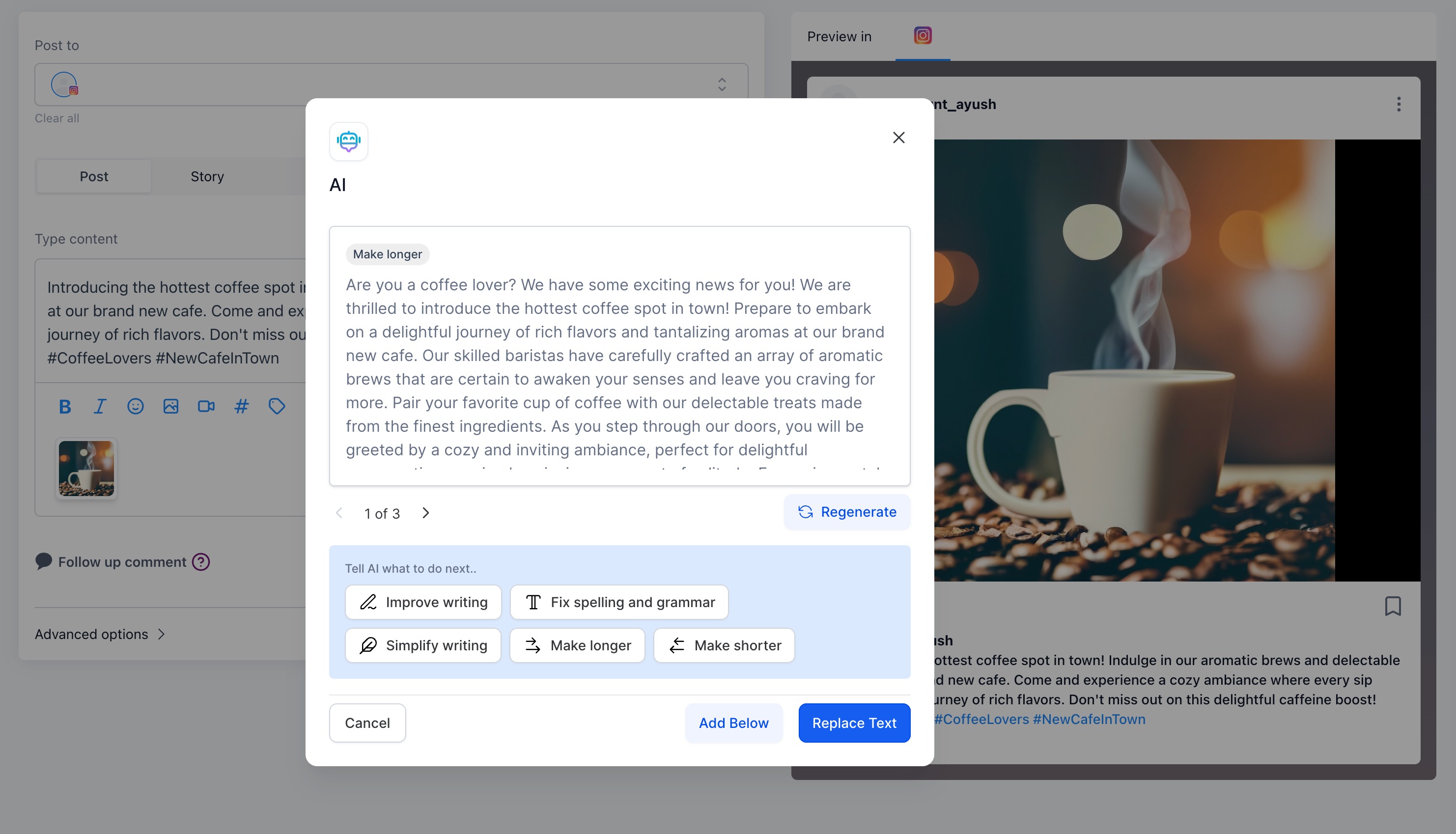
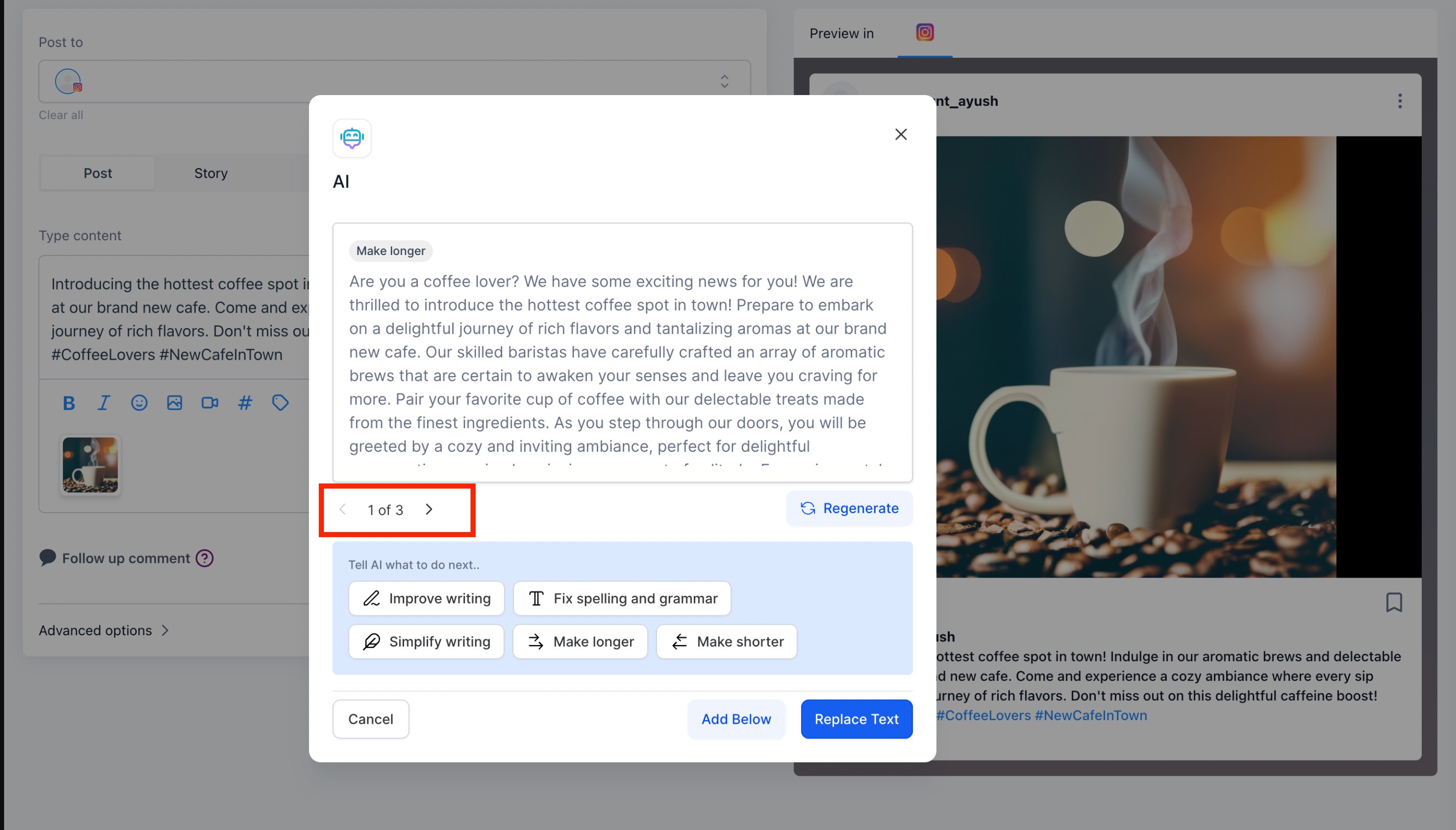
The feature lives inside the Social Planner module. When you create a new post, an AI button opens a quick action menu. From that menu you choose one of five actions: Improve Writing, Fix Spelling and Grammar, Make Longer, Make Shorter, or Simplified Writing. If text is already in the editor, you may select a portion or let the AI work on the entire draft. After you pick an action, the AI generates revised copy and shows the result in a paginated view. You can insert the new version below the original content or replace the original entirely. All generations are saved and can be reviewed later in Automation > Content AI.
03How businesses use Content AI quick actions
- Digital marketing agency. The agency creates client posts in Social Planner, selects the draft, and runs the "Make Longer" action to generate expanded copy for blog teasers. The revised text appears in the editor, ready for client approval.
- Local restaurant. The owner writes a brief menu announcement, selects the text, and applies "Simplified Writing" to ensure the message reads clearly for all patrons. The simplified version can replace the original with a single click.
- Online tutor service. A tutor drafts a promotional message, triggers "Fix Spelling and Grammar" to correct errors, then uses the history view in Automation > Content AI to compare the edited version with the original before publishing.
04How to set up and use Content AI quick actions in HighLevel
Apply quick AI actions to a social post
- Navigate to Marketing > Social Planner.
- Click the Create new post button.
- Select the social accounts that will receive the post.
- Click AI and choose Edit with AI to open the AI editor.
- If text is present, select the portion to modify or leave it unselected to apply the action to all text, then choose one of the quick actions (Improve Writing, Fix Spelling and Grammar, Make Longer, Make Shorter, Simplified Writing).
- The AI generates the revised content and displays it in a paginated view.
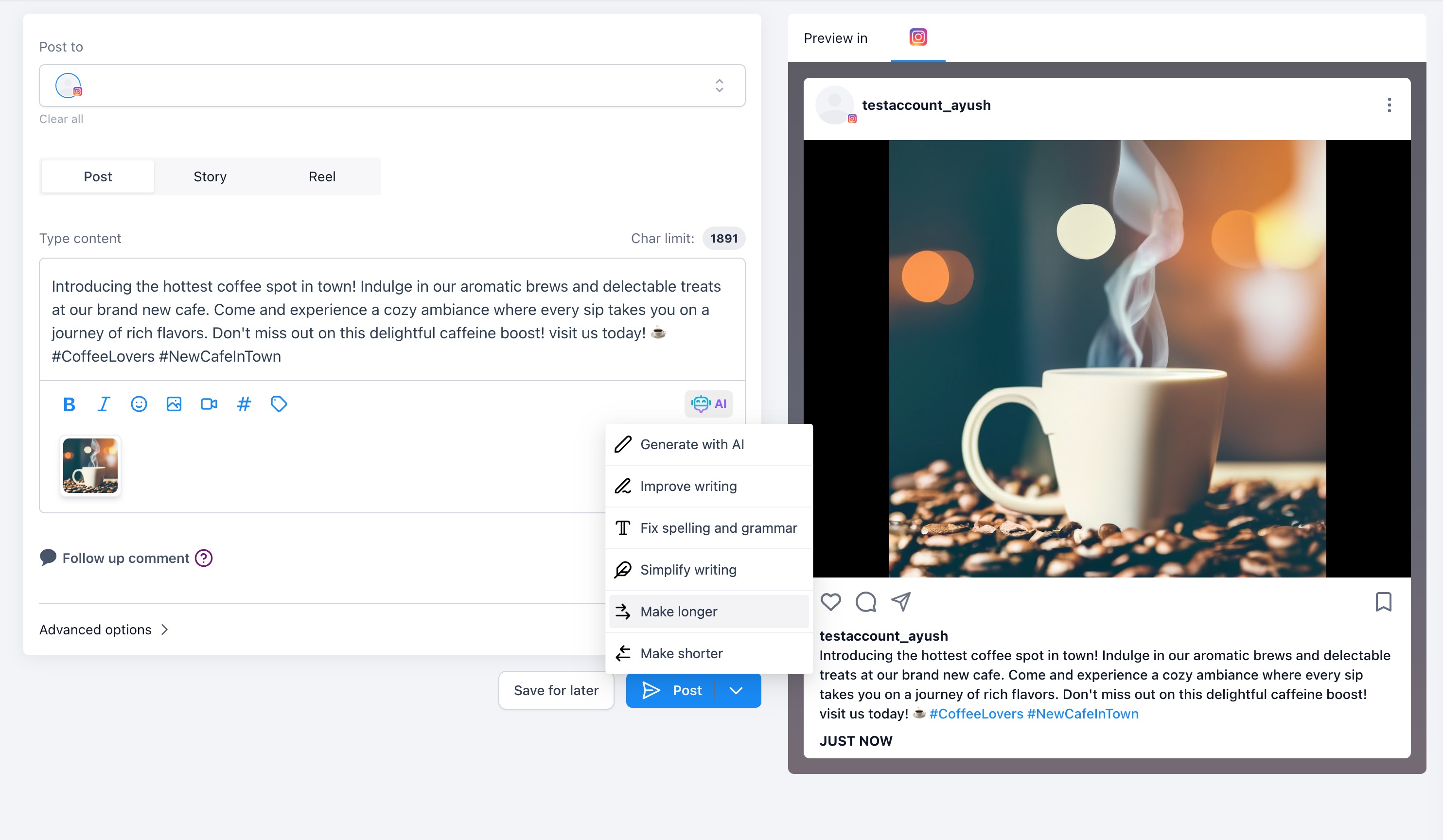
- Insert the new content below the original text or replace the original text entirely.
- Open Automation > Content AI to view the history of generated texts.
05What it looks like in HighLevel
06Things to know before you rely on it
- The quick action feature is only available for Social Planner in this release and will be added to other modules later.
- The AI actions work on the selected text or on all text if nothing is selected.
07How it connects to the rest of HighLevel
- Create posts quickly with Content AI in Social Planner Content AI in Social Planner
- Guided content questions help shape AI output in Social Planner Guided content questions
- Manage AI usage limits and extra usage options AI usage limits
Michael's take

Most people think the AI will magically rewrite an entire post without any selection. In reality, you need to either highlight the specific sentence you want to change or let the tool work on the whole draft. The AI then offers a revised version that you can insert or replace.
If I were using this, I’d first write a rough draft, highlight the key paragraph, and run the Make Longer action to flesh out the idea. I’d also keep an eye on the history in Automation > Content AI to compare versions before publishing.