
01Who this is for
- Social media managers benefit from a faster, platform tailored drafting process.
- Small business owners gain consistency across channels without writing each post from scratch.
- Marketing teams keep brand voice uniform while customizing messages for each network.
02Guided content questions, explained
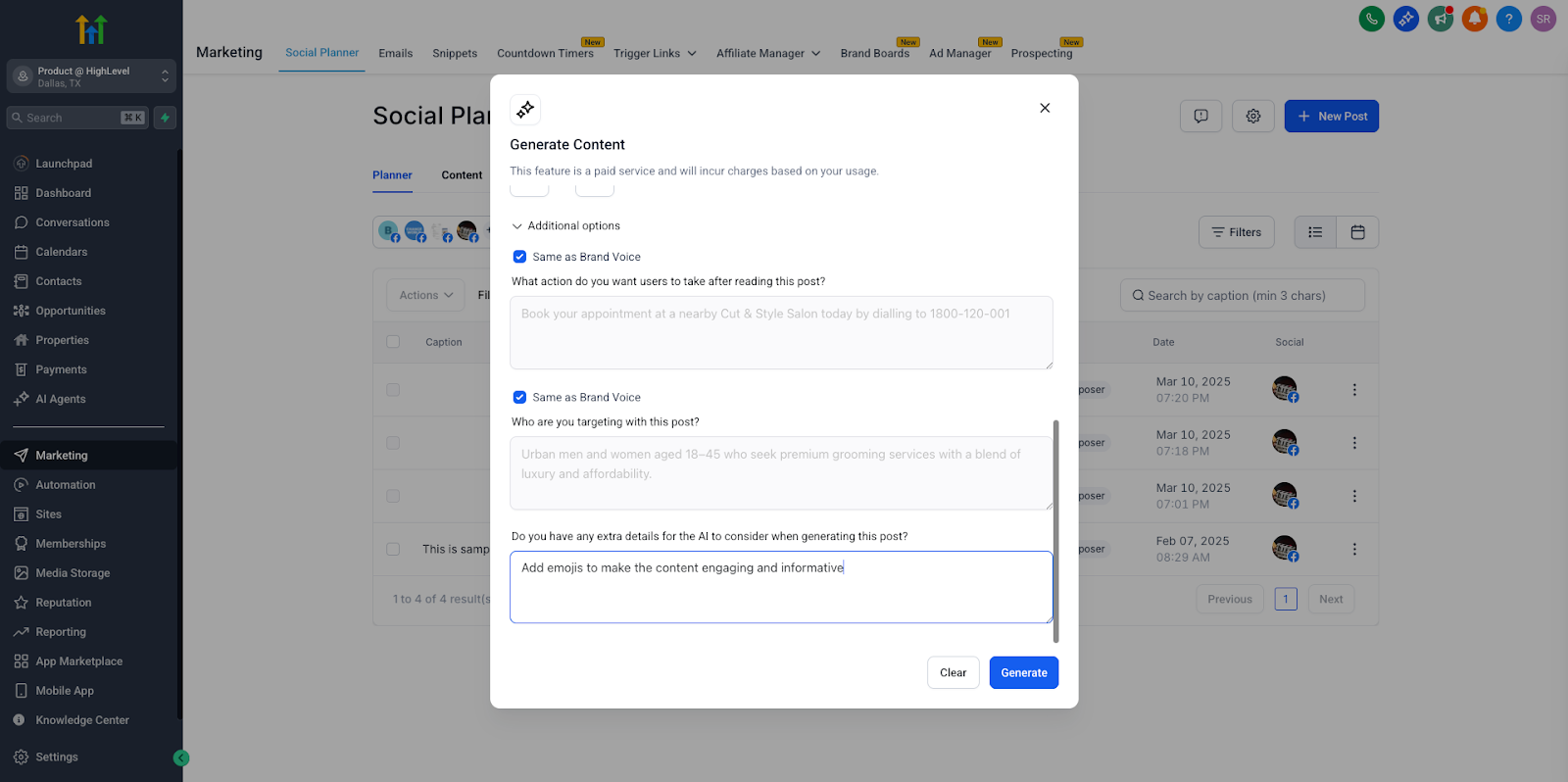
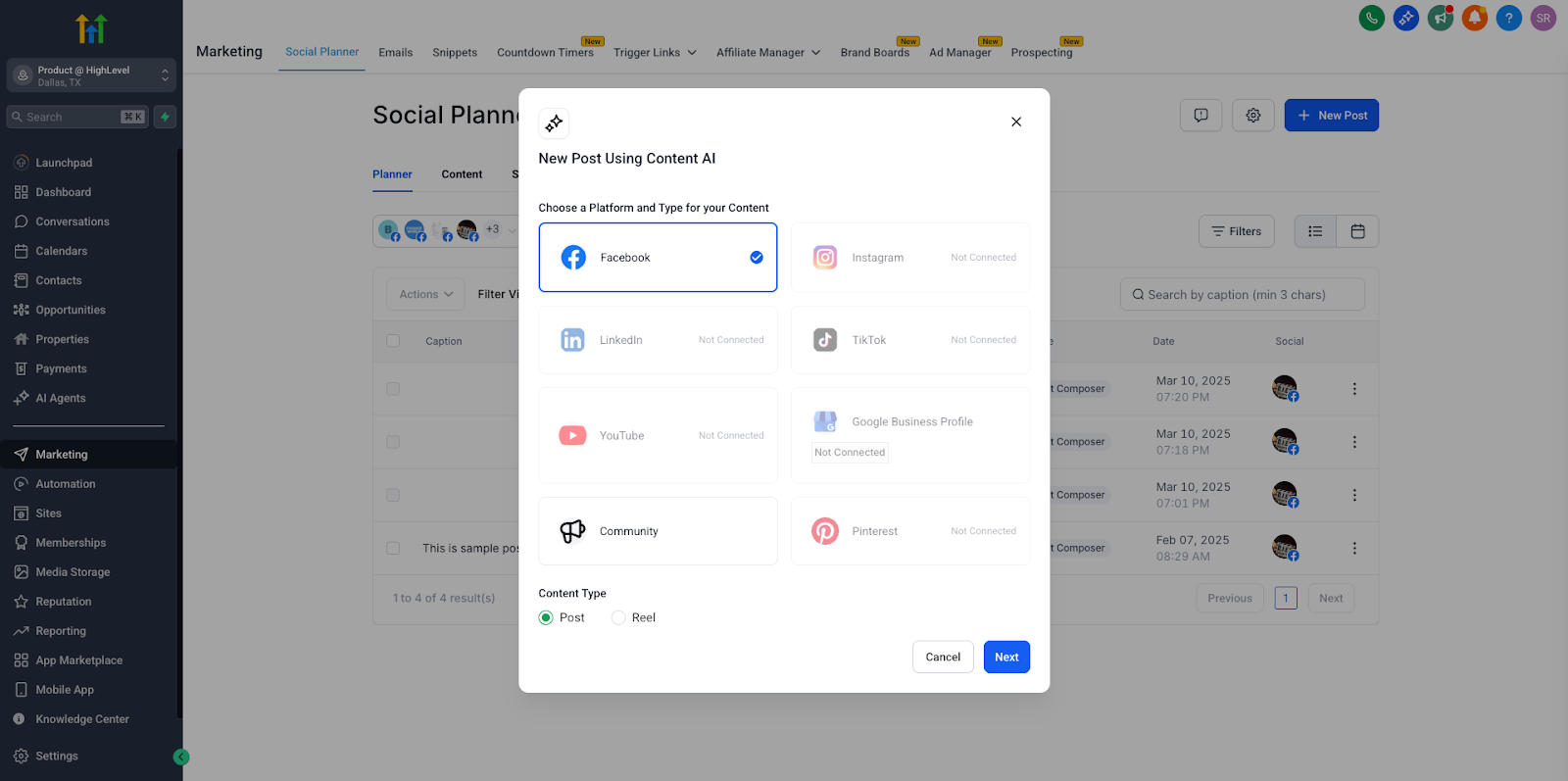
Guided Content Questions enhance the Content AI experience inside Social Planner. When you start a new post and pick the Content AI option, a dynamic form appears. The form changes based on the social platform (Facebook, Instagram, LinkedIn, etc.) and the selected content type such as Post or Reel.
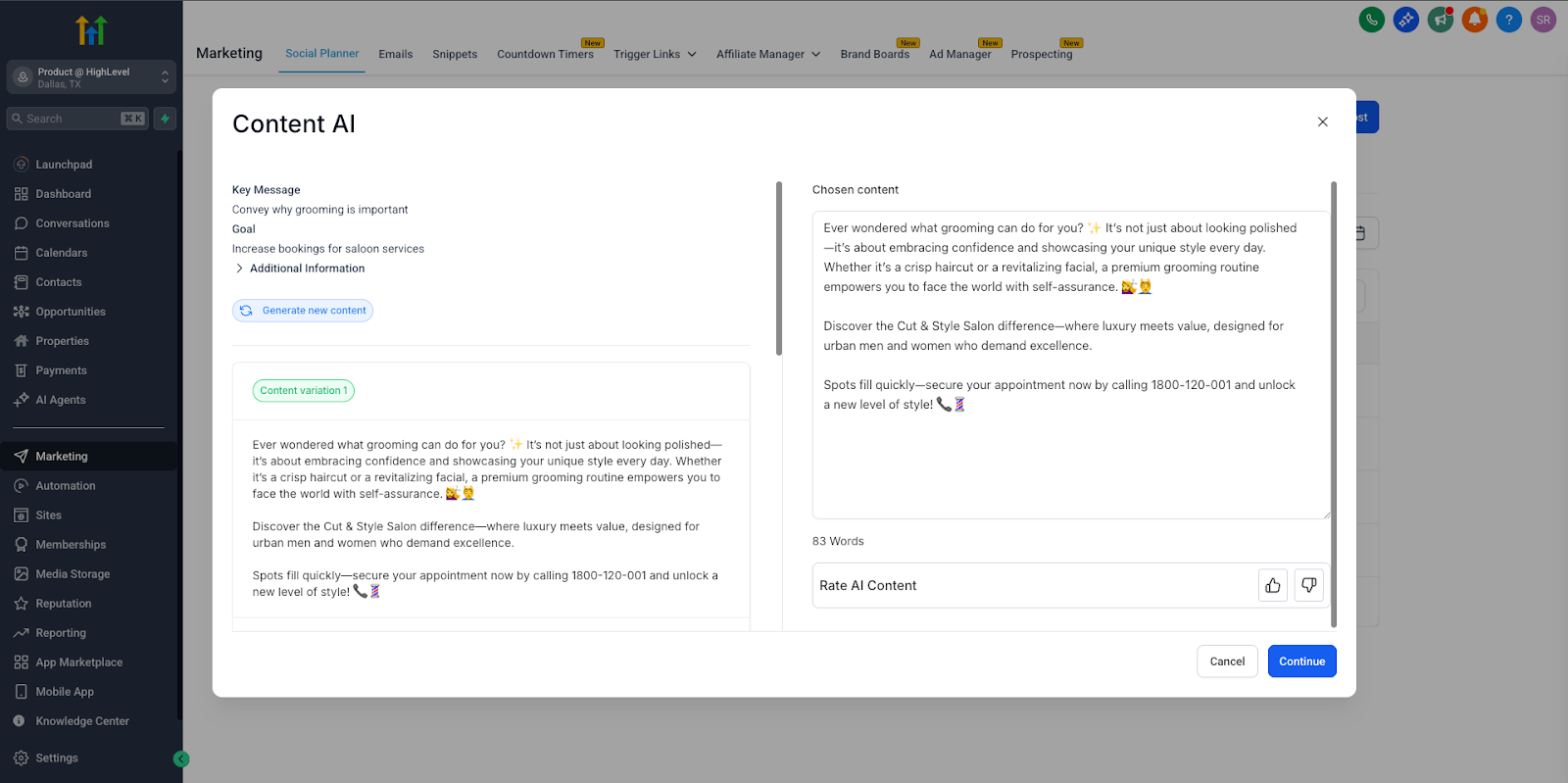
The form shows required fields first, core message, goal, call to action, and hides optional fields until you expand them. It also includes Brand Voice fields that are pre filled from your brand settings but remain editable. After you fill the form, clicking Generate Content produces an AI draft that is optimized for the chosen platform.
The feature lives exclusively in the Social Planner section under Marketing. It is accessed through the "+ New Post" workflow and the Content AI dropdown.
03How businesses use guided content questions
- Fitness studio. The studio selects Instagram Reels, fills the mandatory fields with a class promotion, expands optional fields for target audience age, and adjusts the Brand Voice to a lively tone before generating the post.
- Real estate agency. The agency chooses LinkedIn Post, enters a market update as the core message, uses optional fields to specify professional tone, tweaks the Brand Voice for credibility, and lets AI create a platform optimized update.
- Online boutique. The boutique picks Facebook Post, supplies a new collection teaser, adds hashtags in optional fields, reviews the auto filled Brand Voice for a friendly style, and generates a ready to publish post.
04The numbers and rules that matter
- Adaptive experience automatically adjusts to different platforms (Facebook, Instagram, LinkedIn) and content types (Post, Reel, etc.).
05How to set up and use guided content questions in HighLevel
Create a post with guided content questions
- Navigate to Marketing > Social Planner in HighLevel.
- Click the “+ New Post” button.
- Select “Content AI” from the dropdown to open the guided form.
- Choose the social platform and the content type you need.
- Enter the mandatory fields such as core message, content goal, and call to action.
- Optionally expand additional questions for deeper customization.
- Review and edit the Brand Voice fields if necessary.
- Click Generate Content to have AI draft the platform optimized post.
06What it looks like in HighLevel
07Settings that matter
- Brand Voice fields. Controls the tone and style that appear by default in the generated content; you can edit these values before generating the post.
08Things to know before you rely on it
- Guided content questions are only reachable via the Content AI option in the “+ New Post” dropdown of Social Planner.
- The adaptive form works for all platforms supported by Social Planner, such as Facebook, Instagram, and LinkedIn.
- Brand Voice fields are auto filled when possible but remain fully editable by the user.
09How it connects to the rest of HighLevel
- Overview of Content AI in Social Planner Content AI overview
- Quick AI actions to improve social posts Improve posts
- HighLevel pricing and plan options Pricing
Michael's take

Will this new AI form actually make my social posts better? It provides a checklist that changes with the platform you pick, helping the AI understand the tone and goal you need. You still have to review the draft, but the form helps you give the right information.
Start by opening the Content AI form for a new Facebook post, fill in the core message and goal, then let the AI write the copy. Review the Brand Voice fields before generating content.