
01Who this is for
- Marketing managers can retrieve earlier AI drafts to ensure messaging consistency.
- Small business owners can reuse saved content, saving time when updating websites or newsletters.
- Social media teams can pull prior post variations to maintain brand voice across platforms.
02Content AI logs, explained
Content AI automatically stores each piece of generated text in a log within the platform.
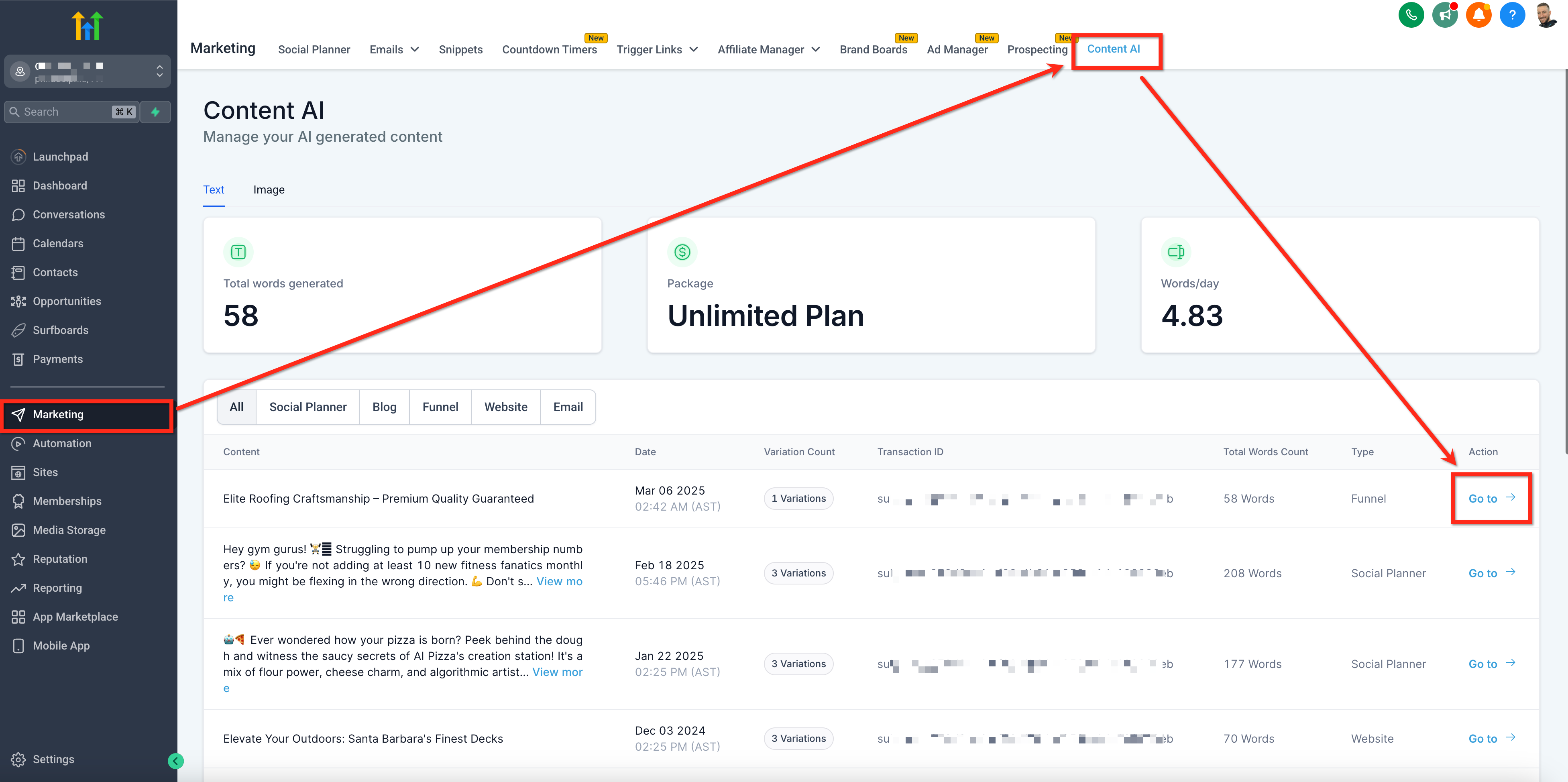
The log is accessible on the Content AI details page, which you reach by selecting Marketing > Content AI. The page shows all posts the AI has produced, along with any variations you created.
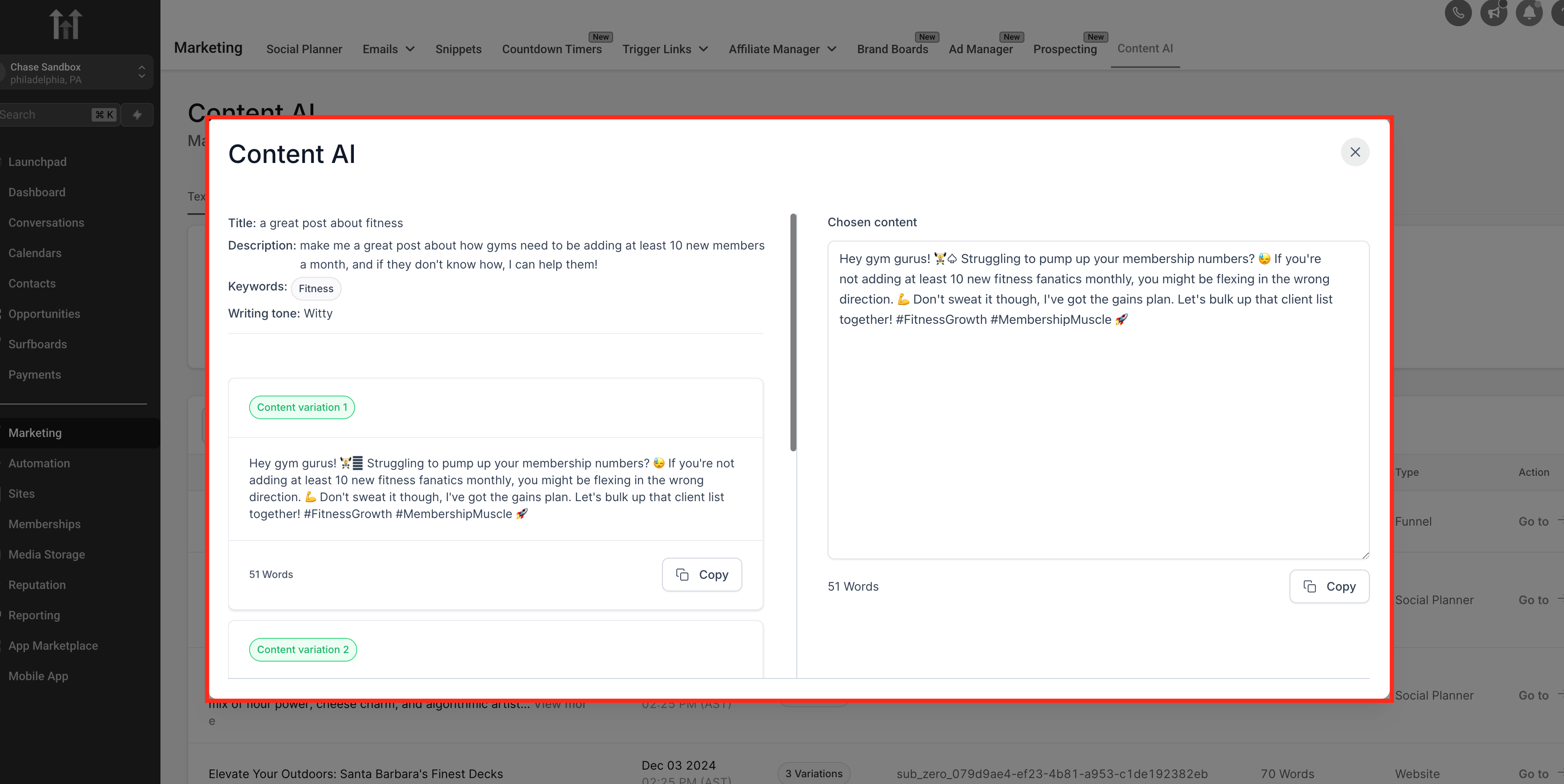
From the list you can copy any entry and paste it wherever you need, without affecting the original records.
03How businesses use past records of generated content
- Digital marketing agency. Open Marketing > Content AI, locate a prior blog draft created for a client, and copy the text directly into a new campaign without generating fresh content.
- Ecommerce store. Navigate to the Content AI list, select a product description variant saved earlier, and paste it into the product page editor to keep wording consistent across catalog items.
- Real estate office. Visit the Content AI logs, find a property listing description previously generated, and duplicate it for a new listing, adjusting details as needed.
04Before you start
- Content must have been generated using Content AI before it appears in the log.
05How to set up and use past records of generated content in HighLevel
View past records of generated Content AI
- Navigate to Marketing > Content AI.
- Locate the entry for the generated post you need.
- Select and copy the desired variation.
06What it looks like in HighLevel
07How it connects to the rest of HighLevel
- See how to give thumbs up or down feedback on generated content. Content feedback
- Explore all AI Employee features available in HighLevel. All AI Employee features
Michael's take

Michael ReimerFounder of CRM Pros, HighLevel Commander and Certified Admin
The audit trail gives you quick access to what’s already been written, so you can keep your voice steady and cut the time spent on copy.
Don’t forget to actually open the log before you start a fresh draft.
Get More InformationOpens on HighLevelPublished November 2, 2026 · Updated November 16, 2026