
01Who this is for
- Founders of service based companies that rely on client appointments, because local time visibility reduces scheduling errors.
- Customer support managers handling inbound inquiries, since confirming time zones improves the accuracy of booked calls.
- Marketing teams that use Conversation AI for lead capture, because saved time zones keep follow up meetings aligned with prospects.
02Advanced time zone support, explained
Advanced Time Zone Support enables prompt based Conversation AI bots operating in Auto Pilot mode to ask a contact for their location or time zone before presenting available appointment slots. The bot can infer a zone from a city, request clarification for ambiguous places, and reuse any previously saved zone without re asking.
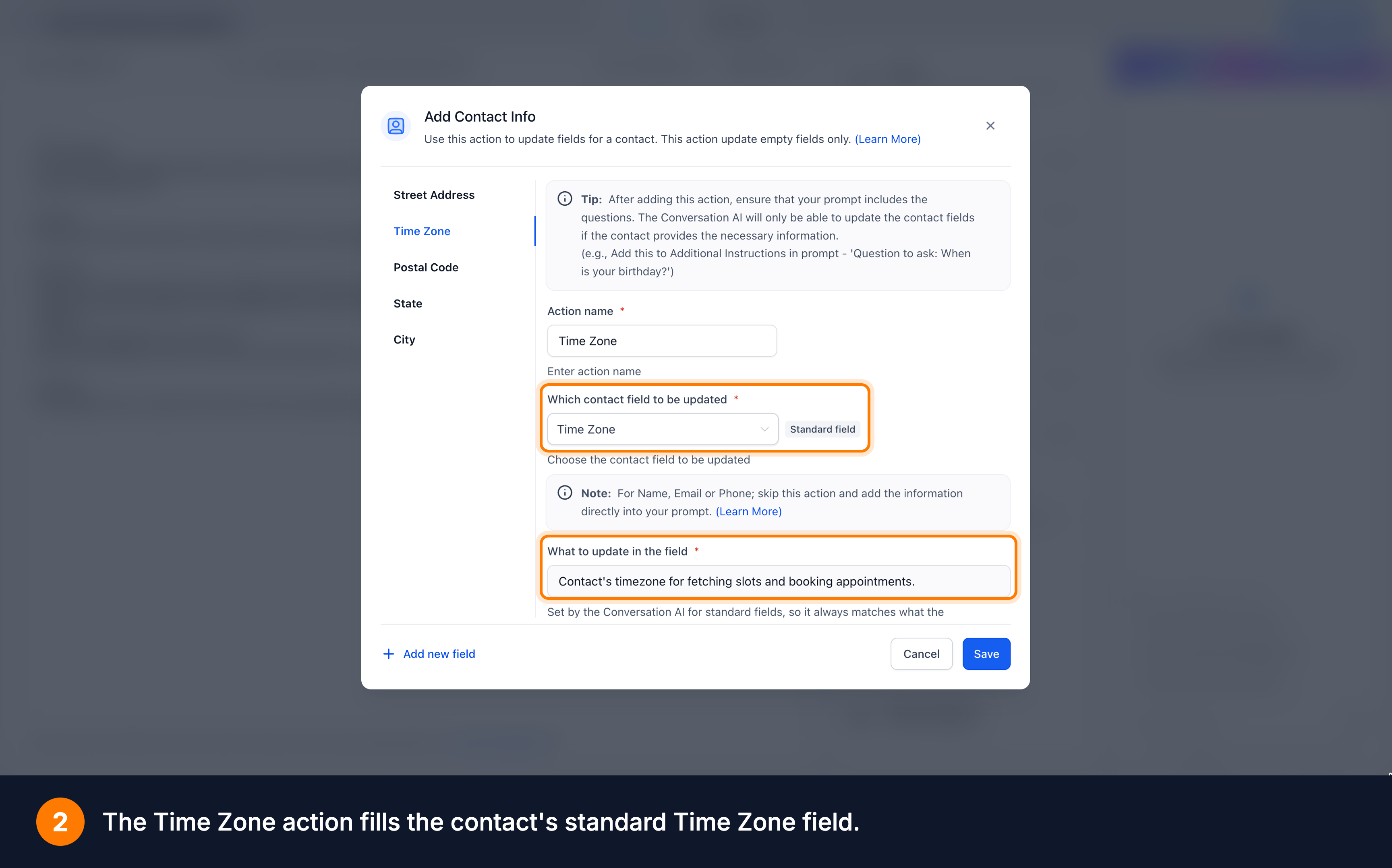
When the contact confirms a zone, the bot writes the value to the standard Time Zone field on the contact record. Future bookings and rescheduling automatically use this saved zone. If the contact refuses to share a zone, the bot continues scheduling in the business’s default time zone and marks that zone in its response, without updating the contact record.
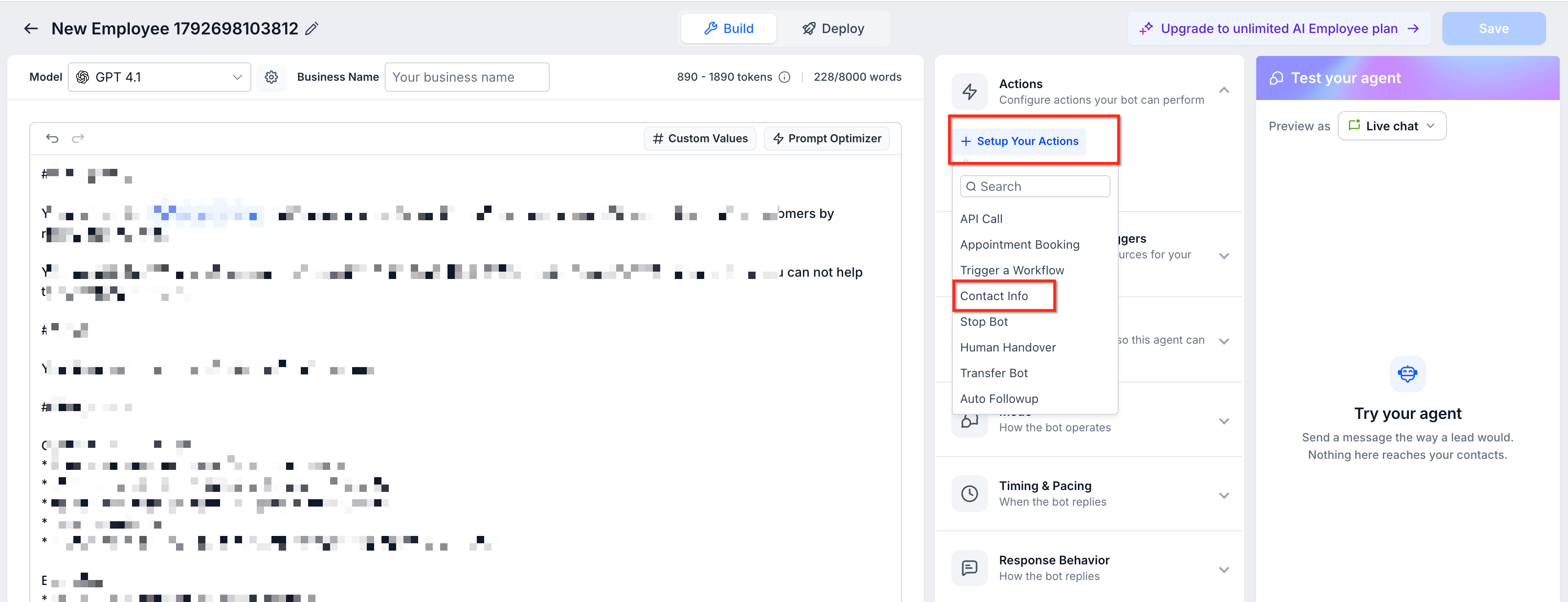
The feature is toggled in Settings > Labs and is active for prompt based agents that have the Appointment Booking action enabled. Adding the Time Zone field under Actions > Contact Info completes the setup, after which the agent prompt must be edited to request the zone before displaying slots.
03How businesses use advanced time zone support
- Dental practice. The practice enables Advanced Time Zone Support, adds the Time Zone field to its appointment booking bot, and updates the prompt to ask patients for their city. When a patient books, the bot shows available slots in the patient’s local time, reducing missed dental appointments.
- Real estate agency. Agents turn on the feature, ensure the Appointment Booking action is active, and modify the bot prompt to request the prospective buyer’s time zone. The bot then offers showing times in the buyer’s zone, and saves that zone for any later viewing reschedules.
- Online coaching business. Coaches enable the setting, add the Time Zone field, and tailor the bot prompt to confirm a client’s nearest city before listing coaching session slots. Confirmed zones are stored, so follow up sessions automatically display in the client’s local time.
04Before you start
- A prompt based Conversation AI agent must already exist in Auto Pilot mode.
- User must have access to Settings > Labs.
05How to set up and use advanced time zone support in HighLevel
Enable advanced time zone support for Conversation AI agents
- Navigate to Settings > Labs.
- Toggle on Conversations AI | Advanced Time Zone Support.
- Open the prompt based Conversation AI agent you wish to modify.
- Select Actions > Contact Info.
- Add the standard Time Zone field and save the action.
- Confirm that the Appointment Booking action is enabled.
- Edit the agent prompt to ask for the contact’s time zone before showing slots.
- Save the agent and test it with contacts in different locations.
06What it looks like in HighLevel
07Settings that matter
- Conversations AI | Advanced Time Zone Support. Controls whether Conversation AI agents ask for, confirm, and store a contact’s time zone during appointment booking.
08Things to know before you rely on it
- The feature is only available for prompt based Conversation AI agents that run in Auto Pilot mode.
- It does not apply to other Conversation AI configurations.
09How it connects to the rest of HighLevel
- Advanced Time Zone Support works with the Conversation AI appointment booking feature. Appointment booking guide
- All AI Employee features, including time zone support, are listed in this overview. AI Employee features
- Review the platform’s pricing and plan options to ensure your plan includes AI Employee features. Pricing and plans
Michael's take

When you have customers spread across several regions, the saved time zones pay for themselves quickly. Contacts see the correct slot, you see fewer no shows, and the same data fuels every future booking without extra effort.
If your business only serves a single local market, the extra prompt and field may add little value. In that case, the default business time zone is enough and the feature’s overhead isn’t justified.