
01Ask AI files, explained
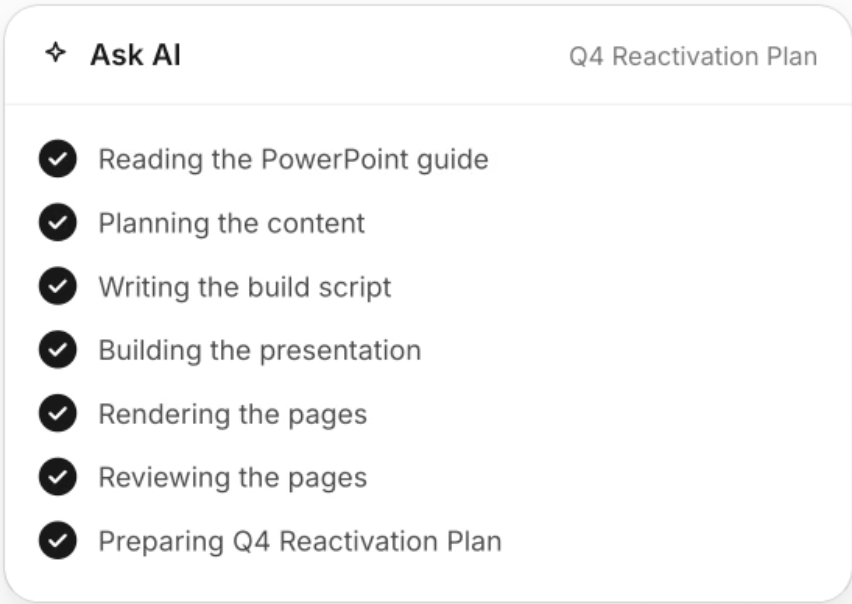
File generation and editing in Ask AI lets you create downloadable business files and work with existing documents using natural language requests. You describe the file type, topic, audience and any design requirements, and Ask AI builds the document for you.
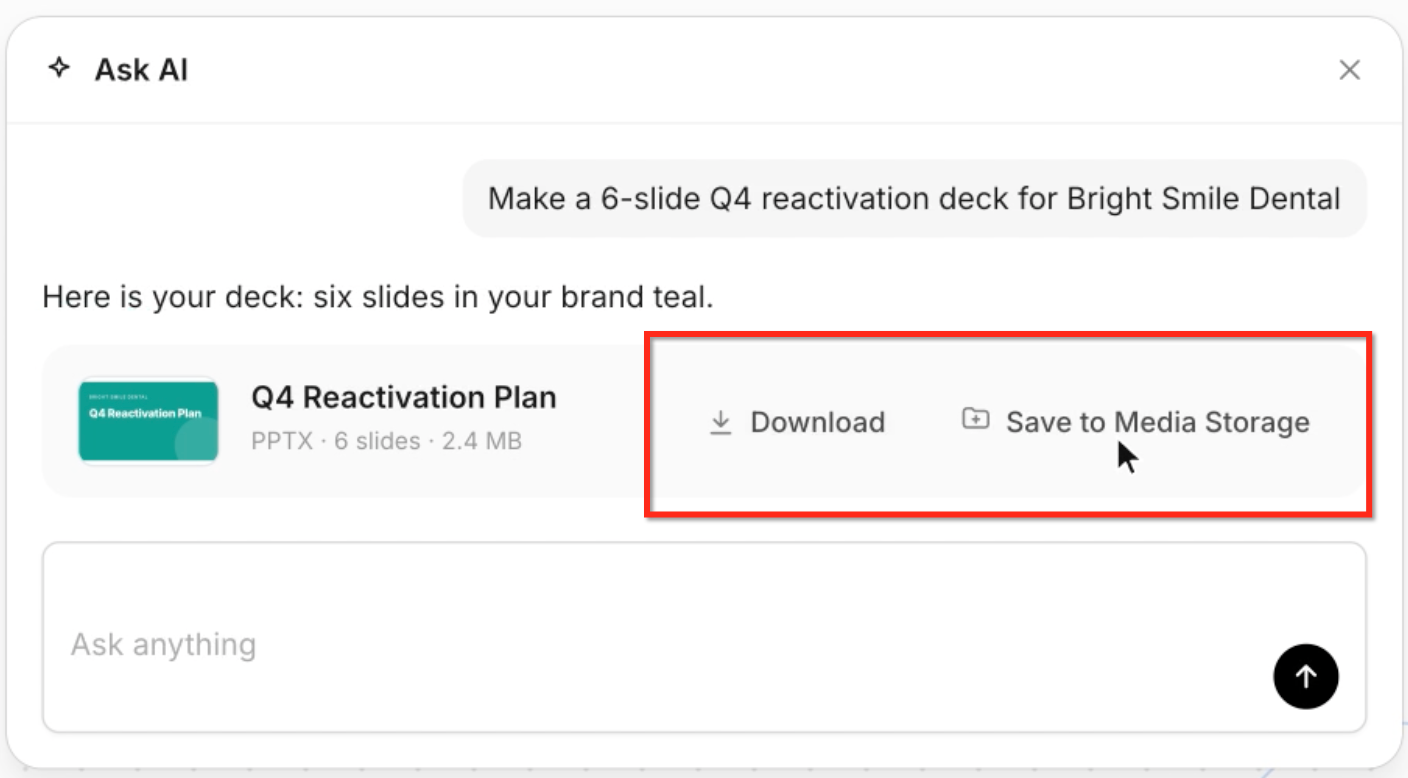
After the file is created you can preview it, ask for changes, and either download it to your computer or save it in HighLevel Media Storage. The feature supports multiple formats and can incorporate uploaded data or use your Brand Board to keep the look consistent.
02How businesses use Ask AI files
- Generate client presentations. Upload a campaign CSV, describe a six slide performance deck, and Ask AI creates charts, adds branding, and produces a PowerPoint. You can then request tweaks to headlines or data before downloading.
- Create recurring reports. Set up a Scheduled Task that prompts Ask AI each month to assemble a performance summary from existing data. The generated Excel workbook is saved to Media Storage for easy access.
- Create spreadsheets with formulas. Ask AI can generate an Excel workbook that includes editable formulas; you should verify important calculations before relying on them.
03The numbers and rules that matter
- Supported file types: PDF, Word, PowerPoint, Excel, Images, CSV, Markdown, Text, JSON.
04How to set up and use Ask AI files in HighLevel
Create a file
- Open Ask AI in HighLevel.
- Start a new conversation.
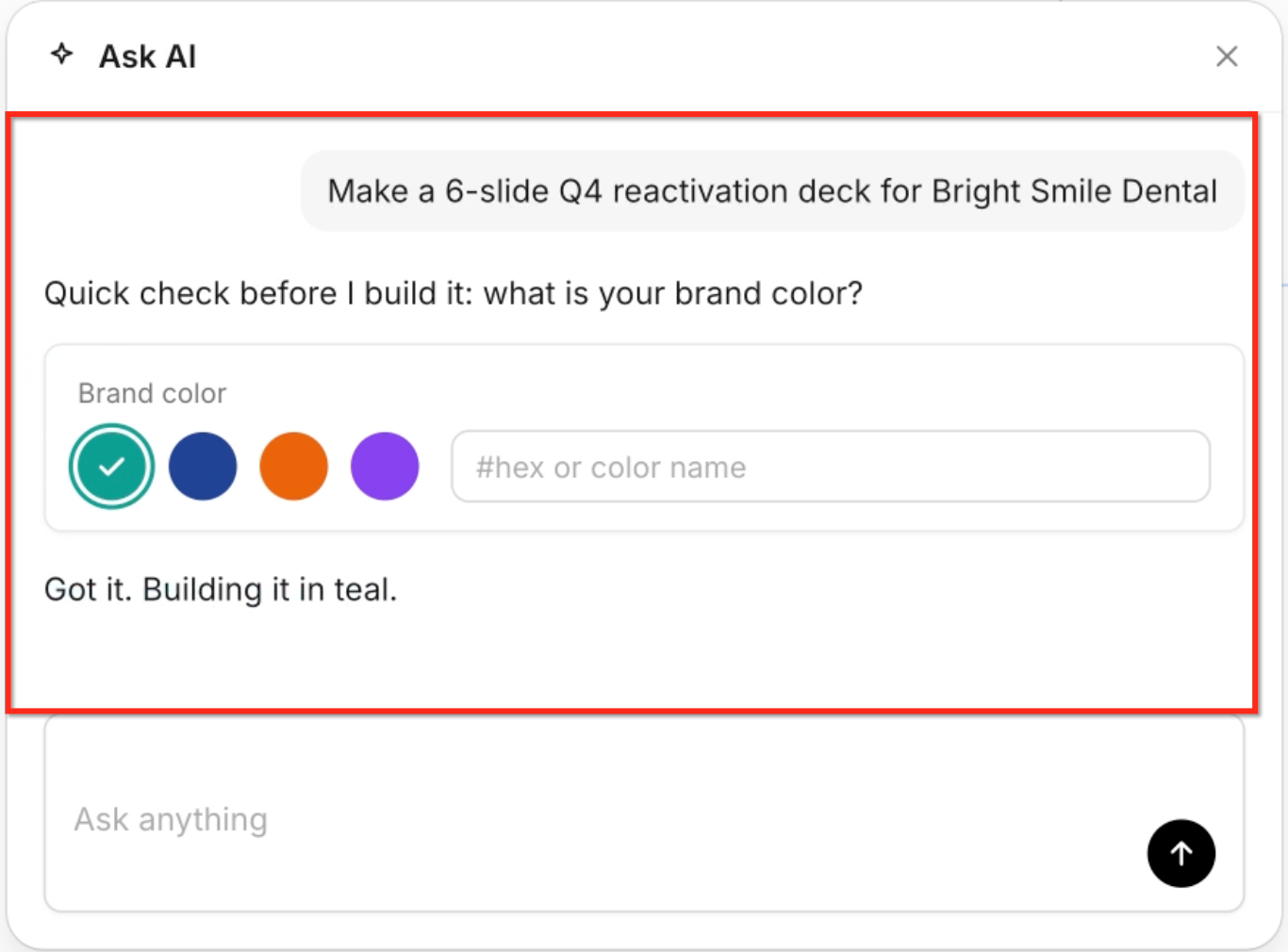
- Describe the file you want, including format, topic, and audience.
- Submit the request.
- Attach any supporting documents or data files.
- Confirm branding details when prompted.
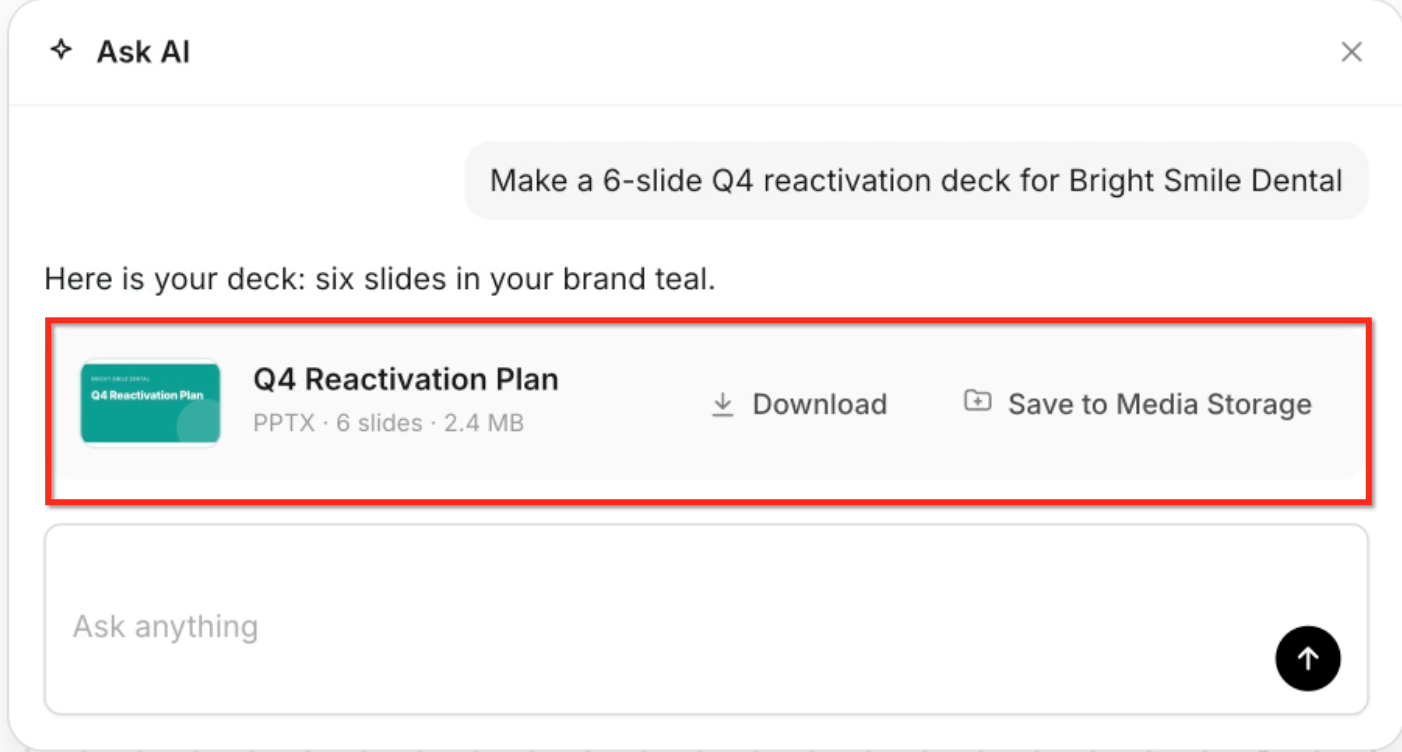
- Review the generated file card and click Preview.
- If needed, request revisions through chat or by selecting an area in the preview.
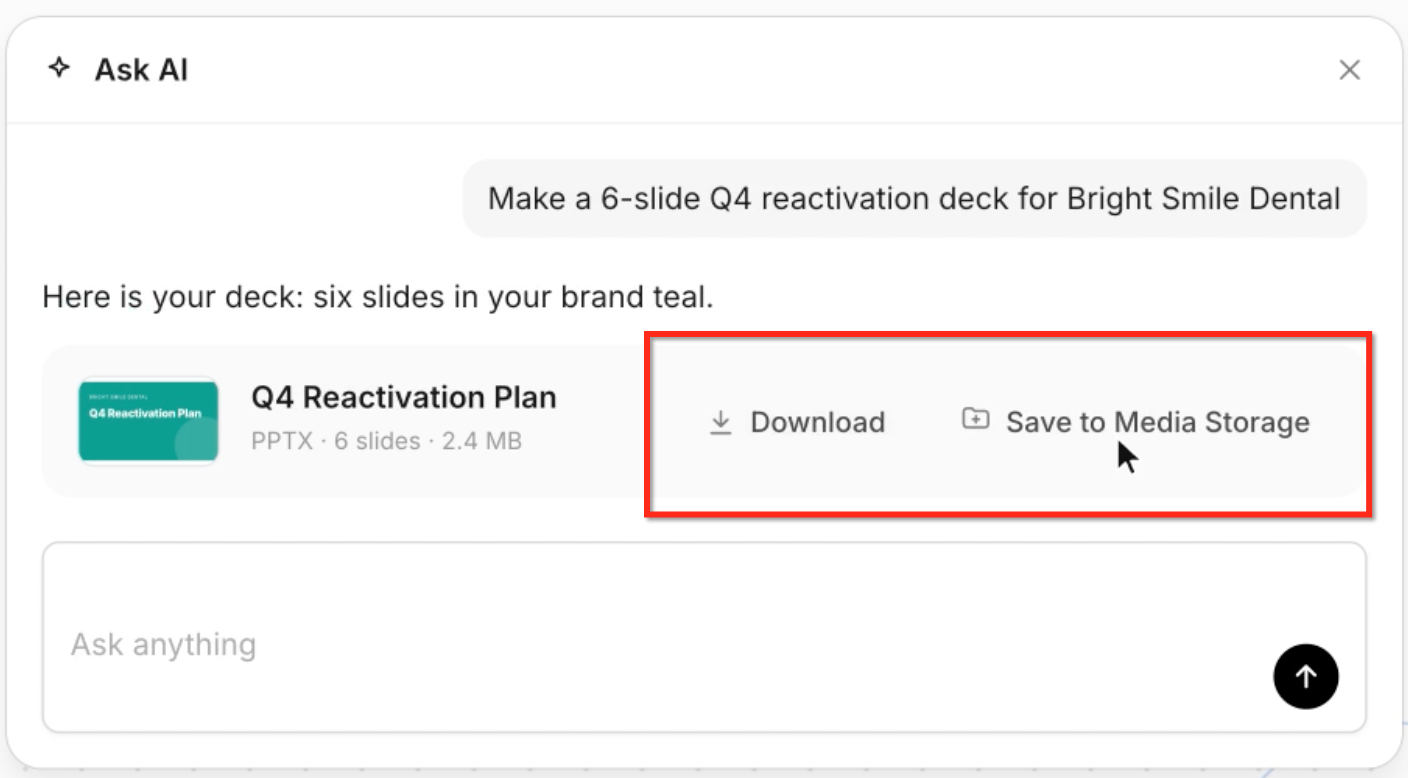
- Download the file or click Save to Media Storage.
Edit a file
- Open the generated file card.
- Click Preview.
- Describe the changes you want in the chat, or select a specific area in the preview if supported.
- Submit the revision request.
- Review the updated file.
Save a file
- Open the completed file card.
- Click Download to save locally or click Save to Media Storage.
- Confirm the save action if prompted.
05What it looks like in HighLevel
06Settings that matter
- Brand Board. Provides colors, fonts, logos, and visual styling that Ask AI can apply to generated files for brand consistency.
- Scheduled Tasks. Allows recurring Ask AI prompts to create repeatable files such as monthly reports.
07Things to know before you rely on it
- Supported upload, generation, and editing operations may vary. Not every format is necessarily available for every action.
- Automated checks do not guarantee complete accuracy. Review important facts, calculations, citations, and formatting before sharing.
- Review sensitive files before uploading them and confirm that you are authorized to use the information.
- Confirm that file generation is supported for your scheduled workflow. Automatic delivery and Media Storage saving should not be assumed.
Michael's take

Ask AI files feel like a handy convenience, especially when you need on brand documents without hopping between apps. Describing a report or deck in plain language and getting back a polished file streamlines the workflow.
It works well for a marketing agency that turns raw campaign data into client presentations weekly. They can upload the CSV, ask for a six slide deck, tweak the headline in chat, and push the final file to Media Storage for the account manager to send out.