
01Who this is for
- Founders of multilingual businesses who want a consistent first impression for callers in each language.
- Customer service managers who need to reduce manual edits when switching agent languages.
02AutoTranslated greetings, explained
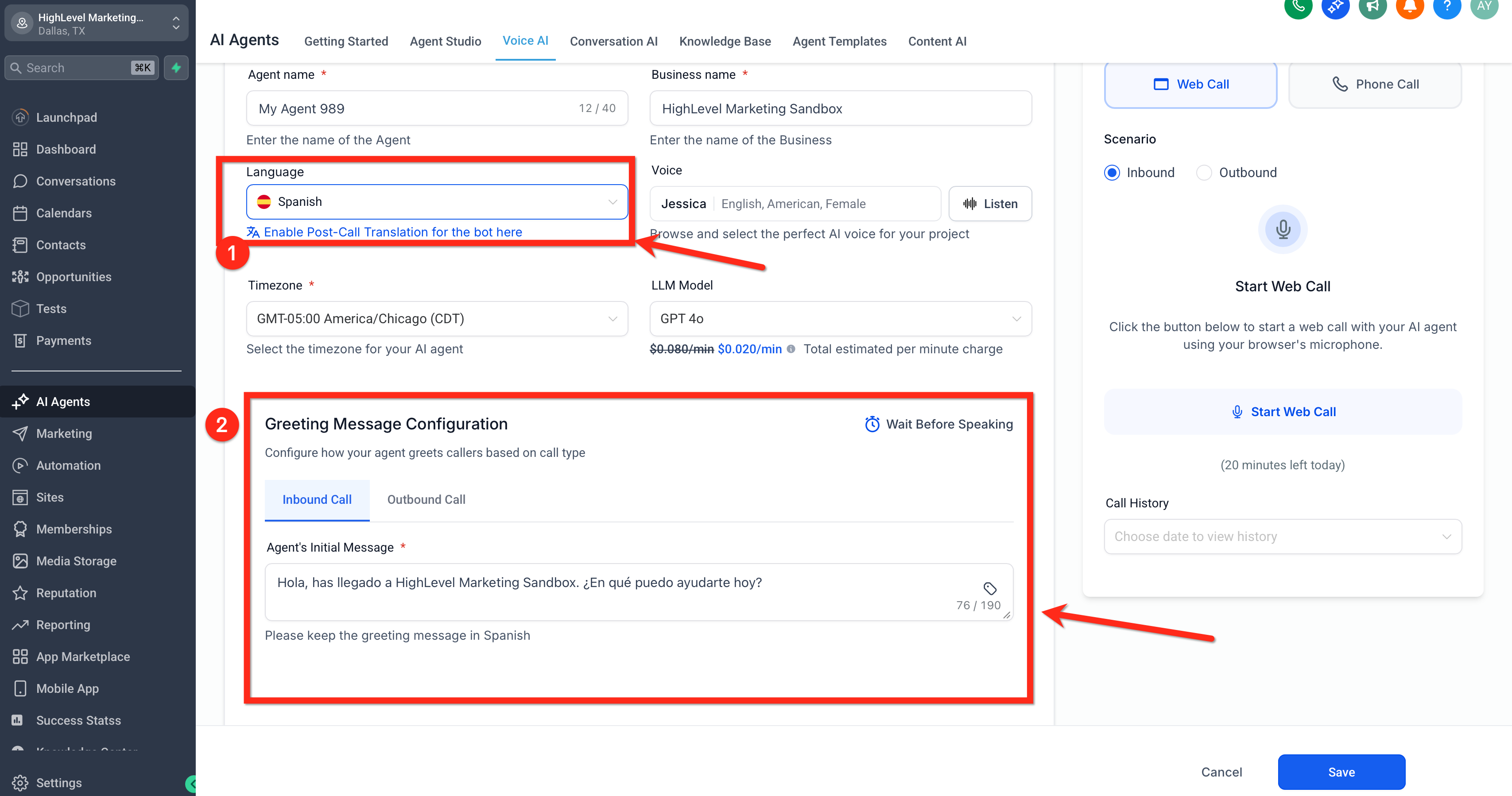
The feature triggers when the Language dropdown in a Voice AI Agent is changed, and HighLevel creates a translated version of the Initial Greeting Message in that language. The translated text appears in the greeting field right away, but you can still edit it before committing the agent.
The greeting field lives inside the Voice AI Agent setup flow. It is visible when you create a new agent or open an existing one for editing. The translation happens only for the initial greeting, not for call transcripts or summaries. Users must save the agent for the change to take effect.
You find the setting under AI Employee > Voice AI. After selecting a language, the system fills the Initial Greeting Message automatically. You may modify the wording, then save and test the agent with a phone or web call.
03How businesses use autotranslated greetings
- Travel agency. The agency selects Spanish as the agent language. HighLevel auto translates the welcome line into Spanish, the staff reviews the text, edits the agency name, and saves. Callers hear a Spanish greeting without creating a separate script.
- Dental practice. When the practice adds a French speaking location, it changes the Voice AI Agent language to French. The greeting updates automatically, the dentist reviews the phrasing, and saves. Patients calling the French line receive a French welcome.
- Ecommerce store. The store runs a promotion in German. It switches the Voice AI Agent language to German, checks the auto translated greeting, tweaks the wording to match the brand voice, and saves. Shoppers hearing the phone line get a German introduction.
04How to set up and use autotranslated greetings in HighLevel
Set up auto translated greeting for a Voice AI Agent
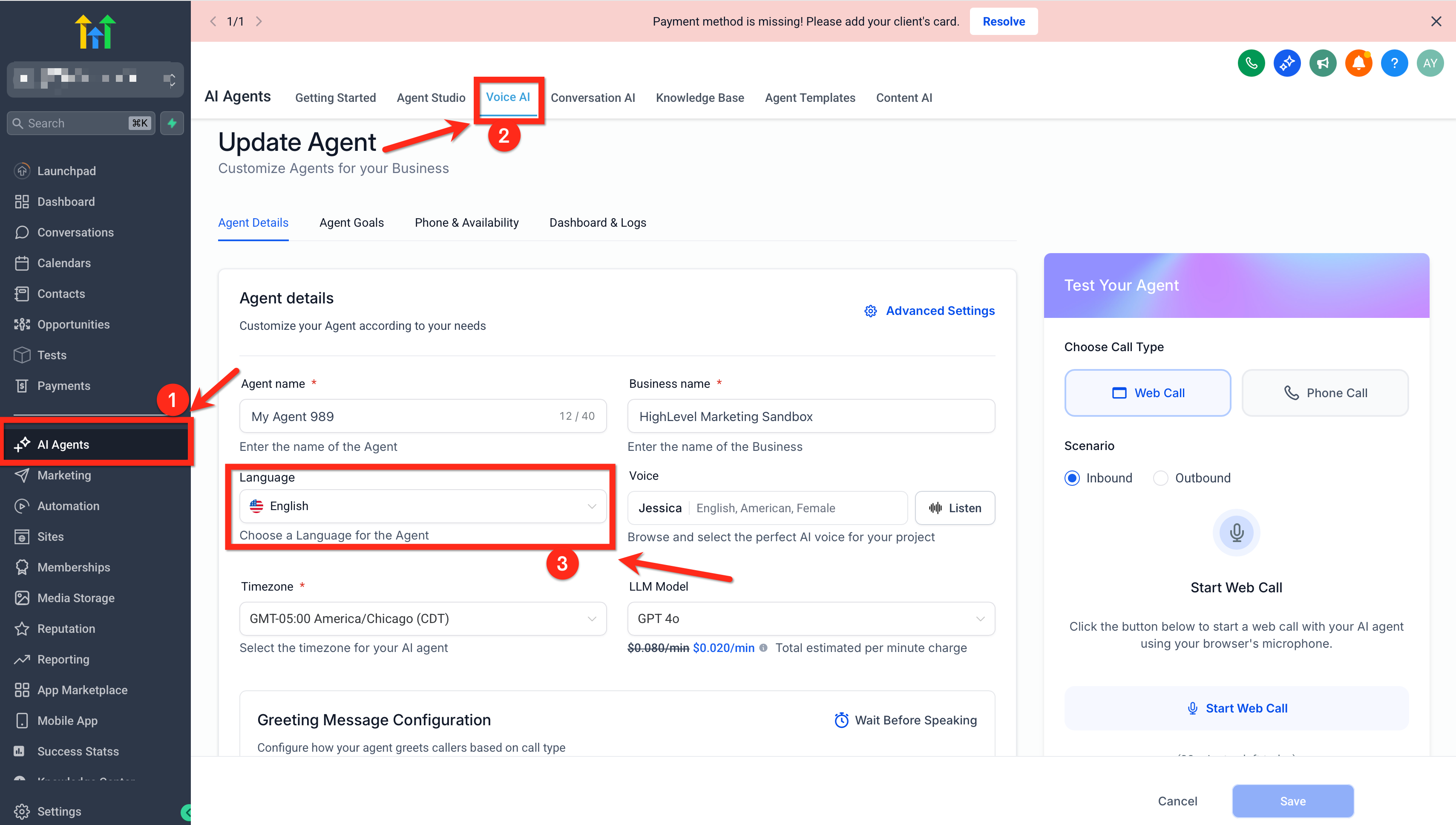
- Open AI Employee > Voice AI in HighLevel.
- Start a new Voice AI Agent or open an existing one for editing.
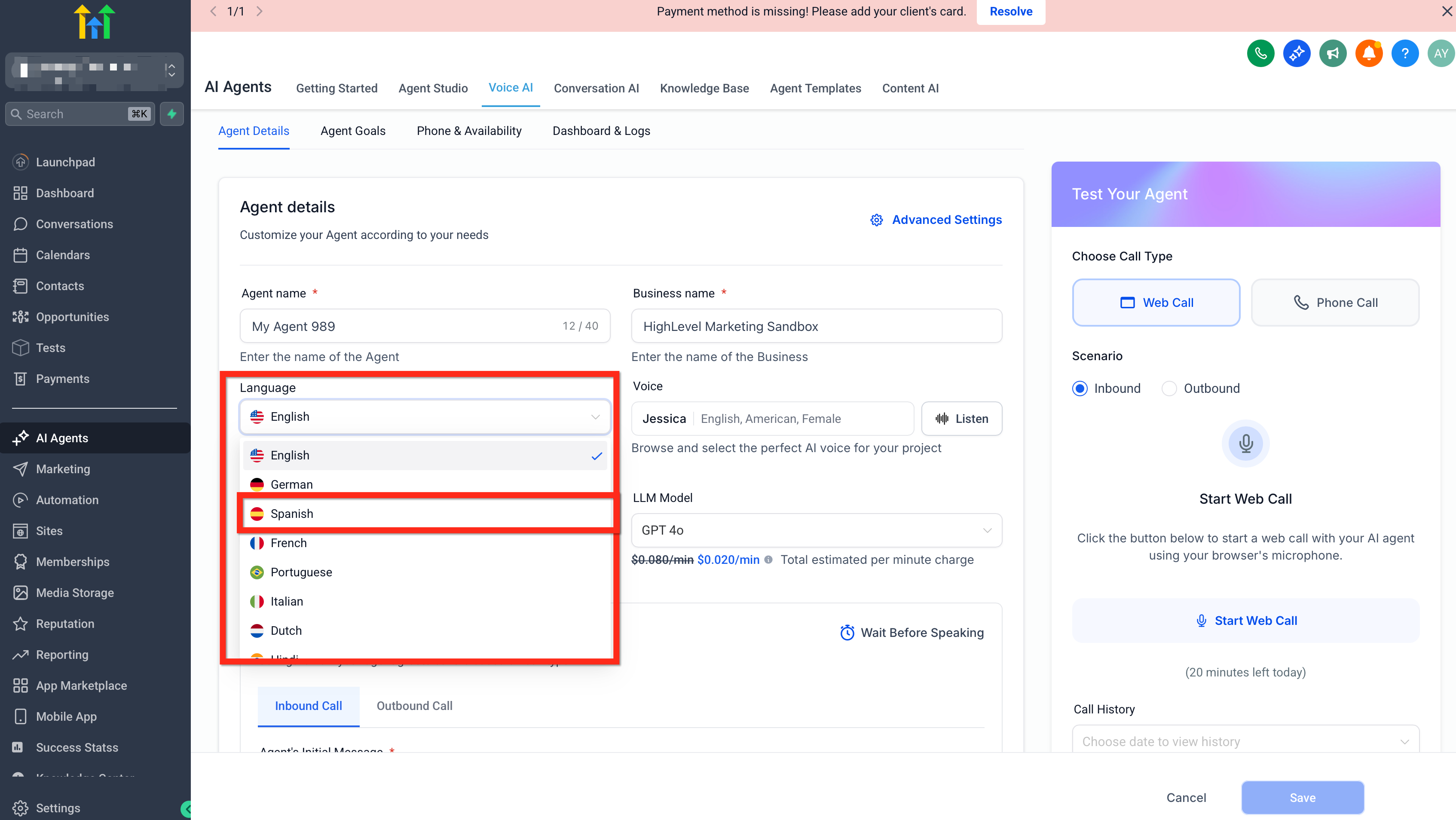
- Find the Language dropdown for the agent.
- Pick the language you want the agent to use.
- Look at the Initial Greeting Message field.
- Confirm that the greeting text has changed to match the chosen language.
- Edit the greeting if you need to adjust wording or tone.
- Save the agent configuration.
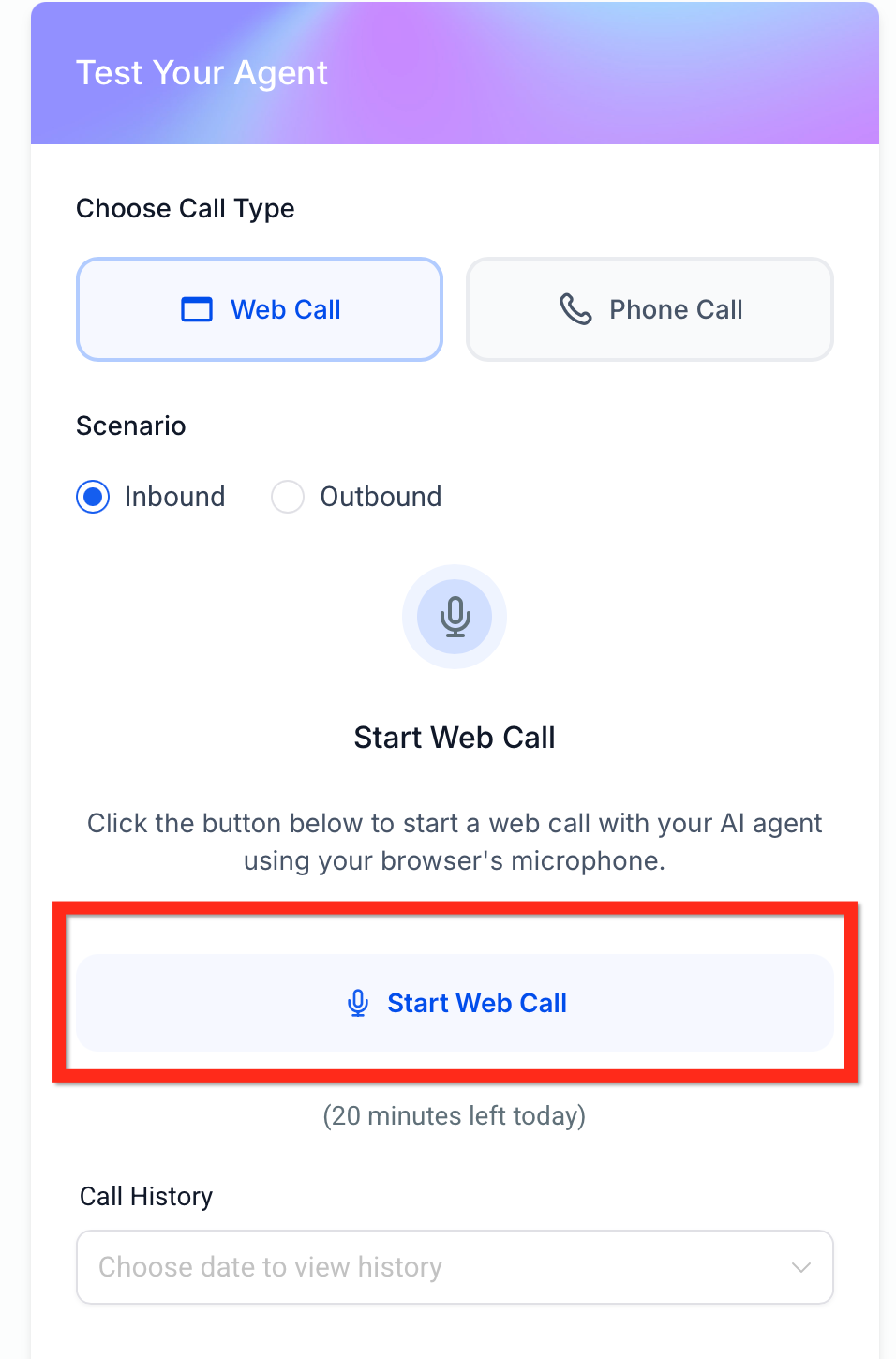
- Make a test call using a Phone Call or Web Call to verify the greeting.
05What it looks like in HighLevel
06Settings that matter
- Language. Determines the language the Voice AI Agent will speak and triggers automatic translation of the initial greeting.
- Initial Greeting Message. Holds the first phrase callers hear; it is populated automatically when the language changes but remains editable.
07Things to know before you rely on it
- The auto translation applies only to the initial greeting, not to call transcripts or summaries.
- The feature works when creating a new agent or editing an existing one.
08How it connects to the rest of HighLevel
- Configure multilanguage support for Voice AI agents Multilanguage support
- Test your Voice AI agent with web or phone calls Test Voice AI
- Learn about Voice AI agents and business uses Voice AI overview
Michael's take

Autotranslated greetings let businesses sound more native in multiple languages, but it’s still important to listen to a test call and tweak the wording as needed.