
01Who this is for
- Marketing agencies can produce branded email templates quickly without switching tools.
- Small business owners can refine email designs through conversation, reducing manual design time.
- Product teams can generate consistent announcement emails while still having access to the full Email Builder for fine tuning.
02Email AI templates, explained
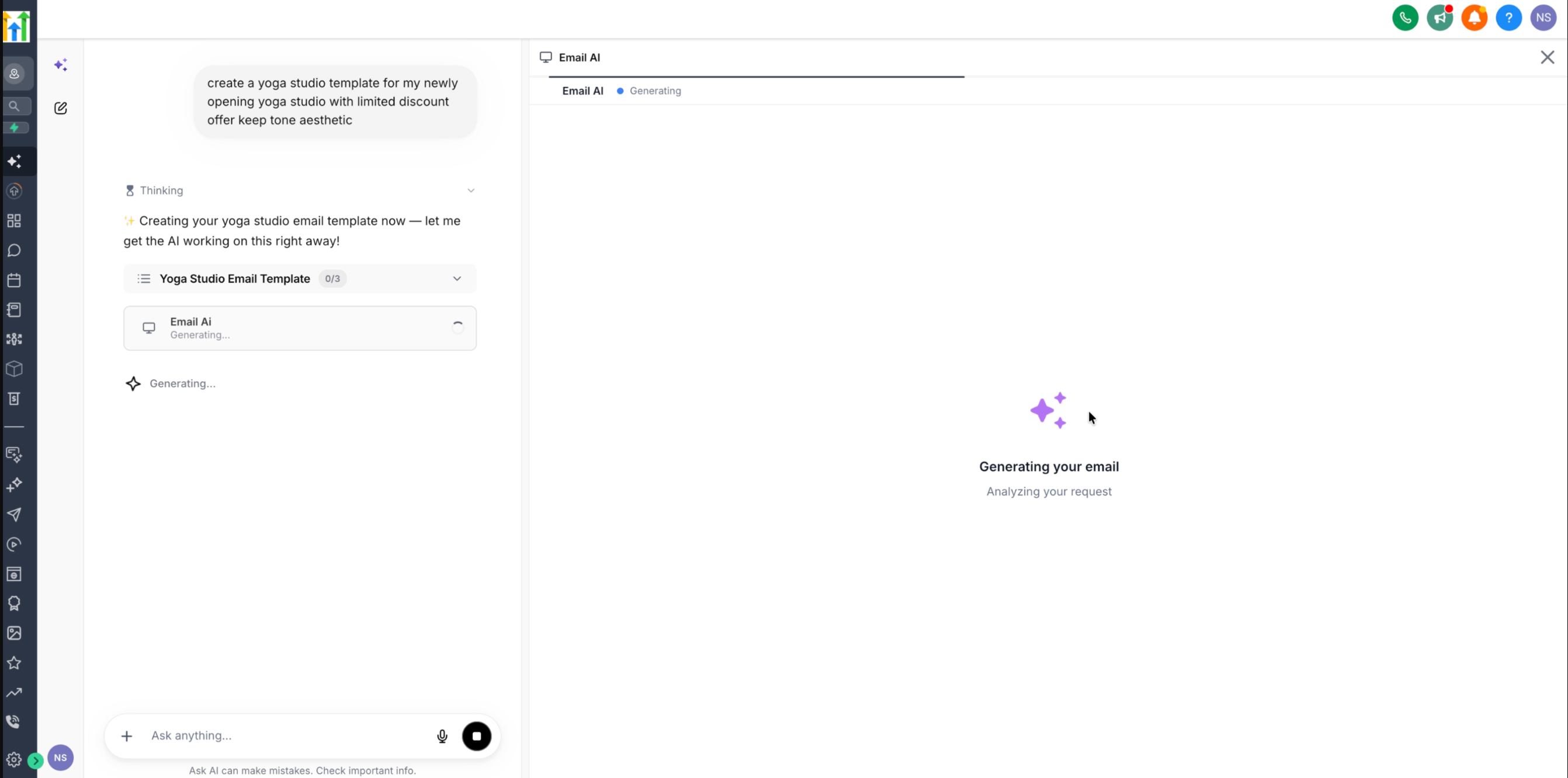
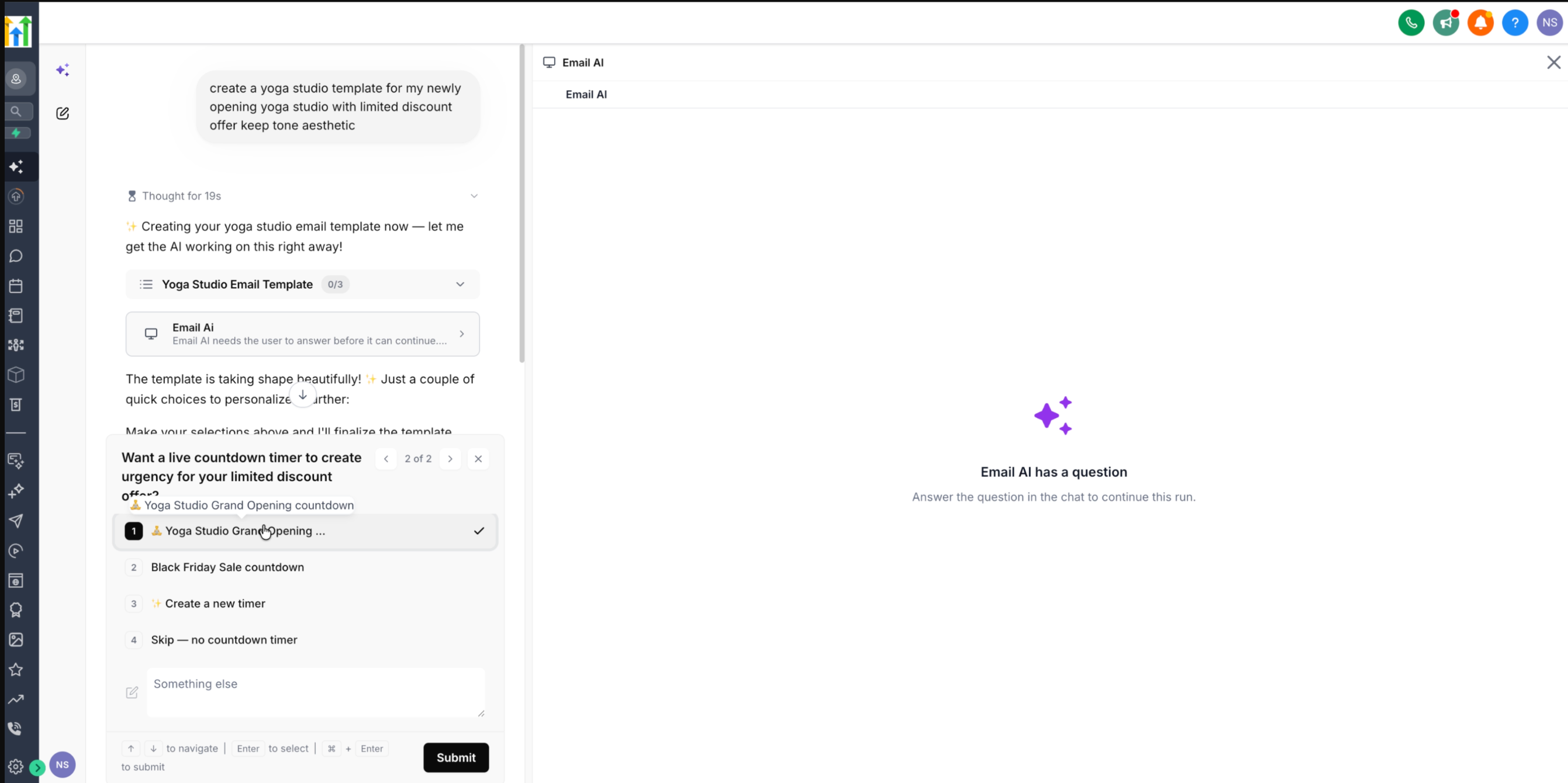
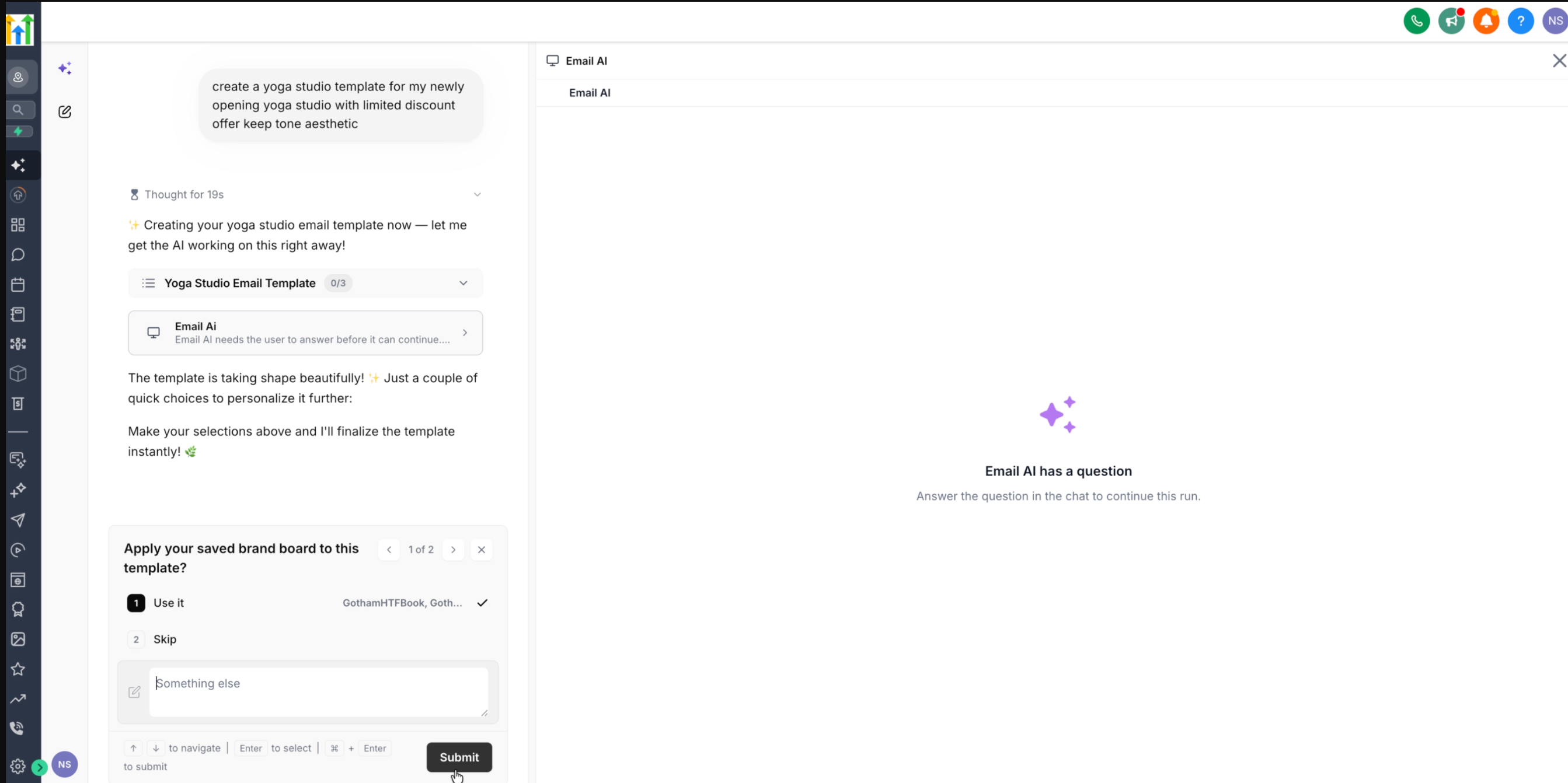
Email AI merges HighLevel’s conversational assistant with the platform’s Design Editor template system. You start by typing a natural language request in Ask AI, and the AI builds a template based on that description. While the template is being generated, the assistant may pause to ask for clarification or choices such as applying a Brand Board or adding a countdown timer.
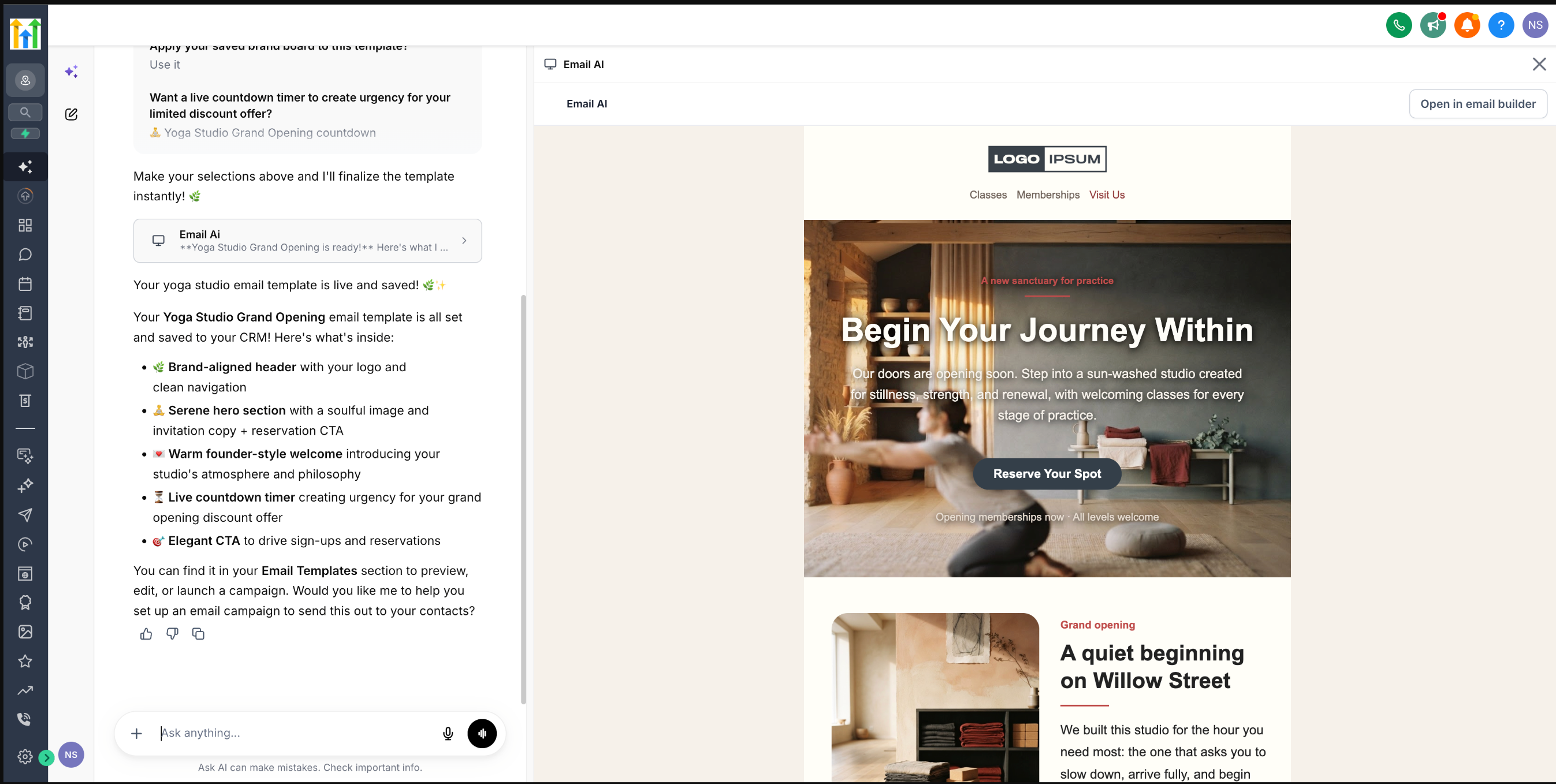
When generation finishes, a preview of the Design Editor template appears inside Ask AI. You can review the layout, ask for supported revisions by typing additional prompts, and repeat the review loop as needed. When the design meets your expectations, you can click Open in Email Builder to continue editing with the full set of builder tools. Changes made in either interface stay synchronized for supported elements.
03How businesses use email AI templates
- Digital marketing agency. The agency types a request like “a spring promotion email with our brand colors and a countdown timer.” The AI asks which Brand Board to use, the agency selects it, reviews the preview, and opens the template in Email Builder for final tweaks before sending to clients.
- Ecommerce store. The store owner asks for a “product launch email featuring a hero image and a limited time discount code.” After selecting the appropriate countdown option, the owner reviews the preview and makes wording adjustments through Ask AI before moving to Email Builder for image placement.
- Co working space. The manager requests an “membership renewal reminder with our logo and optional timer.” When the AI suggests adding a timer, the manager chooses to skip it, reviews the generated design, and then opens the template in Email Builder to add a custom CTA button.
04How to set up and use email AI templates in HighLevel
Create email template via Ask AI
- Open Ask AI and type a natural language request for the email template you need.
- If Email AI needs more information, it will pause and ask a follow up question; answer by selecting an option or entering the required detail.
- Allow Email AI to generate the Design Editor template and show a preview inside Ask AI.
- Examine the preview panel to confirm the overall design matches your request.
- If needed, ask additional natural language changes in Ask AI and review the updated preview.
- Click Open in Email Builder when you want to continue editing with the full builder tools.
05What it looks like in HighLevel
06Things to know before you rely on it
- The integration currently supports only Design Editor templates; HTML Editor templates are not available.
- All users can access this feature, but HTML Editor support is planned for a future release.
07If something goes wrong
- Email AI stops and says it needs an answer. Read the question shown in Ask AI, then select or type the option that best matches your intended template. Email AI will resume generation.
08How it connects to the rest of HighLevel
- Explore all AI Employee features All AI Employee features
- Learn how Ask AI session pricing works Ask AI pricing
- Start a 30 day HighLevel trial 30 day trial
Michael's take

Great for teams that want to jump straight from idea to a draft email without opening the full editor. Skip it if you only ever work with HTML Editor templates.