
01Who this is for
- Founders of SaaS startups who need to keep leads warm after a demo without adding manual tasks.
- Real estate agencies that want the bot to re engage prospects who go silent during property inquiries.
- Dental practices that require reminder messages after patients request a callback, while staying within office hours.
02Auto follow up actions, explained
Auto Follow Up is an automation layer inside the Conversation AI bot. It watches the conversation for three drop off signals, no reply, a busy indication, or a request for a future follow up, and then queues outbound messages. The bot can generate the reply itself or use a custom text you provide, and it can also trigger an existing workflow if you enable that option.
The feature lives under the bot’s Goal settings and is also available as actions inside the Flow Based Builder. All scheduled follow ups appear in the Response Info panel, giving full visibility. The system respects the active hours you define, can switch to another messaging channel when the original one is idle, and automatically sends messages in the contact’s preferred language.
If the bot detects that the conversation has ended, the contact opted out, is disqualified, or shows frustration, the scheduled follow up is cancelled automatically. No extra configuration is required for this smart detection.
03How businesses use auto follow up action
- Real estate agency. The agency enables the Contact Stopped Responding scenario and adds two follow up sequences with a 1 day and 3 day delay. They choose AI generated messages to keep the tone consistent. If a prospect later replies, the schedule resets, preventing duplicate outreach.
- Dental practice. When a patient says they will call back in 30 minutes, the practice turns on the Contact Requested a Follow Up scenario. The first sequence uses the 30 minute delay the patient asked for, and a custom reminder message is set for the second sequence at 2 hours.
- SaaS startup. The startup activates the Contact Marked as Busy scenario, adds three follow up steps, and enables Dynamic Channel Switching. If a prospect stops replying on Live Chat, the bot will automatically send the next follow up via SMS, increasing the chance of a response.
04The numbers and rules that matter
- Supports 3 scenarios: Contact stopped responding, Contact marked as busy, Contact requested a follow up.
- Up to 5 follow up sequences per scenario.
- Optional workflow trigger per follow up.
- Supported channels: Live Chat, SMS, Facebook, Instagram, WhatsApp.
05How to set up and use auto follow up action in HighLevel
Enable auto follow up from bot goals
- Log in to the subaccount.
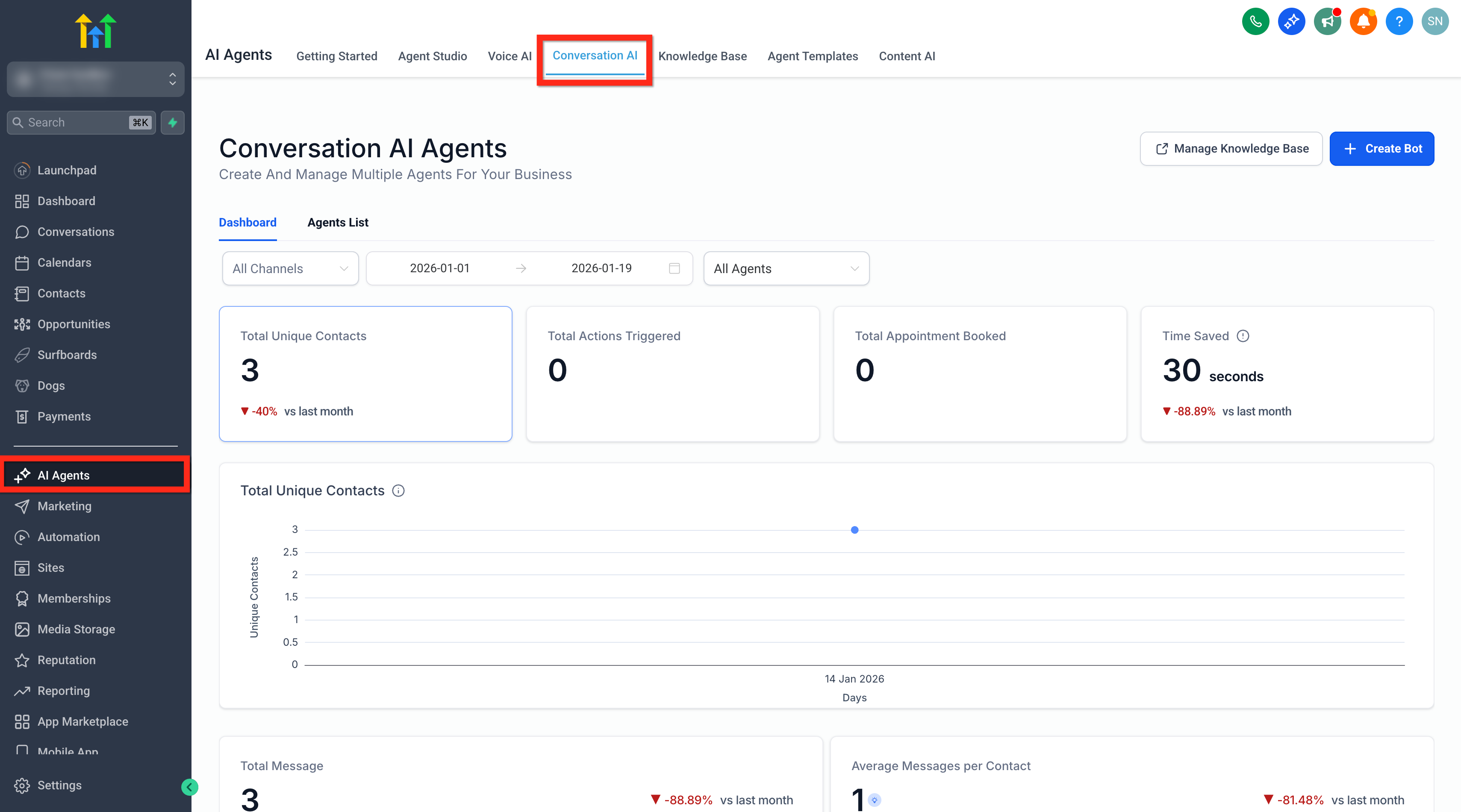
- Select AI Agents from the left hand menu.
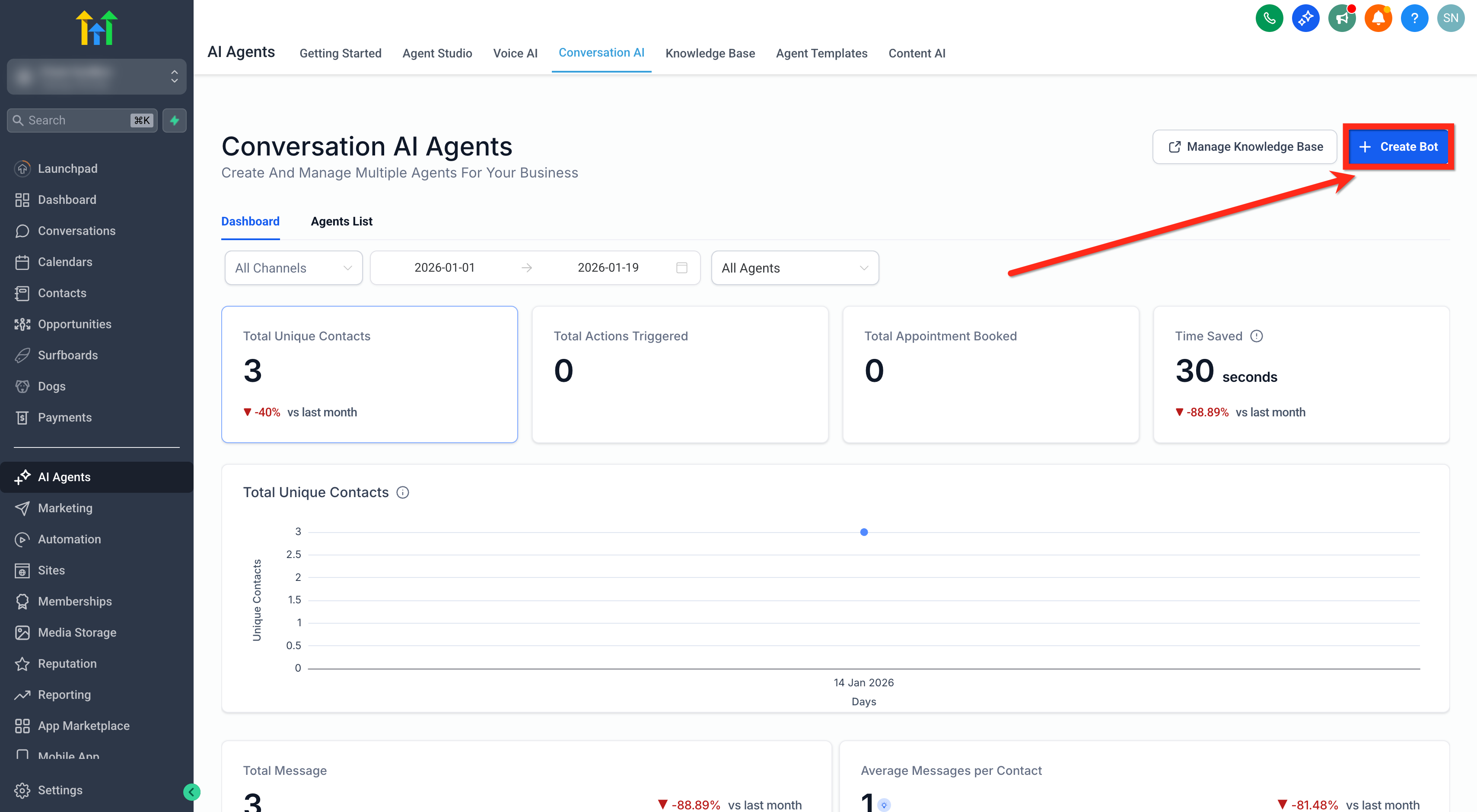
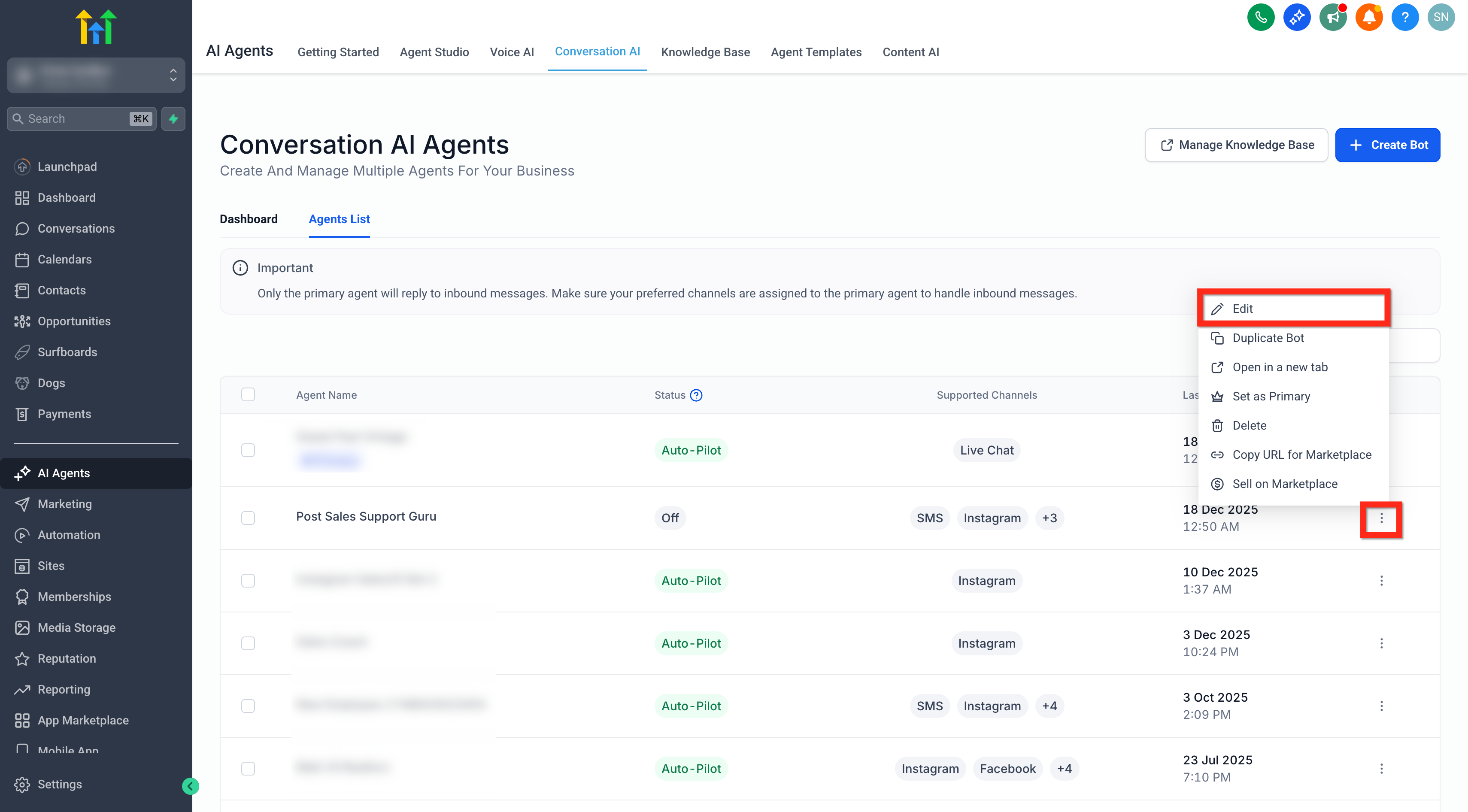
- Choose Conversation AI and open an existing bot or create a new one.
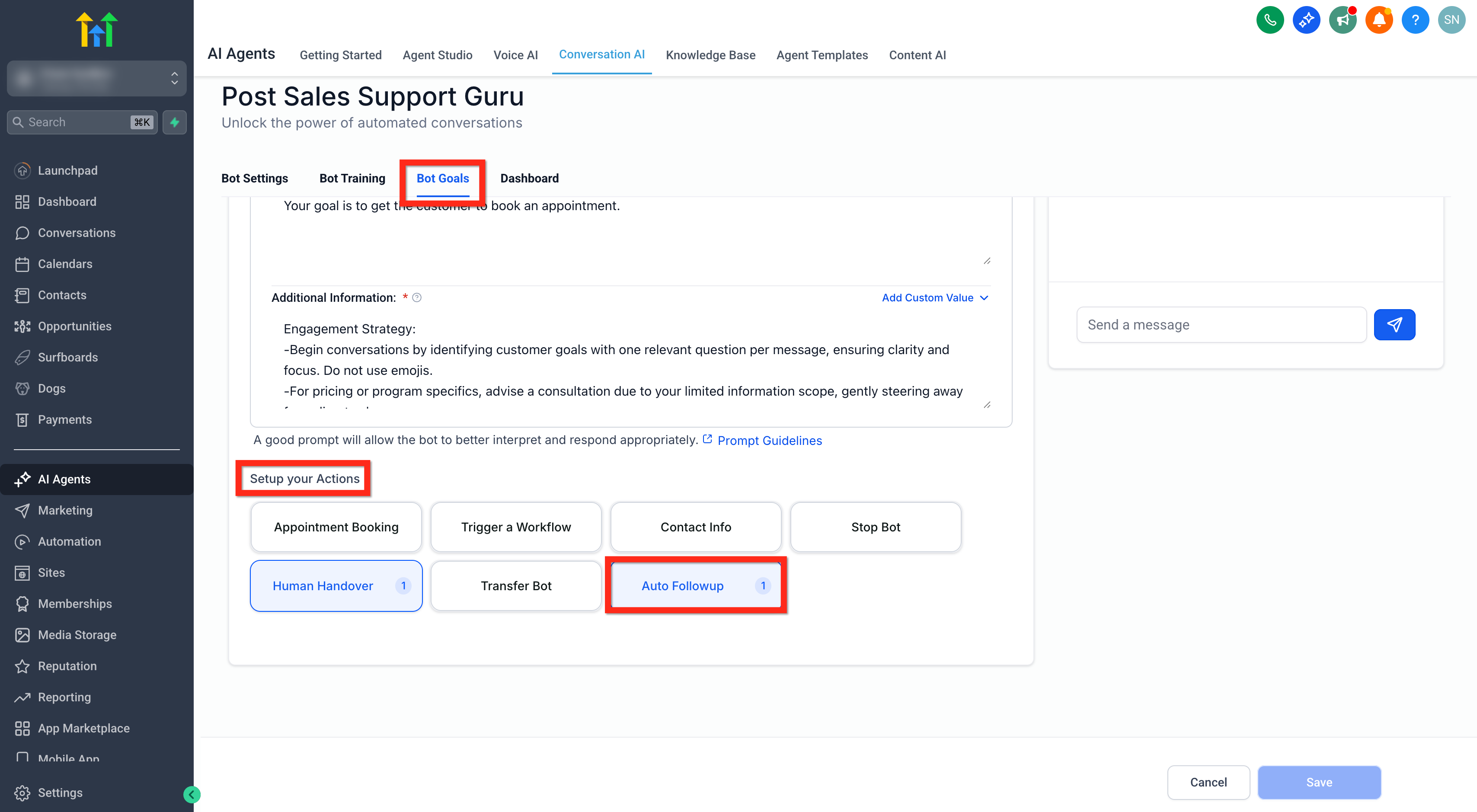
- Click Bot Goals in the top navigation bar.
- Scroll to Set Up Your Actions and click Auto Followup.
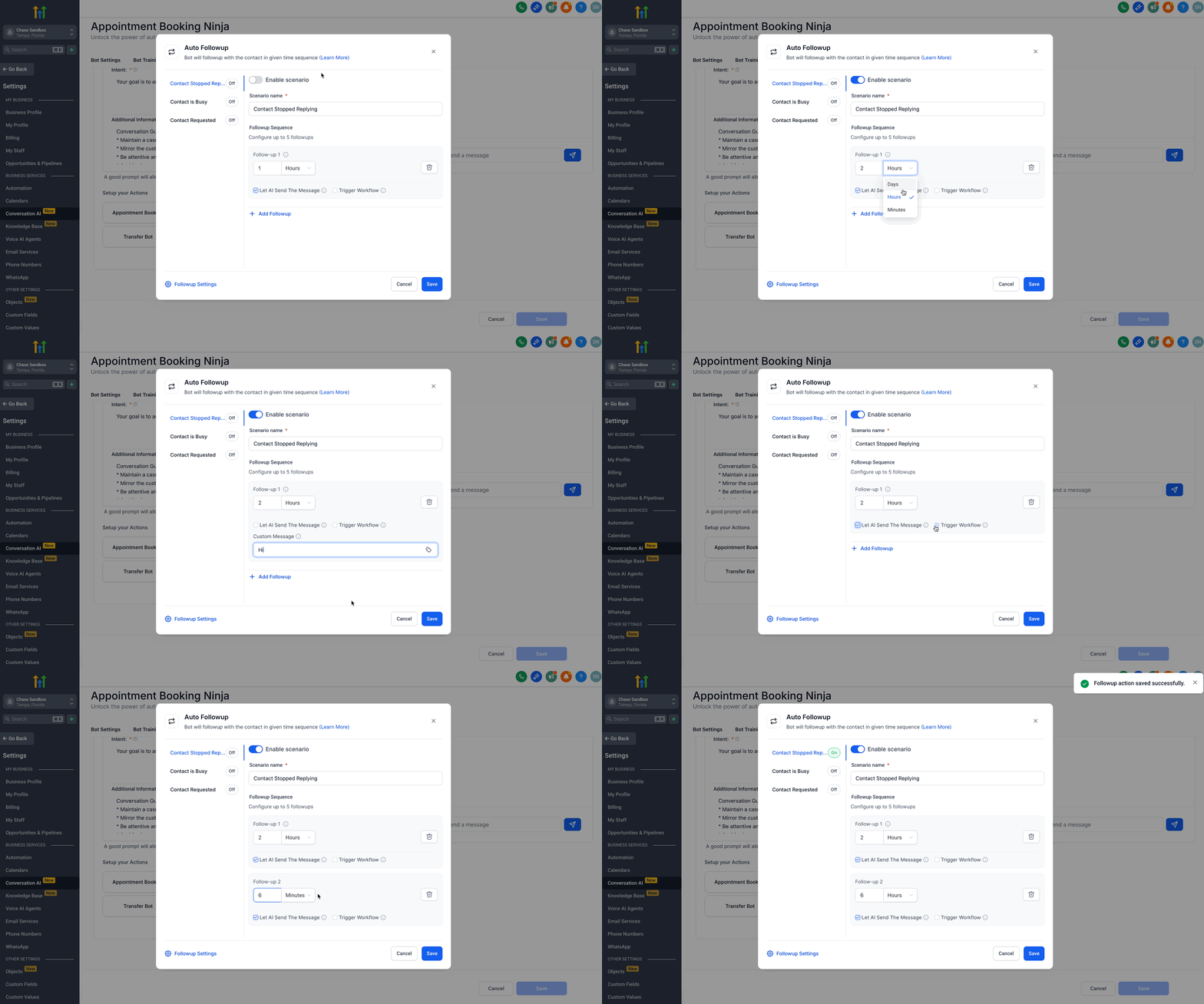
- Toggle ON the Enable scenario button for the Contact Stopped Responding scenario.
- Add up to five follow up sequences: set delay, pick AI generated or custom text, and optionally select a workflow.
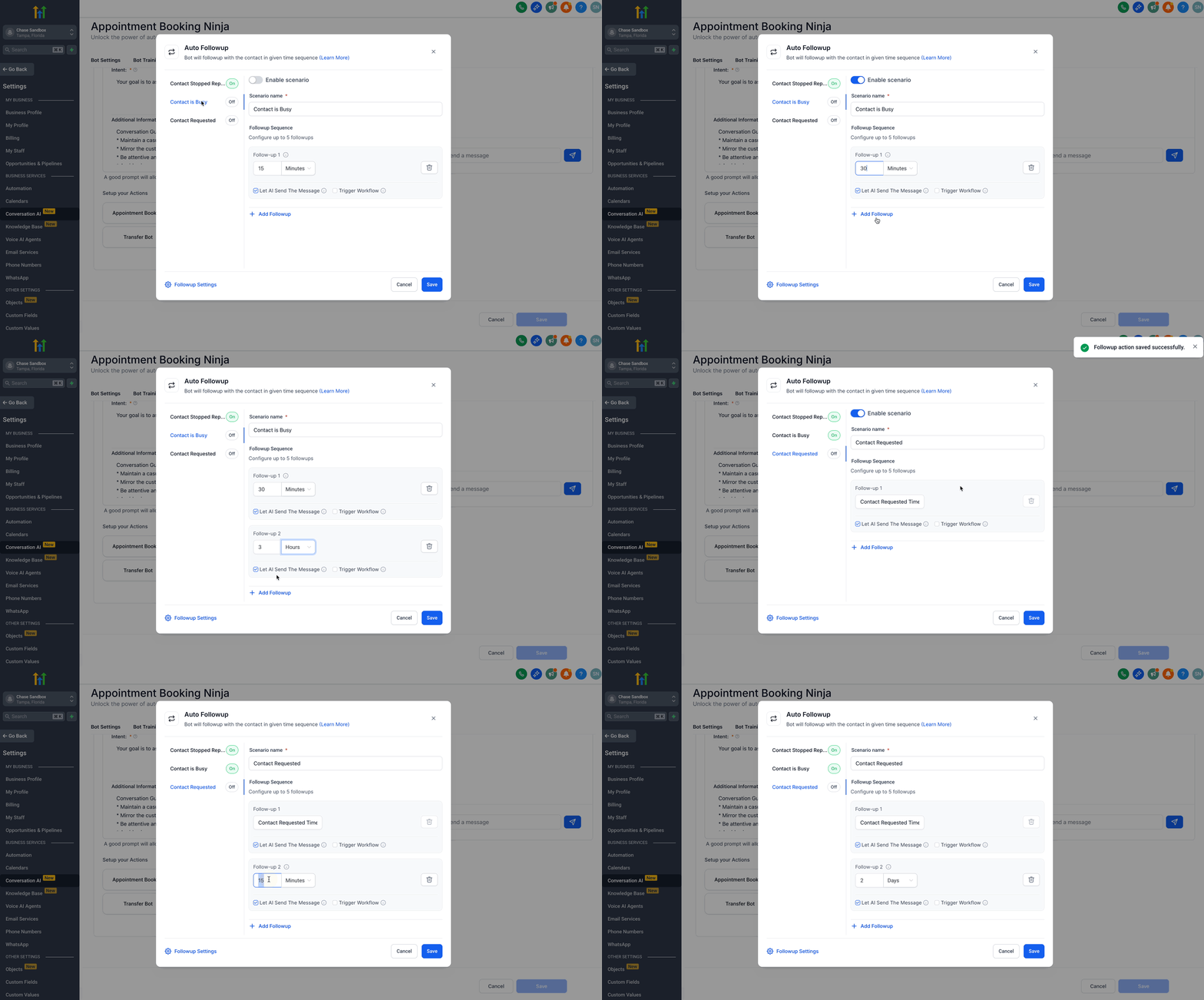
- Repeat the toggle and sequence steps for the Contact Marked as Busy scenario.
- Repeat the toggle and sequence steps for the Contact Requested a Follow Up scenario, noting that the first delay follows the contact’s request.
- Open Follow Up Settings, enable active hours and Dynamic Channel Switching as desired.
- Click the global Save button to confirm and activate the Follow Up Actions for the bot.
- NOTE: Do not trigger another follow up through a workflow, as this breaks the follow up logic.
06What it looks like in HighLevel
07Settings that matter
- Enable scenario. Turns a specific drop off condition on or off, allowing the bot to schedule follow ups when that scenario occurs.
- Auto Followup. The action button that opens the configuration panel for all follow up scenarios.
- Set Active Hours for Followup. When enabled, restricts follow up messages to the time range you define, based on the selected timezone.
- Dynamic Channel Switching. Allows the bot to move follow up messages to another available channel (SMS, Facebook, Instagram, WhatsApp) if the original channel becomes inactive.
08Things to know before you rely on it
- Each scenario supports a maximum of five follow up sequences.
- Dynamic Channel Switching is optional and can be disabled.
- Follow up messages are only sent during active hours if that option is turned on.
- Do not trigger another follow up through a workflow, as it breaks the follow up logic.
- Smart detection may cancel a scheduled follow up if the contact is disqualified, opts out, shows disinterest, or ends the conversation naturally.
09If something goes wrong
- Auto Follow Up did not send a scheduled message. Check if the contact was disqualified, opted out, expressed disinterest, or the conversation ended, as the system will automatically skip the follow up in those cases.
- Contact replied before the scheduled follow up. The schedule resets automatically, so no additional follow up messages are sent for that conversation.
10How it connects to the rest of HighLevel
- Explore all AI Employee capabilities All AI Employee features
- Review HighLevel pricing and plan options HighLevel pricing and plans
- Start a 30 day trial of HighLevel 30 day trial
Michael's take

Auto follow up actions are useful but not essential for every bot.
If you rely heavily on manual outreach or have a tiny lead volume, you can skip it.