
01Who this is for
- Founders who want to eliminate manual follow up by auto sending messages when new contacts are added.
- Marketing teams that need instant processing of form submissions or survey responses.
- Sales managers looking to trigger notifications or updates whenever an opportunity status changes.
02Ask AI triggers, explained
Ask AI Triggers connect a custom Ask AI skill to a specific CRM event. When the defined event occurs, the platform launches the skill and supplies the event’s data, such as contact fields or form answers. This creates an automated workflow that reacts right away.
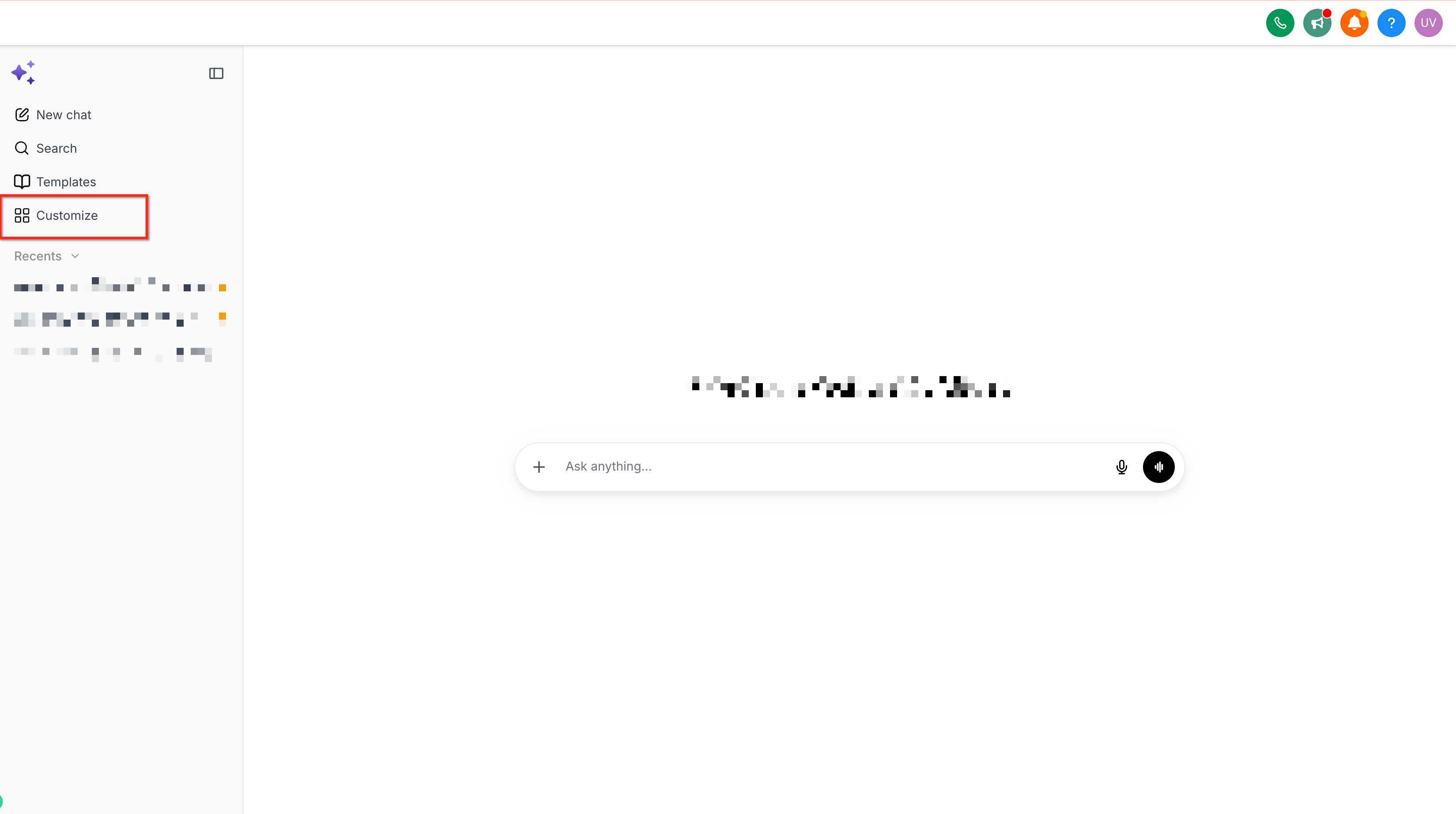
The trigger configuration lives inside the skill settings. Within Ask AI > Customize > Skills you select a skill, add a trigger, set the event type, define any conditions, and enable the trigger. You can also build a skill and its trigger through a natural language chat with Ask AI, which creates the configuration for you.
All executions are recorded in Trigger History under Ask AI > Trigger History. The history shows the event that fired, the run status, execution details, and a link to the generated Ask AI session, giving complete visibility into each automated run.
03How businesses use Ask AI triggers
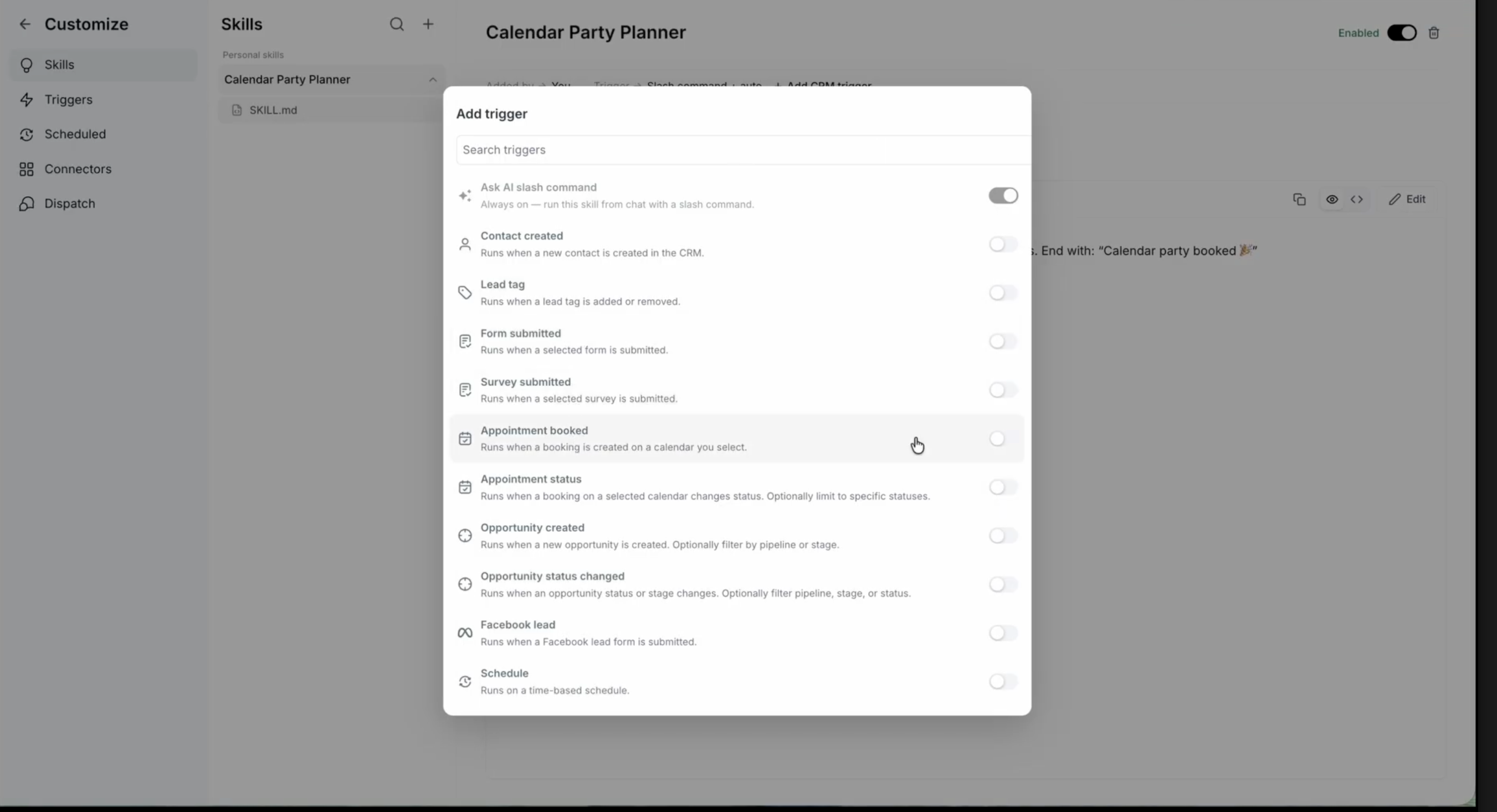
- Real estate agency. The agency creates a skill that drafts a personalized welcome email. A trigger set to "Contact Created" fires whenever a new lead is entered, automatically sending the email without staff intervention.
- Online course provider. A skill analyzes survey responses to calculate a satisfaction score. When a "Survey Submitted" event occurs, the trigger runs the skill, records the score, and updates the learner’s profile in real time.
- Medical clinic. The clinic builds a skill that posts appointment reminders. An "Appointment Booked" trigger runs the skill as soon as a patient books, generating a reminder message that includes appointment details.
04The numbers and rules that matter
- No strict limits on the number of triggers you can configure.
05Before you start
- A custom Ask AI skill must exist or be created before adding a trigger.
06How to set up and use Ask AI triggers in HighLevel
Set up a trigger for a custom Ask AI skill
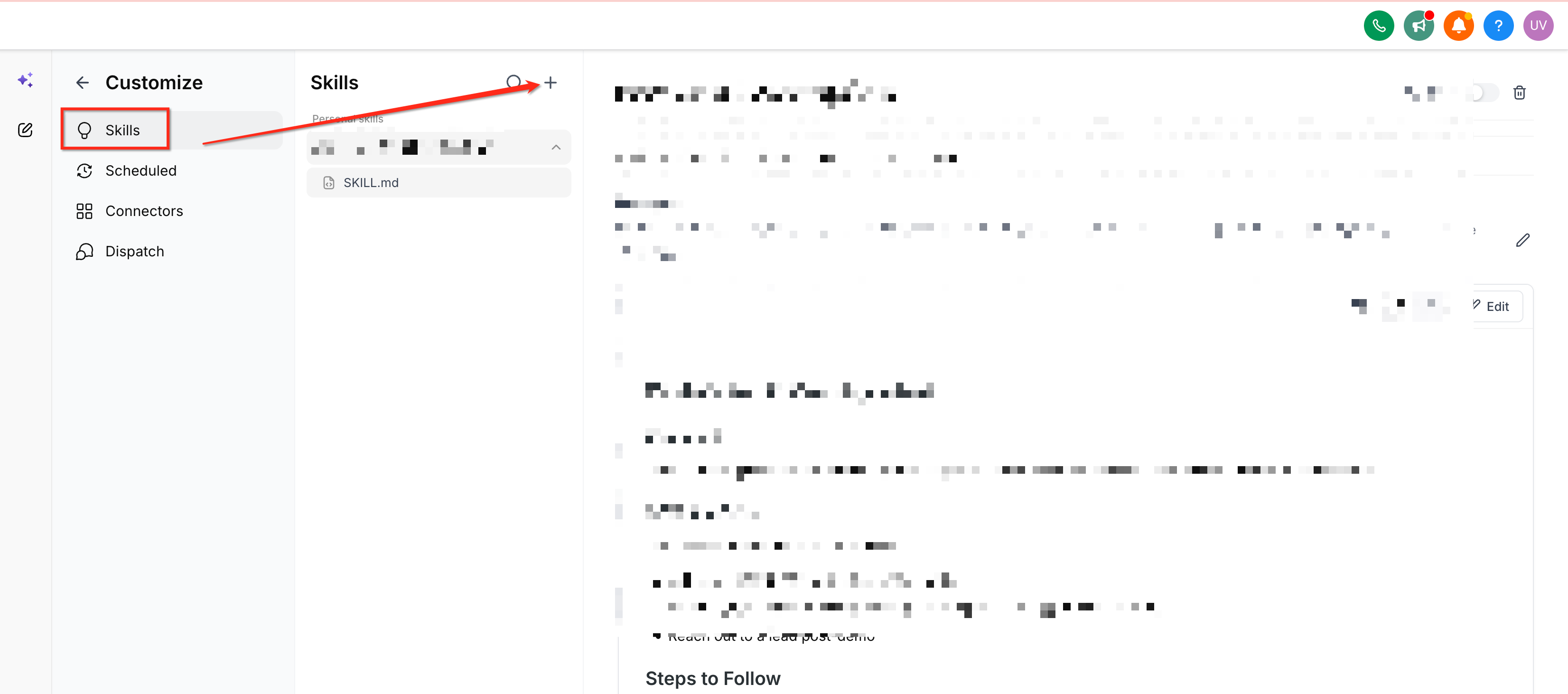
- Open Ask AI > Customize > Skills in HighLevel.
- Select the existing custom skill you want to automate.
- Click the + Add Trigger button within the skill settings.
- Choose HighLevel event type that should launch the skill.
- Enter any required conditions, such as a specific form or tag.
- Toggle the trigger to Enabled to activate it.
Create skill and trigger directly from Ask AI chat
- Start a conversation in Ask AI Chat and describe the desired automation.
- Allow Ask AI to generate the skill definition and suggest a trigger.
- Review the automatically created skill and its trigger settings.
- Confirm the configuration to finalize the skill.
- Enable the skill, which also activates the trigger.
07What it looks like in HighLevel
08Settings that matter
- Triggers. The section where you attach HighLevel events to a custom skill.
- + Add Trigger. Button used to create a new event based trigger for the selected skill.
- Enabled. Toggle that activates or pauses the trigger without deleting its configuration.
09Things to know before you rely on it
- Triggers can be added only to custom Ask AI skills; default skills do not support them.
- There is no hard limit on the number of triggers you can create, but monitor performance via Trigger History.
- Triggers are configured per subaccount; each subaccount must set them up individually.
10If something goes wrong
- A trigger run fails or does not execute.. Open Ask AI > Trigger History, locate the failed entry, and review the error details to adjust the skill or trigger conditions.
11How it connects to the rest of HighLevel
- Learn how Ask AI sessions are billed and the cost of extra usage. Ask AI pricing
- Explore all AI Employee capabilities available in HighLevel. AI Employee overview
- View HighLevel pricing plans and trial options for accessing Ask AI features. HighLevel pricing
Michael's take

In my experience, the automation runs in real time, freeing the team from manual steps and ensuring each prospect gets a timely response.
If your workflows are simple or you only need occasional manual interaction, the extra set up may not be worth the effort. The feature only works with custom skills, so default Ask AI tools won’t benefit from these triggers.