
01Who this is for
- Any HighLevel user who wants to automate tasks by linking external applications.
- Teams that need to keep credentials private while allowing Ask AI to read or write data in connected apps.
02Ask AI skills and connectors, explained
Connectors give Ask AI permission to act inside your existing apps. After a one time authentication, the AI can read, create, update, or search records based on the tools you enable. Connectors are tied to your user account, keeping credentials private and isolated from other users or subaccounts.
Skills are named instruction sets that describe exactly how a task should be performed. You can write a Skill, upload a markdown file, or let Ask AI draft one during a chat. Enabled Skills are stored in your personal library and are matched automatically to requests or invoked manually with a slash command.
03How businesses use Ask AI skills and connectors
- Digital marketing agency. The agency connects its HubSpot account so Ask AI can pull contact data and create email drafts. It then builds a Skill that formats weekly performance reports, invoking it with /weekly report during a chat to generate the document right away.
- Real estate brokerage. A broker links the brokerage’s Notion database, enabling only the page search tool. A Skill is created that gathers property details and compiles a client facing brochure, which the broker triggers in a conversation when a new listing is requested.
- E learning platform. The platform connects to Canva, allowing the create design tool. A Skill outlines the steps to produce a course thumbnail, and the content team invokes the Skill with /thumbnail during a chat to have Ask AI produce the design without leaving HighLevel.
04The numbers and rules that matter
- Upload a.md file creates a versioned copy (e.g., "Report Generation 2") instead of overwriting.
- Access tokens are minted per call, never persisted, never logged, and never shown to the AI model.
05How to set up and use Ask AI skills and connectors in HighLevel
Connect an app
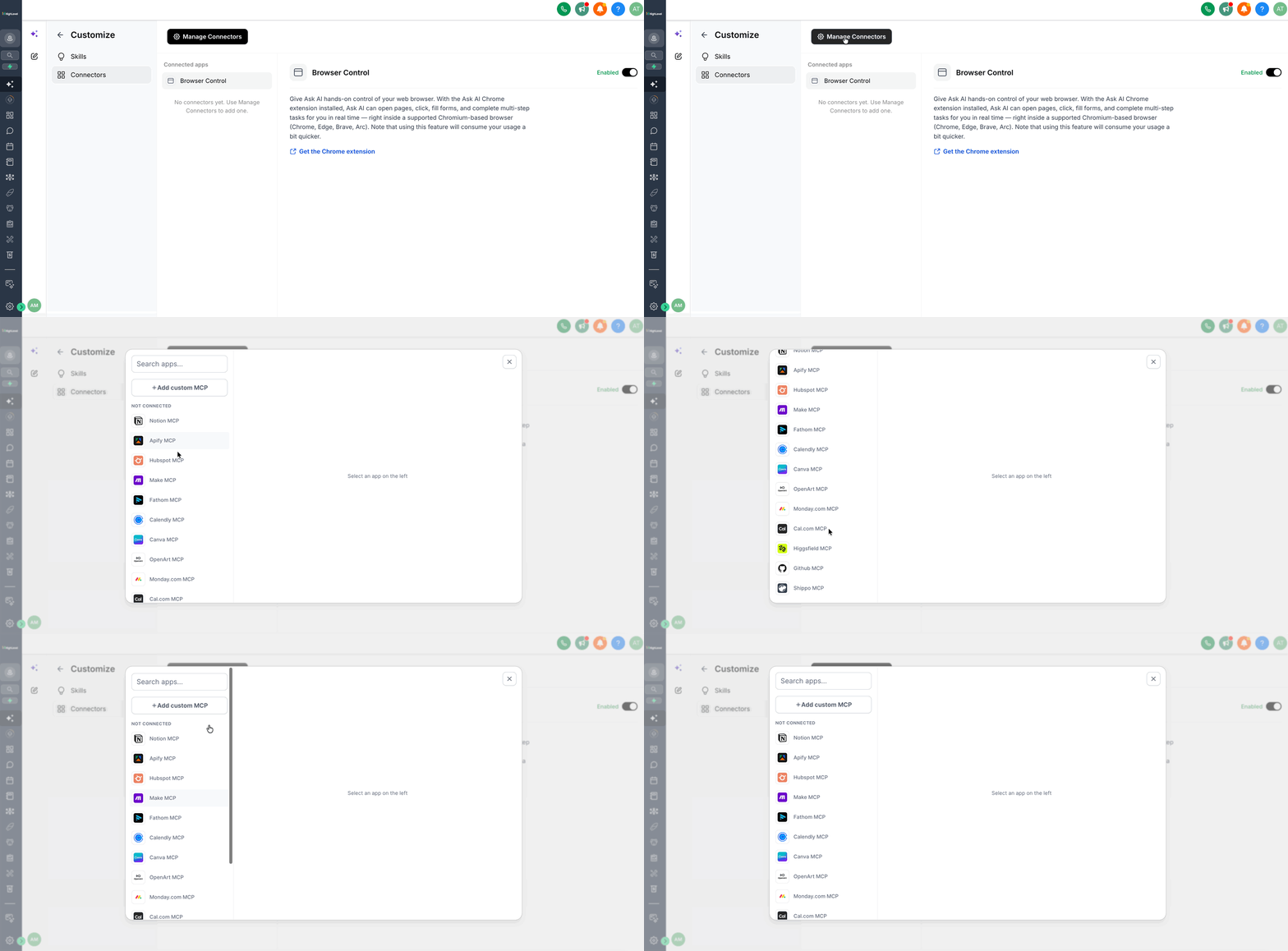
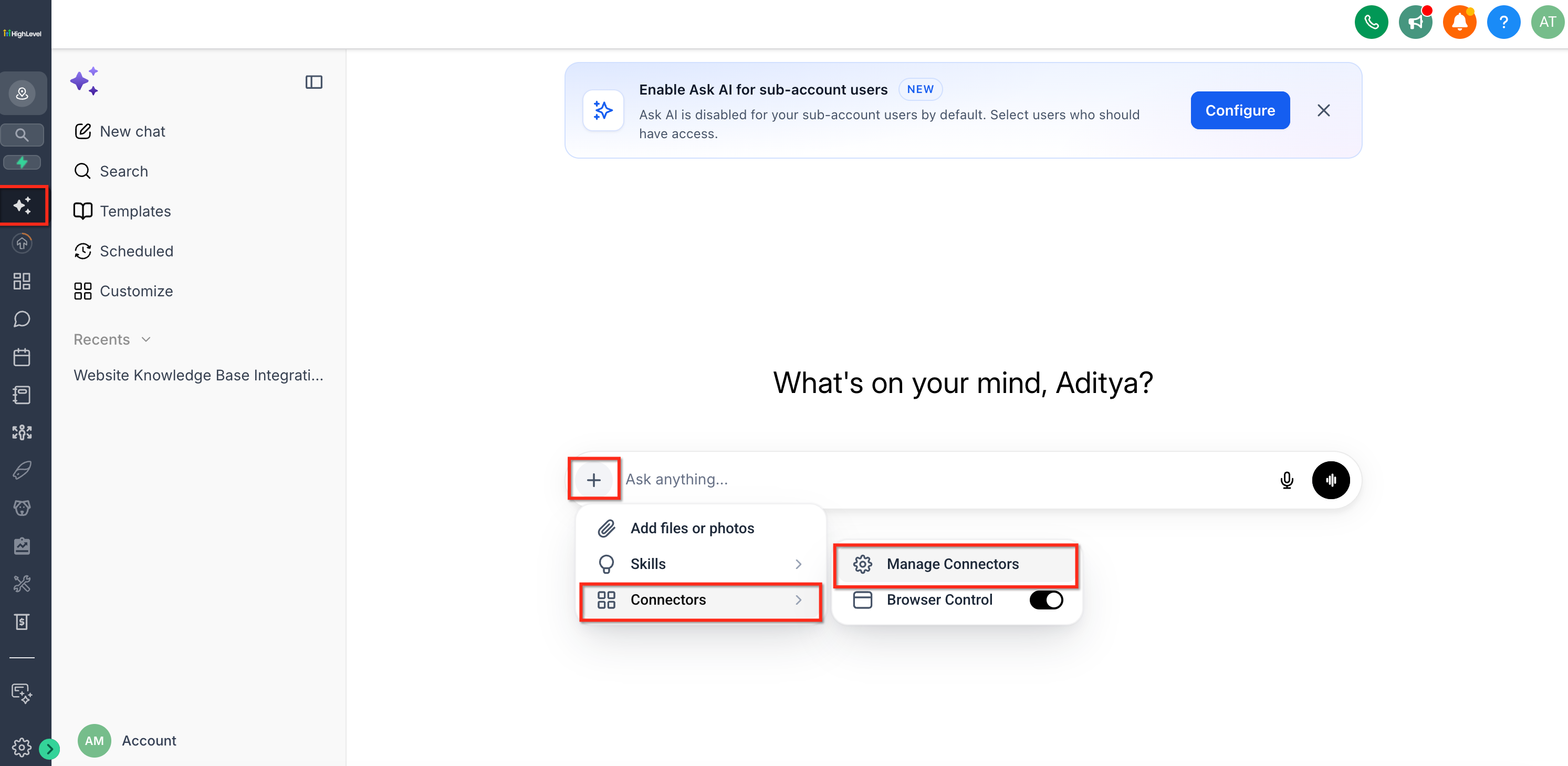
- Click the plus icon in the Ask AI sidebar and select Connectors.
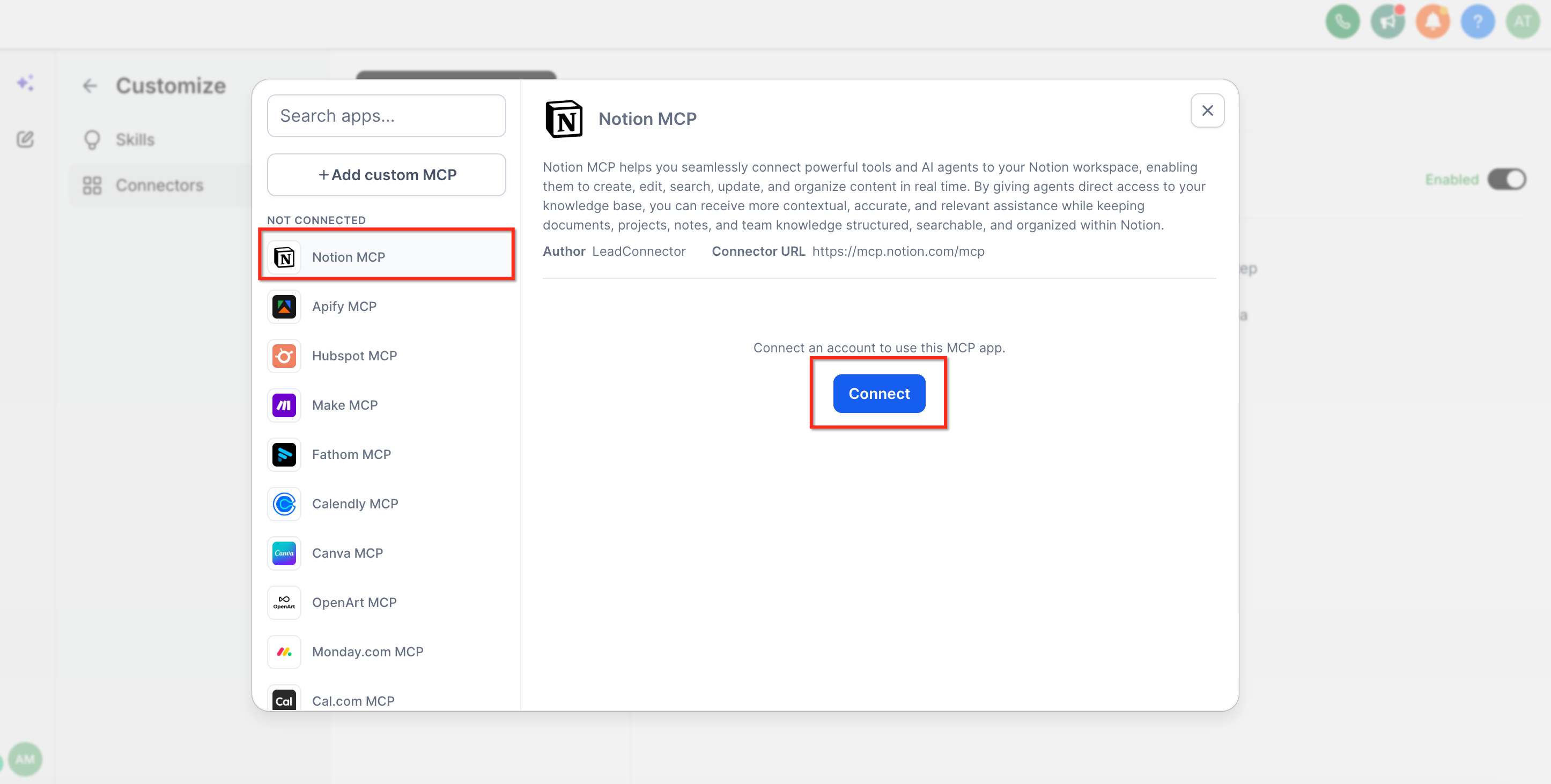
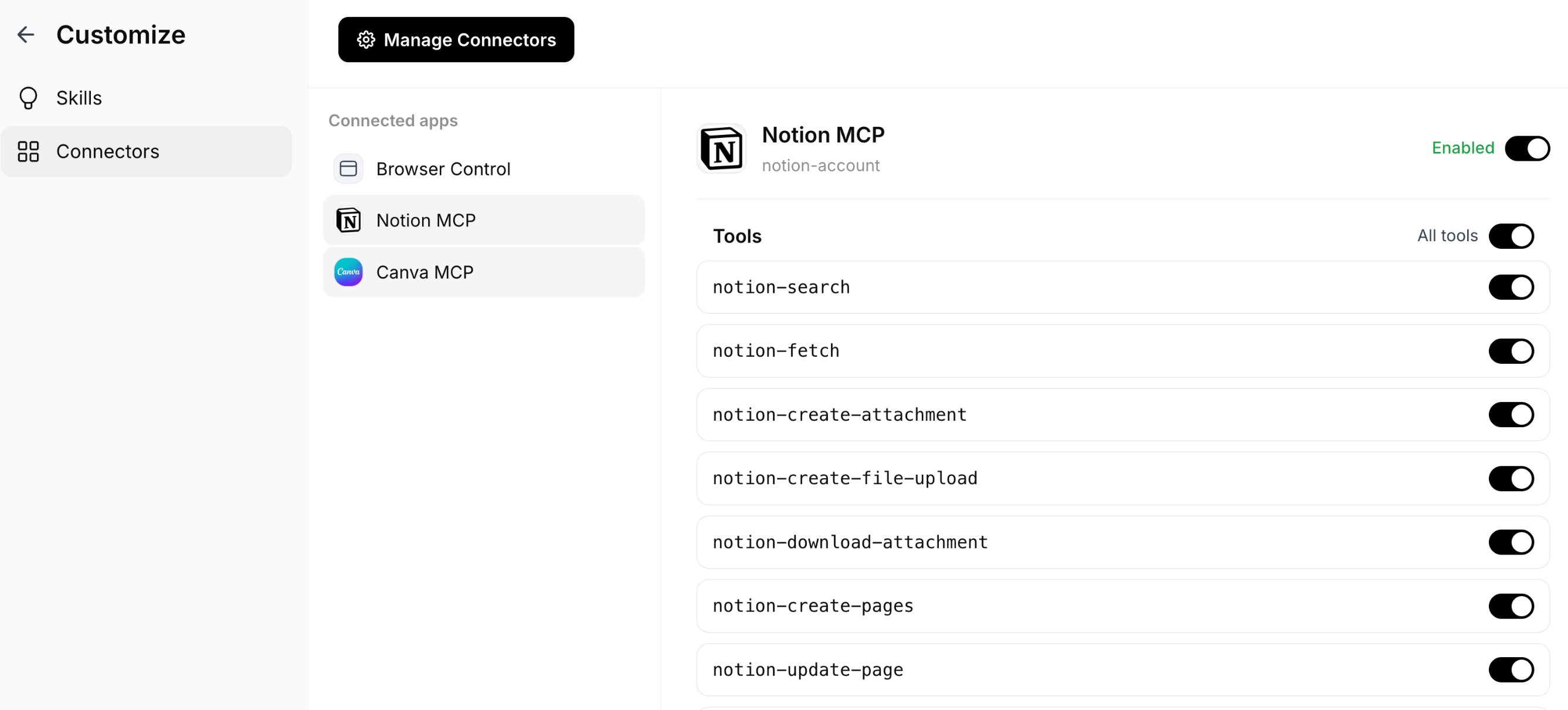
- Choose Manage Connectors to open the MCP marketplace and locate the desired app.
- Press Connect on the app and complete the authentication flow with the external service.
- Open the app entry in Connected apps and toggle individual tools on or off as needed.
- Flip the Enabled toggle for the app to activate the connector.
- You can also access the connector toggle from the composer + menu at the bottom of any Ask AI chat.
Create or upload a skill
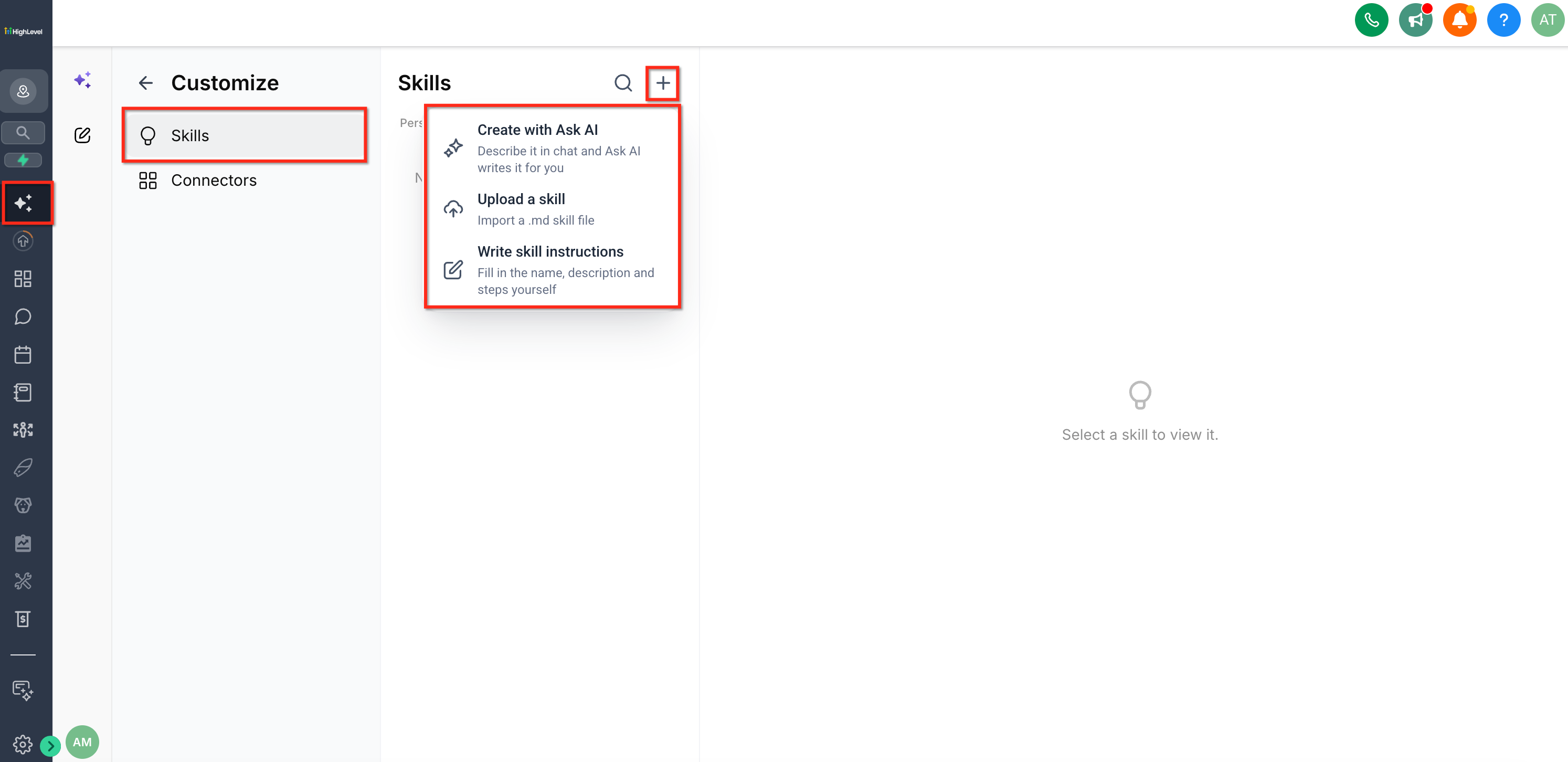
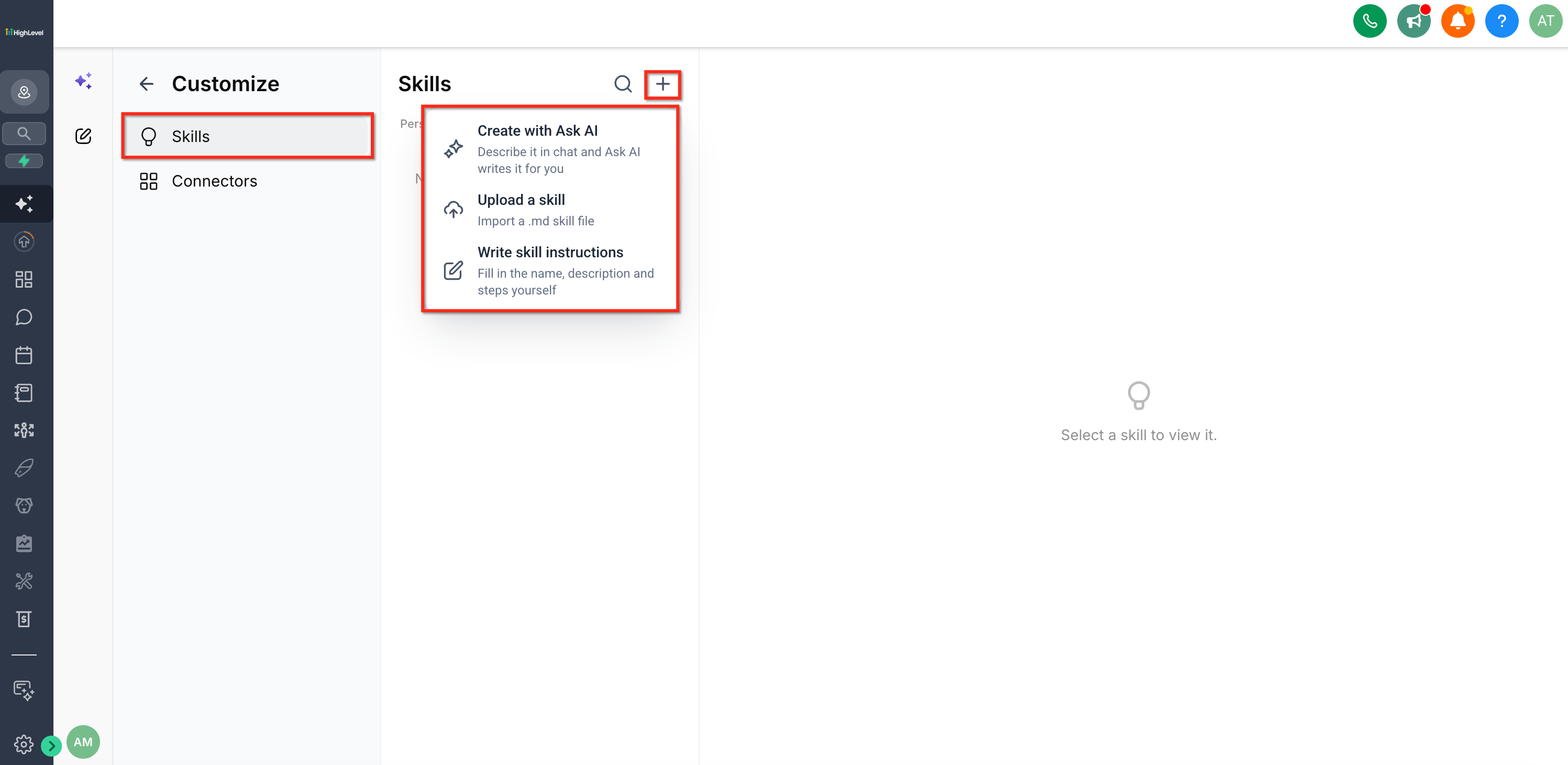
- Open Customize > Skills from the Ask AI sidebar.
- To write a Skill manually, click Write skill instructions, fill in Name, a one line Use when… trigger, and the Markdown body, then click Save.
- To upload a Skill file, click Upload a skill, select a .md file, and confirm the suggested name and summary.
- If the same file is uploaded again, Ask AI creates a versioned copy with a numeric suffix.
- After creation, the Skill appears in your library and is enabled by default; you can toggle it off or delete it later.
06What it looks like in HighLevel
07Settings that matter
- Enabled. Controls whether the connector is active; when on, Ask AI can call the selected app’s tools.
- Use when…. A one line trigger that tells Ask AI when to apply the Skill automatically.
08Things to know before you rely on it
- Uploading the same markdown file twice creates a versioned copy with a numeric suffix instead of overwriting.
- Connectors and Skills are scoped to the individual user; they do not cross agency or subaccount boundaries.
- Access tokens are generated per call and never persisted, ensuring credentials are not stored or logged.
- The Browser Control connector requires the Ask AI Chrome extension to operate in supported browsers.
09How it connects to the rest of HighLevel
- Learn how to generate a contact summary with Ask AI Contact summary guide
- Review Ask AI pricing and session costs Pricing details
Michael's take

Ask AI Skills and Connectors let you tie those apps together and codify the steps you already do, so the AI can handle the repetitive parts while you stay in one place.
The first setting I would get right is the per app tool toggle, which lets you enable only the specific actions you need.