
01Who this is for
- Founders who juggle content creation, reporting and client outreach can keep all tasks moving without waiting for a single AI response.
- Marketing teams can draft blog posts, generate ad copy and plan campaigns simultaneously, reducing idle time between prompts.
- Agency managers handling multiple client subaccounts benefit from isolated conversations that stay separate when switching accounts.
02Ask AI multithreading, explained
Ask AI multi threading adds parallel processing to the platform’s AI assistant. Instead of a single queue, the system allows up to ten independent conversations, each with its own context, history and scroll position. When you start a request, whether by typing or speaking, Ask AI begins working on it right away while you can launch additional chats.
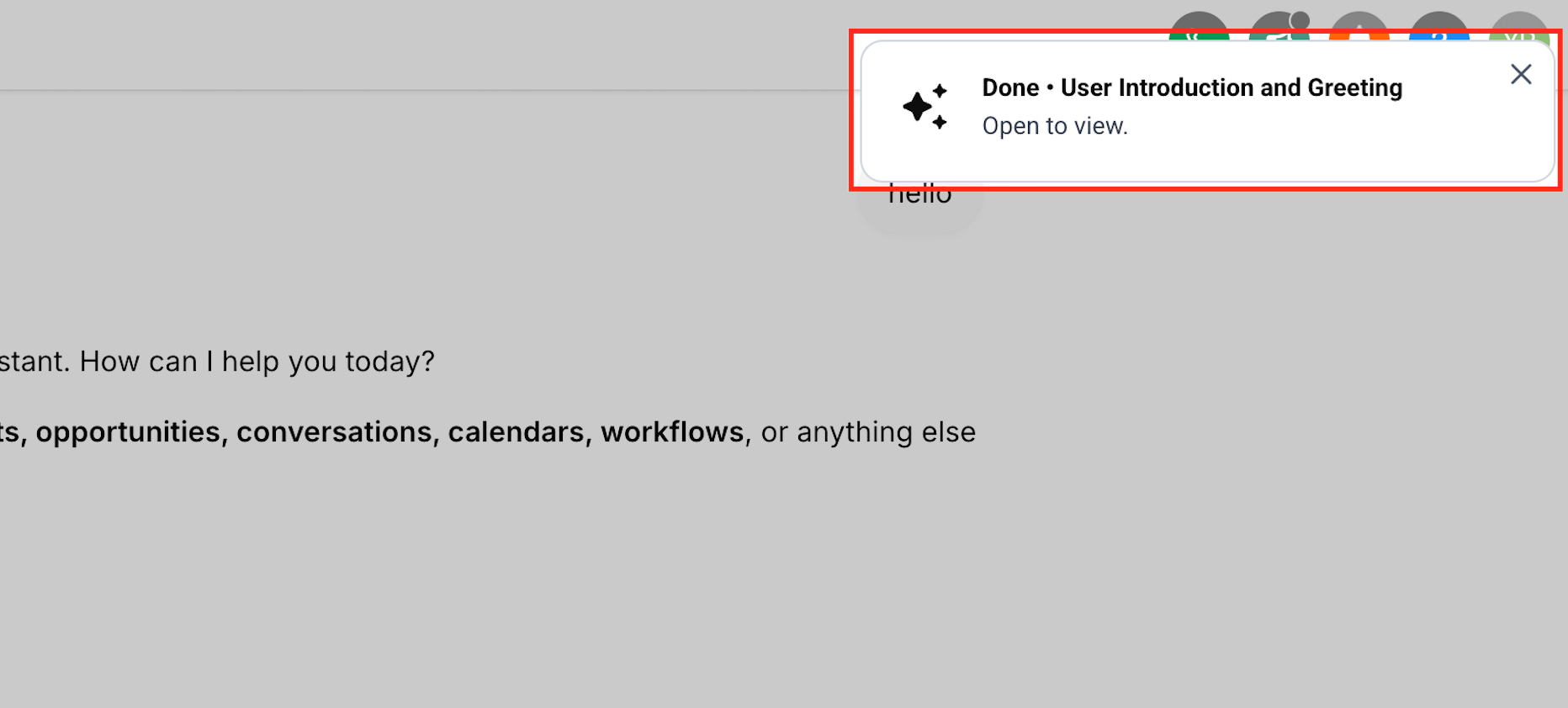
The conversations keep running even if you close the Ask AI panel, move to another tool, or switch to a different subaccount. Completion or error events generate clickable toast notifications that take you straight to the relevant chat. Live status cues in the top navigation bar and sidebar let you see at a glance whether any sessions are active or finished.
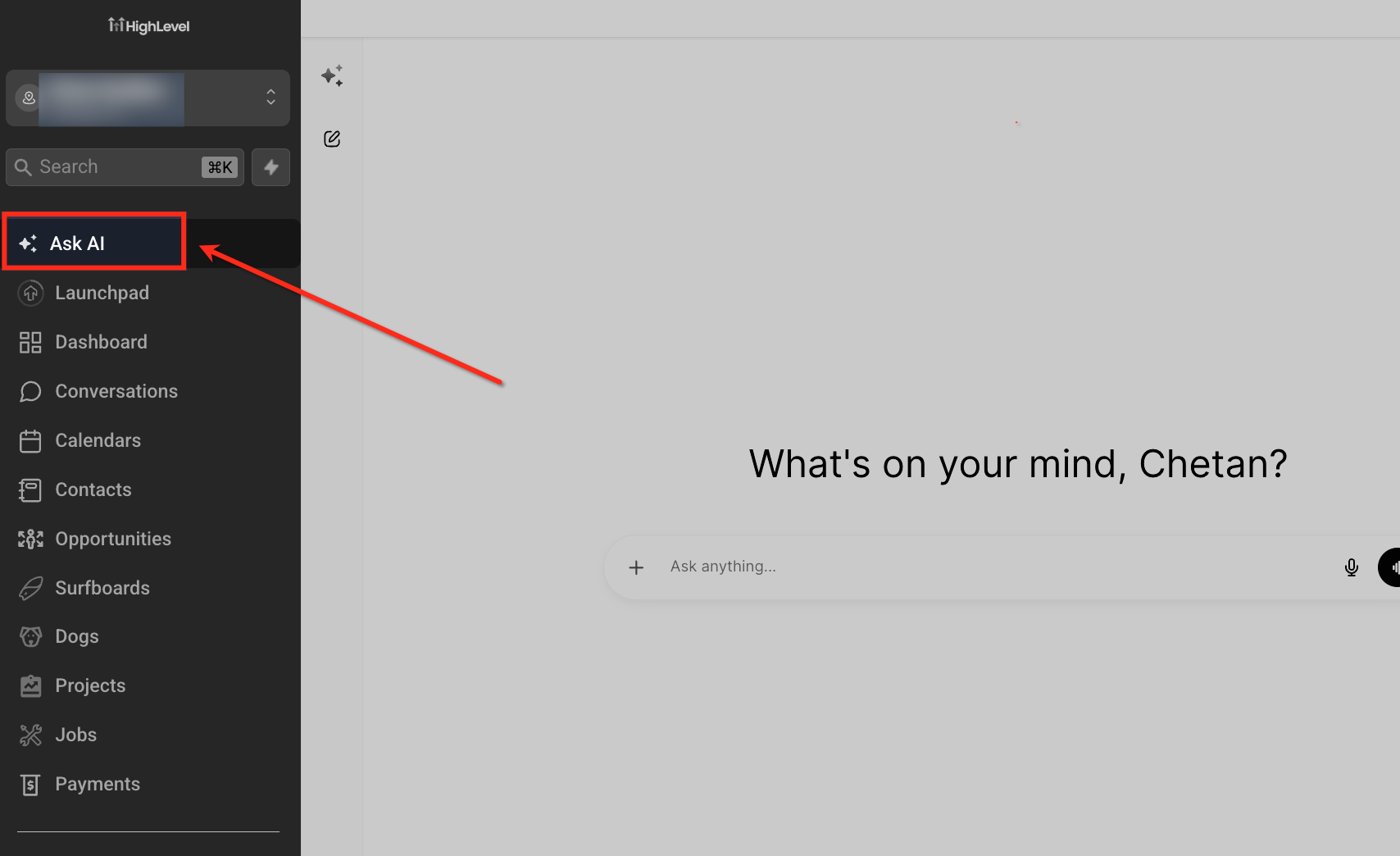
All of this lives inside the standard Ask AI interface, accessed via the Ask AI button in the top navigation bar or the sidebar. The feature works on both desktop and the mobile app (version 4.23.0 or newer).
03How businesses use Ask AI multithreading
- Content marketing agency. The agency opens a conversation to draft a blog post, another to create a social media calendar, and a third to outline an email series. Each request processes in parallel, and the team receives notifications when any draft is ready for review.
- Real estate brokerage. Agents start one chat to generate property descriptions, a second to produce a market analysis report, and a third to schedule follow up emails. All three run at once, freeing agents to continue client calls while the AI works.
- Ecommerce store. The store manager initiates a conversation to write product copy, another to analyze sales data, and a third to set up automated SMS reminders. Parallel processing lets the manager handle other tasks while the AI prepares each deliverable.
04The numbers and rules that matter
- Run up to 10 conversations simultaneously.
- Mobile parallel session experience is available in version 4.23.0 and above for the HighLevel, LeadConnector, and WL App.
05How to set up and use Ask AI multithreading in HighLevel
Enable and work with Ask AI multi threading
- Click the Ask AI button in the top navigation bar or sidebar to open the Ask AI panel.
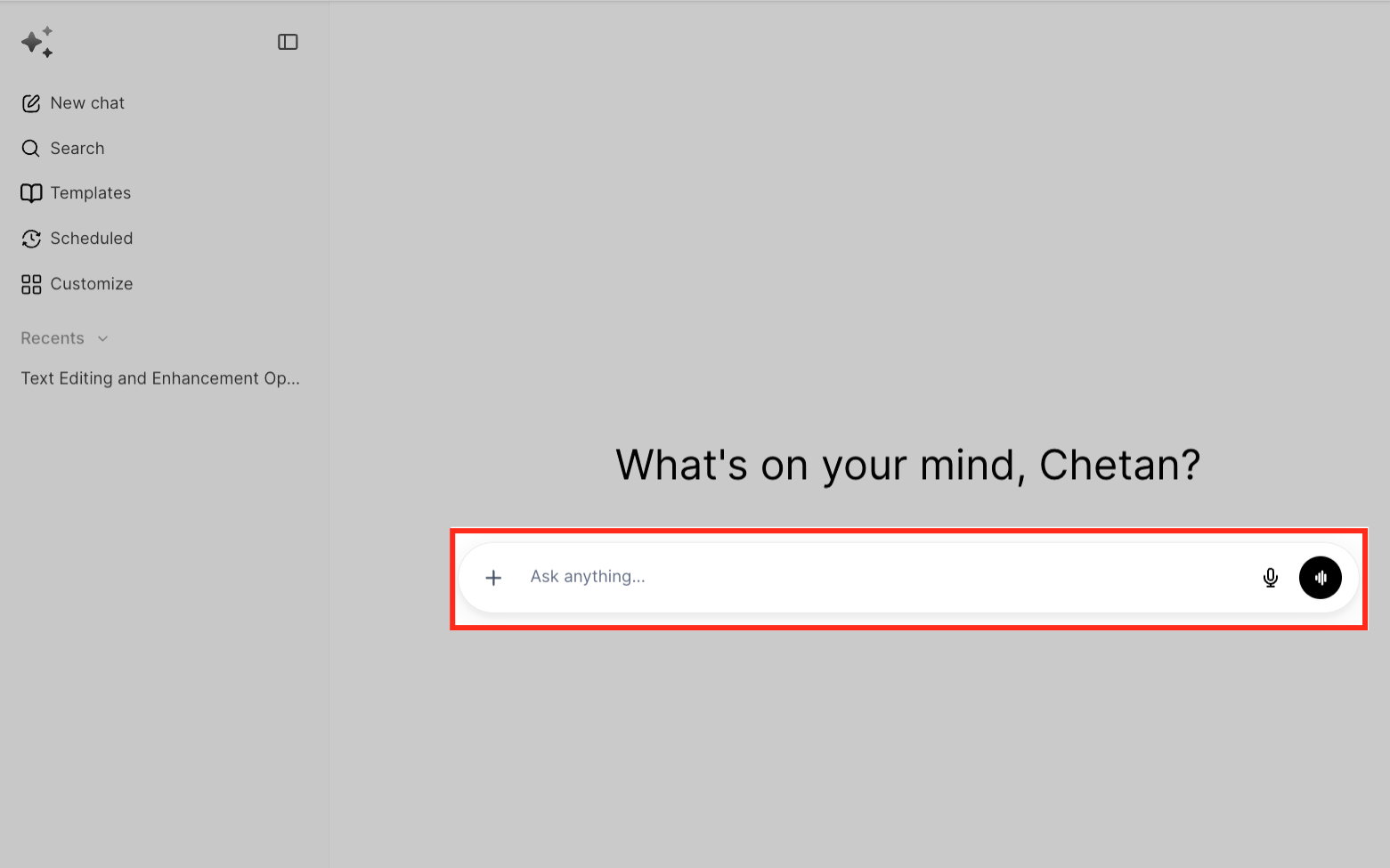
- Enter your first request, such as “Draft a blog post about email marketing best practices,” and submit it.
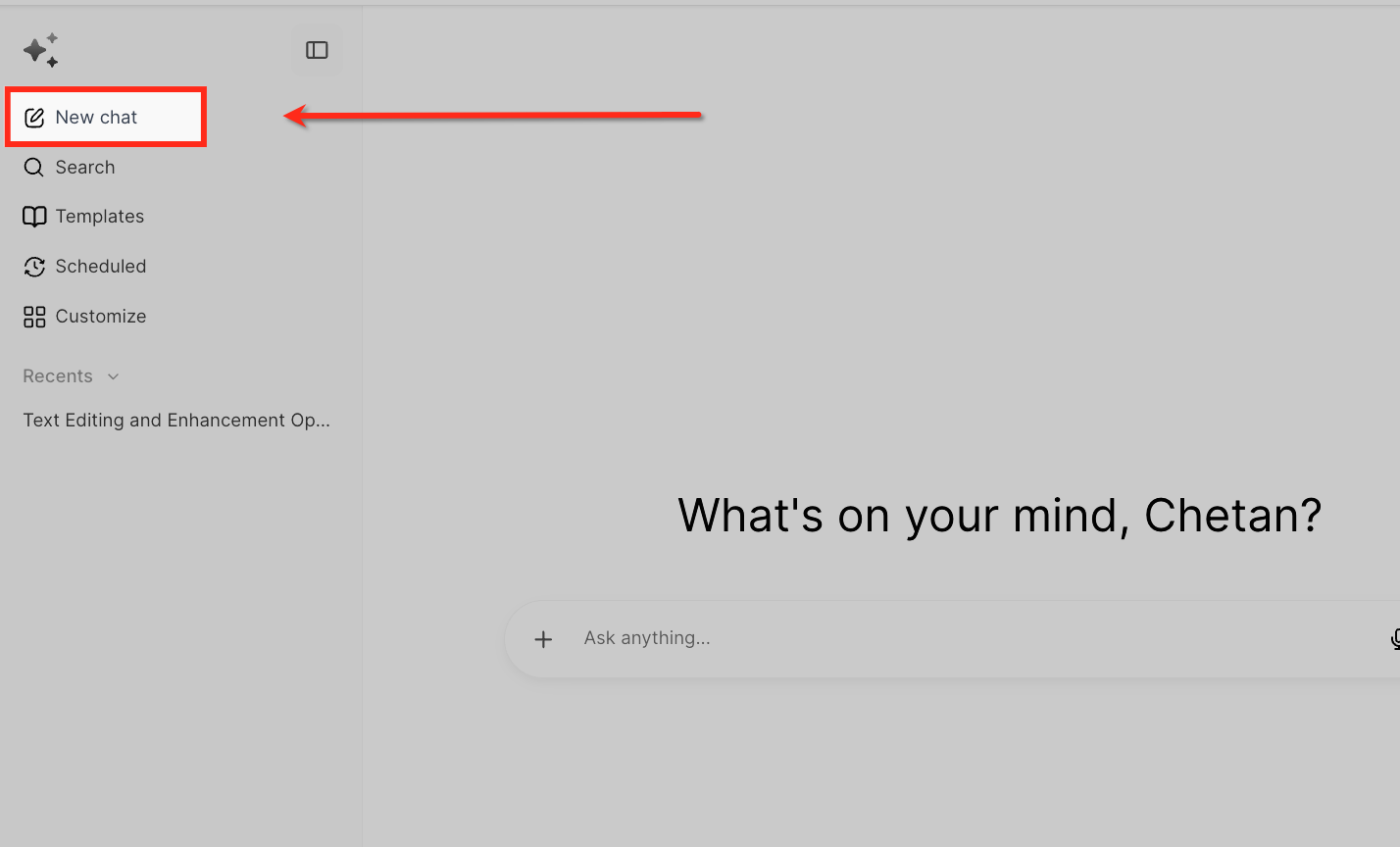
- Create a new conversation by clicking the New conversation button or using the keyboard shortcut; repeat up to ten times for parallel chats.
- Close the Ask AI panel, navigate to other HighLevel tools, or switch to a different subaccount; the open conversations keep processing in the background.
- Watch the pulsing Ask AI button for active work and the red dot on the button for completed sessions in the navigation bar; the sidebar icon turns blue while work runs and shows a blue dot when finished.
- When a “Done” or “Input needed” toast appears, click Open to view, then either review the result or provide the requested information to resume processing.
- Reopen the Ask AI panel to inspect completed conversations; each retains its full history and the scroll position where you left it.
06What it looks like in HighLevel

07Things to know before you rely on it
- Up to ten Ask AI conversations can run at the same time; each conversation remains independent.
- Parallel sessions on mobile require version 4.23.0 or later of the HighLevel, LeadConnector, or WL app.
- Background notifications are suppressed while the Ask AI panel is open to avoid duplicate alerts.
08If something goes wrong
- Background session failed notification appears. Click the notification to open the failed conversation, review the error details, and resubmit or adjust the request as needed.
09How it connects to the rest of HighLevel
- Explore all AI Employee capabilities in HighLevel All AI Employee features
- Learn how Ask AI session pricing works Ask AI session pricing
- Start a 30 day trial to test Ask AI multi threading 30 day trial
Michael's take

Ask AI multithreading is a practical way for a small business to squeeze more output from the AI assistant without waiting on each task. Running ten chats at once means you can draft content, pull reports, and set appointments in parallel, keeping your day moving.
Don’t ignore the "Input needed" notifications; they stop work until you respond.