
01Who this is for
- Founders who need to supervise web based workflows while traveling, because they can monitor and intervene from a phone.
- Agency owners managing multiple client subaccounts, since access respects existing agency and subaccount permissions.
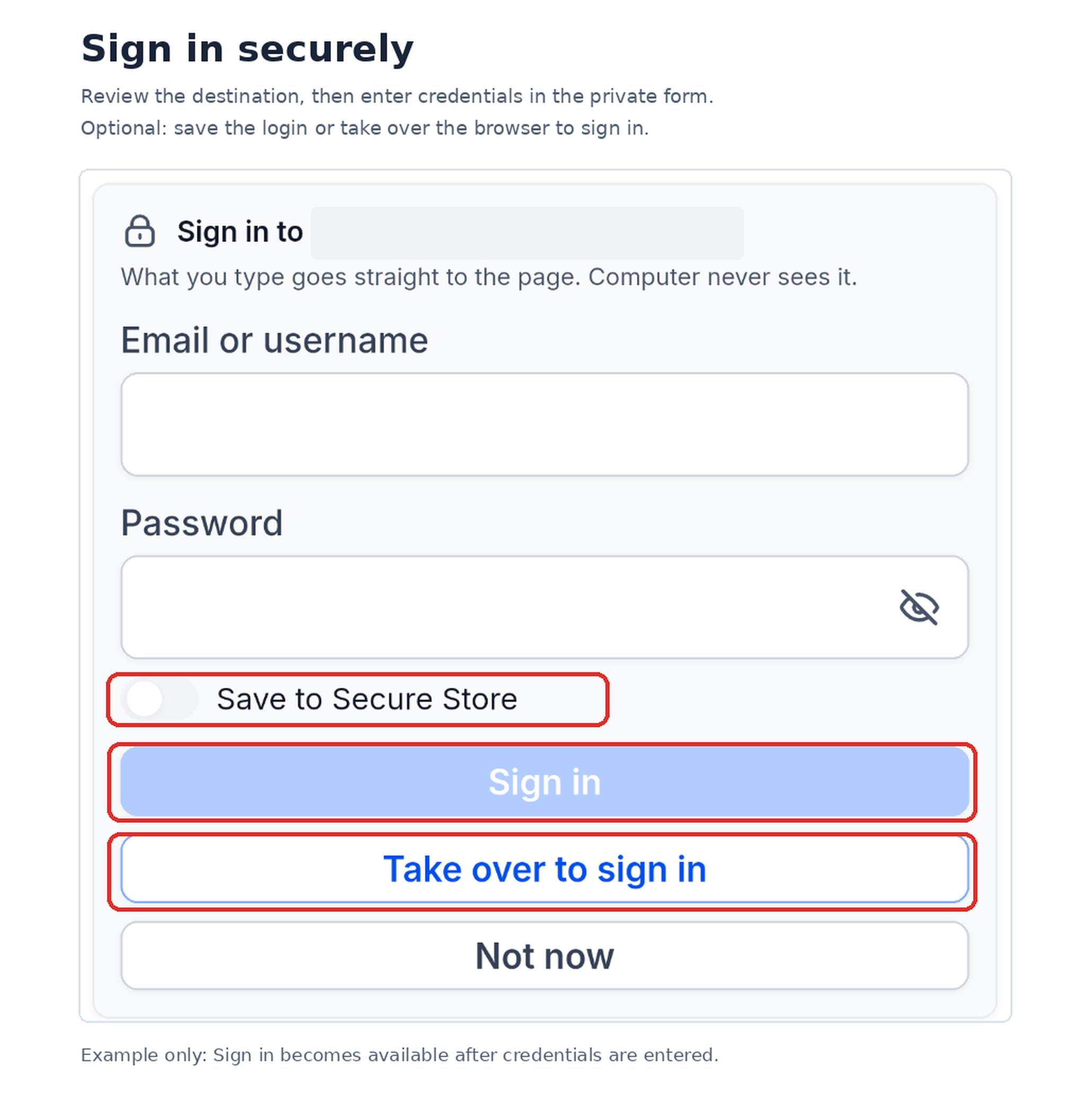
- Small business teams that require secure sign ins without exposing passwords in chat, using the private sign in form.
02Ask AI Computer, explained
Ask AI Computer provides a private cloud desktop that runs Chrome, a terminal and a file manager. The desktop is shared between the web and mobile versions of HighLevel, so any conversation started on one device appears in the other. While the computer works, a live preview is shown in the chat and you can take manual control when needed.
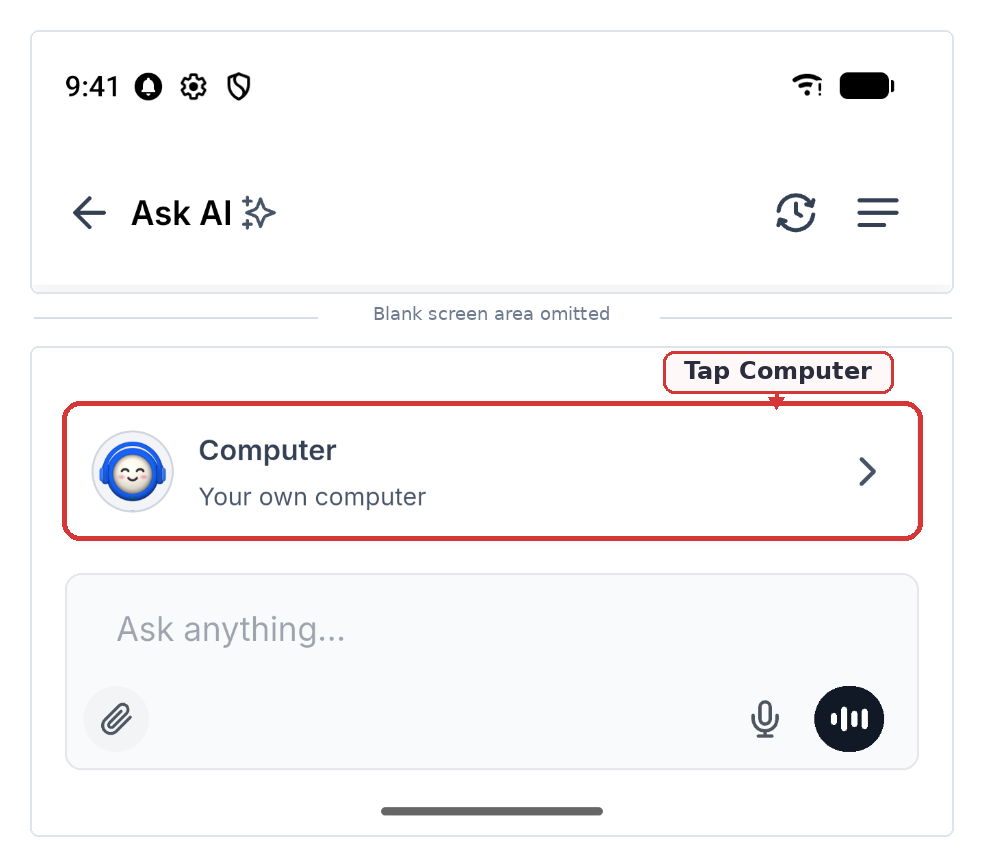
On mobile, the feature lives inside the Ask AI section of the HighLevel app. From there you start a new chat, select the Computer button, and issue a prompt. The computer performs the task, shows progress, and may pause for approvals or sign ins. All settings for saved logins, permissions and storage are found under Settings > Computer use.
03How businesses use Ask AI Computer
- Dental practice. The practice can ask Ask AI Computer to fill online appointment forms while the dentist is on the go. When the browser reaches a step that needs a verification code, the staff member takes control, enters the code, and hands back control so the task finishes.
- Real estate agency. Agents can launch a property search across multiple listing sites from their phone. If a site requires a login, the private sign in form appears, the agent enters credentials, optionally saves them to Secure Store, and the computer continues the search.
- Ecommerce store. The owner can upload a product CSV file to the computer, have it generate inventory spreadsheets, and then tap the file cards in the chat to download the results directly to the phone.
04The numbers and rules that matter
- Each user has 15 GB of Computer storage across subaccounts.
- Individual file limit is 25 MB.
- Computer sleeps after 15 minutes of inactivity.
05Before you start
- Ask AI Level Up must be enabled in an eligible subaccount.
- User must have agency, subaccount and user level permissions that allow Computer access.
06How to set up and use Ask AI Computer in HighLevel
Set up Ask AI Computer on mobile
- Open the HighLevel mobile app and select your subaccount.
- Open the App Drawer and choose Ask AI.
- Start a new chat.
- Tap the Computer button above the message field.
- If the Computer is asleep, tap Turn on, then type your task and send the message.
Watch and take control of the Computer
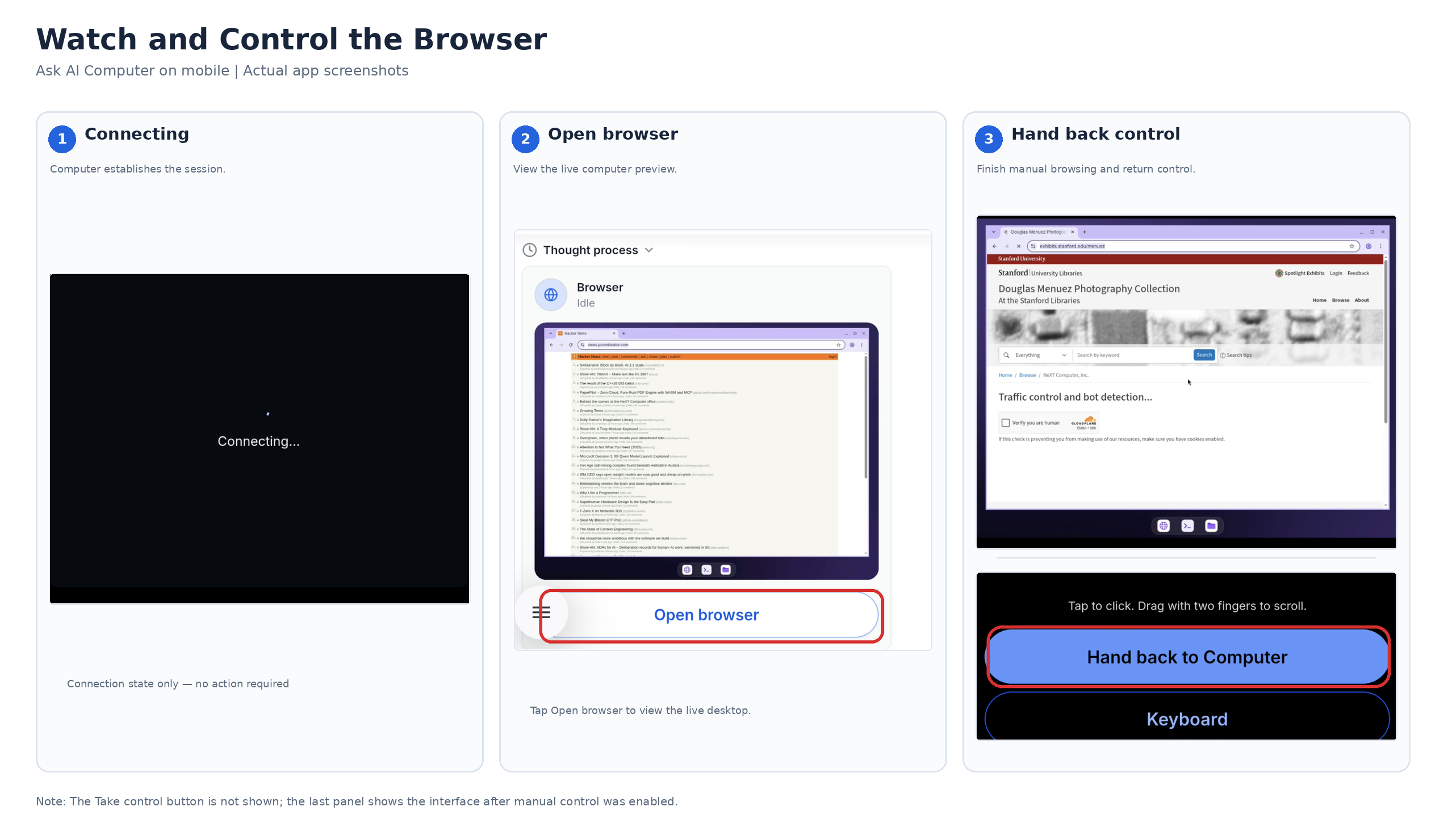
- Open the Computer conversation and tap Open browser.
- Tap Take control of the browser.
- Tap to click, scroll with two fingers, or type using the phone keyboard.
- Tap Hand back when you are finished.
Manage approvals and private sign ins
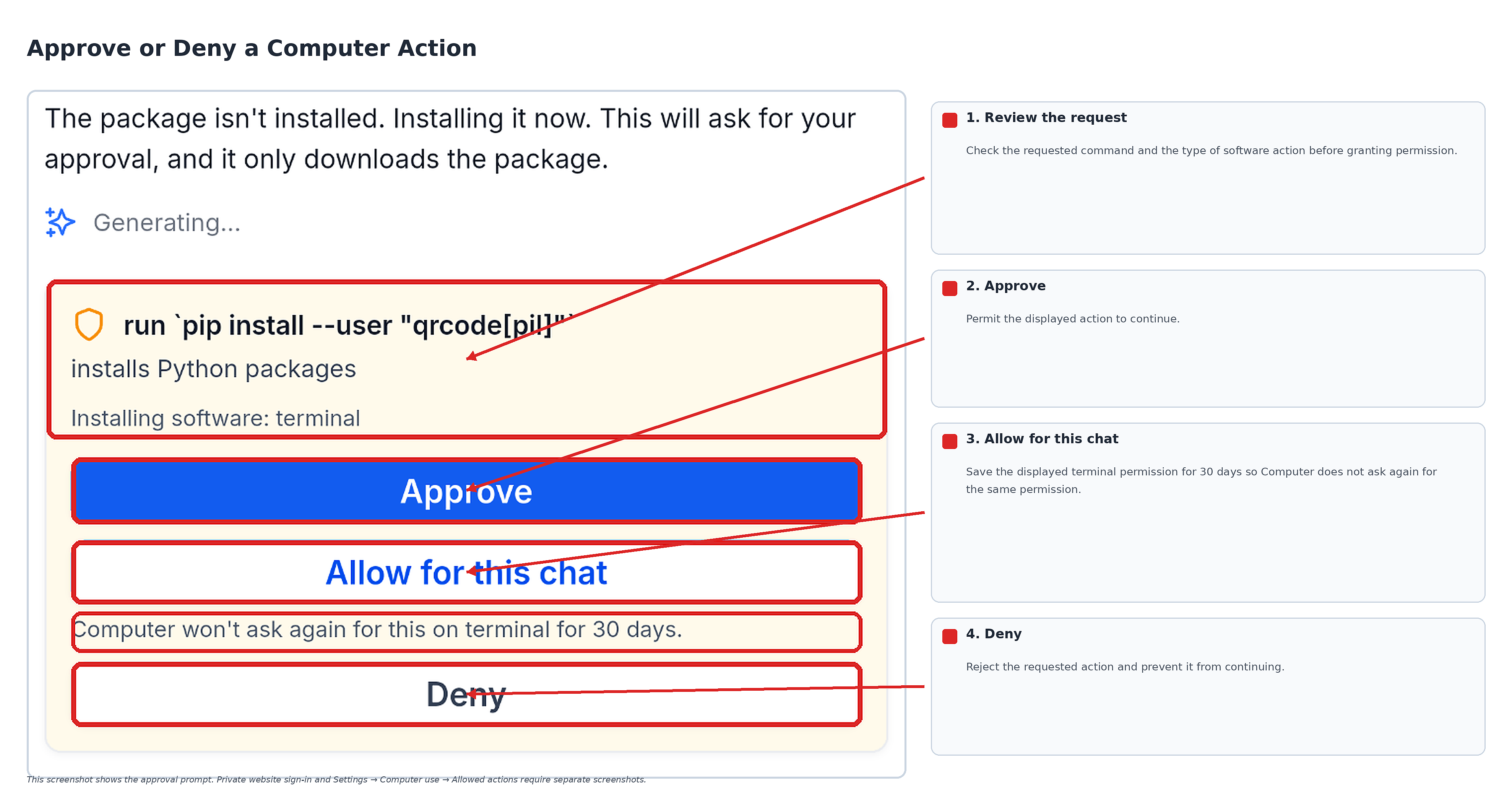
- When an approval card appears, review the requested action.
- Choose Approve, Allow for this chat, or Deny.
- To modify saved permissions later, go to Settings > Computer use > Allowed actions.
Manage saved logins
- Open Settings > Computer use.
- Tap Manage saved logins.
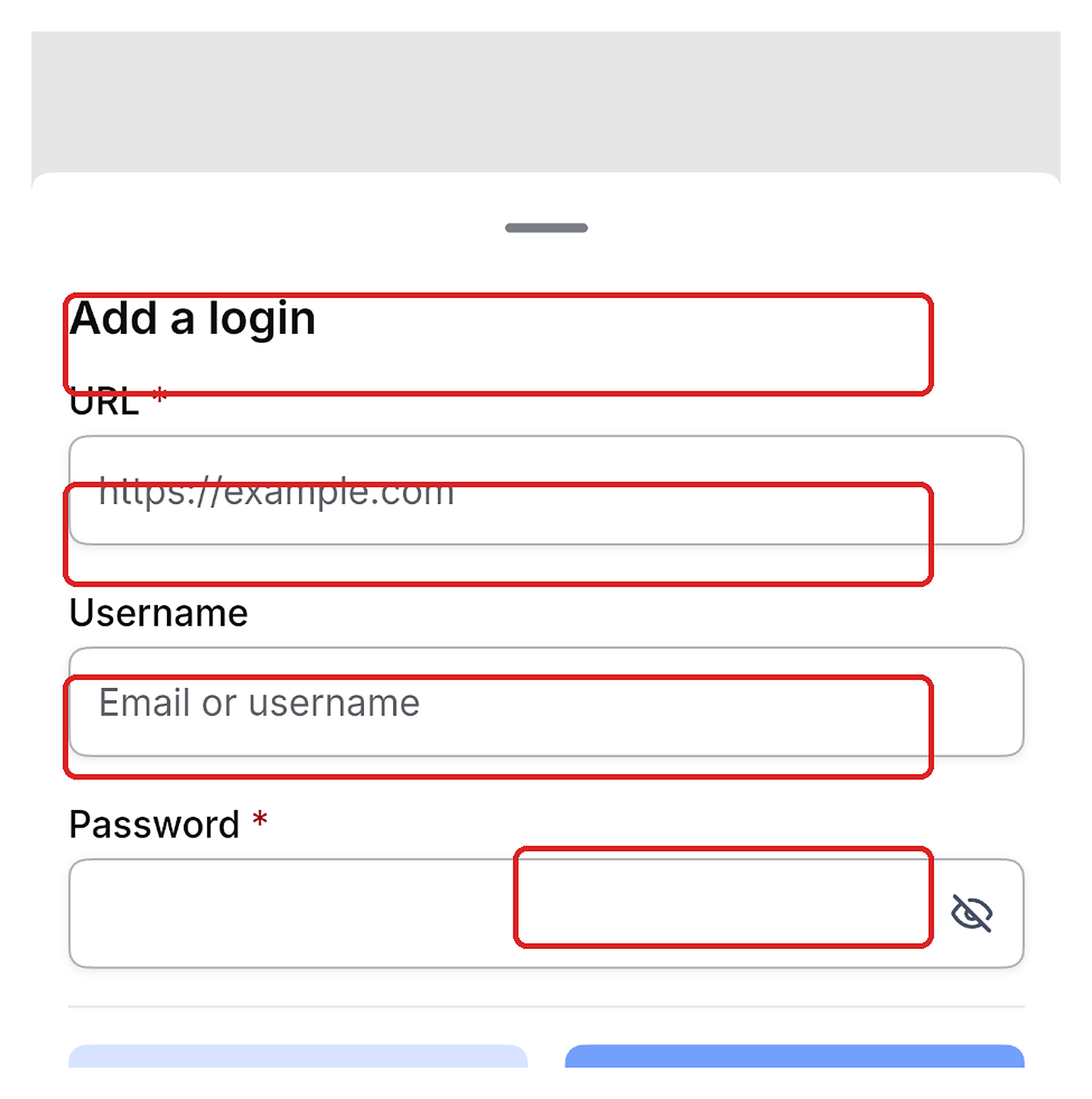
- Select the option to add a login.
- Enter the URL, optional username and password.
- Tap Save.
- Edit or delete existing logins as needed.
Continue tasks across devices
- Open Ask AI > History > Computer.
- Select the existing conversation to review work started on the web.
- If the desktop is open on another device, tap Show here to bring the live view to your phone.
Keep Computer running while you work
- Keep the HighLevel mobile app open while the Computer is working.
- If you leave the app, the Computer pauses and will resume when you return.
07What it looks like in HighLevel
08Settings that matter
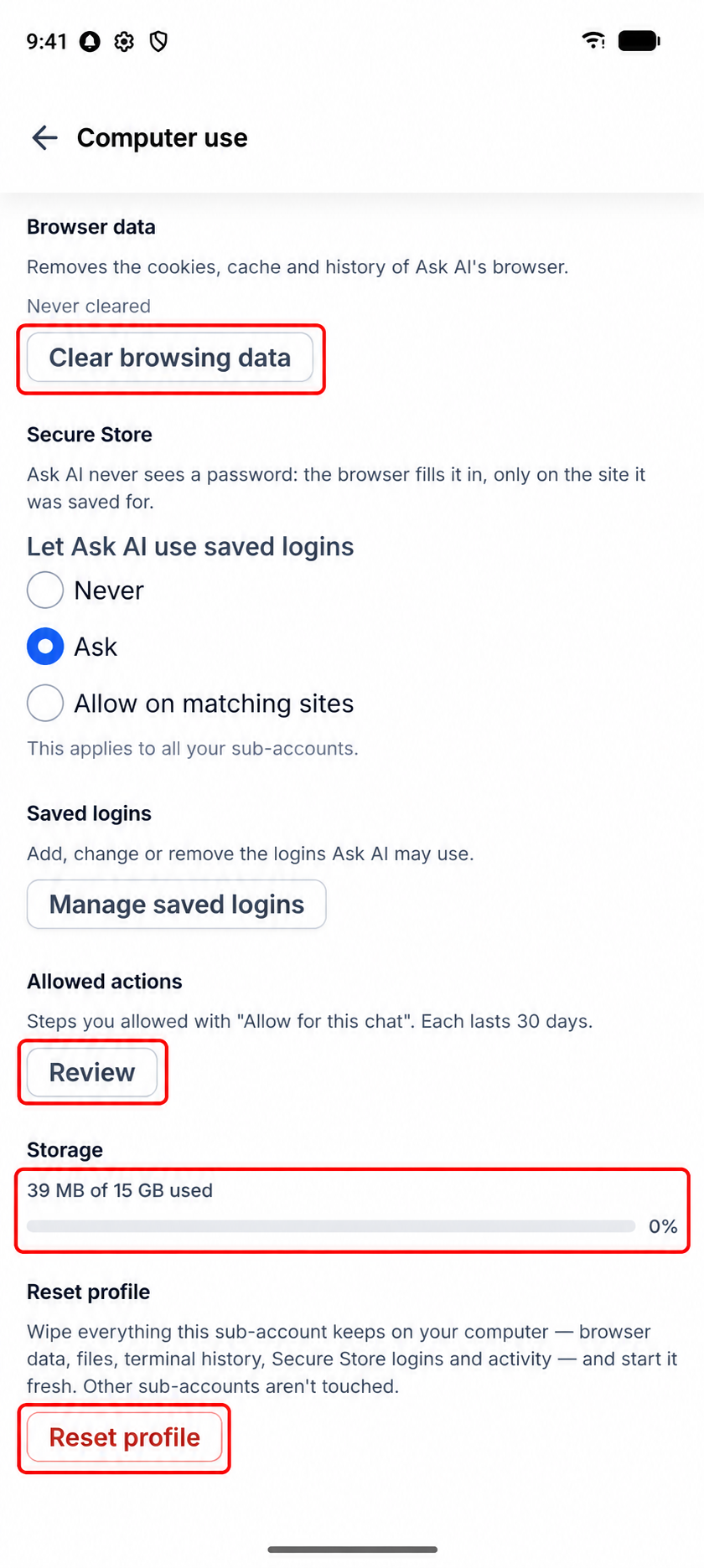
- Let Ask AI use saved logins. Controls whether the computer can use stored credentials, with options Never, Ask, or Allow on matching sites.
- Clear browsing data. Removes browser cookies, cache and history for the private cloud desktop.
- Allowed actions → Review. Shows saved permissions and lets you revoke individual or all approvals.
- Storage. Displays current usage against the 15 GB allocation per user.
- Reset profile. Deletes all computer data for the selected subaccount, including files, history and saved logins.
09Things to know before you rely on it
- Each user receives 15 GB of Computer storage across subaccounts, with a 25 MB limit per individual file.
- The Computer accesses only the public internet; private networks are not reachable.
- Leaving the HighLevel mobile app pauses the Computer; the task resumes when the app is opened again.
- The Computer automatically sleeps after 15 minutes of inactivity and can be woken with Turn on.
10How it connects to the rest of HighLevel
- Explore all AI Employee capabilities All AI Employee features
- Review HighLevel pricing and plan options HighLevel pricing and plans
- Start a free 30 day trial of HighLevel Start a 30 day HighLevel trial
Michael's take

Running cloud tasks from a phone can feel risky if you forget that the app must stay open; closing it will pause the job and you could lose momentum. The same caution applies to permission handling. Make sure you review what you’re allowing, especially for saved logins.
When you need a quick check on a form or want to pull a spreadsheet while you’re away from your desk, this feature shines. It lets you start the work, watch it happen, and take over only when a manual step is required, keeping credentials out of chat.