
01Who this is for
- Marketing managers can produce fast social video ads without leaving HighLevel, keeping brand assets in one place.
- Content creators can generate voiceovers for webinars or tutorials, selecting tone and speed that match their style.
- Agency owners can deliver client specific video snippets and audio tracks quickly, leveraging the built in media library.
02Audio & video generation, explained
Ask AI extends its creative capabilities beyond text and images by interpreting written prompts into short videos or voiceover recordings. When you request a video, the system assembles the specified duration, orientation, resolution and visual direction, optionally animating start or end images, and returns an inline player. For audio, you supply a script and performance guidance, pick one of ten voices, set speed and tone, and receive an inline playback with selectable export formats.
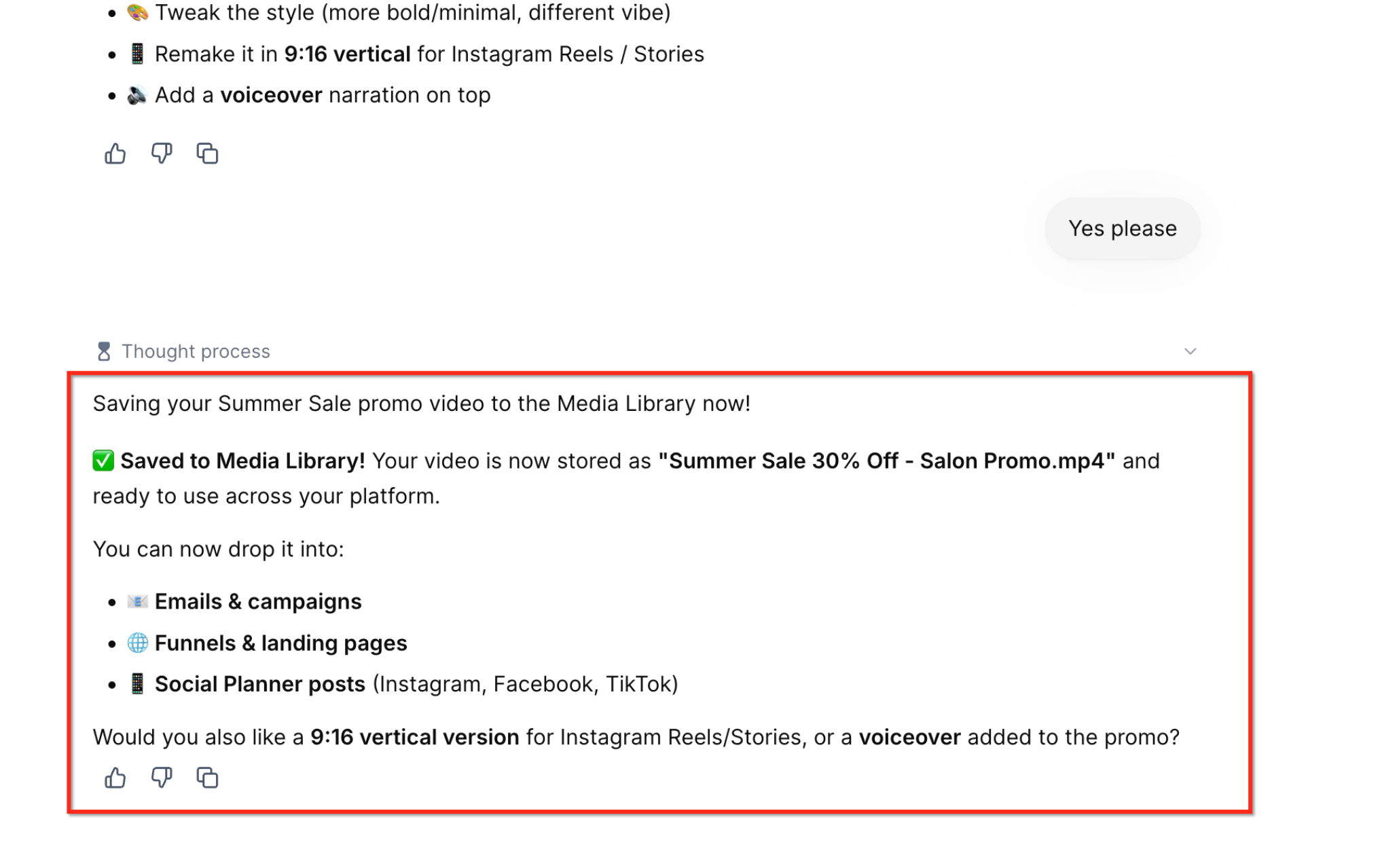
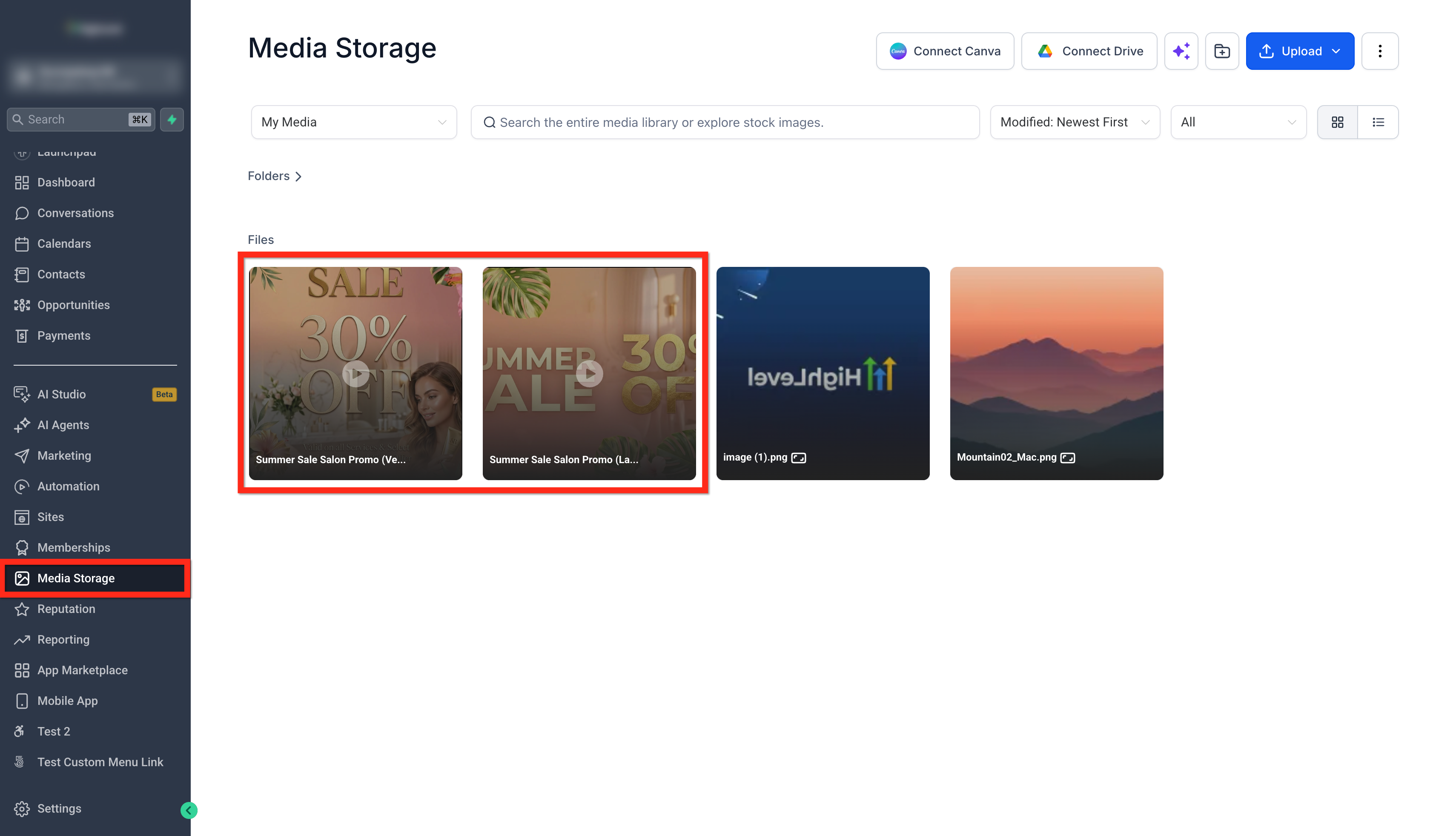
Both video and audio outputs appear inside the Ask AI conversation window, allowing you to review them right away. Saved videos go to the Media Library, making them reusable across other HighLevel workflows. The feature lives within the Ask AI interface, which you open from the HighLevel dashboard.
03How businesses use audio & video generation
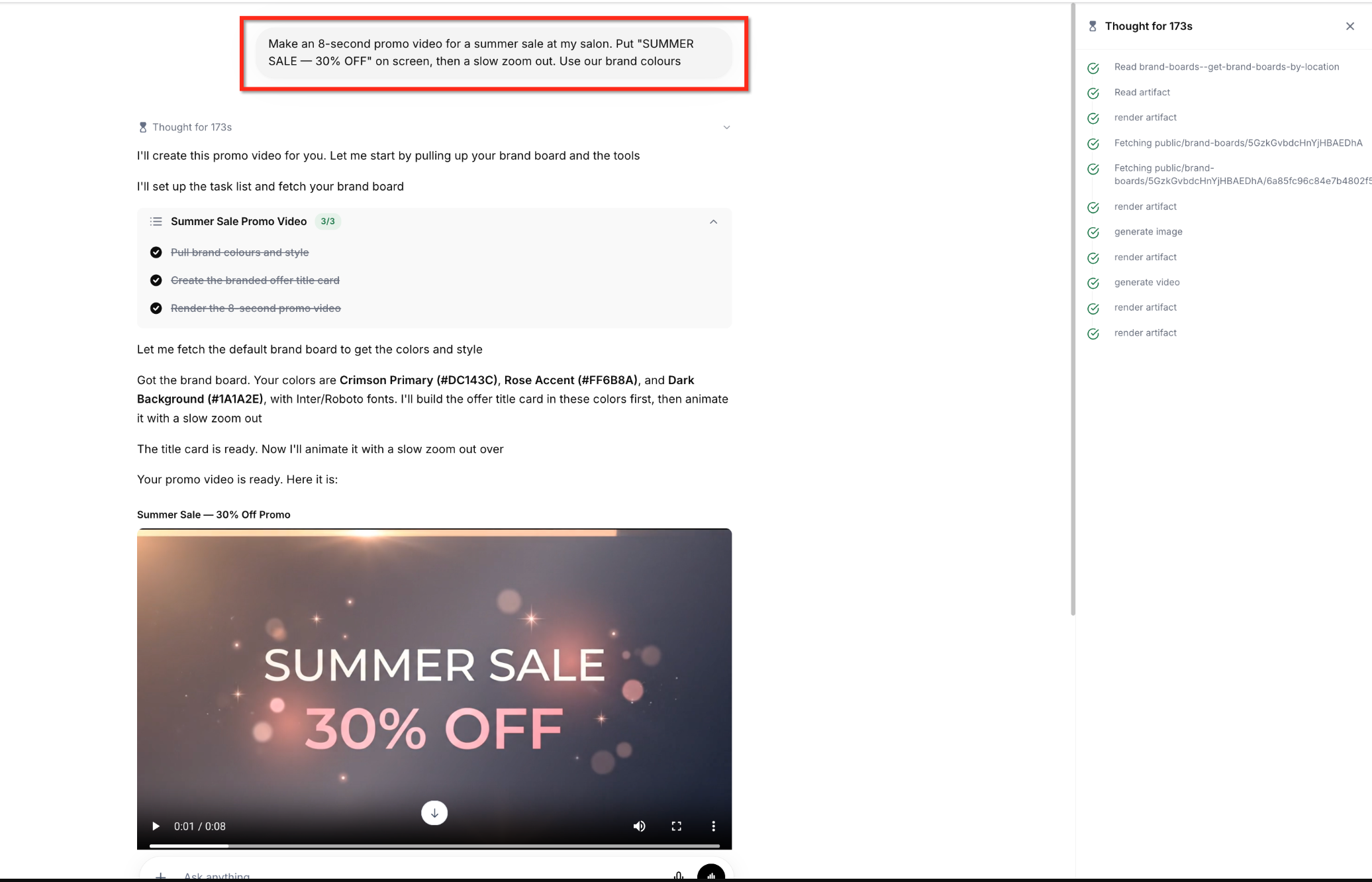
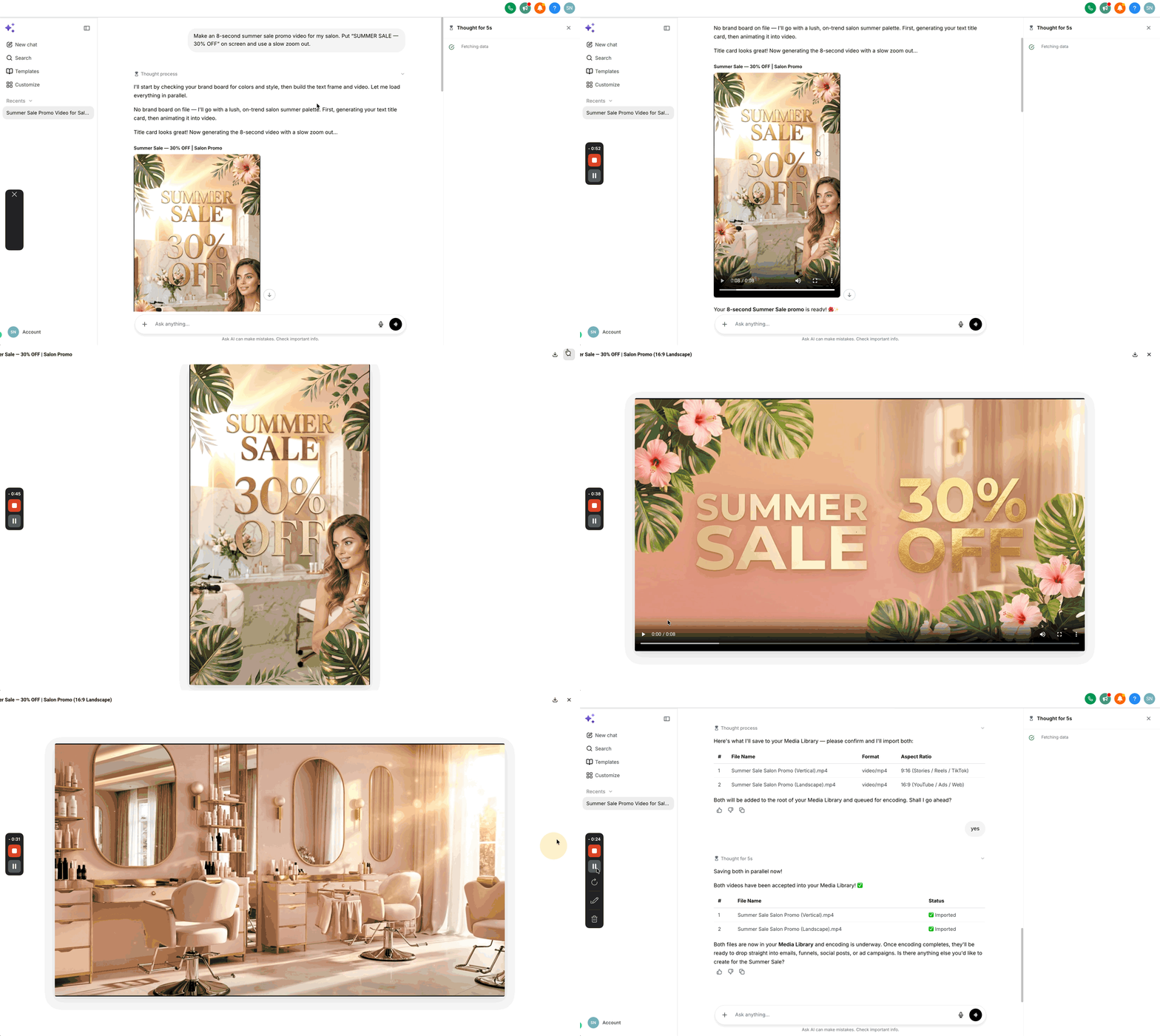
- Fitness studio. The studio prompts Ask AI to produce an 8 second vertical promo that shows a class schedule image as the start frame, adds "JOIN NOW, 20% OFF" on screen, and animates a slow zoom out. After reviewing, the video is saved to the Media Library for later posting on Instagram.
- E learning platform. The platform submits a script describing a new course module, directs a warm and upbeat tone, selects a friendly voice, and sets playback speed to 1.2x. Once the voiceover renders, the team exports it as an MP3 file and attaches it to the course lesson within HighLevel.
- Real estate agency. An agent asks Ask AI to create a 6 second landscape video that begins with a property photo, adds a caption "OPEN HOUSE THIS SATURDAY", and applies golden hour lighting. After confirming the 4K option, the agent reviews the clip and stores it in Media Storage for use in email campaigns.
04The numbers and rules that matter
- Generate 4, 6, or 8 second video clips.
- Resolution up to 4K.
- Speed adjustment from 0.25x to 4x.
- Scripts up to 4,000 characters per take.
05How to set up and use audio & video generation in HighLevel
Generate a video with Ask AI
- Open the Ask AI interface in HighLevel.
- Type a prompt that describes the desired video.
- Add details such as duration, orientation, subject, on screen text, camera movement, lighting, visual style and any elements to exclude.
- If you want to use existing images, specify which image will serve as the start frame, end frame, or both.
- Submit the completed prompt.
- Answer any follow up questions or confirmations that Ask AI returns.
- When asked about 4K output, confirm if you want the highest resolution.
- Wait while Ask AI processes and creates the video.
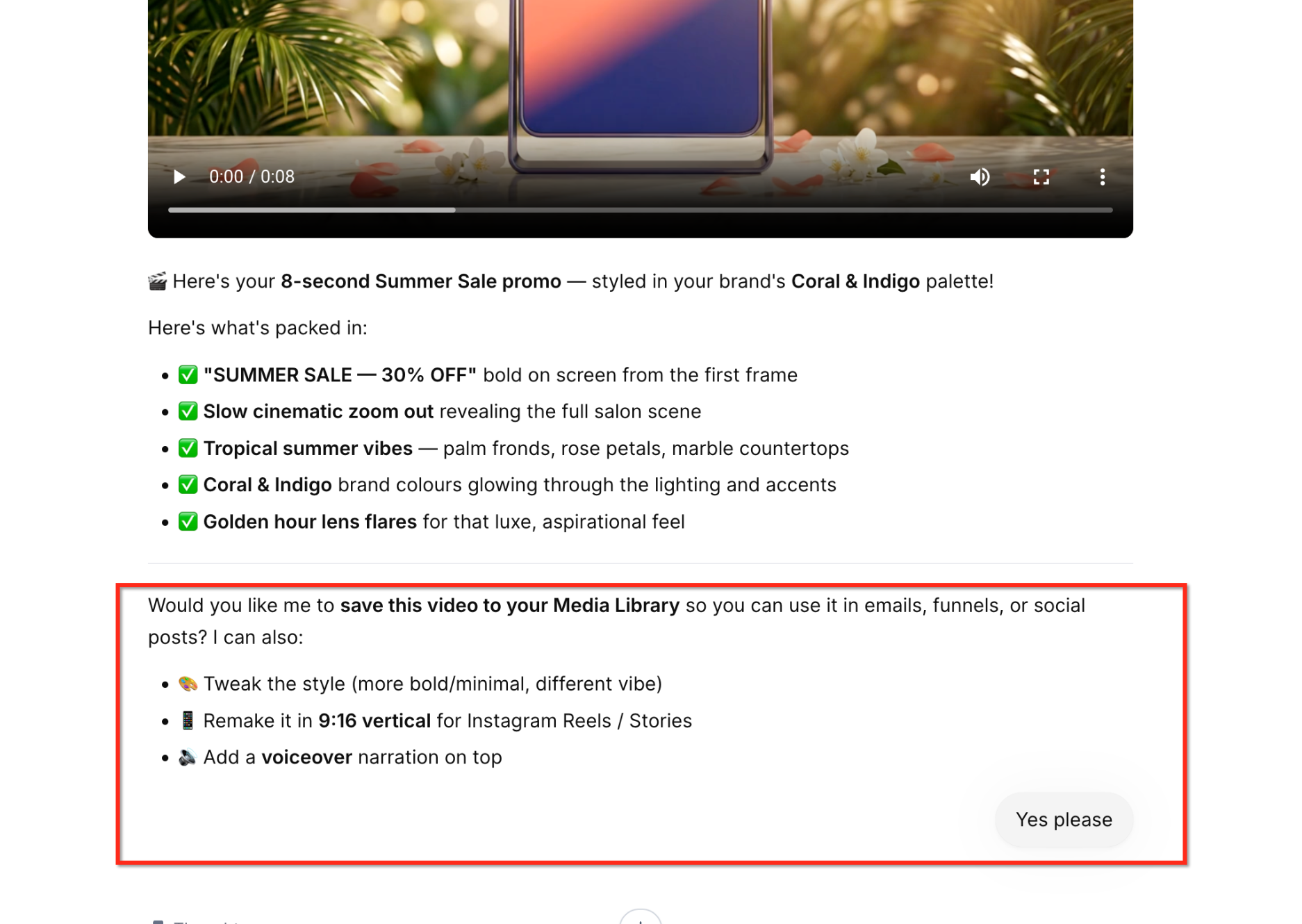
- Play the resulting clip inside the conversation to review it.
- If further changes are needed, continue the chat to adjust style, orientation, narration or other details.
- Ask Ask AI to save the final video to your Media Library for later reuse.
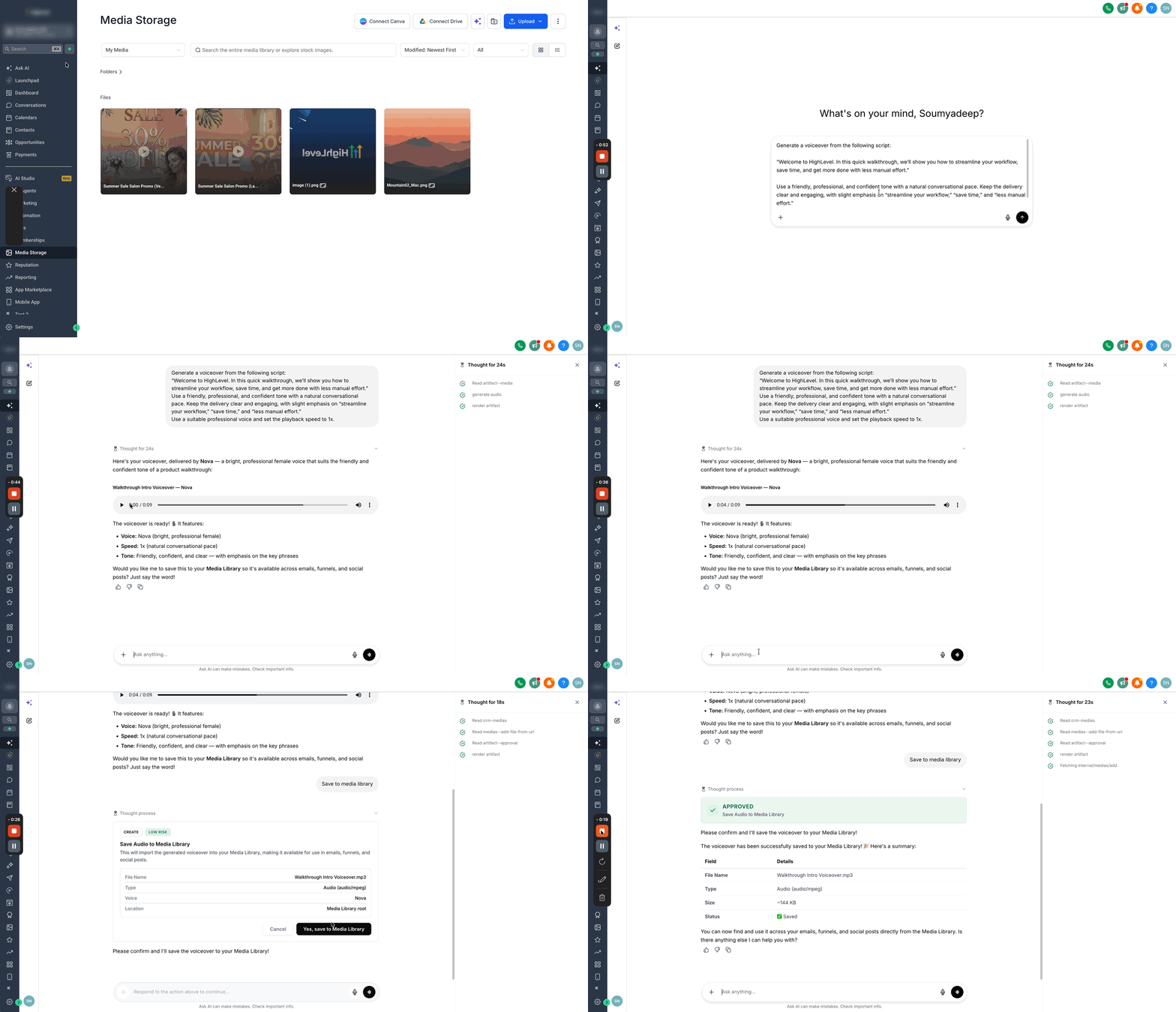
Generate a voiceover with Ask AI
- Open the Ask AI interface.
- Tell Ask AI that you want a voiceover or audio recording.
- Provide the full script you wish to have spoken.
- Describe the desired delivery, including tone, pacing or emotion.
- When prompted, pick one of the ten available voices.
- Adjust playback speed between 0.25x and 4x if needed.
- Submit the request and wait for the audio to be rendered.
- Play the generated audio inside the conversation to check it.
- For scripts longer than 4,000 characters, split the text into separate sections and submit each one.
- Export the finished recording in MP3, WAV, OPUS or AAC format as required.
06What it looks like in HighLevel
07Settings that matter
- Duration. Selects a video length of 4, 6, or 8 seconds.
- Orientation. Chooses landscape or vertical framing for the video.
- Resolution. Sets the video quality up to 4K and triggers a confirmation before processing at that level.
- Audio. Includes a synchronized native audio track with the generated video.
- Prompt direction. Guides camera movement, lighting, visual style and scene details through the user’s prompt.
- Negative prompts. Specifies visual elements or artifacts that should be omitted from the video.
- Start and end frames. Anchors the video to chosen images at the beginning, end, or both for animation.
- Voice selection. Lets you choose one of ten synthetic voices for audio generation.
- Voice tone, pacing and emotion. Controls how the selected voice delivers the script, including warmth, energy, speed and feeling.
- Playback speed. Adjusts the audio’s tempo from 0.25x to 4x.
- Export format. Determines whether the final audio is saved as MP3, WAV, OPUS or AAC.
08Things to know before you rely on it
- Video length is limited to 4, 6 or 8 seconds.
- Orientation can only be landscape or vertical.
- Maximum video resolution is 4K, and the system asks for confirmation before using it.
- Audio generation offers ten distinct voices.
- Each audio take accepts a script of up to 4,000 characters; longer scripts must be split into sections.
- Playback speed can be set between 0.25x and 4x.
- Exported audio files are limited to MP3, WAV, OPUS or AAC formats.
- Ask AI Voice Mode is separate from audio generation and does not create reusable voiceover files.
09If something goes wrong
- Cannot edit text inside a rendered video.. Update the prompt with the corrected wording and generate a new video.
- Script exceeds 4,000 characters.. Divide the script into separate sections, each under the character limit, and generate audio for each part.
- Exported audio format is not accepted by a target HighLevel product.. Check the file type requirements of the destination product and choose a compatible export format.
10How it connects to the rest of HighLevel
- Learn how to generate and edit images for start/end frames. Generate and edit images
- Review Ask AI session pricing and usage limits. Ask AI pricing
Michael's take

Do I really need another tool to make short videos and voiceovers? If I were building a quick promo for a new service, I’d type a clear prompt, tell Ask AI the exact length, orientation and the on screen copy I want, and let it generate a clip I can watch right in the chat.
Once the clip looks good, I’d ask Ask AI to drop it into the Media Library so it’s ready for any campaign. The same goes for a voiceover. Write the script, pick a tone, choose one of the ten voices and export the file in the format your landing page needs.