
01Who this is for
- Agency administrators, can update many client subaccounts without opening each one, saving time.
- SaaS providers, can assign the same SaaS plan to multiple client accounts in one step.
- Support teams, can pause access for a group of accounts while controlling subscription and phone resource handling.
02SubAccount Bulk Actions & History, explained
Subaccount Bulk Actions are agency level tools that let you select several subaccounts and run one supported workflow, like enabling SaaS mode or pausing accounts. After you choose the accounts, you pick an action, configure any required options, and submit a single job.
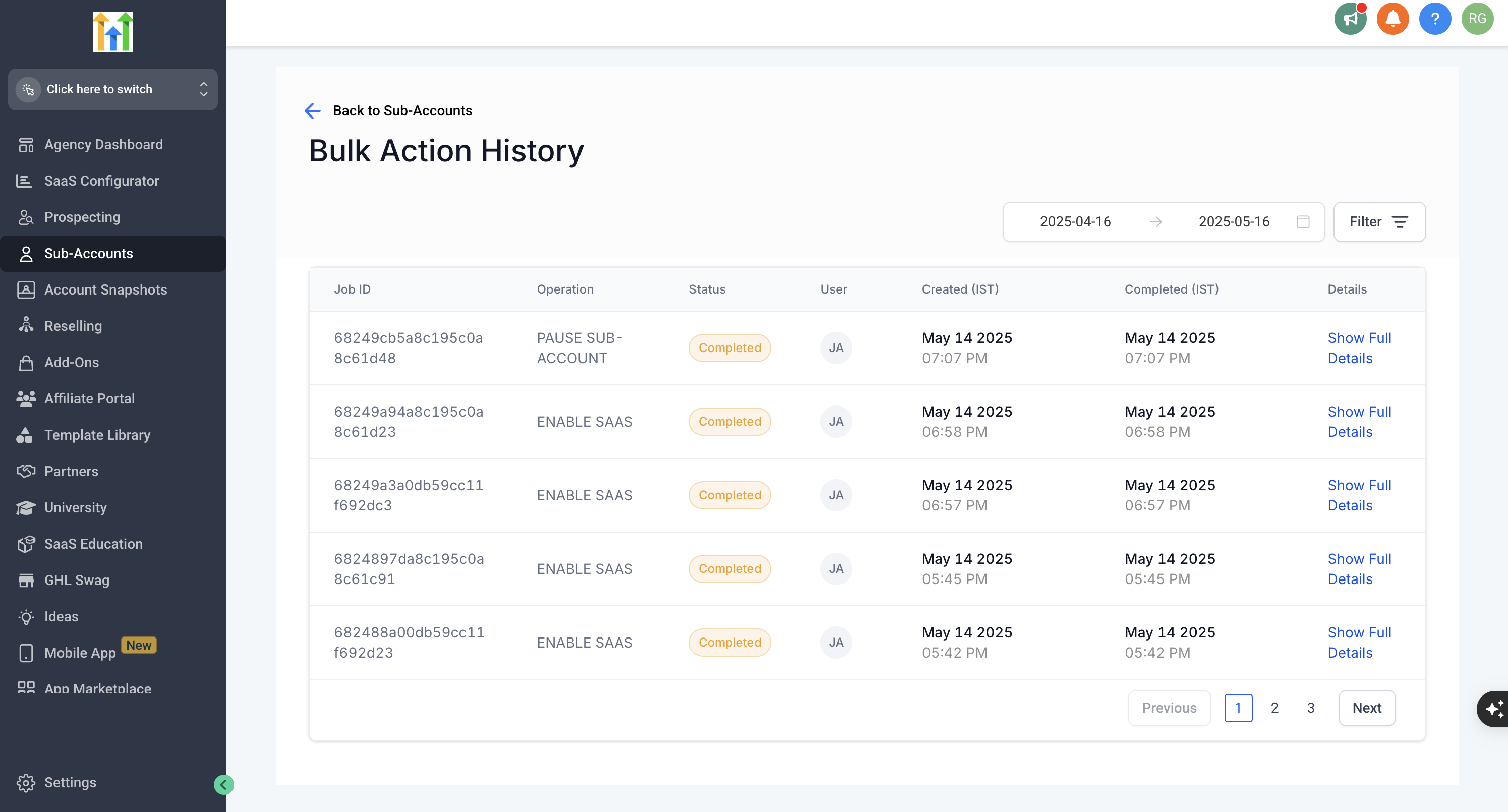
The platform tracks each submitted job in Bulk Action History. The history table shows the job ID, operation type, status, submitting user and timestamps. You can open a job to see which subaccounts succeeded, which failed, and any error details.
All controls live on the Subaccounts page in Agency View. The Bulk Actions menu appears after you select at least one account, and the History icon opens the audit log.
03How businesses use subaccount bulk actions & history
- Digital marketing agency. The agency selects all client subaccounts that need the same SaaS plan, runs the Bulk Enable SaaS Mode workflow, chooses the payment provider and plan, then confirms to apply the plan to every selected account.
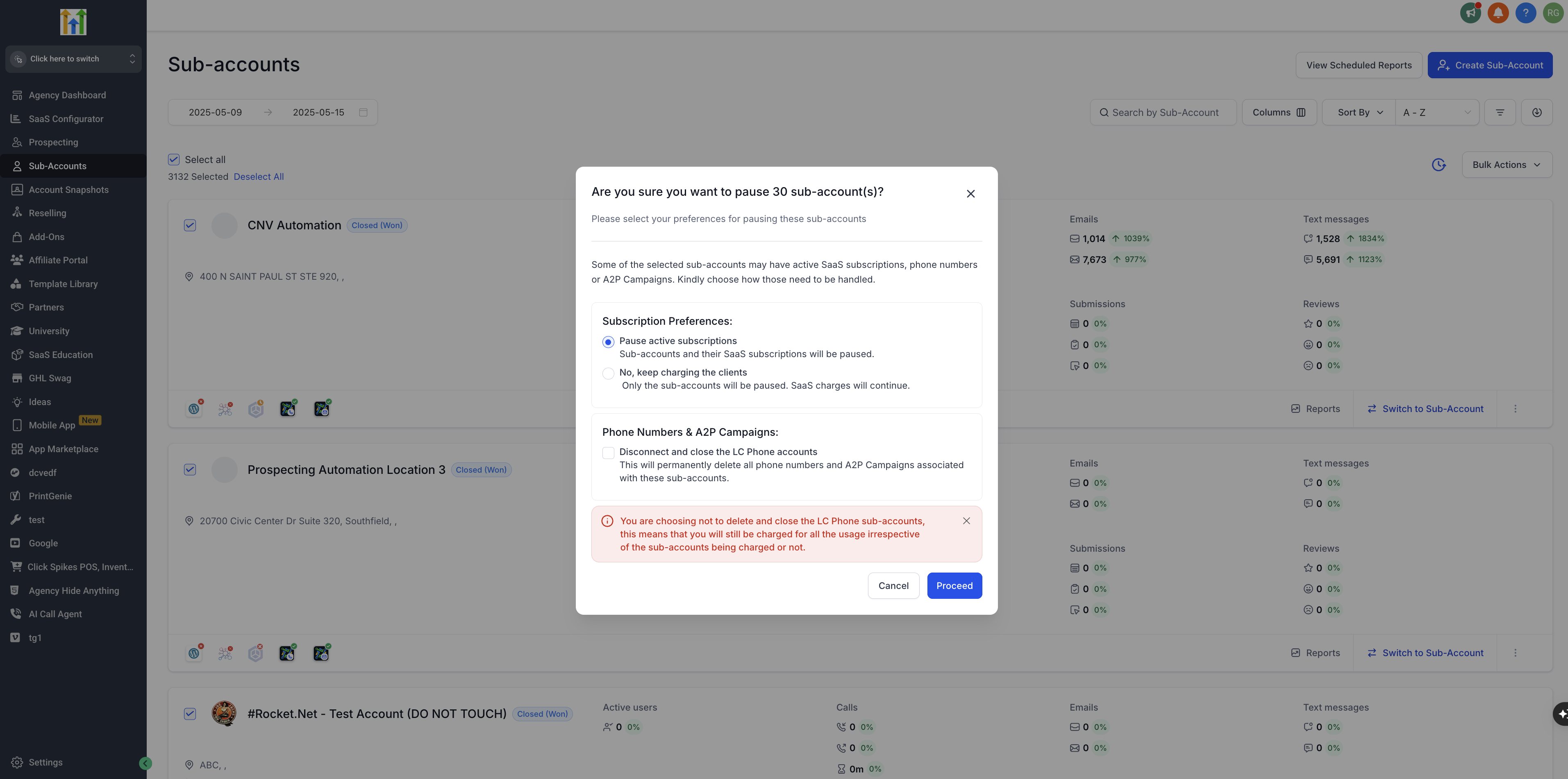
- SaaS startup. When onboarding a batch of new customers, the startup selects the new subaccounts, chooses Bulk Pause Subaccount, sets subscription preferences to keep billing active while access is paused, and proceeds to pause all accounts at once.
- Managed IT service provider. The provider uses the Bulk Action History view to verify that a recent bulk SaaS activation completed, checks the success count, and opens any failed accounts to correct payment method issues before retrying.
04The numbers and rules that matter
- Payment provider cards show V1 or V2 labels and describe where customer and subscription data is managed; cards marked Not supported cannot be selected.
05Before you start
- Log in with an Agency Admin account that has the required permissions for the intended action.
- Use search or filter controls to narrow the Subaccounts list before selecting all accounts.
- For SaaS activation, confirm the agency’s payment provider configuration and the SaaS plan you intend to assign.
- When pausing, decide whether active SaaS subscriptions should stop billing or remain charged while access is paused.
- Review phone number and A2P handling choices because disconnecting resources can permanently delete them.
06How to set up and use subaccount bulk actions & history in HighLevel
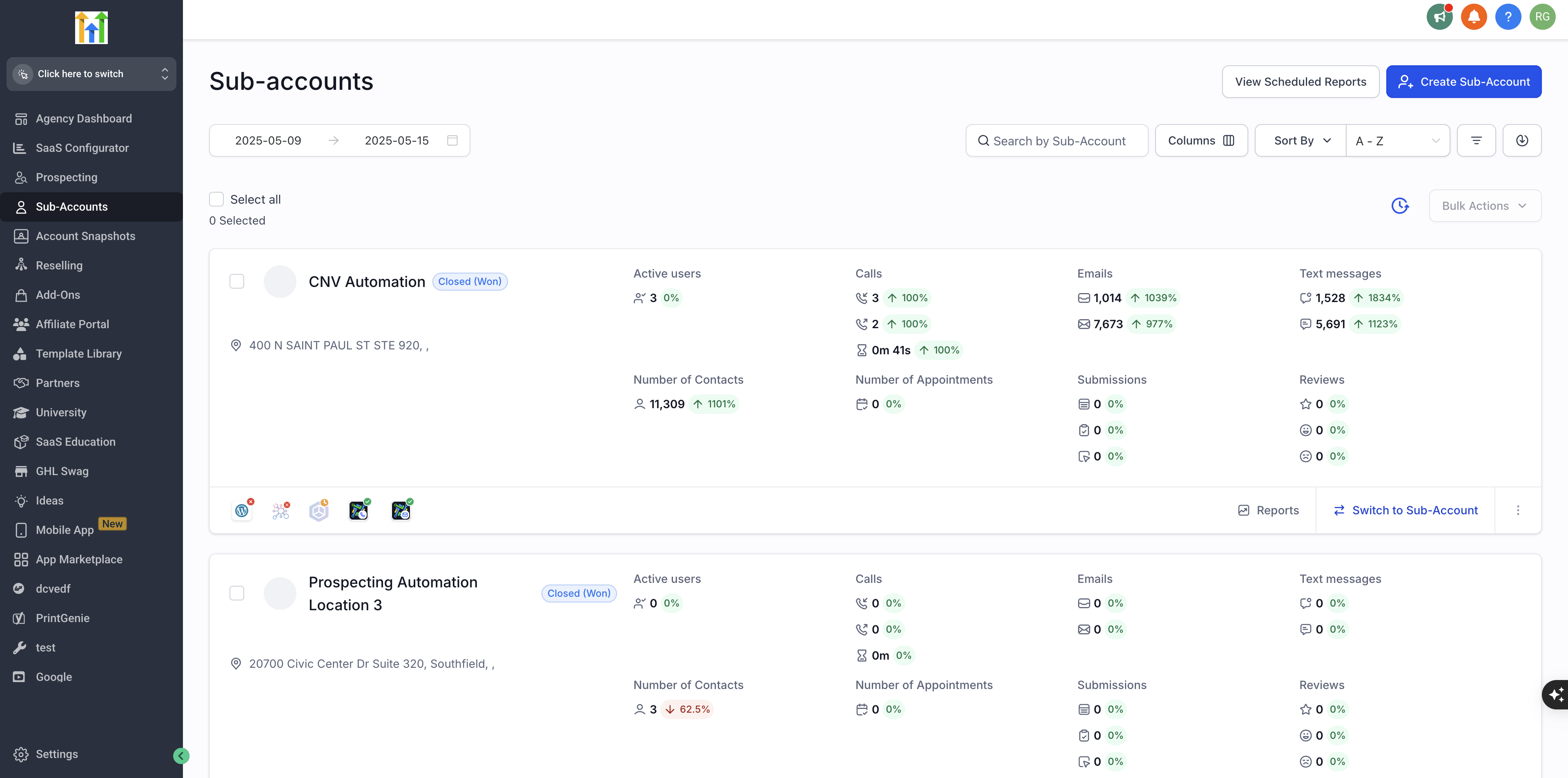
Select subaccounts
- Navigate from Agency View to Subaccounts.
- Use search, sort, date, column, or filter options to narrow the list as needed.
- Check the box beside each target subaccount or use Select all for the desired scope.
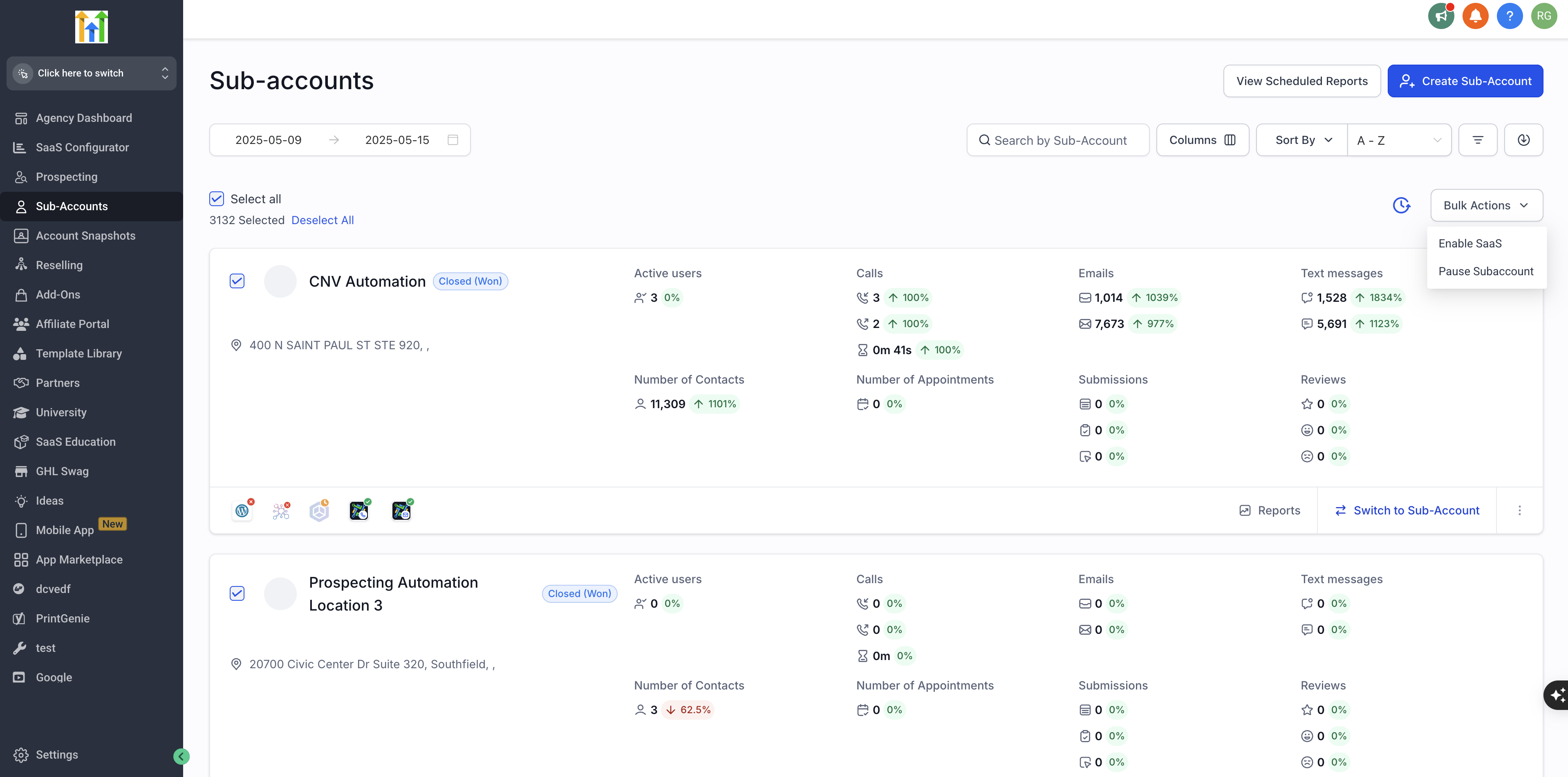
Choose a bulk action
- Verify the number of selected accounts.
- Click the Bulk Actions button.
- Select the desired bulk action from the menu.
Bulk enable SaaS mode
- Pick Enable SaaS from the Bulk Actions menu.
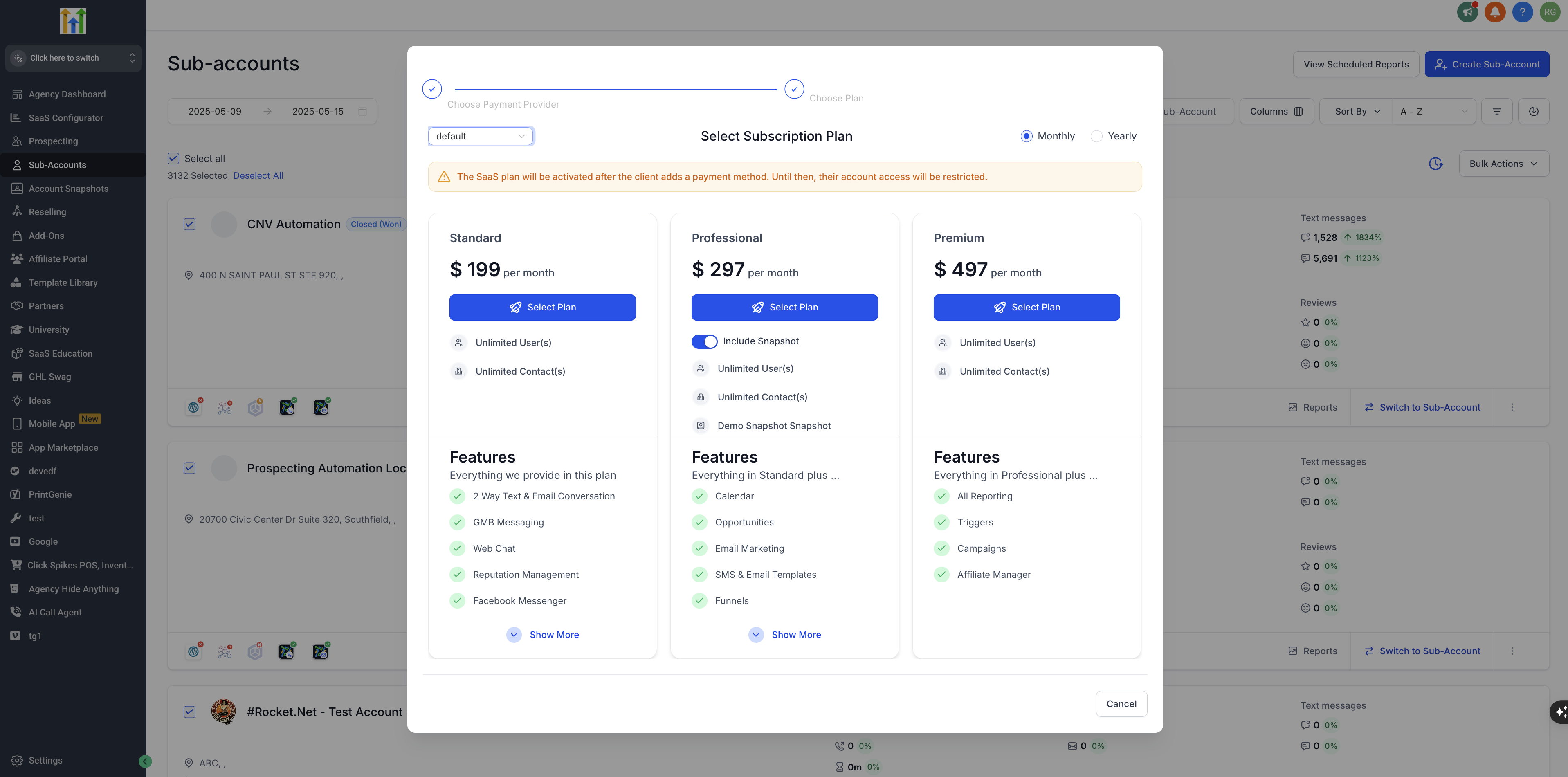
- Select the appropriate payment provider card.
- Click Continue to move forward.
- Choose the SaaS plan you want to apply.
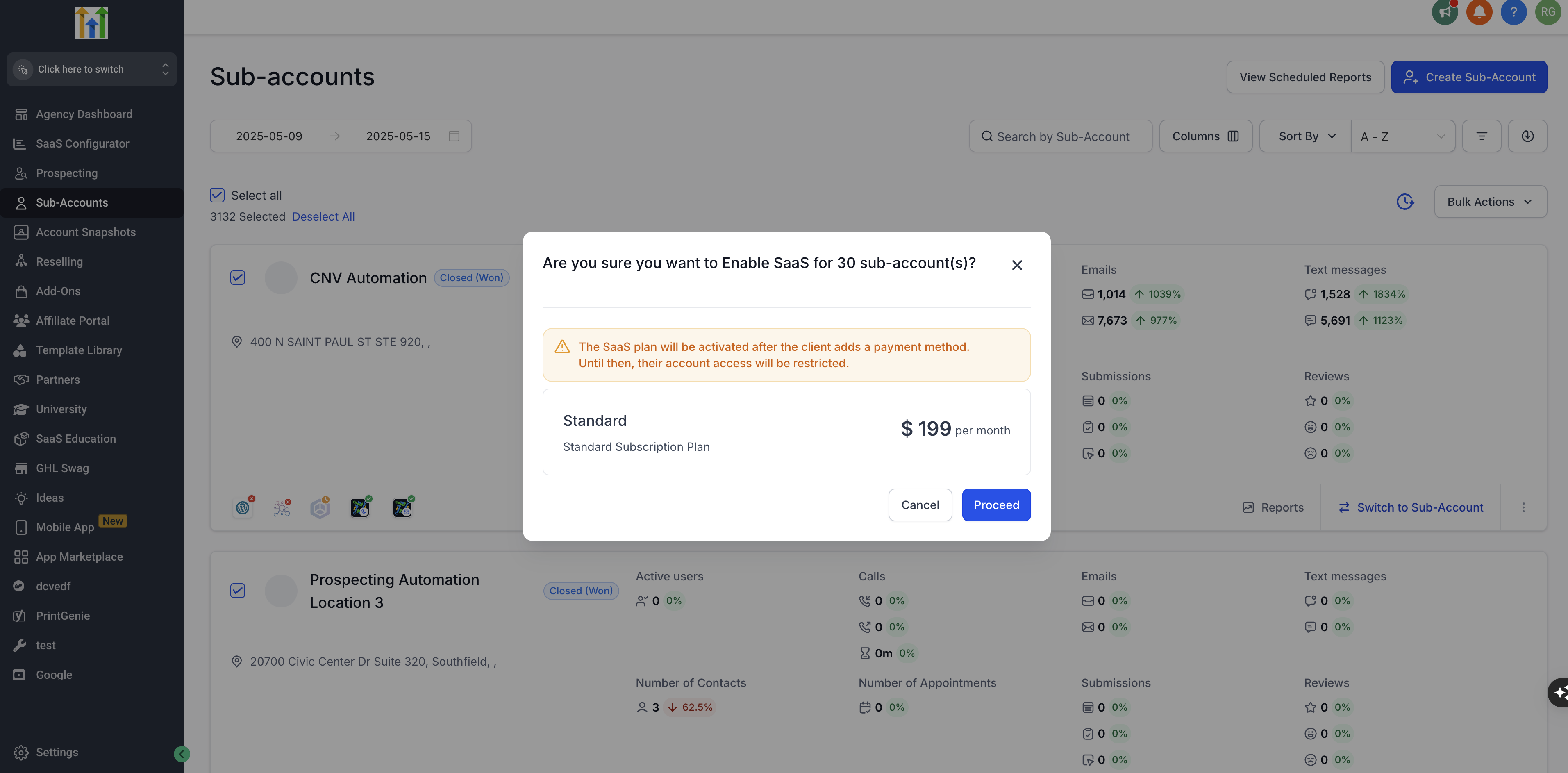
- Review the count of selected subaccounts and the plan details.
- Click Proceed to submit the bulk job.
Bulk pause subaccounts
- Select the subaccounts you wish to pause.
- Open Bulk Actions and choose Pause Subaccount.
- Under Subscription Preferences, decide whether to pause subscriptions or keep charging.
- Review the phone number and A2P campaign handling option.
- Important: Choosing to disconnect and close phone resources can permanently delete phone numbers and A2P campaigns associated with the selected subaccounts.
- Click Proceed after confirming all consequences.
Review bulk action history
- Go to Agency View and open Subaccounts.
- Click the Bulk Action History clock icon.
- Apply a date range or filter to locate the desired job.
- Examine the Job ID, Operation, Status, User, Created and Completed columns.
- Select Show Full Details for the job.
- Review each subaccount’s ID, name, status and any error details.
- Compare the total, success and failed subaccount counts.
07What it looks like in HighLevel
08Settings that matter
- Payment Provider. Determines which payment provider configuration is used for SaaS billing when enabling SaaS mode.
- SaaS Plan. Specifies the billing interval, price and features that will be applied to every selected subaccount.
- Subscription Preferences. Controls whether SaaS subscriptions are paused or continue charging while the subaccount access is paused.
09Things to know before you rely on it
- The bulk actions shown depend on the agency plan, user permissions, SaaS configuration, feature availability and the selected subaccounts.
- Payment provider cards marked Not supported appear in the UI but cannot be selected.
- Disconnecting phone resources during a pause permanently deletes associated numbers and A2P campaigns.
- Bulk actions can affect billing, access and subscriptions across many accounts at once; verify selections before submitting.
10If something goes wrong
- The expected Bulk Action is missing. Check the agency plan, user permissions, account configuration, feature availability, and eligibility of the selected subaccounts.
- Enable SaaS cannot continue. Verify the SaaS billing configuration, payment provider, selected plan and account eligibility.
- SaaS activation completes but access is restricted. Confirm the client still needs to add a valid payment method and that the subscription is not left On Hold.
- A paused account is still generating phone usage charges. Review whether phone resources were left connected; pausing access does not automatically close them.
- Some accounts succeeded and others failed. Open Bulk Action History, select Show Full Details, and examine the error information for each failed account.
- The job is still processing. Allow the job time to finish, then refresh Bulk Action History before attempting a duplicate action.
11How it connects to the rest of HighLevel
- See how SaaS usage limits are managed across subaccounts. Manage SaaS usage limits
- Learn about rebilling settings that can also be applied in bulk. Agency rebilling dashboard
- Review plan options and pricing before assigning SaaS plans. HighLevel pricing and plans
Michael's take

Subaccount Bulk Actions & History is a time saver for agencies that need to change many accounts at once.
Small solo operators who only manage one or two subaccounts can skip it.