
01Who this is for
- Agency owners who need to control client consumption of AI services and prevent unexpected overages.
- Subaccount administrators who must monitor their own usage and request extra capacity without changing plans.
02SaaS usage limits, explained
The feature adds a usage allowance layer to SaaS products that an agency sells through the platform. Agencies choose a monthly quota for Conversation AI messages or Voice AI minutes and set how the system should behave once the quota is exceeded, either bill the extra usage or block it.
Usage limits are configured in the SaaS Configurator inside Agency View. After saving, the limits appear on the client’s billing page and on the subaccount’s Usage tab, where current consumption, percentage used, and reset dates are shown.
Clients can see their remaining allowance and, if an upgrade is not possible, submit a higher limit request directly from the Usage tab. Agencies receive the request, can approve a new limit or decline with a reason, and the change takes effect immediately.
03How businesses use saaS usage limits
- Digital marketing agency. The agency sets a monthly message limit for each client’s Conversation AI in the SaaS Configurator. When a client nears the limit, the agency reviews the usage and decides whether to increase the allowance or block further messages.
- SaaS startup. The startup creates a bundled plan that includes a set number of Voice AI minutes. If a user needs more minutes, they open the Usage tab, add a note, and submit a higher limit request for the agency’s approval.
- Call center. The call center’s subaccount admin monitors Voice AI minute consumption on the Usage tab. When the minutes approach the limit, the admin sends a request for a larger limit, which the agency can approve directly.
04The numbers and rules that matter
- Permissions: Only subaccount admins can view usage summary and submit higher limit requests.
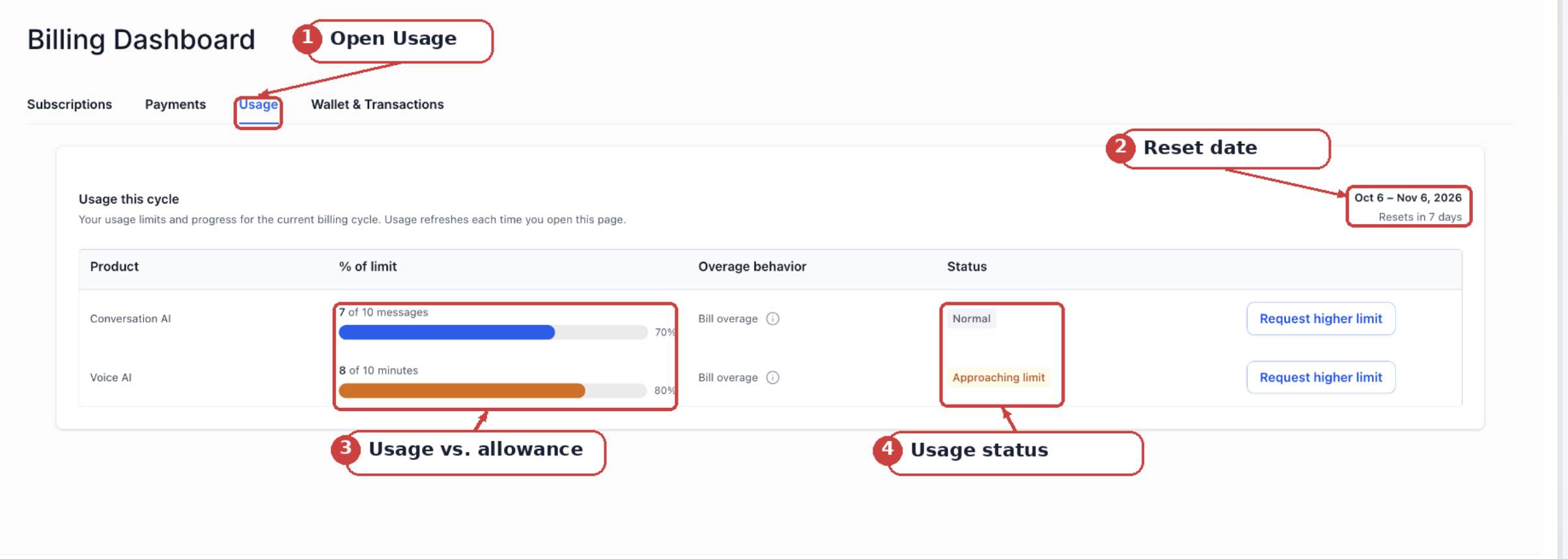
- Usage status thresholds: Normal under 80%, Approaching limit 80, 99%, Limit reached 100% or more.
- Only one request per product can remain open at a time.
- Products without configured limits do not appear in the client’s usage summary.
05Before you start
- The agency must be a Pro agency enrolled in HighLevel Labs (beta).
- Only Conversation AI and Voice AI products are supported.
- Subaccount admins need permission to view usage and submit higher limit requests.
06How to set up and use saaS usage limits in HighLevel
Set up SaaS usage limits
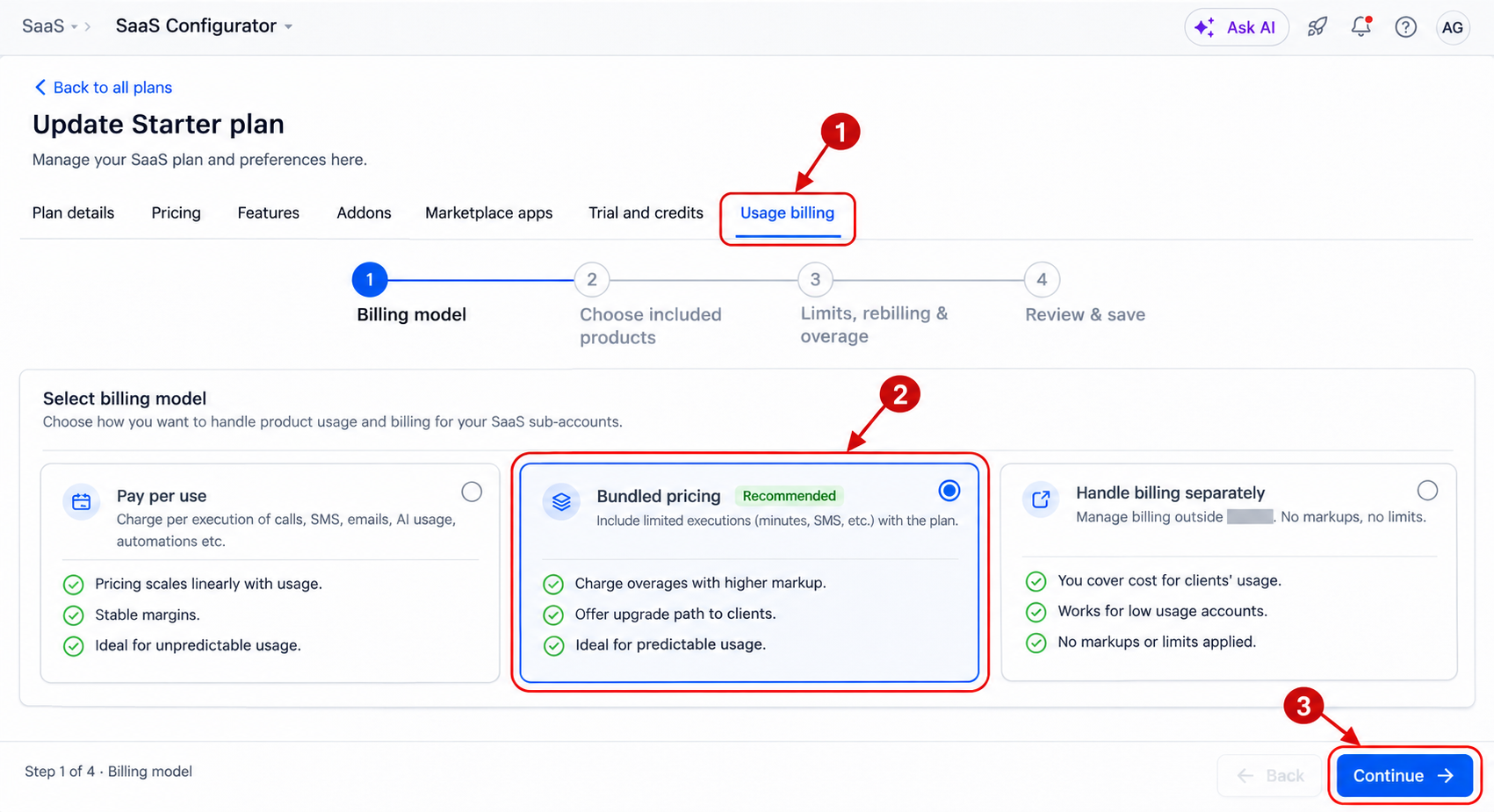
- In Agency View, open the SaaS Configurator.
- Choose the SaaS plan to create or edit.
- Open the Usage billing tab.
- Under Billing model, select Bundled pricing.
- Click Continue.
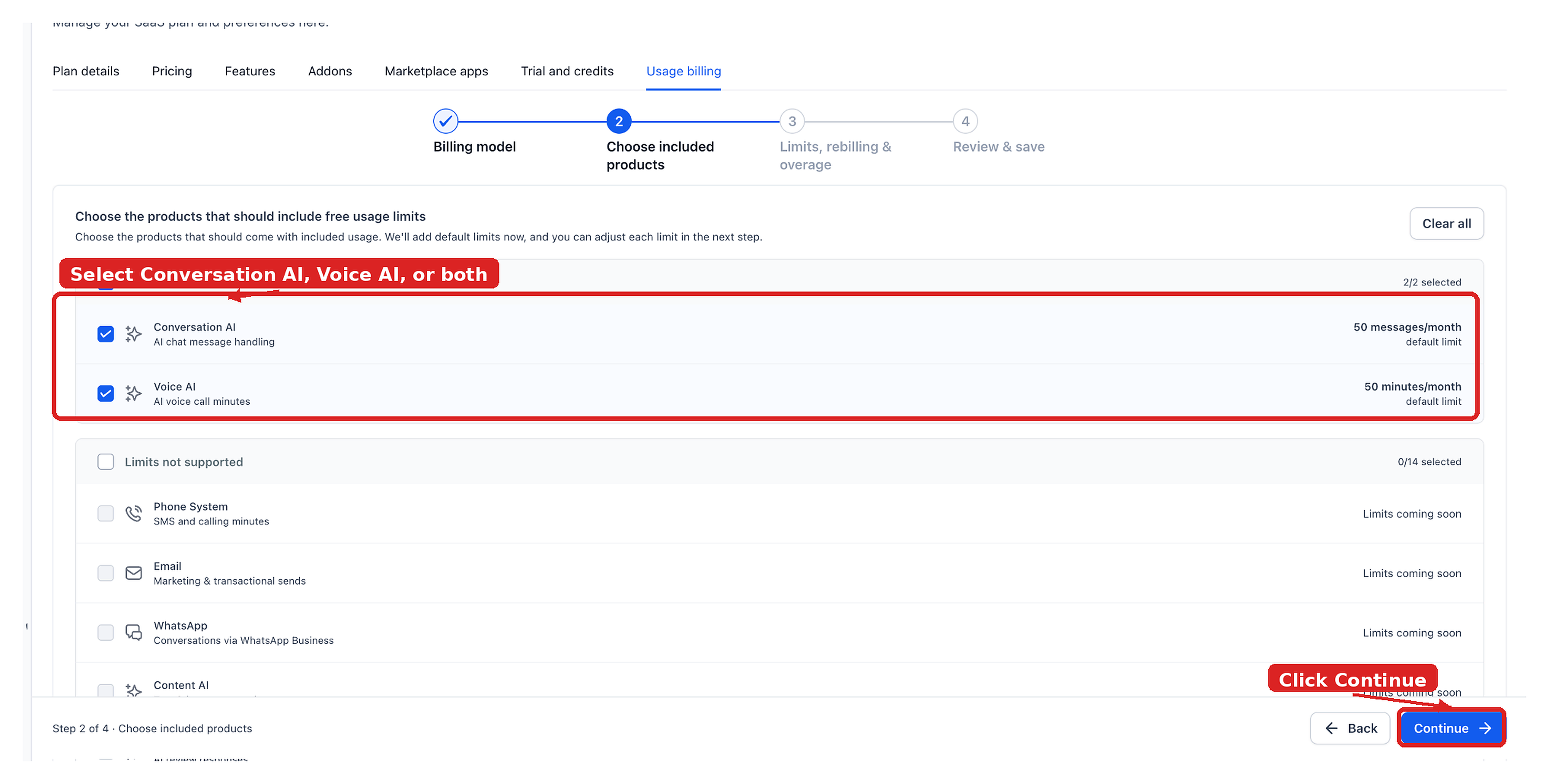
- Under Choose included products, select Conversation AI, Voice AI, or both.
- Click Continue.
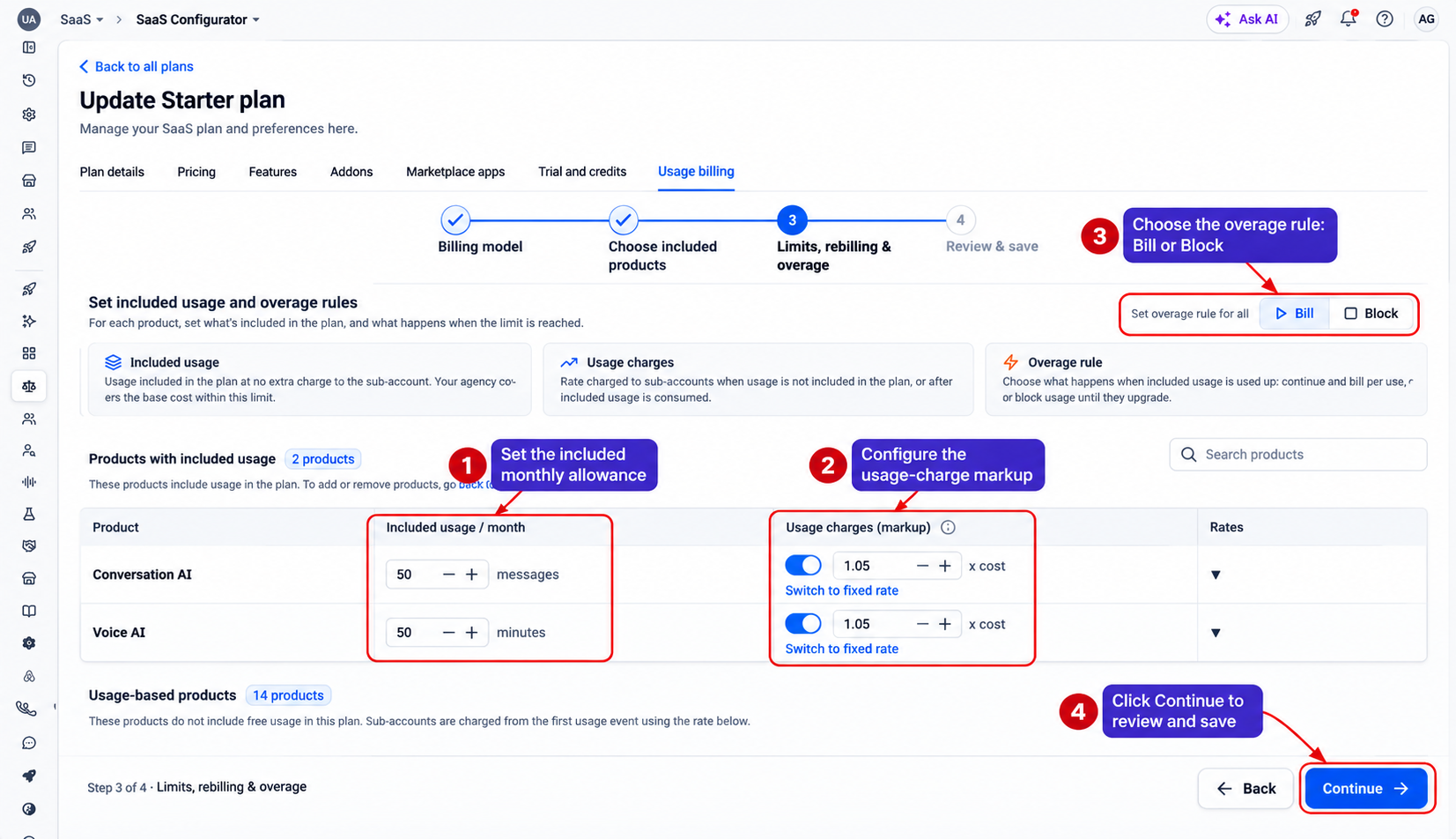
- Under Limits, rebilling & overage, set the included monthly allowance for each selected product.
- Configure the usage charge markup and select the overage rule: Bill or Block.
- Click Continue, complete Review & save, and save the plan.
Manage client limits and requests
- From Agency View, open Subaccounts.
- Select the client and open Manage Client.
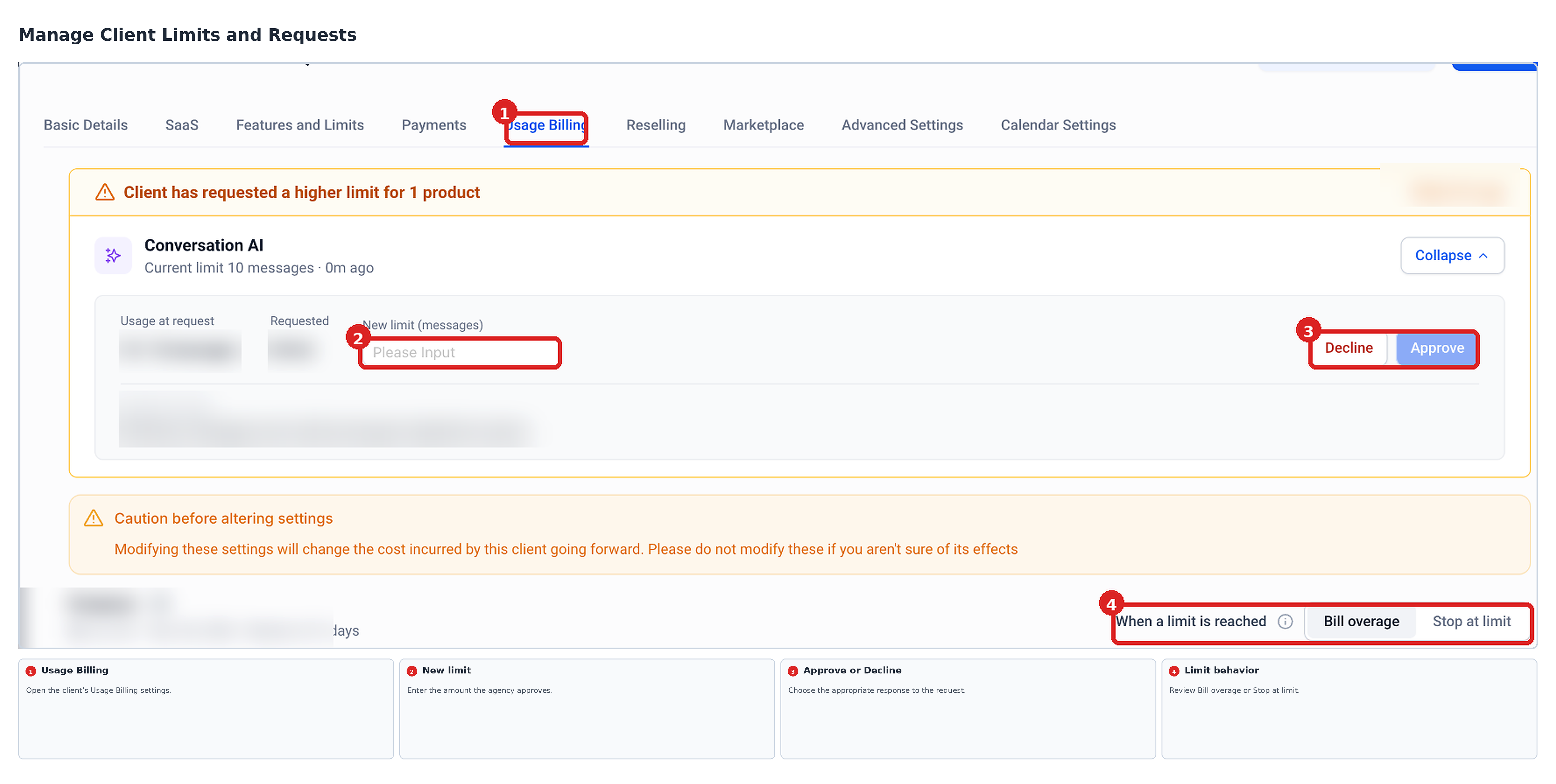
- Click Usage Billing.
- Review the client’s products, configured limits, and the When a limit is reached setting.
- If a request is pending, view the product and any note from the client.
- Enter the approved amount in New limit and click Approve, or click Decline and provide a reason.
View usage
- In Subaccount View, open Settings.
- Select Billing.
- Open the Usage tab.
- Read the Usage this cycle table for current consumption, percentage, status, and reset date.
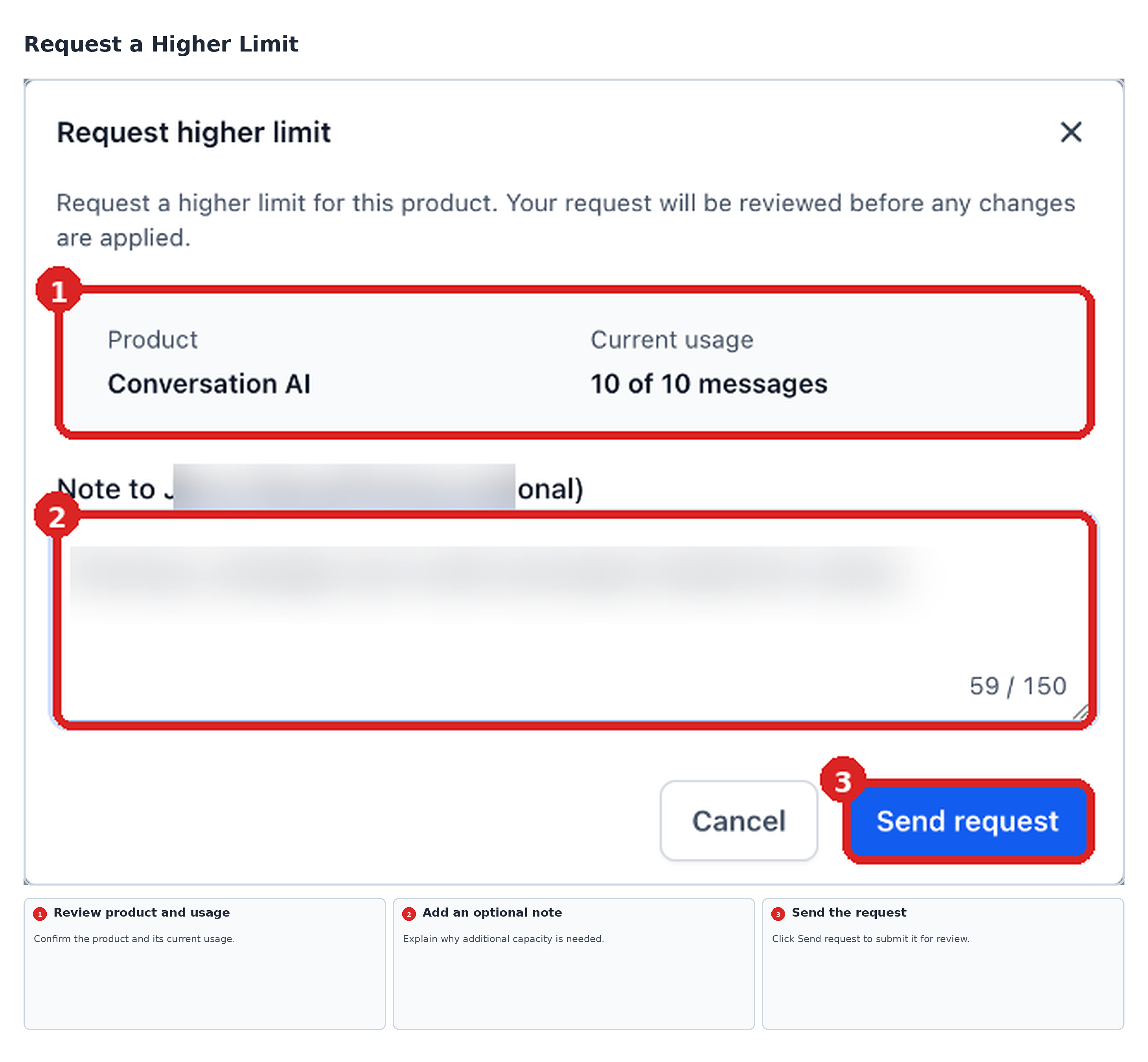
Request a higher limit
- In the Usage tab, click Request higher limit next to the product.
- Verify the product and current usage details.
- Add an optional note explaining the need for more capacity.
- Click Send request.
07What it looks like in HighLevel
08Settings that matter
- Billing model. Determines whether product allowances are included in the plan as bundled pricing.
- Choose included products. Lets the agency select Conversation AI, Voice AI, or both for the allowance.
- Limits, rebilling & overage. Specifies the monthly amount included for each selected product.
- usage charge markup. Sets a percentage or amount added to any overage charges.
- overage rule. Defines the system response when usage exceeds the limit, either bill the extra usage or block it.
- When a limit is reached. Configures the action the platform takes once the allowance is exhausted.
- New limit. Field where an agency enters the approved higher allowance for a client request.
09Things to know before you rely on it
- Only Conversation AI (messages) and Voice AI (minutes) are supported.
- The feature is available for Pro agencies through HighLevel Labs (beta) only.
- Usage limits cannot be set via the Enable Rebilling flow or bulk actions.
- Automatic alerts when usage reaches 80 % are not yet available.
10How it connects to the rest of HighLevel
- Explore all capabilities in Agency View Agency View overview
- Review pricing plans for access to SaaS usage limits Pricing page
- Start a free 30 day trial to test the feature 30 day trial
Michael's take

SaaS usage limits can feel risky if a client uses minutes or messages without a clear cap, and the lack of automated alerts means you need to monitor usage manually.
When you use the feature, you can see the allowance and define what happens if the client exceeds it. Such as billing extra usage or blocking it. Directly in HighLevel.