
01Who this is for
- Agency owners who manage many client subaccounts benefit from quicker snapshot discovery and bulk actions.
- Team members responsible for deploying templates gain confidence from clear audit trails and per user filters.
- Operations staff can audit snapshot changes faster thanks to calendar based date filtering.
02Snapshots new design system (UI), explained
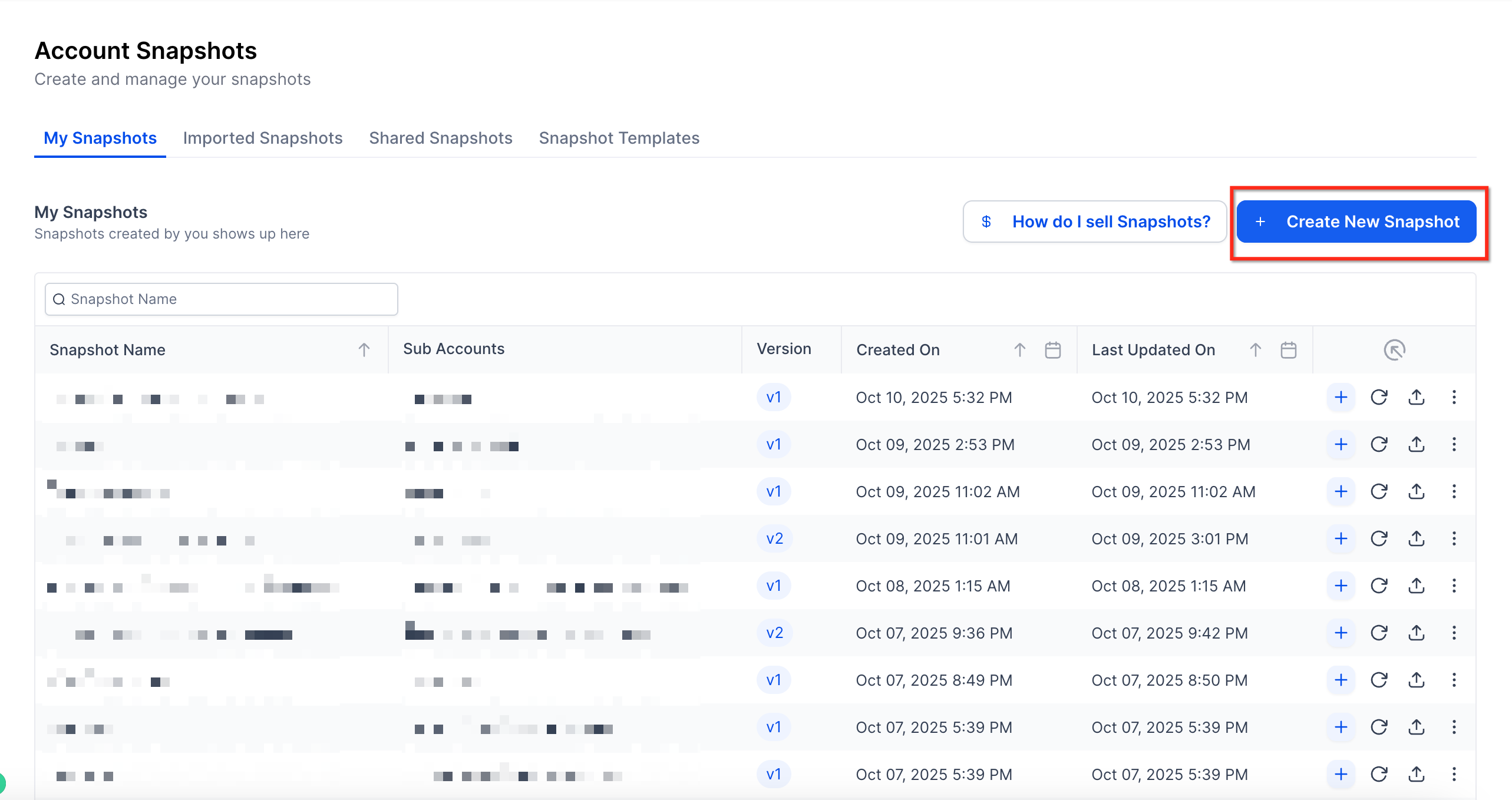
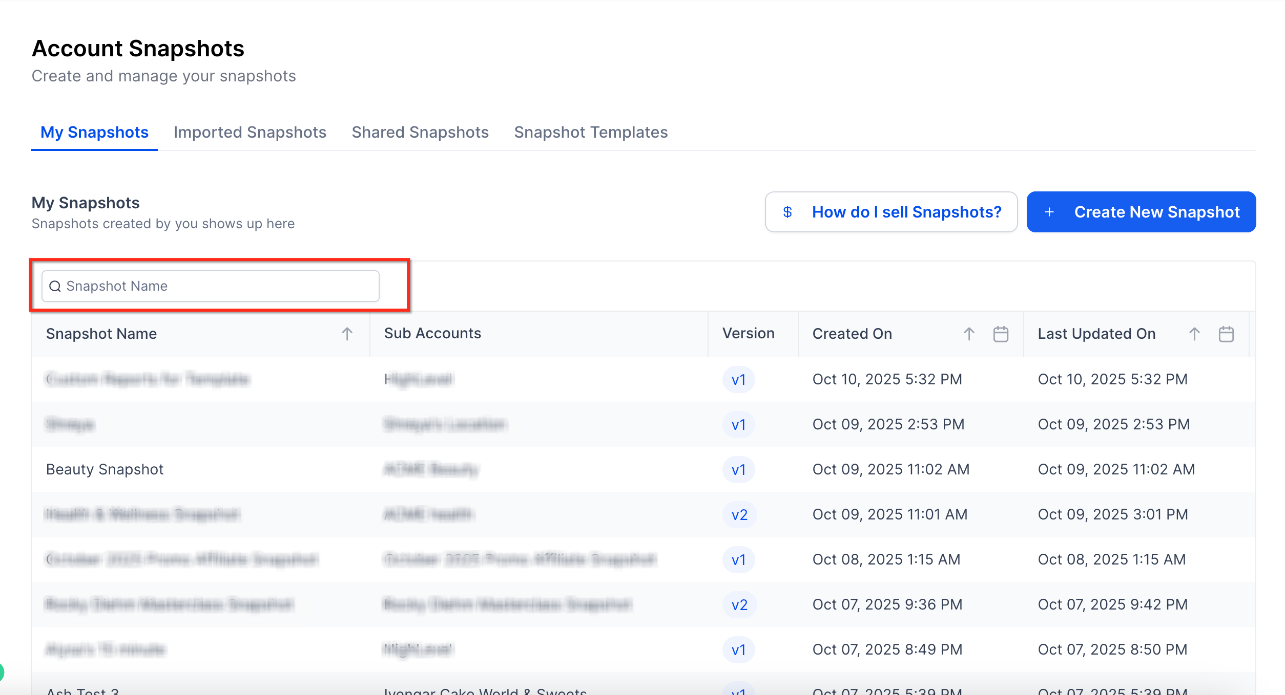
The New Design System is a platform wide UI framework that now powers every Snapshots screen. It unifies icons, spacing and navigation while improving performance. Above each list, instant search, column sorting and a calendar picker let users locate specific snapshots or groups created within a chosen date range.
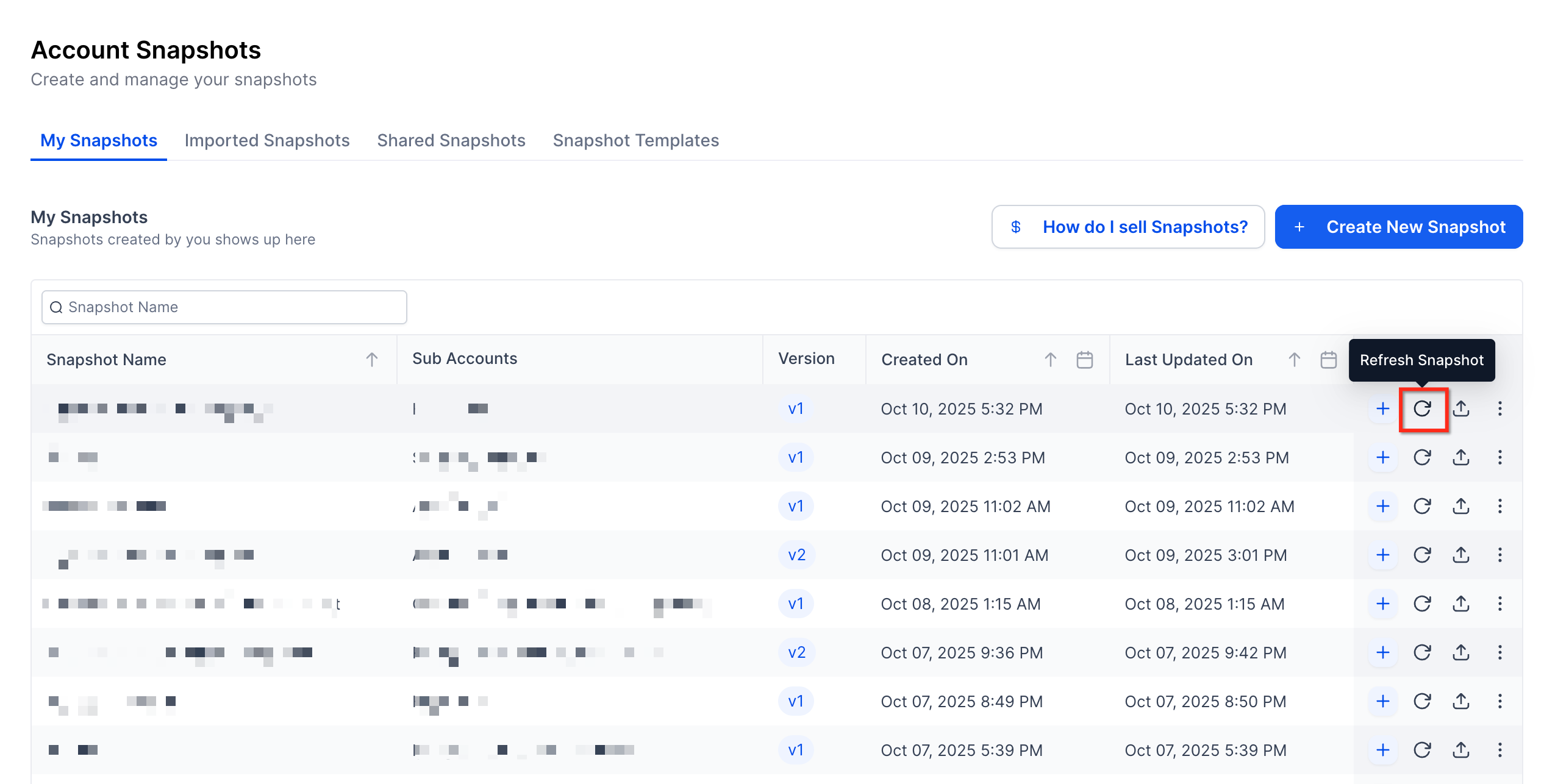
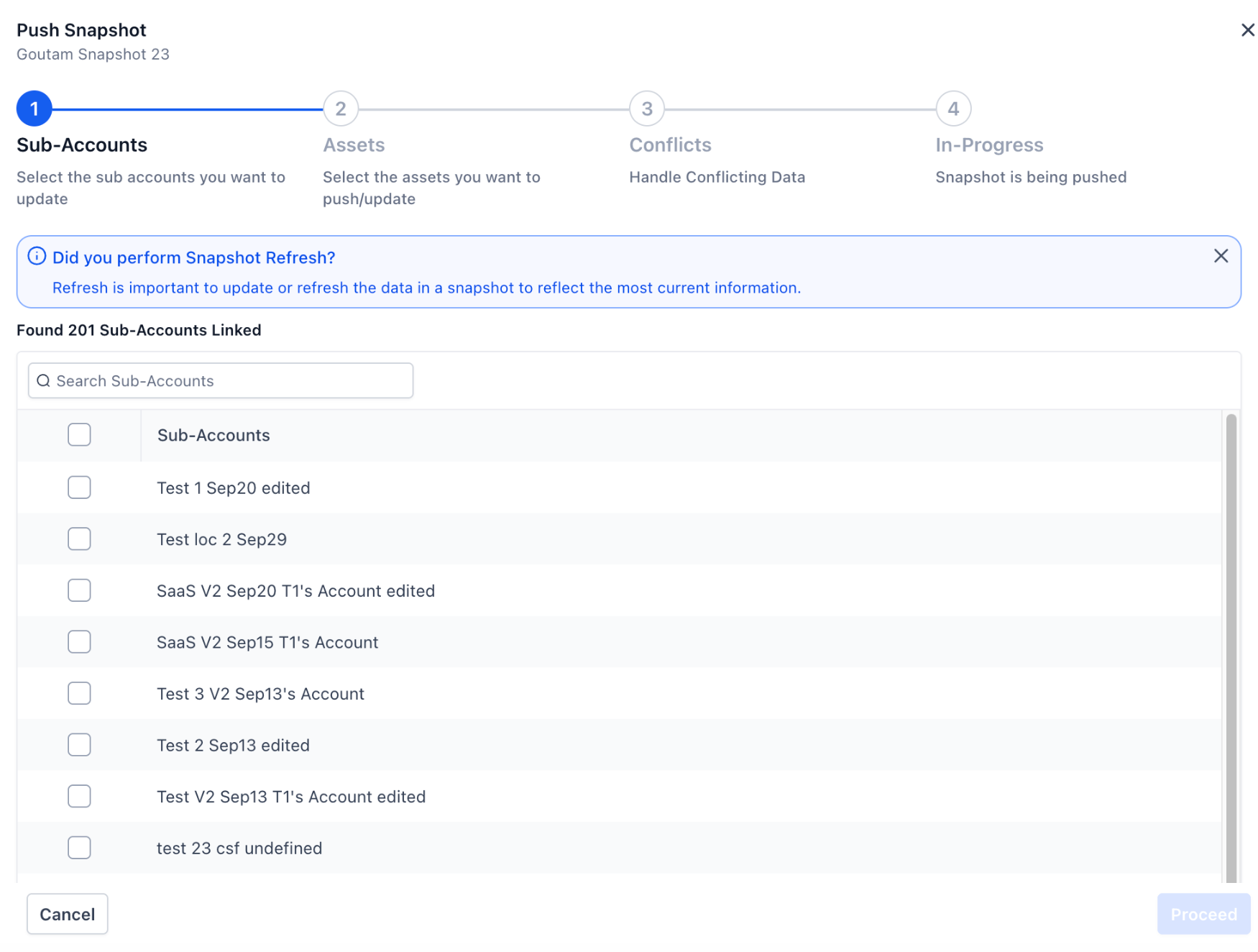
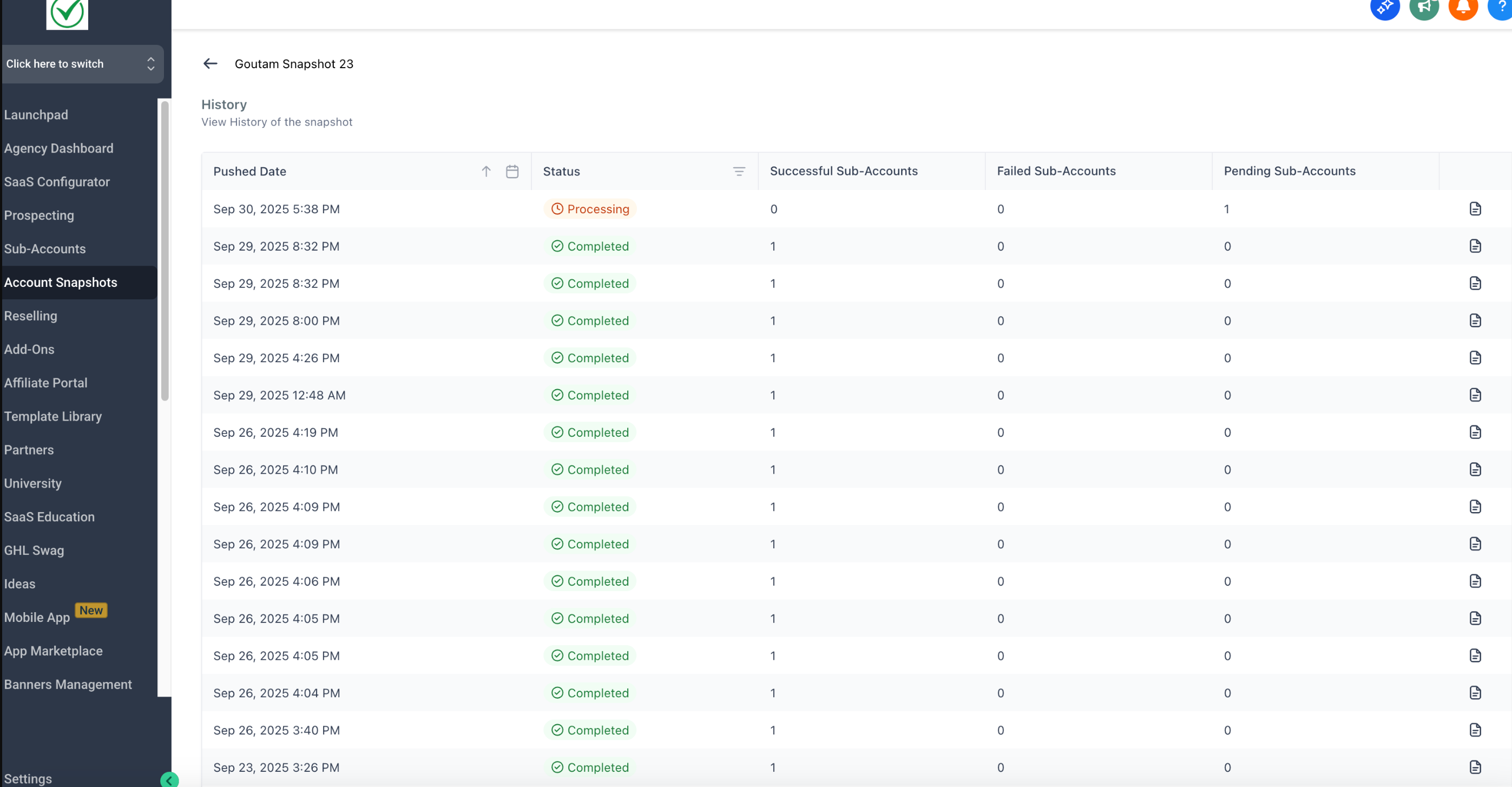
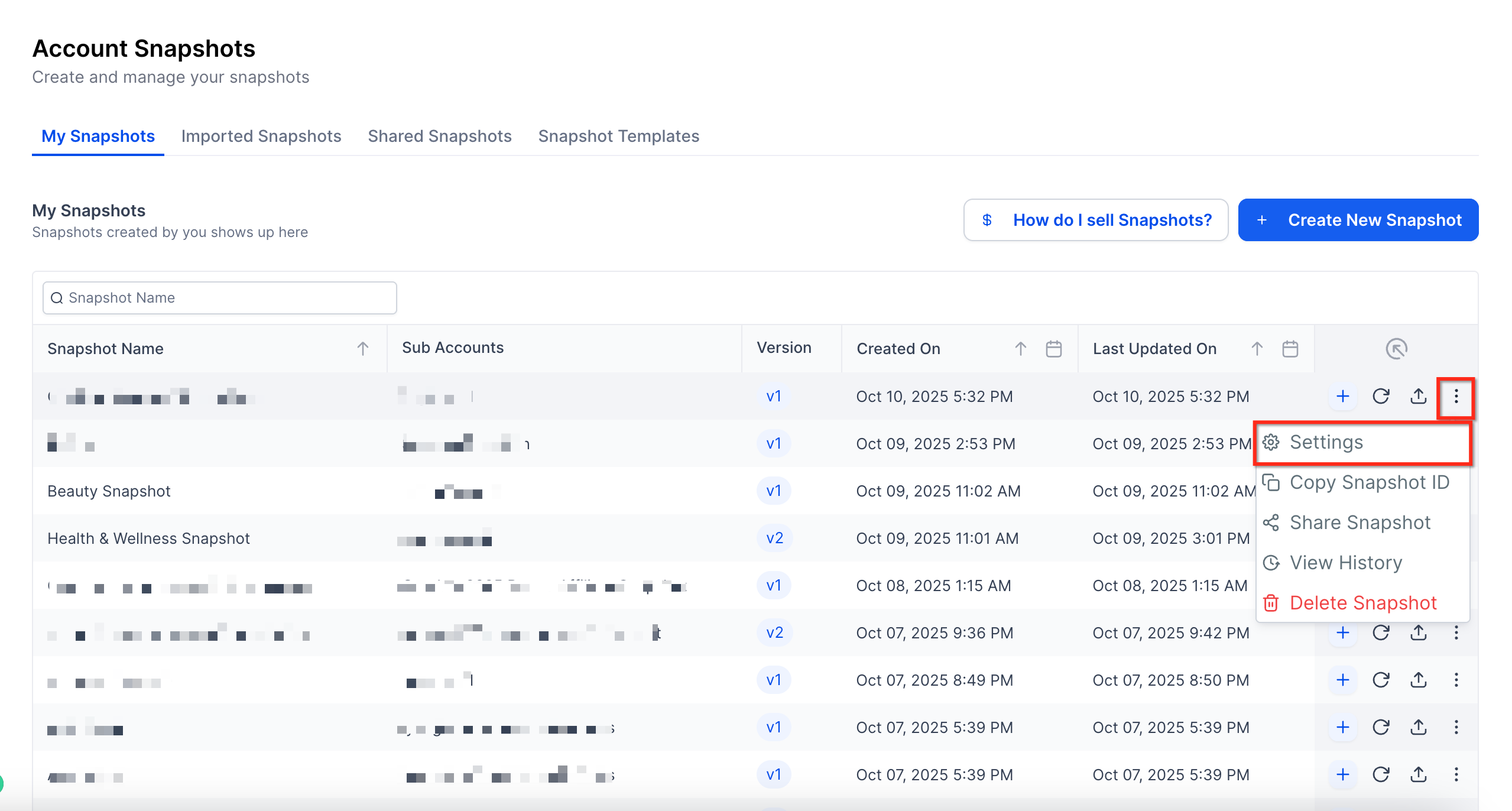
Primary actions appear in a fixed position bar, removing the need to scroll. The buttons let users create a fresh snapshot from any subaccount, refresh an existing one with its latest assets, push a snapshot or selected assets to one or many subaccounts, view a full audit history, or open settings to rename or change included assets.
All tools remember the last filter set per user, and the interface mirrors other revamped HighLevel sections, making it easier for new staff to learn and reducing training time.
03How businesses use snapshots new design system (UI)
- Marketing agency. The agency can create a snapshot of a high performing campaign template, then push that snapshot to all client subaccounts. Filters let the team quickly find snapshots created in the last 30 days for audit purposes.
- SaaS startup. A startup can refresh a snapshot whenever its onboarding funnel updates, ensuring each subaccount receives the latest assets without rebuilding templates. The history view records who performed each refresh.
- Real estate brokerage. The brokerage uses the calendar filter to locate snapshots shared during a specific training period, then pushes selected assets to newly added agents, keeping branding consistent.
04The numbers and rules that matter
- Calendar picker selects absolute or relative date ranges (Today, Last 30 Days, Custom).
- Filters can be combined and are remembered per user session.
- Filters are per user and session specific, do not affect teammates.
05How to set up and use snapshots new design system (UI) in HighLevel
Managing snapshots with the new UI
- Click the Create Snapshot button in the fixed action bar to generate a new template from a chosen subaccount.
- Select the Refresh button to update an existing snapshot with the most recent assets and settings from its source.
- Use the Push button to deploy a snapshot, or specific assets, to one or many subaccounts.
- Open the History button to view the complete audit trail, including who created, refreshed, or pushed each snapshot.
- Press Settings to rename the snapshot, edit the assets it includes, or adjust its push destinations.
06What it looks like in HighLevel
07Settings that matter
- Legacy View. A toggle that temporarily shows the classic Snapshots UI while the new design system is being adopted.
- Settings. Controls snapshot naming, the list of included assets, and the destinations for push actions.
08Things to know before you rely on it
- The classic UI will be deprecated; the Legacy View toggle is only available during the transition.
- Filters apply only to the current user and session; they do not affect teammates' views.
- There is no hard limit on the number of snapshots displayed; the list is virtualized for performance.
- Calendar filters use the timezone set in the user’s profile.
09If something goes wrong
- Cannot revert to the classic UI. Use the Legacy View toggle while it remains available and plan to migrate workflows to the new UI.
- Filters seem to change other users’ lists. Remember that filters are per user and session specific; they do not modify teammates’ list views.
- Keyboard shortcuts do not focus search. Press ⌘/Ctrl + F to move focus to the search bar, then use ↑/↓ keys to navigate rows.
- Uncertain if snapshot contents changed with the new UI. Asset coverage remains unchanged; only the interface and data tools have been updated.
10How it connects to the rest of HighLevel
- Explore all Agency View features Agency View features
- View HighLevel pricing and plans Pricing
- Start a free 30 day trial 30 day trial
Michael's take

Many people assume the redesign means the snapshot contents change, but the data stays exactly the same. The new UI only rearranges how you see and work with those snapshots.
If I were new to the Agency View, I’d spend a few minutes playing with the instant search and calendar filters to see how quickly I can locate a specific snapshot. Once comfortable, I’d test the fixed action bar by creating a sandbox snapshot, refreshing it, and pushing it to a test subaccount to confirm the workflow feels solid.