
01Who this is for
- Agency owners who manage SaaS offerings, they can expand their catalog with ready made tools.
- Marketing agencies serving local businesses, they can bundle lead capture and scheduling into a single purchase.
- Founders of SaaS products on HighLevel, they can deliver complete setups to customers at sign up.
02Marketplace snapshots, explained
The feature lets an agency attach a Marketplace snapshot to a SaaS plan. A snapshot contains templates for workflows, settings and other elements. Once attached, every new subaccount created from that SaaS plan receives the snapshot automatically.
The option appears in the SaaS Configurator under the plan’s Details section. Agencies select the snapshot from the Marketplace list and attach it. The platform then monitors events such as distribution type changes, app uninstalling, payment problems and snapshot status changes, which can affect the snapshot’s availability.
This capability lives inside the HighLevel agency view, specifically in the SaaS Configurator where plans are edited.
03How businesses use marketplace snapshots
- Digital marketing agency. The agency opens the SaaS Configurator, edits a plan, and adds a snapshot that includes lead capture forms and email sequences. When a client purchases the plan, those assets appear in the client’s subaccount right away.
- Local business service provider. The provider selects a snapshot with appointment scheduling and SMS reminders. After attaching it to a SaaS plan, new clients receive a fully configured scheduling system without manual setup.
- Founder launching a SaaS product. The Founder uses the snapshot feature to bundle onboarding checklists and automation workflows. Adding the snapshot to the SaaS plan ensures each new subscriber starts with the intended configuration.
04Before you start
- Switch to agency view in the HighLevel account before accessing the SaaS Configurator.
05How to set up and use marketplace snapshots in HighLevel
Sell marketplace snapshots
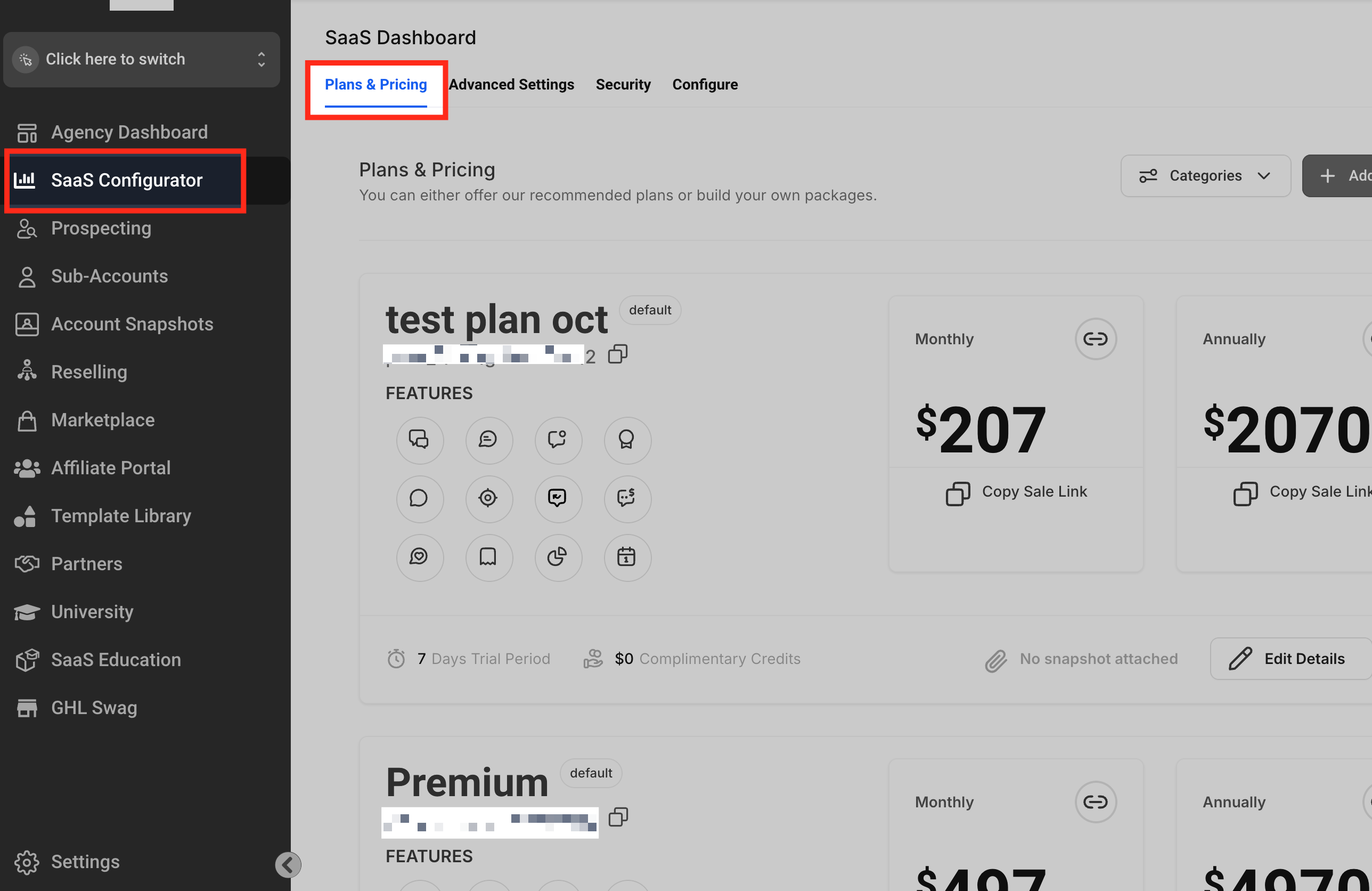
- Log in to HighLevel and open the SaaS Configurator.
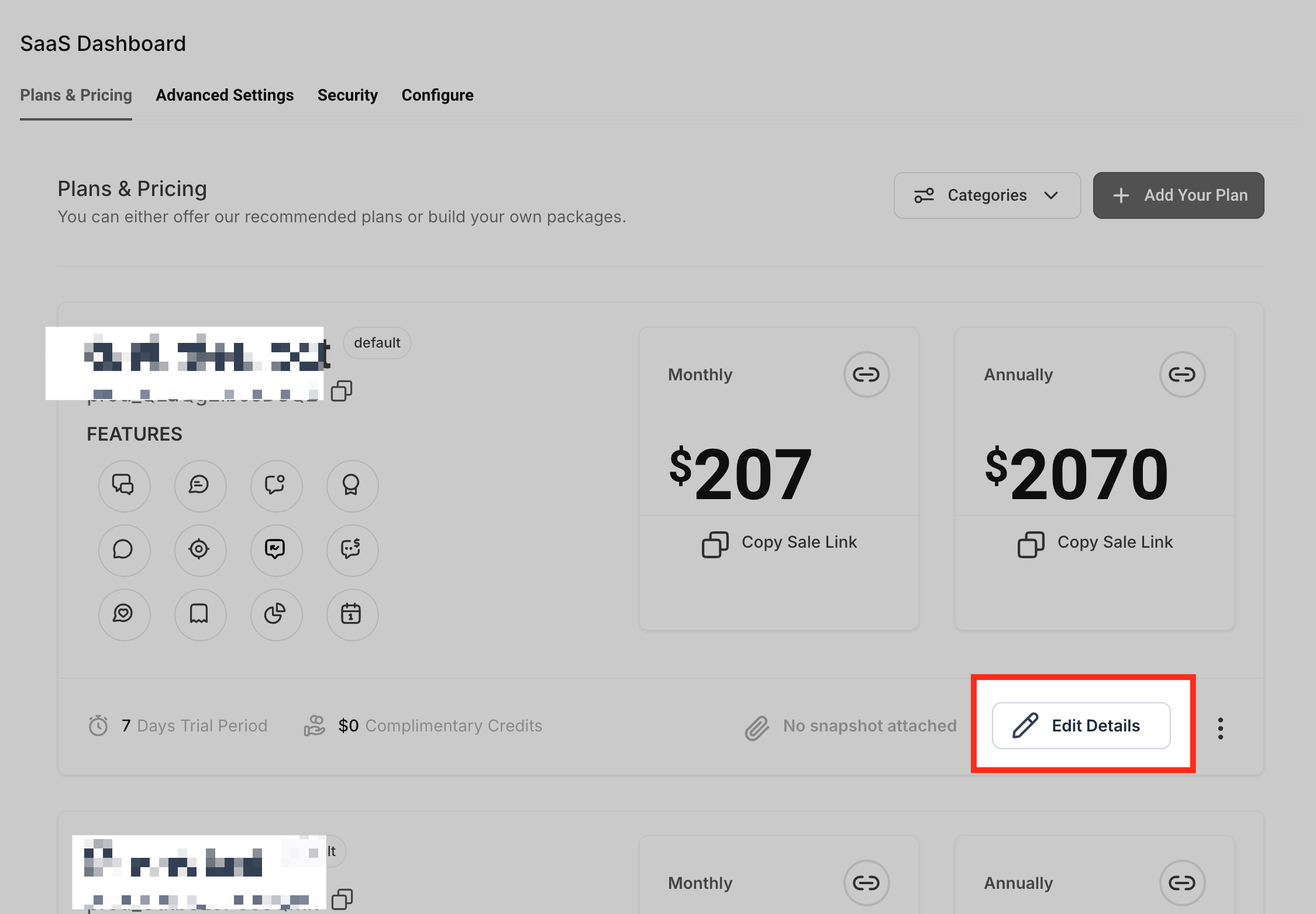
- Hover over the desired plan in the Plans & Pricing list and click Edit Details.
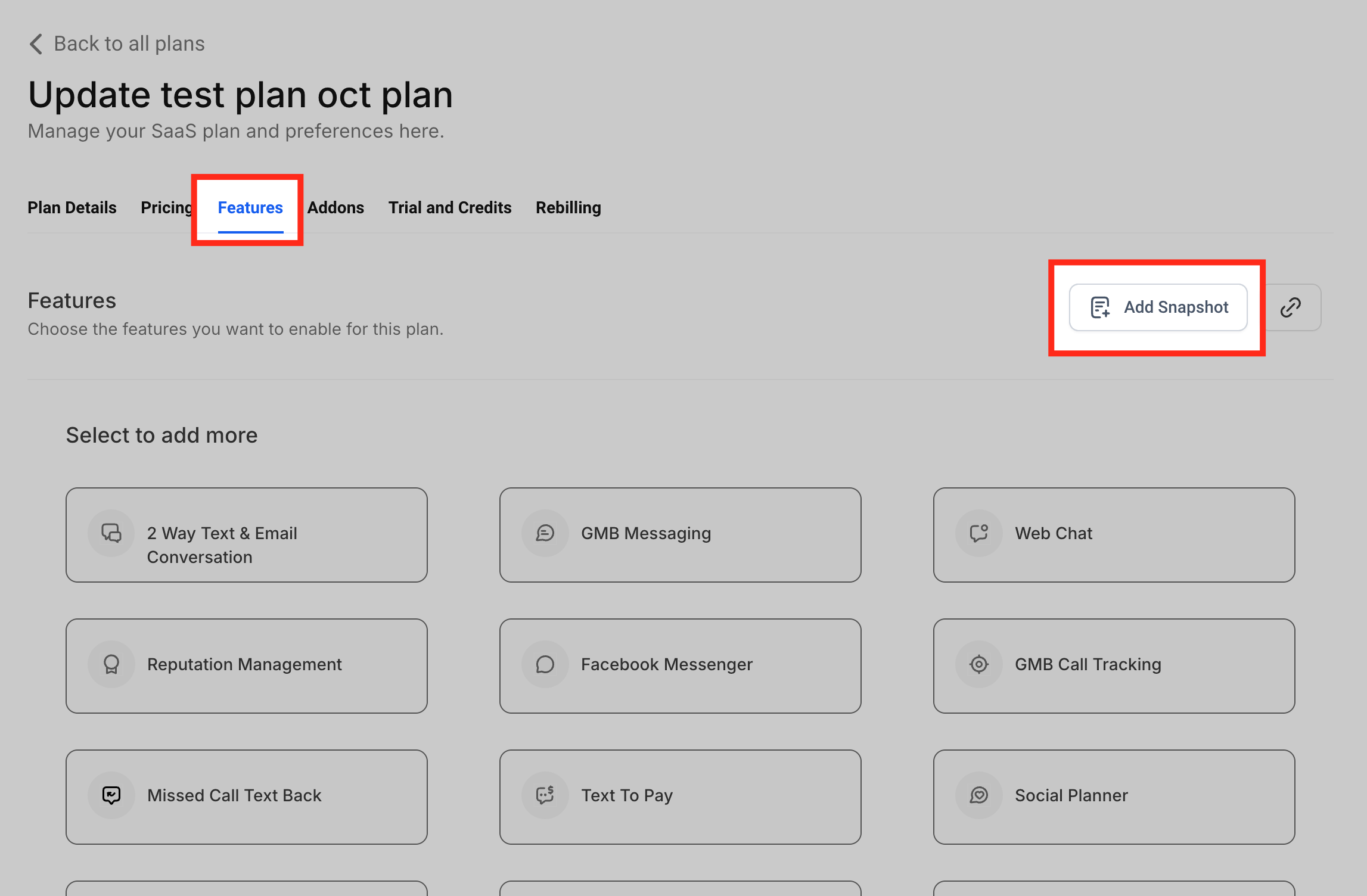
- Select the Features tab at the top of the plan editor.
- Click the Add Snapshot button in the upper right corner.
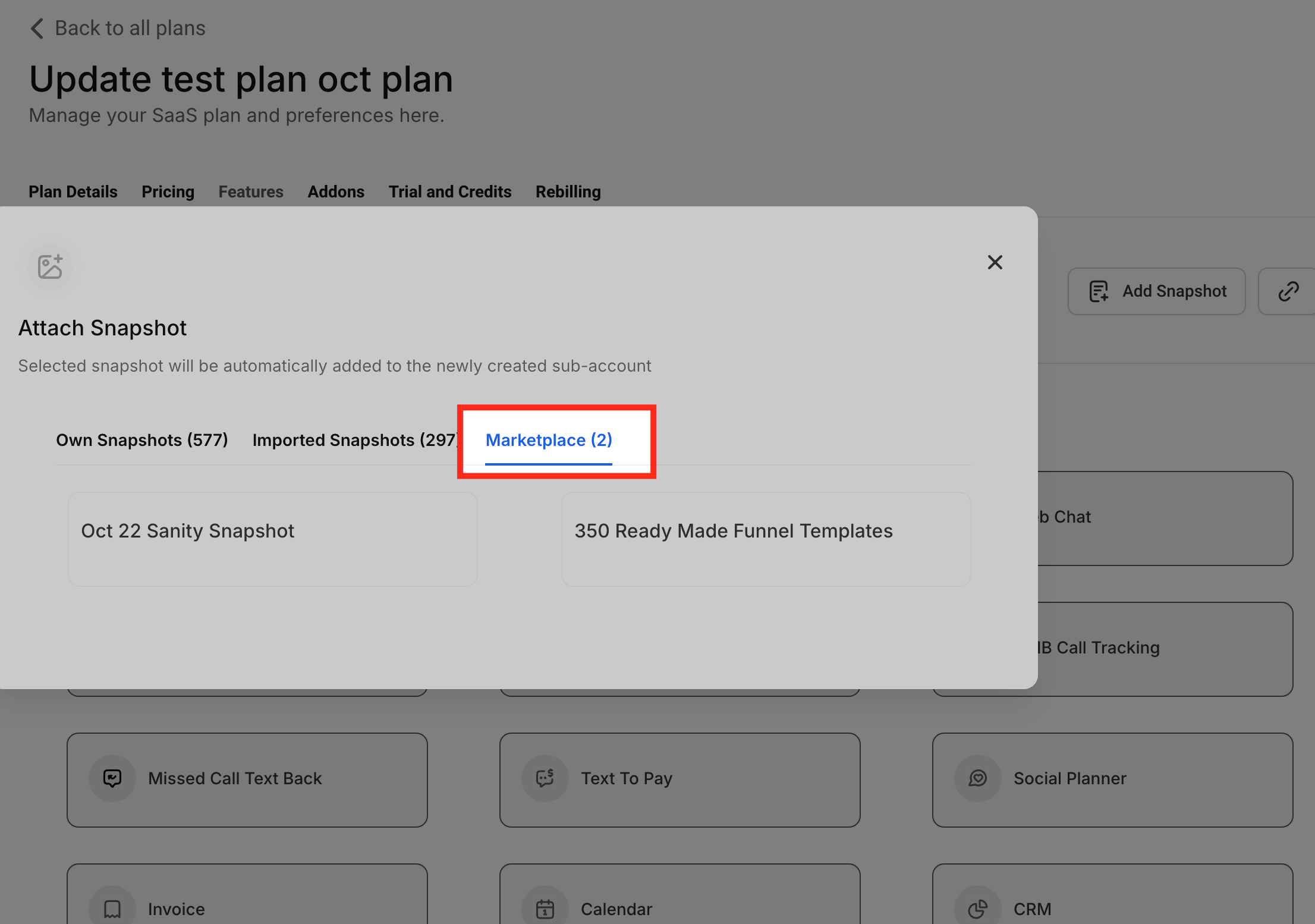
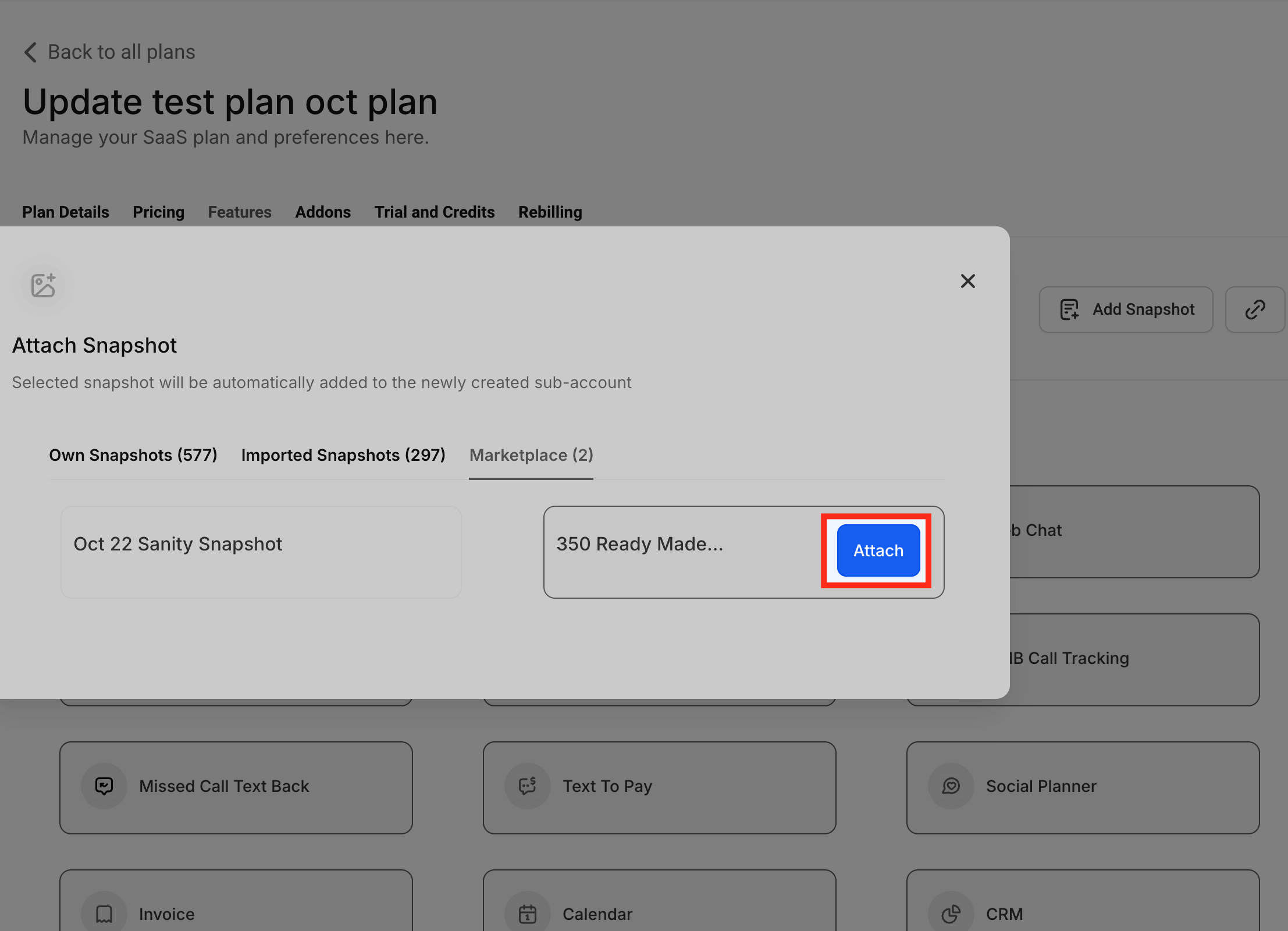
- Press the Marketplace button to view owned snapshots.
- Hover over the chosen snapshot, click it, then click the Attach button to confirm.
- Save the plan changes; the snapshot will now install automatically for new client subaccounts.
06What it looks like in HighLevel
07Settings that matter
- Distribution Type. Controls how a snapshot is shared; a change can affect its presence in SaaS plans.
- Snapshot Status. Indicates whether a snapshot is enabled; disabling it removes the snapshot from active SaaS plans.
08Things to know before you rely on it
- If a snapshot’s distribution type changes, it may no longer be available in attached SaaS plans.
- Uninstalling an app removes it from any SaaS plans that include its snapshot.
- Payment problems can cause snapshots to be removed from a client’s account.
- Disabling a snapshot stops it from being applied to new subaccounts.
09How it connects to the rest of HighLevel
- View SaaS analytics in the agency dashboard SaaS analytics
- Explore the agency dashboard overview for summary and reselling metrics Agency dashboard overview
- Check HighLevel pricing and plan eligibility Pricing
Michael's take

Turning a prebuilt workflow into a sellable product could be useful for agencies.
If the agency’s clients prefer highly customized configurations or you don’t have ready made snapshots to offer, the feature may add little benefit. In those cases the effort to maintain snapshot versions could outweigh the upside.