
01Who this is for
- Founder of a SaaS agency, gets a single view of subscription growth, churn and plan performance.
- Agency finance manager, can monitor recurring revenue and customer metrics without external spreadsheets.
- Product manager for subscription services, sees plan wise revenue and ARPA trends to guide pricing decisions.
02SaaS analytics, explained
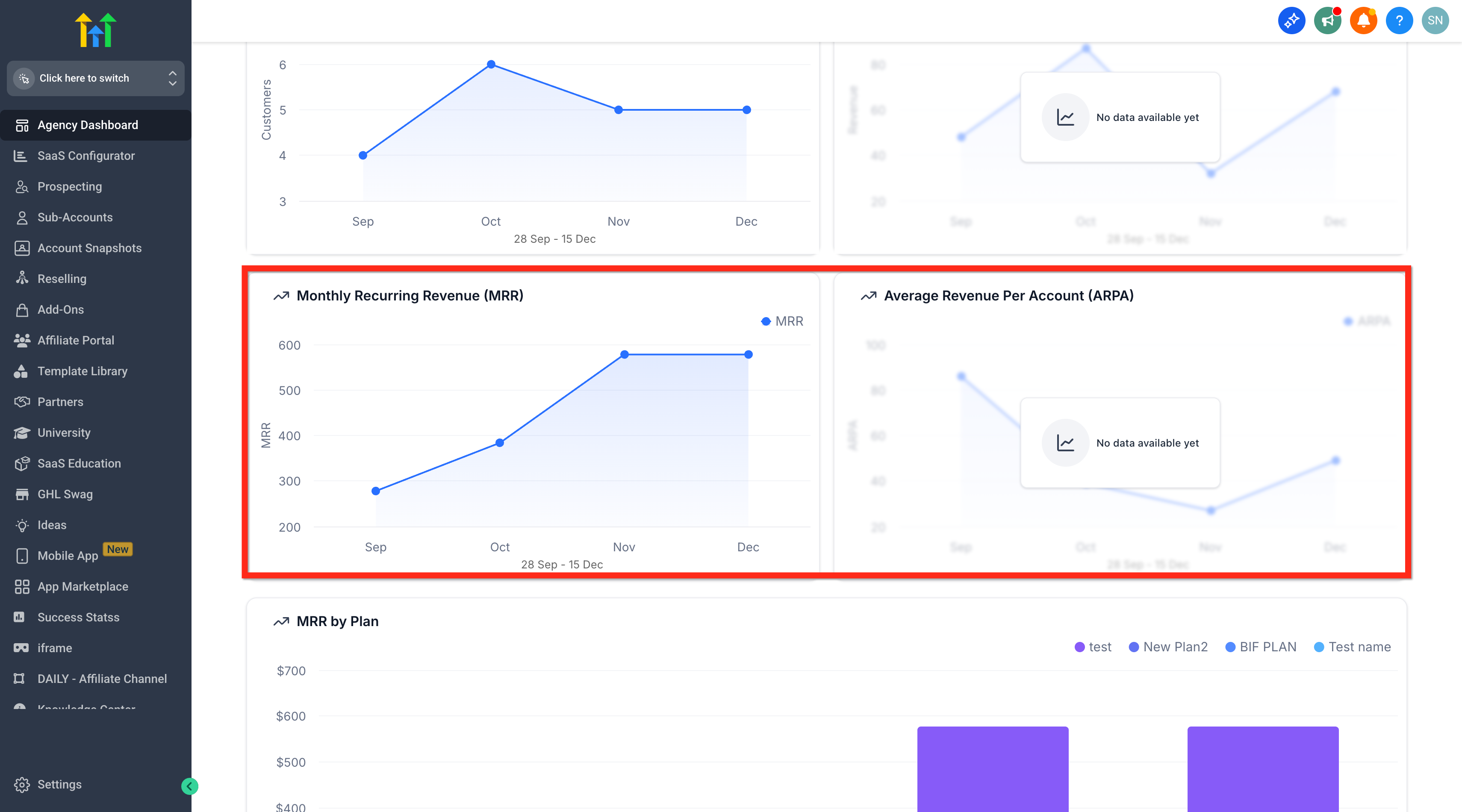
The SaaS Analytics tab lives inside the Agency Dashboard and is visible only to accounts on the $497 Founder Plan (per HighLevel's help center, checked November 2026). It pulls data from subscriptions that are created and managed within HighLevel, normalizes all recurring amounts to a monthly USD value, and groups revenue into components such as New MRR, Expansion MRR, Contraction MRR, Churned MRR and Reactivation MRR. The view also shows total SaaS revenue, total customers, ARPA, Net MRR churn rate and how customers are distributed across plans.
Metrics update automatically based on subscription lifecycle events. When a subscription moves from trial to active, upgrades, downgrades, cancellations or reactivations occur, the corresponding MRR component is adjusted. The dashboard calculates these values on the backend for consistent, auditable results. Users can filter by product and date range, reload data, and export the current view as a CSV file.
03How businesses use saaS analytics
- SaaS agency selling subscription software. The agency opens the SaaS Analytics tab, selects its product, and filters the desired reporting period. It reviews New MRR to see revenue from new customers and Expansion MRR to gauge upsell success. The data informs decisions about marketing spend and plan pricing.
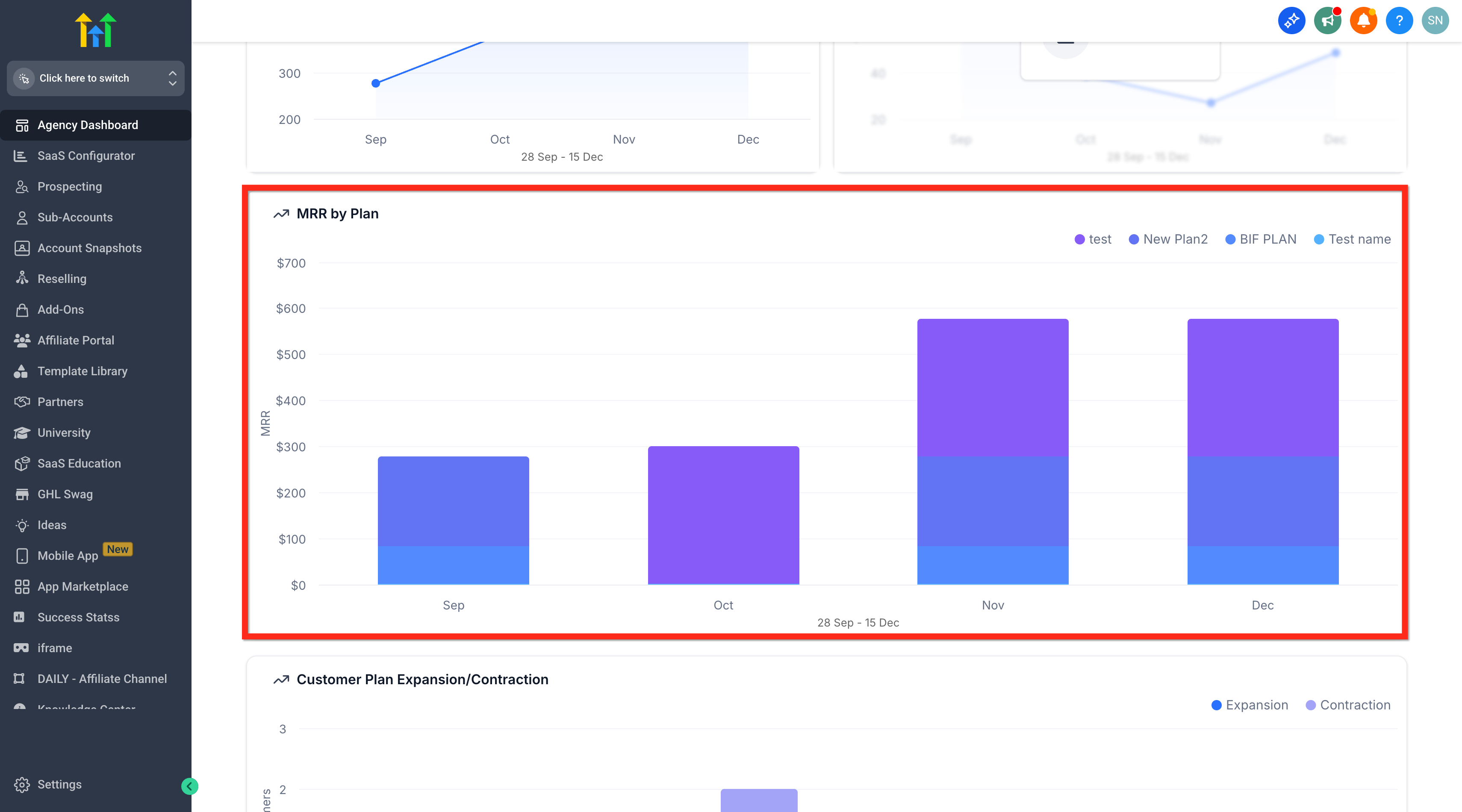
- Digital marketing agency reselling SaaS tools. The agency accesses the dashboard, applies the date range filter, and looks at MRR by Plan to compare performance of each resold tool. It monitors churn and contraction MRR to identify which tools need retention focus.
- Consulting firm with recurring service packages. The firm navigates to SaaS Analytics, uses the Export button to download a CSV, and examines Net MRR churn rate and ARPA. The exported report helps the firm prepare internal financial summaries and spot expansion opportunities.
04The numbers and rules that matter
- SaaS Analytics is available exclusively to customers on the $497 Founder Plan (per HighLevel's help center, checked November 2026).
- Export usually takes 7, 10 minutes.
05Before you start
- Subscriptions must be created and managed in HighLevel for them to appear in SaaS Analytics.
- The account must be on the $497 Founder Plan to access the SaaS Analytics tab (per HighLevel's help center, checked November 2026).
06How to set up and use saaS analytics in HighLevel
Access SaaS analytics and review metrics
- Log in to your Agency account.
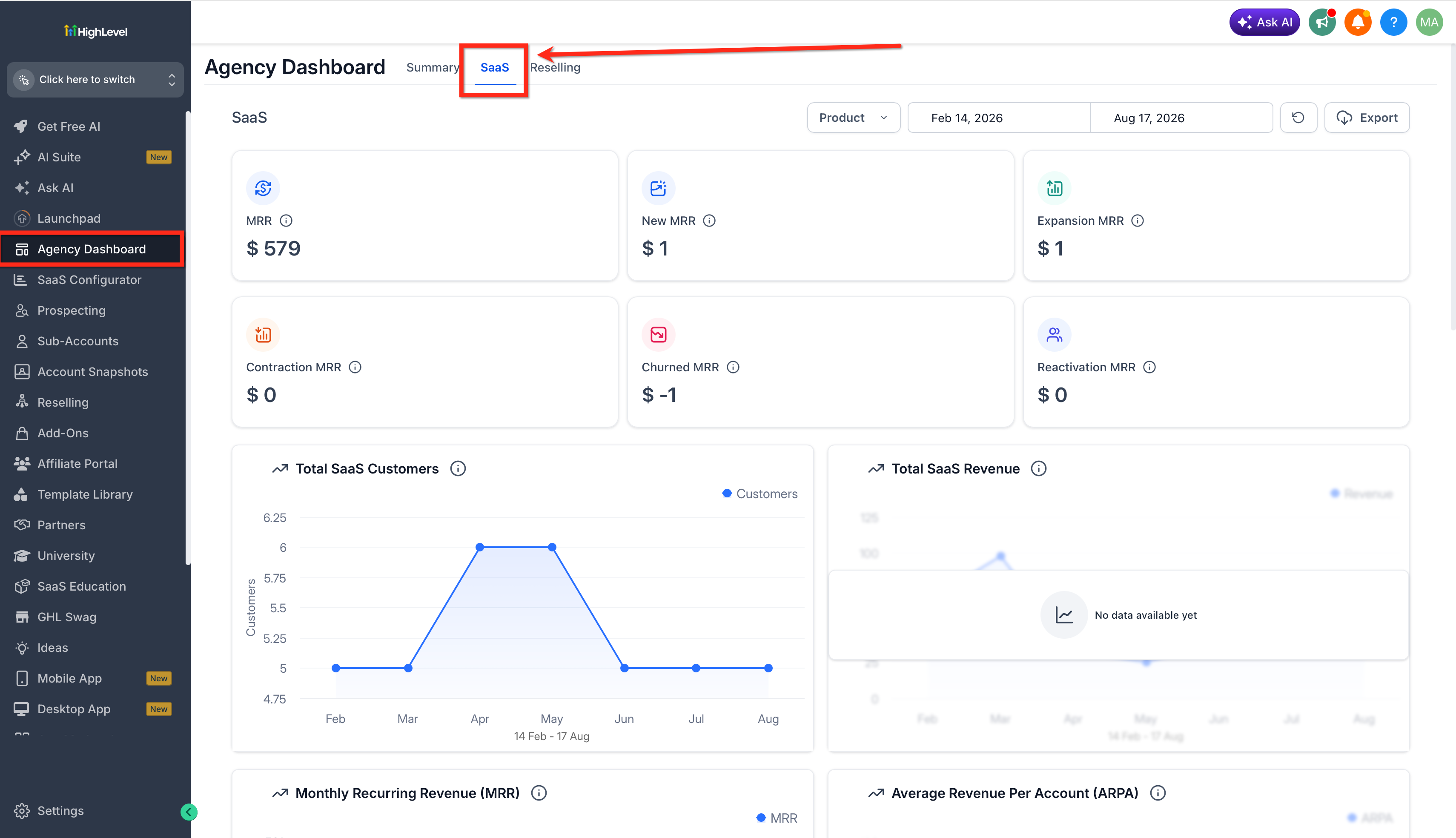
- Navigate to Agency Dashboard > SaaS.
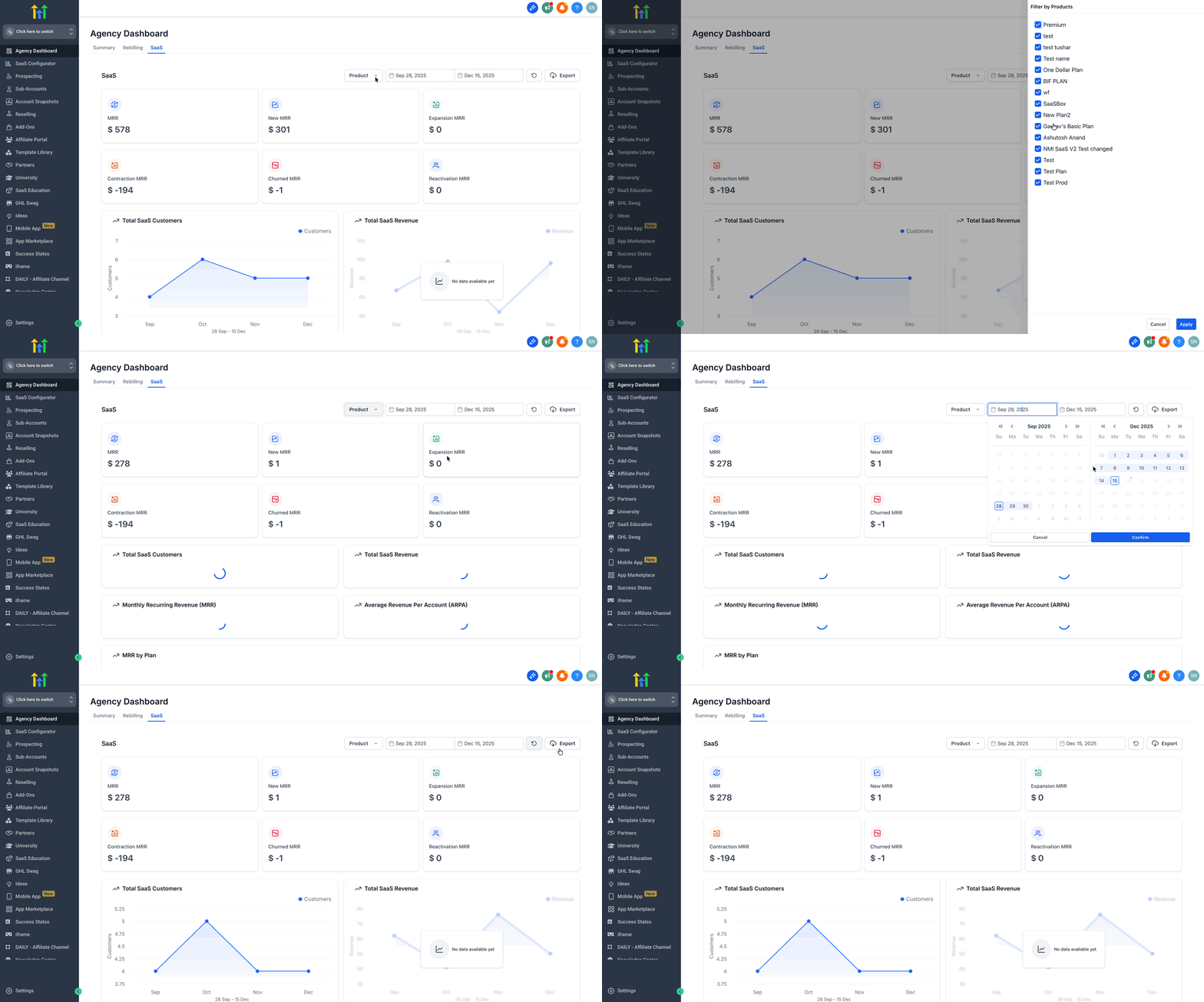
- Click the Product button to filter by existing SaaS products.
- Use the Date Range finder to filter by a particular time span.
- Click the Reload button to refresh the data.
- Click Export to send a CSV file to the selected users; the export usually takes seven to ten minutes.
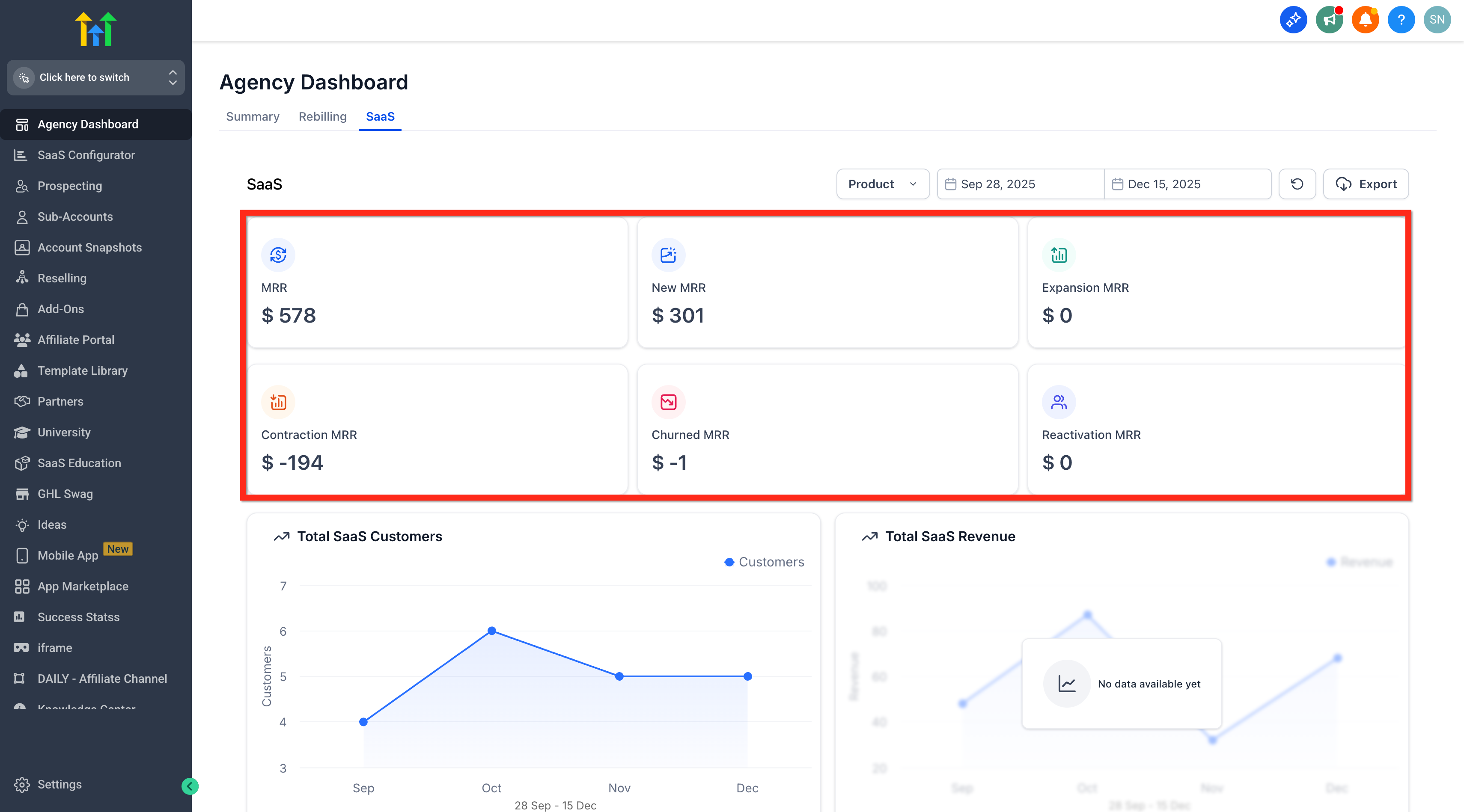
- Go through the MRR Components.
- View MRR: total monthly recurring revenue.
- View New MRR: first time paid subscriptions or trial conversions.
- View Expansion MRR: upgrades or added recurring value.
- View Contraction MRR: downgrades or recurring value reductions.
- View Churned MRR: cancellations or full lapses.
- View Reactivation MRR: previously cancelled or paused subscriptions returning to paid.
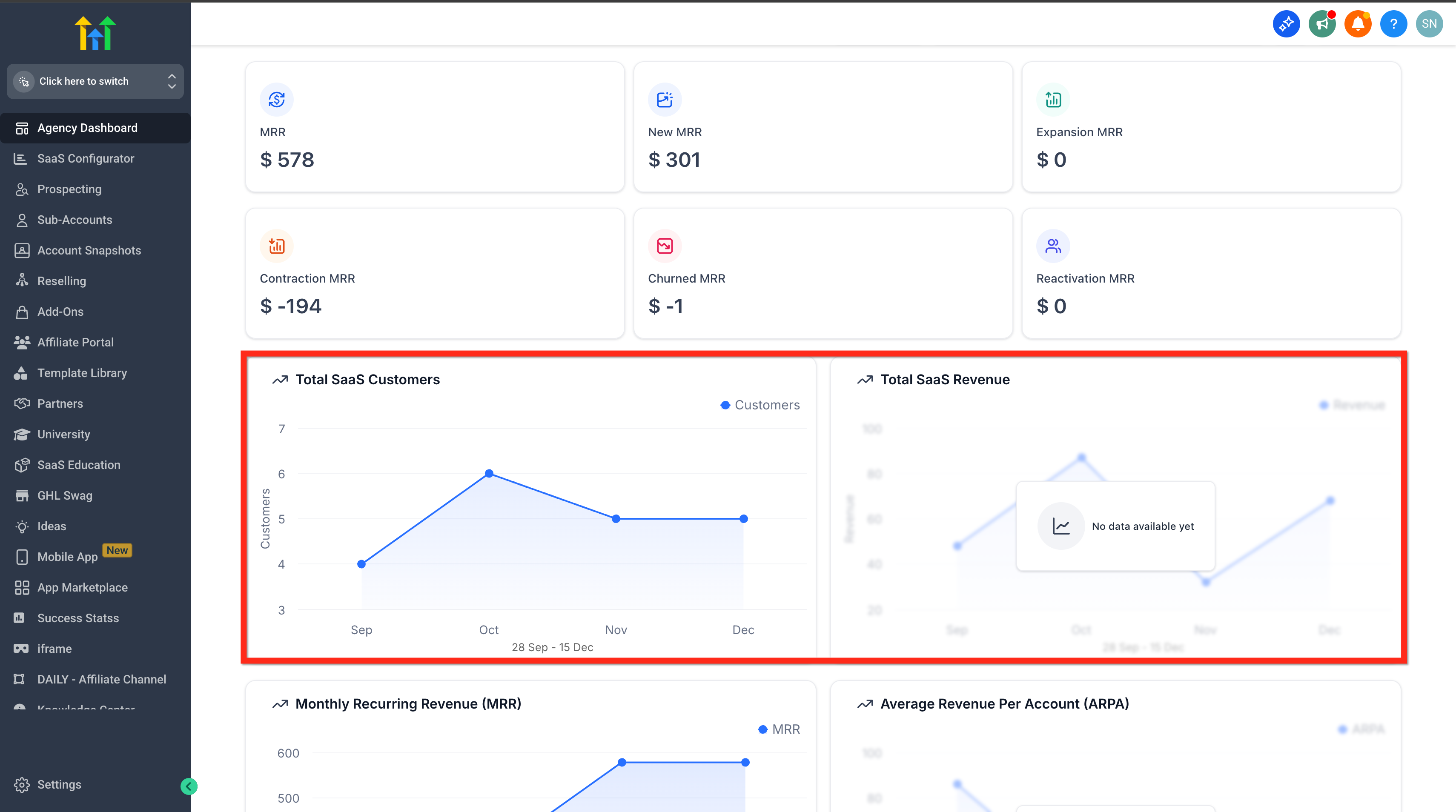
- Review Total SaaS Customers and Revenue by month.
- Review Total MRR by month and Average Revenue Per Account (ARPA).
- Review MRR by Plan, showing revenue from each individual SaaS plan.
- Review Customer Plan Expansion/Contraction by month and number of customers.
- Check Net MRR Churn Rate, the percentage of recurring revenue lost after accounting for expansions.
- Check Plan Wise Customer Distribution to see how total customers are split across subscription plans.
07What it looks like in HighLevel
08Settings that matter
- Product button. Filters the data to show only the selected SaaS product.
- Date Range finder. Sets the reporting period for the metrics displayed.
- Reload button. Refreshes the dashboard data based on the current filters.
- Export. Generates a CSV file of the current view and sends it to selected users.
09Things to know before you rely on it
- SaaS Analytics is available only to customers on the $497 Founder Plan (per HighLevel's help center, checked November 2026).
- Only subscriptions created and managed within HighLevel are counted; external billing sources are excluded.
- One time charges, setup fees and usage only items are not included in MRR calculations.
- All values are normalized to USD; multi currency totals are not provided.
- Metrics are calculated using an event based backend for higher accuracy.
10How it connects to the rest of HighLevel
- Explore the overall Agency Dashboard layout and other SaaS metrics. Agency Dashboard overview
- Compare HighLevel MRR calculations with ProfitWell and Stripe. HighLevel vs ProfitWell vs Stripe MRR
- Review plan eligibility and pricing details for the Founder Plan. HighLevel pricing
Michael's take

The SaaS Analytics tab can give a false sense of confidence if you expect it to capture every revenue stream. It only counts subscriptions that HighLevel creates and manages, ignores external Stripe items, one time fees and usage only charges, and normalizes everything to USD. If your business mixes many billing sources, the numbers may appear cleaner than reality.
For agencies that run all SaaS sales inside HighLevel, the tab is a capable daily compass. It surfaces New, Expansion, Contraction and Churned MRR based on the latest data, so you can see which plans are thriving and where churn is sneaking in. That visibility lets you shift focus fast and keep growth on track.