
01Who this is for
- Agency owners who manage many client accounts benefit from quick filtering and bulk updates.
- Founders of SaaS platforms can streamline onboarding by tagging primary subaccounts and handling mass changes.
- Marketing teams that need to enable or pause multiple client accounts efficiently find the UI useful.
02Subaccounts list revamp, explained
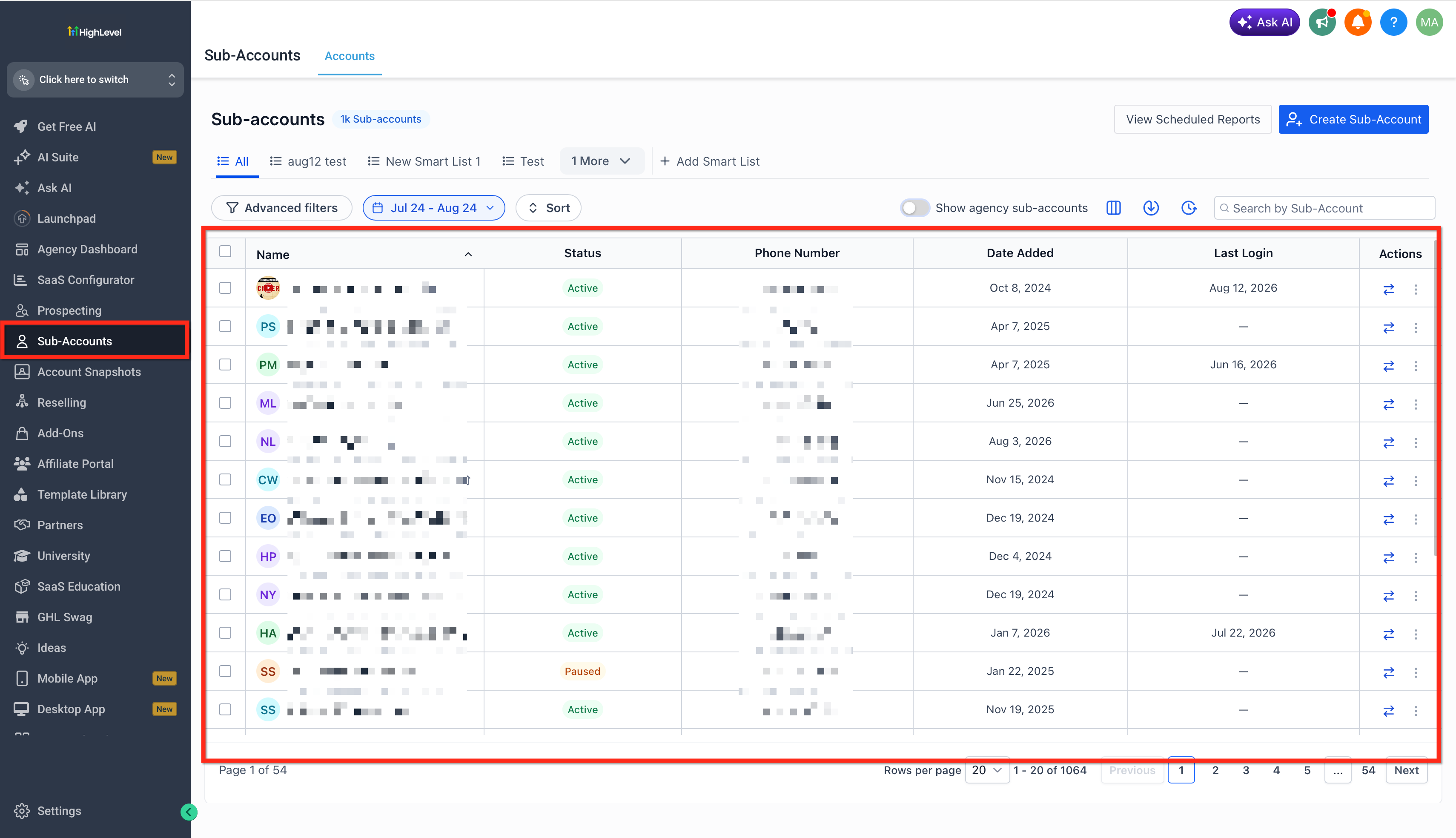
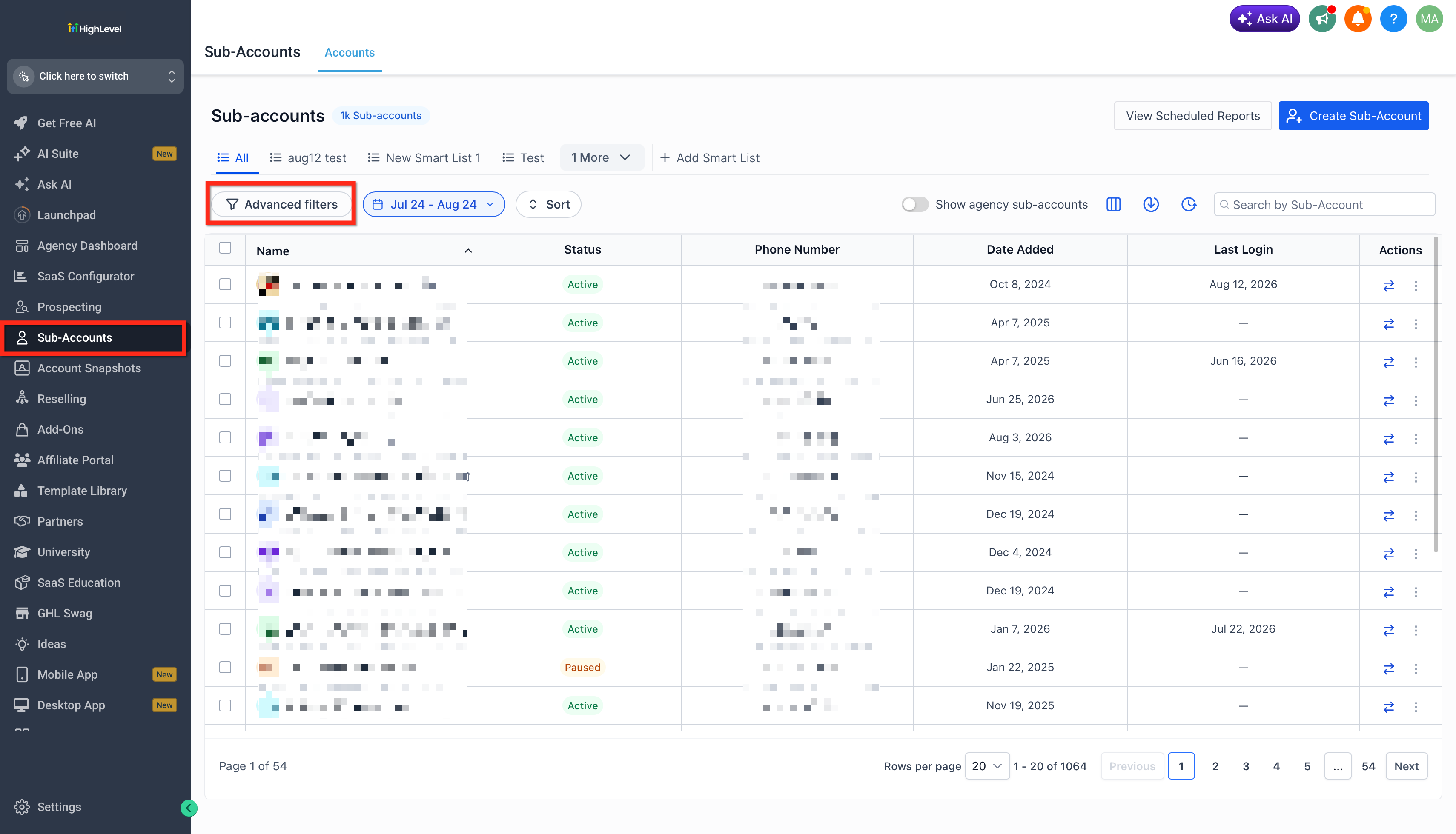
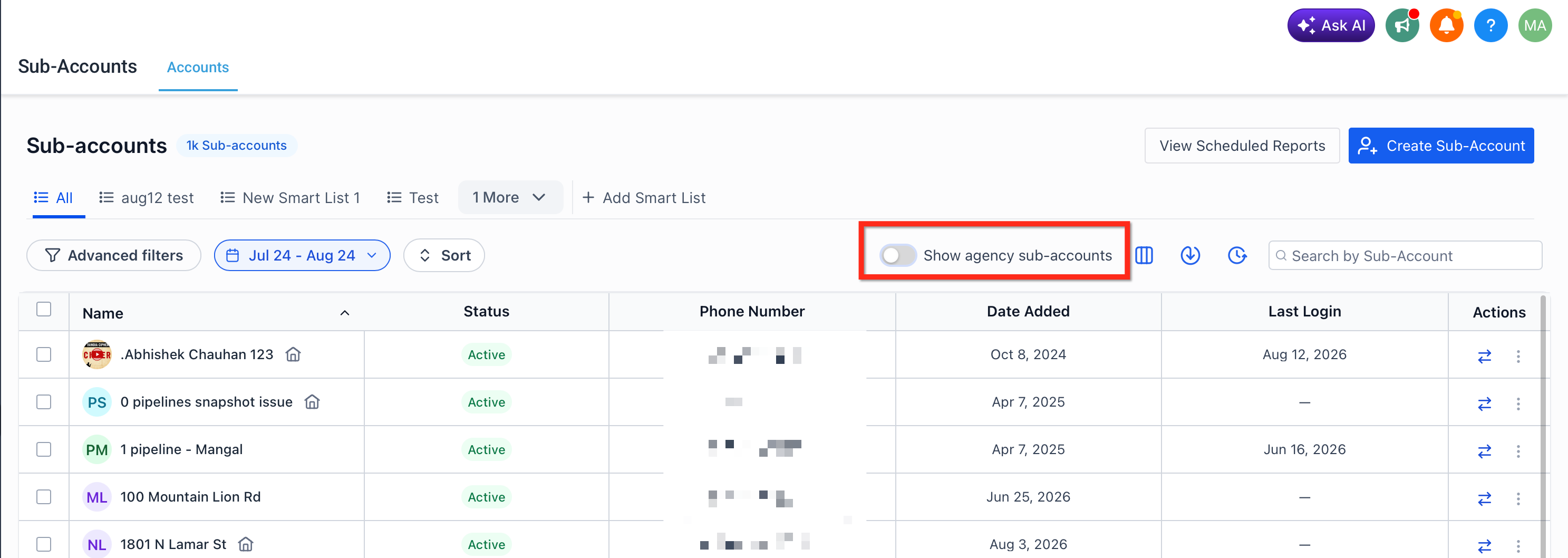
The Subaccounts List revamp updates the management page for agencies on Unlimited ($297 per HighLevel's help center, checked November 2026) and Founder ($497 per HighLevel's help center, checked November 2026) plans. It moves the module to a micro app framework, delivering a cleaner look and faster performance. The interface includes an Advanced Filters button that opens a panel with four filter categories.
Filters can be combined with OR logic using the + Add Filter button or with AND logic via the + Add Nested Filter button. After applying filters, the list shows only matching subaccounts and keeps the active filter state visible. Bulk actions appear when any subaccount is selected, allowing pause, calendar setup, SaaS mode, or rebilling to be applied to multiple accounts simultaneously.
The feature lives on the Subaccounts List page within the agency view of HighLevel. It is accessible only to agencies on the Unlimited or Founder plans and works on desktop, tablet and mobile devices.
03How businesses use subaccounts list revamp
- Digital marketing agency. The agency opens the Subaccounts List, clicks Advanced Filters, selects fields like WhatsApp or Email, and applies OR logic to see all clients with either feature enabled. Then it selects the filtered clients and uses the bulk action to enable SaaS mode for all of them.
- SaaS Founder. The Founder adds a nested filter with AND logic for Date Created after a specific date and Status equal to Trial. After applying, they review the trial accounts and use the bulk action to enable rebilling on the selected subset.
- Consulting firm. The firm checks the bulk action history icon to view past bulk updates, then selects all subaccounts that need calendar setup and runs the Setup Calendars bulk action from the top of the list.
04The numbers and rules that matter
- Unlimited plan price $297 (per HighLevel's help center, checked November 2026).
- Founder Plan price $497 (per HighLevel's help center, checked November 2026).
- Advanced Filtering available to Unlimited and Founder plans.
- Agency Subaccount designation applies to Unlimited plan only.
05Before you start
- Agency must be on the Unlimited ($297 per HighLevel's help center, checked November 2026) or Founder ($497 per HighLevel's help center, checked November 2026) plan.
06How to set up and use subaccounts list revamp in HighLevel
Add a basic filter
- Click the Advanced Filters button at the top of the Subaccounts List.
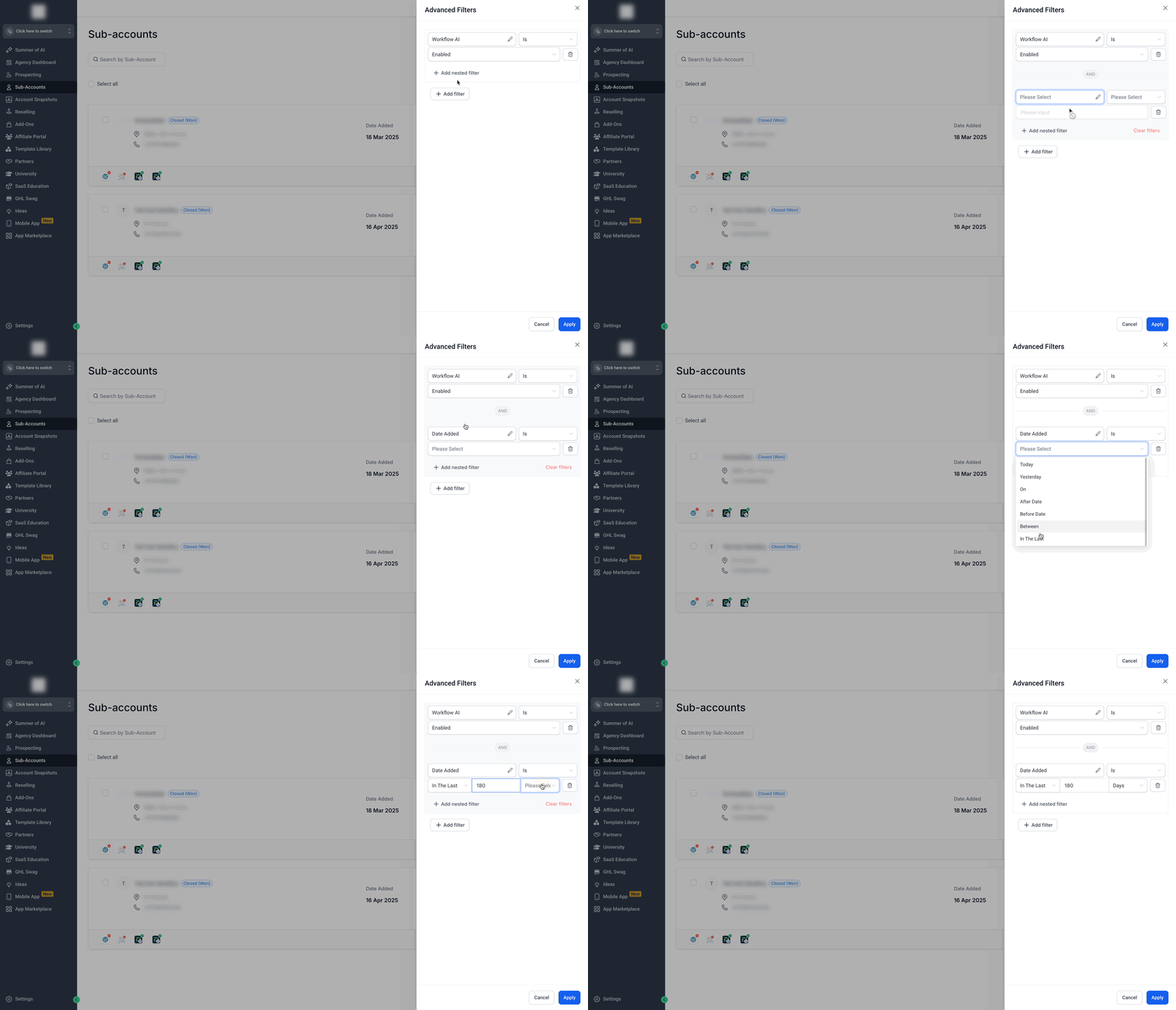
- Choose a search field from any of the four filter categories displayed.
- Select the condition you want to apply to the chosen field.
- Click the + Add Filter button to add an OR logic filter.
- Verify that the new filter appears in the Advanced Filters panel.
Add a nested filter (optional)
- Click the + Add Nested Filter button.
- Select additional fields and conditions.
- All conditions must be true because this uses AND logic.
Apply and review filter results
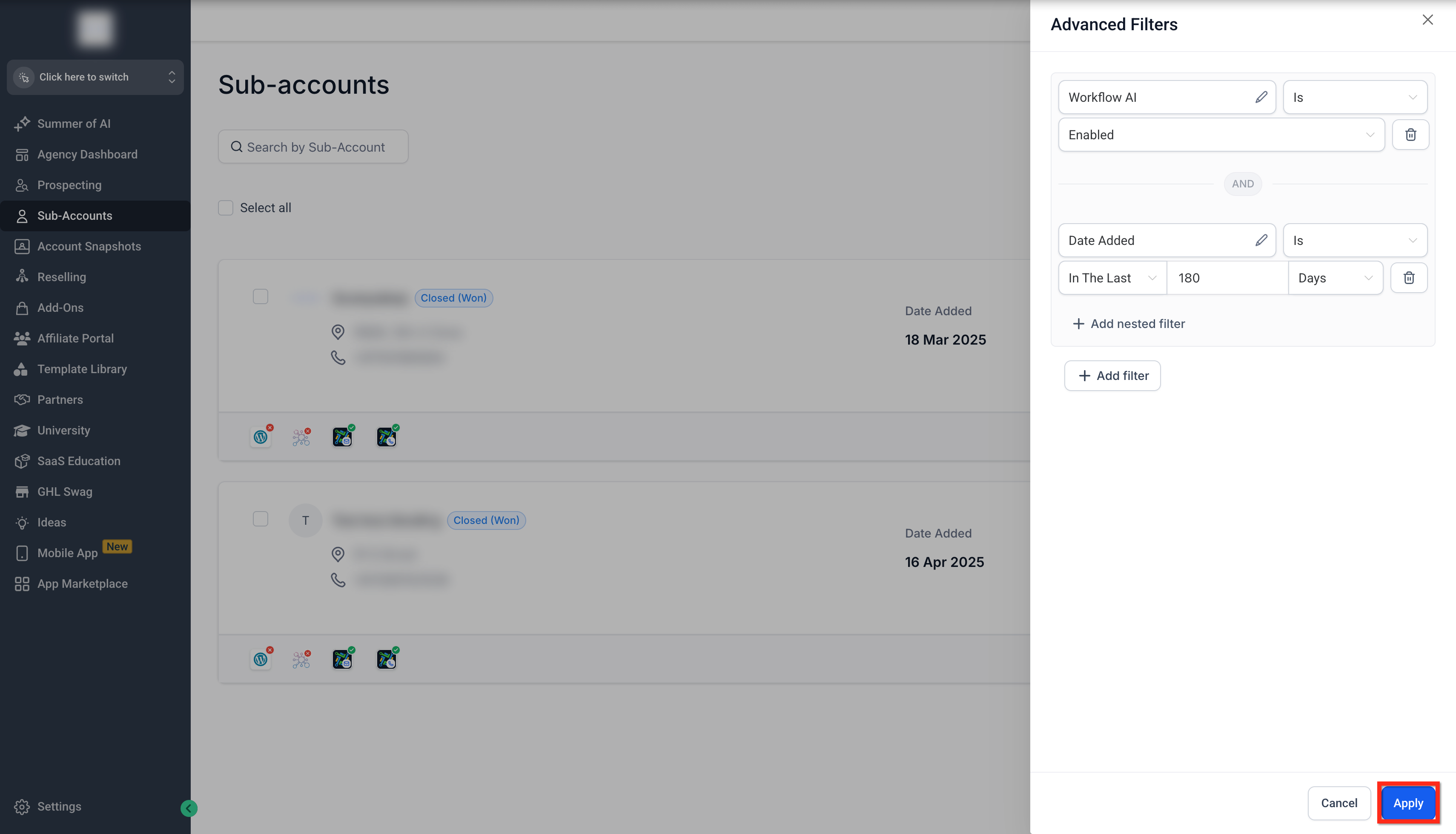
- Click Apply to run the selected filters.
- Review the Subaccounts displayed that match your criteria.
- Note the message shown if no locations are found.
Review and manage applied filters
- Observe the visible filter controls that indicate active filters.
- Remove or adjust filters with a single action to refine results.
Perform bulk actions
- Select individual subaccounts with checkboxes or use the Select all checkbox.
- Choose a bulk action from the options that appear above the list.
- Optionally click the Bulk Action History icon to view previous bulk action logs.
07What it looks like in HighLevel

08Settings that matter
- Advanced Filters. Opens the panel that holds filter categories and controls for building search criteria.
- Add Filter. Adds an additional filter using OR logic so any condition can match a result.
- Add Nested Filter. Creates a secondary filter using AND logic, requiring all conditions to be true.
- Bulk Actions. Provides actions such as Pause Subaccount, Setup Calendars, Enable SaaS Mode, and Enable Rebilling for selected accounts.
09Things to know before you rely on it
- Feature is limited to agencies on Unlimited ($297 per HighLevel's help center, checked November 2026) and Founder ($497 per HighLevel's help center, checked November 2026) plans; Starter plan users see a different card view.
- Nested filters are optional and use AND logic.
- Agency Subaccount designation applies only to Unlimited plan agencies.
10How it connects to the rest of HighLevel
- Learn how to enable SaaS mode for multiple subaccounts in bulk. Bulk SaaS enablement
- Read about the definition and purpose of an Agency Subaccount. Agency Subaccount guide
- Explore all Agency View features available to Unlimited and Founder plans. Agency View overview
Michael's take

The new Subaccounts List is simply the updated view that appears once you’re on an Unlimited or Founder Plan. The interface is already there, you just have to navigate to the Subaccounts page.
If I were using it, I’d jump straight into the Advanced Filters to carve out the accounts I need for a specific campaign, then use the bulk actions to set up calendars for all of them in one go. I’d also double check the filter logic before applying it, just to be sure I’m not missing any accounts.