
01Who this is for
- Agency owners who need a consistent way to categorize many client accounts.
- Marketing teams that must locate accounts by industry or lifecycle stage quickly.
- Support staff who use tags to identify onboarding status or priority levels.
02SubAccount tags, explained
Subaccount Tags act as reusable labels for client accounts in the Agency View of HighLevel. You can add several tags to a single account, then use those tags to narrow the list, group accounts, or build Smart Lists that capture a filtered view for later use.
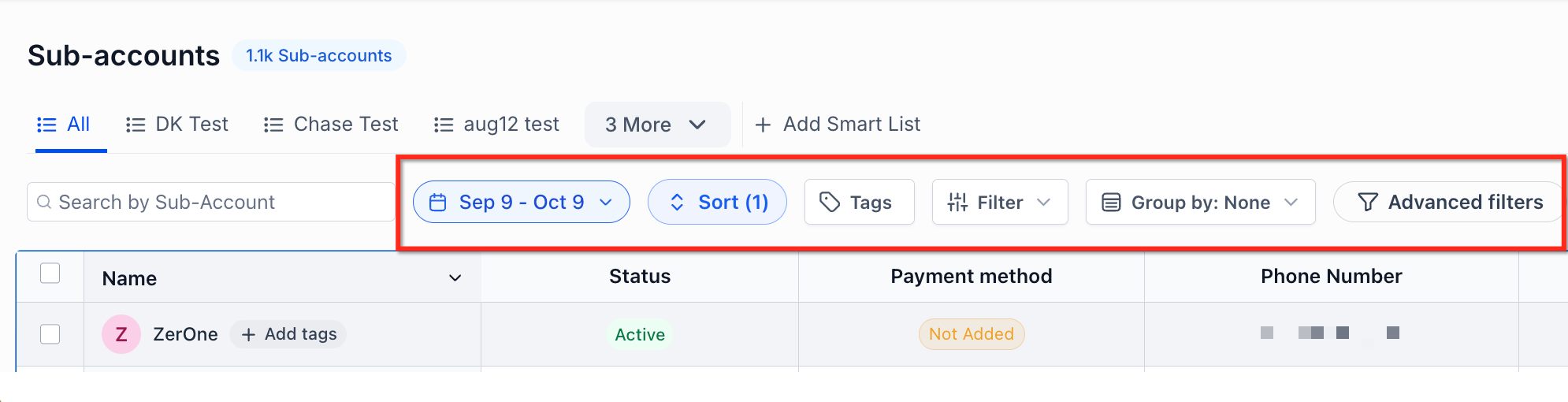
The tag controls appear in the Subaccounts toolbar. From there you can create new tags, edit or delete existing ones, assign tags individually or in bulk, and organize the list by tag groups. Saved Smart Lists reside at the agency level and can be reopened anytime.
03How businesses use subAccount tags
- Dental practice agency. Create tags such as Dental and VIP, then apply both to each dental client subaccount. Use the tag filter to view only those marked Dental, and save that view as a Smart List for recurring checks.
- Roofing contractor network. Add tags like Roofing and Onboarding to new contractor subaccounts. Bulk apply the Onboarding tag to batches of accounts during intake, and later filter by Onboarding to track progress.
- SaaS startup accelerator. Set up tags such as Startup, Mentored, and Graduated. Assign multiple tags to each participant account, group by tags to see counts per stage, and keep a Smart List of Mentored accounts for regular reviews.
04The numbers and rules that matter
- Management options include Edit name, Change color, Reassign to., Delete tag.
05Before you start
- Confirm your agency plan includes tag access and you have the necessary user permissions.
06How to set up and use subAccount tags in HighLevel
Open Subaccounts
- Switch to Agency View.
- Open Subaccounts.
- Locate Tags in the toolbar.
Create a Tag
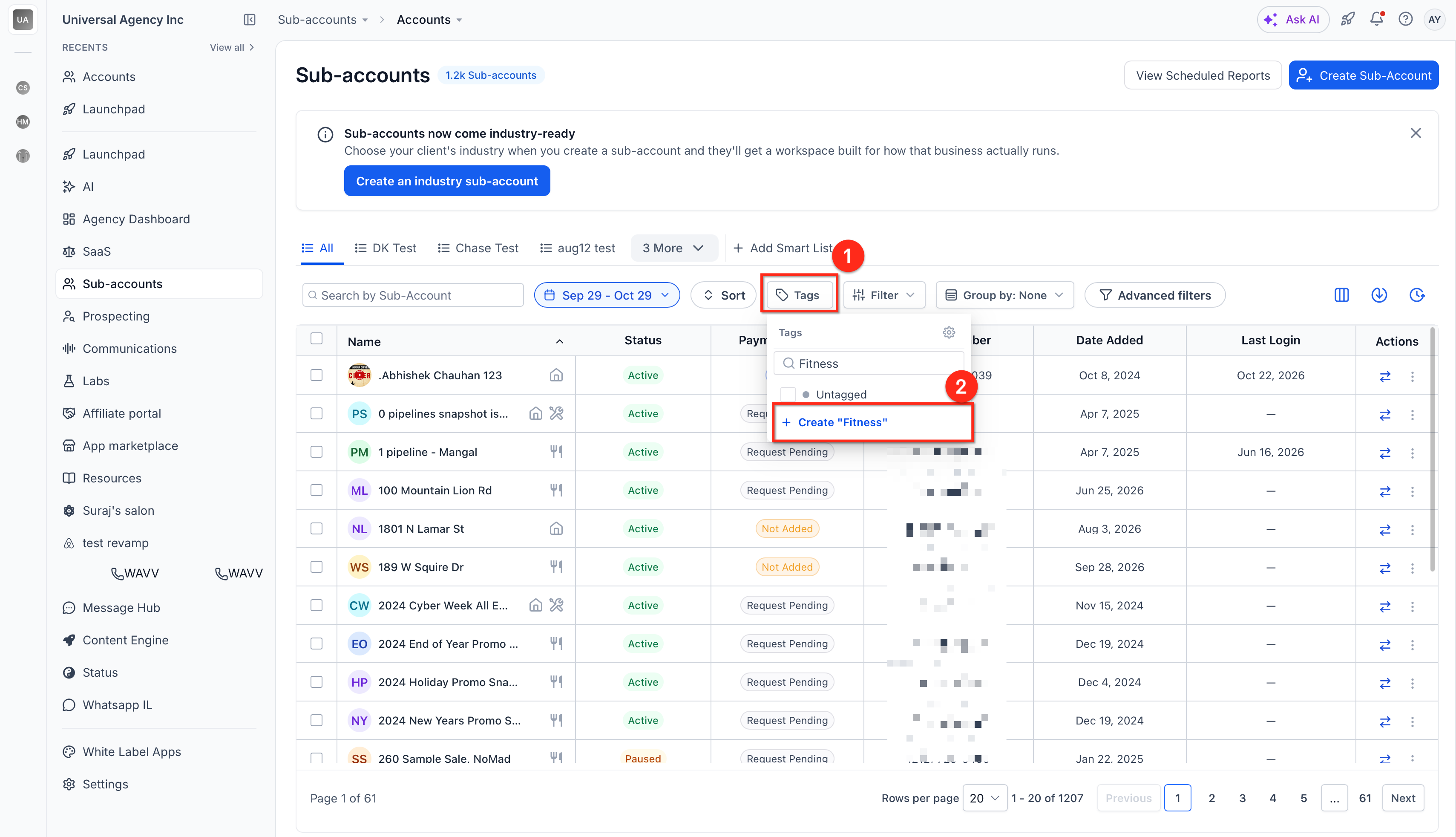
- Click the Tags button.
- Search for the desired tag name.
- Select the option to create a new tag.
- Enter the tag name, such as Onboarding.
- Choose a color if prompted.
- Confirm the creation.
Assign Tags to an Account
- Find the target subaccount in the list.
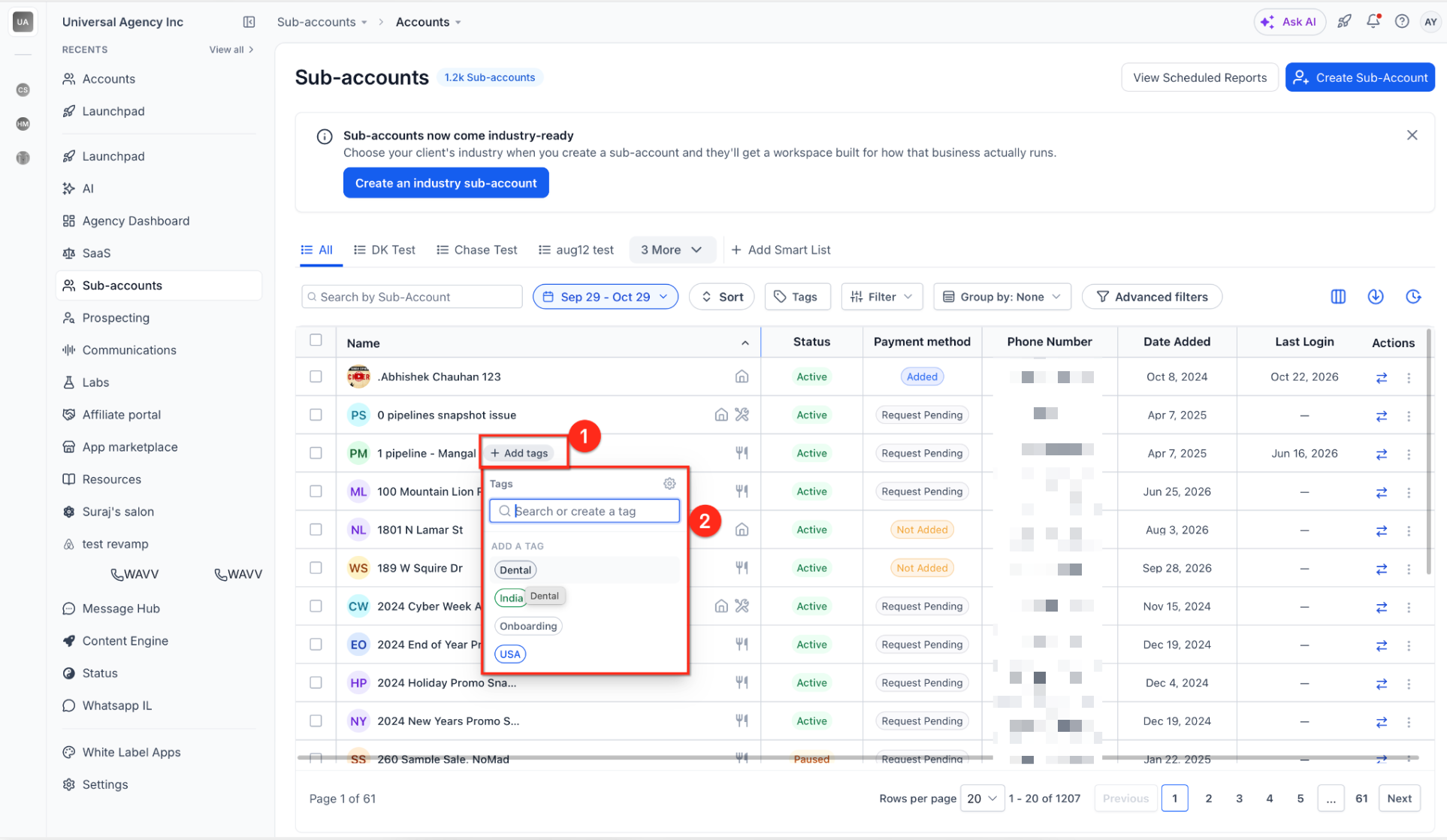
- Hover over its name and click Add tags.
- Select the Onboarding tag.
- Choose an additional tag, like Dental.
- Verify both tags appear beside the account.
Apply Tags in Bulk
- Tick the checkboxes of the relevant subaccounts.
- Open the bulk action menu.
- Choose the tag assignment option.
- Pick the tag to apply.
- Review and confirm the change.
Filter Subaccounts by Tag
- Click the Tags button.
- Select the desired tag, such as Onboarding.
- View the accounts that match.
- Add any other supported filters if needed.
Group Subaccounts by Tag
- Click Group by.
- Select Tags as the grouping criterion.
- Observe the generated groups.
- Expand or collapse groups as required.
Save a Smart List
- Apply the needed tag and any other filters.
- Click Add Smart List (or the save control).
- Enter a descriptive name for the list.
- Save the Smart List.
- Reopen it from the Smart List tabs.
Edit, Reassign, or Delete a Tag
- Open the Tags menu.
- Locate the tag you want to modify.
- Open its management options.
- Change its name or color, or select Reassign to… or Delete tag.
- Confirm the action before completing it.
07What it looks like in HighLevel
08Settings that matter
- Tags. Opens the tag management panel where you can create, search, and apply tags.
- Add tags. Control attached to each subaccount row that lets you assign one or more tags.
- Bulk, action controls. Menu that appears after selecting multiple subaccounts, offering bulk tag assignment.
- Tag, assignment option. Specific action within the bulk action menu to apply a chosen tag to selected accounts.
- Group by. Dropdown that lets you organize the subaccount list based on tag groups.
09Things to know before you rely on it
- Tag access depends on your agency plan and user permissions.
- Exact bulk action controls, supported removal actions, and required permissions should be verified.
- Multiple tag matching rules and how accounts with several tags appear in groups may need confirmation.
- The behavior of saved Smart List grouping, sorting, and updates when tag assignments change should be confirmed.
- Tags do not assign account managers or grant permissions.
10How it connects to the rest of HighLevel
- Discover the new subaccount list UI with filters and bulk actions New subaccount UI
- Learn how to enable SaaS mode for multiple subaccounts in bulk Bulk SaaS enablement
- Set up an agency subaccount in HighLevel Agency subaccount setup
- View all Agency View features Agency View overview
Michael's take

Michael ReimerFounder of CRM Pros, HighLevel Commander and Certified Admin
Subaccount tags are a handy way for agencies to label and find client accounts.
Get More InformationOpens on HighLevelPublished November 3, 2026 · Updated November 17, 2026