
01Who this is for
- Agency owners who manage more than ten client subaccounts and need a unified SaaS subscription model.
- Founders on the $497 /mo Founder Plan who want to migrate existing clients to SaaS without individual configuration (per HighLevel's help center, checked November 2026).
02Bulk SaaS enablement, explained
Bulk SaaS enablement is a feature in the Agency View that converts many subaccounts to SaaS Mode in a single action. After you select eligible accounts, you set the payment provider configuration, choose a SaaS plan and confirm. The platform then processes each account, automatically applying the plan and creating billing profiles where possible.
The workflow lives inside Agency View > Subaccounts. A yellow prompt appears when your agency meets the eligibility criteria. From there you launch a guided modal that walks you through selection, billing provider choice, plan review, confirmation and monitoring. Results appear in Bulk Action History, showing which accounts succeeded or failed and why.
03How businesses use Bulk SaaS enablement
- Digital marketing agency. The agency selects all client subaccounts that currently lack SaaS contracts, picks the Stripe based V1 provider, applies the agency’s standard SaaS plan and launches the bulk job. The platform updates each client’s subscription in one step.
- Business coaching practice. The coach reviews the SaaS V2 option linked to a specific Agency Subaccount, selects the coaching focused SaaS plan, and runs the bulk activation. Subaccounts receive the same coaching resources and billing terms right away.
- Software as a Service startup. The startup uses the bulk workflow to move its early stage client accounts onto a new SaaS tier, choosing the appropriate payment provider and plan, then monitors the Bulk Action History for any accounts that need a payment method added.
04The numbers and rules that matter
- Customers on the $497/mo Founder Plan (per HighLevel's help center, checked November 2026).
- Agency must have more than 10 subaccounts.
- SaaS V1 uses Stripe as the payment provider and system of record.
- SaaS V2 uses HighLevel as the system of record and supports payment providers configured through an Agency Subaccount.
- Payment provider cards show a V1 or V2 label and a description of where data is managed.
05Before you start
- Confirm that all chosen subaccounts will use the same SaaS plan.
- Verify that the correct payment provider setup (V1 or V2) is configured.
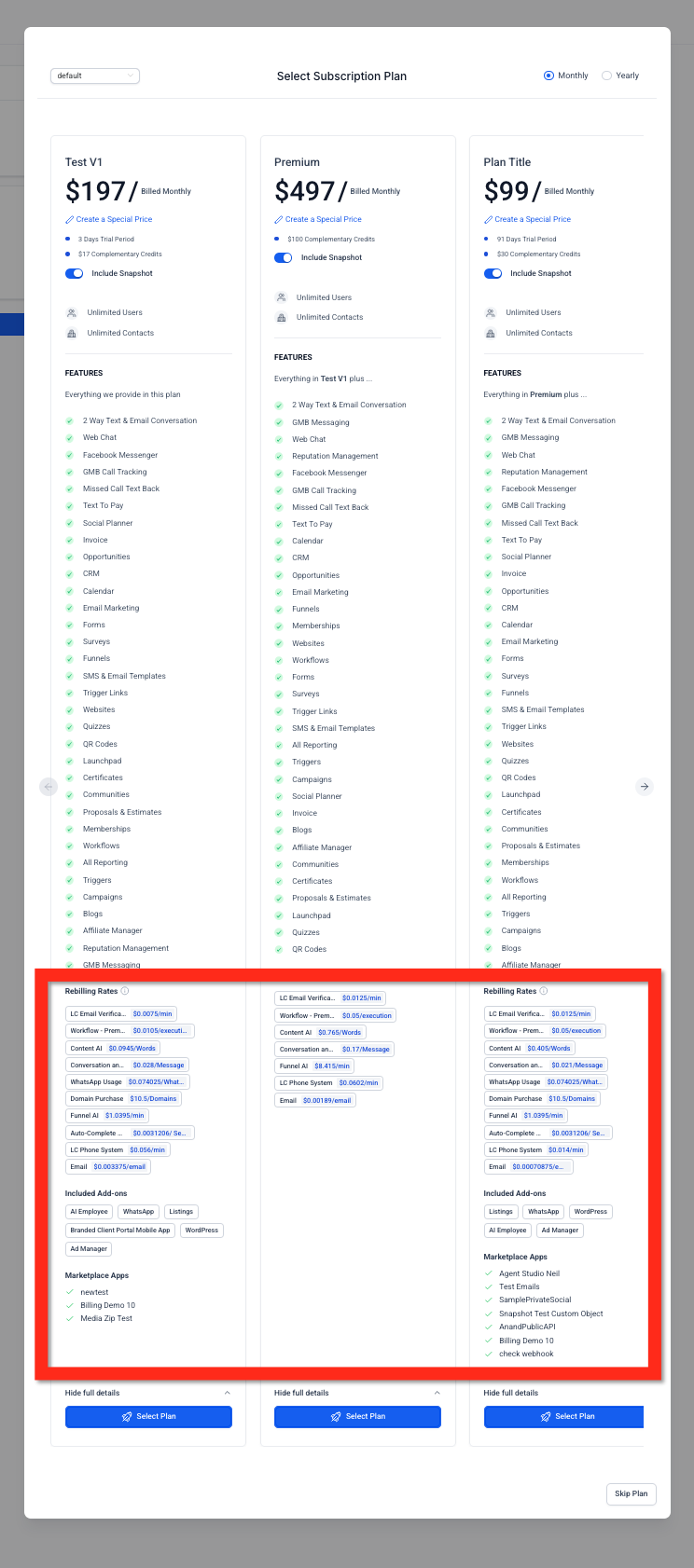
- Review the SaaS plan’s pricing, rebilling rates and included add ons.
- Understand that accounts without a valid payment method will be placed on hold.
- Make sure the selected accounts are ready to transition to SaaS Mode.
06How to set up and use Bulk SaaS enablement in HighLevel
Guided bulk SaaS activation
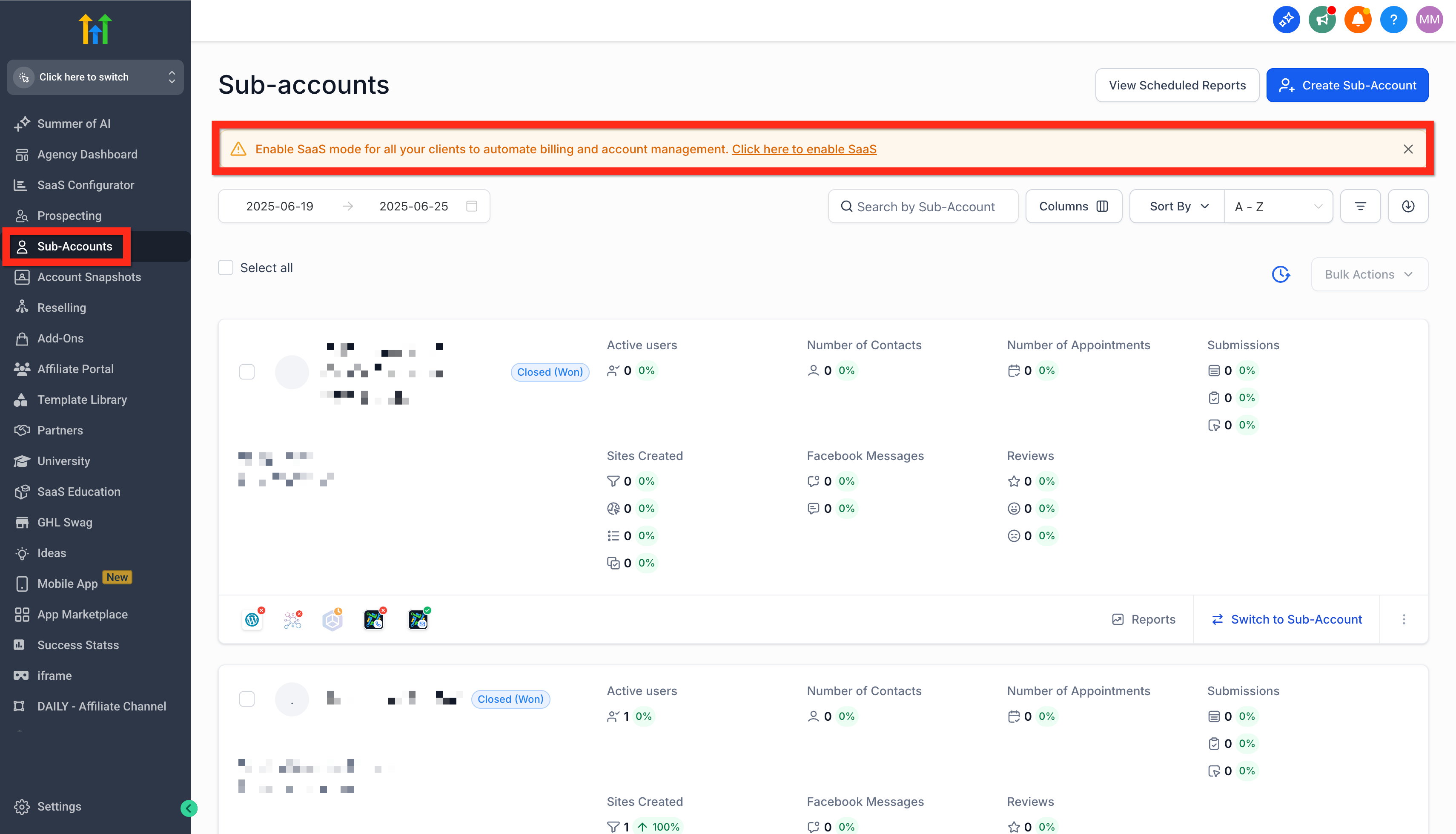
- Navigate to Agency View > Subaccounts and click the yellow “Click here to enable SaaS” prompt.
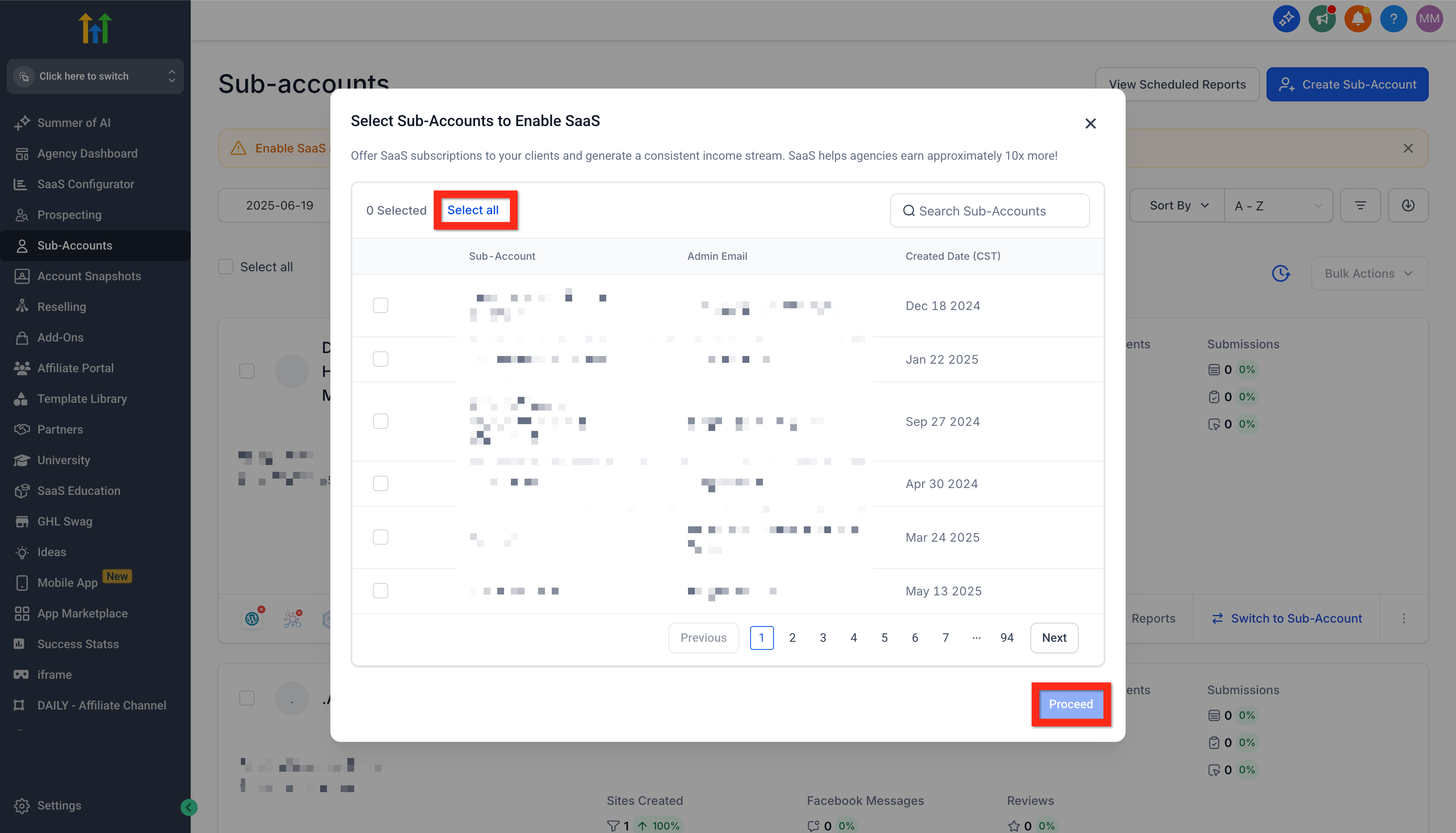
- In the "Select Subaccounts to Enable SaaS" modal, check the desired accounts or select all, then click Proceed.
- Review the payment provider cards, choose a supported V1 or V2 option, and click Continue.
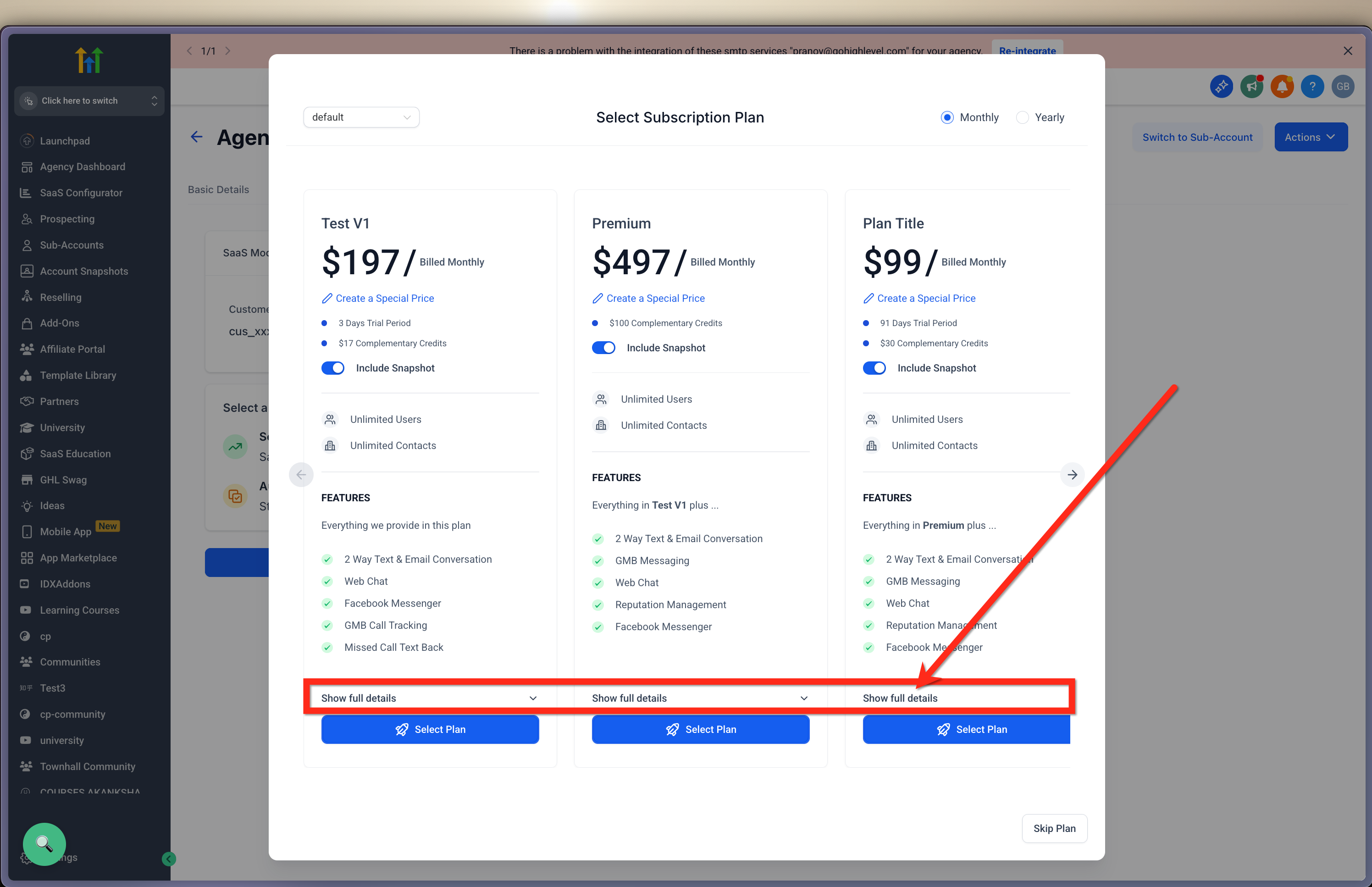
- In the plan selection modal, review the SaaS plan details and click Show Full Details if needed.
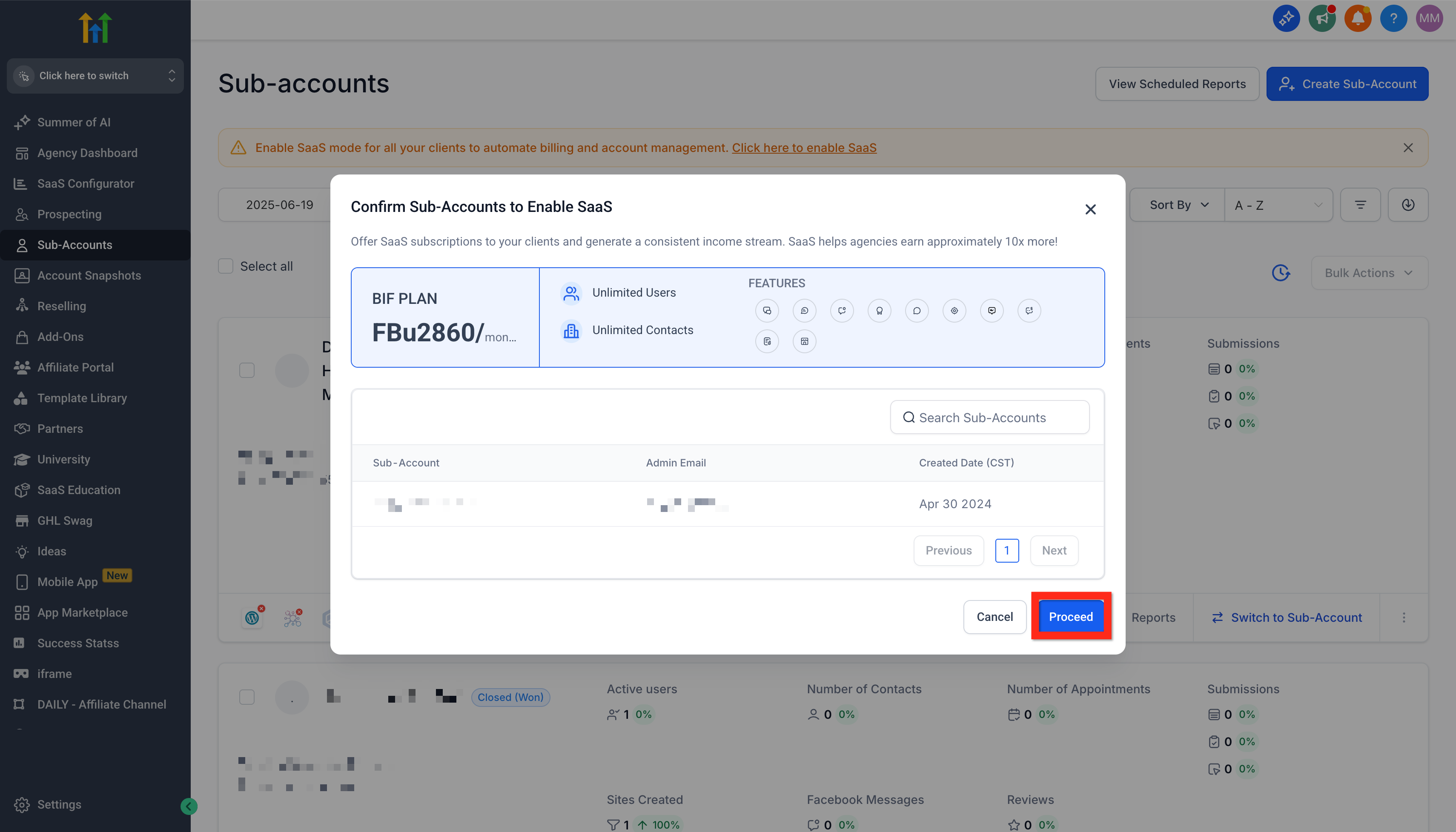
- Confirm the chosen plan and subaccounts on the confirmation modal and click Proceed.
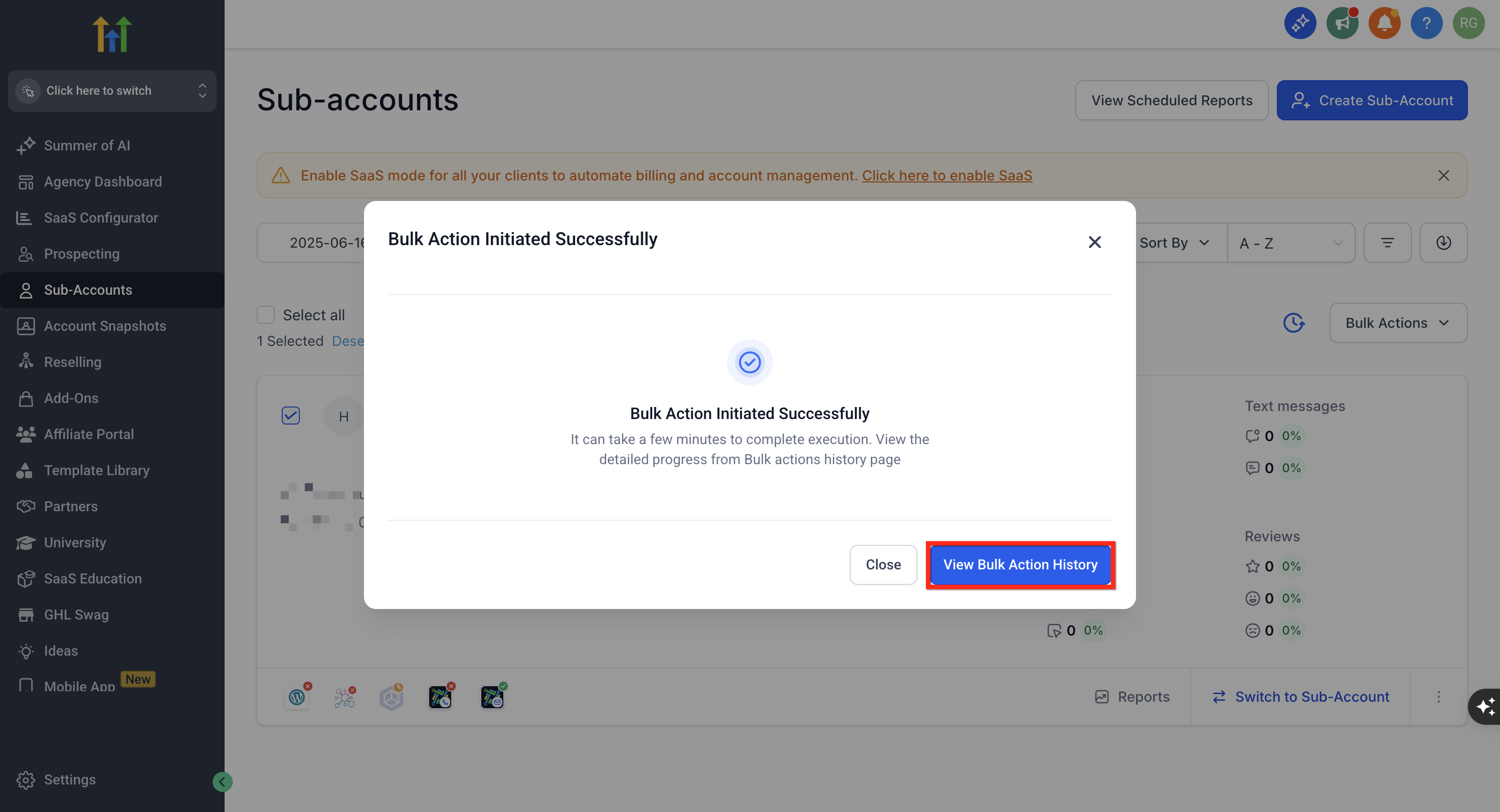
- On the success modal, click View Bulk Action History to monitor execution progress.
- After the modal closes, go to Agency View > Subaccounts > Bulk Action History to see final results.
07What it looks like in HighLevel
08Settings that matter
- Smart Prompts for SaaS Enablement. Controls whether the guided bulk SaaS activation prompt appears for eligible agencies.
09Things to know before you rely on it
- Available only to agencies on the $497 /mo Founder Plan with Smart Prompts enabled in Labs (per HighLevel's help center, checked November 2026).
- The agency must have more than ten subaccounts and at least one subaccount not already on SaaS.
- Subaccounts already on SaaS are excluded from the bulk action.
- If a subaccount lacks a payment method, its subscription remains on hold after activation.
10How it connects to the rest of HighLevel
- Learn how to use bulk actions for other features Bulk enable/disable features
- Understand agency subaccount basics Agency subaccount overview
- Explore the new subaccount list with filters and bulk actions Revamped subaccount UI
- Check pricing and plan eligibility for SaaS enablement HighLevel pricing
Michael's take

Bulk SaaS enablement feels like a small convenience that can become a real shift for agencies handling dozens of clients. It removes the repetitive clicks you’d otherwise make for each subaccount, and it gives you a single place to see who succeeded and who needs a follow up.
It’s a perfect fit for a marketing agency that has built a portfolio of client subaccounts and now wants to roll out a unified subscription model. If I were setting it up, I’d first double check that every client has a payment method ready, then run a test on a handful of accounts before launching the full bulk job.