

Home/Videos/Service booking in the client portal

Video walkthrough · Client portal

HighLevel Client Portal: Let Clients Book Services in One Place

Two switches let clients book, reschedule and see every appointment where they already log in.
The video plays here, loaded from YouTube when you press play.Watch on YouTube

In this video Michael Reimer shows service booking inside the GoHighLevel client portal. Clients can book a service, reschedule it and see every appointment in the place they already log in. He turns on the two switches it needs, books as a client and names the limits. It is for service businesses and the agencies that set them up.

The example is a gym member who wants their next training session. The booking link is buried in a text from last week. They cannot find it, so they never book, and the session never happens. Michael's view is that getting a client to say yes is the hard part, and getting them to book without getting lost is where businesses quietly lose them. Every link you send is one more tab and one more place to forget.

What changed in the HighLevel client portal?

The GoHighLevel client portal now has one appointments area for everything. Meetings from your calendars and your services sit together under upcoming and past. When a client books, their details are already filled in. Depending on your setup, they can book one service or several at once. They can reschedule or cancel later if your booking rules allow it.

You stay in control of what shows up. Each service booking page gets switched on by itself, so a client only sees the services you want booked from the portal. If the portal itself is not live yet, start with the guide to set up a client portal.

Which two settings turn on booking in the client portal?

The first switch lives on the booking page. Go to Calendars, then Services, then Booking Pages. Open the page you want and click Edit Booking Page. On the left is a new menu called Client Portal. Under Show in Client Portal, turn on Allow Booking From Client Portal. Right below it you set the booking page name, which becomes the title of the tile your client sees, and a short description. Michael's advice is to keep it simple so a client knows exactly what they are booking. Save the changes and repeat for any other booking page.

The second switch lives in the portal settings. Go to Client Apps, then Client Portal, then Settings. Open App Permissions, turn on Appointments and save. Turning Appointments off later only hides it from the portal. It does not delete a single booking. The services themselves come from your calendars, which the booking calendar guide covers.
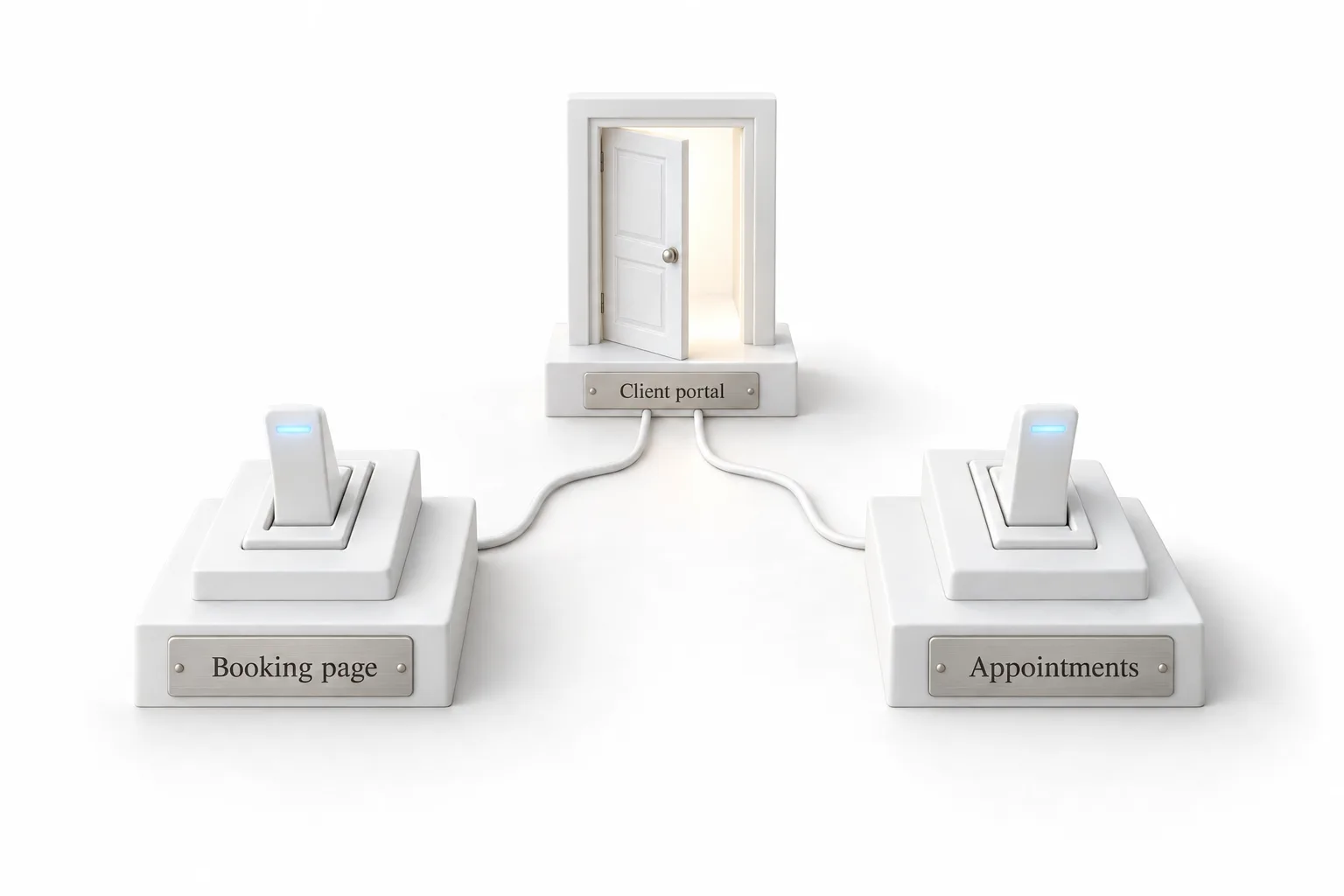
White studio scene of two switches labeled Booking page and Appointments, both wired to an open door labeled Client portal

What does the client see when they book?

The client signs in to the portal and clicks Appointments in the menu, then Book Appointment. They can browse everything or filter down to services only. Each service shows as a tile with the name you gave it. They pick the service and review the details, then pick a date on the calendar and a time that works.

The slots follow your normal availability rules, so nothing gets double booked. They confirm and they are done. If you leave auto confirm off, the client sends a request instead and the booking waits for your team to review it. Michael calls that a good option when you want a person to approve every appointment.
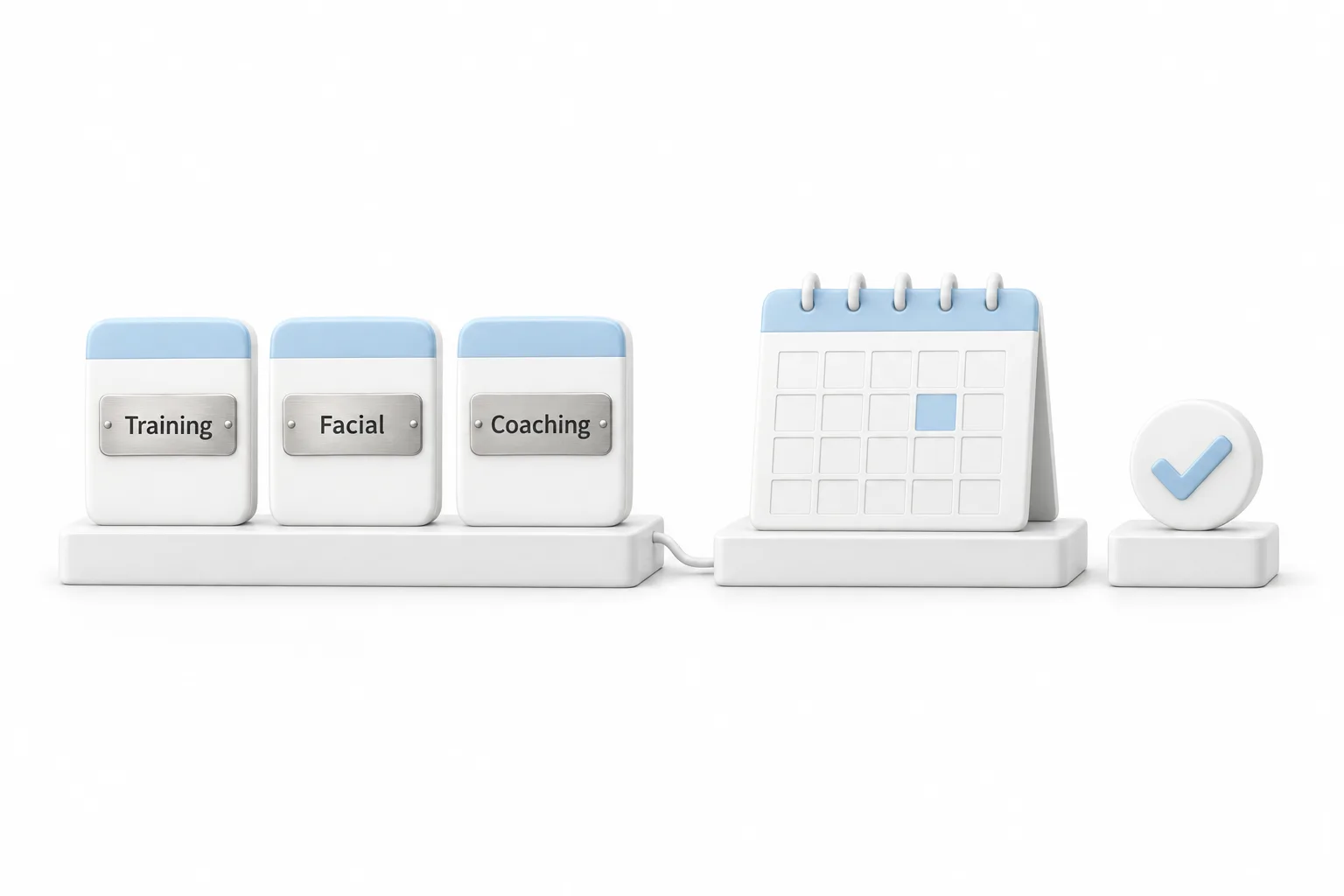
White studio scene of three service tiles labeled Training, Facial and Coaching beside a blank calendar with one day selected and a check mark token

Does client portal booking work in branded apps?

Not yet. Michael gives two limits so nobody is surprised. Service booking only works in the new client portal, and branded apps are not supported yet. Keep that in mind for white label clients.

How do you turn on service booking in the client portal?

It is two switches and a test booking.

  1. Open the booking page. Go to Calendars, then Services, then Booking Pages, and click Edit Booking Page on the page you want.
  2. Turn on portal booking. In the new Client Portal menu, turn on Allow Booking From Client Portal, set the tile name and add a short description, then save. Repeat for each booking page.
  3. Turn on Appointments. Go to Client Apps, then Client Portal, then Settings, open App Permissions, turn on Appointments and save.
  4. Book as a client. Sign in as a client, open Appointments, click Book Appointment and check that each service tile shows the name you gave it.
  5. Decide on approval. Leave auto confirm off if you want your team to approve each booking request before it is confirmed.

What changes once clients book inside the portal?

The portal stops being a place clients visit once to pay an invoice. It becomes the place they book you and learn from you. While they are there they see your courses and your community, their invoices and their next appointment in one spot. Michael puts it as one front door for the whole client relationship, and for an agency it is a setup to offer during onboarding.

He gives three ways he would use it. A gym lets members book their next personal training session from the portal. A med spa lets returning clients rebook their favorite service without calling the front desk. A coach lets clients grab their next call right after finishing a course lesson. The pattern is the same each time: the client is already inside the portal and books the next thing while they are still there.

The industry guides go further on each of those, starting with HighLevel for gyms and fitness studios and HighLevel for med spas. If you want the course side of that portal, see how to create a course.

If you are checking what the platform offers for scheduling in general, see the answer to does HighLevel have a calendar booking tool. To test portal booking as a client yourself, start a GoHighLevel 30 day trial through Michael's link. Agencies setting this up for clients should also read about the Founder Plan.

This article was written from the video transcript. Michael Reimer is a HighLevel Commander and a sponsored affiliate, which means he earns when people sign up through his link.

More answers

More questions about client portal booking.

Can a client book more than one service in a single booking?

Yes, when your Services setup allows it. HighLevel's help center says the Allow Multiple Service Selection option in Services Global Settings controls this. When it is on, the client picks a service, sees the duration and price on the review screen, and can add another service before choosing a date and time. If the option is off, the client books one service at a time.

Are Services booking pages the same as calendar service menus?

No. HighLevel's help center treats them as two different things. Services booking pages live under Calendars, then Services, then Booking Pages, and they are what this video switches on for the portal. Calendar Service Menus are a separate, older feature. If a service does not show in the portal, check that it sits on a Services booking page with Allow Booking From Client Portal turned on.

Why can a client not reschedule or cancel a booking in the portal?

Your booking rules decide that. The client opens Appointments, then Upcoming, then More Details on the appointment. The reschedule and cancel actions only show when the appointment is eligible. HighLevel's help center says the service booking rules control whether each action is allowed and how long it stays open, so check those rules first when a client says the option is missing.

Can clients also book regular calendar meetings from the portal?

Yes. The same Appointments area lists meeting calendars next to Services booking pages. Each calendar has its own switch. In the calendar's advanced settings, under Booking Channels, turn on Client Portal Booking and save. Only calendars with that switch on appear to the client. HighLevel's help center notes that a group calendar is not required to show several individual calendars.

Does the Appointments permission apply to one client or to everyone?

It applies to the whole subaccount. Turning on Appointments under App Permissions makes the appointments area available in the portal for every client of that subaccount, not for one contact. What a client can book is then decided per booking page and per calendar, because each one has its own client portal switch.

Does the client fill in a form or pay when booking from the portal?

Only if the booking page asks for it. After picking a service, a date and a time, the client completes any required form or payment details and then submits. HighLevel's help center says the confirmation screen can show the service, date, time, duration, location, staff information and amount, so the client leaves with the full booking in front of them.

Questions

Client portal booking questions.

Does turning off appointments delete bookings?

No. Turning Appointments off only hides it from the client portal. It does not delete a single booking, so existing appointments stay in place. The switch lives in Client Apps, then Client Portal, then Settings, under App Permissions, and it is separate from the booking switch on each service booking page.

Can clients reschedule or cancel from the portal?

Yes, if your booking rules allow it. Clients can reschedule or cancel later from the appointments area of the portal, where meetings from your calendars and your services sit together under upcoming and past. Time slots follow your normal availability rules, so nothing gets double booked when a client picks a new time.

Does this work in branded apps?

Not yet. Michael gives two limits so nobody is surprised. Service booking only works in the new client portal, and branded apps are not supported yet. Keep that in mind for white label clients who use a branded app, and check the portal itself is live before you promise booking to anyone.

Where do you turn on booking from the client portal?

In two places. On the booking page, go to Calendars, then Services, then Booking Pages, click Edit Booking Page and turn on Allow Booking From Client Portal in the Client Portal menu. Then go to Client Apps, then Client Portal, then Settings, open App Permissions, turn on Appointments and save.

What happens when auto confirm is off?

The client sends a request instead of a confirmed booking, and it waits for your team to review it. Michael calls that a good option when you want a person to approve every appointment. With auto confirm on, the client picks a service, a date and a time, confirms and is done.

Can you choose which services show in the portal?

Yes. Each service booking page gets switched on by itself, so a client only sees the services you want booked from the portal. You also set the booking page name, which becomes the title of the tile your client sees, and a short description, so they know exactly what they are booking.

Next step

See it in your own account. Thirty days, every feature.

Start a 30 day trial through Michael's link, build the first system and test it before the first invoice. Usage fees for phone, SMS, email and AI can apply during the trial.

HighLevel has three plans at a flat monthly price, each with unlimited users and contacts. See what each one includes and what it costs.

Compare the PlansStarter, Unlimited and Founder
⌃

Site preview

Explore the next page

This destination is reserved in the page inventory and is not built yet.